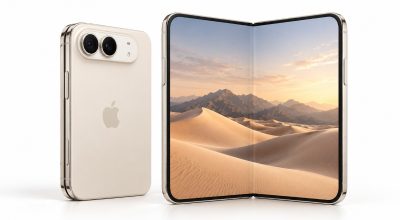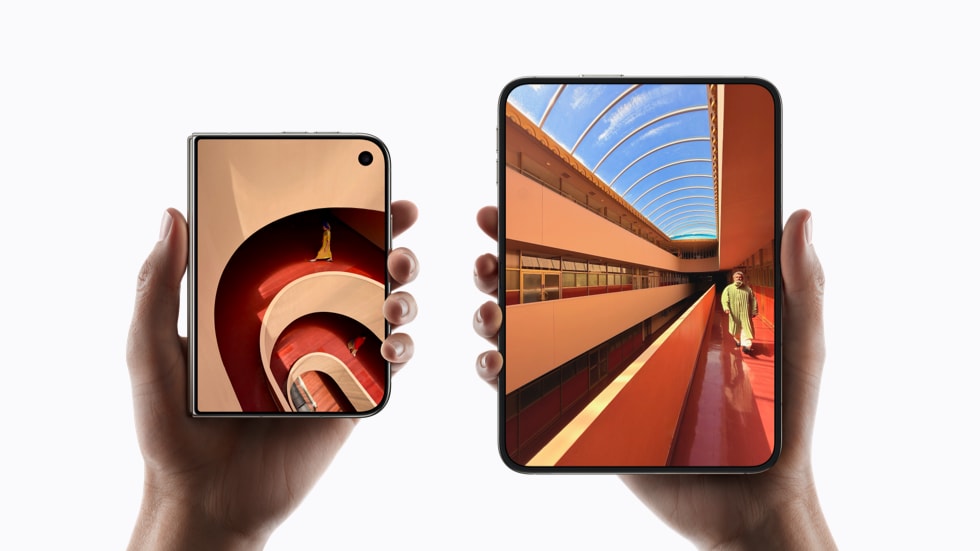
The iPhone Duo asks which interface size you want only once, during setup. After that, owners report that the Display Zoom control other iPhones keep in Settings is not there, and the same behavior still shows up on iOS 27.2.
That matters on a $1,999 phone with a 7.6-inch inner display, because the size you pick in the first ten minutes can stay with you for months. Apple has not publicly addressed it, so this piece sticks to what owners are reporting and what Apple’s own pages confirm.
TL;DR: The iPhone Duo offers Default, Medium and Large interface sizes during setup, but owners say there is no way to change that choice afterward in Settings. Apple has not commented. Text size and accessibility settings still work, though they do not replace Display Zoom.
What is missing on the iPhone Duo
Display Zoom changes how large everything on screen looks, including icons, spacing and text. During setup, the Duo’s Appearance screen offers Default, Medium and Large. On other iPhones, the same choice can be changed later under Settings, then Appearance (older iOS versions put it under Display and Brightness).
On the Duo, that later control is reported missing. In a public owner thread, a user asks how to change the Appearance choice made during installation and cannot find where it lives afterward. The Duo shipped with iOS 27.1, and the same gap is reported on iOS 27.2.
What Apple has and has not said
Apple has made no public statement about it. Its launch announcement covers the 5.4-inch outer display and the 7.6-inch inner display, but says nothing about changing interface size later.
One owner in the forum thread says Apple Support told them the only fix is to erase the phone and set it up again. That is a single secondhand account, not an Apple policy, and we could not confirm it independently. Treat it as a warning, not a rule.
The iOS 27.3 beta 1 added Reachability for the Duo, but as far as we could find, it did not bring Display Zoom back. Betas change, so that could shift.
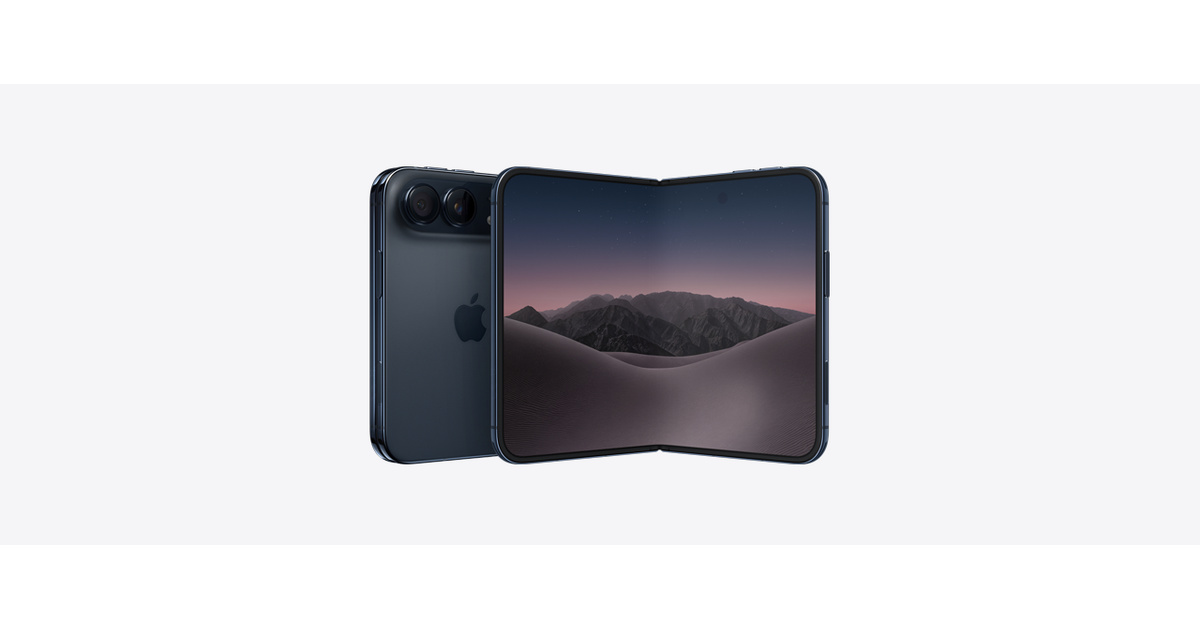
What you can change today without erasing the phone
None of these is a true replacement. They change text or website size, not the full interface scale. Apple documents them for iPhone in general, and we have not tested each one on a Duo.
| Setting | Where to find it | What it changes |
|---|---|---|
| Text Size slider | Settings, then Appearance, then Text Size | Text in apps that support Dynamic Type |
| Larger Text | Settings, then Accessibility, then Display and Text Size | Bigger text sizes, including accessibility sizes |
| Bold Text | Settings, then Accessibility, then Display and Text Size | Heavier text weight |
| Text Size in Control Center | Control Center, after adding the control | Quick text size changes, per app or everywhere |
| Website zoom in Safari | The page options menu in Safari | Text and layout on a single website |
Apple’s guide to making text easier to read on iPhone explains the text options. The key limit: icons, spacing and app layouts stay the same size, so a phone set to Medium will not feel like one set to Large.
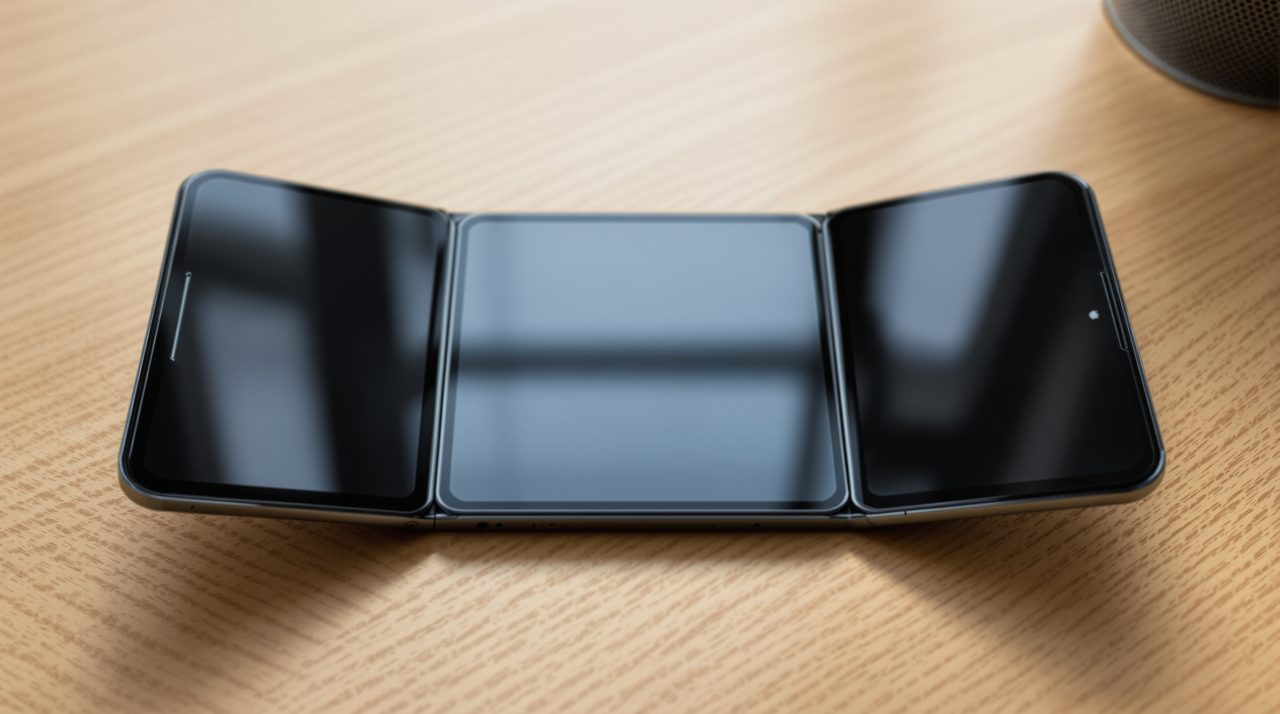
Who should decide carefully before setup
Picture an owner who taps Medium to move through setup quickly, then notices a week later that evening reading is a strain. On most iPhones, that is a ten-second fix in Settings. On the Duo, it may be a full erase and restore, which is a lot for a size preference.
If your unit is still on its way, it is worth previewing the choices on the Appearance screen before confirming, and thinking about how you read in low light. If you already picked and want to change it, back up first and check Settings, then Appearance, for any update that adds the control.
This also fits a pattern on the first foldable iPhone. Several early quirks come from software that was not fully adapted to the new hardware, like black bars in apps that have not been rebuilt. Whether Display Zoom is a missed setting or a deliberate choice is something only Apple can answer.