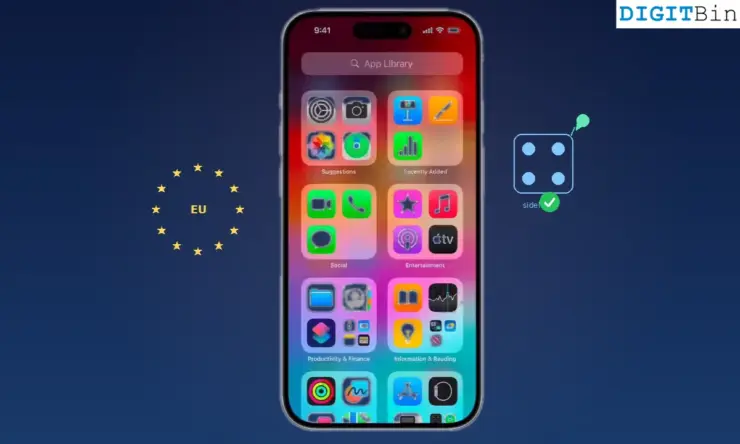
I’ve always been curious about pushing the limits of my gadgets, especially my iPhone, which, for years, has lived inside Apple’s famously strict app ecosystem.
When the European Union’s Digital Markets Act (DMA) forced Apple to allow alternative app distribution methods, I couldn’t resist exploring how sideloading actually works under these new rules.
At first, my intention was simple: I just wanted to try a couple of niche productivity apps that weren’t available on the App Store.
Upon digging deeper, I found that this wasn’t the old jailbreak or nothing approach. This was fully official as developers can now distribute apps independently as long as they meet Apple’s notarization and security requirements.
That means EU-based iPhones (and iPads) can download apps straight from a developer’s site, with Apple only performing background safety checks.
I tried these methods myself, partly out of curiosity and partly because I wanted more control over my iPhone without compromising its security.
How to sideload apps on iPhone (following EU rules)
While Apple designed the system strictly for EU users, there are legitimate, working steps people use to access these features even from outside Europe. Here is how you can do it as well.
Step 1: Understanding sideloading based on EU regulations
In short, users based in the European Union can install apps from sources other than the App Store on their iPhone or iPad.
All you have to do is find your favourite app’s developer website and download the app from their official website. You can find more details HERE.
Step 2: Bypassing region lock for non-EU smartphones
Users from an EU region can install any Alt store with a click. Since this feature is only available for EU smartphones, in order to use it on your iPhone, you first have to bypass this restriction.
But Apple has locked this service behind multiple region checks, including the device’s hardware region tag, the Apple ID’s billing country, the user’s physical device location, and several additional verification measures.
All of this is specifically designed to ensure that non-EU users cannot access EU-only sideloading and alternative app-store features. So, you have to install it using other traditional methods.
Step 3: Installing the Alternative Store on an iPhone
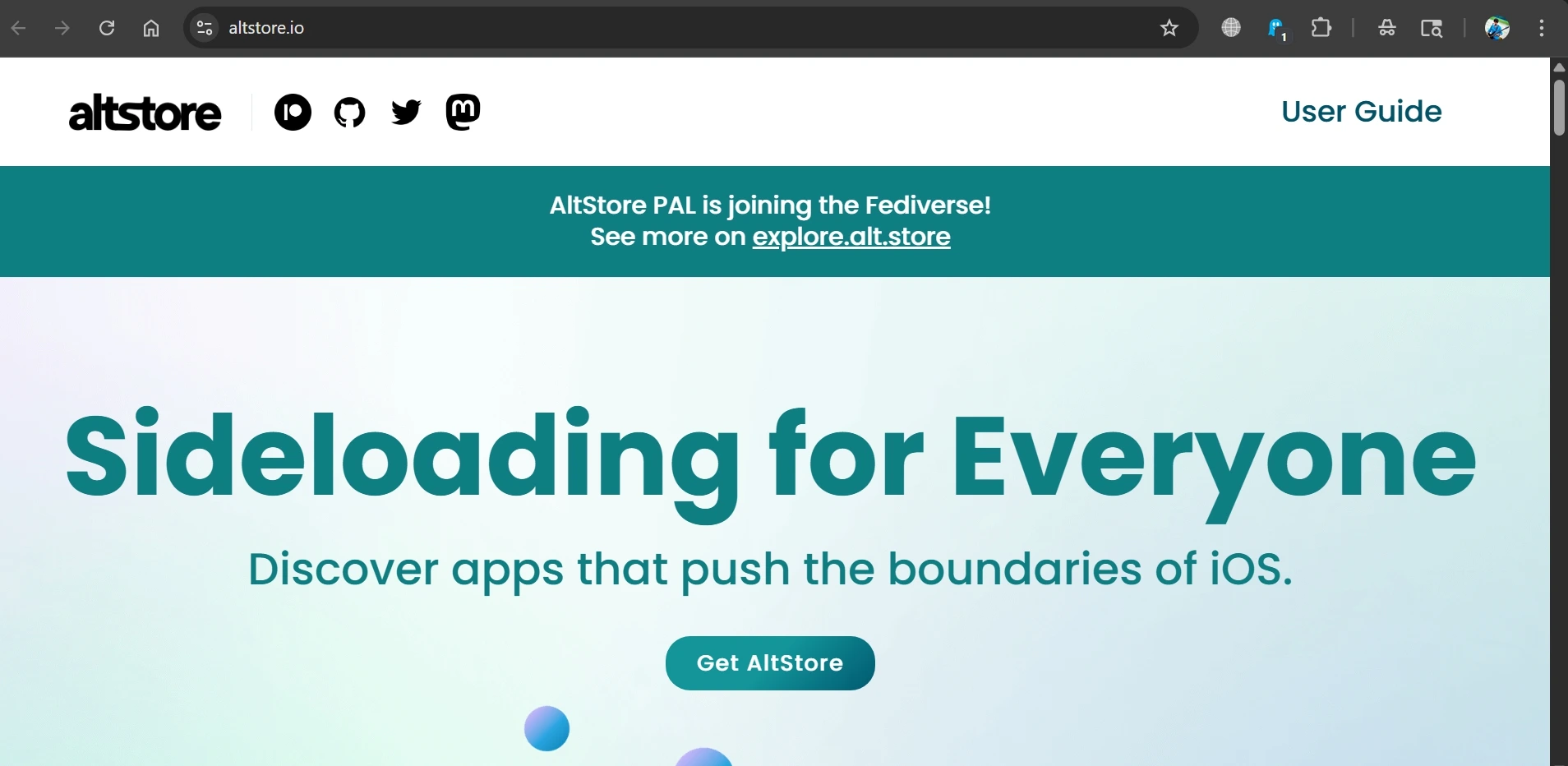
There are multiple ways of installing an alternative store on your iPhone. Some of the popular ones are Altstore, TuTuBox, TweakBox, AppValley, etc.
On DigitBin, you can find the detailed installation guide for them as well. Install any one of TuTuBox or AltStore by following the guide below to download apps for iPhone that you won’t find on the App Store.
How To Install TuTuBox Tweaked App Store
How To Install AltStore on Your iPhone
The process of installation is the same as that of the official App Store. However, these apps will not get any automatic updates. You have to update them manually using the alternative store.
Sideloading is the way to explore new iOS apps
Installing apps you can’t find on the App Store is easy.
Trying to sideload apps on my iPhone without the App Store made me realize how different the iPhone feels when you’re not restricted to one marketplace.
Overall, sideloading didn’t replace the App Store for me, but it definitely expanded what my iPhone could do in a safe, controlled way.
If you've any thoughts on How I sideload apps on iPhone (Using E.U. Rules), then feel free to drop in below comment box. Also, please subscribe to our DigitBin YouTube channel for videos tutorials. Cheers!