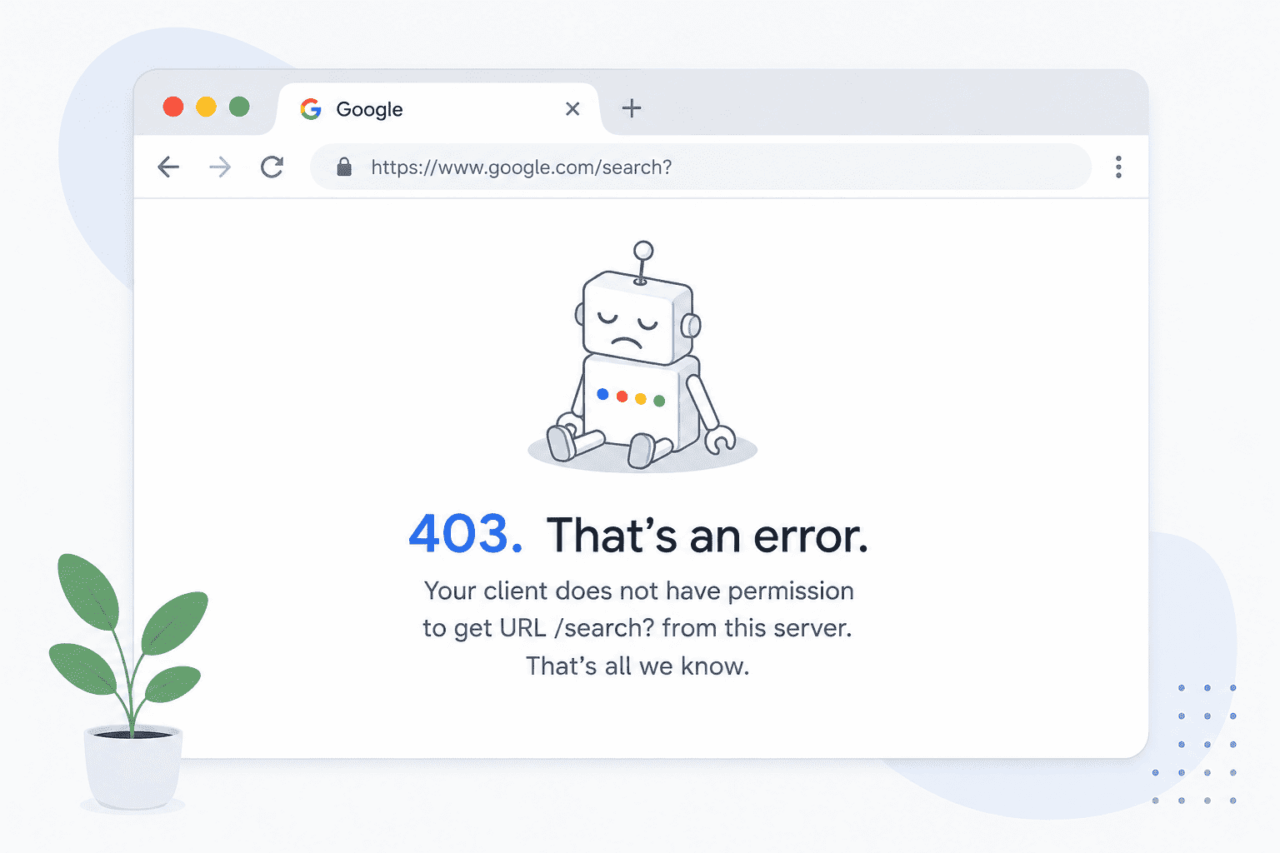
You open Chrome, type something into Google, and instead of search results you get a sparse page with a broken robot illustration and three words: 403. That’s an error.
Below that, the message: “Your client does not have permission to get URL /search? from this server. That’s all we know.”
Google is not down. Other sites load fine. But Google Search itself is refusing your request. Here is what that means and how to fix it.
TL;DR: The Google 403 error means Google’s servers are blocking your specific request, not that the site is down. It is almost always caused by a VPN or proxy IP being flagged, corrupted Google session cookies, a browser extension interfering with request headers, or a country mismatch triggered by switching between regional Google domains. Clearing Google cookies, disabling your VPN, and restarting the browser resolves it in most cases.
What the Google 403 error actually means
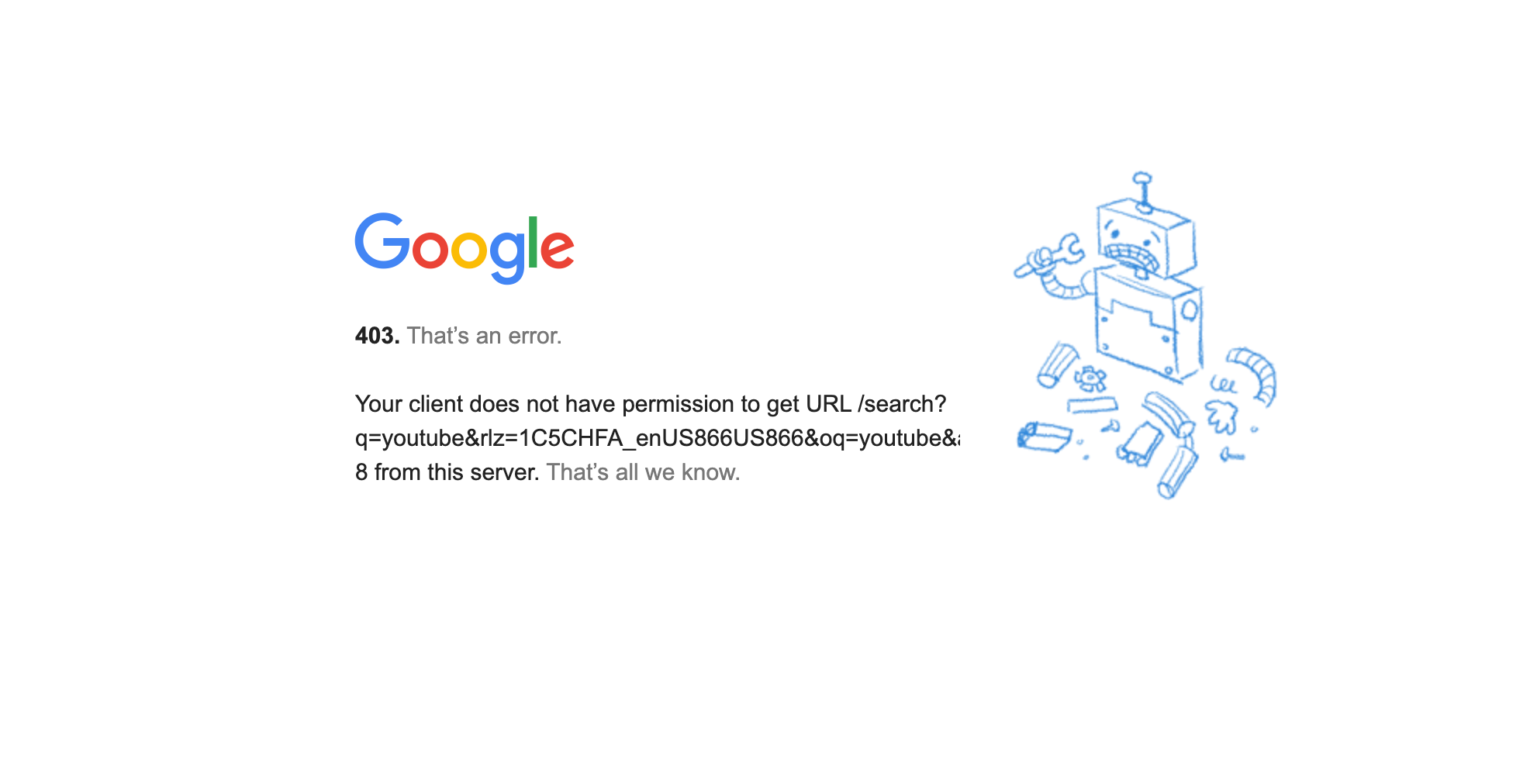
This is not a generic website error. The message “your client does not have permission” comes directly from Google’s servers. It means Google received your request and understood it, but something about your browser, your IP address, or your session made Google decide to refuse it.
A 404 means the page does not exist. A 403 means the page exists just fine. Google is actively choosing not to serve it to you specifically.
Notice the URL in the error. It usually contains a search query and, if you are on Chrome, an RLZ parameter like rlz=1C5CHFA_enUS866US866. That RLZ string encodes information about your Chrome installation and the country it was registered in.
When Google sees a country code in the RLZ parameter that conflicts with the IP address or region cookie it has stored for your session, it can trigger the 403.
Why switching Google country domains causes this error
Google automatically redirects users to regional domains based on their IP address. If you are in the UK, it sends you to google.co.uk. If you are in India, it routes you to google.co.in. Each of those regional domains maintains its own session cookie.
When you manually navigate to a different country domain, say from google.co.uk to google.com, or when a VPN shifts your apparent location to a different country mid-session, the session cookie from the previous domain becomes invalid on the new one. Google sees a mismatched or unrecognized session and returns the 403.
It gets more layered when your Chrome RLZ parameter says one country and your current IP says another. Google is essentially receiving conflicting signals about who you are and where you are supposed to be, and its access control logic refuses the request.
Worth knowing: Google announced in April 2025 that it is retiring all country-specific domains like google.co.uk, google.co.in, and google.com.br in favor of a unified google.com.
As that migration completes, these regional cookie conflicts should become less frequent. For now though, they are still a live cause of this error.
Common causes of the Google 403 error
VPN or proxy with a flagged IP. Google actively blocks requests from IP ranges associated with known VPN providers, data centers, and proxy servers. Your account and credentials may be valid, but if your exit IP is on a blocked range, Google refuses the search request before checking anything else.
Corrupted or mismatched Google session cookies. Your browser stores session data for google.com. If those cookies become corrupted, conflict with a different regional domain, or fall out of sync with your current Google account session, Google treats your request as unauthorized.
Browser extensions modifying request headers. Ad blockers, privacy extensions, and script blockers sometimes strip or alter the HTTP headers your browser sends with each request. Google’s servers can interpret a request with modified or missing headers as suspicious and return a 403.
IP flagged for too many requests. Shared office networks, school networks, and corporate Wi-Fi environments can trigger this. If many devices on the same IP address are sending a high volume of Google requests, Google may temporarily flag the IP and block further queries. It usually clears on its own within minutes.
IPv6 tunnel or non-standard network configuration. Some users running IPv6 tunnel setups, such as Hurricane Electric tunnels, have reported Google blocking requests from those address ranges. Disabling the IPv6 tunnel or switching to a native IPv4 connection resolves it in those cases.
How to fix the Google 403 error
Clear Your Google Cookies and Site Data
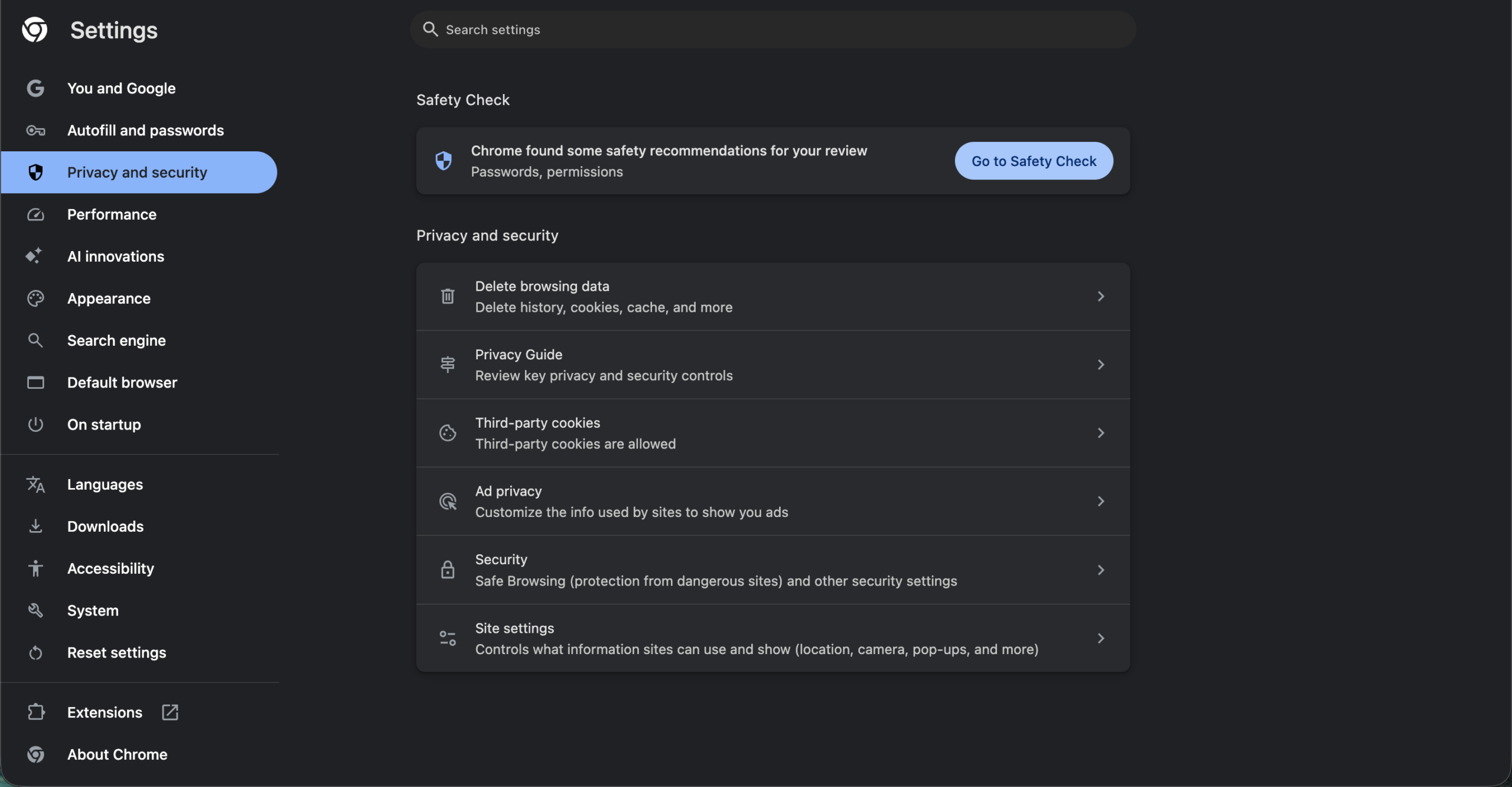
This is the single most effective fix. Open Chrome Settings, go to Privacy and Security, then Clear Browsing Data. Select Cookies and site data, set the time range to All time, and click Clear data.
You will be signed out of Google and all other sites. Sign back into your Google account and try searching again. The fresh session almost always resolves a cookie-driven 403.
Disable Your VPN
Turn off your VPN or proxy and reload Google. If the error disappears immediately, your VPN exit IP is on Google’s blocklist.
Try switching your VPN server to a different location, preferably one in a major city in your own country. If the error only appears on certain VPN servers but not others, those specific exit IPs are flagged.
Open Incognito Mode
Press Ctrl+Shift+N (or Cmd+Shift+N on Mac) to open an Incognito window. Incognito sessions start without any stored cookies or active extensions.
If Google loads and searches work normally in Incognito, the problem is either a corrupted cookie or one of your browser extensions. That alone tells you which direction to investigate.
Disable Browser Extensions
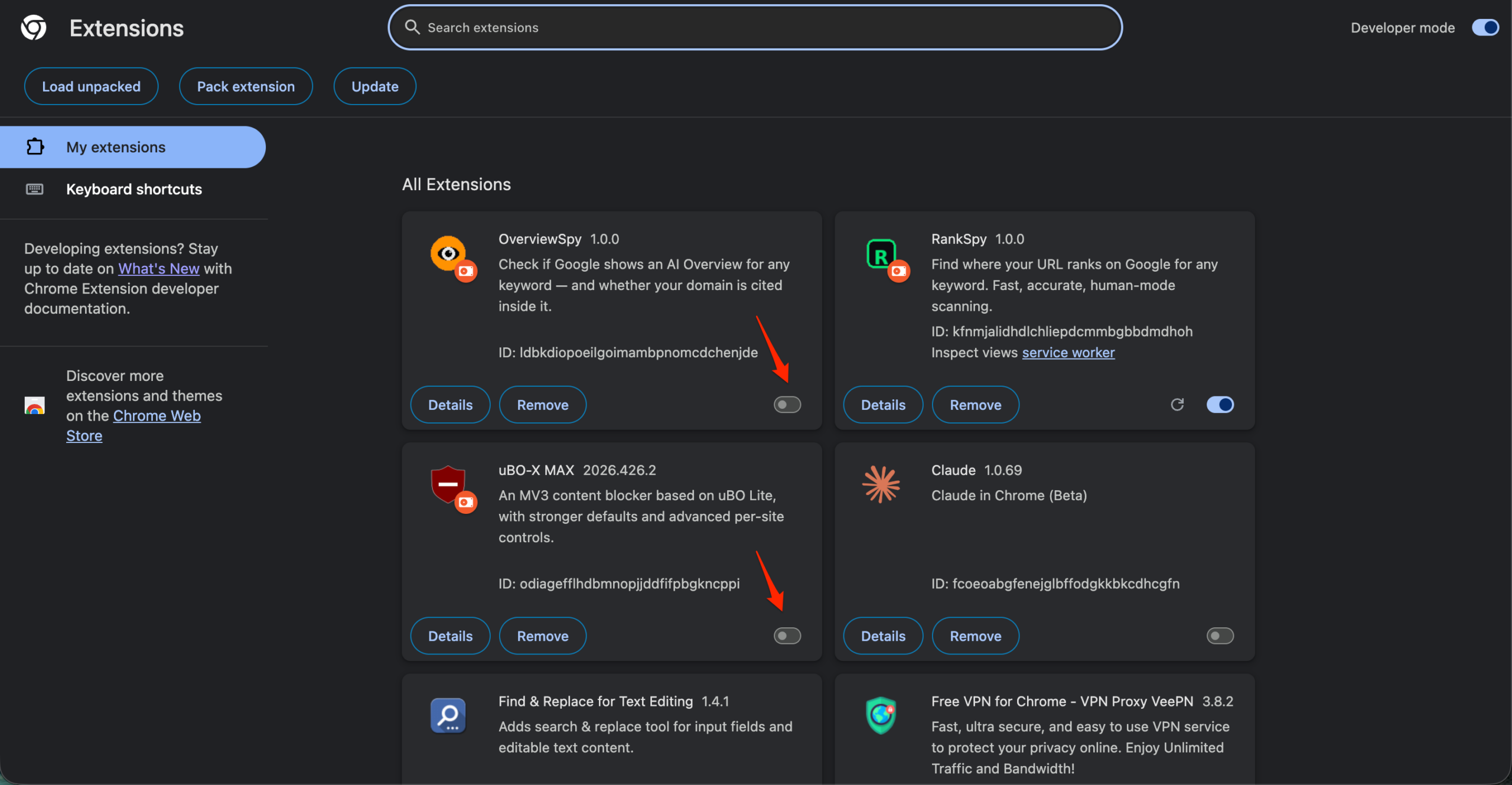
Go to chrome://extensions and toggle your extensions off one at a time, reloading Google after each one. Privacy Badger, uBlock Origin, and similar tools are the most common triggers since they can modify or block request headers.
Once you identify the extension causing the conflict, either whitelist google.com inside that extension or switch to an alternative that does not interfere with request headers.
Use google.com/ncr to Bypass the Country Redirect
If the 403 is specifically triggered by a regional domain mismatch, visit google.com/ncr directly. The /ncr path stands for No Country Redirect. It forces Google to load the universal google.com domain without any regional redirect logic.
Bookmark that URL and use it as your default if you find Google keeps redirecting you to a regional domain that conflicts with your session.
Restart Your Router for a New IP
If your home network is on a dynamic IP and Google has flagged your current address, restarting your router will usually assign a fresh IP from your ISP. Turn the router off, wait 30 seconds, then turn it back on.
If that does not work, try switching to your phone’s mobile data entirely. If Google works there but not on your home Wi-Fi, the block is tied to your home IP specifically.
Sign Out and Sign Back Into Google
Go to myaccount.google.com and sign out completely. Close Chrome, reopen it, and sign back in. A fresh authentication session often resolves cases where the stored account session has fallen out of sync with what Google’s servers expect.
When the error does not go away
In rare cases, the 403 persists even after clearing cookies, disabling VPNs, and switching networks. This usually points to a more persistent IP-level block, particularly on static IP addresses that have been flagged for a longer period.
Contacting your ISP to request a new IP address is the most direct path at that point. If you are on a corporate or school network, the network administrator may need to contact Google to resolve a block on the shared IP range.
FAQ
Why does the Google 403 error only happen on searches and not the homepage?
The homepage loads as a static page, which requires almost no permissions. Search requests go through Google’s query handling system, which applies stricter checks for session validity, IP reputation, and request headers.
Does the Google 403 error mean my Google account is banned?
No. This error is almost always an IP or session issue, not an account restriction. Clearing your cookies and trying from a different network will confirm this, since a banned account would produce a different error type.
Why do I get this error after switching on a VPN?
Google maintains blocklists of IP ranges associated with VPN providers and data centers. When your VPN connects, your visible IP changes to one that may be on that list, which causes Google to refuse the search request.
What does google.com/ncr do?
It loads Google with no country redirect active, forcing the universal google.com domain. It is useful when a session cookie mismatch from a regional Google domain is causing the 403.
Can a browser extension cause the Google 403 error?
Yes. Extensions that modify HTTP request headers, block scripts, or intercept network traffic can alter what Google receives from your browser. Google may interpret a stripped or modified request as unauthorized and return a 403.