Quick Summary
- Deleting a backed-up photo from the Google Photos app removes it from the cloud, regardless of backup is On or Off.
- Using “Delete device original” only deletes the photo from your device; the cloud copy remains unaffected.
- Deleting a non-backed-up photo from the Google Photos app allows recovery from the native iOS Photos gallery.
- Deleting photos from photos.google.com removes them from the Google Photos app as well, irrespective of backup settings.
I was trying to delete photos from Google Photos, but they keep coming back. Even after I removed them from my iPhone’s Photos app, they were still there in Google Photos like they never left. That’s when I realized: deleting photos on iPhone isn’t the same as deleting them from Google Photos.
I started searching online. I went through forums, watched YouTube videos, and even looked at Google’s help pages. Some people said you have to delete them from the Google Photos app directly. Others warned about losing your pictures forever if you don’t do it the right way. It got me confused.
The worst part? Sometimes you delete something thinking it’s gone, but it’s still in the trash folder or the cloud. Other times, you might delete it on one device, and it disappears from everywhere, without warning! It can be a bit tricky if you’re not familiar with how Google Photos syncs with your cloud and device.
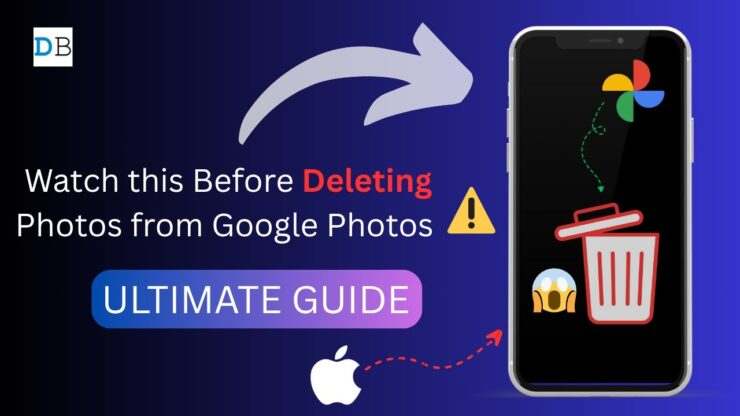
Below is the video I have come up with all the cases and scenarios that will help you understand what happens when you delete a photo on Google Photos app. Please watch the video carefully. I have demonstrated each case.
Different Cases to Delete Photos from Google Photos on iPhone
I have seen many people get frustrated and confused, not knowing what exactly happens when you delete a photo on Google Photos. So, I have come up with all the cases and scenarios that will help you understand how Google Photos works when you delete a photo on the Google Photos app.
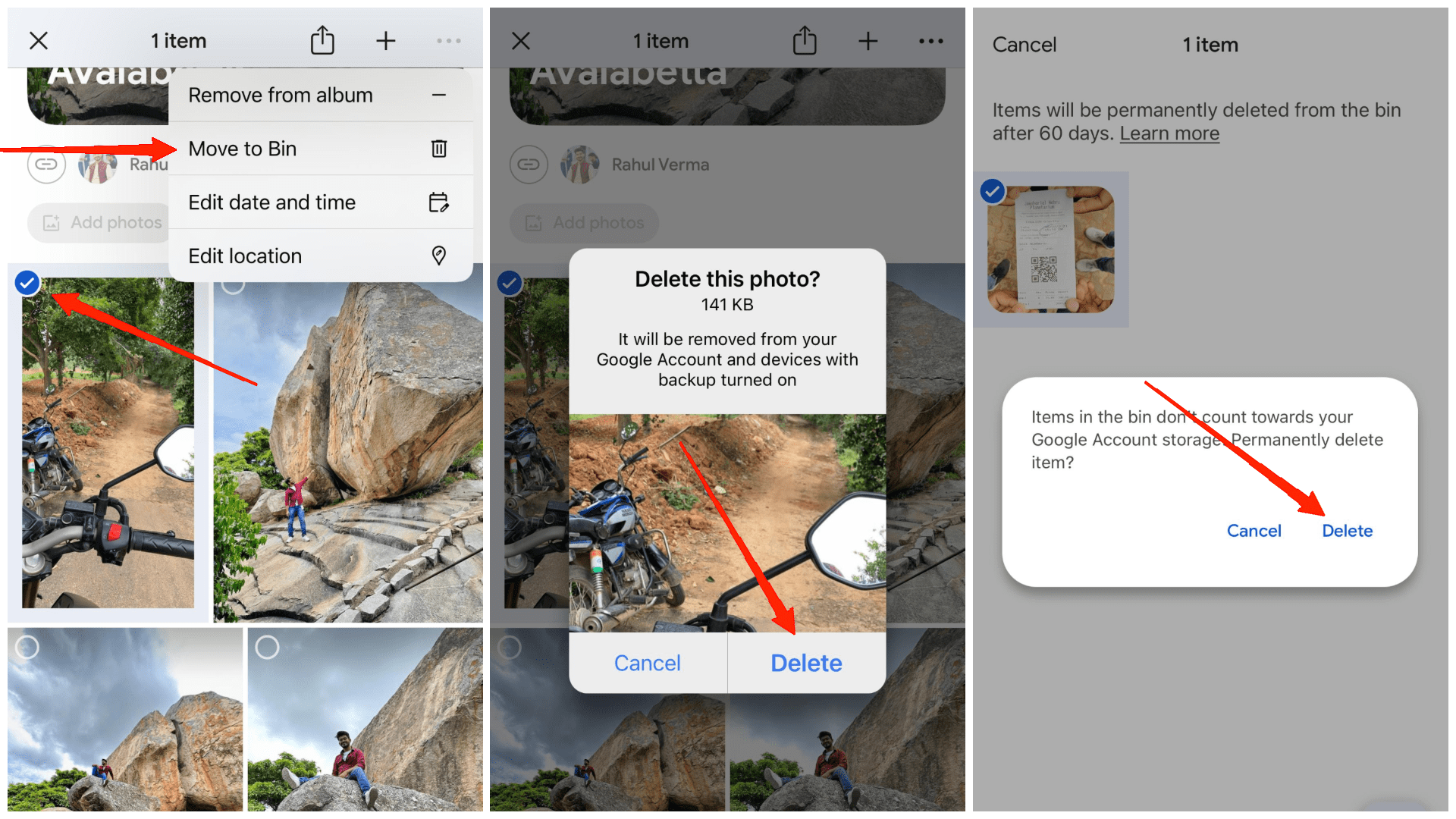
Case 1: Delete from both Device & Google Photos
- Open the Google Photos app on your iPhone and sign in.
- Long‑press the photo or video you want to delete. You can select multiple items at once.
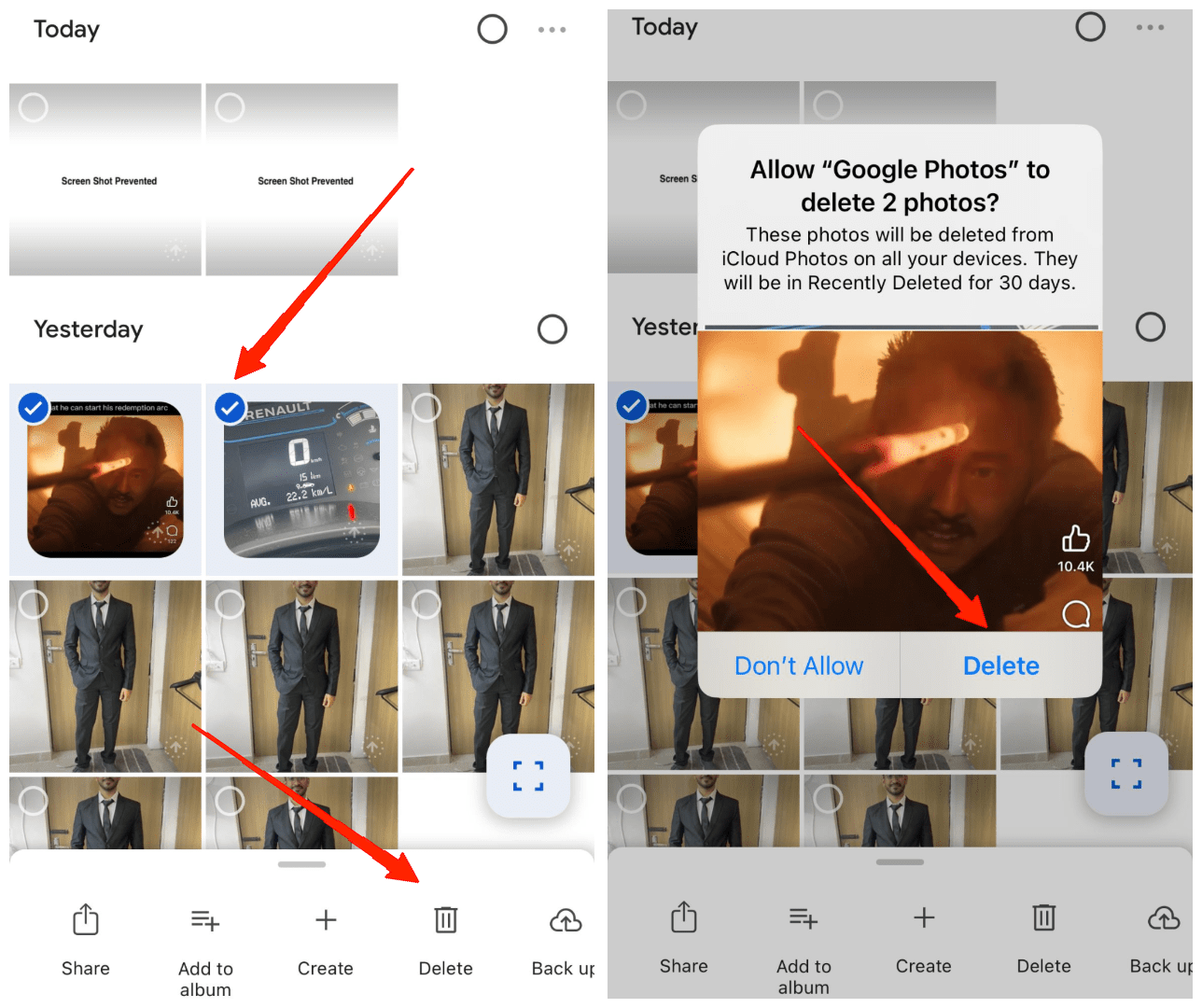
- Tap the Trash icon at the bottom. This will move the items to Google Photos’ trash bin.
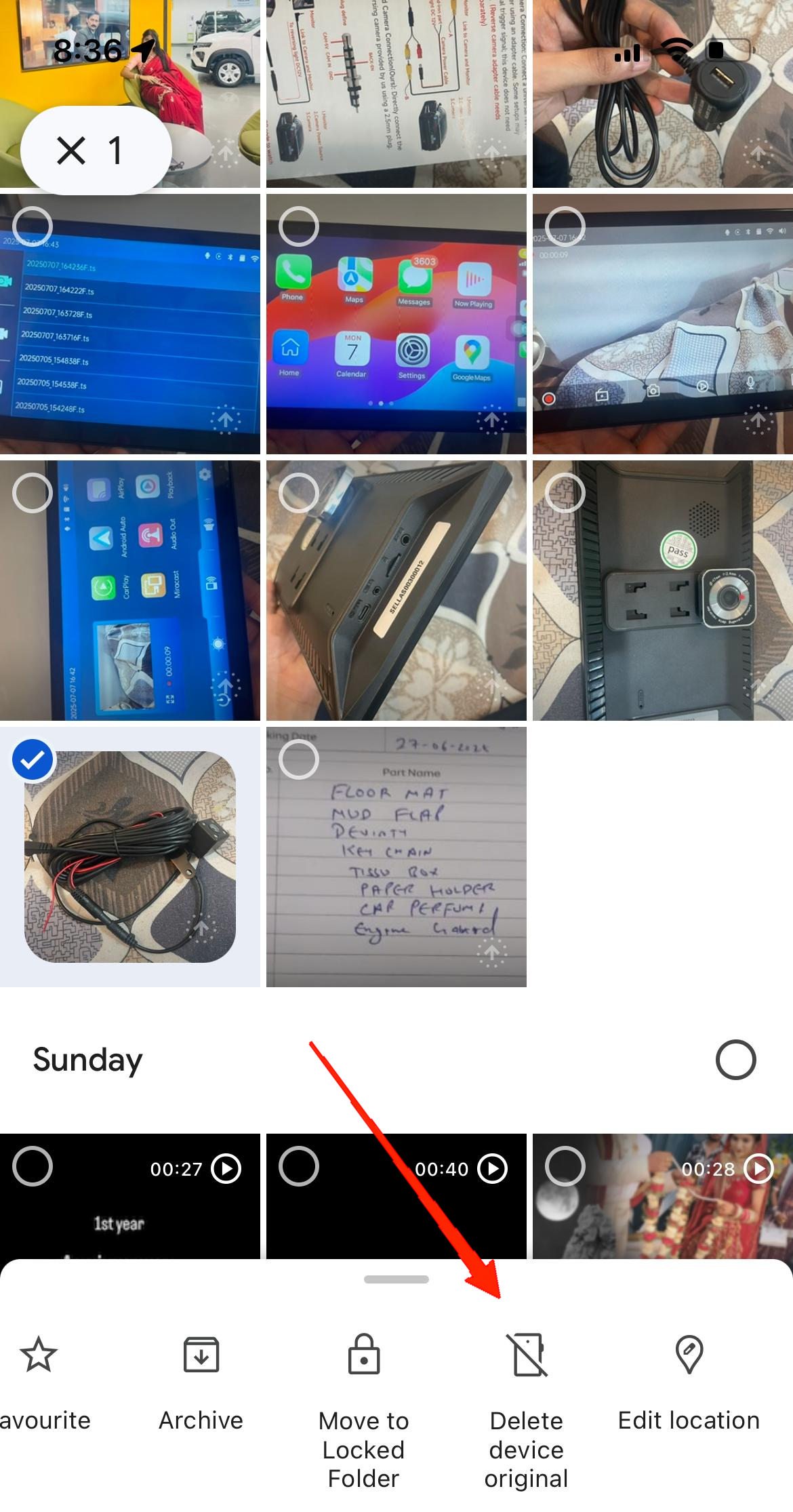
Case 2: Delete only from the device, but keep in Google Photos
- Open the Google Photos app on your iPhone and sign in.
- Long‑press the photo or video you want to delete. You can select multiple items at once.
- Select Delete device original. This will remove the photo from your phone but keep it in the cloud.
Case 3: Delete from Google Photos but keep on the Device
- Open the Google Photos app on your iPhone and sign in.
- Click on your profile icon at the top right corner.
- Turn off Backup & Sync from your profile settings.
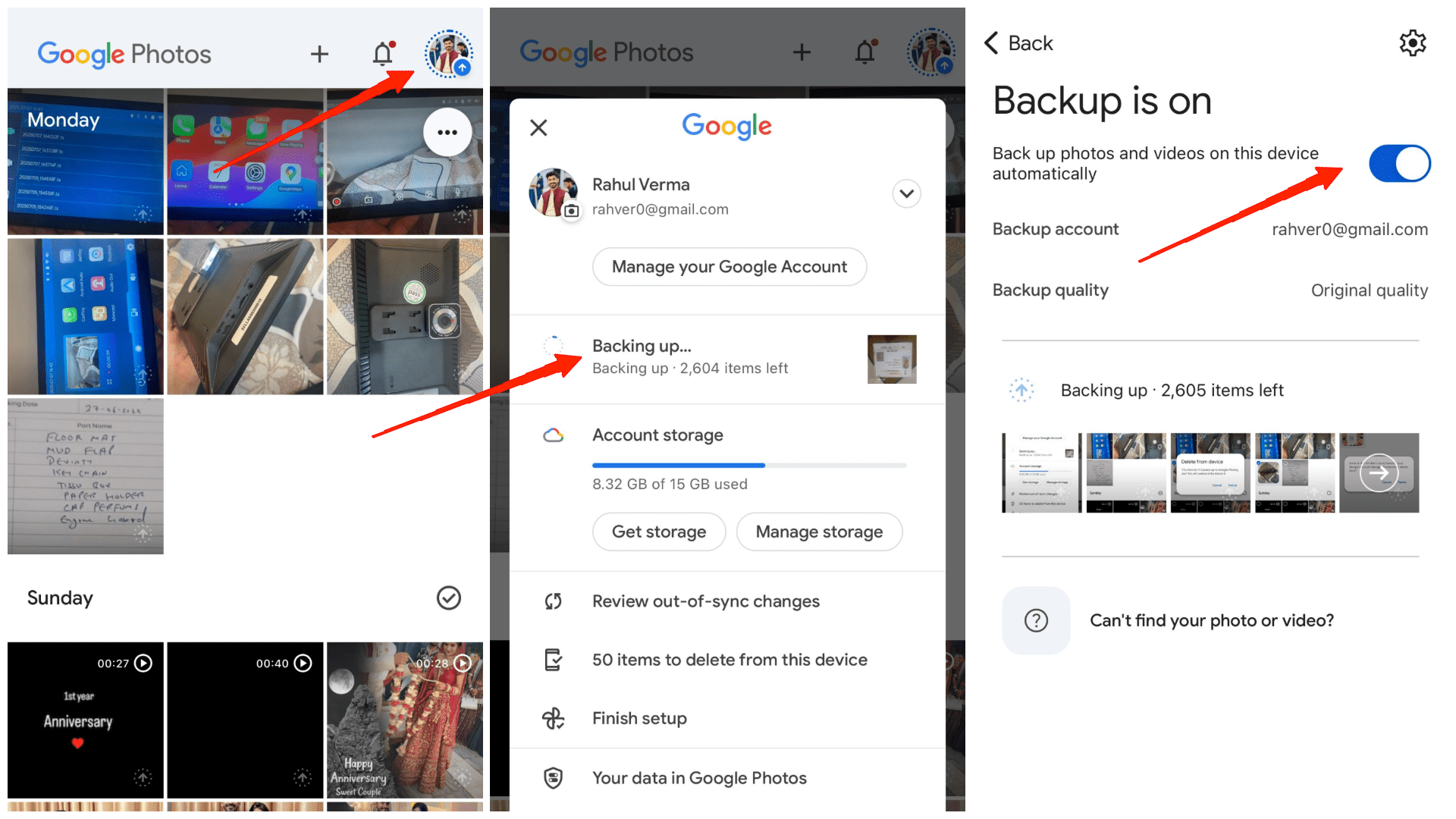
- Delete the photos (now only from the cloud).
- Finally, empty the trash to free space while keeping your local copies.
Recover Photos from Google Photos on iPhone
It’s surprisingly common to accidentally delete photos from Google Photos on your iPhone. Sometimes I’m scrolling too fast or cleaning up storage, only to realize too late that something valuable is gone. But don’t worry, if you have deleted such photos recently, then here is how you can get them back!
Case 1: Recover a deleted photo that was backed up in Google Photos
- Open the Google Photos app on your iPhone and sign in.
- Go to the Collections and then the Bin.
- You will find all recently deleted photos here.
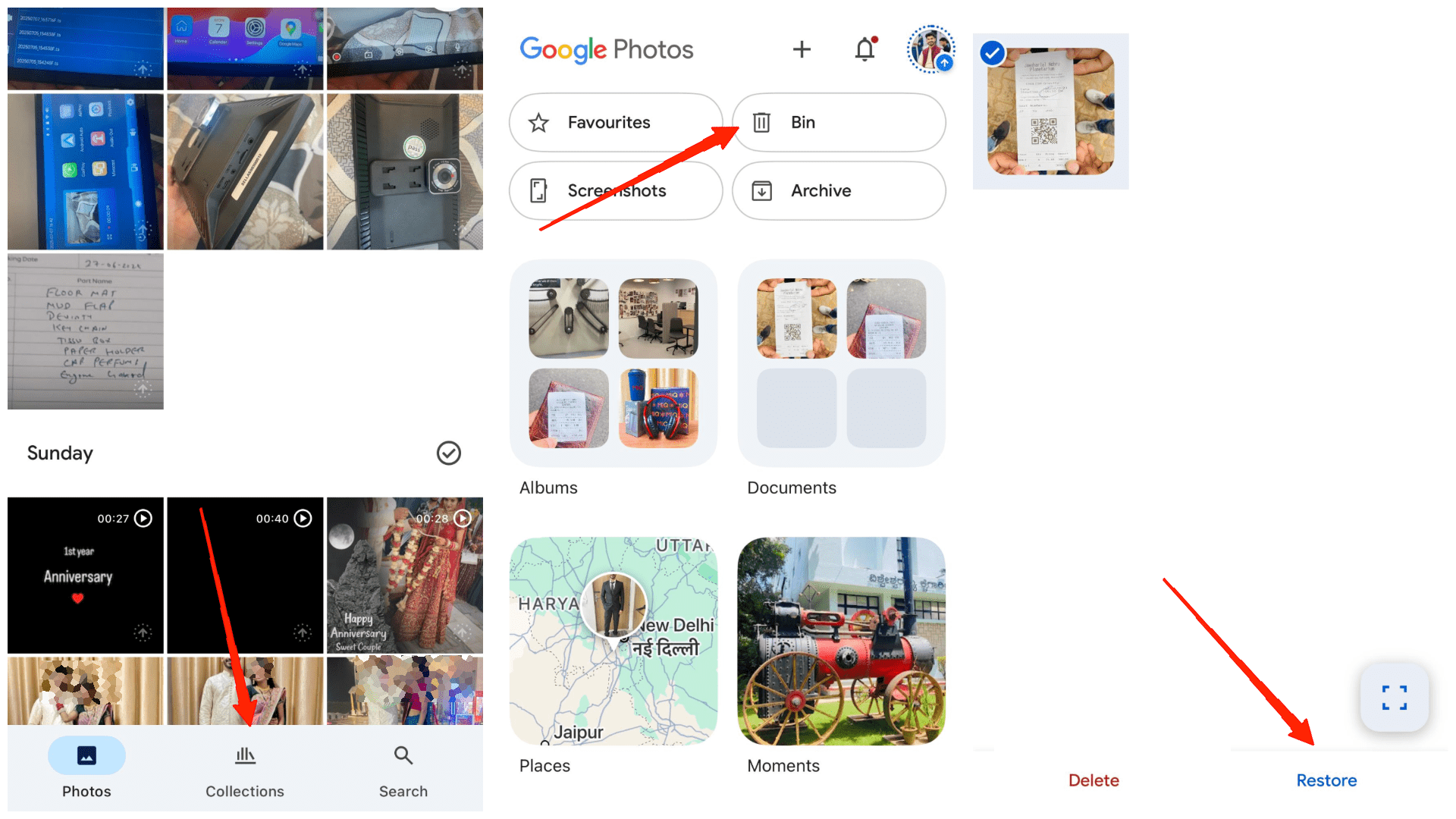
- Select the photos that you wish to recover and click restore.
Case 2: Recover a deleted photo which was NOT backed up in Google Photos
- Open the Photos app on your iPhone and go to albums.
- Here, scroll down and find the Recently deleted section.
- Select the photos that you wish to recover.
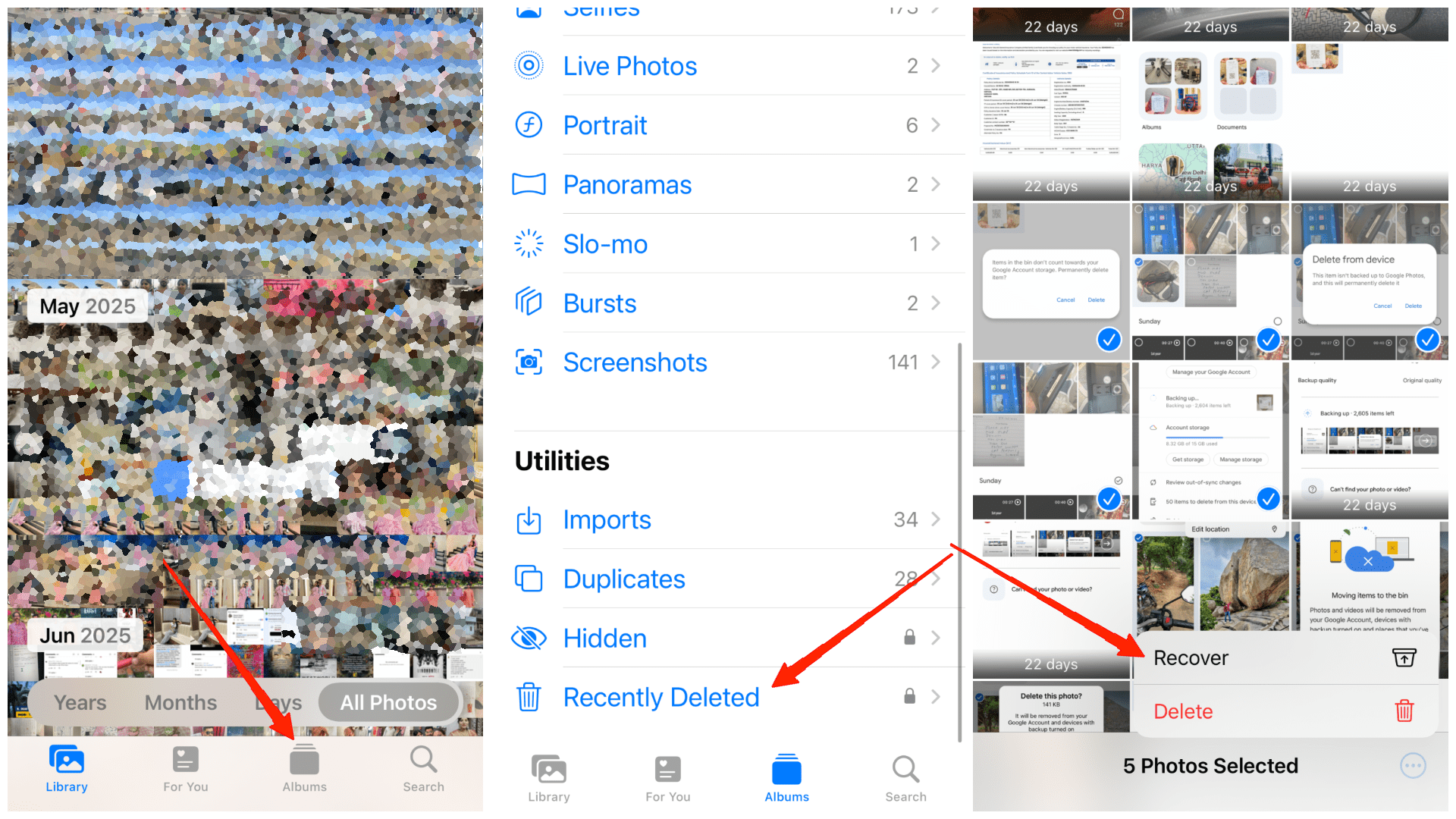
- Click on the 3-dot menu at the bottom right and select Recover.
Delete Photos from Google Photos FAQs
Q: What happens if I uninstall the Google Photos app – will my backed-up photos be deleted?
Ans: No, uninstalling the app does not delete your backed-up photos. They will still be available on photos.google.com or when you reinstall the app.
Q: Does deleting a backed-up photo from the Google Photos app also remove it from the cloud?
Ans: If you delete a backed-up photo from the Google Photos app, the photos get deleted from the cloud, irrespective of the backup option on the Google Photos app.
Q: How would I know if a photo is backed up in Google Photos or not?
Ans: Images that are backed up on Google Photos will have a cloud icon at the bottom right corner.
Q: What happens if I choose the “Delete from device” option in Google Photos, regardless of whether backup is on or off?
Ans: If you choose to delete the device’s original option, irrespective of the backup option (on/off) on the Google Photos app. The cloud copy will still be available.
Q: Can I recover a photo that was not backed up and deleted from the Google Photos app?
Ans: If you delete a non-backed-up photo from the Google Photos app, you can recover it from the iOS Photos app’s recently deleted section.
Q: How long do delete photos stay in the Google Photos Bin before being permanently removed?
Ans: Deleted photos remain in the Google Photos Bin for 30 days before they are permanently deleted.
Q: How can I recover a photo that was already backed up and then deleted from Google Photos?
Ans: If you delete a backup photo from Google Photos, you can still recover it from Google Photos Bin, which is present under the Collections tab.
Q: Can I recover photos from the Bin after 30 days?
Ans: No, once the 30-day period is over, deleted photos are permanently removed and cannot be recovered through Google Photos.
Q: If I delete photos from photos.google.com or another device using the same Google account, will they also be removed from my iPhone’s Google Photos app?
Ans: If you delete photos from photos.google.com or the Google Photos app installed on another device (with the same account), then photos will be deleted from the Google Photos app on all devices, regardless of the backup settings.
Conclusion
Deleting photos from Google Photos on your iPhone can be confusing at first, especially with the way syncing works between your device and the Google cloud. But once you understand the process, it becomes much easier to manage your photo library. I hope this guide made things clearer for you. Take your time, follow the steps, and you’ll be able to clean up your Google Photos without accidentally losing the pictures you want to keep.
If you've any thoughts on How to Delete Photos from Google Photos on iPhone?, then feel free to drop in below comment box. Also, please subscribe to our DigitBin YouTube channel for videos tutorials. Cheers!