
Firefox AI Controls takes under a minute to set up, and one switch hides every generative AI feature Firefox has. The catch is that the translation feature counts as one of them. I’m sure most of you would want that one back, as I did.
It is a desktop feature that comes with Firefox v148. I turned on Block AI enhancements on my main Firefox profile and used it for about a week. I kept a short list of what features vanished, what stayed, and what I had to undo.
TL;DR: The Block AI enhancements switch in Firefox AI Controls hides the sidebar chatbot, tab group suggestions, link preview summaries, PDF alt text suggestions, and translations. You can switch individual features back on afterward. It does not cover search tools, address bar suggestions, or New Tab sponsored content, and extensions can still call outside AI services.
How to block AI features in Firefox
- Open Firefox Settings.
- Choose AI Controls on the left
- Turn on Block AI enhancements.
- If using a Mac, the path starts from Firefox in the menu bar, followed by Settings.
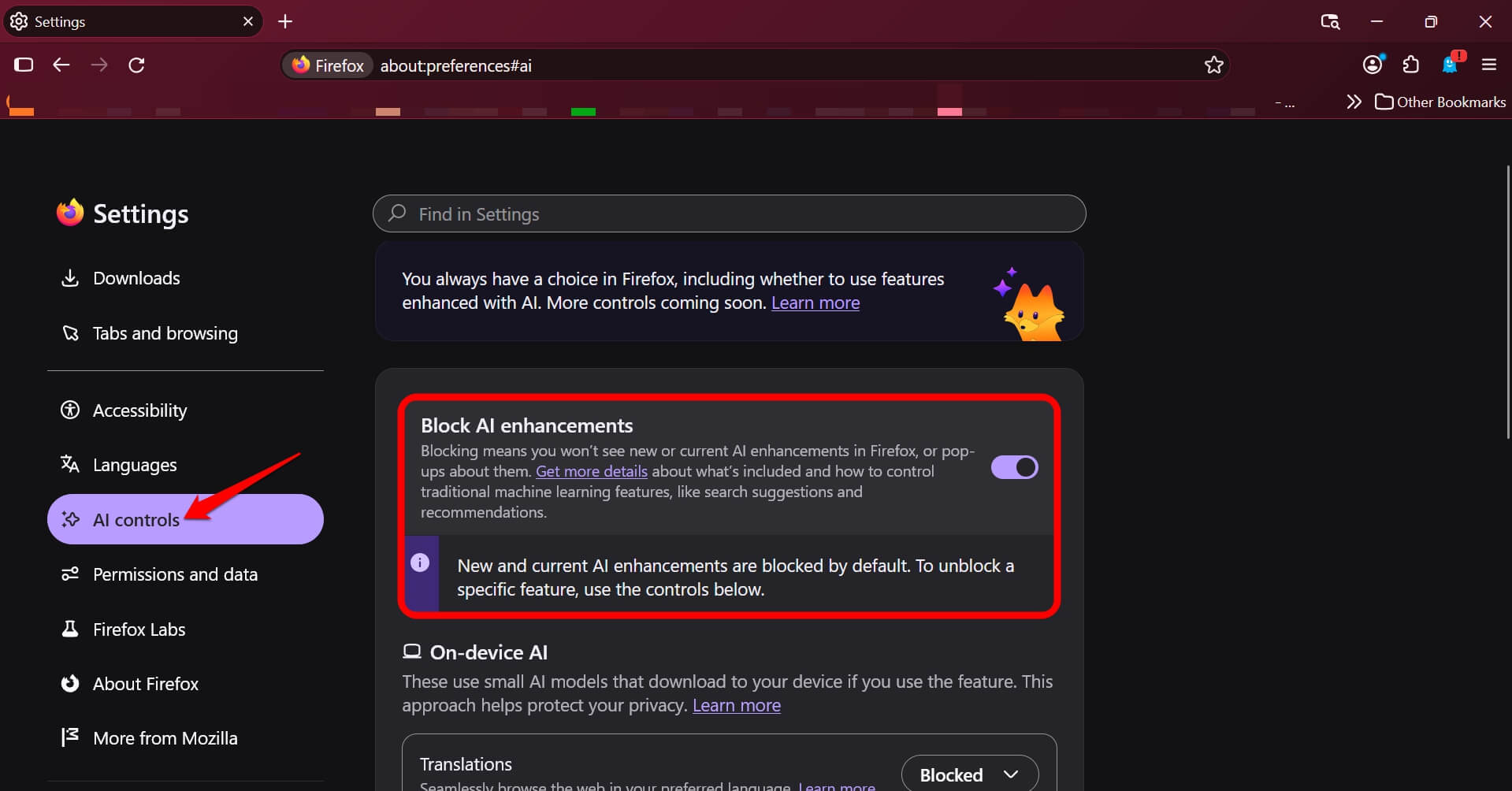

To view the feature, you need desktop Firefox 148 or later, and Mozilla says future AI features stay blocked by default while the switch is on.
Check your version against the Firefox update tracker if the AI Controls page is missing, because older builds simply do not have it and there is nothing to enable.
| Feature | What it does | After the switch |
|---|---|---|
| AI chatbot in sidebar | Opens ChatGPT, Gemini or Copilot | Removed from sidebar |
| AI tab groups | Suggests group names and related tabs | Suggestions stop |
| Link previews | Shows key points on click and hold | Hidden |
| PDF alt text | Suggests alt text for PDF images | Blocked |
| Translations | Translates web pages | Blocked |
What disappears when the switch is on
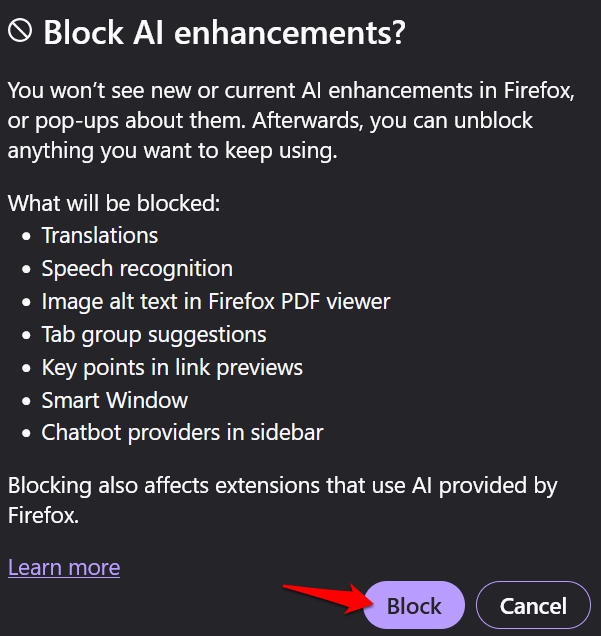
When you enable the feature, the following features go out.
- The sidebar chatbot
- AI tab group suggestions
- Link preview key points
- PDF image alt text suggestions
- Translations
- Smart windows
- Speech recognition
The pop-ups that promote them also turn off.
The sidebar chatbot is the one you notice first because its icon disappears. Tab group suggestions stopped after the first group I made, and holding down a link no longer produced key points.
I also looked out for pop-ups nudging me back toward the features. None appeared. Honestly, none of it felt like a loss until I needed to translate something while browsing.
I missed out on the Translations feature
Blocking AI enhancements also blocks Firefox’s built-in translations feature. I started to miss it within a day. I was browsing a webpage in Spanish, and there was no offer to translate it.
Here’s how to fix this. Keep the master switch on, find Translations in the list, and set its dropdown to Available.
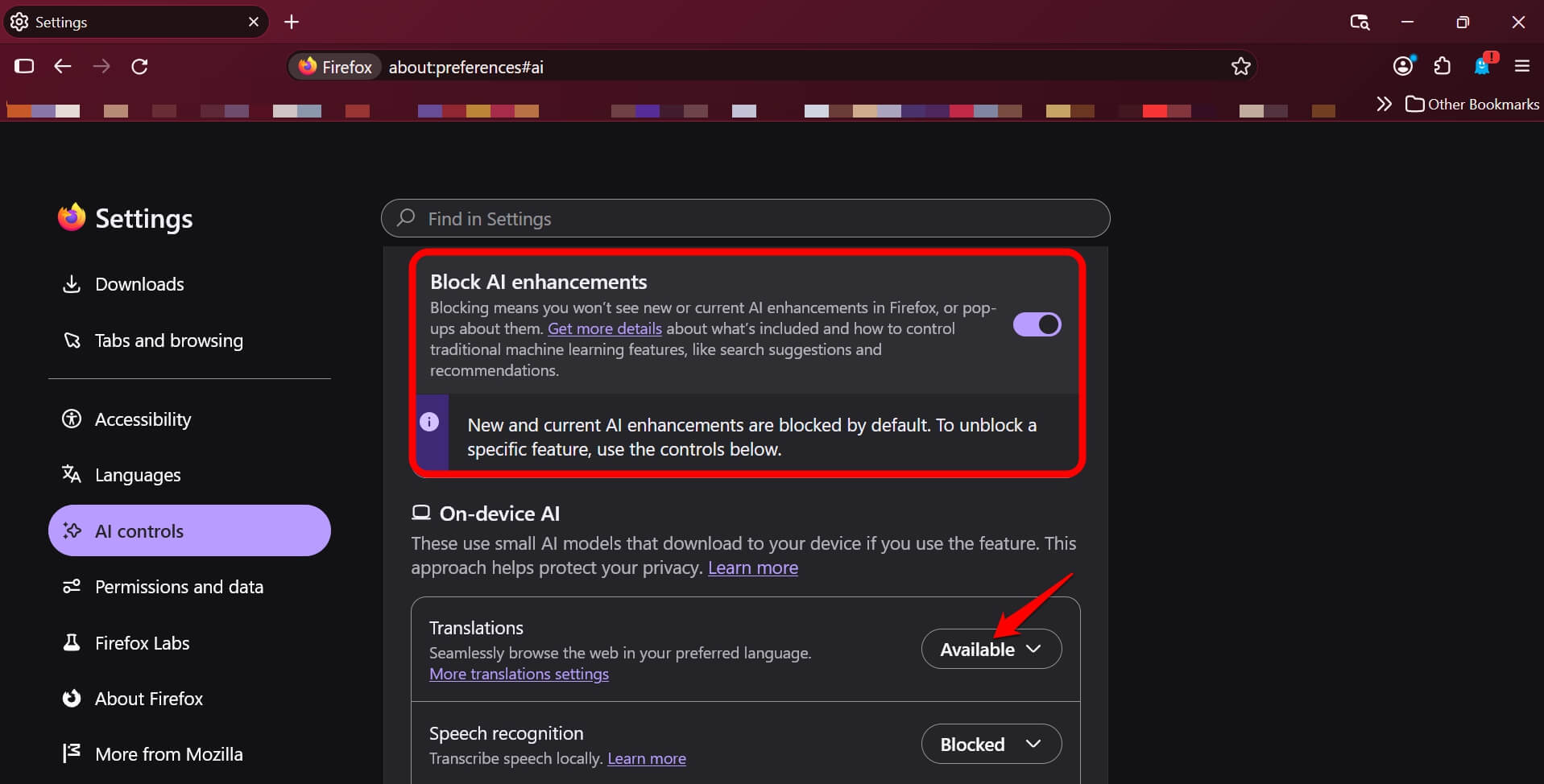
This simply means you can see and use the feature. Enabled means you have opted in to block AI enhancements, but setting a feature as Available keeps it active, and Blocked hides it.
What Firefox AI Controls does not cover
The panel does not cover traditional machine learning that classifies, ranks, or personalizes, which Firefox has used for years.
Search tools, address bar suggestions such as Firefox Suggest and New Tab recommendations, or sponsored content have their own settings. Extensions are a separate gap. Blocking affects extensions that use AI provided by Firefox, but they can still use outside AI services on their own.
If AI is what has you comparing browsers, DigitBin’s Gemini in Chrome test linked below covers the other side of that choice.

What a week without the sidebar chatbot was like
The sidebar had a bit more room, and I stopped dragging the cursor past a chatbot icon I never clicked. That felt like a tiny change, and I noticed it more in the following week than the first.
I did not measure speed or memory, so I will not claim Firefox got lighter. It anyway felt smoother than Chrome. The only change I can vouch for is that fewer suggestions interrupted me, and that nothing else in Firefox behaved differently that I could see.
On-device models and storage
Mozilla says that when you set a feature’s dropdown to Blocked, any on-device AI models already downloaded are removed. The page does not say whether the single switch removes them too.
If freeing disk space is your reason, block the features one by one instead of assuming the master switch cleans everything up. I did not check my profile folder before or after, so it’s difficult to give you a size.
Three ways to set the AI blocker in Firefox
- Block everything: one switch, nothing AI left, no translator.
- Block and keep translations: switch on, then set Translations to Available.
- Leave AI on and block only the features you dislike, one dropdown at a time.
I ended up on the second one as per my needs. It costs nothing to change later, since you can return to the AI Controls page, update any dropdown, and see the result on the next page you open.
Frequently asked questions
Where is Firefox AI Controls?
Open Settings and choose AI Controls on the left. It exists in Firefox 148(desktop) and later.
Does Block AI enhancements turn off translations?
Yes. Translations is one of the features the switch blocks, but you can set its dropdown to Available to keep using it.
Will new Firefox AI features appear later?
No, not while the switch is on. Mozilla says future AI features stay blocked by default.
Do extensions still use AI after I block it?
They can. Blocking affects extensions that use AI provided by Firefox, but extensions can still use outside AI services on their own.

Who should leave the Firefox AI switch off
Leave Block AI enhancements off if you use translations, speech recognition, chatbot in sidebar or like automatic tab group names. Enable it if you want a clutter-free browser. Only set features of your choice as ‘Available’ if you need them while browsing.