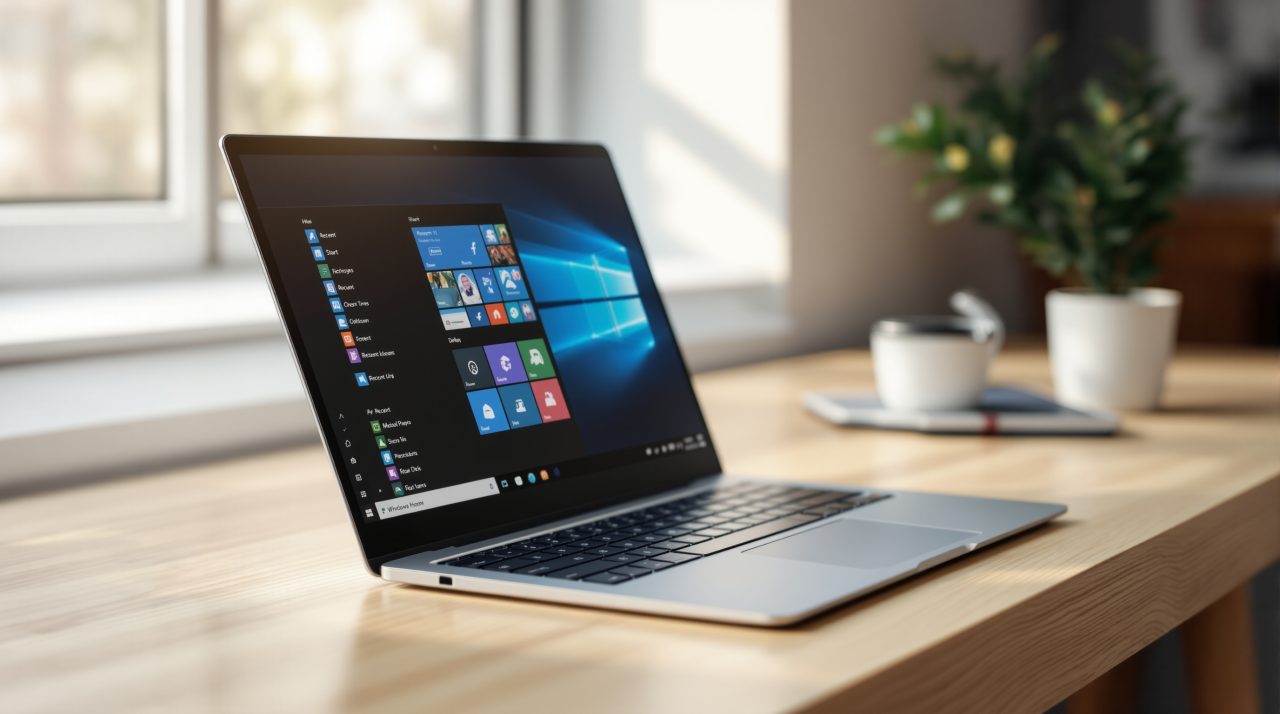
Microsoft is testing a more customizable Windows 11 Start menu in Experimental build 28120.3302, which went out to Windows Insiders on October 23, 2026. You can now choose a small or large menu, hide your name and profile picture, and show or hide each section on its own.
If you have ever shared your screen in a meeting and noticed your full name sitting at the bottom of Start, this is the first change aimed at that moment. Microsoft’s release notes describe it as making the Start menu “more personal.”
TL;DR: Windows 11 build 28120.3302 adds a small or large Start menu size, renames Recommended to Recent, lets you hide your name and photo, and adds separate toggles for Pinned, Recent and All. It is limited to Insiders in the Experimental 26H1 channel, and Microsoft has not said when it reaches everyone else.
What the Windows 11 Start menu can now do
Until now the Start menu size was automatic, and Windows decided how much room to give you. Microsoft says you can still leave it on Automatic, or pick small or large under Settings > Personalization > Start > Start menu size.
The Recommended section is also renamed Recent, both in the menu itself and on the Start settings page. It is a small edit, but it changes what the section promises: files and apps you used lately, not suggestions.
That rename matters because the next change gives you control over the section it describes.
Hiding your name and splitting up the sections
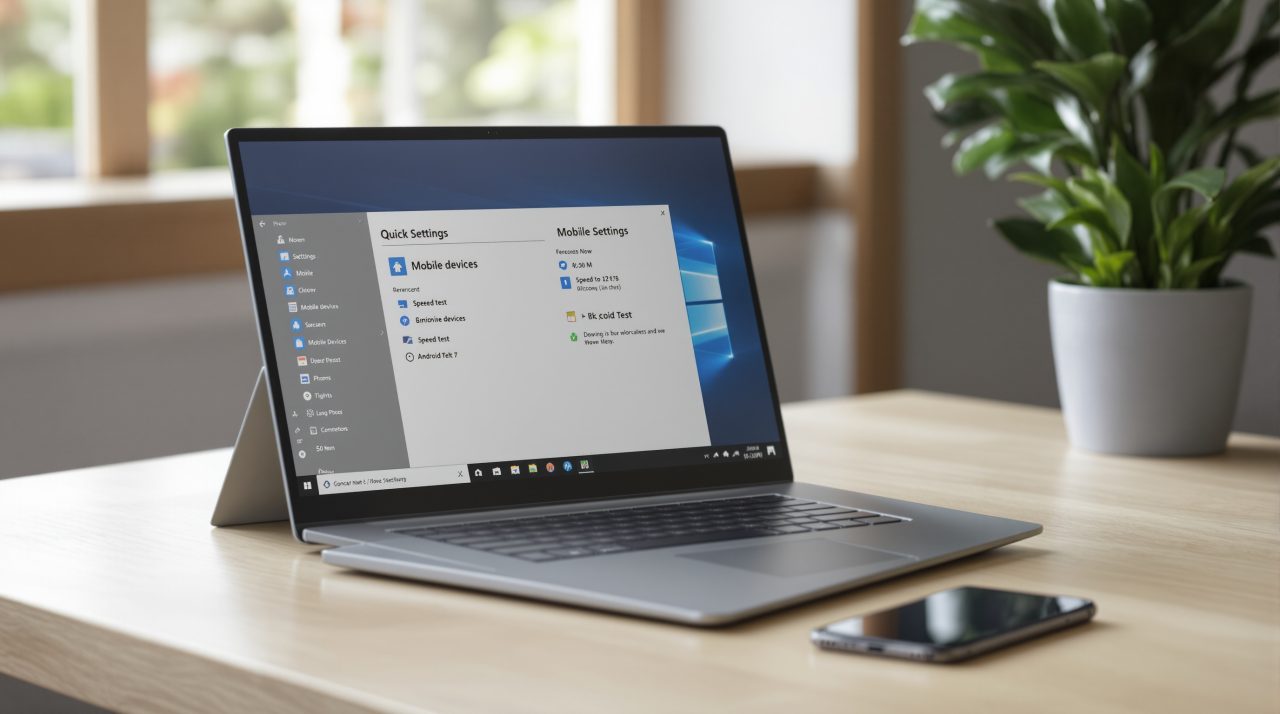
Under Settings > Personalization > Start, a new option reads Hide your name and profile picture on Start. Flip it and the account details disappear from the menu, which is handy for screen recordings, shared PCs and presentations.
The Start settings page has also been redesigned with section-level toggles. Pinned, Recent and All can each be shown or hidden independently, so a Start menu with only your pinned apps is now a setting rather than a workaround.
All of that is only useful if you can actually get it, which is where the rollout comes in.
Who gets the new Start menu, and who has to wait
The changes are in the Experimental (26H1) channel, which is a pre-release track for Insiders. Microsoft says features are “gradually being rolled out” and that many Experimental features use Controlled Feature Rollout, so some Insiders on the same build may not see the new Start options yet.
This is separate from the stable update most people run. The Windows 11 26H2 rollout is a different track, and Microsoft’s notes give no date for when these Start changes might reach it.
The release notes list one known issue worth reading before you install: Recall may be missing or unable to launch on some Copilot+ PCs after a clean install of this build.
Other changes in the same Windows 11 build
The same release adds per-app control of camera, microphone and location access for desktop apps, under Settings > Privacy & security. Apps that already had access keep it, and apps that were denied stay denied.
There is also a new Cloud Rebuild entry point under Settings > System > Recovery, plus sharper File Explorer thumbnails in the Recommended section on Home and new Magnifier options. The Windows Insider Blog post for October 23 lists the build numbers for each Insider channel but gives feature detail only for a separate Experimental build, so the build 28120.3302 release notes are the place to check.
What to expect before this reaches your PC
Features that start in the Experimental channel do not always arrive in the same form, or at all. Cloud Rebuild is a useful comparison, since it is already in testing elsewhere, as our File Explorer and Cloud Rebuild coverage explains.
If you are on a stable build, there is nothing to do yet. If you are an Insider, check the Start page in Settings after updating and see which options show up on your PC.