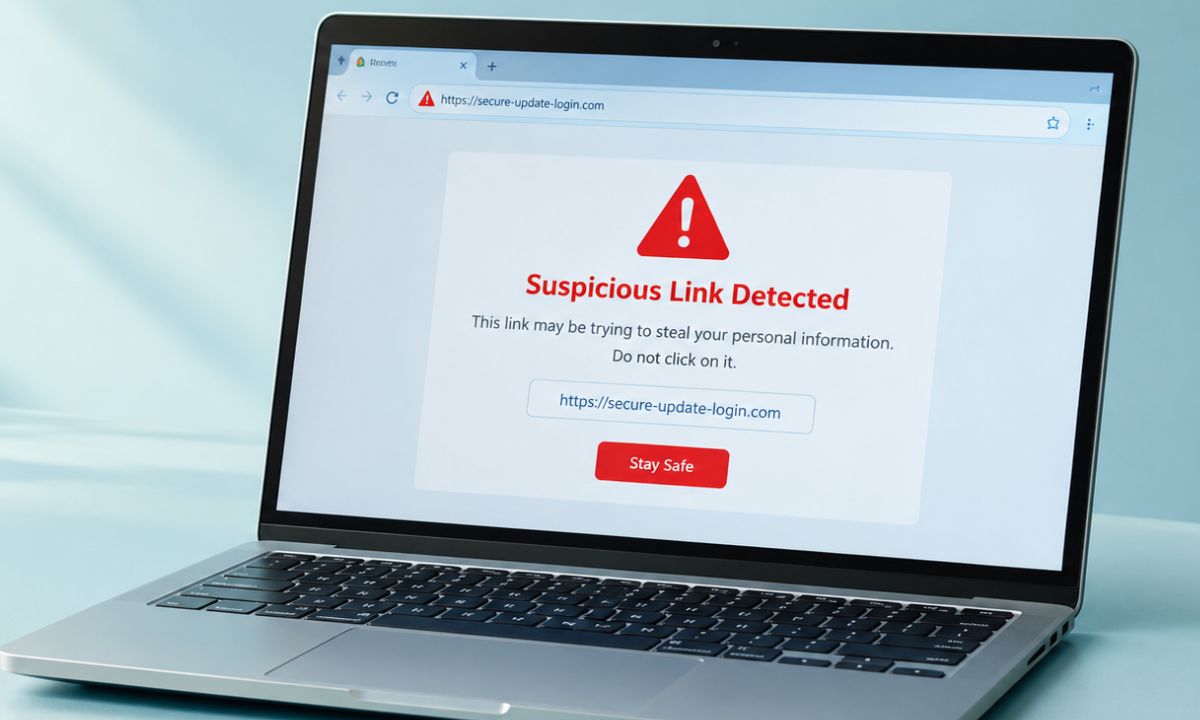
One fine day, you receive what seems like a harmless email. It may contain a link promising a reward, a refund, or something that sounds too good to be true. Out of curiosity, you click the link, and the page that opens is not what the email promised.
Sometimes, the email comes with an attachment. When you open it, nothing happens, which somehow feels strange. You think it may be a bad prank. But in the background, something might download on your PC the moment you open the attachment.
If you clicked a phishing link or opened an attachment on your PC, the next few minutes matter more to ensure you don’t lose your money, device access, or passwords to scammers. Most of the time, the issue can be dealt with by running a scan on your device and a few password changes.
TL;DR: If you clicked a phishing link or opened an attachment, update your security software, run a full scan, and change the passwords for anything you typed in. Do the password changes from a different device if you think the PC is compromised. Report the message afterward so it can be tracked.
What to do first after you clicked a phishing link?
Close the page without typing anything into it. If you already typed, skip ahead to the account section to log out of your session. Log out of every site or app that uses your primary email account on which you received the phishing link or suspicious attachment via email.
Next, disconnect the PC from the internet before you do anything else. That is what I would do. Most scams are online-based. As long as your PC remains disconnected from the internet, your device is safe from any hostile takeovers.
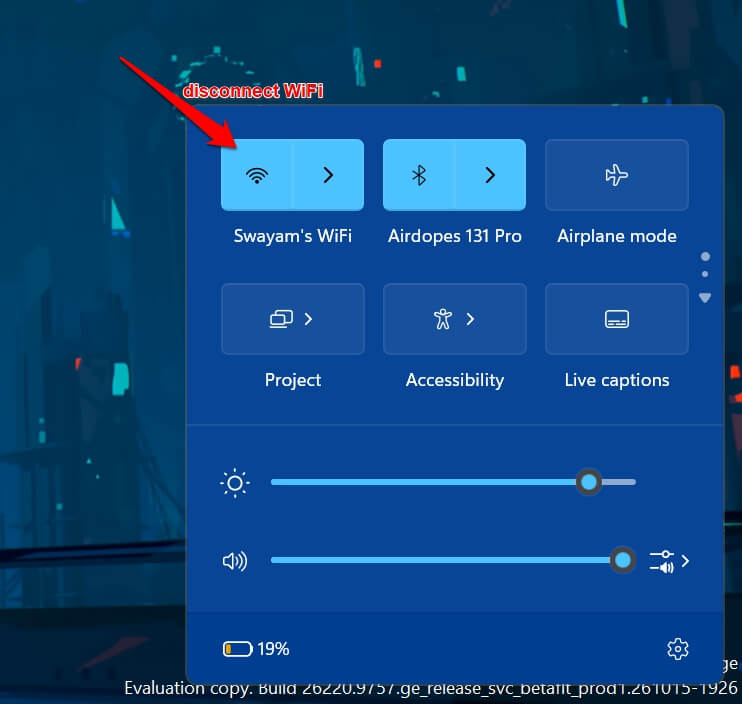
Even if you downloaded something malicious that requires the internet to harm your device, it won’t do anything as long as the host PC remains disconnected from the web.
The FTC says that if you think a link or attachment downloaded harmful software, you should update your computer’s security software, run a scan, and remove anything it flags.
| What you did | What to do |
|---|---|
| Clicked a link, typed nothing | Close the tab, update security software, run a scan |
| Opened an attachment | Disconnect, update security software, run a full scan |
| Typed a password | Change it now, and anywhere you reused it |
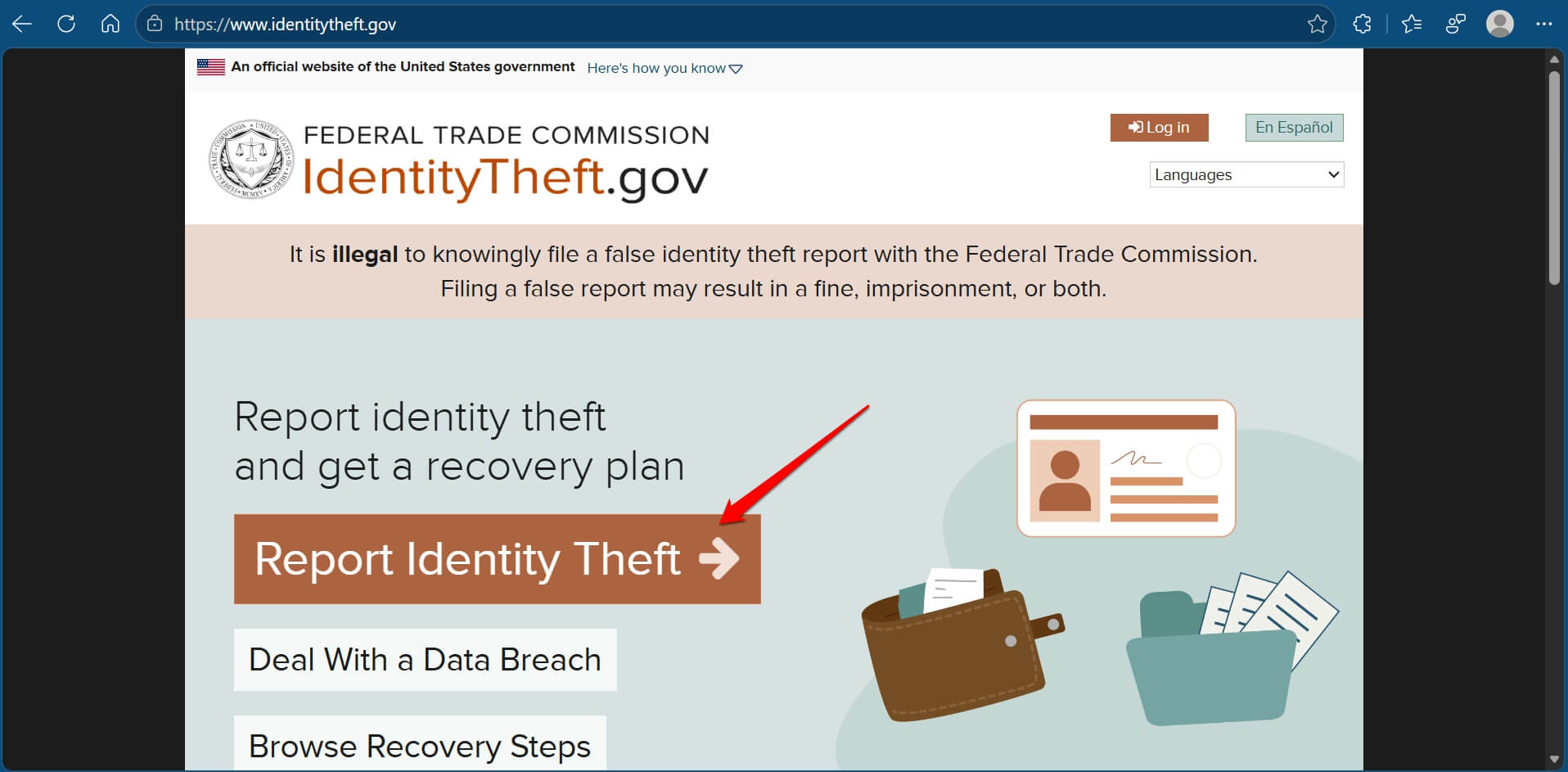
| Typed card, bank, or ID details | Contact the card issuer or bank, then follow identitytheft.gov |
How to run a proper scan on Windows?
This is the most important action to take in the event of clicking a phishing link in the email or downloading a seemingly stupid(but malicious) attachment.
- Open the Windows Security app.
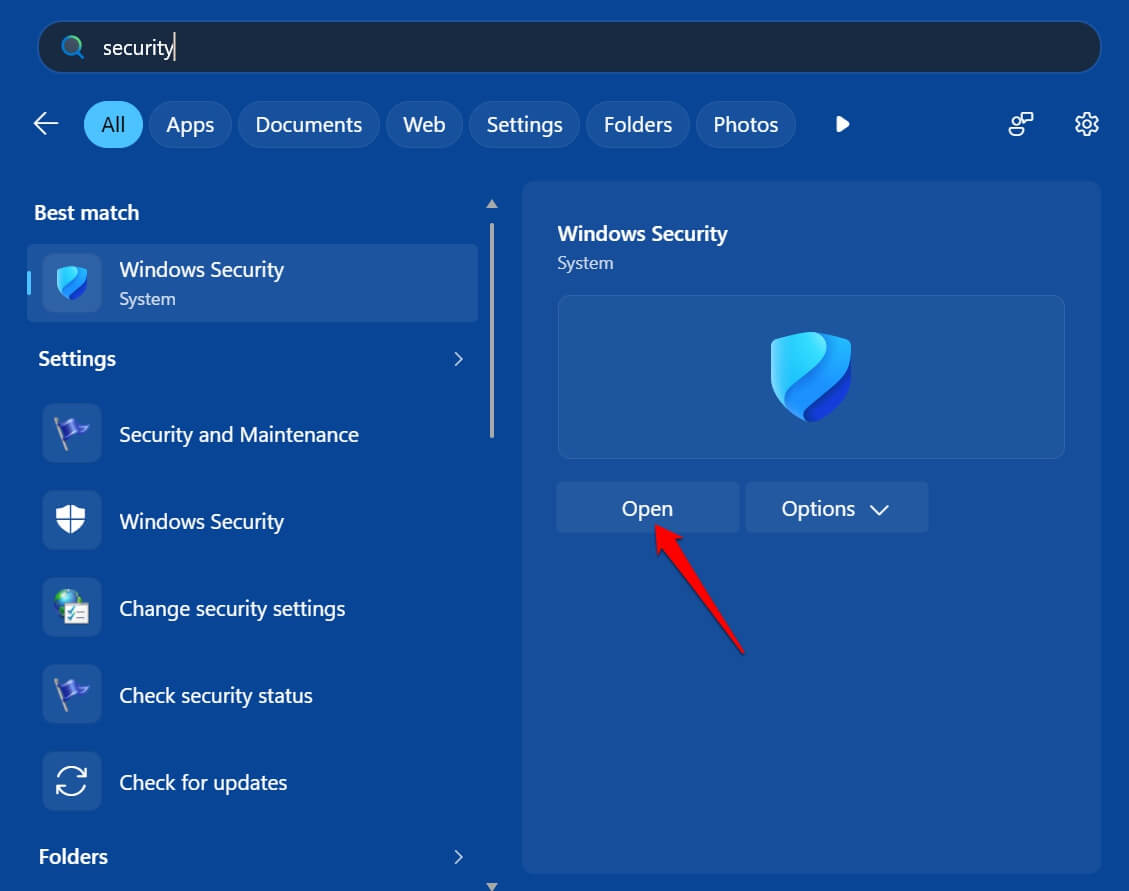

- Go to Virus and Threat protection.
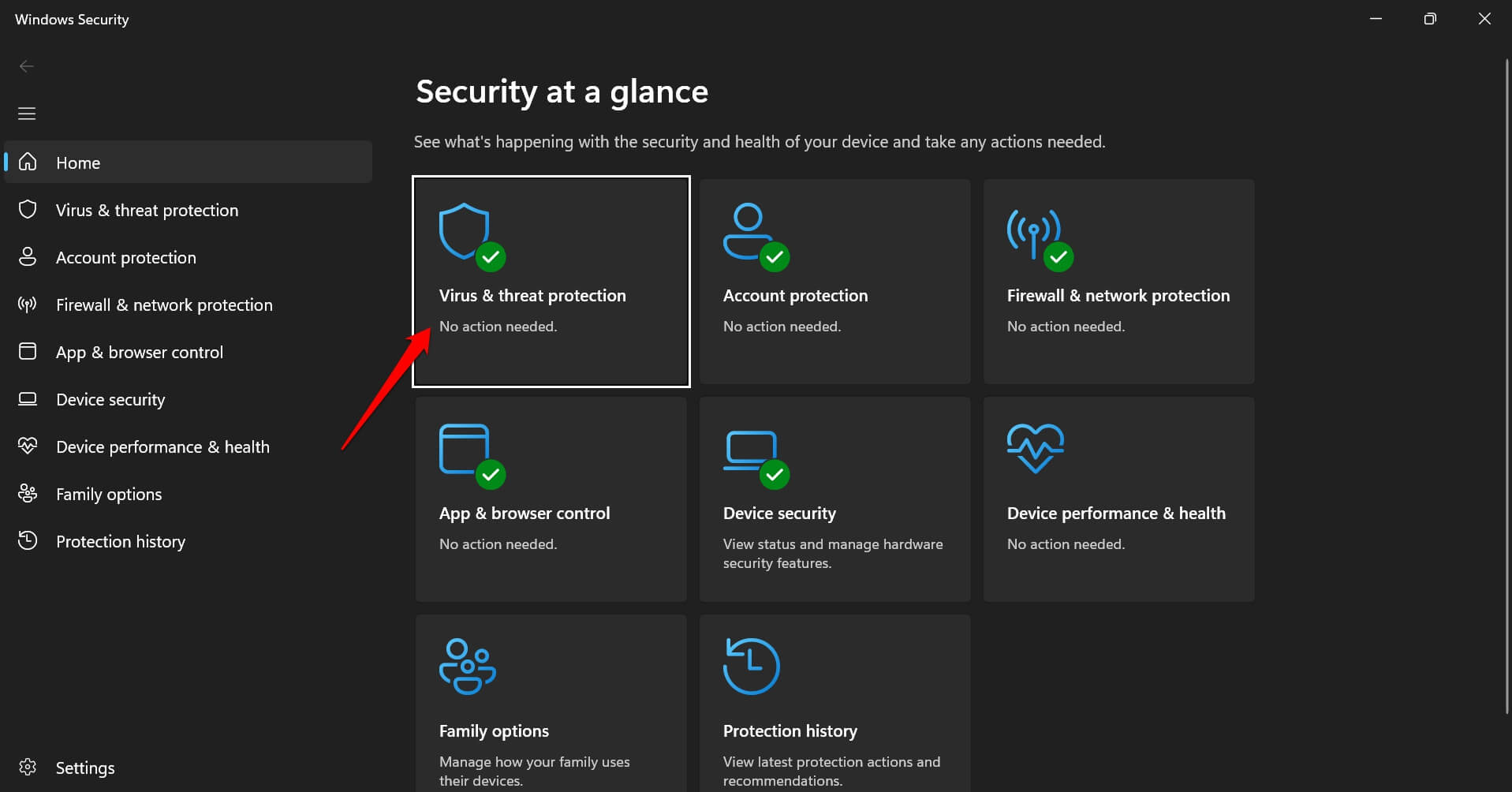

- Choose Scan options.
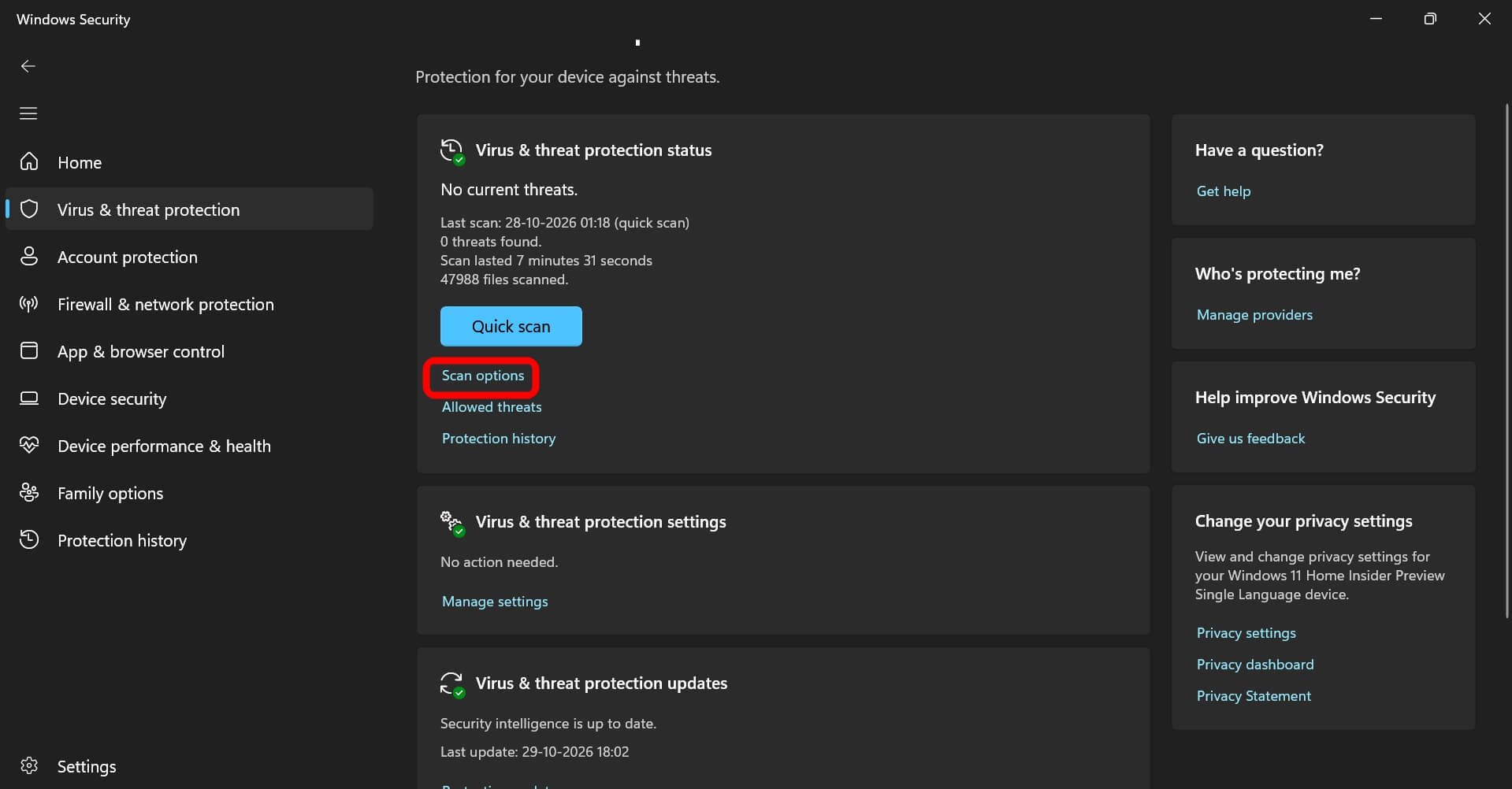

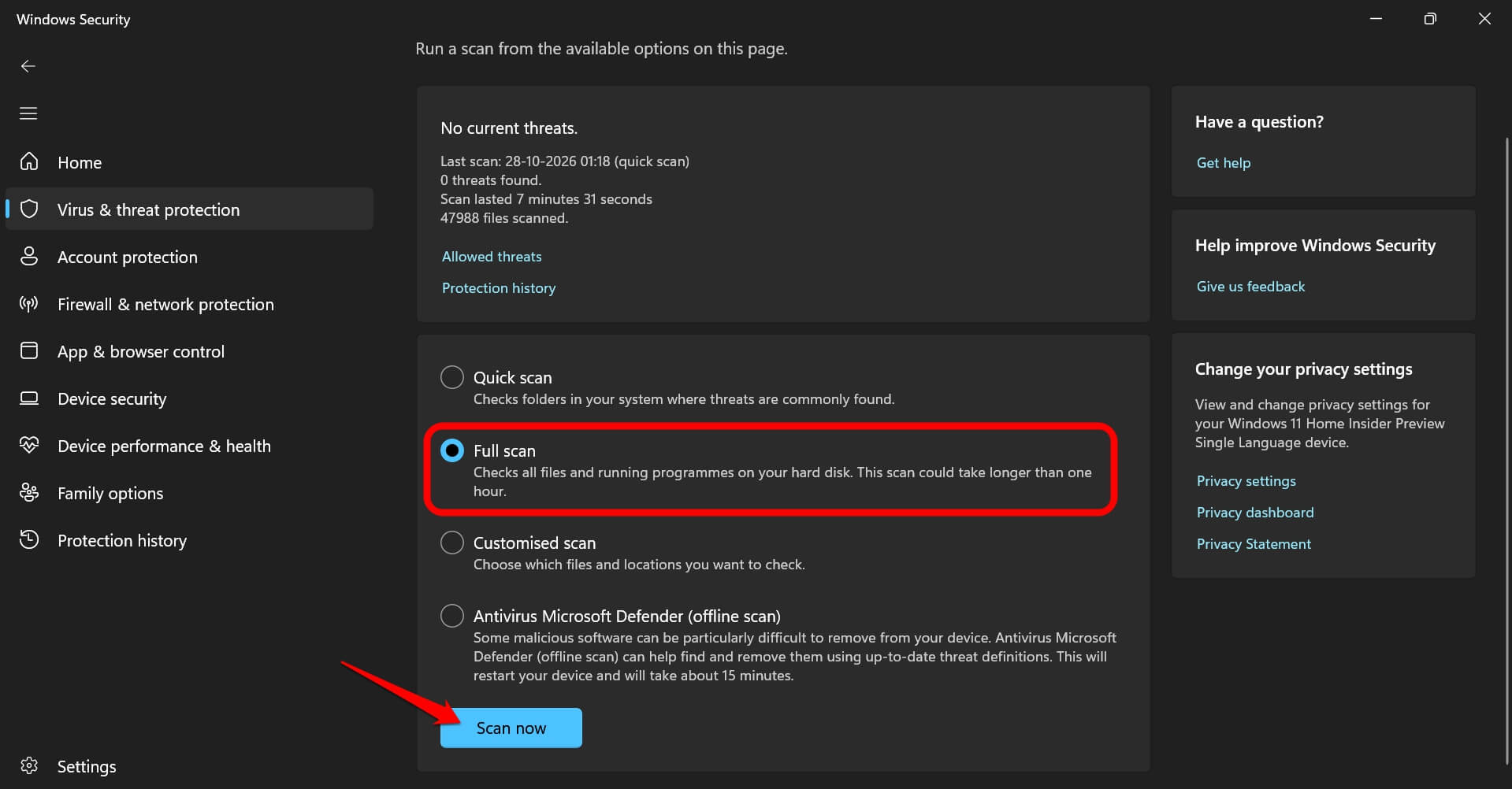
- Perform a full scan of your PC.
- Remove any infected file/apps of unknown origin as suggested by Windows Security.
Windows Security also offers an offline scan in that same menu, which is worth using if something seems to be hiding while Windows is running.
I tend to start the full scan and leave the room, because watching the progress bar does nothing. The complete scan might feel never-ending and boring, but it is necessary.
While the scan runs, avoid logging in to your bank or email on that PC. In fact, it is better to log out of all your emails on the PC. Don’t log in to anything. If some malicious program is lurking in the background, it could read any password you type.
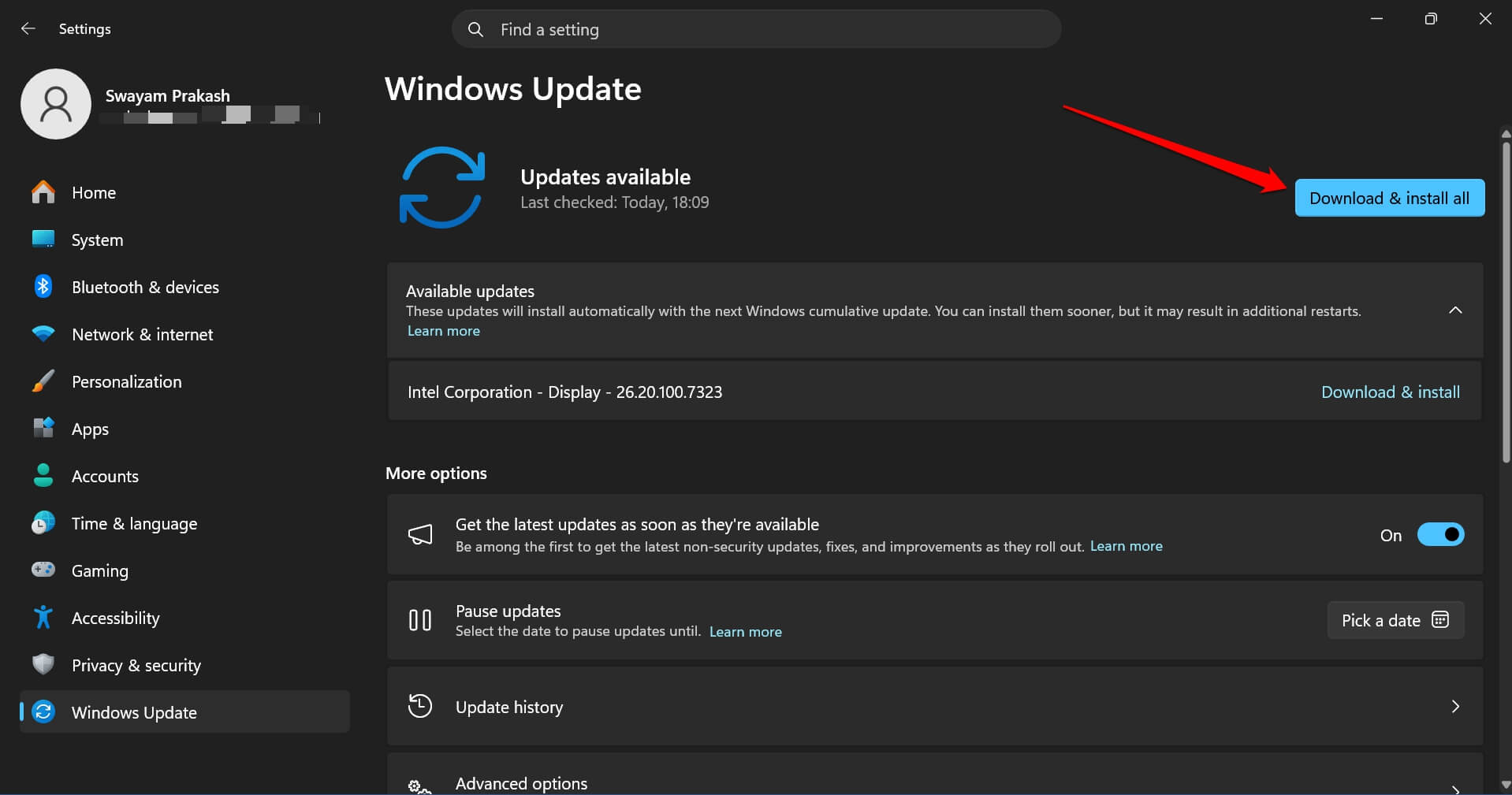
Keep Windows itself current too. A recent Windows 11 security update fixed two actively exploited bugs, which is a decent reminder that updates are part of the defense.
Which passwords to change and in what order?
Change the password of the email account on which you received the phishing email. It is vulnerable to further phishing attempts. Once scammers get access to your primary email, they can reset the password and get access to any site or app using the email and its current password.
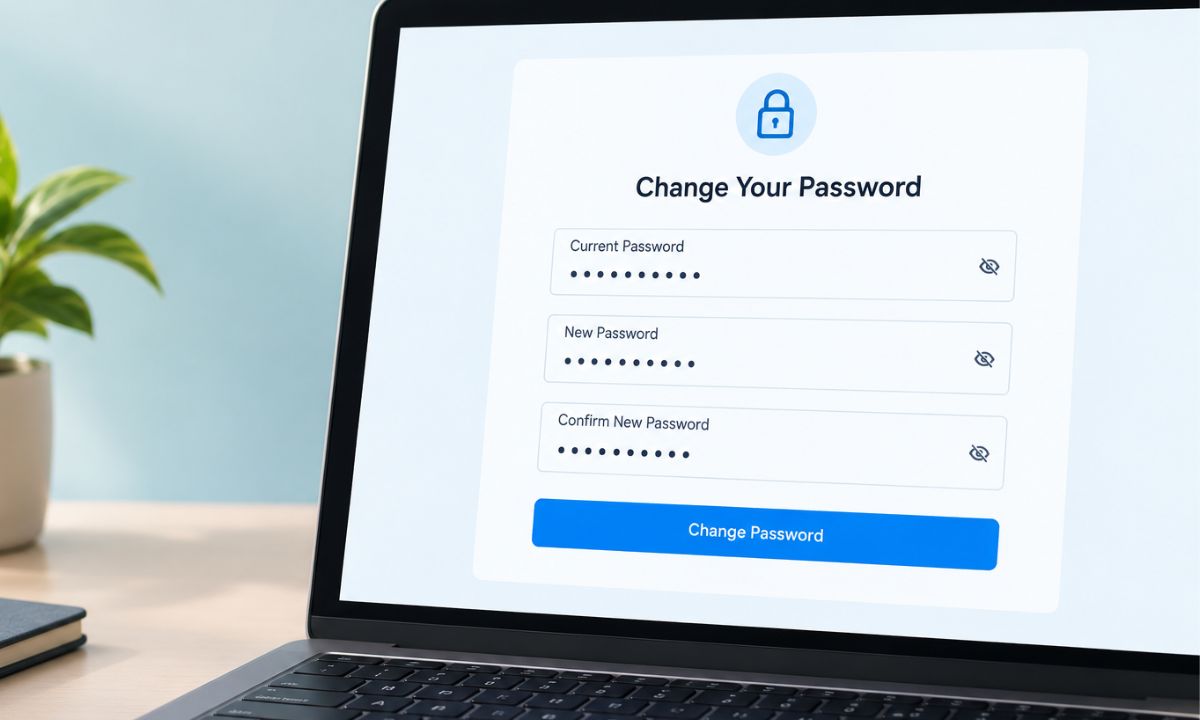
Also, as a rule of thumb, never use the same password across different sites even though you may use the same email account. That makes the scammers’ work easier. Change the password on any other account that shares the same password.
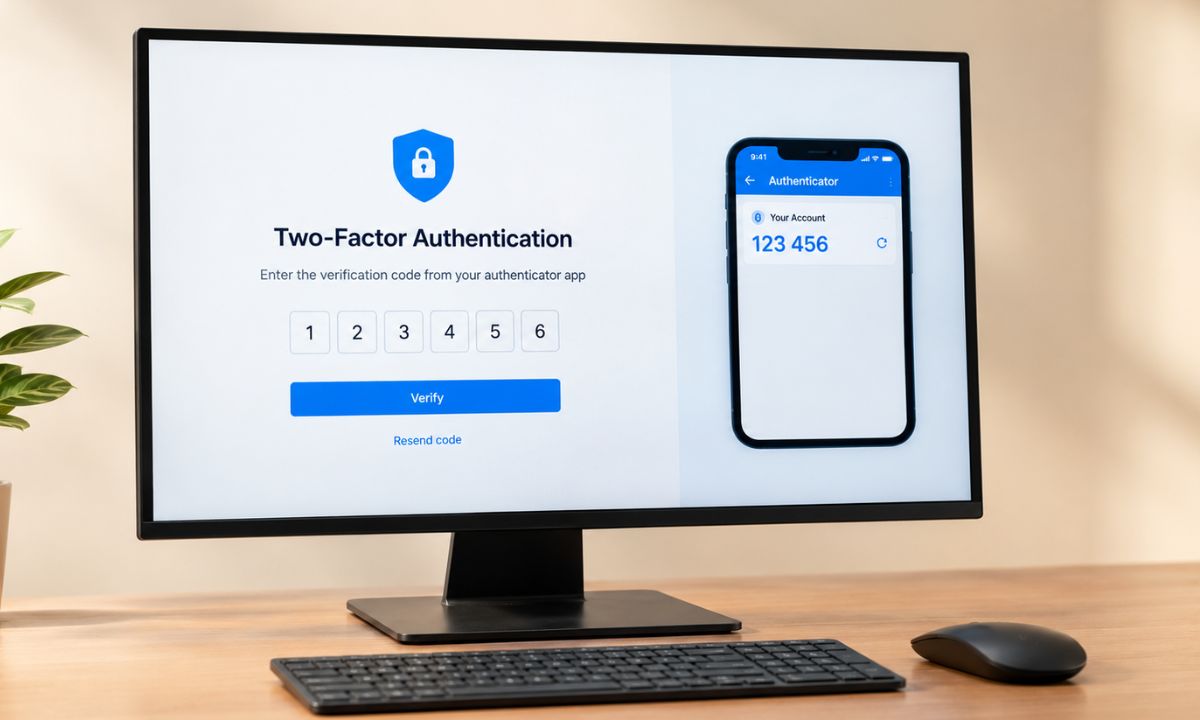
The FTC says to turn on two-factor authentication on the affected account as well. Check out our guide linked below to know about the best 2FA app to secure your device.
What to check in your email accounts?
Look at recent sign-ins and forwarding rules in your email, since attackers sometimes add a rule so copies of your mail go elsewhere. Then scan your bank and card statements for charges you do not recognize. Contact your bank in case you notice possible fraudulent transactions.
If you gave out a Social Security number or similar details, the FTC recommends visiting identitytheft.gov for a recovery plan matched to what you shared.
Never skip the bank statement check because currently nothing looks wrong. Fraudulent transactions can happen when you least expect it. Most likely after a phishing attempt where you clicked any link or downloaded any attachment from the email.
How to report the message?
Forward phishing emails to [email protected], which is the Anti-Phishing Working Group. Forward phishing texts to 7726, which spells SPAM, and report either one at reportfraud.ftc.gov. Reporting will not fix your own PC, but it helps the people trying to take down the online scammers.
Frequently Asked Questions
Can I get a virus just by clicking a phishing link?
Clicking a link can lead to a fake login page or a download, and the damage usually starts when you type something in or run a file. Close the page, scan the PC, and change any password you entered.
What should I do if I opened a phishing attachment?
Disconnect the PC from the internet, update your security software, and run a full scan. The FTC advises removing anything the scan flags.
Do I need to reset my PC after clicking a phishing link?
Usually not, because a scan and password changes cover most cases. A reset becomes worth considering if your security software cannot clean what it finds.
Where do I report a phishing email?
Forward phishing emails to [email protected] and report them at reportfraud.ftc.gov. Texts go to 7726.
Don’t panic: Log out, scan, change password, and report instead
The urge after a mistaken click is to do twelve things at once. The panic is real. It unfortunately doesn’t help. Do these instead. Log out of active programs/emails, run a malware scan, change the passwords of primary accounts, check your statements, and report the message.
It is possible to beat any phishing attempts by being aware of how to react and what to do. It is all about reacting before it’s too late.