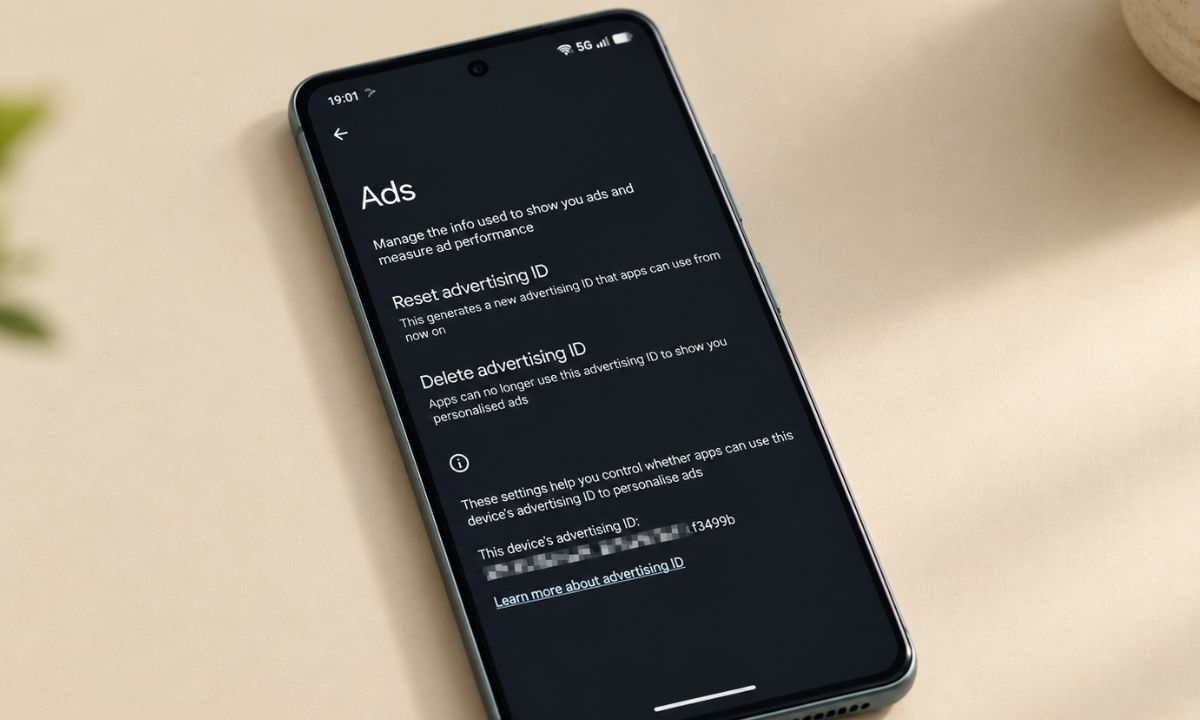
Your Android phone tracks you in a few specific, documented ways, and almost none of it requires a VPN or a third-party app to reduce. It requires opening a settings menu you have probably never opened.
This is not a paranoid deep dive into surveillance. It is a plain accounting of what Android actually collects by default, and which settings you can turn off without breaking anything you use daily. Also, note that some tracking settings exist for genuinely useful reasons and are worth leaving alone.
TL;DR: Android’s advertising ID is the main lever for cross-app ad tracking, and Android 12 and newer let you delete it outright instead of just resetting it. Location tracking has two separate layers worth checking: per-app permissions and the system-wide approximate location setting, which Android 16 made meaningfully more private with density-based coarse locations. None of this requires a paid app. iPhone owners have a comparable but differently named set of controls, covered separately.
The advertising ID is the setting most people never find
Android’s advertising ID is a resettable code that lets apps and ad networks link your activity across different apps without knowing your name, and deleting it is the single highest impact privacy change available on the phone.
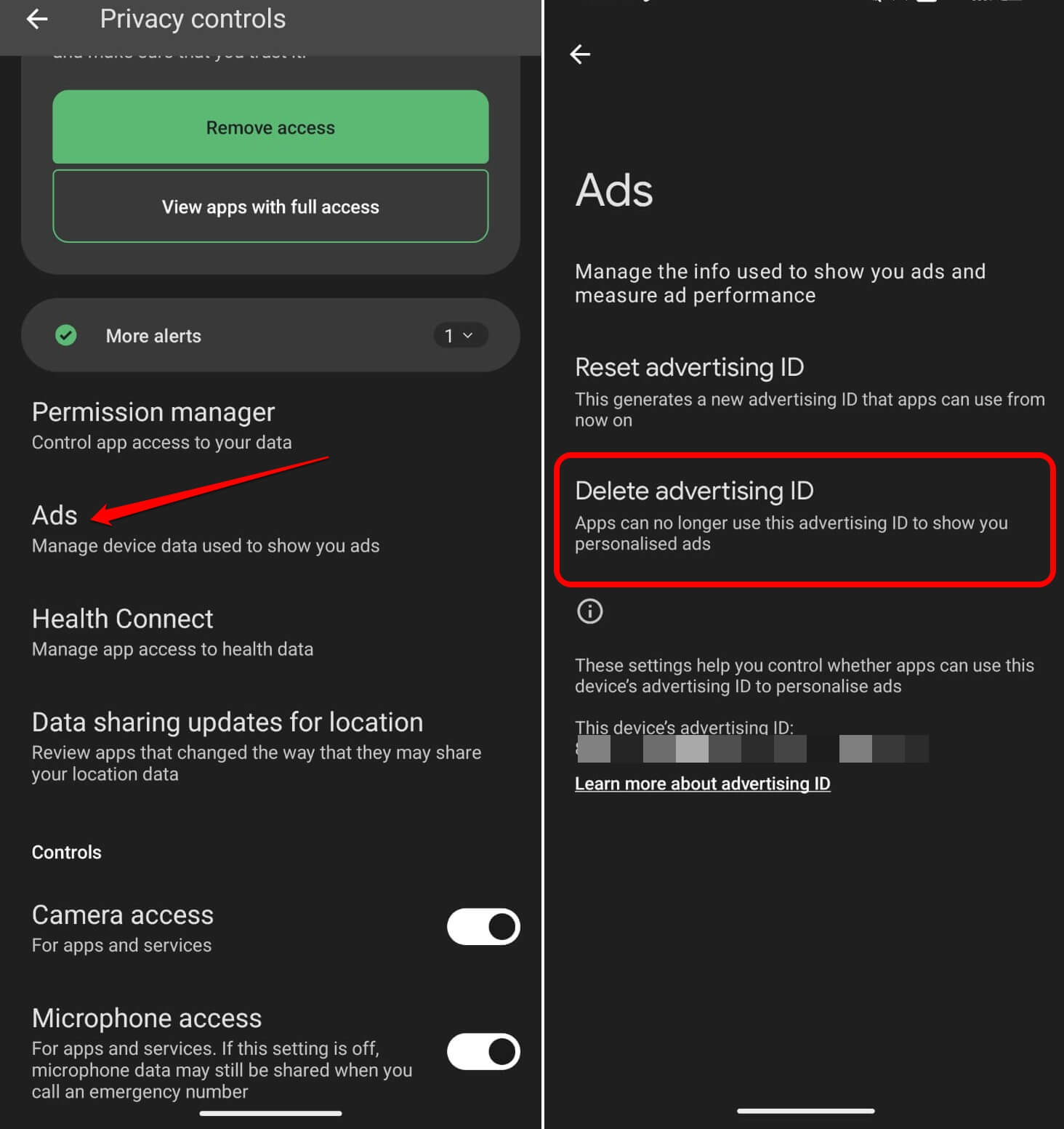
The setting lives at
- Settings > Security and Privacy
- Privacy Controls > Ads
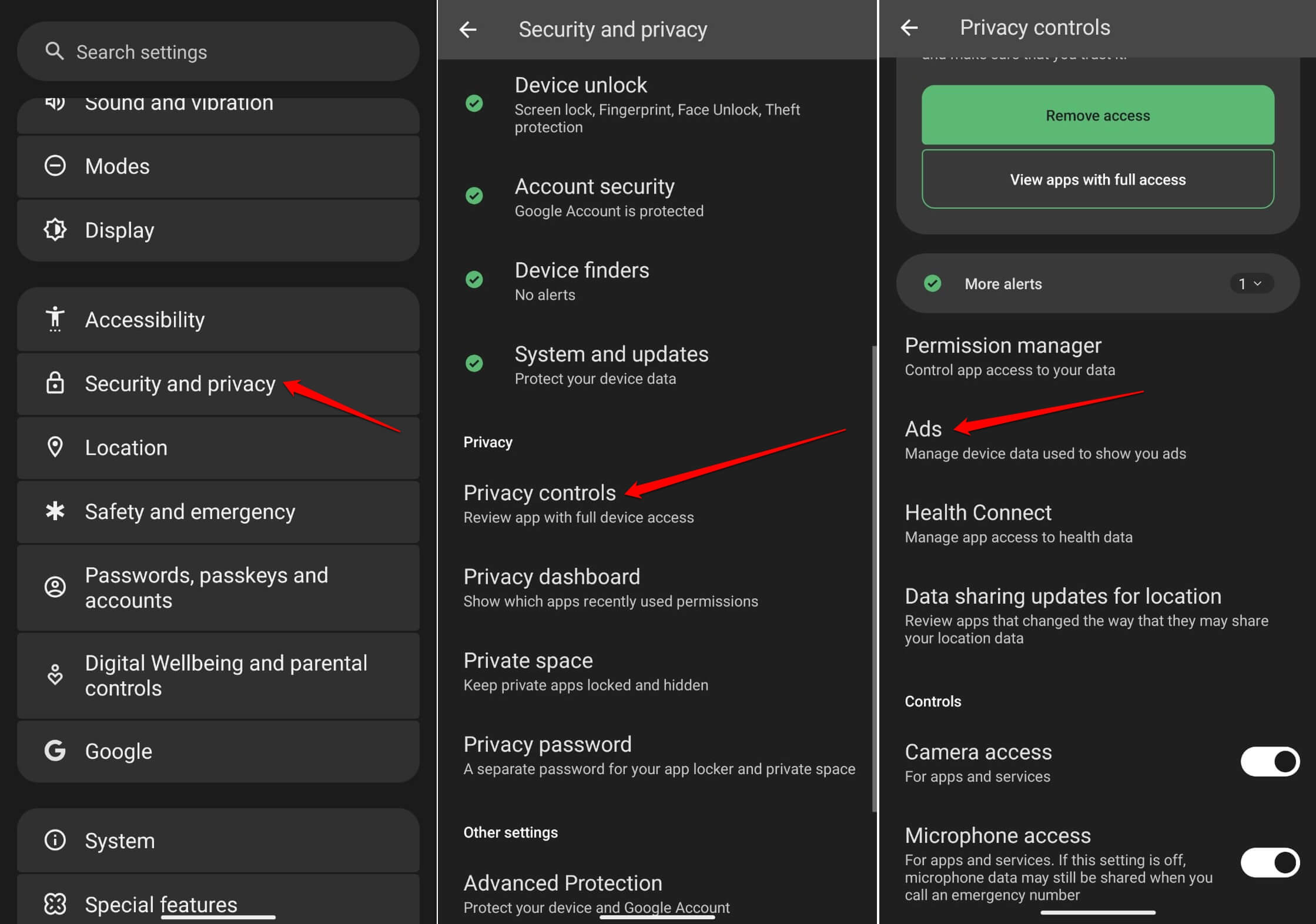

Here you will find both a Reset and a Delete option.
Reset swaps in a new random ID, which breaks existing tracking profiles built under the old one. Delete option goes further. Since Android 12, apps that check for the advertising ID after you delete it simply see a string of zeros instead of a usable identifier.
The exact menu path shifts slightly by manufacturer. On a Pixel, it is the most direct route: Settings > Privacy > Ads
On a Samsung Galaxy, the same underlying Google setting sits behind Settings > Security and privacy > More privacy settings > Ads. Same destination, different hallway.
| Device type | Path to advertising ID setting |
|---|---|
| Google Pixel | Settings > Privacy > Ads |
| Samsung Galaxy | Settings > Security and privacy > More privacy settings > Ads |
| Other Android (varies) | Settings > Google > Ads, or Settings > Privacy > Ads |
Deleting the ID does not stop every app from showing you ads. It stops apps and ad networks from stitching together a cross-app profile using that specific identifier.
Apps can still show ads based on what you do inside that one app alone, which is a narrower and less invasive form of targeting.
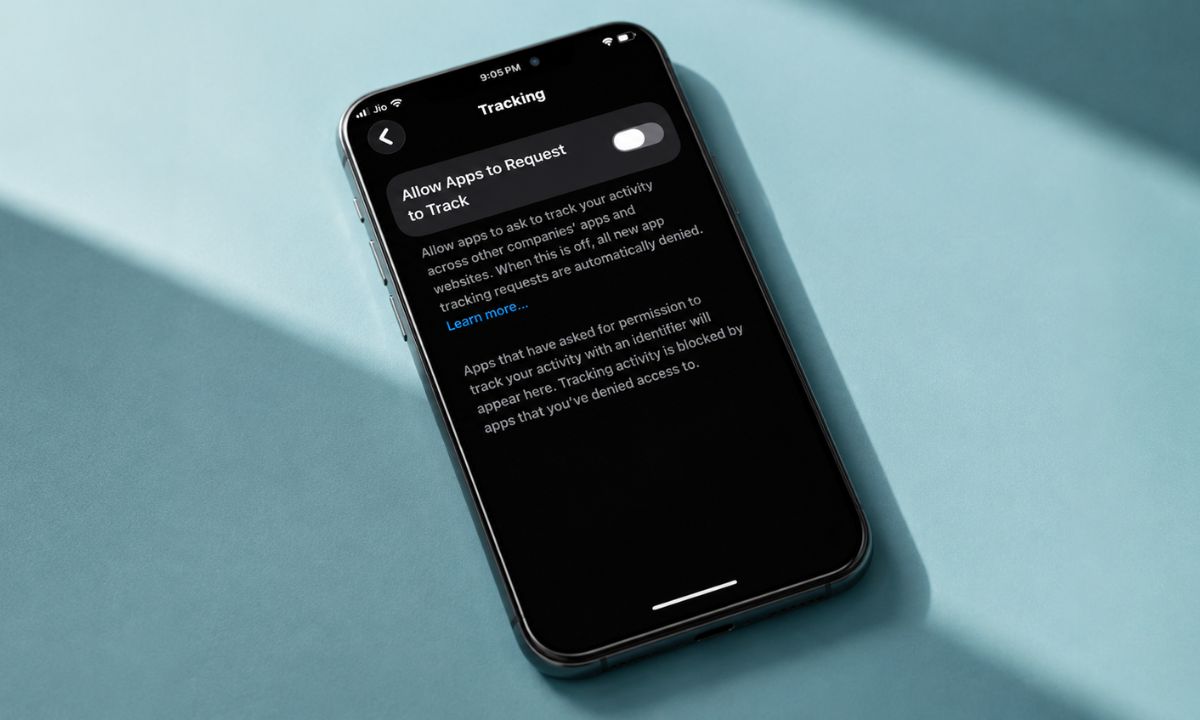
Location tracking has two layers, and most people only check one
Android’s location controls split into per-app permissions and a separate system-wide approximate location toggle, and the second one is the layer most people never realize exists.
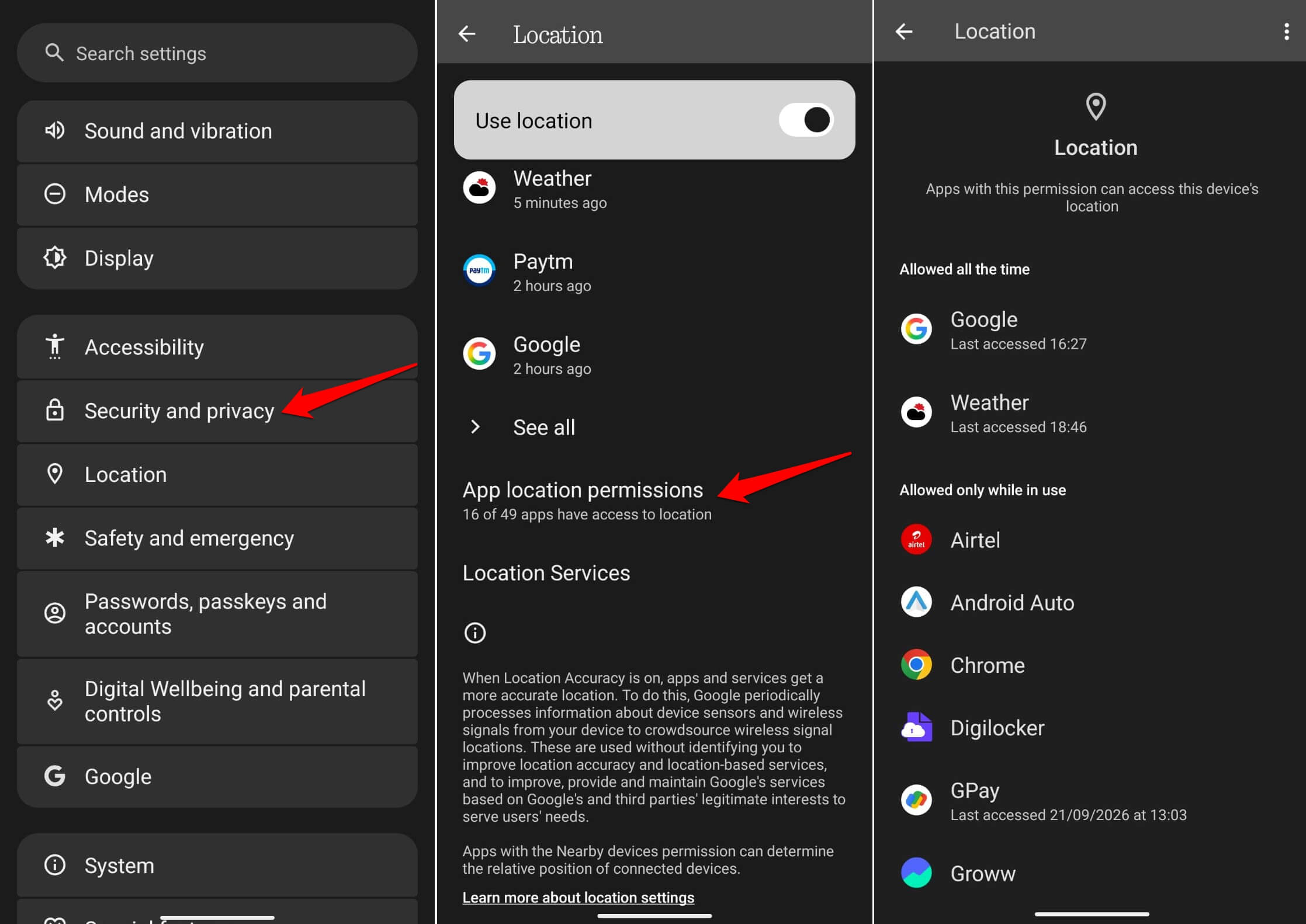
Per-app permissions are the familiar part. Each app requests Precise or Approximate location, and you can grant it Always, Only while using the app, or Never.
The path is Settings > Location > App location permissions, then each app individually. Setting anything that does not need background access to “only while using” is the same low-risk, no-downside change on Android as on iPhone.
The less familiar layer is what happens when an app only has Approximate location access. Until recently, that approximate estimate could still be specific enough to identify you in a low-density area, since fewer nearby landmarks made even a rough radius revealing.
Android 16 addressed this directly with density-based coarse locations, a feature that checks local population density and provides an even less precise estimate in sparsely populated areas, closing a gap that made the “approximate” setting less private than its name implied in rural or low-density zones.
Android 16 QPR3 update also added a location indicator that shows, in real time, exactly which app just accessed your location, in the foreground or background. It surfaces as an icon you can tap for a quick dialog naming the app.
On Pixel phones running the beta ahead of a broader stable rollout, this closes a genuinely useful visibility gap: previously you could see historical access in a privacy dashboard, but not catch it happening live.
What the Privacy Dashboard actually show you?
Android’s built-in Privacy Dashboard lists every app that has accessed your camera, microphone, and location, along with when and how often, and it is the fastest way to spot an app doing something you did not expect.
Privacy Dashboard lives under Settings > Security and Privacy, and shows access history as a timeline rather than just a permission toggle. A weather app that checked your location once when you opened it looks very different in that timeline from one that checked it forty times overnight.
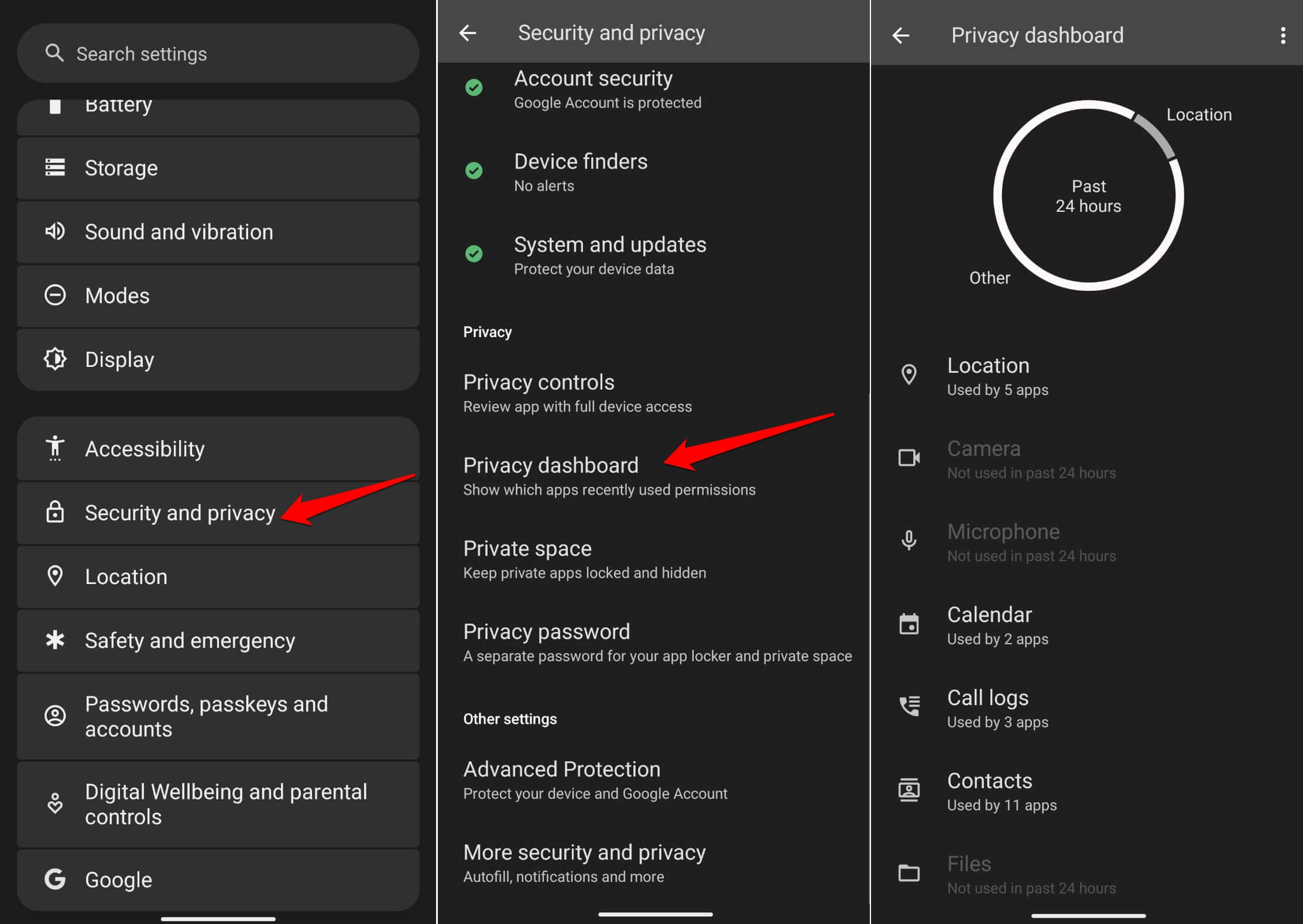
The timestamp is the part worth actually reading, not just skimming. An app accessing your microphone at three in the morning, when the app itself was not open, and you were not interacting with your phone, is the kind of pattern that justifies revoking a permission entirely rather than just narrowing it.
What this does not do, and why that is worth saying plainly
None of these settings make your phone anonymous, and no single toggle here should be mistaken for complete protection from tracking of every kind.
Deleting your advertising ID stops one specific tracking mechanism. It does not touch tracking built on your Google account, your IP address, or a fingerprint built from device characteristics without needing any ID at all.
That is a meaningful distinction, not a reason to skip the settings. Reducing the number of ways you are trackable is worth doing even when it does not reduce that number to zero. A locked front door does not make a house invisible. It just removes the easiest way in.
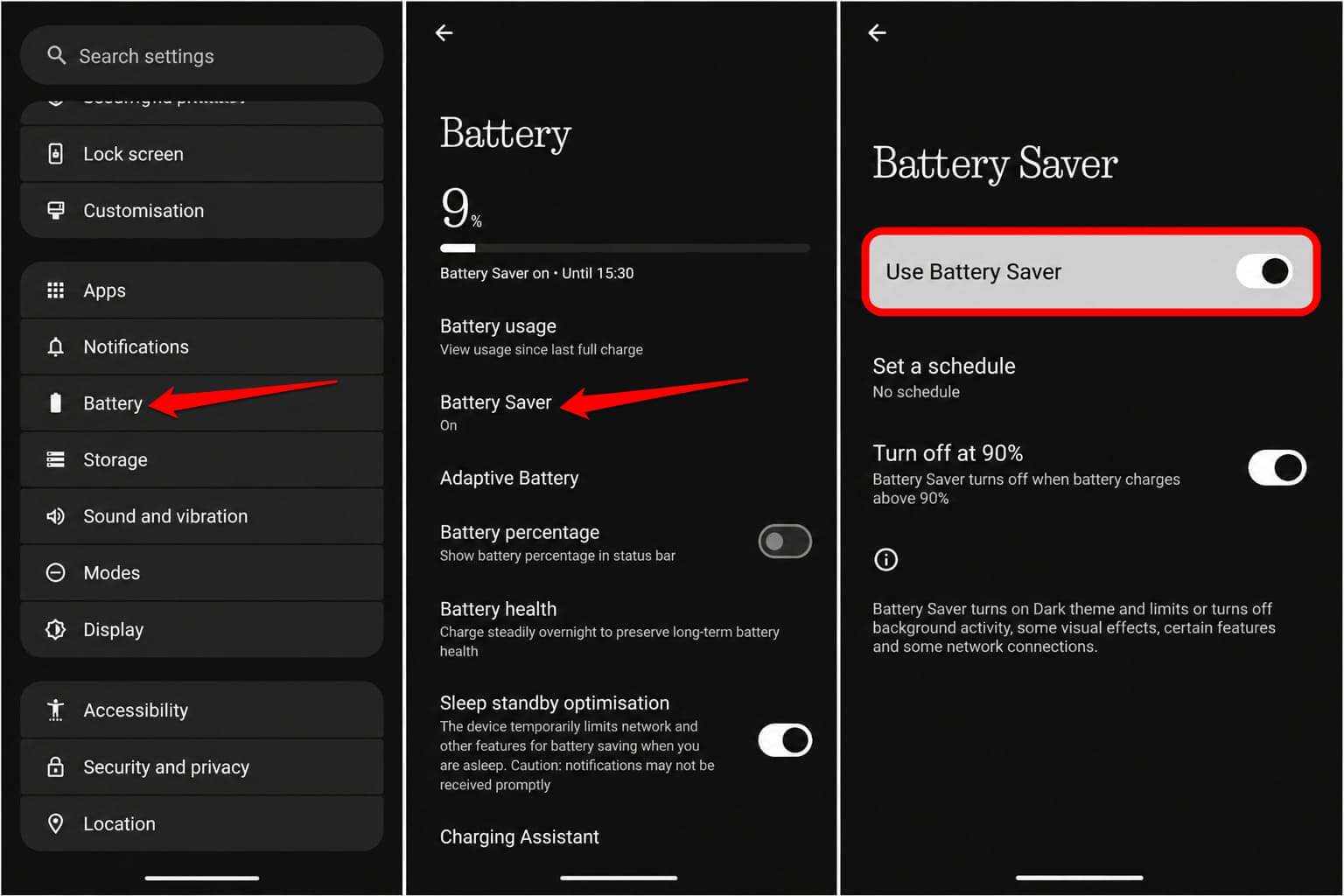
Apps that lean hardest on tracking workarounds also tend to run more aggressively in the background regardless of what you do with these settings, which is worth checking alongside a battery audit if your phone has been running warm or draining faster than usual.
The settings worth changing today on Android
Start with the advertising ID, since it is the single setting with the broadest effect and zero functional downside. To delete your Android device’s advertising ID,
- Go to Settings > Privacy > Ads
- Tap on Delete advertising ID

Next, open the Privacy Dashboard and actually read the last seven days of access history rather than immediately closing it. Look specifically for apps accessing something at a time you were not using them.
Then go through
- Location > App Location Permissions

- Change anything set to “Always” to “Don’t Allow” that has no genuine reason to run in the background.
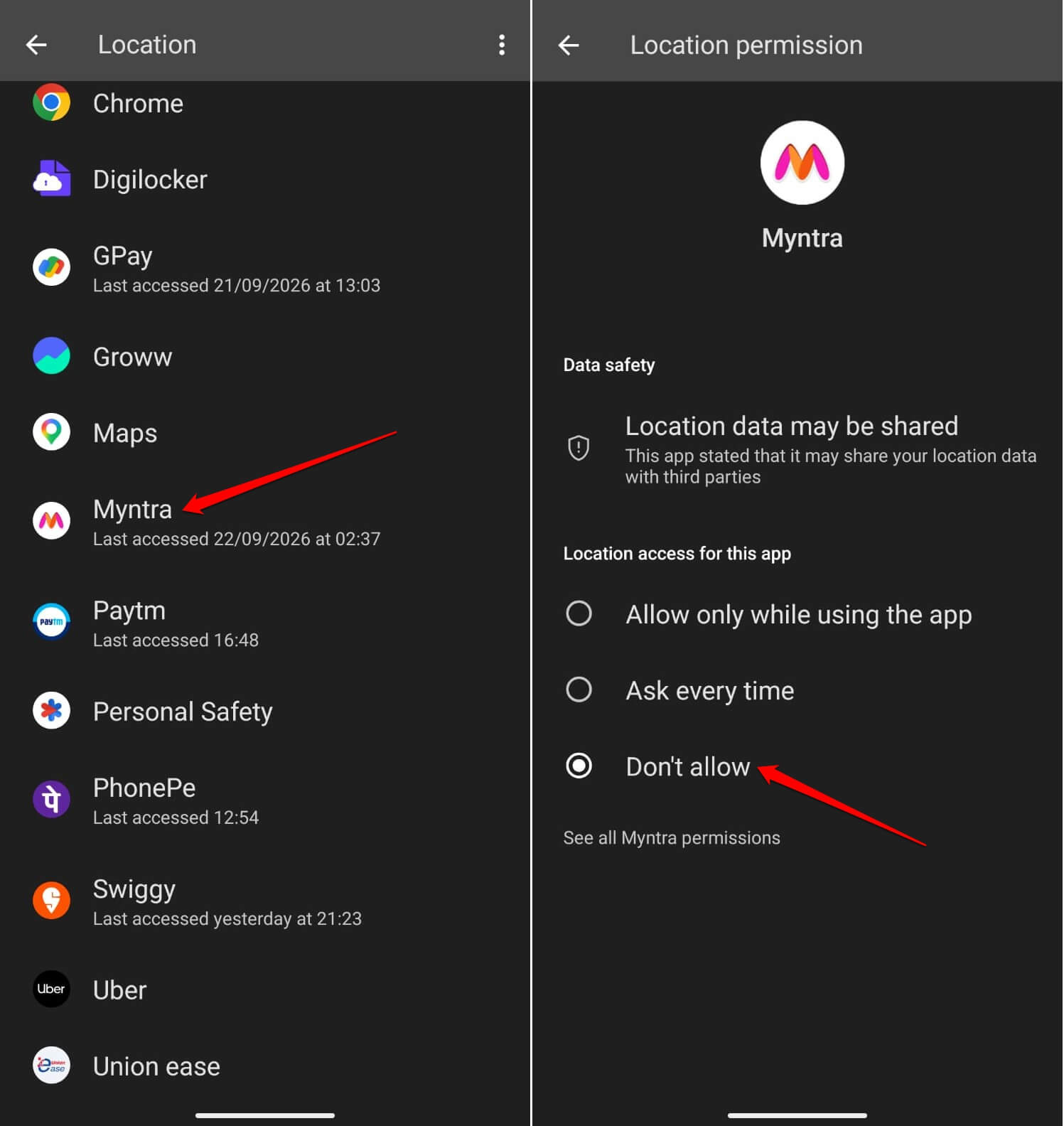

Maps and navigation apps are the correct exception here, not the rule.
None of this takes more than about a few minutes combined, and none of it is destructive or hard to reverse if an app genuinely needs more access than you initially leave it. The only real cost is the ten minutes, which is a fairly small trade for knowing what your phone is actually doing when you are not looking at it.
Frequently asked questions
Does deleting my advertising ID stop all ads?
No. It stops apps from linking your activity across other apps using that identifier. Apps can still show ads based on what you do inside that one app alone.
Is resetting or deleting the advertising ID better?
Deleting is stronger. Since Android 12, deleting replaces the ID with a string of zeros instead of a new usable identifier, which resetting still provides.
Does turning off location access break Google Maps?
No, as long as you leave Maps and other navigation apps set to “while using the app” rather than turning off location entirely. Only apps with no real need for background access should be restricted.
What does Android’s Privacy Dashboard actually track?
It logs which apps accessed your camera, microphone, and location, along with timestamps, over the recent period, so you can spot unexpected background access.
Is the advertising ID setting the same on every Android phone?
The setting itself is identical since it comes from Google Play services, but the menu path differs by manufacturer, such as Settings, Privacy, Ads on Pixel versus a deeper path on Samsung devices.