I copied three things in a row last week out of habit, forgot I had already pasted the first one, and spent a full minute hunting for text that Windows had already thrown away. Then I remembered clipboard history exists and it can come in handy. It has existed the whole time, but I was habitually engrossed in manual copy and paste, so I just never turned on the feature.
That is basically the story behind most Windows 11 hidden features that I have talked about in this write-up. They are not new, they are not buried behind a paywall(thankfully), and they are not experimental. They are just off by default, sitting a menu or two deeper than anyone casually looks.
TL;DR: Windows 11 includes a 25-item clipboard history, a Task Manager Efficiency Mode that throttles resource-heavy apps without closing them, Snap Layouts for fast window arranging, and Focus Sessions to block notifications. None of these are on by default, and most people never enable them because nothing in the interface prompts you to.
Clipboard history remembers more than one thing
Windows normally holds one copied item at a time. Copy something new and the old one is gone. Clipboard history changes that, keeping the last 25 things you copied so you can paste any of them later.
Press Windows key + V to view the clipboard history. If it has never been turned on, a small panel appears with a Turn On button. Click it, copy something, then press the same shortcut again to see it saved.
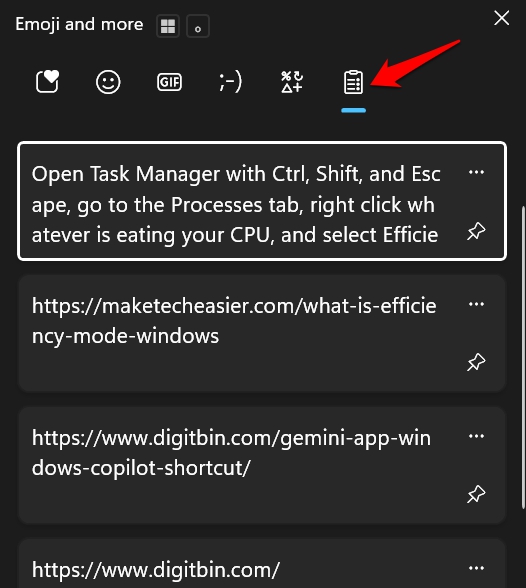
Each item can hold up to 4 MB of text, HTML, or an image, and the whole list clears when you restart unless you pin specific items to keep them around.
I use it mostly on research-intensive workdays, copying a handful of links or text from different tabs before pasting them all into one document. Before this, that meant switching back and forth between windows every single time. Now it is one shortcut and a list.
Efficiency Mode throttles apps without killing them
Task Manager has a button most people never notice called Efficiency Mode. It does not close an app. It lowers that app’s priority, so your active window gets first claim on the processor.
To find and use this Windows 11 feature,
- Open Task Manager with Ctrl + Shift + Escape
- Go to the Processes tab.
- Right-click on whatever program is eating your CPU and select Efficiency Mode.
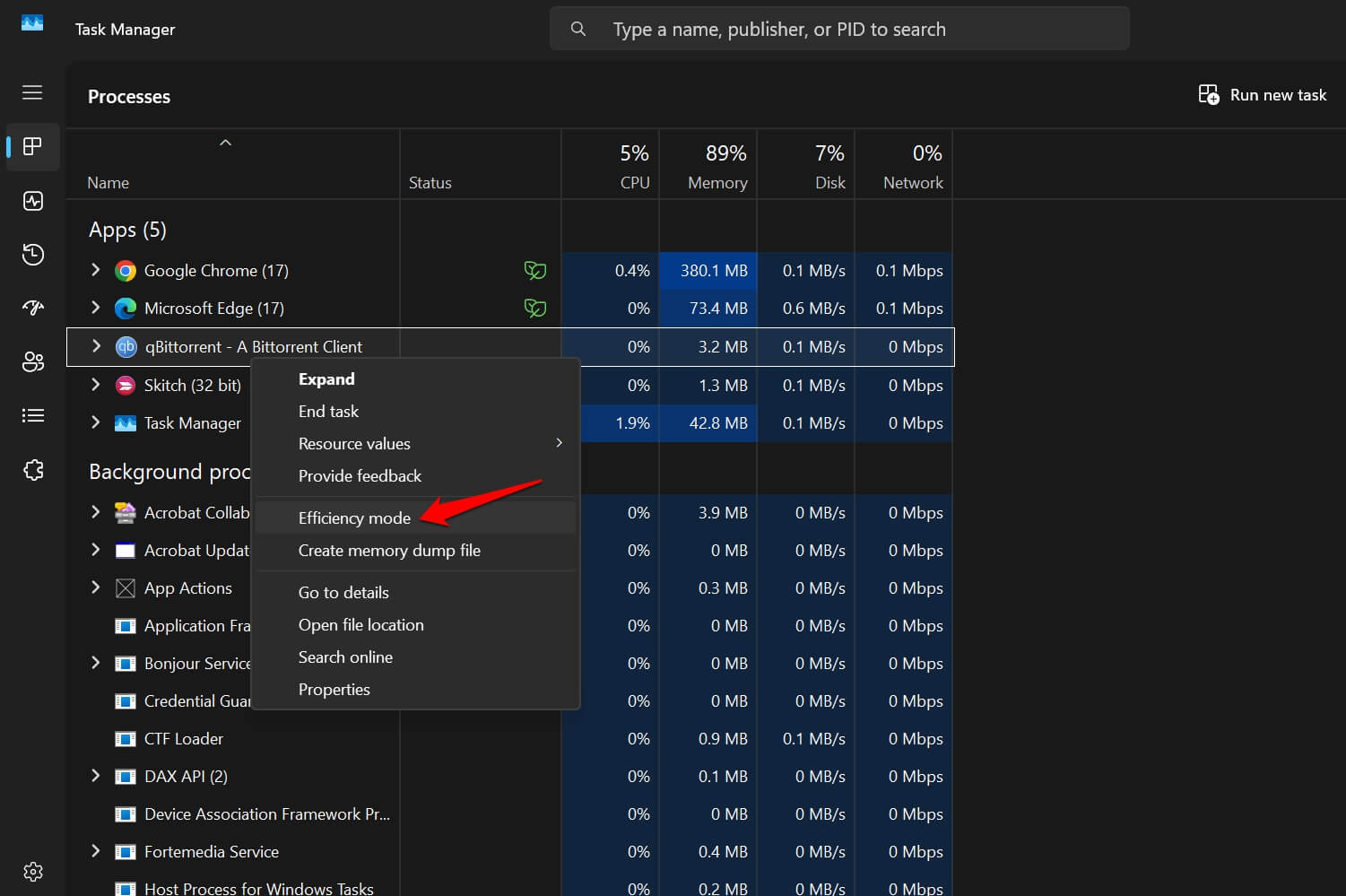

Microsoft’s own testing found this can improve system responsiveness by as much as 76 percent on machines where one background app is hogging resources.
A program running in Efficiency Mode is denoted by a small leaf icon next to it. You can turn it off the same way if an app you throttled starts misbehaving.
I noticed the difference most on an older laptop, where a browser with too many tabs open used to make everything else stutter. Putting that browser into Efficiency Mode did not fix the tab problem. It just stopped that problem from dragging everything else down with it.
| Feature | Where to find it | Default state |
|---|---|---|
| Clipboard history | Settings, System, Clipboard, or Win+V | Off |
| Efficiency Mode | Task Manager, Processes tab | Off per app |
| Snap Layouts | Hover the maximize button | On, rarely used |
| Focus Sessions | Clock app | Off |
| Virtual Desktops | Win+Tab | On, rarely used |
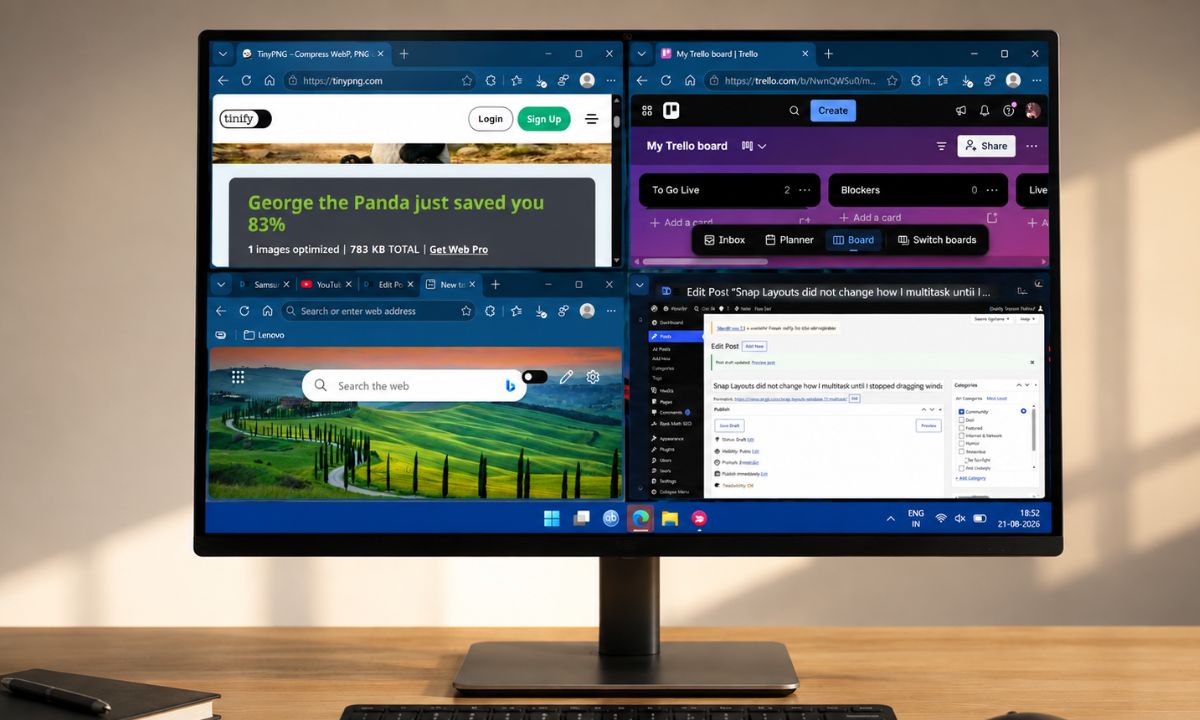
Snap Layouts do the window arranging for you
Hover over the maximize button on any window and a small grid of Snap Layouts options appears. You may press the Windows + Z shortcut as well.
Click one of the suggested Snap layouts, and Windows arranges that window plus whatever else you pick into a clean split screen with no dragging edges around required.
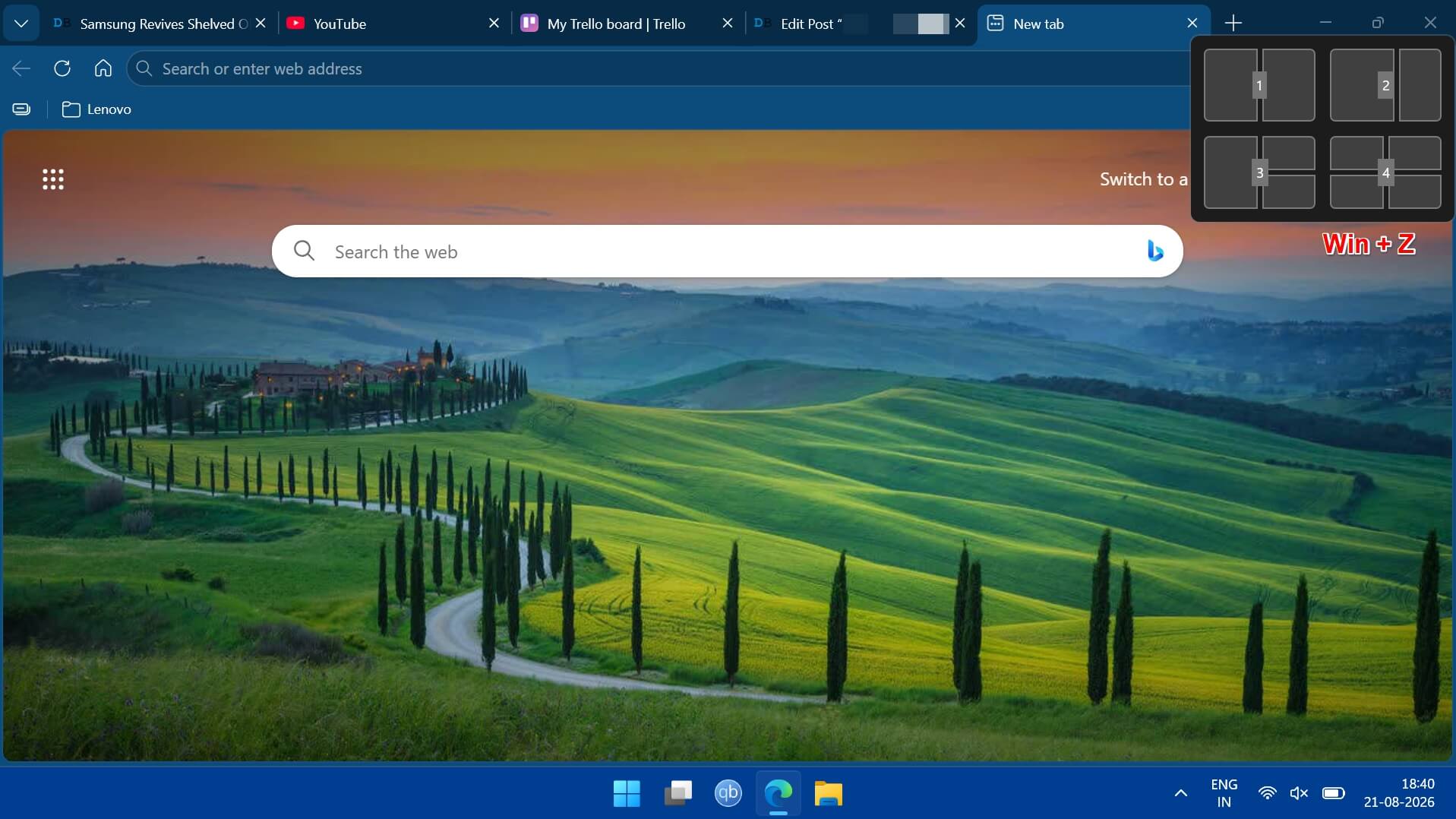
This one is technically on by default, but most people miss it because hovering over a maximize button is not something anyone thinks to do.
I used to manually resize two windows side by side every time I needed to compare a spreadsheet against an email. Now it takes one hover and one click, and I stopped doing the manual resize entirely without really deciding to.
Focus Sessions live inside the Clock app, of all places
Similar to the Windows 11 battery settings most people skip, buried inside the Clock app is a Focus Sessions tool that mutes notifications for a set period and can optionally play music through Spotify if it is installed.
- Open the Clock app in Windows 11
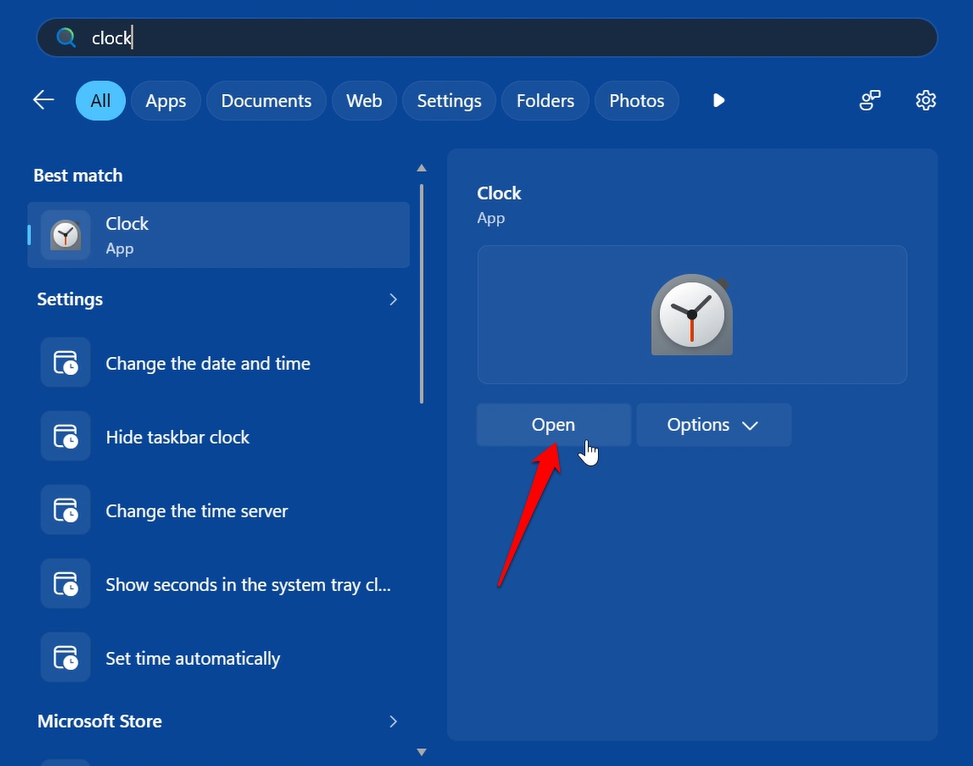

- Select Focus Sessions
- Set a timer, and let Windows handle the rest.
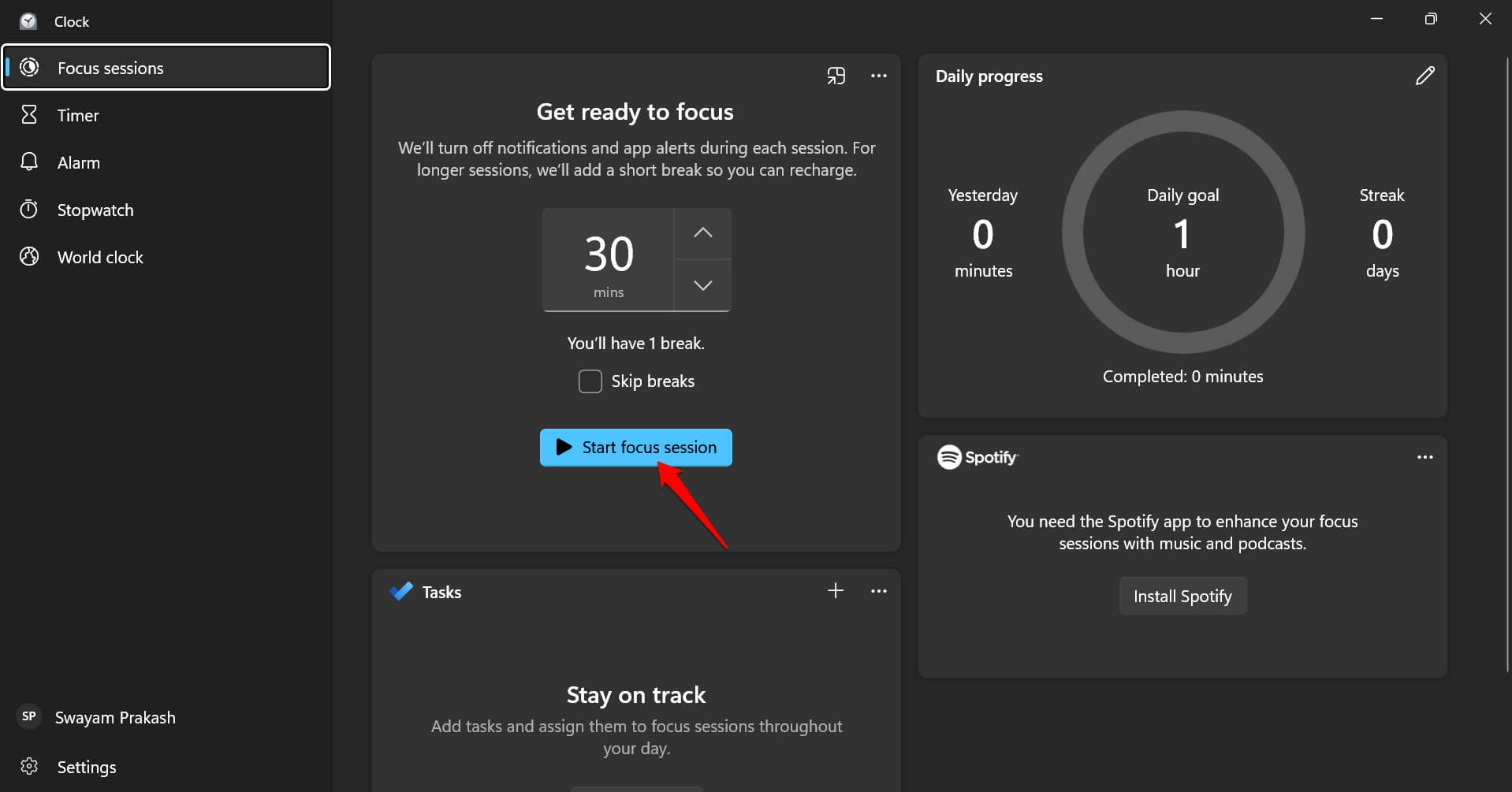

It is easy to dismiss this as another timer app, and for the first few uses that is exactly how it felt. The difference showed up after about a week. I noticed I had stopped instinctively checking my phone every time a notification banner would have popped up on the PC.
Virtual Desktops separate your contexts instead of your windows
Press the Windows key + Tab. Then click New Desktop at the top. Each virtual desktop can hold its own set of open windows, so a work desktop and a personal browsing desktop never have to mix taskbars.
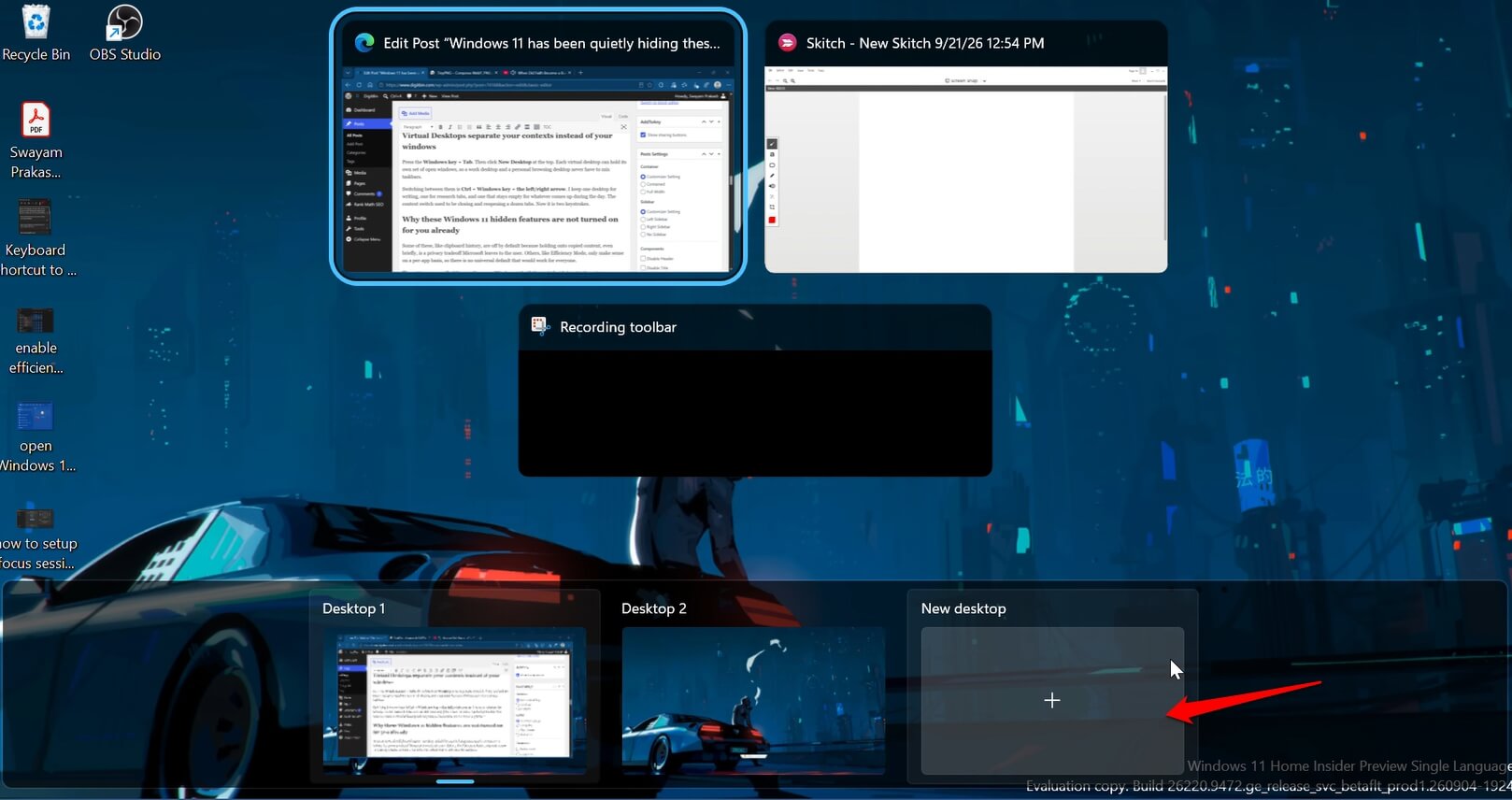
Switching between them is Ctrl + Windows key + the left/right arrow. I keep one desktop for writing, one for research tabs, and one that stays empty for whatever comes up during the day. The context switch used to be closing and reopening a dozen tabs. Now it is two keystrokes.
Why these Windows 11 hidden features are not enabled for you already?
Some of these, like clipboard history, are off by default because holding onto copied content, even briefly, is a privacy tradeoff Microsoft leaves to the user. Others, like Efficiency Mode, only make sense on a per-app basis, so there is no universal default that would work for everyone.
The pattern across all of them is the same. Windows 11 built the tool, decided not to force it on anyone, and left it for people to find. Most never do, not because the features are hard to use, but because nothing on the desktop points toward them.
Frequently Asked Questions
Does clipboard history save passwords I copy?
Yes, unless you clear it manually. Avoid copying sensitive information while clipboard history is turned on, or clear the history right after.
Will Efficiency Mode break the app I use it on?
It can cause instability on some apps since it lowers their priority and clock speed. Turn it off the same way if an app starts behaving oddly.
Do Snap Layouts work with more than two windows?
Yes. The grid that appears offers layouts for two, three, or four windows depending on your screen size.
Can Focus Sessions block calls too?
No. Focus Sessions only mutes notifications and can play music. For blocking calls, use Windows 11’s separate Focus Assist settings.
Do virtual desktops slow down my PC?
No. Virtual desktops do not use extra system resources beyond the apps already open within them.
The one reason to use these Windows features
All these hidden Windows 11 features simply remove small pieces of friction that most people have quietly adapted around without noticing. Once you start using these features, you will notice a stark improvement in your productivity.