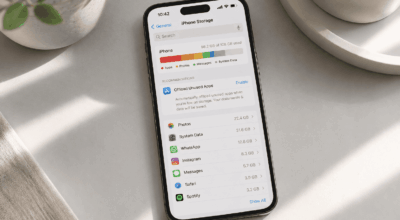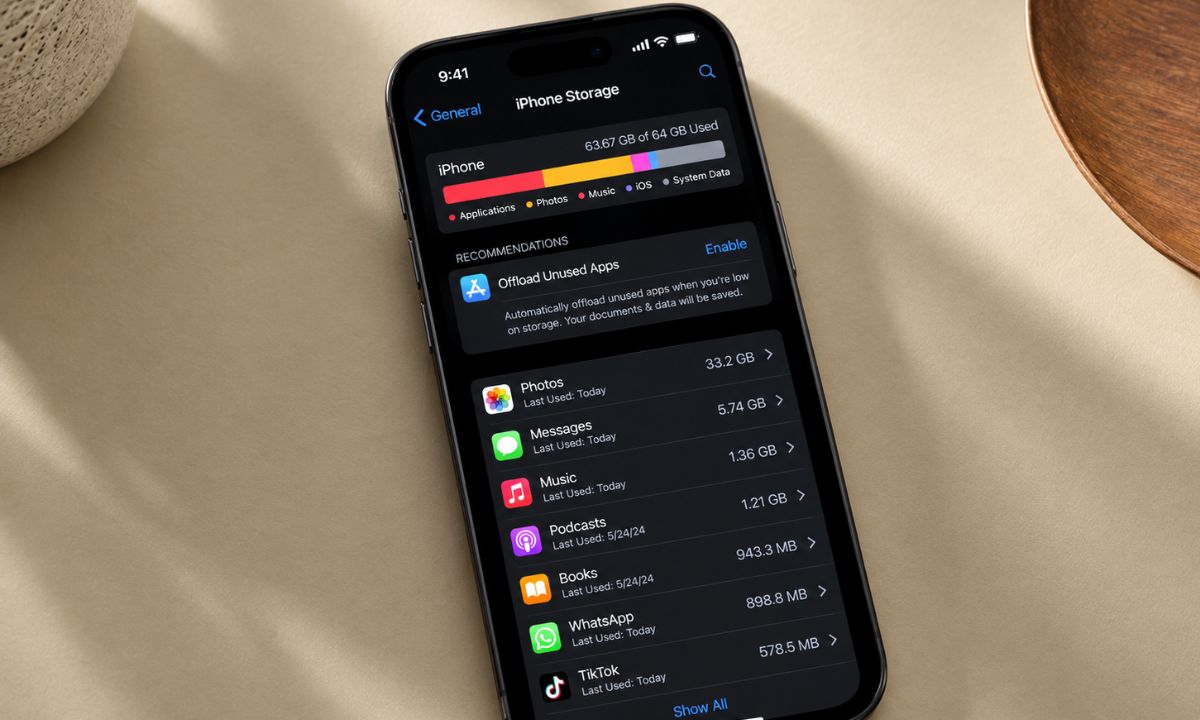
I tried installing an iOS beta last year with what I thought was plenty of room to spare. Eleven gigabytes free, a 6GB download listed in Settings. The install failed twice before I figured out why.
The download size and the space iOS actually needs during installation are not the same number, and nobody tells you that until the progress bar stalls at 60 percent.
With iOS 27 expected to land as a stable release around September 14, following beta 8 and Apple’s September 9, 2026 event, this is worth sorting out before the update notification shows up rather than during it.
TL;DR: iOS 27 downloads around 6GB to 9GB, but installation temporarily needs closer to 15GB to 20GB free because iOS holds old and new system files at once. WhatsApp media, streaming downloads, and offloadable apps clear the most space fastest. Photos are rarely the actual problem once iCloud optimization is on.
Why the available iPhone storage has to be bigger than the iOS build?
Settings shows one number when an update becomes available, and that number only reflects the compressed download file.
Installing is a different story. iOS has to decompress the update, verify it, and briefly keep both the current system files and the new ones on disk before deleting the old version.
That temporary overhead is why a 7GB download can demand 15GB or more of breathing room. I did not believe this until I watched an update fail with 9GB free, well above the listed download size but short of what installation actually needed.
Apple’s support guidance on storage during updates confirms the download size and installation requirement are calculated differently.
For iOS 27 specifically, expect the download itself to land somewhere between 6GB and 9GB, with 15GB to 20GB free recommended to avoid the installation stalling partway through.
Check the real number before you start clearing anything
Go to Settings > General > Software Update once iOS 27 shows up as available. The banner under the update name lists the exact download size for your specific iPhone model, which varies slightly by device.
Add roughly 8GB to 10GB on top of whatever that number says. That buffer covers the temporary installation files, not just the download itself.
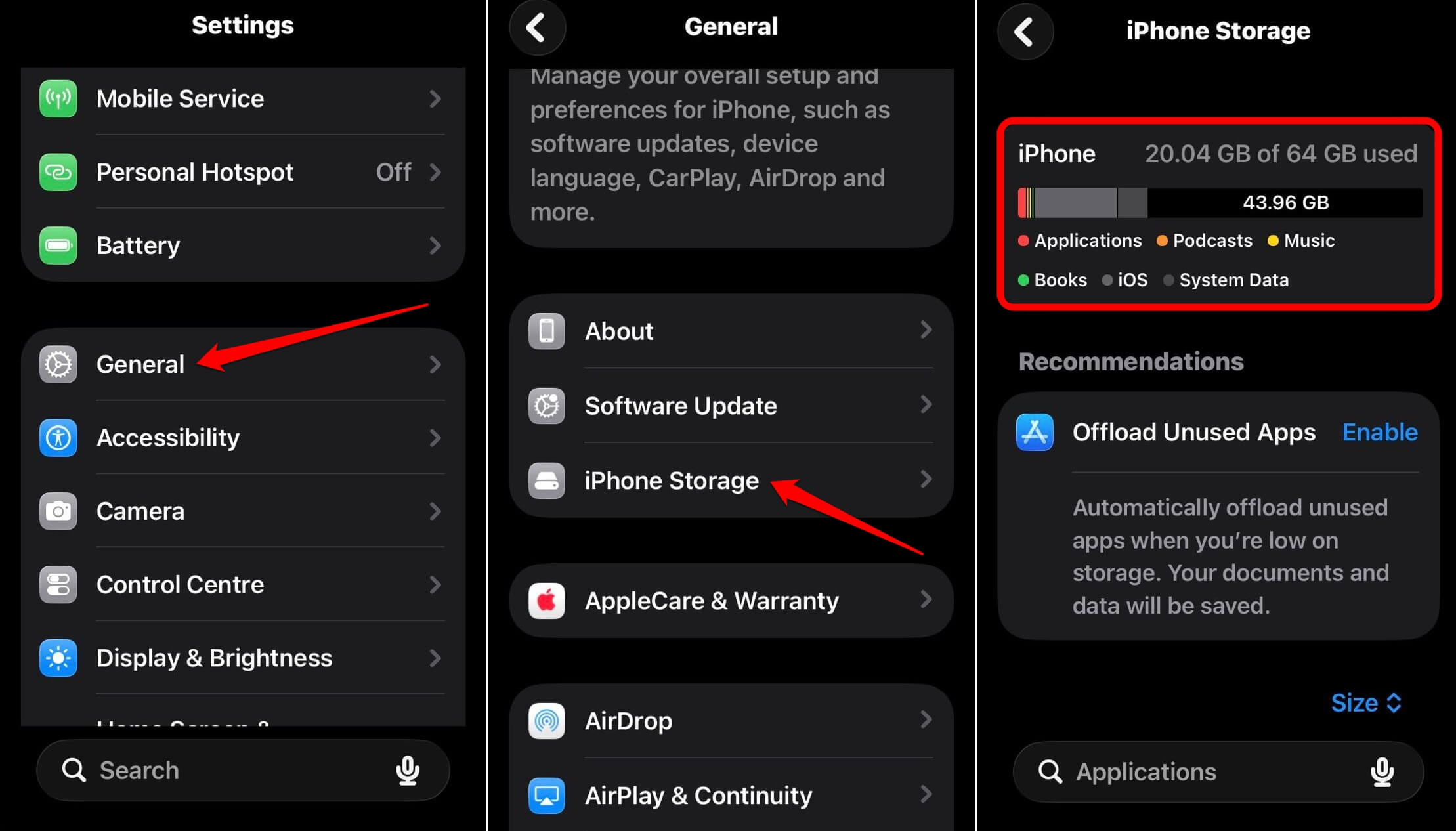
Then check Settings > General > iPhone Storage to see what you are actually working with. The bar graph loads within a few seconds and breaks usage down by category.
| Category | Typical impact on update readiness |
|---|---|
| WhatsApp and Messages media | High, often 5 to 30GB on active accounts |
| Streaming app downloads | Moderate, fully recoverable and easy to redownload |
| Unused apps | Moderate, offloadable without losing data |
| Photos with iCloud optimization off | High, but reversible by turning optimization on |
| System Data | Grows on its own, shrinks somewhat after a restart |
What actually clears the most space fastest?
Offload Unused Apps is the single fastest move. It removes the app itself while keeping saved data, and the app reinstalls automatically the next time you tap its icon.
- Go to Settings > Apps > App Store
- Enable Offload Unused Apps.
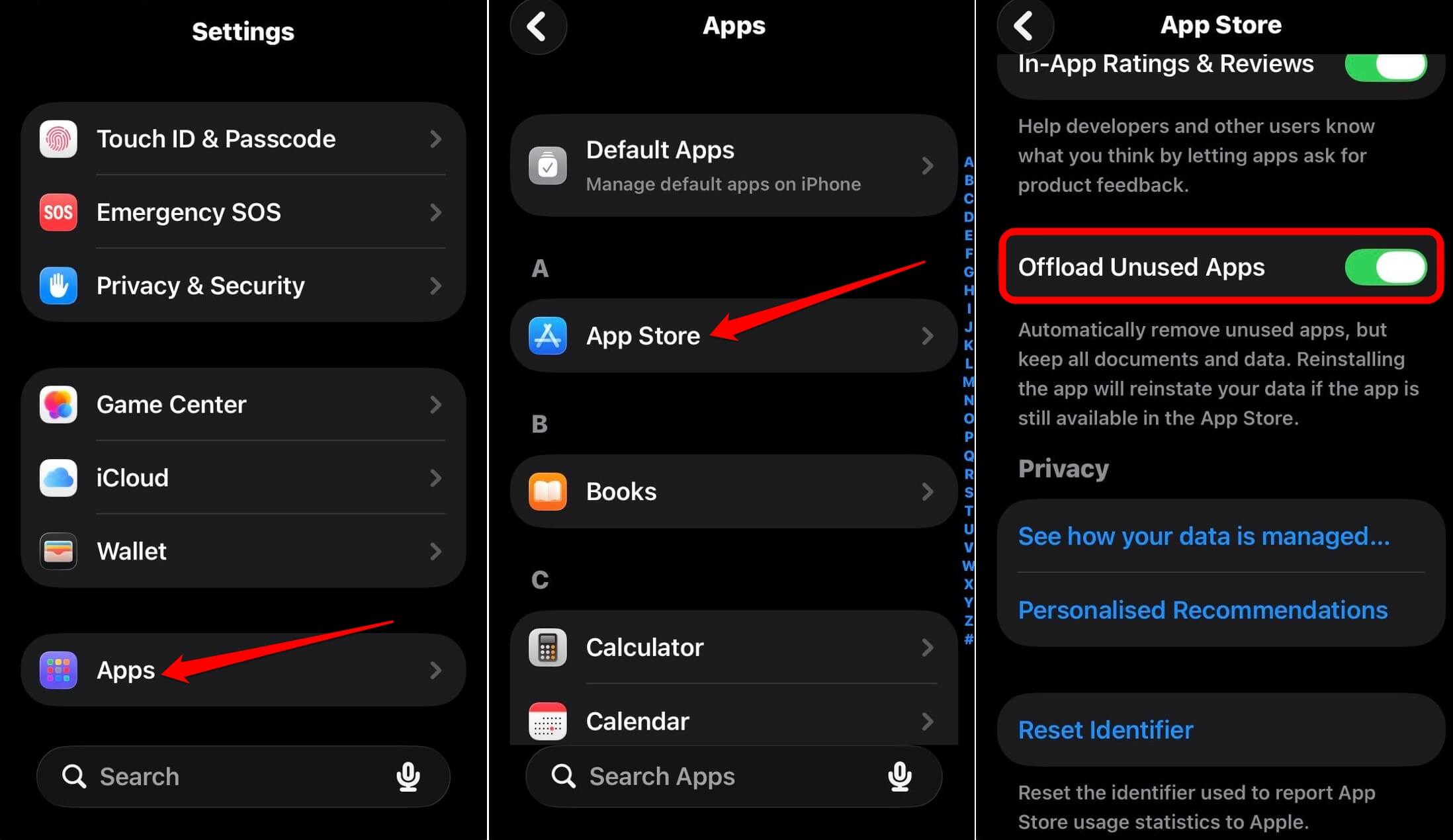

iOS picks apps based on how long it has been since you opened each one.
Secondly, media you saved from WhatsApp is usually the biggest single source for storage space recovery.
- Open WhatsApp > tap Account > Storage and Data >Manage Storage.
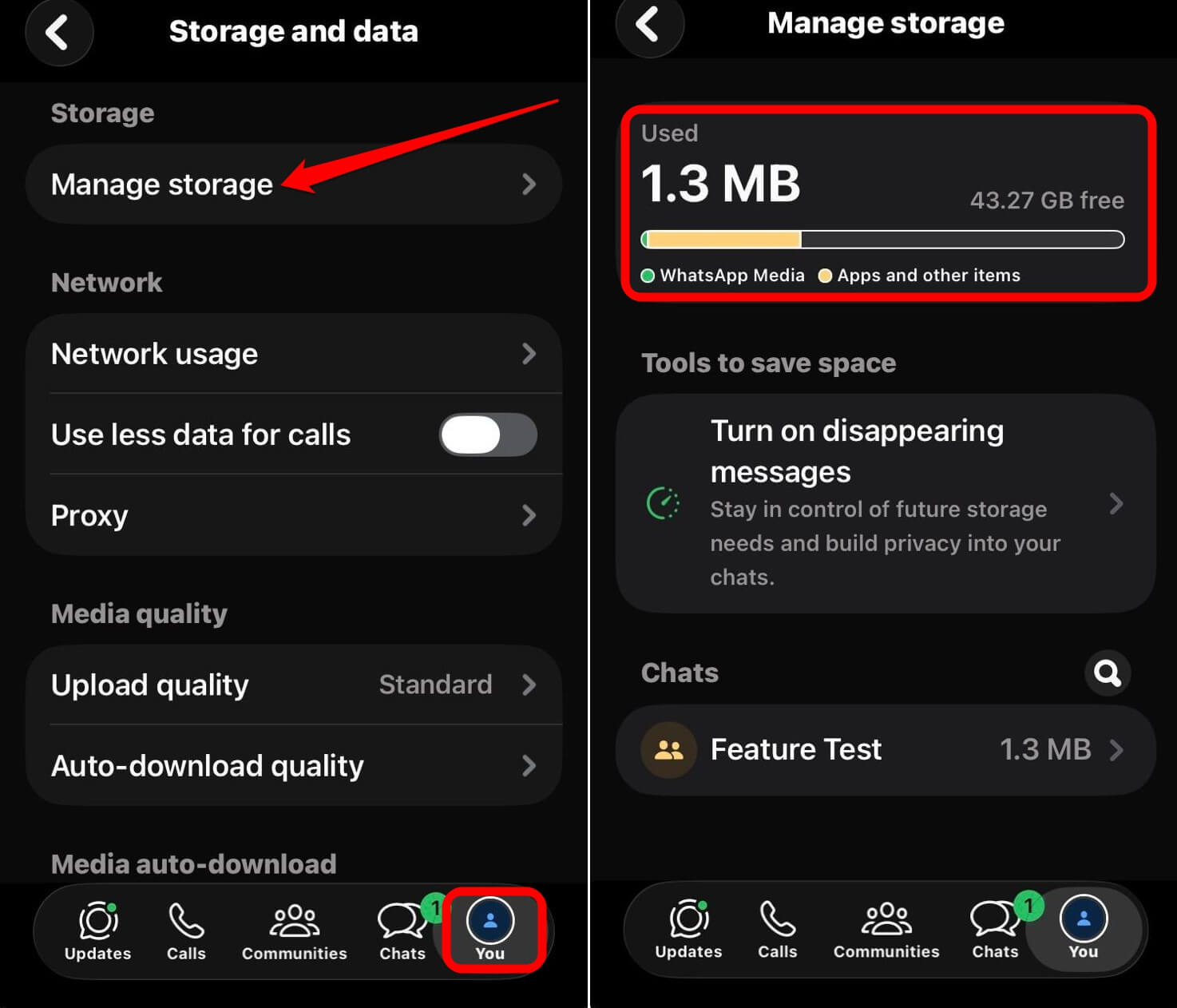

- Delete Forwarded Videos and Voice Notes in group chats. They are almost always the largest items consuming the most storage.
Streaming apps hold onto downloaded episodes and albums long after you finish them. Clearing downloads inside Netflix, Spotify, or Apple TV individually usually frees several gigabytes without touching anything permanent.
None of this requires deleting photos. I stopped treating the Photos bar as the enemy once I noticed how much smaller it actually was compared to WhatsApp and System Data combined.
Things to skip that do not help before an update
Buying more iCloud storage does nothing for device storage. It solves backup and sync capacity, not the local space an update needs to install.
Turning on Optimize iPhone Storage under iCloud Photos helps over time, but the effect is not instant. Full-resolution originals move to iCloud gradually rather than all at once, so this is worth doing days ahead rather than the morning of an update.
Deleting individual photos one by one is the slowest possible method for the smallest possible gain, especially once you consider WhatsApp and app data are usually the real weight.
Frequently Asked Questions
How much storage do I actually need for iOS 27?
The download itself is roughly 6GB to 9GB, but keep 15GB to 20GB free to cover the temporary space iOS needs during installation.
Will offloading an app delete my saved data?
No. Offloading removes the app itself but keeps its documents and settings. Reopening the app reinstalls it and restores everything automatically.
Does buying more iCloud storage fix the not enough storage message?
No. iCloud storage only affects backup and photo sync. The update needs free space on the device itself, which iCloud storage does not add.
Why did my update fail even though I had enough free space listed?
The Settings app usually shows the download size only. Installation needs extra temporary space on top of that, which is why updates can fail even when the visible number looked sufficient.
Should I delete my photos to make room for iOS 27?
Usually not necessary. Turning on Optimize iPhone Storage under iCloud Photos frees space without deleting anything, though it takes a few days to fully take effect.
The morning when the update drops is the wrong time to start
Following the workaround I have shared sometime before iOS 27’s expected mid-September release gives Optimize Storage and app offloading time to actually work, instead of scrambling through WhatsApp folders while an iOS update installation progress bar sits frozen.
A few minutes spread across checking the storage breakdown, offloading a few apps, and clearing WhatsApp media covers the necessary space an iOS update actually needs.