Seven days after turning on App Privacy Report, I opened the Data and Sensor Access section expecting to see Maps and maybe a weather app. The list was longer than that.
Instagram had accessed my location eighteen times in a week, most of it during late evening sessions when I was not posting anything with a location tag.
A food delivery app I had not ordered from in three weeks was still set to Always. A gaming app had microphone access I had no memory of granting.
This guide walks through auditing iPhone location permissions, what App Privacy Report actually shows, and which settings to change first without breaking anything useful.
TL;DR: Go to Settings, Privacy and Security, App Privacy Report and turn it on. After seven days, you will see every app’s camera, microphone, and location access with timestamps. Then check Location Services and change most apps from Always to While Using the App. Significant Locations, buried in System Services, stores a full history of where you go and is worth reviewing separately.
How to turn on iOS App Privacy Report and read it?
App Privacy Report was introduced in iOS 15.2 and has been present in every version since.
To turn it on,
- Open the iPhone Settings app.
- Go to Privacy and Security.
- Scroll to App Privacy Report.
- Tap the toggle for Turn On App Privacy Report.
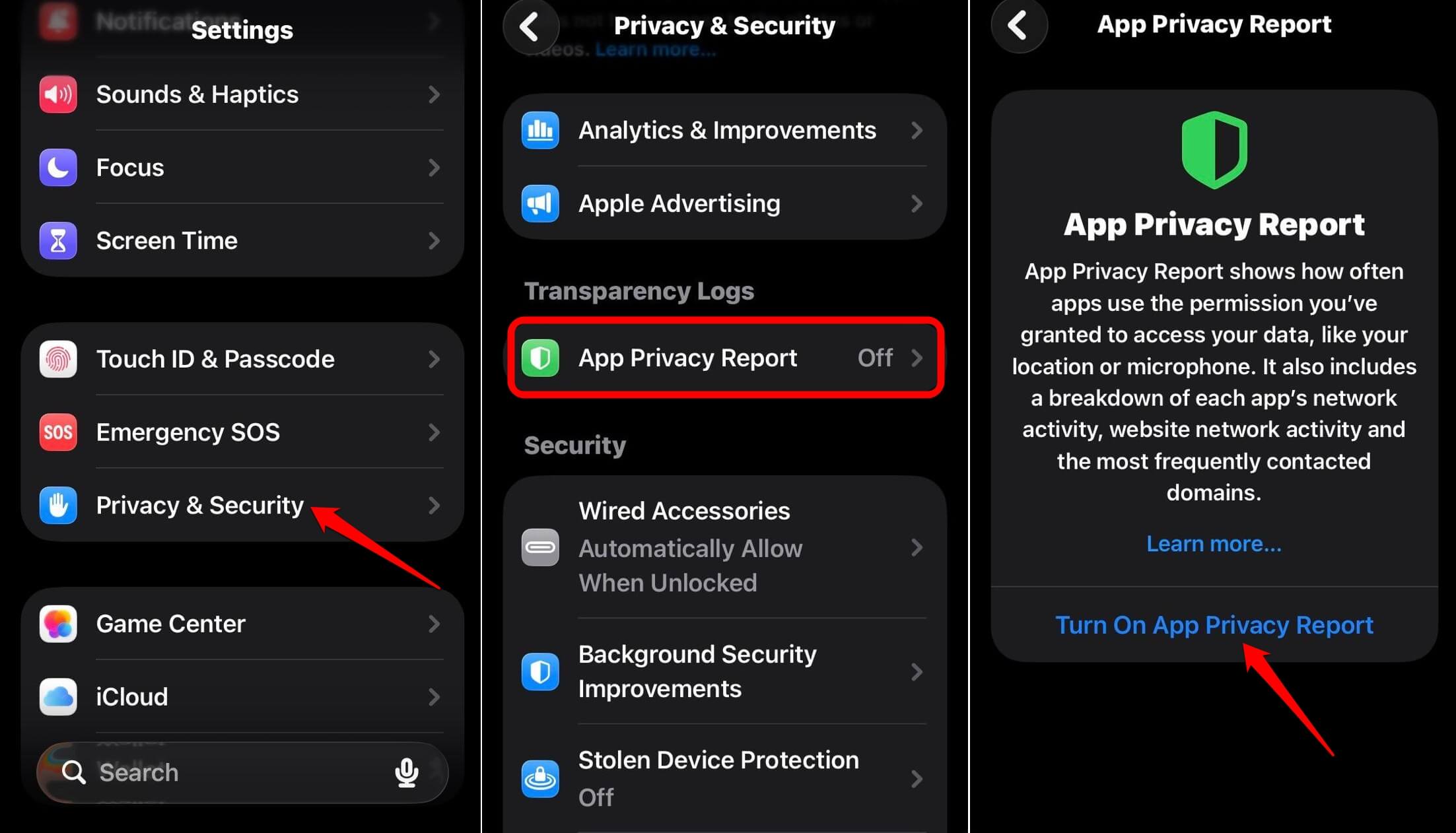

The report takes seven days to populate. Once it does, the Data and Sensor Access section shows every app that accessed your location, camera, microphone, contacts, or photos, along with how many times and when.
An App Tracking Transparency prompt is different from this. App Privacy Report does not block anything. It just shows you what is already happening with the permissions you granted.
The most useful part is the timestamp data. If an app accessed your location at 2 AM while you were asleep, that access had nothing to do with a feature you were actively using.
That is the kind of pattern that tells you the “Always” permission needs to change.
What iPhone location permissions actually mean?
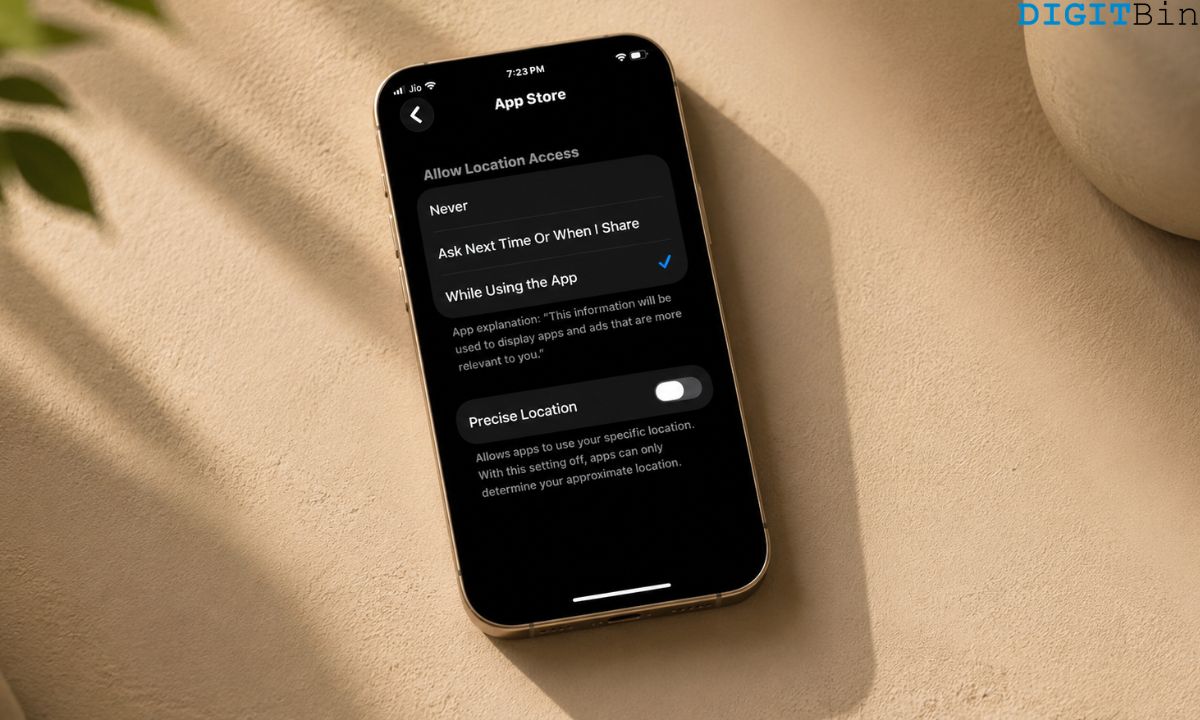
iOS gives you three options for each app: Never, Ask Next Time or When I Share, and While Using the App.
Always means the app can read your location at any time, including when the screen is off. When the app is not in use, it will still access your location information. Sounds quite unnecessary, right? Most apps do not need that level of access to work properly.
Precise Location is a separate toggle inside each app’s permission screen. It means your exact location coordinates.
Turning it off shares an approximate location, covering a square of a few kilometres rather than your exact coordinates.
- Open the iOS settings.
- Go to Privacy and Security > Location Services.
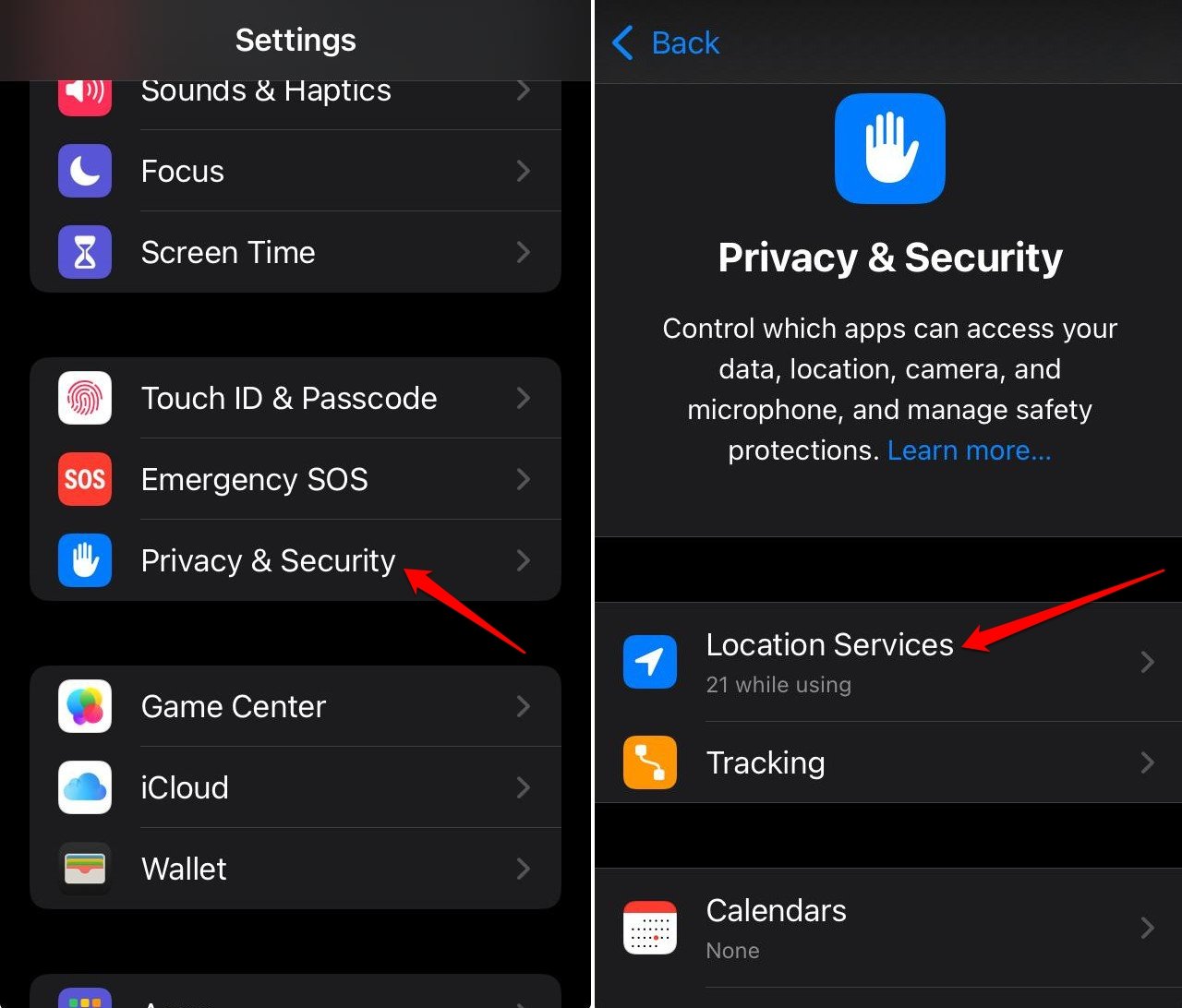

- Scroll down and tap on the app to manage location sharing.
- Select the location access option you prefer.
- Turn off the toggle next to Precise Location.
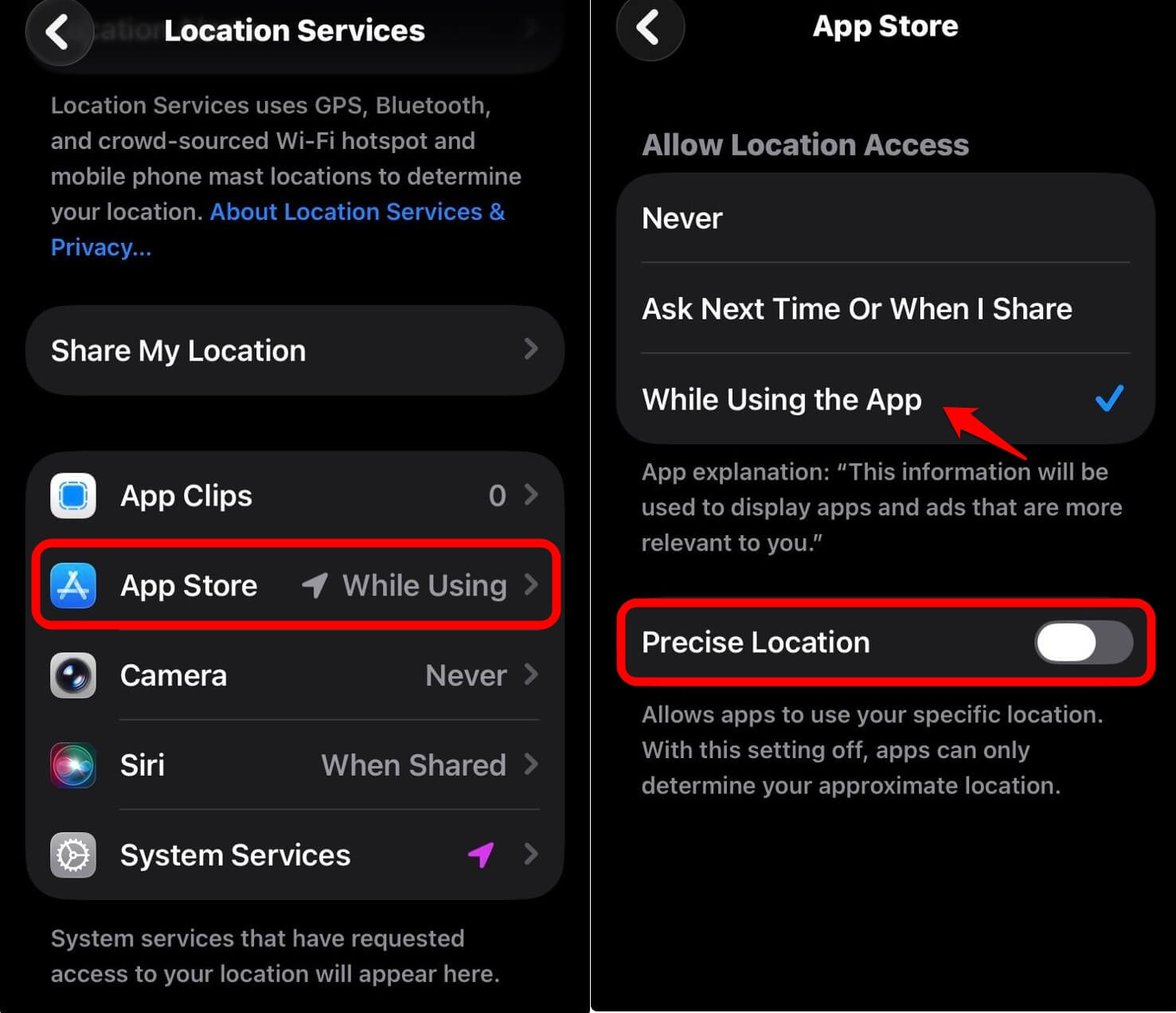

You can do these steps for all the apps installed on your iPhone.
A restaurant finder does not need your exact address. A weather app does not need your GPS pin.
| App type | Common setting found | Better setting | Why |
|---|---|---|---|
| Social media (Instagram, TikTok, Snapchat) | Always | While Using the App | No location feature requires background access |
| Food delivery (Uber Eats, DoorDash) | Always | While Using the App | Only needs location when placing or tracking an order |
| Shopping apps | While Using or Always | Never or Ask Next Time | Location is used primarily for ad targeting, not features |
| Weather apps | Always | While Using the App | Pulling a forecast once does not require constant tracking |
| Maps and navigation | While Using the App | While Using the App | Correct as-is, only active during navigation |
| Find My, Crash Detection | Always | Always | Safety feature that requires continuous location to work |
Changing an app from “Always” to “While Using the App” does not break the app. It just means location is only read when the app is open on screen.
It saves battery and doesn’t share your location info all the time. As ideal as it can get.
What Significant Locations stores about your daily routine?
Significant Locations is a system-level iOS feature that records the places you visit regularly.
Using GPS, WiFi signals, and cell tower data, your iPhone builds a profile of your home, workplace, gym, regular cafe, and any other place you visit often.
The data is encrypted and stored on your device, tied to your Face ID or passcode. Apple says it does not share this data, but anyone who has your phone and knows your passcode can view it after authenticating.
The path to find it is
- iOS Settings > Privacy and Security > Location Services.
- Go to System Services > Significant Locations.
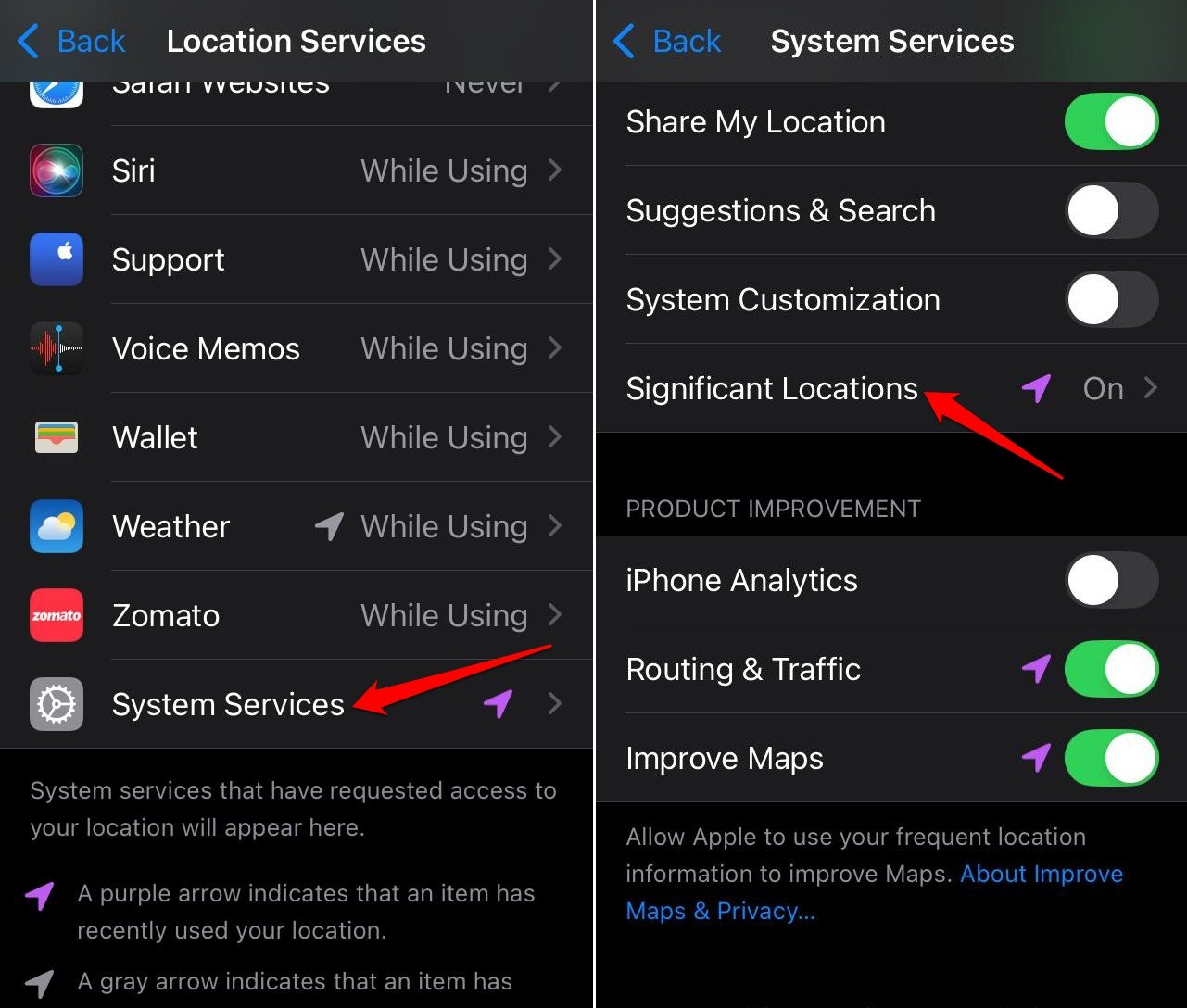

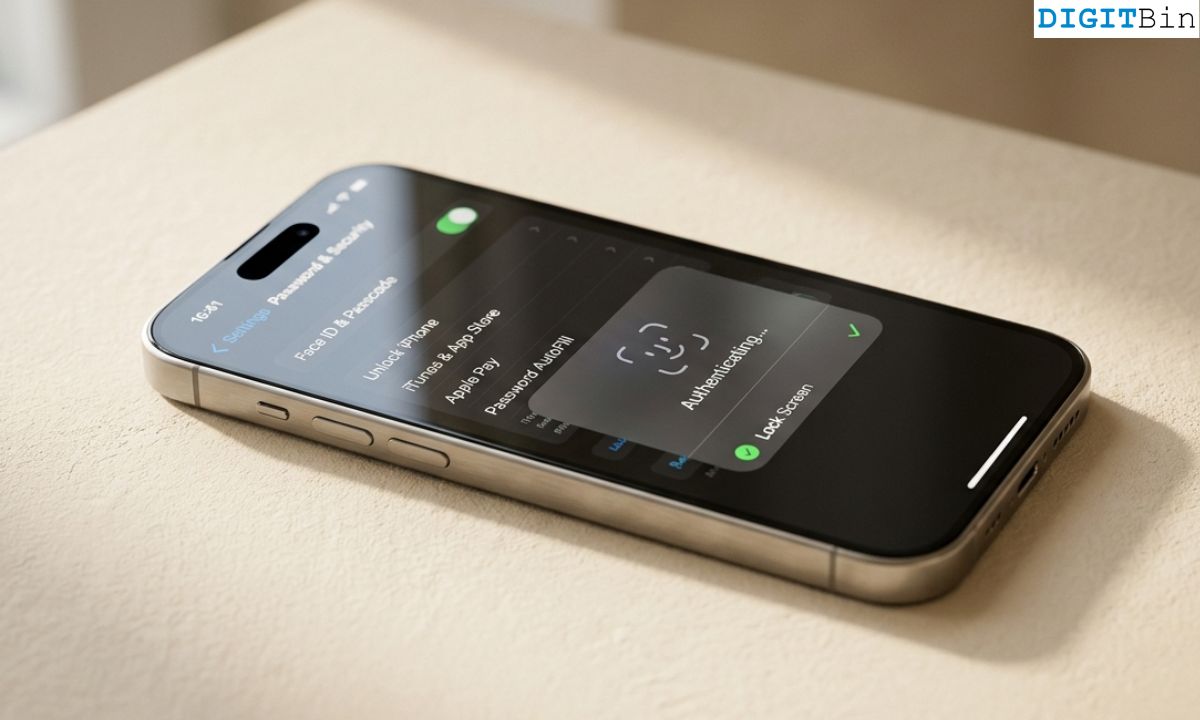
- Face ID/Touch ID authentication is required before the list appears.
- To turn it off, toggle Significant Locations off on that screen.
- To delete the existing history without disabling it, scroll down and tap Clear History.
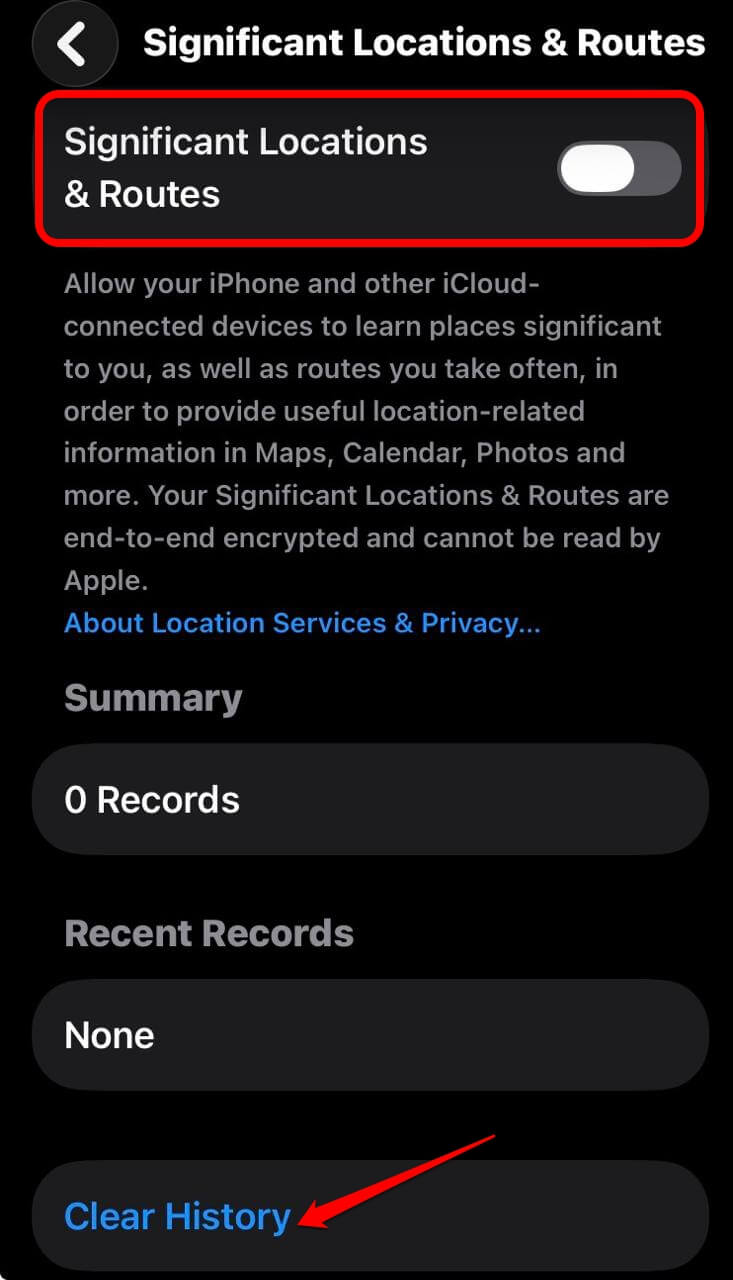

If you have had your phone for a year or more, the history will likely include every city you have visited and a detailed breakdown of specific places within those cities.
Turning off significant locations reduces the accuracy of features like Maps ETA predictions, Siri commute suggestions, and Photo Memories. Location services themselves remain active for apps that need them.
Which types of apps consistently overstep on location access?
Social media apps are the most consistent offenders in the “Always” category. Instagram, TikTok, and Snapchat default to requesting Always access, and most people accept it during the initial setup without thinking much.
None of the core features of these social media apps like posting, scrolling, and messaging require background location.
Shopping apps are less obvious but equally aggressive. Apps like Amazon, ASOS, and most retail apps use location data for ad targeting rather than any feature the user actually needs.
Setting them to “Never” or “Ask Next Time” does not affect checkout, search, or order tracking. All three of those features work without live location access.
It is also worth checking battery drain alongside this audit. Apps set to Always location access run more frequently in the background, which shows up as higher battery consumption over the course of the day.
Tightening location permissions often has a measurable effect on how long the phone lasts between charges, particularly if several apps are set to Always at once.
The Apple Support guidance on app privacy permissions covers the full category list and explains how each permission type works at the system level.
Frequently asked questions
Does turning off Significant Locations affect Find My?
No. Find My uses iCloud and a separate location layer. Disabling Significant Locations only stops the historical record of frequently visited places. Find My continues to work normally.
Will changing apps from Always to While Using break anything?
In most cases, no. Apps that need location will request it again when you open them. The main exception is apps designed to send location-based alerts in the background, like certain navigation apps or reminder apps that trigger on arrival at a place.
How often should I run this audit?
After any major iOS update is a reasonable trigger, since updates can reset some permission defaults. Quarterly is enough for ongoing maintenance if you are not installing new apps frequently.

The best time to run this iOS location permission check
Major iOS updates are the most reliable trigger. Updates sometimes reset permission defaults or introduce new system services that request location access.
Running the audit within a week of any update catches those changes before they become habits. The App Privacy Report data resets with each seven-day window. Turn it on once and leave it running.
The next time something surprises you in the list is usually the right moment to revisit the full settings audit and make changes as per your requirements.