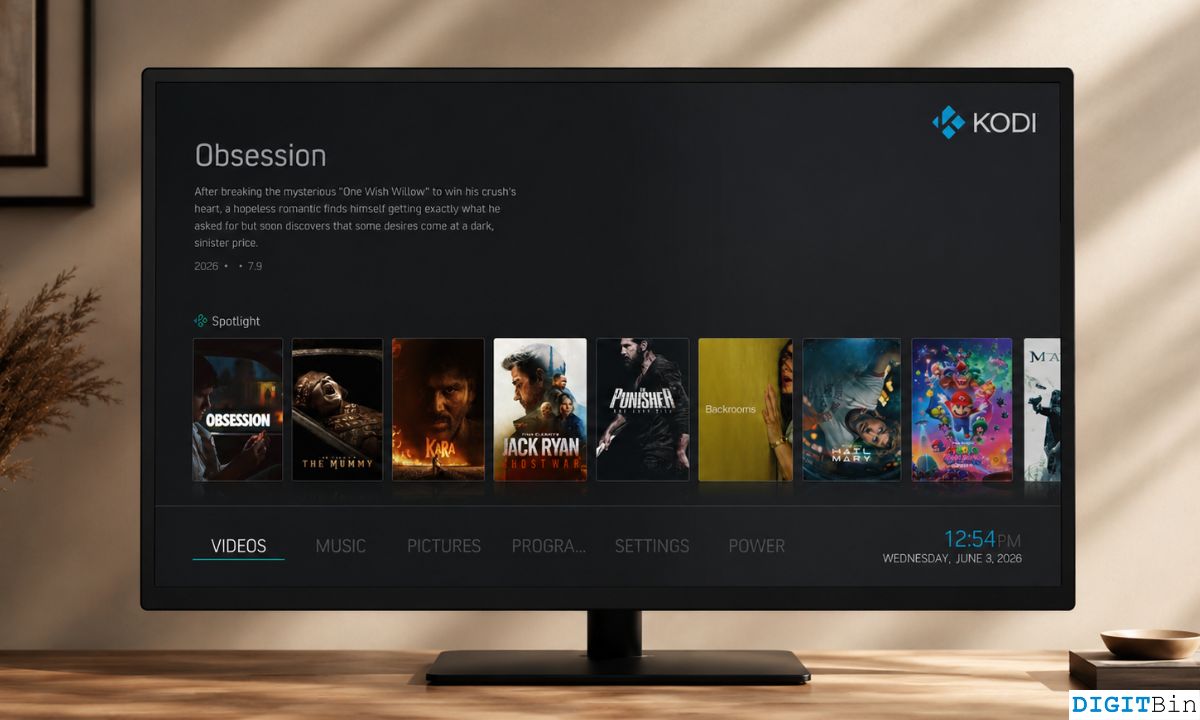
Kodi’s default Estuary skin is functional. It is also the visual equivalent of a utility bill: grey, flat, and difficult to get excited about.
After a few weeks of using it, you stop seeing the interface and start seeing around it. You start looking for variety. Something that looks pleasing to the eye and fits your mood. That is where skins come in.
Using the right Kodi skin can make Kodi feel like something you actually want to sit in front of. These are the best options available in 2026, all compatible with Kodi 21.3 Omega, the current stable release.
TL;DR: Kodi 21.3 Omega supports a solid range of third-party skins that replace the default grey interface with layouts ranging from clean and minimal to full Netflix-style poster rows. The top picks in 2026 are Arctic: Zephyr Reloaded, Aeon Nox SiLVO, Titan Bingie Mod, Amber, and Confluence. Most are available directly from the official Kodi repository. A few require a third-party repo for installation.
How Kodi skins work?
A skin in Kodi replaces the entire visual layer of the app. Menus, layouts, font styles, background behaviour, and navigation structure all change. Your libraries, add-ons, and settings stay exactly as they were.
Most skins in this list install from the official Kodi repository directly inside the app: Settings, Interface, Skin, then browse the repository.
A few require adding a third-party source first, and this is noted where relevant.
One thing worth knowing before you start. Not every skin built for older Kodi versions works cleanly on Kodi 21 Omega. In case you find Kodi difficult to use or the add-on/skin installation technically complex, check out these best Kodi alternatives.
Best Kodi Skins 2026
The skins listed in the article are confirmed compatible. If you try a skin not on this list, check the developer’s forum thread for Omega-specific notes before installing or any other web resources.
Arctic: Zephyr Reloaded
Arctic: Zephyr Reloaded is the skin most Kodi users eventually land on when they want something clean without committing to anything elaborate.
It puts the main navigation in a bar at the bottom of the screen, with a large shifting background image behind it as you move between categories.
The first time you switch to it, the default Kodi layout feels as if it were designed by a different team.
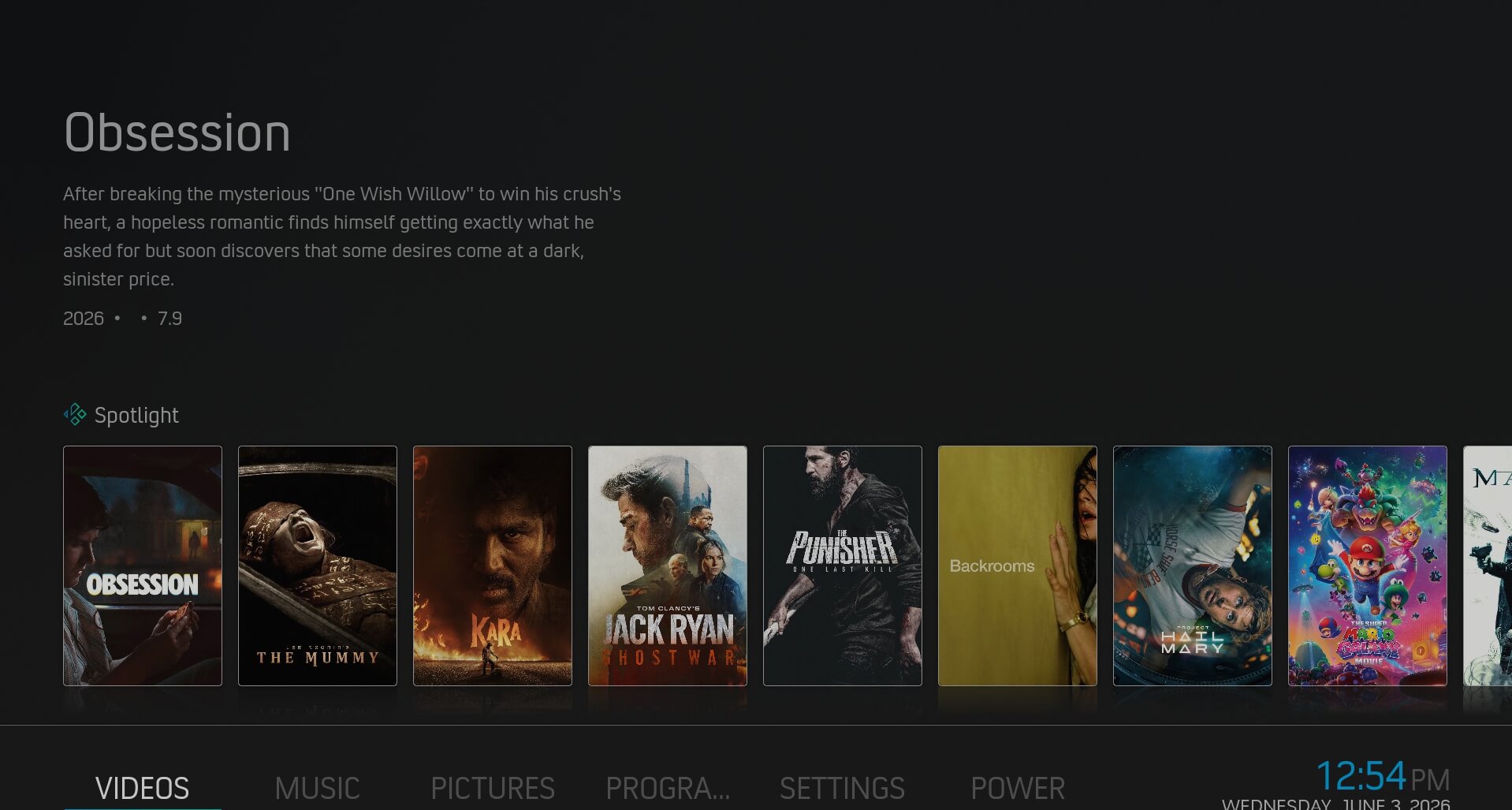
Everything is more considered. Posters are larger, the TV schedule view for live TV is genuinely usable, and adding custom shortcuts to the menu takes about thirty seconds.
It is available from the official Kodi repository, so no sideloading is required. That alone makes it easier to recommend than skins that require a manual repository setup.
Aeon Nox: SiLVO
Aeon Nox has been the most recognised name in Kodi skinning for years, and SiLVO is its most actively maintained current form.
The original skin was created by BigNoid and later modded by SiLVO, with widget support added by Mr. V.
The visual emphasis here is on full-screen fanart. When you land on a movie or show in your library, the background fills with the title’s key art and the metadata overlays it cleanly.

For large libraries it looks genuinely impressive. For small libraries it looks a little sparse, so the skin rewards having your content properly scraped and tagged.
In-depth customisation is where Aeon Nox stands apart from most other options. You can change the main menu presentation, toggle which metadata fields display, and configure the layout per-content-type. After an hour of setup, it feels like a personal thing rather than a template.
Titan Bingie Mod
Titan Bingie Mod is the skin to install if you want Kodi to look like a streaming app. It borrows Netflix’s horizontal row structure and applies it to your local library and add-ons, presenting content as scrollable shelves of posters with previews on hover.
There is a caveat. Titan Bingie Mod is not in the official Kodi repository.
You need to add the developer’s repository manually using the File Manager in Kodi settings, then install from there.
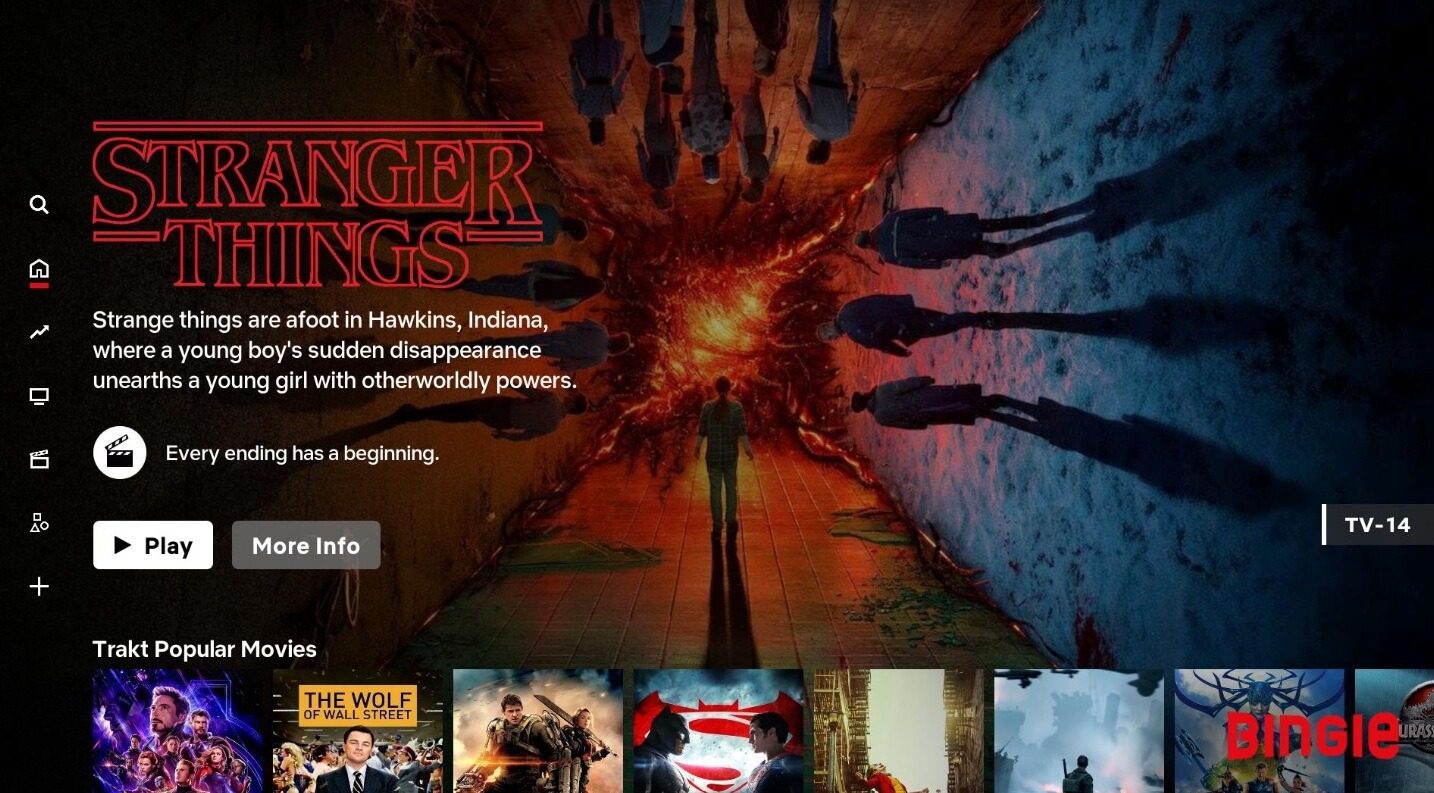
The process takes a few extra minutes and requires enabling unknown sources, which Kodi turns off by default.
It is also heavier than most skins. On a Raspberry Pi or a budget Fire TV Stick, the animations can drag.
On a mid-range Android TV box or a modern PC, it runs without any visible lag. It is worth testing on your specific device before fully committing.
Amber
Amber sits in the category of skins that do not try to impress you immediately.
The horizontal ribbon menu with coloured category images is clean rather than dramatic, and the subcategory navigation below it keeps everything one step away.
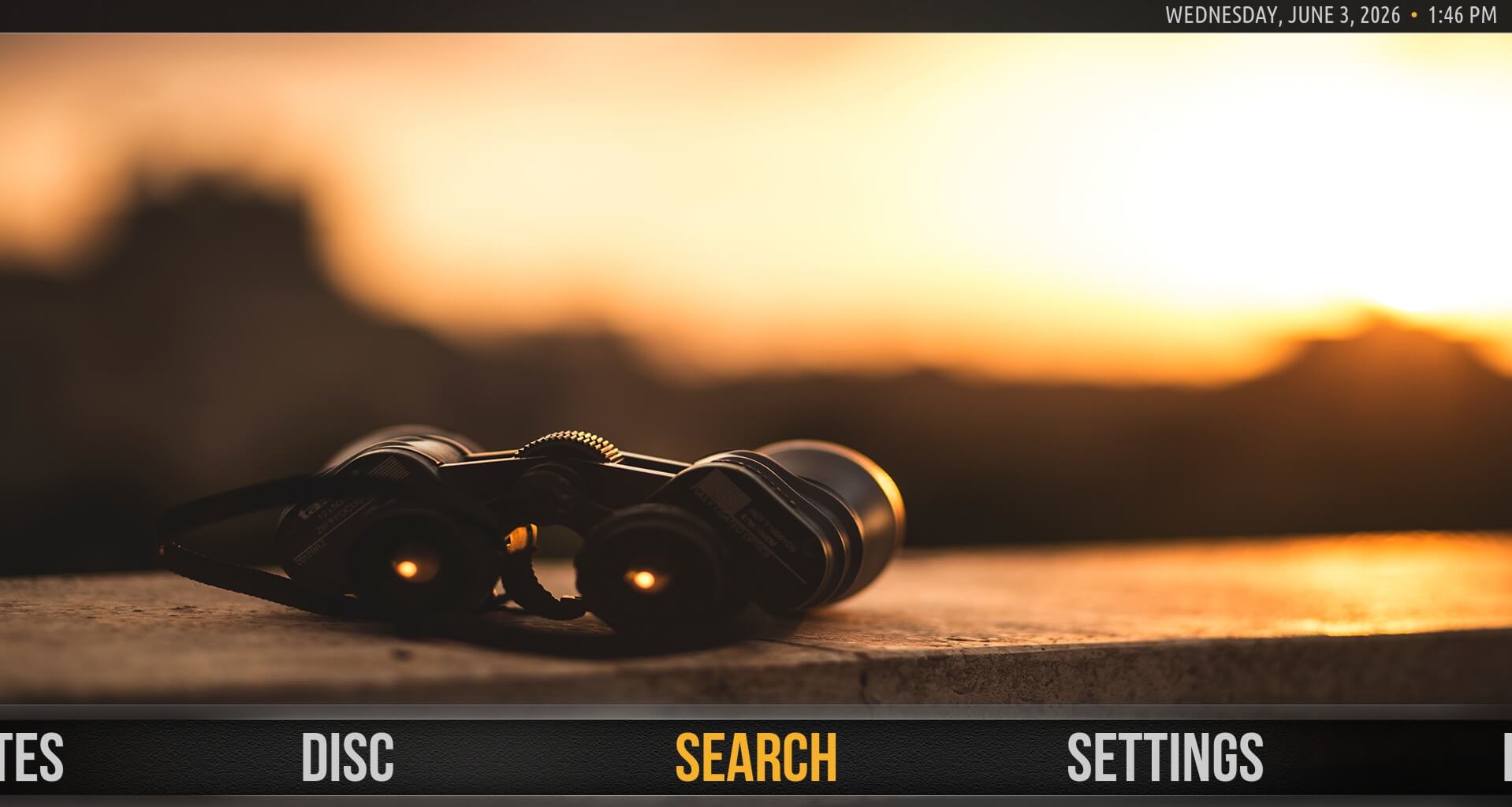
What makes Amber worth using is how much it lets you adjust without getting complicated. You can change the main menu items, switch the layout between horizontal and vertical, upload custom background images, and rearrange the settings tabs.
Most of it is accessible directly from the home screen rather than buried in a configuration menu.
It is in the official Kodi repository and works well with Kodi 21 Omega. If you want something that looks different from Estuary without requiring a setup session, Amber is a reasonable default choice.
Confluence
Confluence was Kodi’s default skin until version 17 Krypton, which means a large portion of long-term Kodi users have a specific memory of what Kodi looked like before Estuary replaced it. It has been maintained as an optional skin since then.
The design is dated by current standards. It does not have large fanart backgrounds or animated transitions.
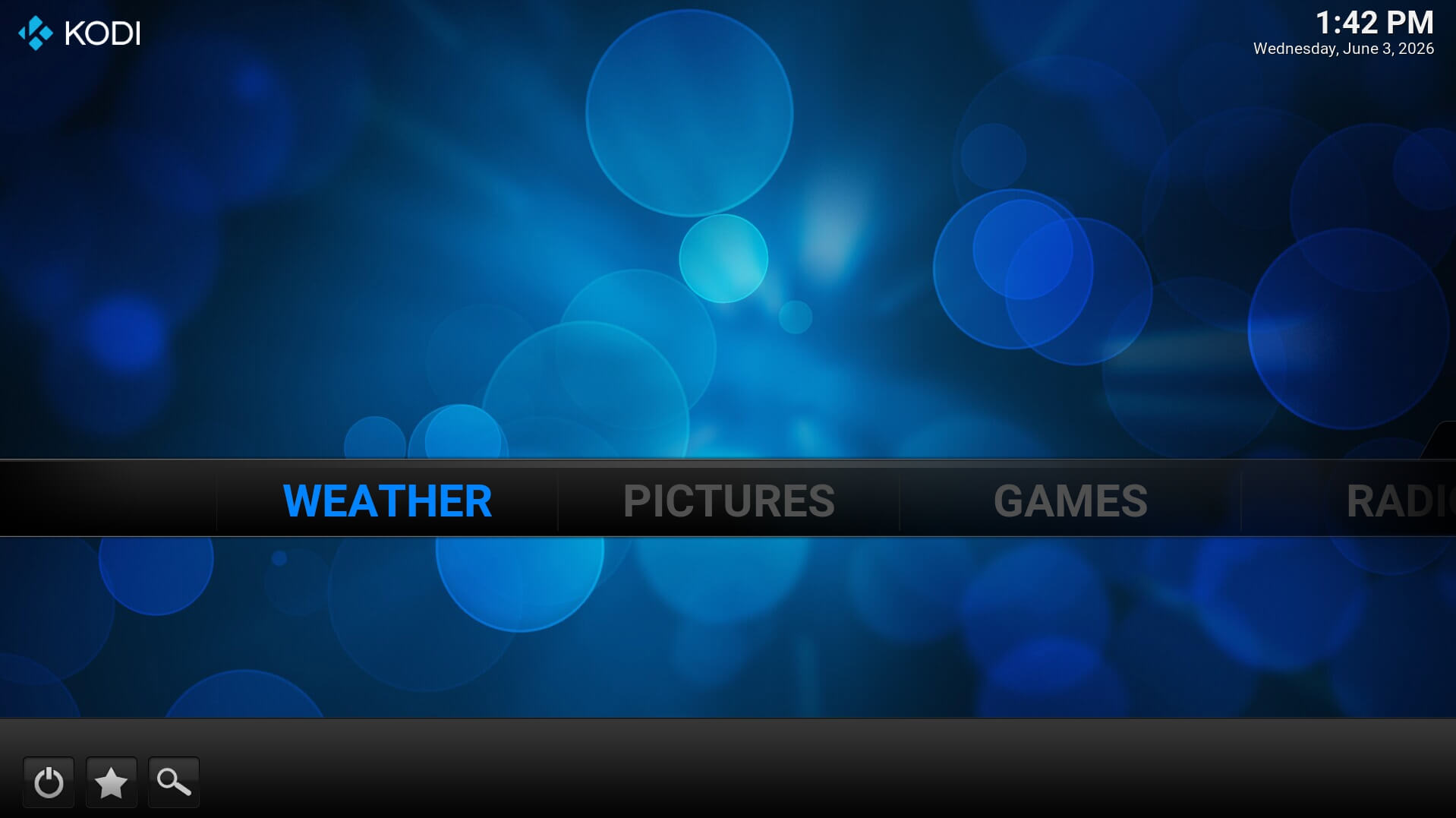
What the skin does have is the fastest navigation of any skin on this list, minimal resource use, and a layout familiar enough that new users rarely get lost in it.
It is available from the official repository and is confirmed to work on Kodi Omega.
For anyone using Kodi on older hardware, or anyone who just wants to get to their content without the interface getting in the way, Confluence still earns its place.
How to change Kodi skin?
Changing skins on Kodi is actually easier than you think. For the skins found in the official repository,
- Open Kodi.
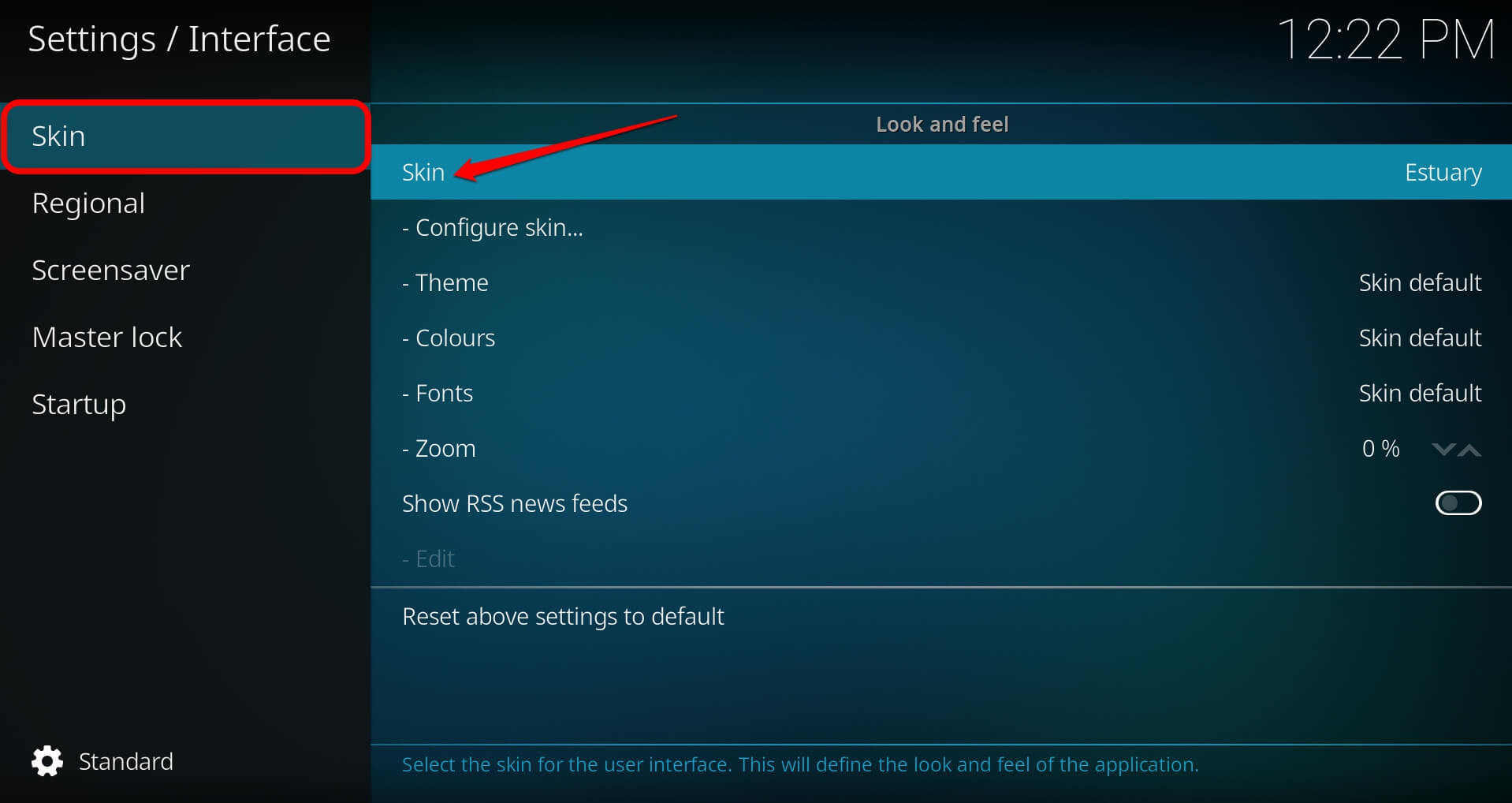
- Go to Settings > Interface > Skin.
- Select the skin field.

- Choose Get more to browse the official repository.
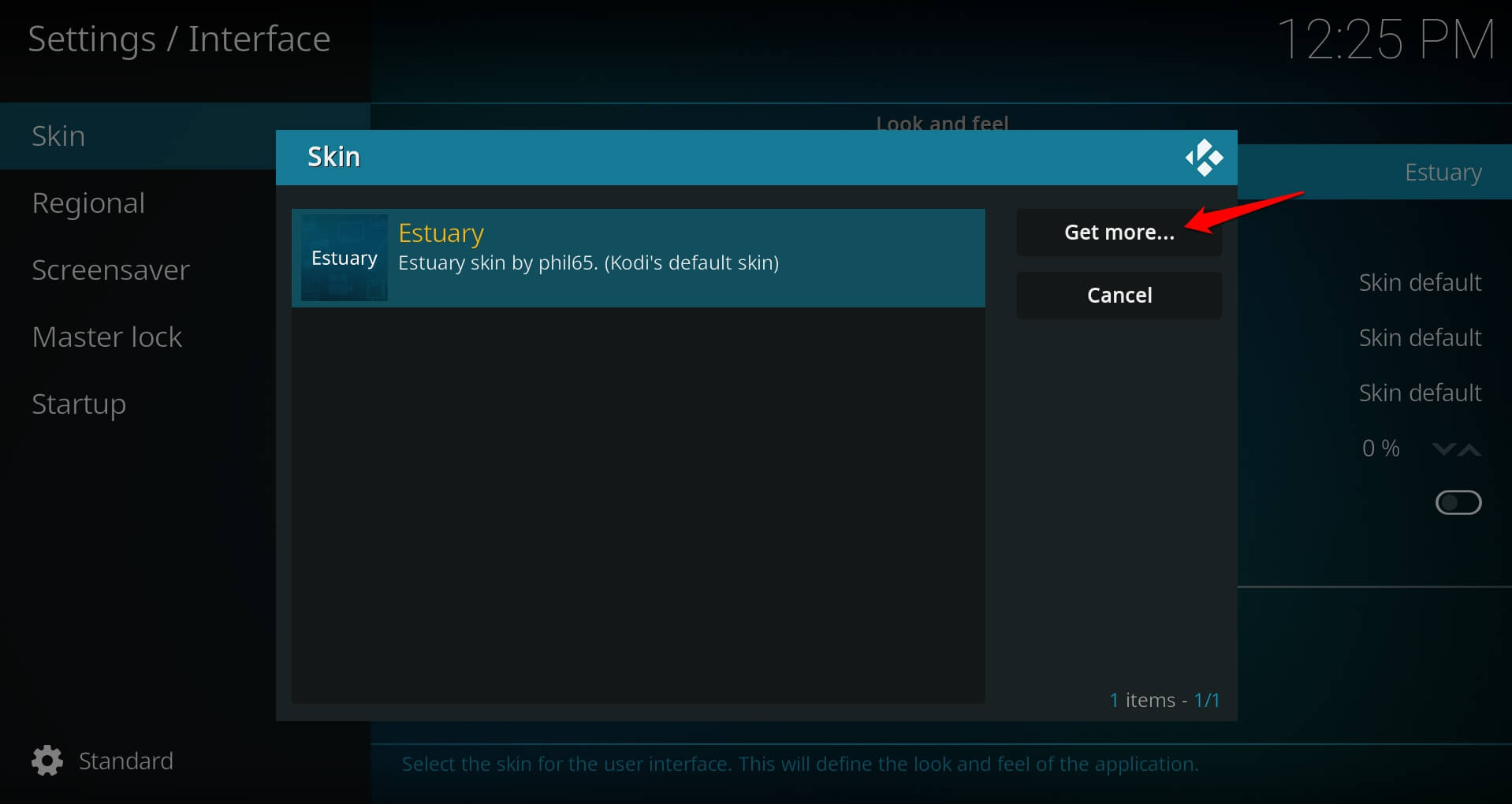

- Find the skin you want and select it.
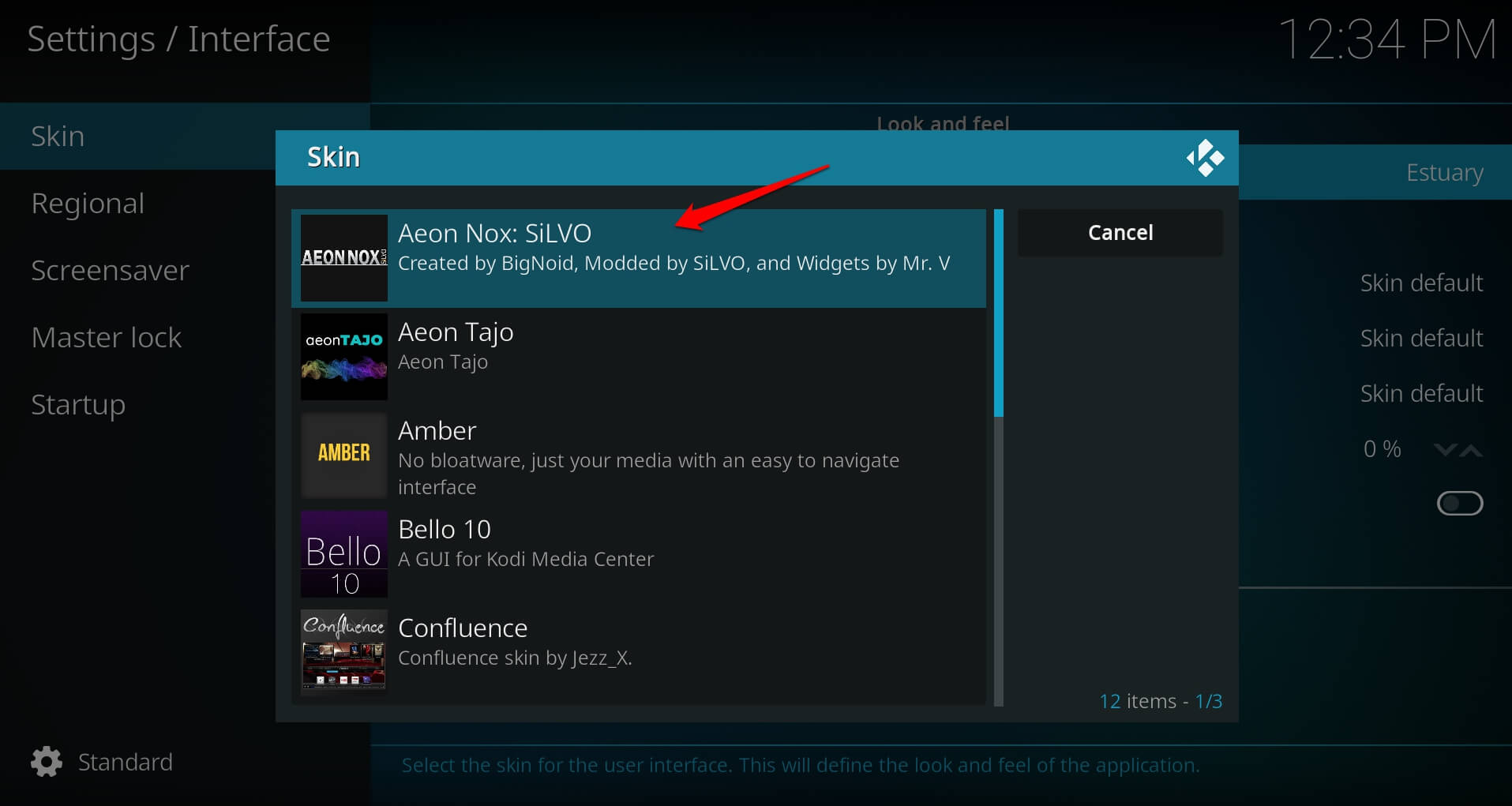

To apply the selected skin,
- Open Kodi.
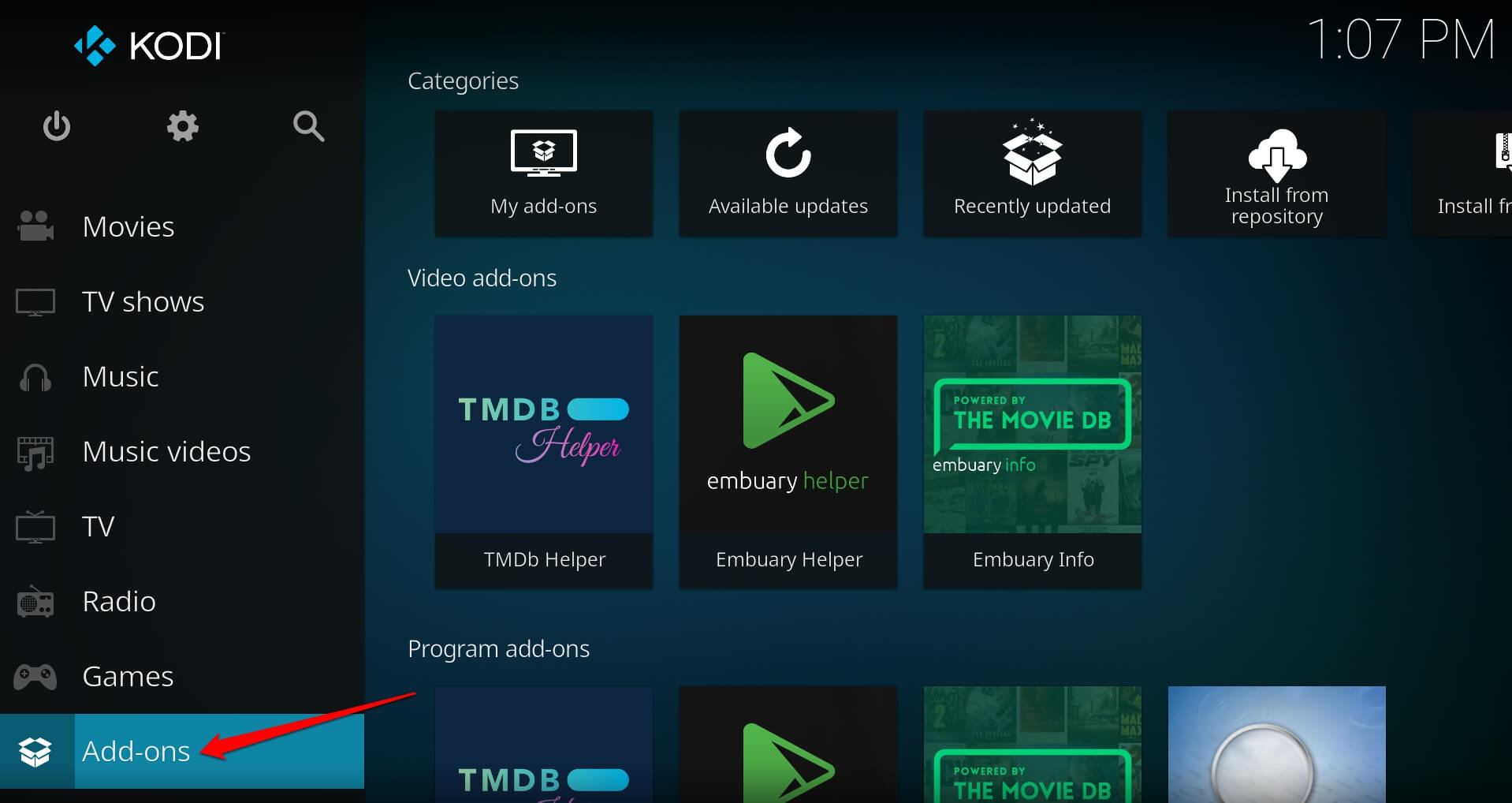
- Click on Add-ons on the left sidebar.
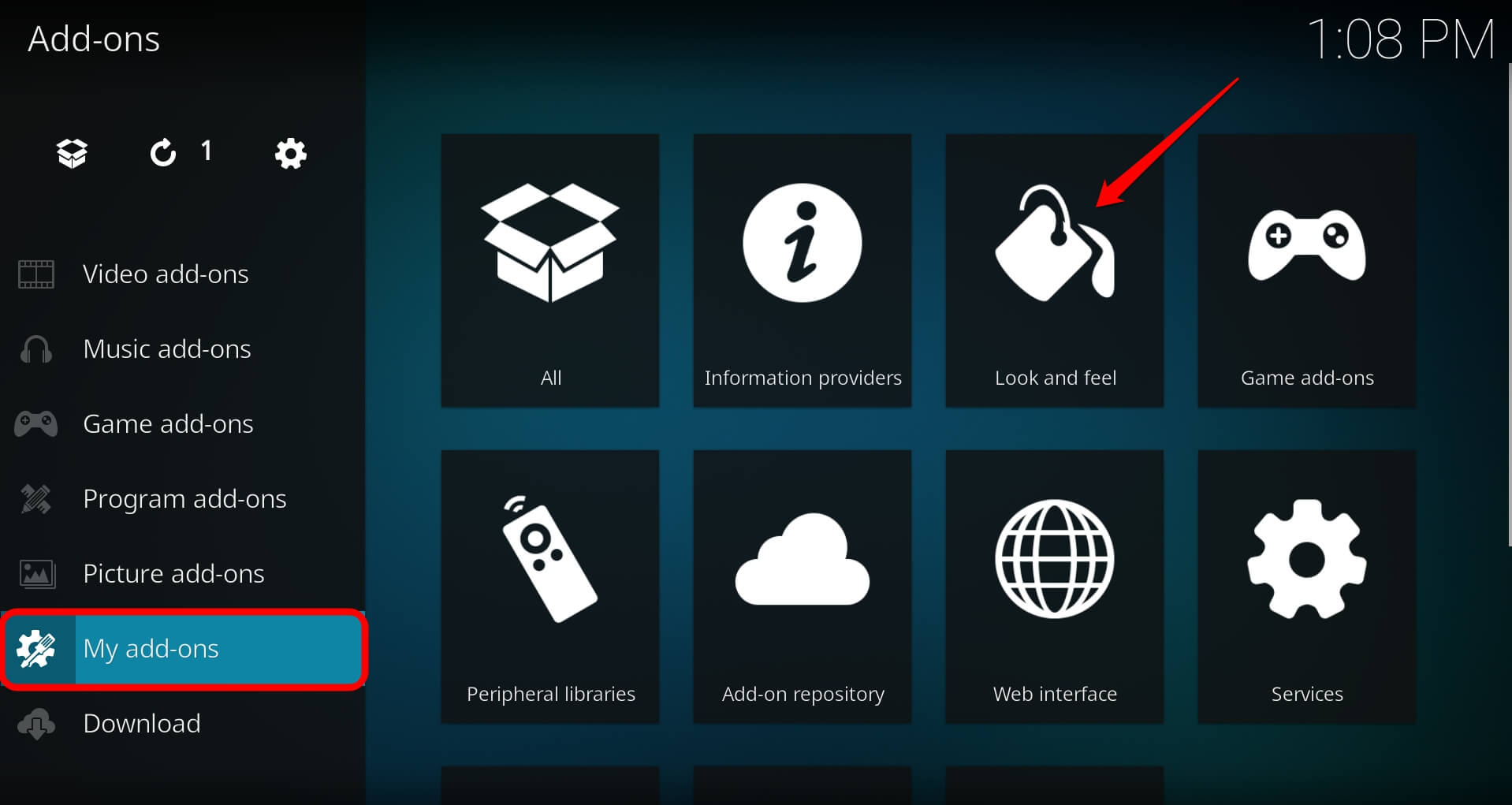
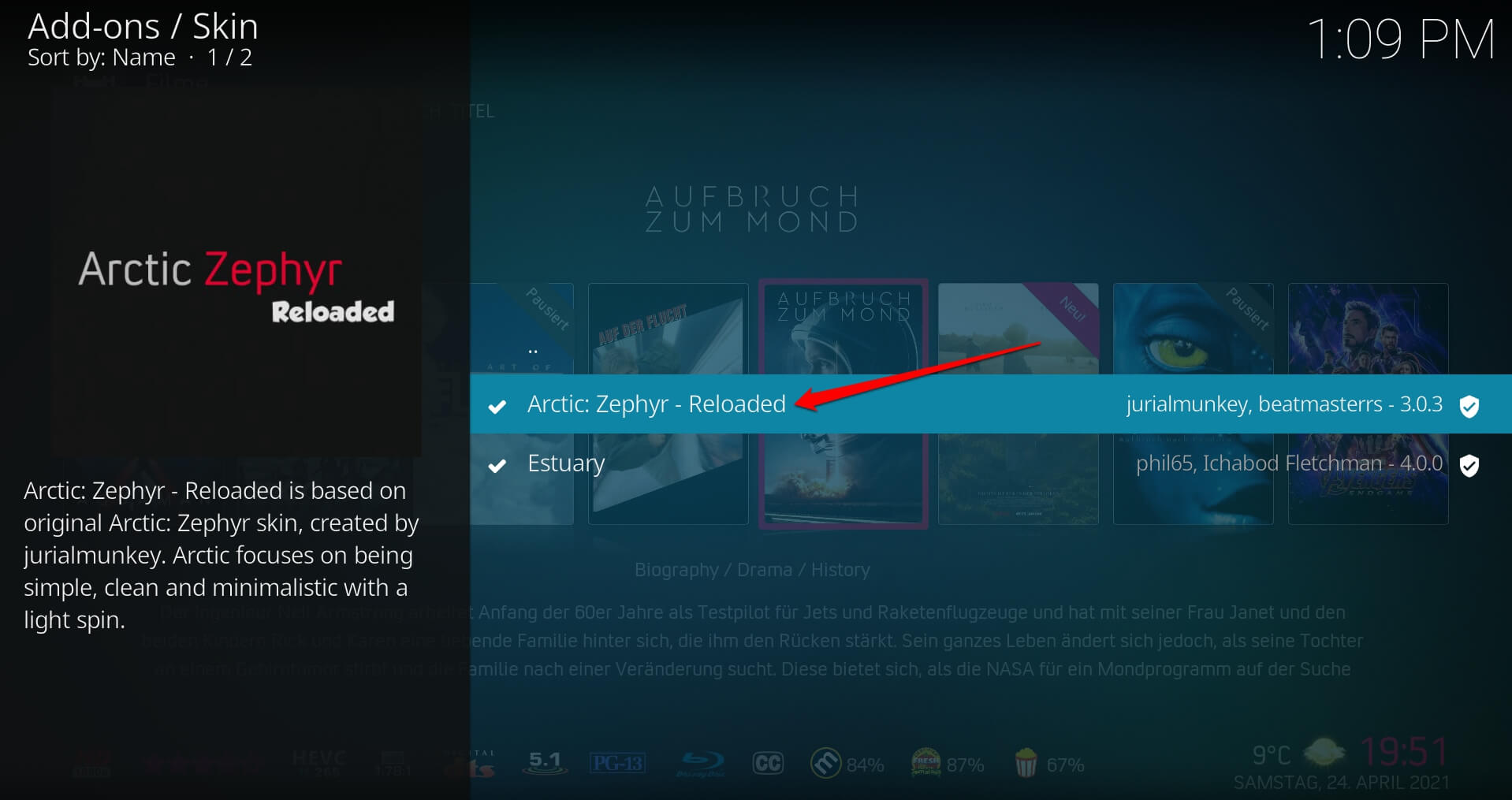
- Go to My Add-ons > Look and Feel.

- Click on Skin.
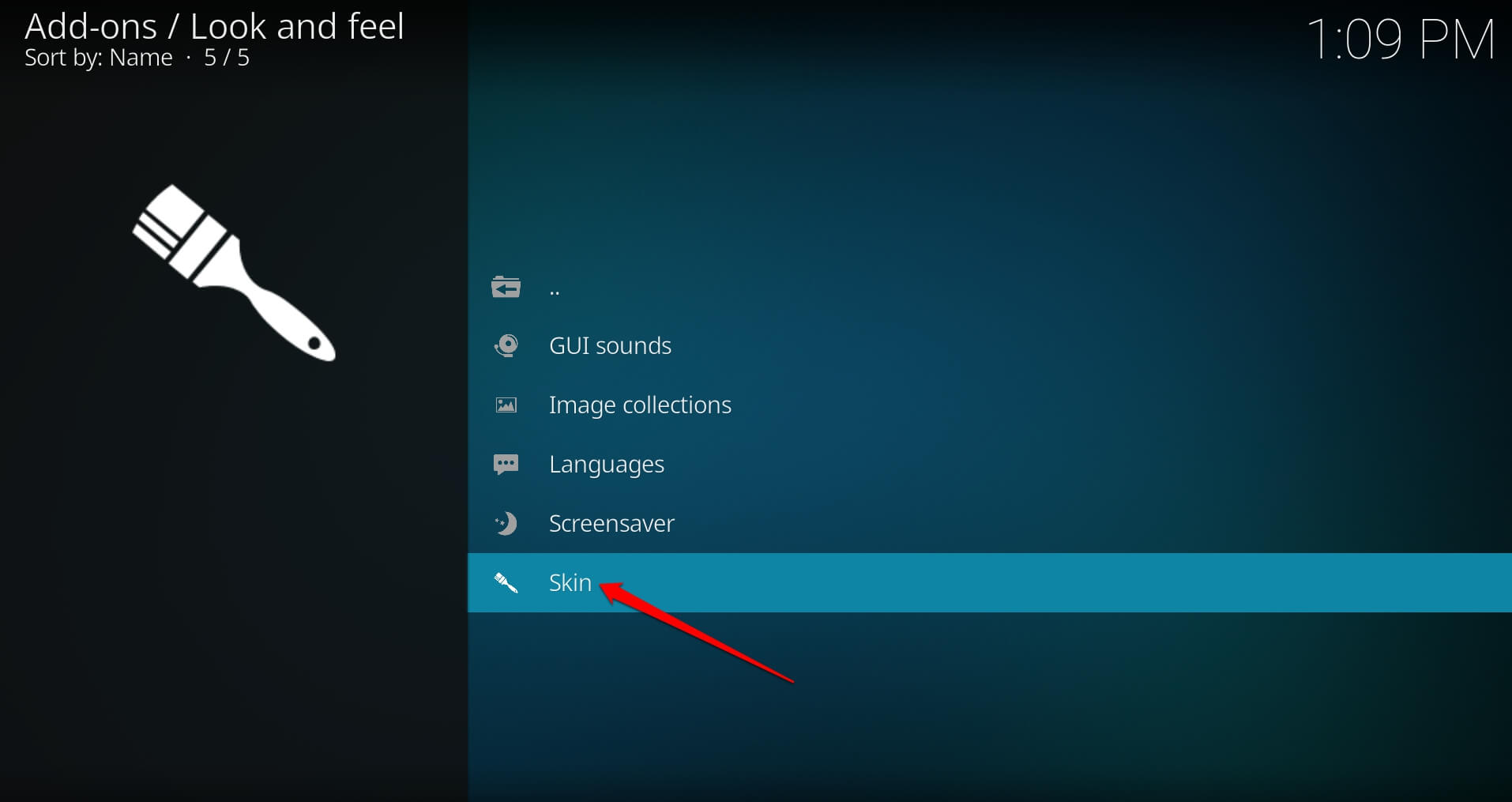

- Select the Skin you have downloaded.

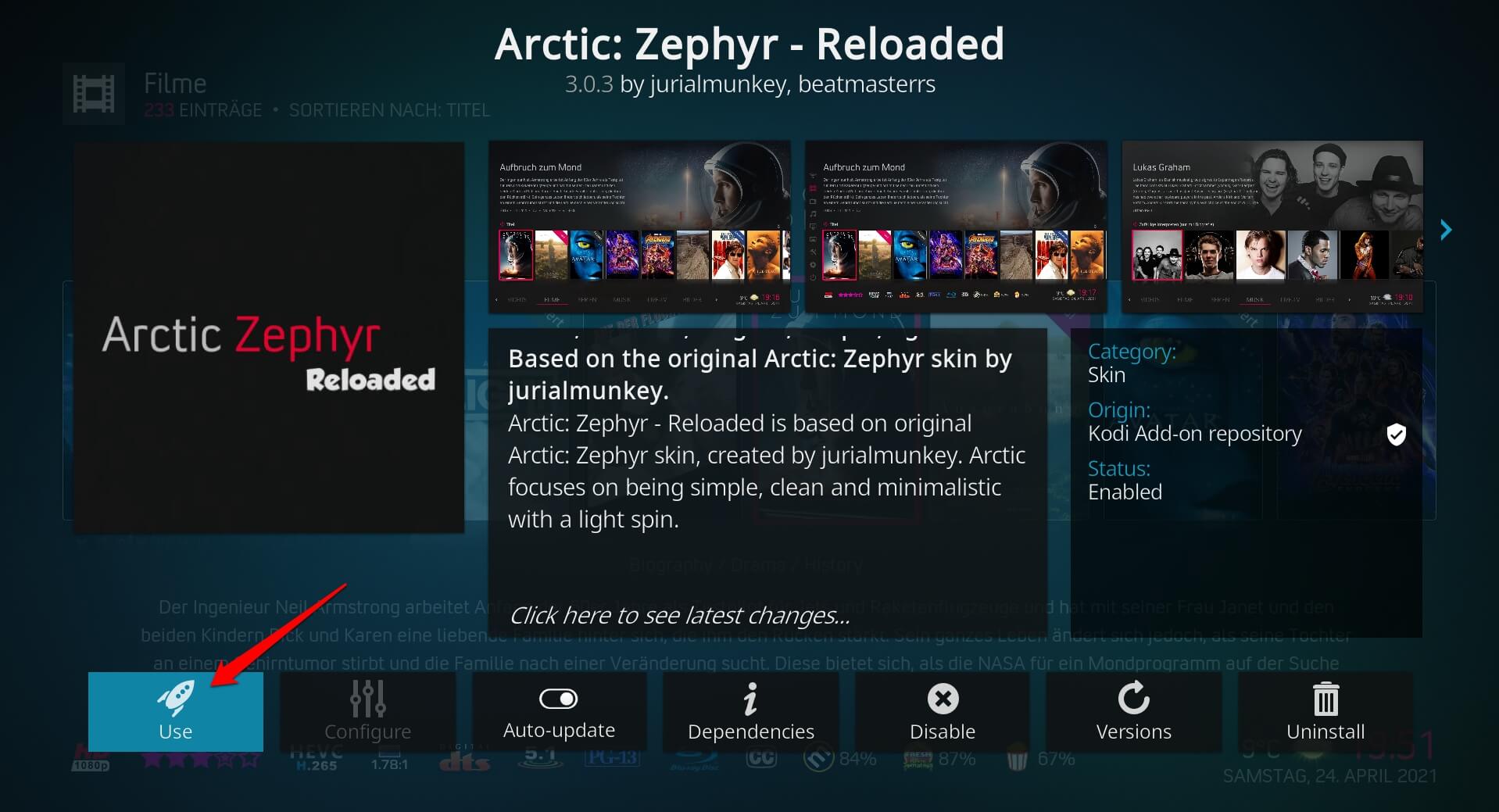
- Press Use to confirm and apply the skin.

For skins not in the official repository,
- For example, to download the Bingie skin, grab the Bingie Skin zip file.
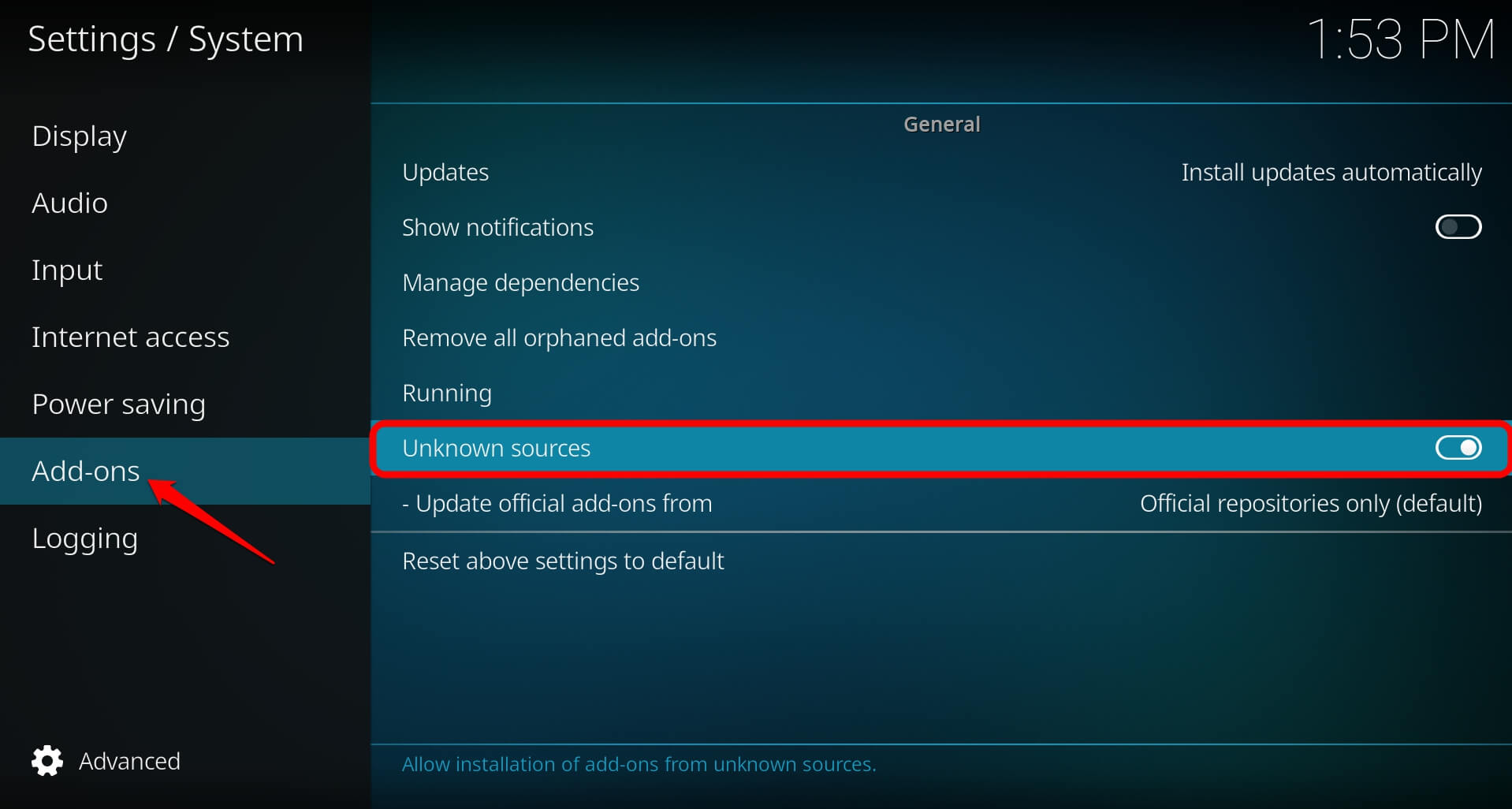
- Go to Kodi Settings > System > Add-ons.
- Enable Unknown Sources.

- Go to Add-ons > Install from zip file > locate the repository and install it.
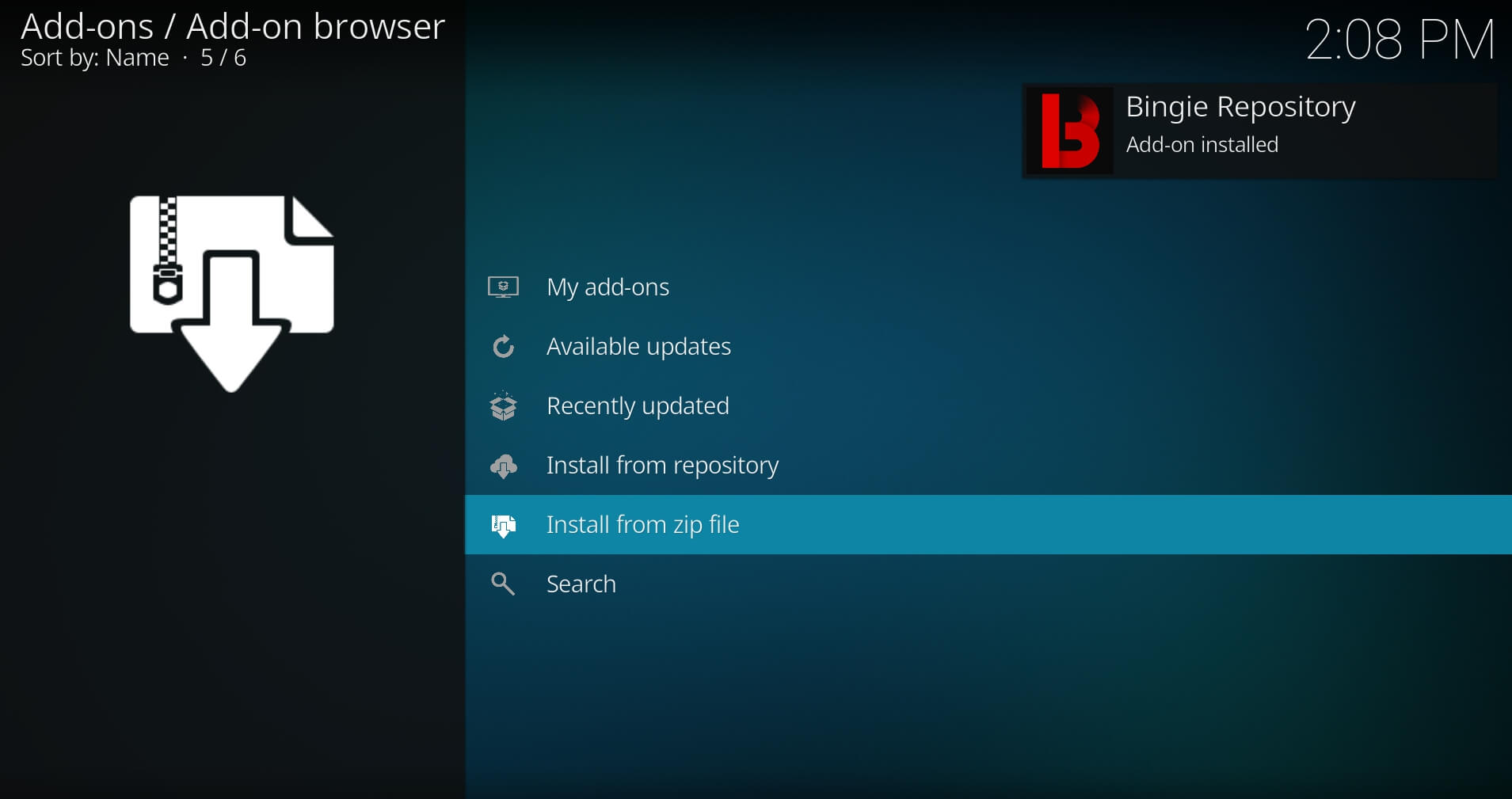

- Then find the skin under Install from repository.
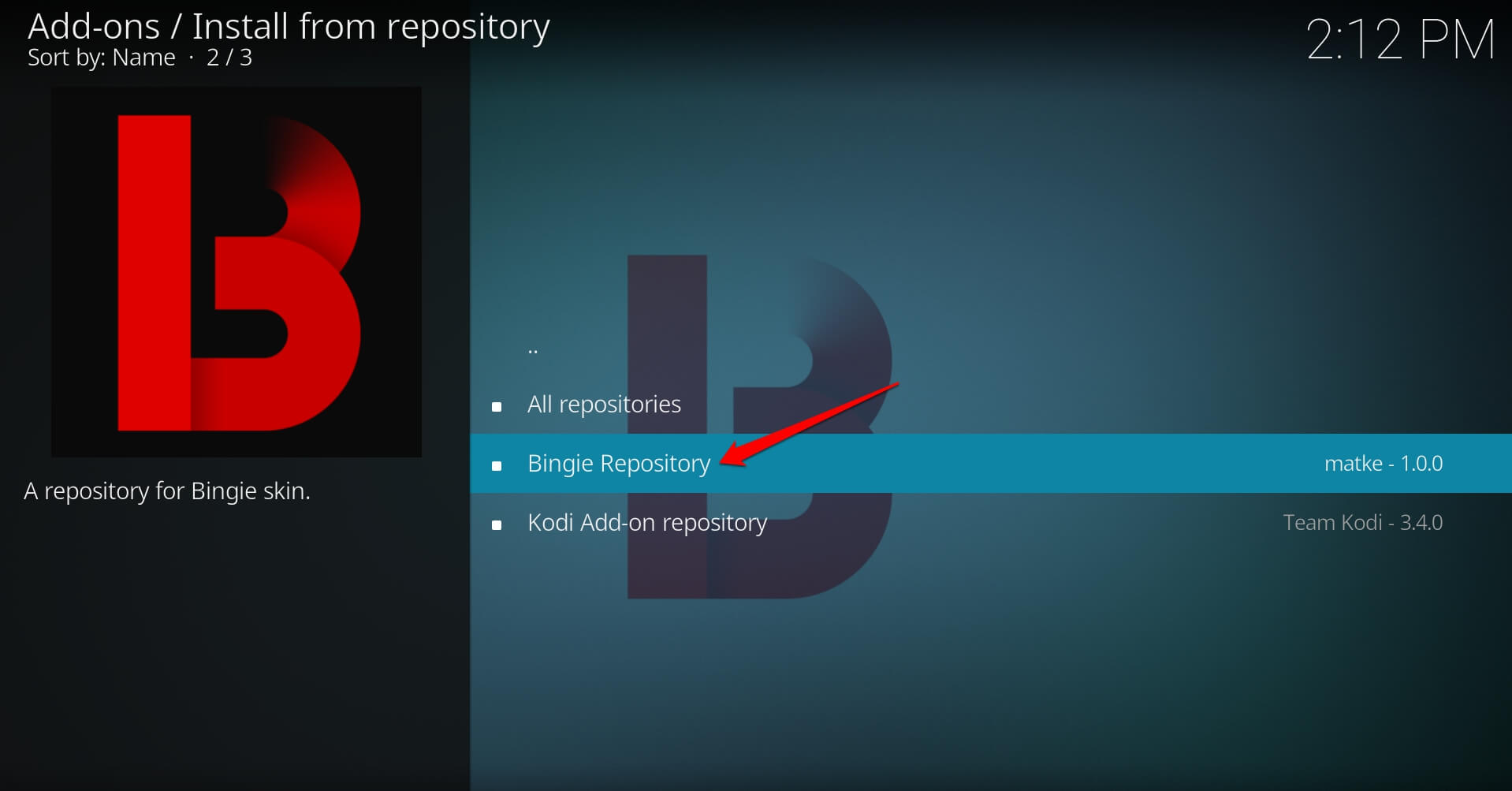

If something looks broken after switching skins, the most reliable fix is to switch back to Estuary temporarily, restart Kodi, and then switch again. Skins occasionally need a clean reload on first install.
Did you encounter the “unable to connect” error on Kodi? You can fix the problem easily and apply new add-ons and skins.
Frequently asked questions
Do Kodi skins affect my add-ons or library?
No. Skins only change the visual layer. Your installed add-ons, libraries, and settings remain exactly as they were.
Are these skins compatible with Kodi 21.3 Omega?
Yes. All skins listed here are confirmed to work with Kodi 21.3 Omega, the current stable release as of 2026.
Which skin works best on a low-end device like a Fire TV Stick?
Arctic: Zephyr Reloaded, Amber, and Confluence are the lightest options. Titan Bingie Mod is not recommended on budget devices due to its animation weight.
Do I need to enable unknown sources to install these skins?
Only for skins not in the official Kodi repository, such as Titan Bingie Mod. Skins from the official repository install without any additional settings changes.
What happens if a skin stops being updated?
Skins tied to specific Kodi versions may break after a major Kodi update. Check the skin developer’s forum thread before updating Kodi if you rely on a third-party skin.