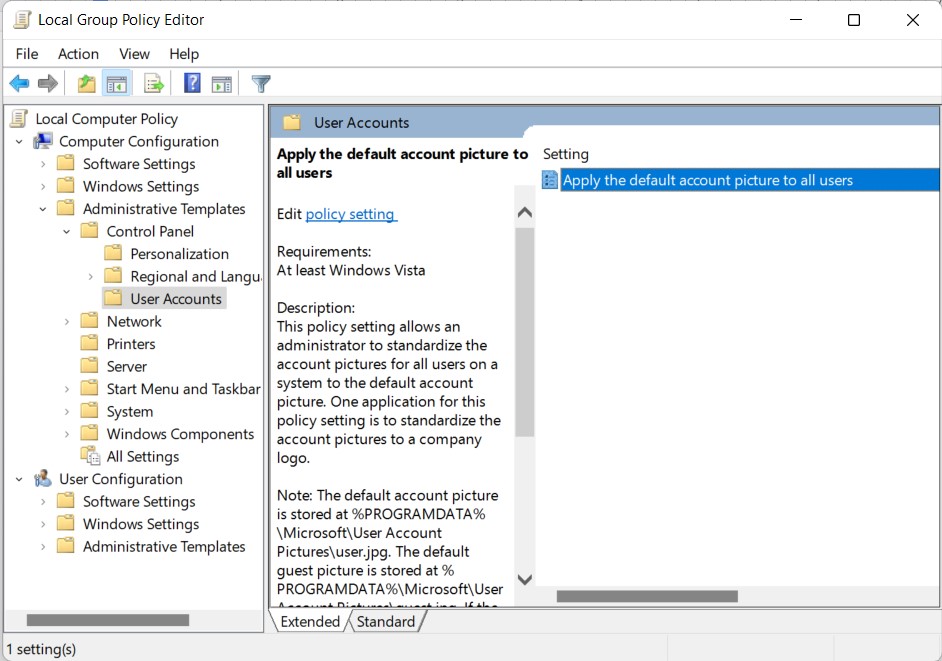
This tutorial outlines nine different methods to access the Group Policy Editor in Windows 11. The Group Policy Editor is used by network administrators and advanced users to administer and manage policy settings in Microsoft Management Console.
Apart from the MMC, it also comes in handy while dealing with Group Policy Objects. The Policy Editors are mostly used in a large-scale environment (such as across an entire organization) to tweak certain settings or enforce force some restrictions.
![[9+ Methods] How to Open Group Policy Editor in Windows 11? 2 group policy editor in windows 11](https://cdn.digitbin.com/wp-content/uploads/group-policy-editor-in-windows-11.jpg)
These modifications are then implemented on all the PC belonging to a particular network. On the other hand, there’s a local branch of this policy editor as well that is used to manage Group Policy settings on a single computer.
No matter the use case scenario, there’s no denying the fact that they are among the most powerful tools for your Windows 11 PC. With that in mind, this guide will make you aware of nine different methods through which you could access the Group Policy Editor in Windows 11. Follow along.
Best Ways to Open Group Policy Editor in Windows 11
Owing to its advanced functionalities, the Group Policy Editor is only available for the Professional, Ultimate, and Enterprise editions of Windows, and not for the Home version. So if you have any of the aforementioned Windows builds, then let’s get started.
Method 1: Via Run Command
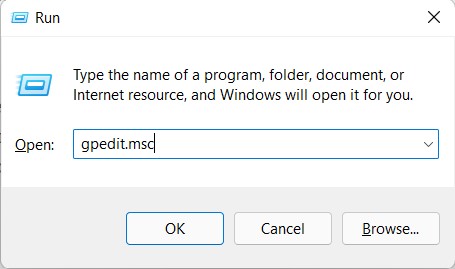
- Launch the Run dialog box via the Windows+R shortcut keys.
- Then type in gpedit.msc and hit Enter.
![[9+ Methods] How to Open Group Policy Editor in Windows 11? 3 open group policy editor in windows 11 via run](data:image/svg+xml,%3Csvg%20xmlns=%22http://www.w3.org/2000/svg%22%20viewBox=%220%200%20455%20269%22%3E%3C/svg%3E)
- It shall launch the Group Policy Editor in Windows 11.
Method 2: From Settings Menu
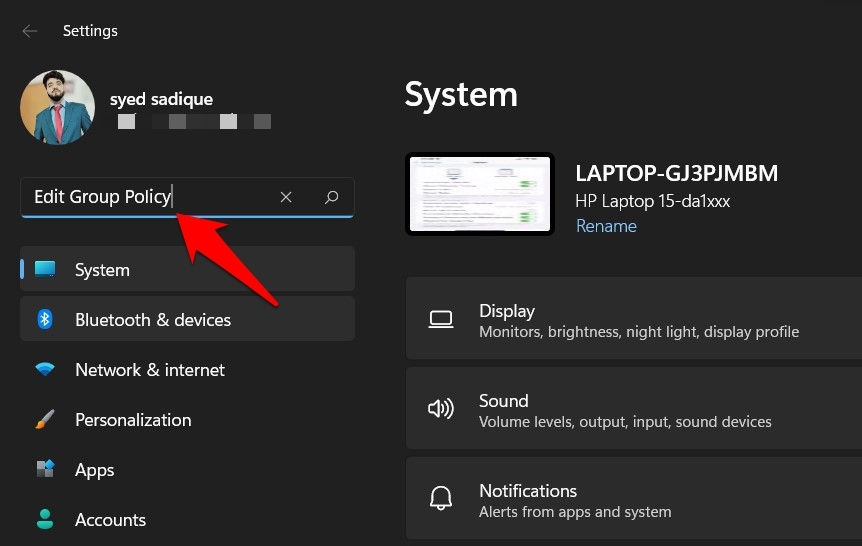
- Bring up the Settings menu via Windows+I shortcut keys.
- Then type in Edit Group Policy and hit Enter.
![[9+ Methods] How to Open Group Policy Editor in Windows 11? 4 open group policy editor in windows 11 via settings](data:image/svg+xml,%3Csvg%20xmlns=%22http://www.w3.org/2000/svg%22%20viewBox=%220%200%20774%20490%22%3E%3C/svg%3E)
- It shall open the GPE, and you may now carry out the desired tweak.
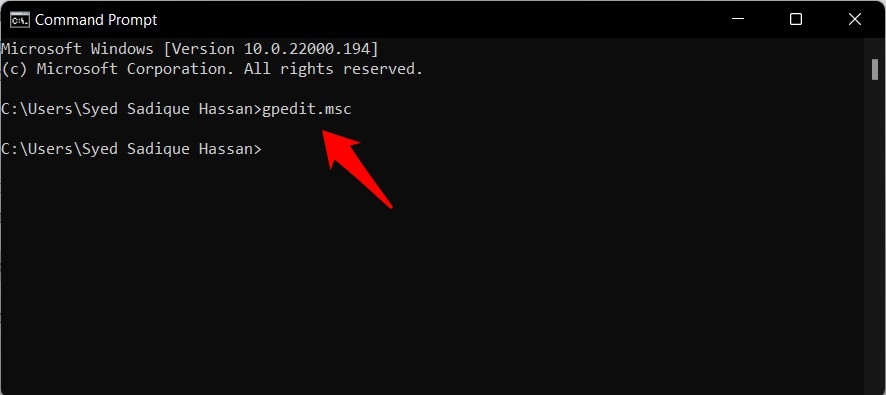
Method 3: Via Command Prompt
- Go to the Start menu, type in CMD, and launch Command Prompt as an administrator.
- Then type in the below command keyword and hit Enter
gpedit.msc
![[9+ Methods] How to Open Group Policy Editor in Windows 11? 5 open group policy editor in windows 11 via command prompt](data:image/svg+xml,%3Csvg%20xmlns=%22http://www.w3.org/2000/svg%22%20viewBox=%220%200%20886%20395%22%3E%3C/svg%3E)
- It shall now open the Group Policy Editor in Windows 11.
Method 4: Via Start Menu
This is amongst the most straightforward approach to access the GPE. Here’s what you need to do:
- Head over to the Start menu and type in the below keyword:
Edit Group Policy
- Now click on the Edit Group Policy option from the search results that appear.
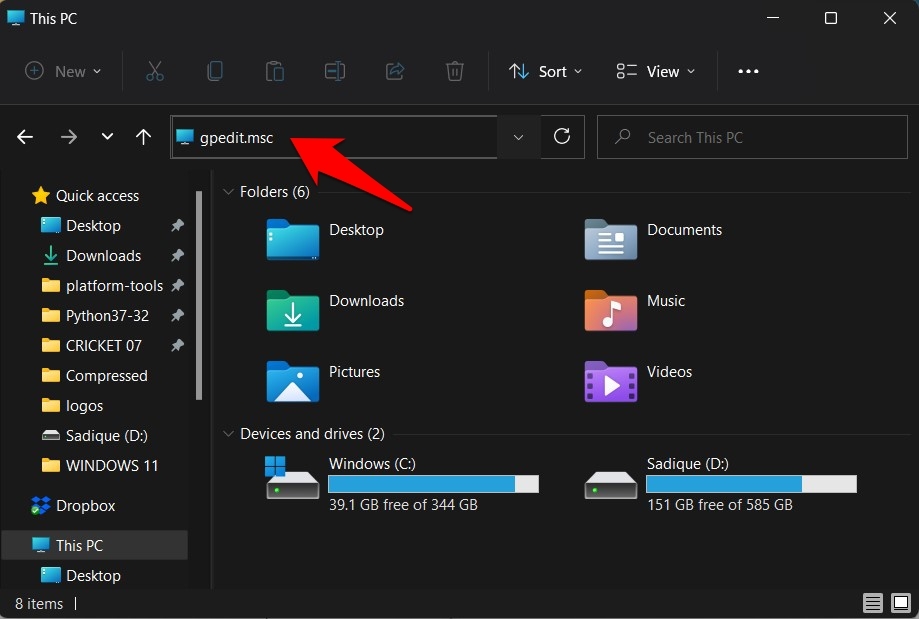
Method 5: From File Explorer
- Bring up the File Explorer via Windows+E shortcut keys.
- Then type in the below keyword in its address bar and hit Enter
gpedit.msc
![[9+ Methods] How to Open Group Policy Editor in Windows 11? 6 open group policy editor in windows 11 via file explorer](data:image/svg+xml,%3Csvg%20xmlns=%22http://www.w3.org/2000/svg%22%20viewBox=%220%200%20734%20494%22%3E%3C/svg%3E)
- The GPE window will now open on your PC.
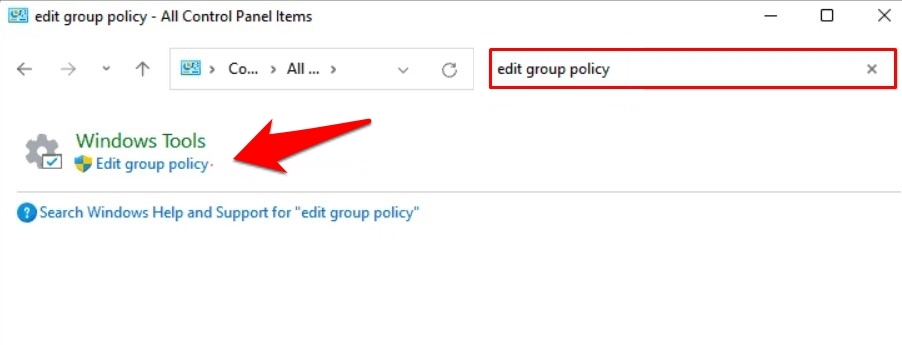
Method 6: From Control Panel
- Head over to the Start Menu, search Control Panel and click Open.
- Then type in Edit Group Policy in the search bar present at the top right.
- Finally, select Edit Group Policy under the Windows Tools section.
![[9+ Methods] How to Open Group Policy Editor in Windows 11? 7 open group policy editor in windows 11 via control panel](data:image/svg+xml,%3Csvg%20xmlns=%22http://www.w3.org/2000/svg%22%20viewBox=%220%200%20902%20345%22%3E%3C/svg%3E)
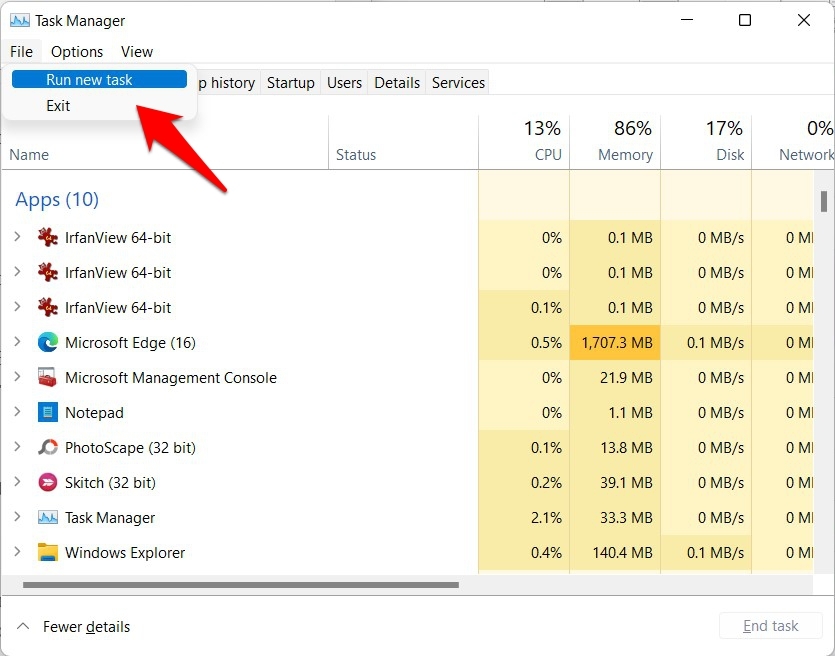
Method 7: From Task Manager
- Use the Ctrl+Shift+Esc shortcut keys to open the Task Manager.
- Then go to File and select Run New Task.
![[9+ Methods] How to Open Group Policy Editor in Windows 11? 8 run new task via task manager](data:image/svg+xml,%3Csvg%20xmlns=%22http://www.w3.org/2000/svg%22%20viewBox=%220%200%20678%20533%22%3E%3C/svg%3E)
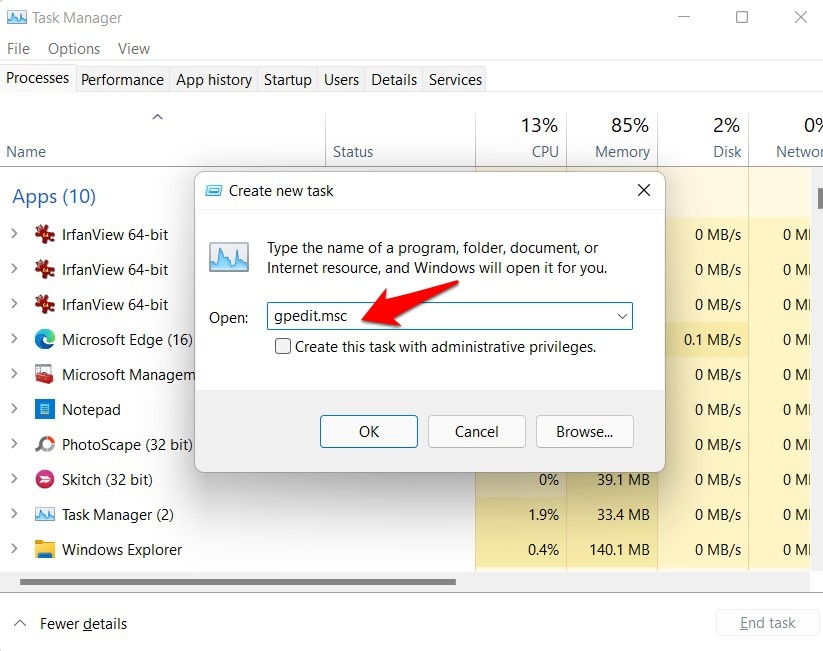
- Now type in gpedit.msc in the New Task dialog box and hit OK.
![[9+ Methods] How to Open Group Policy Editor in Windows 11? 9 open group policy editor in windows 11 via task manager](data:image/svg+xml,%3Csvg%20xmlns=%22http://www.w3.org/2000/svg%22%20viewBox=%220%200%20698%20553%22%3E%3C/svg%3E)
- You will now be able to access the GPE on your PC.
Method 8: Via Group Policy Editor’s EXE File
You could also open the Group Policy Editor in Windows 11 directly via its executable file. Here’s how:
- To begin with, open the File Explorer via Windows+E shortcut keys.
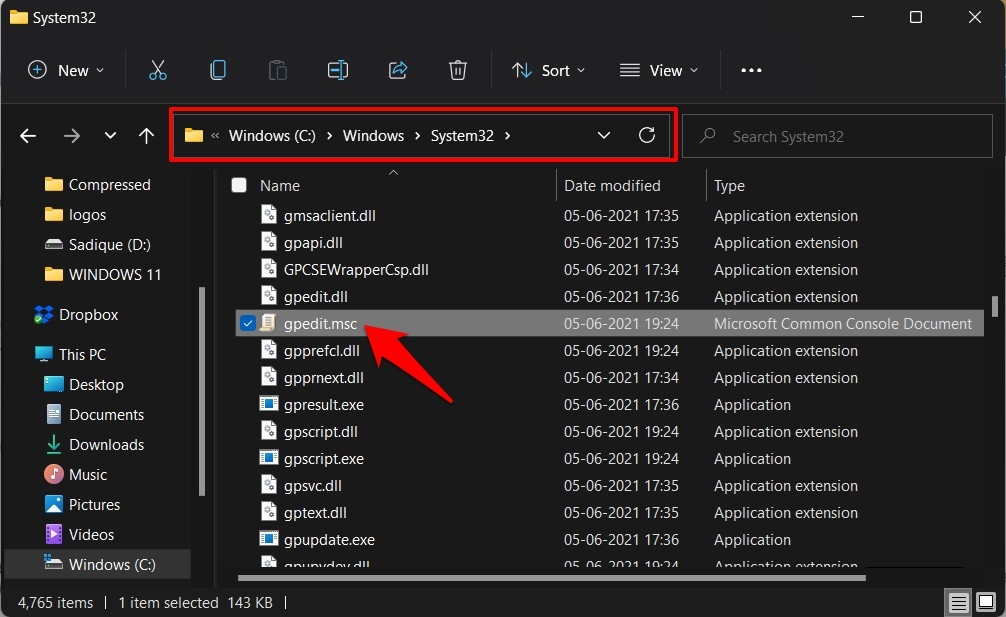
- Then copy-paste the below location in its address bar and press Enter:
C:\Windows\System32
- Finally, double click on the gpedit.msc file to launch the GPE.
![[9+ Methods] How to Open Group Policy Editor in Windows 11? 10 open group policy editor in windows 11 via EXE file](data:image/svg+xml,%3Csvg%20xmlns=%22http://www.w3.org/2000/svg%22%20viewBox=%220%200%20751%20461%22%3E%3C/svg%3E)
Method 9: Using Desktop Shortcut
Instead of taking such a long route to access the GPE, you could rather create a desktop shortcut and access the Policy Editor with just a single click. Here’s how:
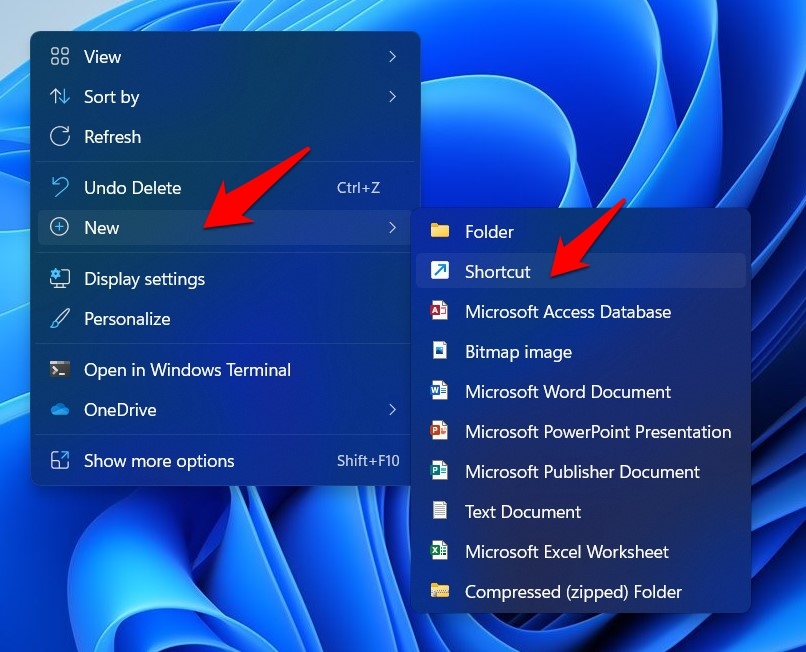
- Right-click in an empty location on your desktop and select New > Shortcut.
![[9+ Methods] How to Open Group Policy Editor in Windows 11? 11 create new shortcut windows 11](data:image/svg+xml,%3Csvg%20xmlns=%22http://www.w3.org/2000/svg%22%20viewBox=%220%200%20665%20538%22%3E%3C/svg%3E)
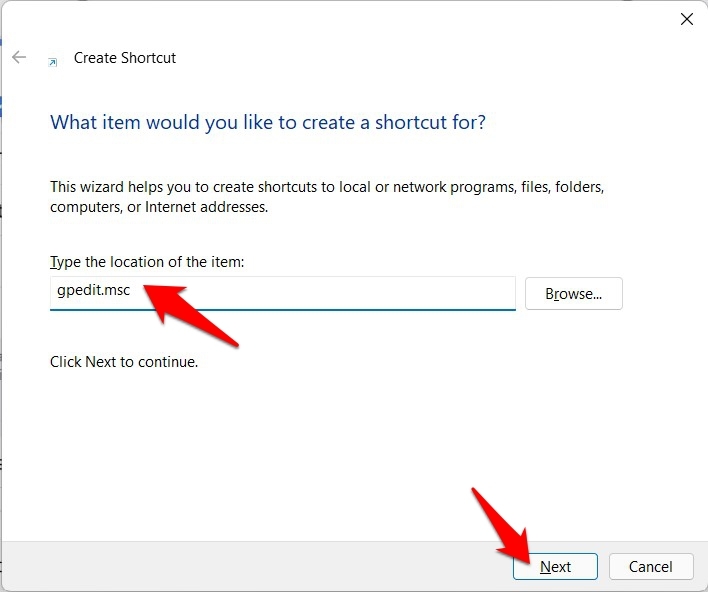
- Then type in the below file in the space provided and click Next:
gpedit.msc
![[9+ Methods] How to Open Group Policy Editor in Windows 11? 12 gpedit shortcut](data:image/svg+xml,%3Csvg%20xmlns=%22http://www.w3.org/2000/svg%22%20viewBox=%220%200%20563%20471%22%3E%3C/svg%3E)
- Now give it any name of your choice (let’s say GPE) and hit Finish.
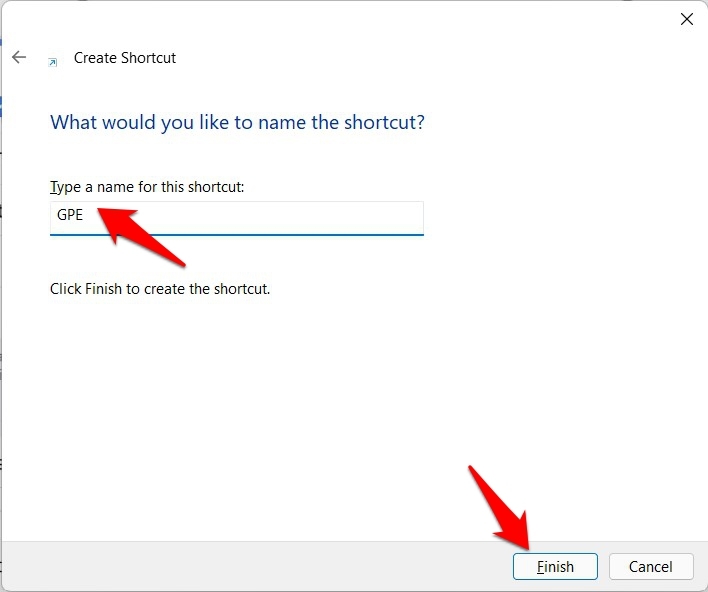
![[9+ Methods] How to Open Group Policy Editor in Windows 11? 13 gpedit shortcut windows 11](data:image/svg+xml,%3Csvg%20xmlns=%22http://www.w3.org/2000/svg%22%20viewBox=%220%200%20582%20487%22%3E%3C/svg%3E)
- That’s it. You could now access the Policy Editor by just double click on this newly created shortcut.
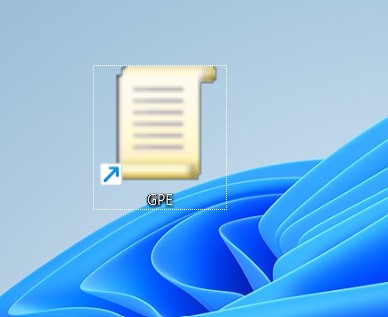
![[9+ Methods] How to Open Group Policy Editor in Windows 11? 14 open group policy editor in windows 11 via desktop shortcut](data:image/svg+xml,%3Csvg%20xmlns=%22http://www.w3.org/2000/svg%22%20viewBox=%220%200%20319%20261%22%3E%3C/svg%3E)
Conclusion
With this, we round off the guide on how you could access the Group Policy Editor in Windows 11. We have shared nine different methods for the same, do let us know which one you ultimately decided to settle for in the comments section.
![[9+ Methods] How to Open Group Policy Editor in Windows 11? 1 How to Open Group Policy Editor in Windows 11](https://cdn.digitbin.com/wp-content/uploads/How_to_Open_Group_Policy_Editor_in_Windows_11.png)
![[9+ Methods] How to Open Group Policy Editor in Windows 11? 3 open group policy editor in windows 11 via run](https://cdn.digitbin.com/wp-content/uploads/open-group-policy-editor-in-windows-11-via-run.jpg)
![[9+ Methods] How to Open Group Policy Editor in Windows 11? 4 open group policy editor in windows 11 via settings](https://cdn.digitbin.com/wp-content/uploads/open-group-policy-editor-in-windows-11-via-settings.jpg)
![[9+ Methods] How to Open Group Policy Editor in Windows 11? 5 open group policy editor in windows 11 via command prompt](https://cdn.digitbin.com/wp-content/uploads/open-group-policy-editor-in-windows-11-via-command-prompt.jpg)
![[9+ Methods] How to Open Group Policy Editor in Windows 11? 6 open group policy editor in windows 11 via file explorer](https://cdn.digitbin.com/wp-content/uploads/open-group-policy-editor-in-windows-11-via-file-explorer.jpg)
![[9+ Methods] How to Open Group Policy Editor in Windows 11? 7 open group policy editor in windows 11 via control panel](https://cdn.digitbin.com/wp-content/uploads/open-group-policy-editor-in-windows-11-via-control-panel.jpg)
![[9+ Methods] How to Open Group Policy Editor in Windows 11? 8 run new task via task manager](https://cdn.digitbin.com/wp-content/uploads/run-new-task-via-task-manager-1.jpg)
![[9+ Methods] How to Open Group Policy Editor in Windows 11? 9 open group policy editor in windows 11 via task manager](https://cdn.digitbin.com/wp-content/uploads/open-group-policy-editor-in-windows-11-via-task-manager.jpg)
![[9+ Methods] How to Open Group Policy Editor in Windows 11? 10 open group policy editor in windows 11 via EXE file](https://cdn.digitbin.com/wp-content/uploads/open-group-policy-editor-in-windows-11-via-EXE-file.jpg)
![[9+ Methods] How to Open Group Policy Editor in Windows 11? 11 create new shortcut windows 11](https://cdn.digitbin.com/wp-content/uploads/create-new-shortcut-windows-11.jpg)
![[9+ Methods] How to Open Group Policy Editor in Windows 11? 12 gpedit shortcut](https://cdn.digitbin.com/wp-content/uploads/gpedit-shortcut.jpg)
![[9+ Methods] How to Open Group Policy Editor in Windows 11? 13 gpedit shortcut windows 11](https://cdn.digitbin.com/wp-content/uploads/gpe-shortcut-windows-11.jpg)
![[9+ Methods] How to Open Group Policy Editor in Windows 11? 14 open group policy editor in windows 11 via desktop shortcut](https://cdn.digitbin.com/wp-content/uploads/open-group-policy-editor-in-windows-11-via-desktop-shortcut.jpg)