
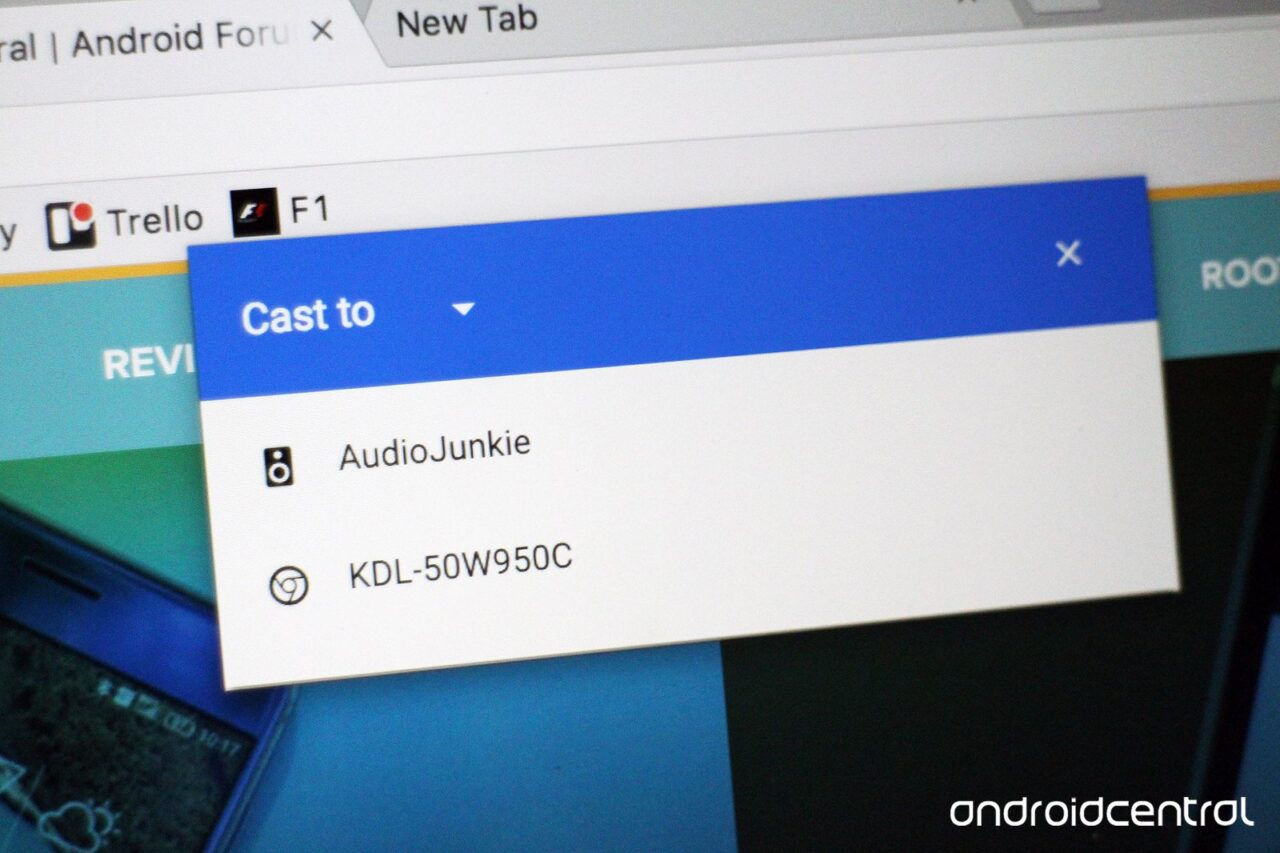
If you are looking for a guide to Screen Mirror or Cast your OnePlus Smartphone with Samsung Smart TV then you have come to right place because I have provided a complete step-by-step guide to Mirror your OnePlus X, OnePlus 3, OnePlus 3T, OnePlus 2, OnePlus One, OnePlus 5 etc. with Smart TV.
ScreenCast is the best feature when it comes to mirroring your phone’s screen on the big screen. You can enjoy all the videos, images, music and much more on TV. Just follow the guide below.
Samsung Smart TV comes with an inbuilt feature to connect your device with TV and cast your phone screen display on TV.
How to Screen Mirror your OnePlus on Samsung TV?
- Go to Settings of your OnePlus Smartphone.
- Open Wifi and turn it on.
- Now tap on three dots on right top to open more options.
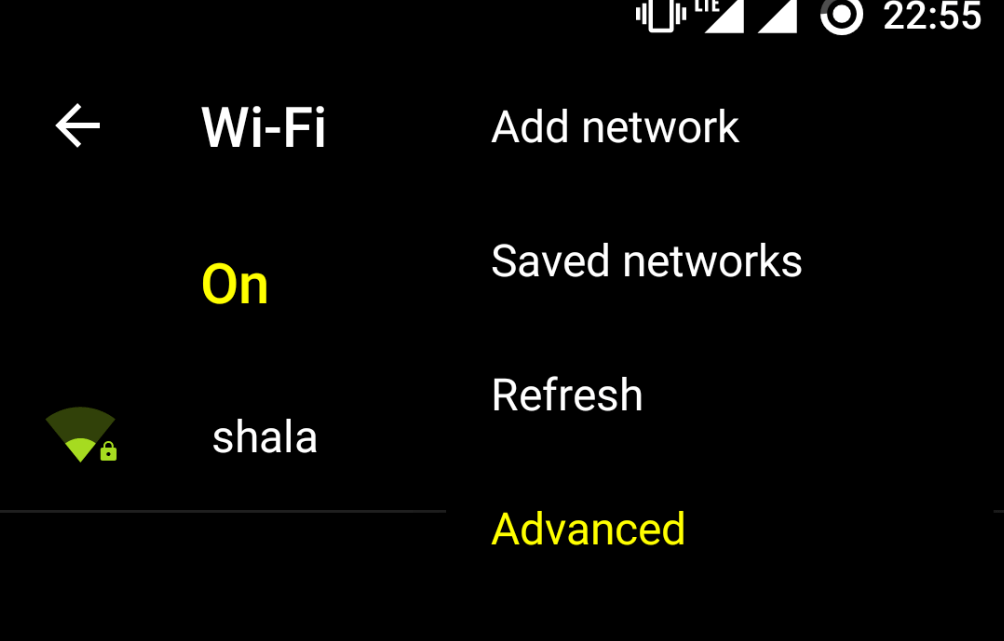

Turn on Wi-Fi and open Advanced Option - Click on the option called Advanced.
- Tap on Wi-Fi Direct.
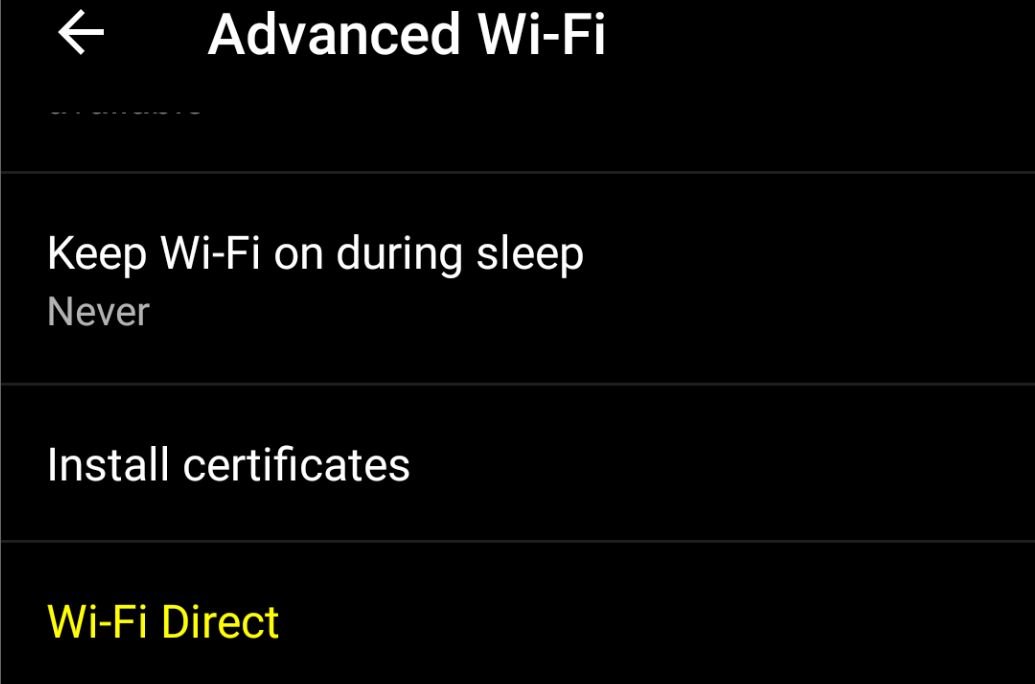

Open Wi-Fi Direct - Simultaneously tap on Menu button on TV remote.
- Now open Network.
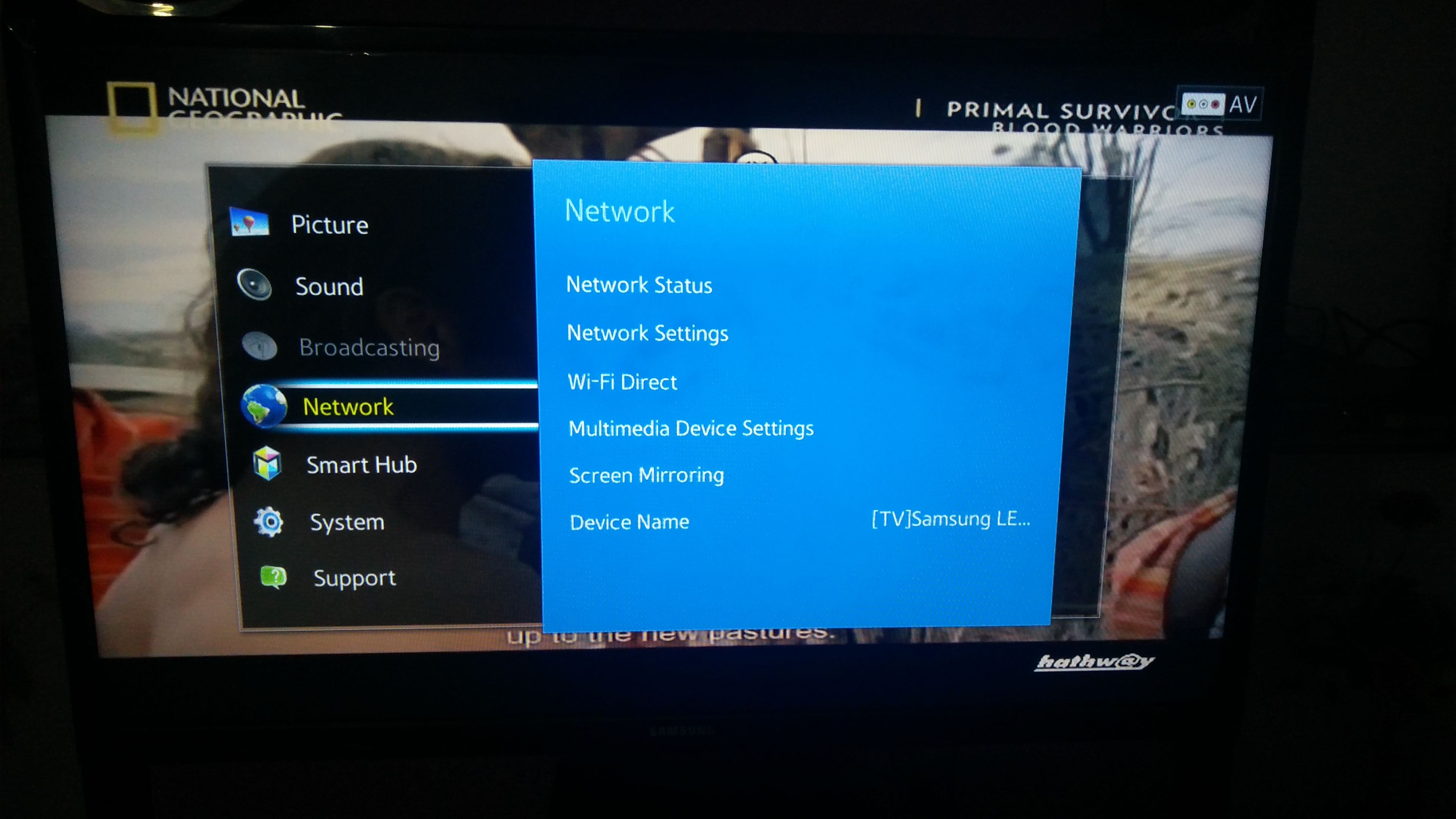

Network - Check for the option named Wi-Fi Direct.
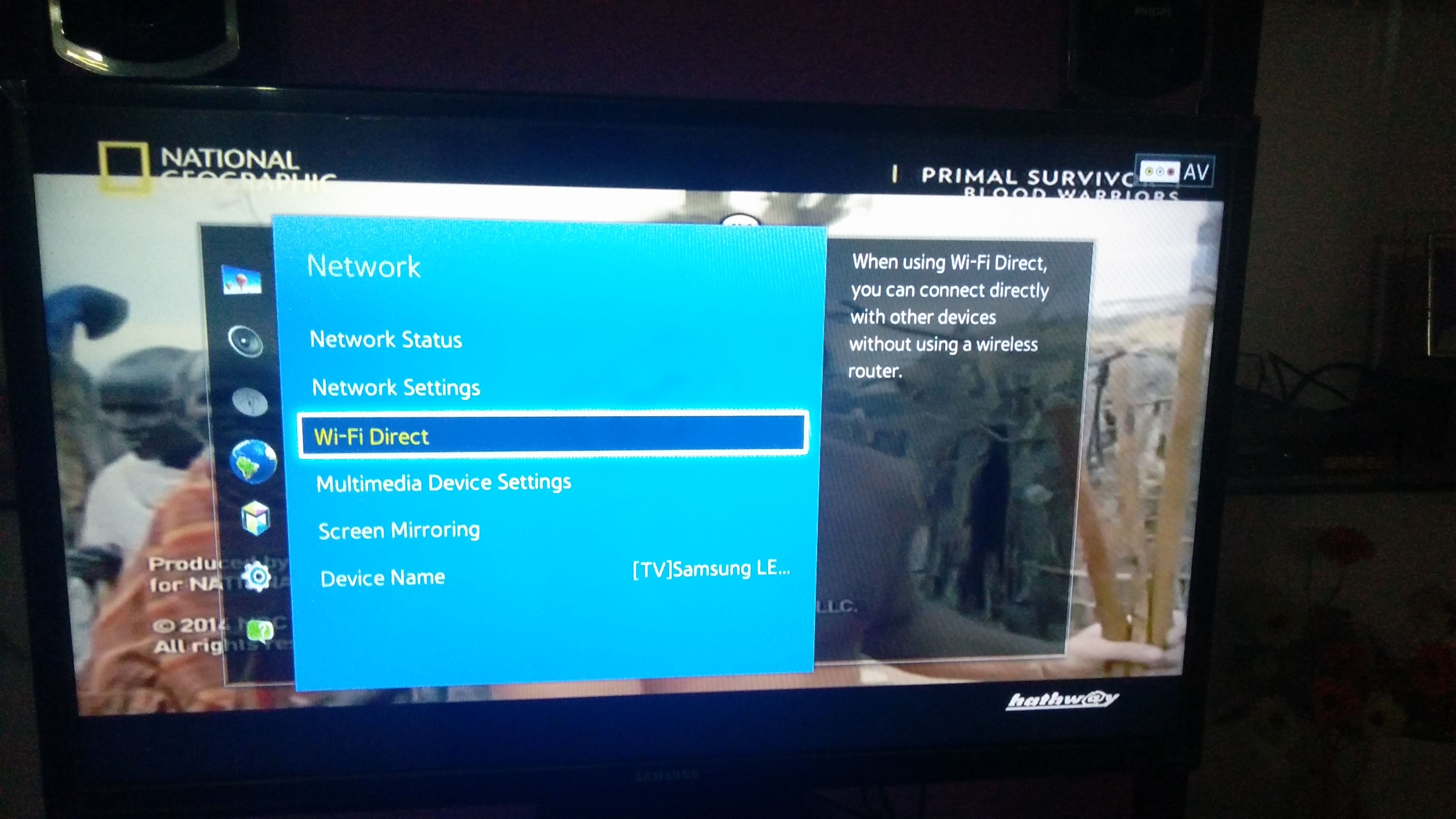

Wi-Fi Direct and Screen Mirroring - Click on Samsung Smart TV option in your OnePlus to connect both the devices with Wi-Fi Direct.
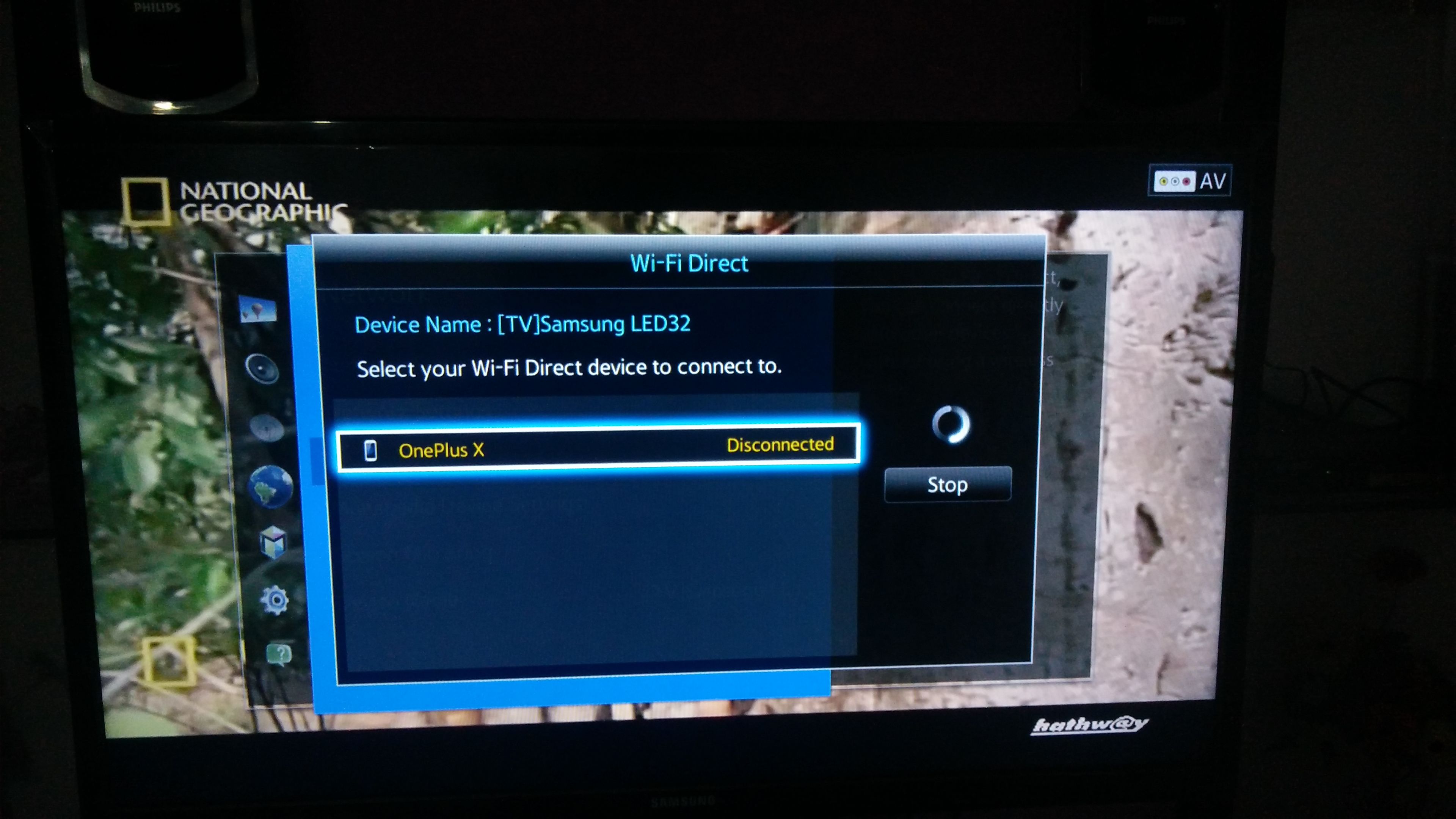

Connect your device with TV - Now again under Network option of TV look for the option named Screen Mirror and open it.
- In your OnePlus device under Settings open option named Display.
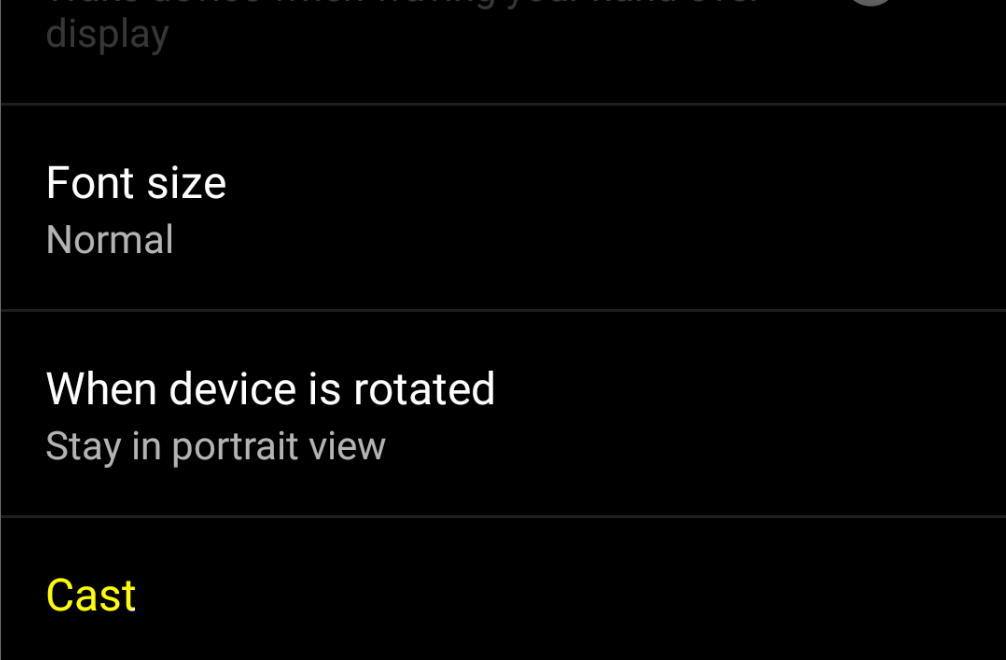

Click on Cast under Display - Scroll down and click on Cast and connect your device.
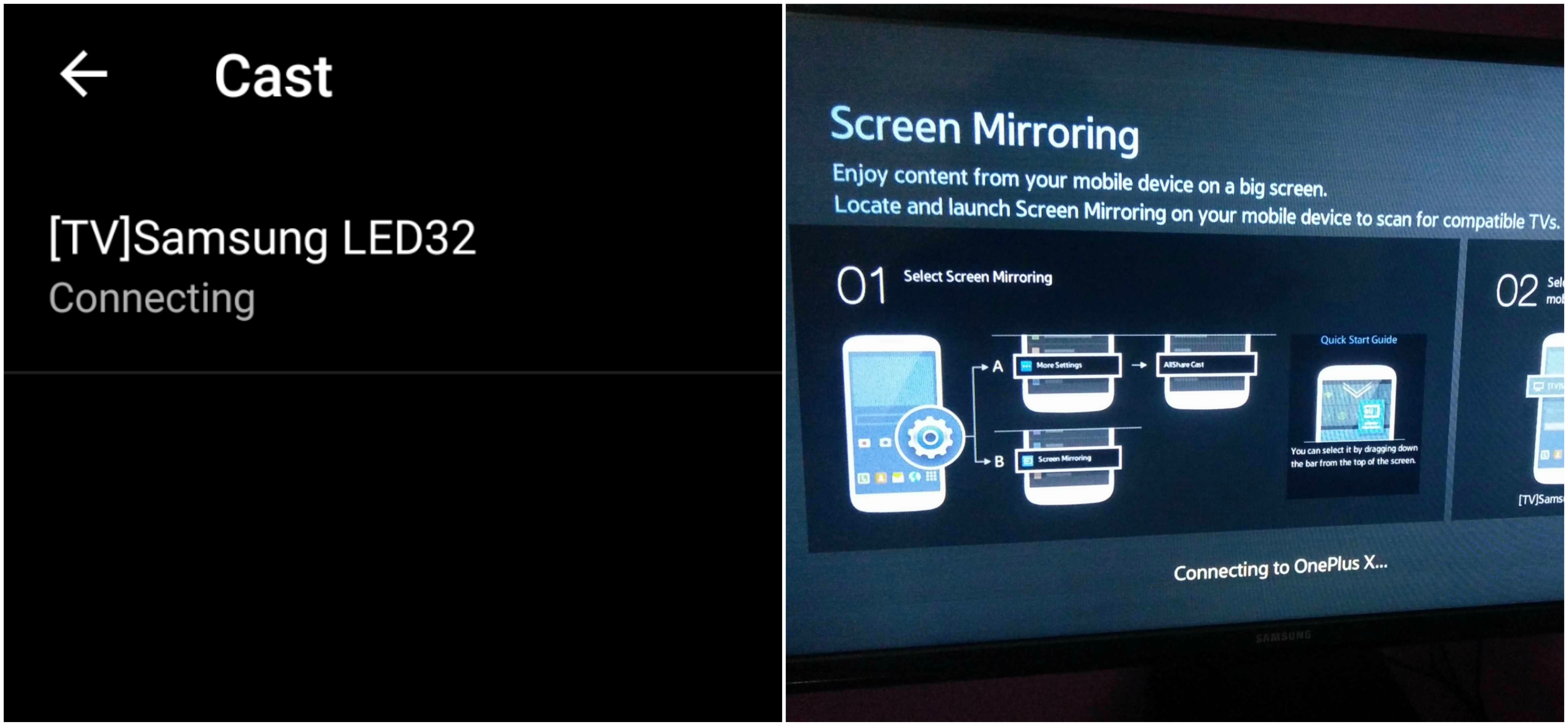

Device and SmartTV connecting - Holla ! You have just Mirrored your OP with Samsung Smart TV.
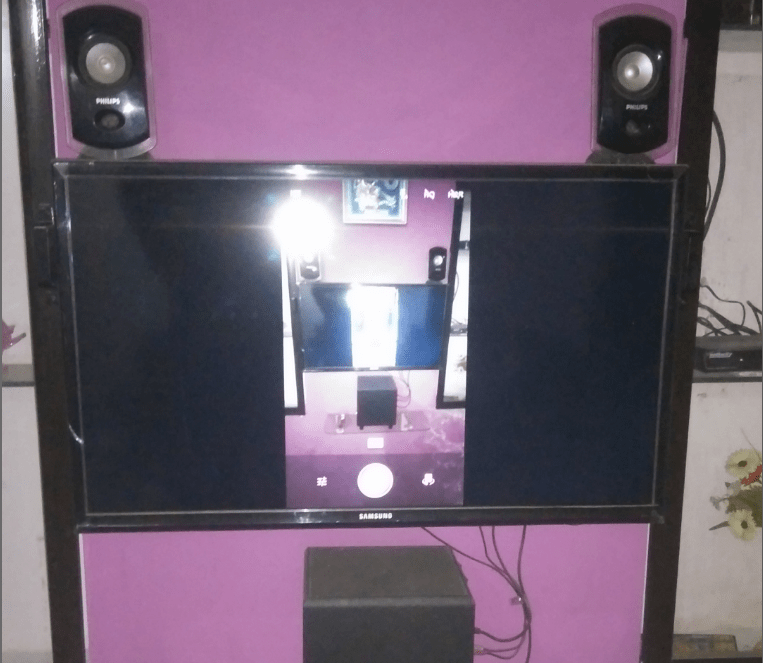

Screen Mirrored
Note & Conclusion: I hope the post was helpful. Do comment below for any of the assistance required.
If you are facing any issues or not able to find some settings leave a comment below.
Make sure you connected Wi-Fi direct with Samsung Smart TV. Cheers!


I try the same process with my 3t phone but shows connected but phone display is not visible to tv
You can also try Chromecast ot Miracast
It works good in first try but after that the screen mirroring led request inter the pin number in phone while there is not option entering pin in my OnePlus 3t!
Please help me.
I have a Samsung smarttv, i can connect the wifi direct thing but there’s no such option as screenmirrioring on my tv, though I use my Galaxy phones’ screenmirroring feature and works smooth. Is there a screen MIRRORING feature in One Plus 3T or just the screen Cast like other google handsets
Im trying to mirror my one plus 3t with my VU smart TV. My phone detects the TV & when I clock on the TV name it shows connecting for a while then goes back to the TV name.
On my TV its keeps stating waiting for external connection.
Please let me know if there’s a solution to this
We don’t have much idea about the VU TV. Sorry!
I have similar problem to Richard though my Smart TV is Samsung. I have not problem connecting to YouTube from my OnePlus 3t but can’t screen mirror with my phone. It says loading then goes back to displaying cable TV
Try few times, actually the Wi-Fi connection is broken abruptly sometimes so it is better to try few times if the connection fails.
I tried this with my oneplus 2 it shows connected but the mobile display is not visible on TV. Any solution pls help
It works. Just make sure that Wi-Fi Direct is connected with TV. Then Try connecting with Cast. Try a couple of times.
I was able to connect it a month ago…but now am not able to connect it bcz am not getting the name of my tv in cast option…
Have the same problem…did u find any solution yet?
Thank you for the guide, works just great with my Oneplus 5 and Samsung Smart Tv. Now I can play Walking Dead game on a big screen 🙂
Thanks You!!
hi.. im getting audio alone.. cant see video
Try Allcast from the play store
Works till last step, but unable to connect. The final message “the screen mirroring has ended”
Try few times.
Hi… I am using one pkus 3t and sony w672e
Not able to screen cast.
The guide is for Samsung Smart TV
Hi,
everything seems to go well!
WiFi Direct OK Between Smart Tv Samsung and my OP3
Cast on OP3 with mirroring on TV. OK
Loading appears on my TV screen, then this message :
“video data not taken into account”.
Any idea?
Thanks anyway for your help
(I’m French)
Hi. Error message says “video data not supported” while mirroring OnePlus 3 with Samsung smart TV.
Ok so I tried this and my one plus 5t gets connected but after the connection there is a pop up saying video data not supported !!
Try playing content in any other player.
Does it work with MI 4a tv?
Hi
I am using One plus 5T mobile. I am not able to cast the screen of my above mobile on my Samsung TV. I tried all methods posted above but of no use. Will you kindly help?
What is the issue you are facing?
The procedure is not workable.
I had done inline with the suggestions. TV screen shows it’s connected but at the last on TV screen shows Screen Mirroring ends.
Plz help.
It takes a while for the TV to show up in the cast menu but it was worth the patience! Thanks for this article
Getting only sound no video
Unable to connect cast comes not connected
I have tried this, I am using regularly, bt suddenly it not works, not in mine or any others mobile, so any problem in smart tv
Not function on OnePlus 5t to samsung s smart tv
Sir, This is getting connected for just for a second and it is getting disconnected. Can you please let me know what may be the cause.
Many thanks for this walkthrough. I could not have done it without you.
I have connected as per the given instructions… OTT platforms are playing in mobile, but the audio is coming from tv and there is no video in the tv
Thanks for the help. I was able to figure it out thanks to the hints in your article. I appreciate it.
You might consider adding the suggestion to edit the items in the pull-down shade if screen mirroring is not available. I had to add it. Thanks again.