Microsoft has removed PC-to-PC Migration from Windows 11, the built-in tool that moved files and settings from an old PC to a new one during setup. Microsoft’s own Release Preview notes say the feature is no longer available and point people to Windows Backup instead.
If you were about to set up a new laptop and expected to pull everything across directly, that plan now runs through OneDrive and a Microsoft account.
TL;DR: Windows 11 no longer includes PC-to-PC Migration, according to Microsoft’s September 10, 2026 Release Preview notes. The replacement is Windows Backup, which needs a personal Microsoft account and OneDrive, and the free tier is 5 GB. Anyone with a large Desktop, Documents or Pictures library should check storage before retiring the old PC.
What PC-to-PC Migration was and what Microsoft changed
Microsoft’s Release Preview notes for builds 26100.9539, 26200.9539 and 26300.9539, dated September 10, 2026, state that PC-to-PC Migration is no longer available. The notes describe a feature introduced through a phased rollout that let you transfer files and settings directly from your previous PC when setting up a new Windows PC.
The support page for the tool now reads: “This feature is no longer available. Use Windows Backup and Restore instead.” It also links a separate topic on moving files with an external storage device.
Removing PC-to-PC Migration is a bigger change than a one-line release note makes it sound. A direct hand-off between two machines has become a round trip through the cloud.
How Windows Backup handles the move instead
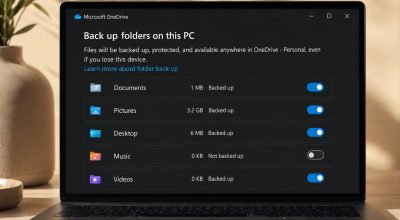
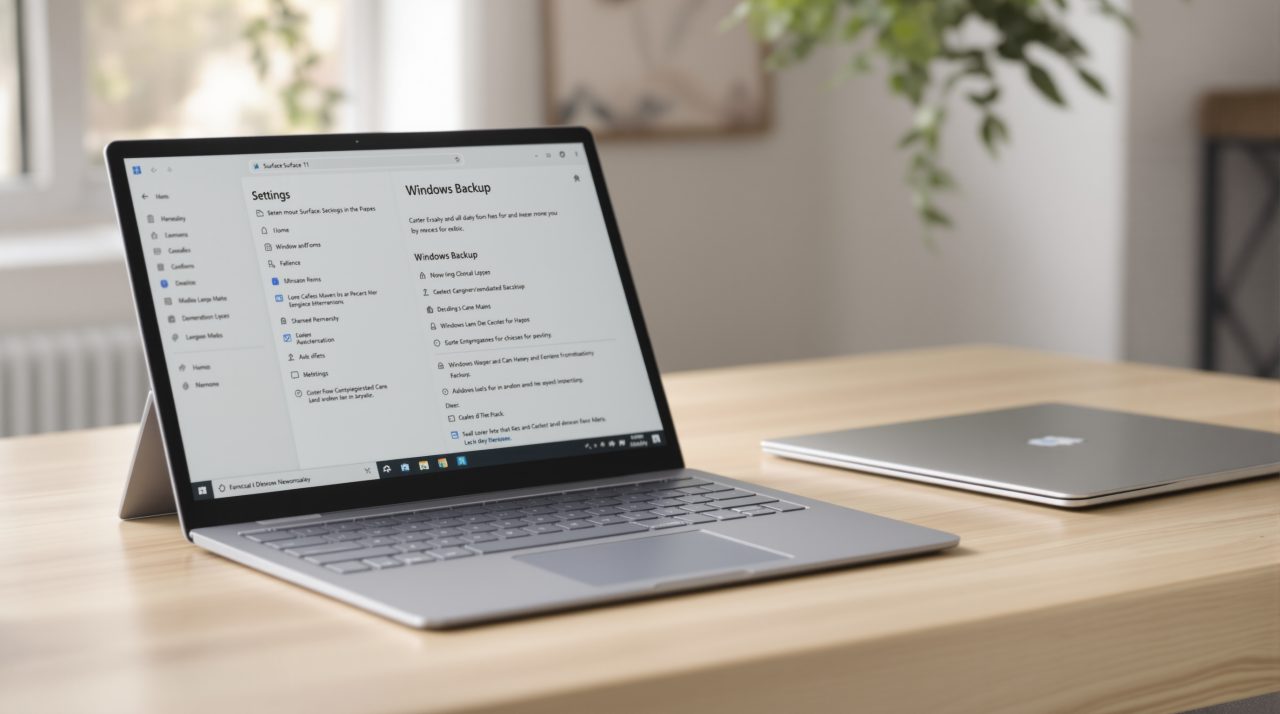
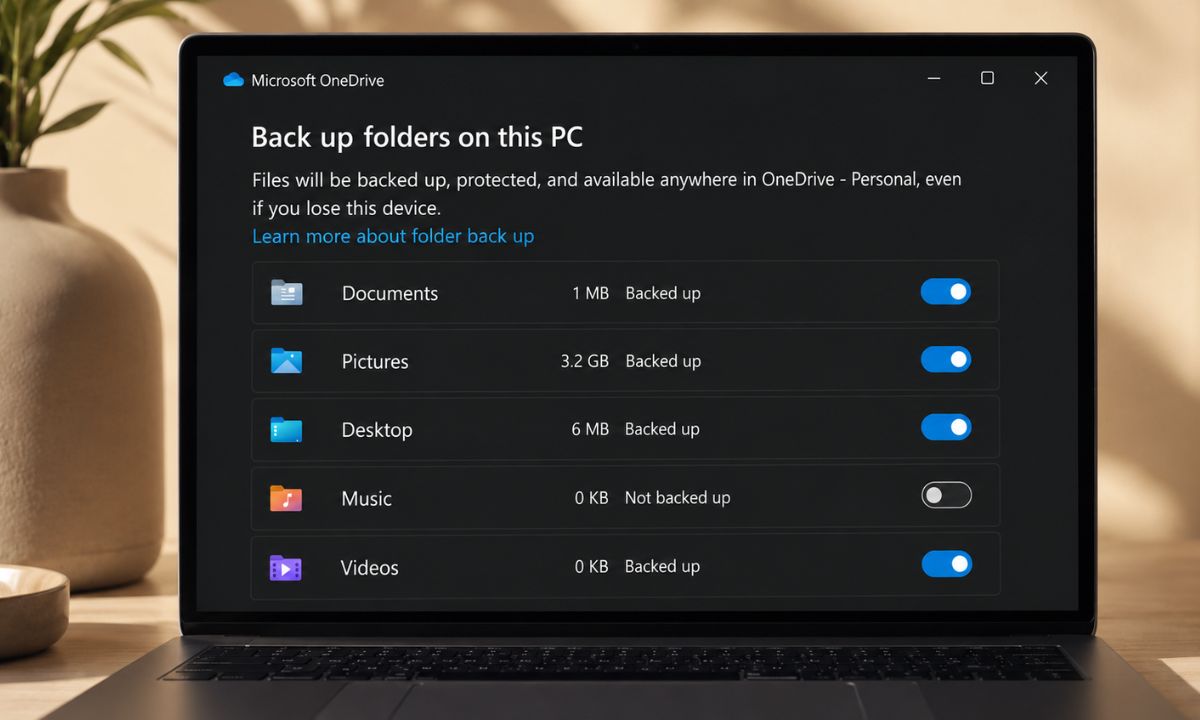
Windows Backup syncs your Desktop, Documents, Pictures, Videos and Music folders to OneDrive, according to Microsoft’s Windows Backup page. Sign in to OneDrive with the same Microsoft account on the new PC and those files can be restored.
Supported settings come back too, including installed apps, accessibility options, Wi-Fi networks and passwords, personalization and language preferences. App pins return to where you left them, Store apps reinstall from those pins, and other apps send you to the web for the installer.
Edge is the exception. Microsoft says favorites and preferences are not part of Windows Backup, so you need to sign in to Edge and turn on sync separately.
Whether any of that fits your situation depends on the account sitting behind it.
The account and storage limits to check first
Windows Backup requires a personal Microsoft account. Microsoft states that work or school accounts won’t work, and a local account has to be switched to a Microsoft account before backup can run.
Storage is the other limit. Microsoft says a free Microsoft account includes 5 GB of OneDrive storage, with more available to buy, and plenty of Pictures folders are larger than that. Our look at OneDrive folder backup shows what it does to your Desktop and Documents once it is switched on.
If the old PC is still running and storage is the sticking point, the external storage route Microsoft links from its support page remains available.
Who feels this change most before the old PC goes away
People who set up PCs with a work or school account, a local account, or a very large photo library are the ones who will notice. Everyone else mostly swaps one step for another.
The practical habit is to run a backup on the old PC while it still works, then confirm the folders you care about actually appear in OneDrive. Once the old machine is wiped or sold, whatever Windows Backup did not capture is gone with it.
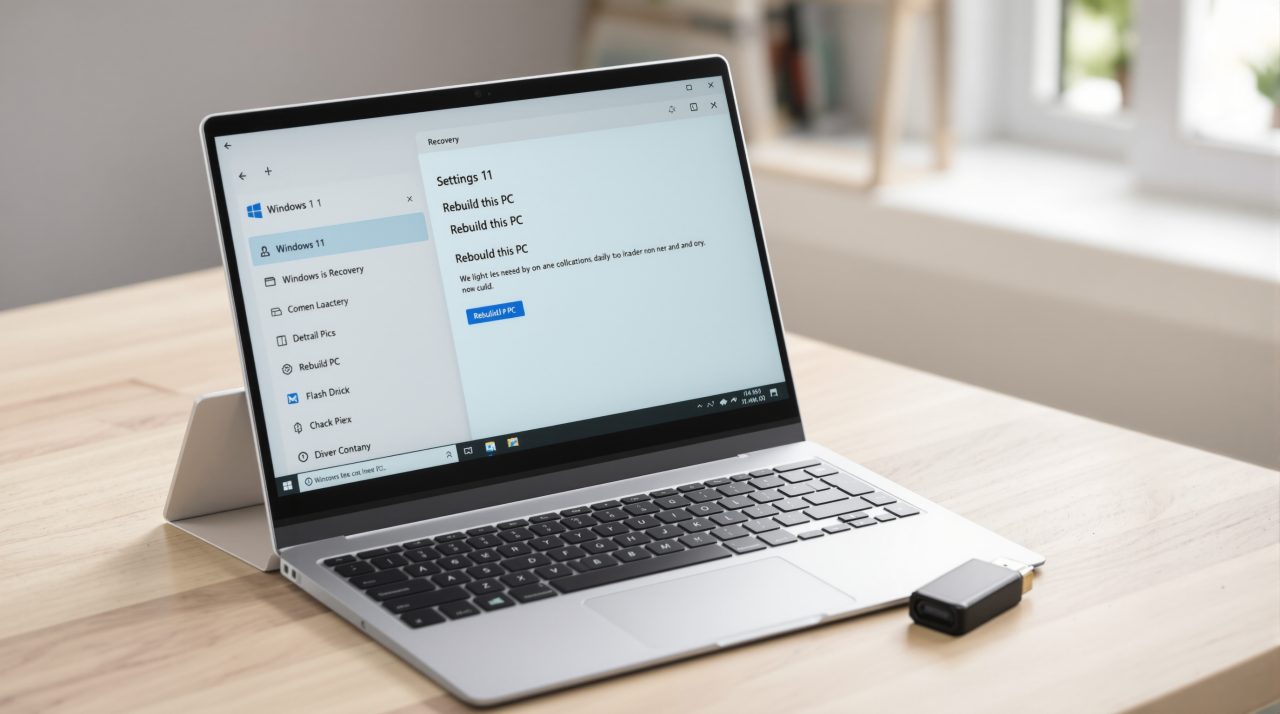
The same logic applies to the cloud rebuild recovery option, which wipes the PC, so a current backup matters there as well.