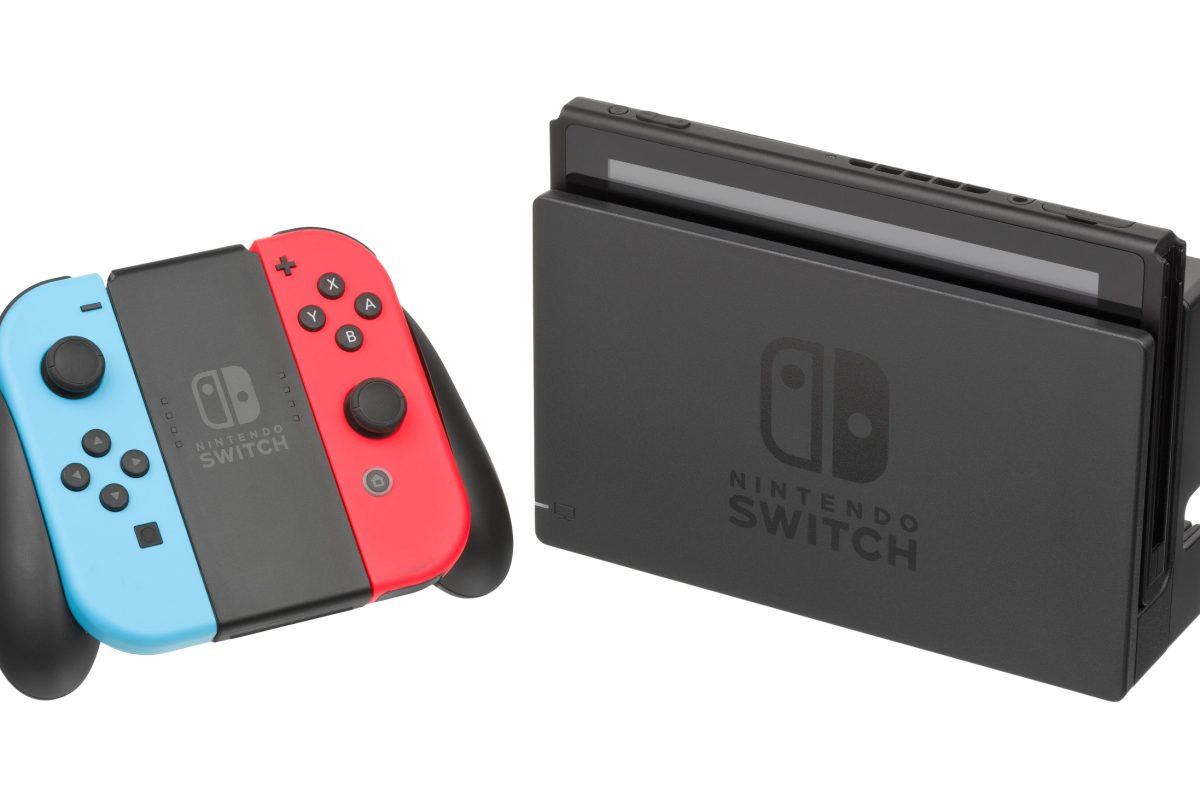
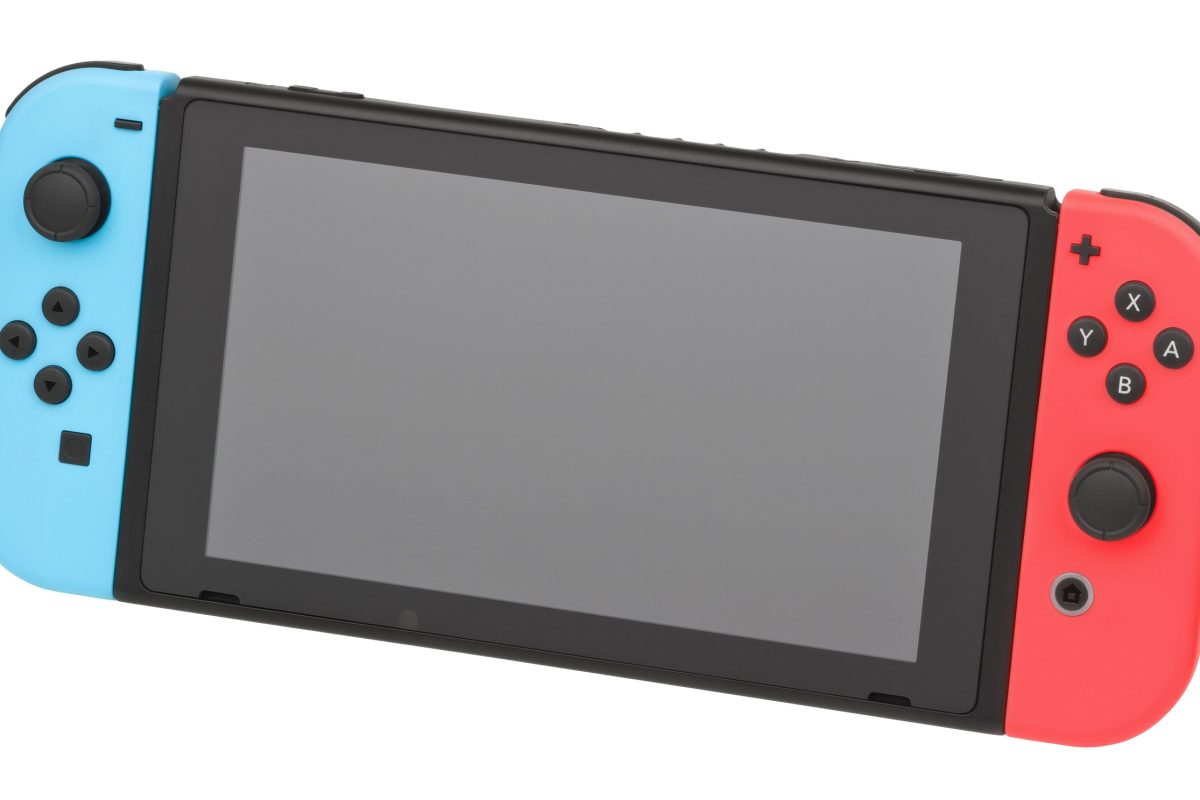
A Nintendo Switch does more than run games, although most owners never open the menus that prove it. There are several things to do with your Nintendo Switch that have nothing to do with playing, and they sit in settings and phone apps that are easy to skip.
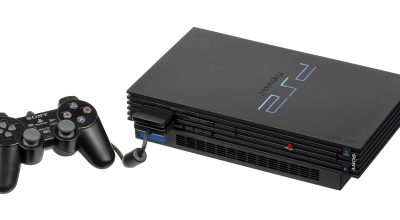
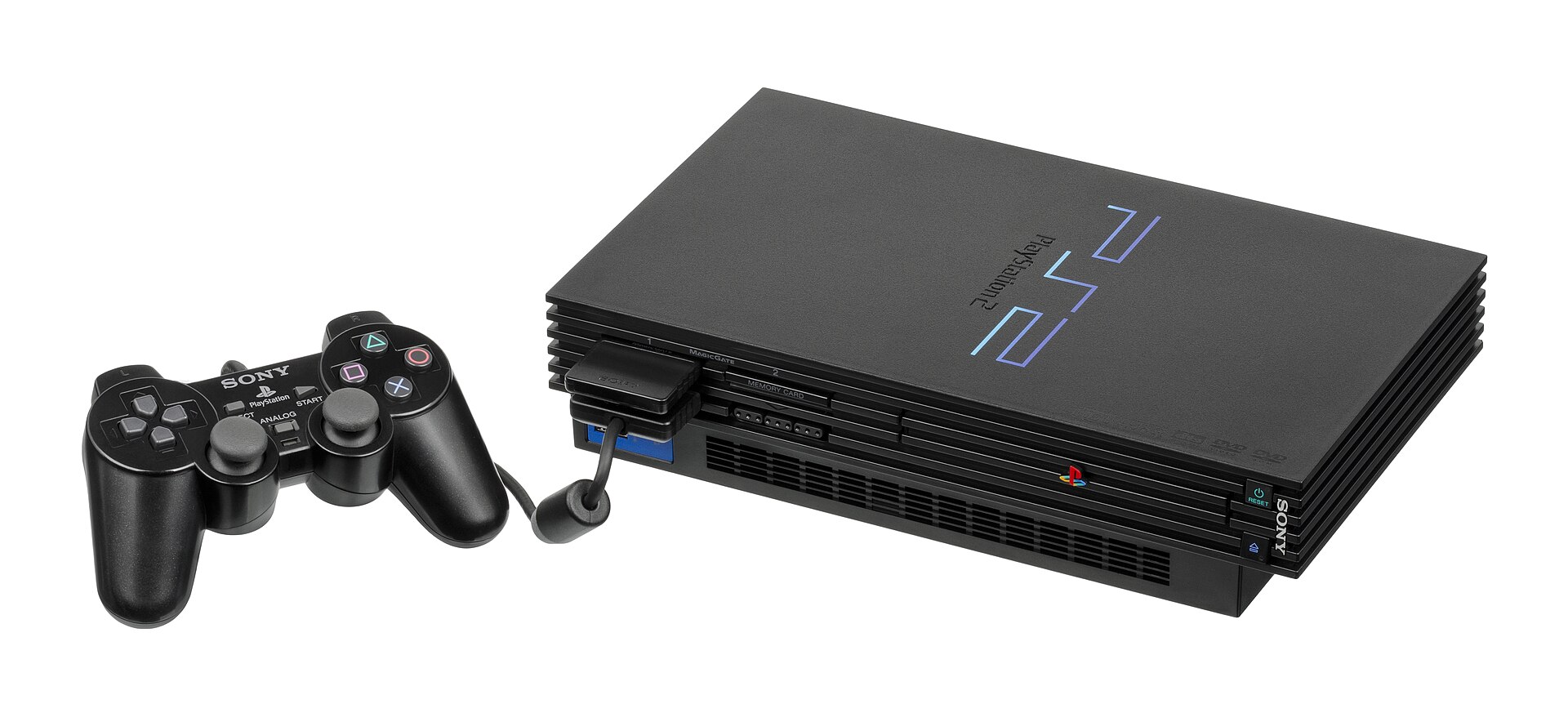
I went through Nintendo’s own support pages to see what works today, because a few popular answers online are out of date. If you also have older hardware in a drawer, my old PS2 guide covers the same idea.
Updated November 9, 2026. Checked against Nintendo’s support pages and recent announcements.
TL;DR: You can send captures to your phone by QR code, copy them to a PC over USB, pair Bluetooth headphones and set play-time limits from a phone app. Nintendo Switch Online members also get cloud save backups and the Nintendo Music app. Hulu and Crunchyroll no longer work on the Switch, so YouTube is the main video app left on the original console.
Things to do with your Nintendo Switch: what each one needs
Most steps below were checked against original Switch pages, and the Switch 2 differs for phone transfers, YouTube and the dock.
Cloud saves and Nintendo Music need a Nintendo Switch Online membership, and the other items need only the console or a phone.
| Requirement | Status |
|---|---|
| Send captures to your phone | Nothing beyond a smartphone |
| Copy captures to a PC | USB cable that carries data |
| Bluetooth headphones | System update 13.0.0 or later |
| YouTube | Free eShop download, original Switch, where available |
| Parental Controls app | Free, parent needs a Nintendo Account |
| Cloud save backup | Nintendo Switch Online membership |
| Nintendo Music | Nintendo Switch Online membership |
| Dock USB port | Dock and a USB cable or LAN adapter |
1. Send screenshots and videos to your phone
In the Album, pick a capture, choose Sharing and Editing, then Send to Smartphone, as Nintendo describes it.
You can send up to 10 screenshots and one video at a time, and some games do not support the transfer.
Expect two QR scans, one to join the console’s temporary Wi-Fi network and a second to open the files in your phone’s browser.
On a Switch 2 the steps differ: choose Upload to Smart Device, and the files land in the Nintendo Switch App for 30 days, up to 100 files, with a free Nintendo Account.
2. Copy captures to a PC with a USB cable
Go to System Settings > Data Management > Manage Screenshots and Videos > Copy to a Computer.
The cable needs to carry data and not only power, and this route suits batches bigger than the phone limit.
It works with Windows, and Nintendo says other systems need MTP support, so a microSD card is the fallback on a Mac or iPhone.
Plug into the console itself, because the dock’s USB ports do not support this.
Once the files are on your computer, an external hard drive is a sensible place to keep copies.
3. Pair Bluetooth headphones or a speaker
Open System Settings > Bluetooth Audio > Pair Device while your headphones are in pairing mode.
The console remembers up to 10 devices but plays through one at a time, and while one is connected you can use only two wireless controllers.
Bluetooth audio drops during local wireless play, Bluetooth microphones are not supported, and Nintendo warns of some audio delay.
To forget a pair you no longer use, select it in the same menu and choose Remove Device.
4. Watch YouTube on the original Switch
YouTube is a free eShop download where available, and it does not need a Nintendo Switch Online membership.
Nintendo’s support page says this app is not compatible with the Switch 2.
Netflix, Disney+ and Prime Video have never had Switch apps, so YouTube is the one big video service you can install.
Signing in with your Google account brings in your subscriptions and recommendations.
5. Set play-time limits with the Parental Controls app
The Nintendo Switch Parental Controls app is free for iOS and Android and works with both the Switch 2 and the original Switch.
You can set a daily limit, check which games were played and suspend a game remotely when time is up.
The parent or guardian needs a Nintendo Account to link the console.
6. Back up your saves to the cloud
Save Data Cloud needs a Nintendo Switch Online membership, and Nintendo says automatic backup is on by default once you start one.
Not every game supports it, and a download overwrites the save already on the console, so read the prompt before confirming.
If a membership lapses, you have 180 days to restart it and regain access to your backups.
7. Listen to game soundtracks in Nintendo Music
Nintendo Music is a phone app and a computer web player, with no app on the console itself, and it comes with a Nintendo Switch Online membership.
The web player was added in June 2026, and the app supports background and offline listening.
Availability depends on your country.
8. Use the dock’s USB port for more than a charger
Nintendo says you can charge a Pro Controller, or Joy-Cons in a charging grip, from the dock’s USB port with a USB charging cable.
A LAN adapter can go in the same port for a wired connection, and some docks have a LAN port built in.
Nintendo does not list phones, so I would not treat the dock as a phone charger.
This applies to the original dock, which Nintendo says is not compatible with the Switch 2.
Streaming apps that stopped working on the Switch
Nintendo’s US support page says the Hulu app left the eShop and support ended on February 5, 2026.
Crunchyroll’s Switch app was pulled from the eShop and service ended on October 30, 2026, according to Nintendo’s support page, and it never worked on the Switch 2.
If an older guide tells you to watch Hulu or Crunchyroll on a Switch, treat it as out of date, and check Nintendo’s support page before you rely on any app.
Frequently Asked Questions
Can you watch Netflix on a Nintendo Switch?
Not officially. Netflix, Disney+ and Prime Video have never had Switch apps, and YouTube is the main video app left on the original Switch, where available.
Can I send Nintendo Switch screenshots to my phone?
Yes. Open Album, choose a capture, then select Sharing and Editing and Send to Smartphone to send up to 10 screenshots and one video at a time.
Can I use Bluetooth headphones with a Nintendo Switch?
Yes, with system update 13.0.0 or later. The Switch plays through one audio device at a time and does not support Bluetooth microphones.
Do I need Nintendo Switch Online for cloud saves?
Yes. Save Data Cloud requires a Nintendo Switch Online membership, and not every game supports it.
Does Hulu or Crunchyroll still work on Nintendo Switch?
No. Nintendo says Hulu support ended on February 5, 2026, and Crunchyroll service on Switch ended on October 30, 2026.