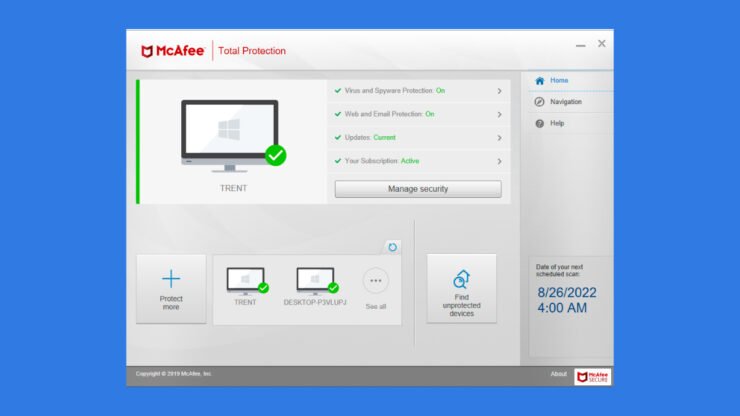
McAfee Firewall protects your Mac in the digital world by monitoring the flow of internet data and allowing only verified and safe information to pass through. It also prevents viruses and cyber threats from causing harm to your Mac.
However, different factors can create issues with McAfee, causing it to malfunction. That said, let’s dive deep into some easy methods to fix McAfee Firewall not working on Mac.
Why Is McAfee Firewall Not Working on Mac?
Several factors are responsible for McAfee Firewall not functioning properly on your Mac, including:
- Software conflicts with other applications: When McAfee interacts with other existing software on your system, it can lead to functionality issues.
- Corrupted or outdated McAfee files: If certain files within the McAfee application become corrupted or if you’re using an outdated version, the Firewall can fail to operate properly.
- Compatibility issues with macOS: As Apple regularly updates its operating system, McAfee can face difficulties in keeping up with these changes, resulting in poor performance.
- Incorrect McAfee settings can make the Firewall less effective. If the configuration is not accurate, the Firewall will not provide the protection it should.
All these factors can cause McAfee Firewall to malfunction in macOS. Let’s now see how to fix these issues on your Mac.
How to Fix McAfee Firewall Not Working on Mac?

You can try several methods to fix McAfee Firewall not working on Mac. Let’s look into all those solutions.
Method 1: Reinstall Your McAfee Firewall App
If your McAfee Firewall on Mac isn’t working, try reinstalling it. This usually fixes any malfunctioning problems and glitches by giving your Firewall a fresh start. After reinstalling the software, you need to restart your Mac.
Here is an easy step-by-step tutorial to reinstall the McAfee Firewall app on your Mac:
- Open the Safari browser and go to the official McAfee website.
- Click on “Sign in” and enter your McAfee login details to log in.

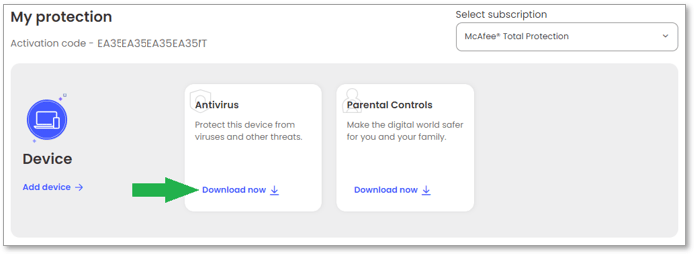
- In the “My Protection” section, choose the McAfee software you want and click “Download now.” Select “Mac” in the drop-down menu on the right side. Here’s an example:
- Accept the McAfee License Agreement by clicking “I’ve read and accept the McAfee License Agreement.”
- Note down the serial number displayed below the Download button (valid for two hours, so you need to install the software right after downloading it).
- Install your McAfee software by exiting your web browsers and opening the downloaded McAfee-MacInstaller-x.x.dmg file.
- Double-click on the McAfee-MacInstaller icon. If a warning appears, click “Open.”
- Enter your Mac’s administrator credentials when asked.
- Input the serial number you noted earlier.
- Wait for the installation process to finish and click “Finish.”
- If Safari asks for permission, click “Trust.”
- If prompted, turn on the McAfee WebAdvisor extension for added security.
Method 2: Update Your McAfee Firewall App
Make sure your McAfee Firewall on your Mac is running smoothly by regularly updating the software. There are usually two ways to check for updates on your McAfee Firewall manually:
From the McAfee Icon on the Desktop
Follow these steps:
- Double-click the McAfee icon on your desktop to open McAfee Total Protection.
- At the bottom right, click the Help icon and select “Update app.”
- Choose “Check for Updates.”
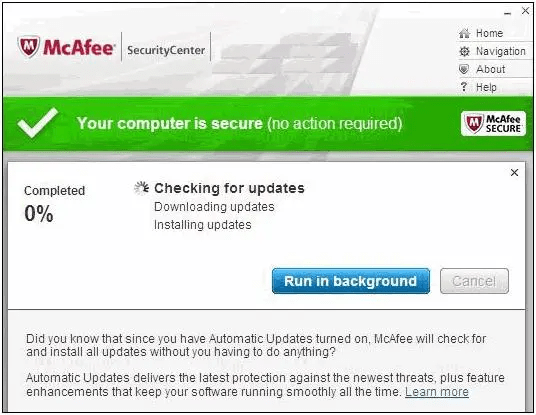
From the McAfee Shield Icon Next to the Clock
Carry out these steps:
- Right-click the McAfee shield icon in the Notification area.
- Select “Check for Updates”.
Next, you can update your McAfee software by following these steps:
- Double-click the McAfee icon in the Notification area.
- Click the Help icon and select “About”.
- Make sure that the Automatic Updates feature is turned on.
- Open your McAfee software.
- Click “Account” on the left menu.
- Select “Update app.”
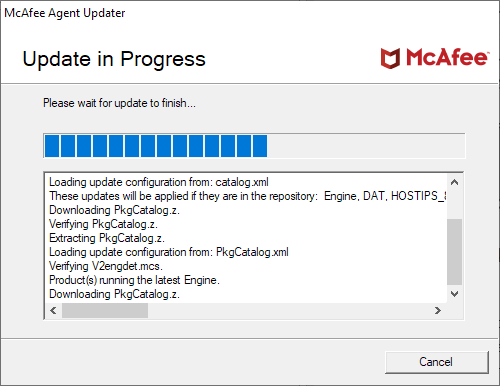
- Click “Check now” for the latest protection and enhancements.
- Click “Done” after updates are downloaded and installed.
Method 3: Update Your Mac
Updating your Mac can also fix issues with McAfee Firewall. It makes your system work better, improves security, and ensures that McAfee can protect your Mac effectively against new threats.
First, make sure you have a stable internet connection and back up any important data before updating your Mac. Next, follow these steps to update macOS to fix the McAfee Firewall issue:
- Open the Apple menu and go to “System Settings”.
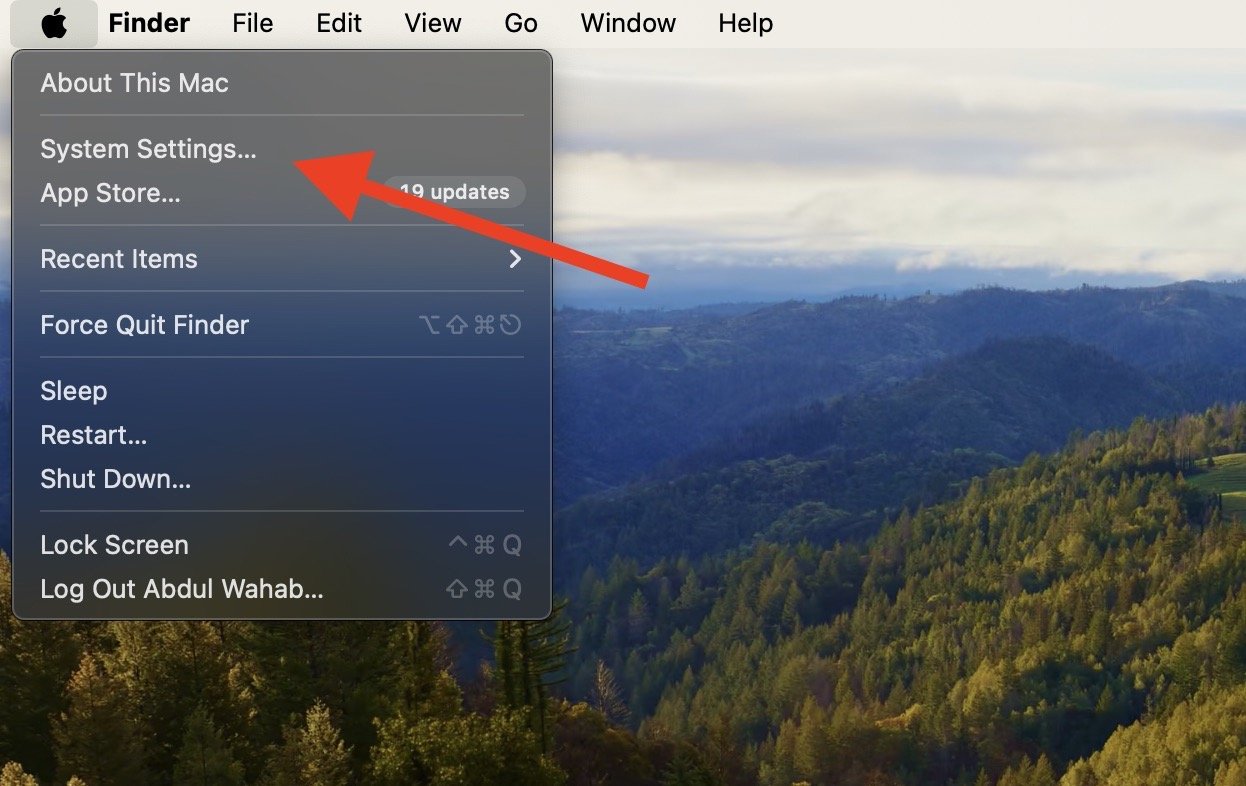
- Click on “Software Update”.
- Download any available macOS updates.
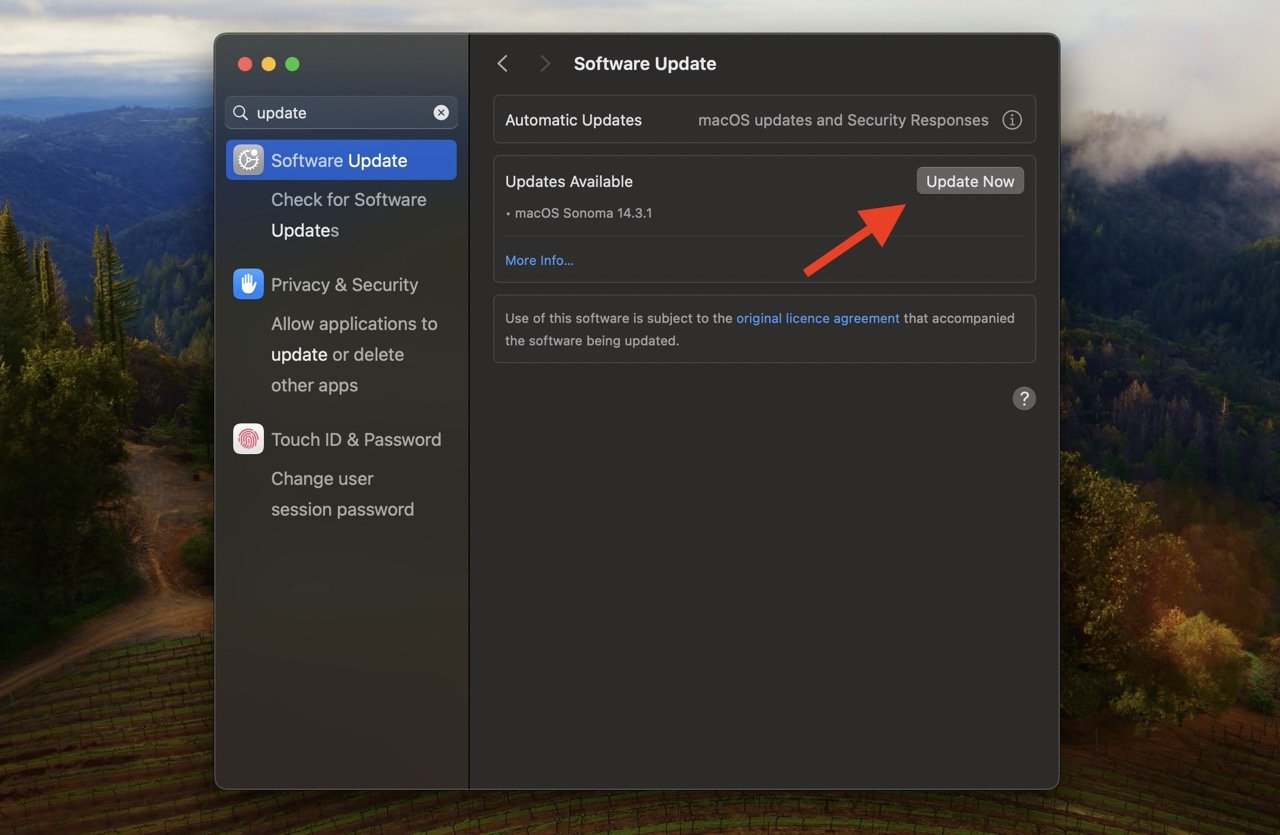
You should also check for App Store software updates in the Apple menu. Once done, try restarting your Mac running McAfee Firewall to see if it is working properly.
Method 4: Grant Permissions to Enable McAfee Firewall in macOS
After installation, the Firewall is typically turned off by default, which can leave your Mac vulnerable. You need to turn it on by granting necessary permissions against potential threats and securing your macOS system.
To do that, check if the McAfee System Extension isn’t blocked. You can do any of the following:
- Click “Open Security Settings” if you see a System Extension Blocked pop-up.
- Click the Apple menu > “System Settings” > “Security & Privacy.” If a McAfee system extension message appears, type your macOS password and click “OK.”
Next, follow these steps:
- Inside the “General” tab, click the lock, choose “Allow,” and confirm the McAfee system extension.
- Click “Allow” if the system asks for permission to filter network content.
- Next, click the McAfee icon and select McAfee (product name).
- Go to Mac “Security” or click the gear icon.
- Click the lock, turn on the Firewall slider, and allow permissions for the McAfee system extension.
These steps will make your McAfee Firewall active and secure your Mac against potential threats.
Method 5: Make Sure That McAfee Has Full Disk Access
Besides enabling system extensions, it is also important to give Full Disk Access to help McAfee work properly. By turning on these settings, you make sure McAfee has all the permissions to function without any issues on macOS.
Let’s see how you can do that:
- Click on the Apple icon in the top-left corner of your screen to open the Apple menu.
- Select “System Settings” from the menu.
- Open the “Security & Privacy” window and click on the “Privacy” tab.
- In the left column, scroll down and select “Full Disk Access.”
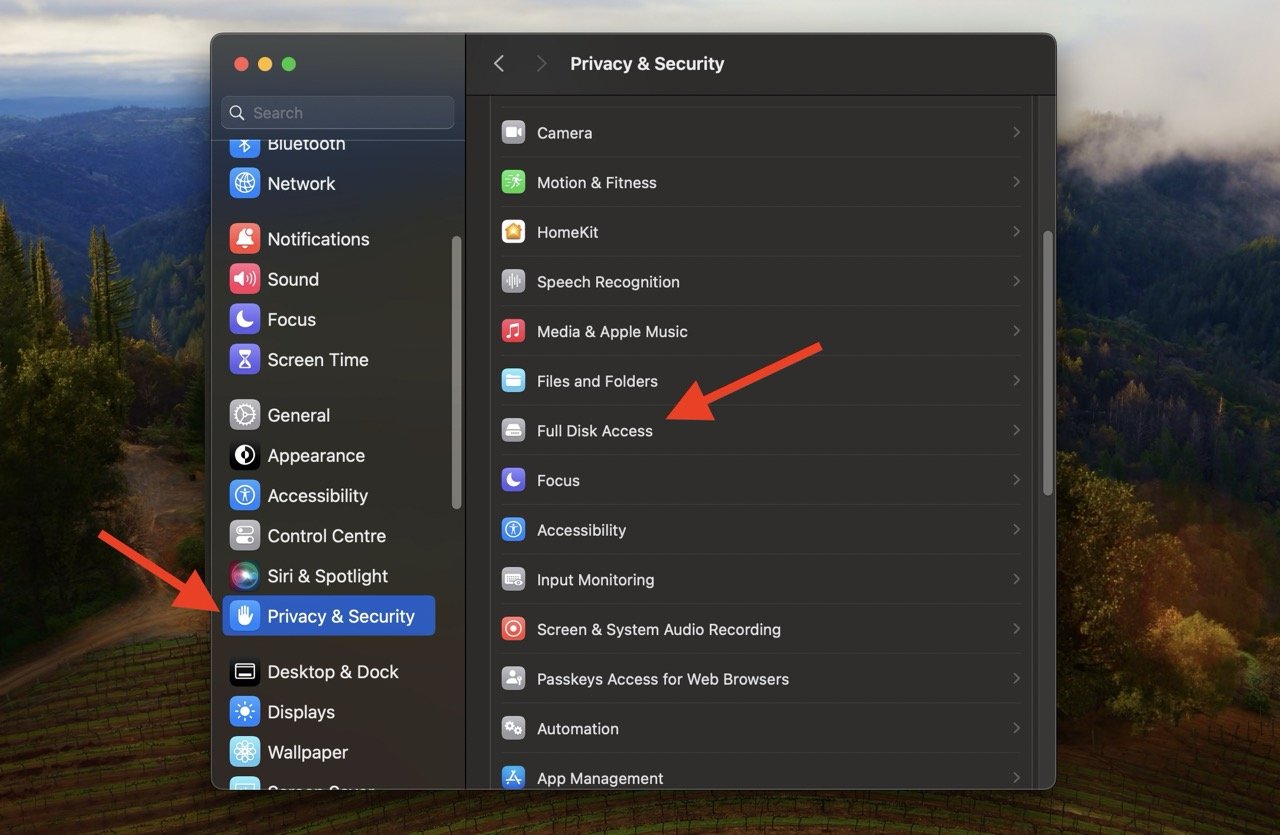
- If necessary, click the lock icon to make changes and enter your macOS administrator details.
- On the right, select VShieldScanner, VShieldScanManager, GenUtility, fmpd, and McAfee Network Extension. These are important components required for McAfee to function correctly.
Method 6: Disable Third-Party Antivirus Apps
Sometimes, different security apps on your computer can clash and cause problems. Especially with third-party antivirus apps, they can interfere with McAfee’s operations and create conflicts that affect the overall performance of your Mac.
By turning off these other security apps and sticking with McAfee, you can give it a better chance to do its job without any interruptions. This way, your Mac’s protection becomes more straightforward and focused against threats and glitches.
Method 7: Disable the Mac Firewall
Turning off the Mac Firewall for a little while can help fix problems with McAfee Firewall. Sometimes, when both the Mac Firewall and McAfee Firewall are on, they can confuse the other application as a threat to the system software. This can make McAfee not work properly.
One solution to fix this is to disable the Mac Firewall so the McAfee Firewall can work properly. Just follow these steps to do that:
- Click the Apple menu icon in the top left corner of your screen.
- Choose “System Settings” from the drop-down menu.
- Select “Network” on the left.
- On the right, choose “Firewall” from the menu.
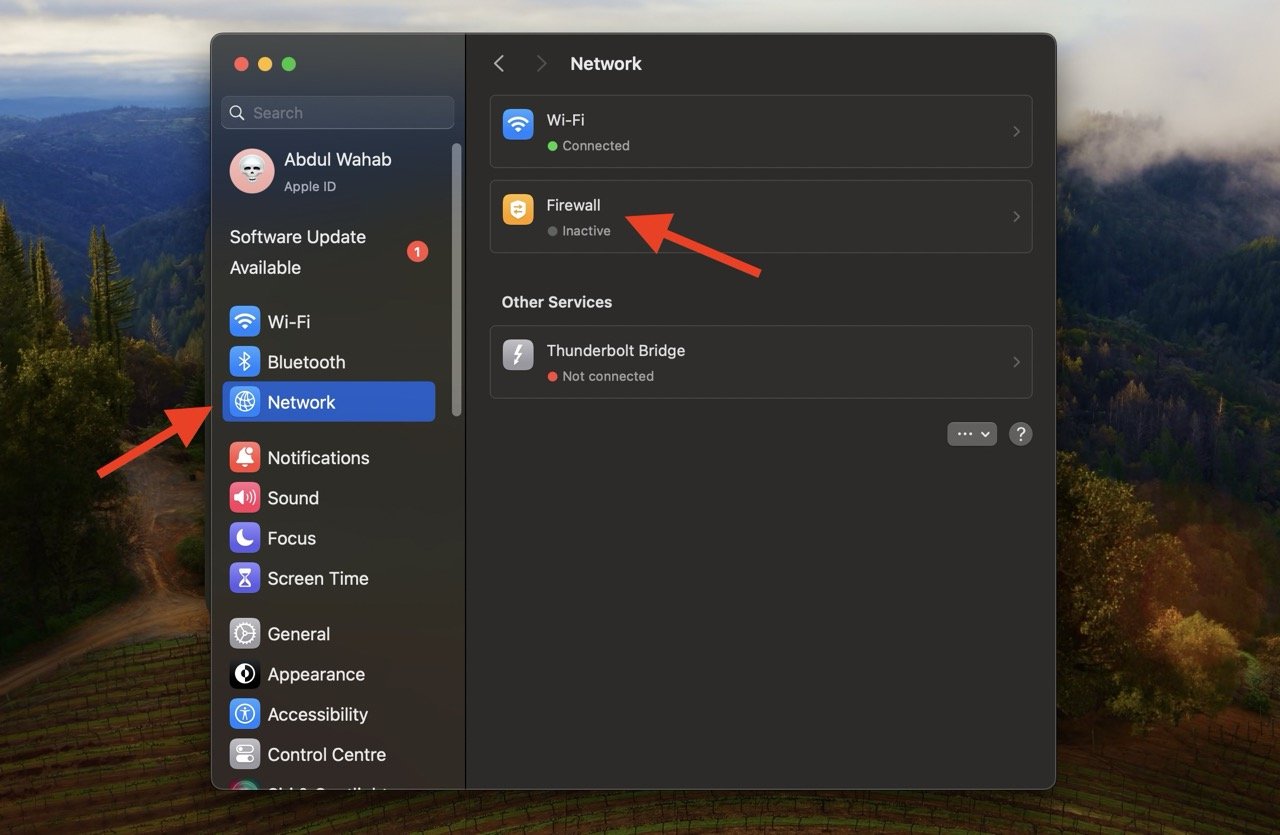
- Toggle the Firewall off by clicking the toggle switch to disable the Firewall on your Mac.
Frequently Asked Questions
What is the difference between a Firewall and a McAfee Firewall?
A firewall is a security system that monitors and controls incoming and outgoing network traffic based on predetermined security rules. On the other hand, McAfee Firewall is a specific firewall software provided by McAfee; it offers additional features and settings more than the basic firewall functionalities.
Is McAfee Firewall good at protecting my Mac?
McAfee Firewall is designed to improve the security of your Mac by monitoring and controlling network traffic. It adds an extra layer of protection against threats and keeps your system safe. However, it needs proper configuration and frequent updates to work optimally.
Should I use a third-party software with McAfee Firewall?
No, you should not add other security apps to your Mac along with McAfee Firewall. It’s better to stick to the built-in, native applications on your macOS for smoother performance. If you use third-party apps, they can cause problems with McAfee, which can lead to malfunctioning issues.
Final Words
Mcafee Firewall is the default app that protects your Mac from threats and viruses. It checks all the data entering your Mac, allowing only verified information. Although it’s excellent for computer protection, occasional issues can occur. Fortunately, there are different ways to fix these issues; but if the problem persists, you should contact McAfee’s customer support for more help.
If you've any thoughts on How to Fix McAfee Firewall Not Working on Mac?, then feel free to drop in below comment box. Also, please subscribe to our DigitBin YouTube channel for videos tutorials. Cheers!