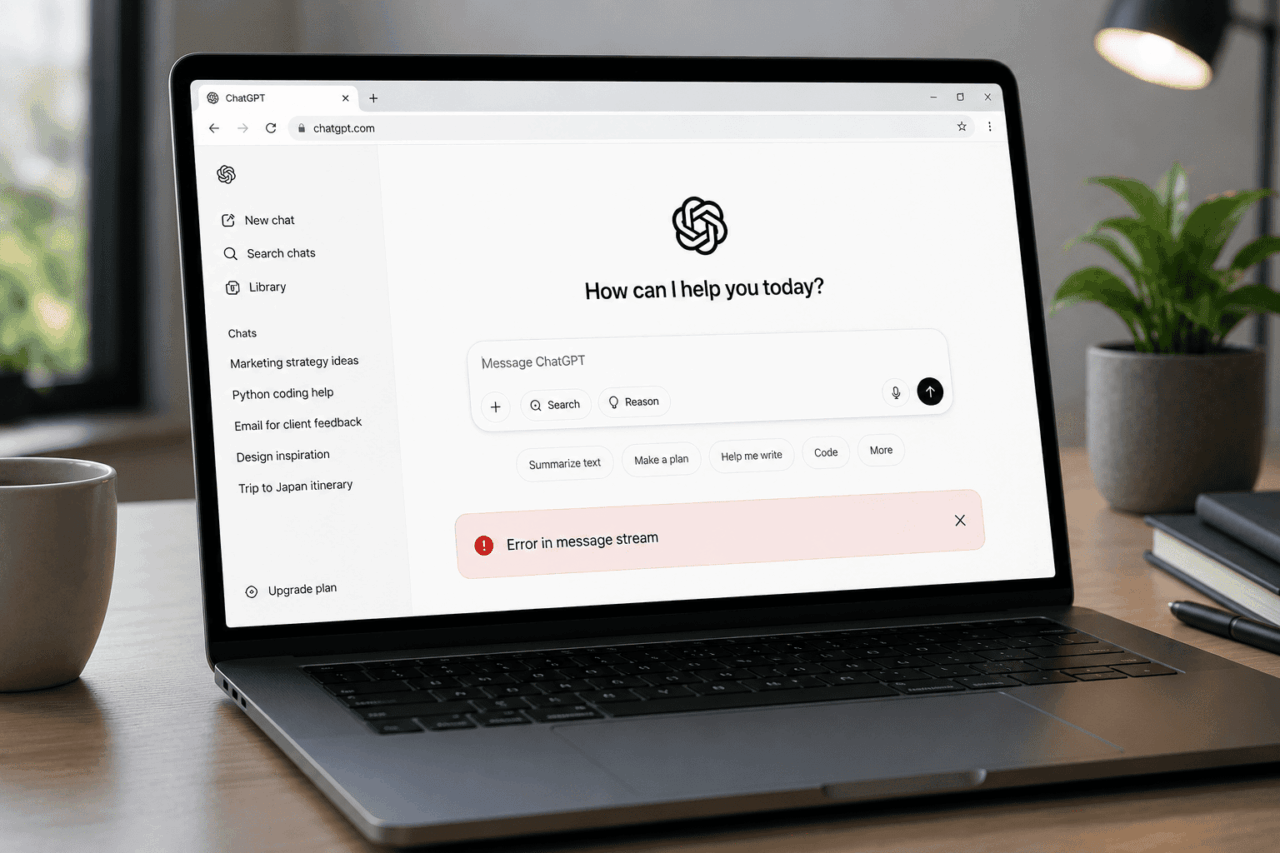
The ChatGPT error in message stream shows up as a red notification box at the bottom of the chat window. ChatGPT starts typing, sometimes gets several sentences in, and then stops. The prompt clearly worked. The model understood it. The response started. And then nothing.
The fix depends on what caused it, and that changes depending on whether the problem is on OpenAI’s end, your network, or your browser. This guide covers what the error actually means, what triggers it, and the fixes in the order that resolves it fastest.
TL;DR: The ChatGPT error in message stream is a connection failure, not a model failure. The AI processed your prompt and started responding, but the streaming connection broke before delivery was complete. Try Regenerate first. If that fails, open ChatGPT in Incognito mode. If the error persists across browsers and networks, check status.openai.com before doing anything else.
What the ChatGPT error in message stream means
ChatGPT does not send responses as a single finished block. It streams them token by token through a persistent connection, which is why you see the text appearing in real time rather than loading all at once after a delay.
When the error appears, that persistent connection broke during delivery. OpenAI’s servers received your prompt, processed it, and began transmitting the response. Something between the server and your browser interrupted the stream before it could finish.
That distinction matters. It means this is a delivery failure, not a comprehension failure. The model is not confused by your prompt. It is not refusing to answer. The response existed and simply did not make it to your screen intact.
Longer and more complex prompts make this more likely because they require a longer active connection. A short question completes quickly. A 2,000-word document summary or a multi-step code request keeps the connection open far longer, and each extra second is another window where a network hiccup or a server throttle can break the stream.
What causes the ChatGPT error in message stream
The failure can happen at multiple points between OpenAI’s servers and your screen. On June 11, 2025, OpenAI’s status page confirmed a spike in stream errors around 11:50 AM PDT, resolved by 12:15 PM. When the cause is server-side, no local fix will work.
On the client side, unstable WiFi is the most common trigger. Even a brief signal dip breaks the WebSocket connection ChatGPT uses to stream responses. Switching tabs mid-response, dropping to mobile data, or being on a congested public network all create the same risk.
VPNs routing through distant or overloaded servers add latency that pushes the connection past its timeout threshold. Browser extensions that filter scripts or block ads can misidentify ChatGPT’s persistent connection as a background script and terminate it. This is why the same prompt sometimes works in Incognito mode but fails in a standard window.
Stale cached data and expired session tokens also contribute to the ChatGPT network error family of failures. A session token can expire silently during a long conversation, and the next stream request fails even if the network is stable.
How to fix ChatGPT error in message stream
Work through these in order. The first three resolve the majority of cases within a minute.
- Click Regenerate. This replays the prompt on a fresh connection and resolves the error more often than feels reasonable, since the model usually finished processing and only the delivery failed.
- Check status.openai.com. Before touching anything locally, confirm whether OpenAI has an active incident. If they do, nothing you change will fix it, and the most useful thing is to wait.
- Open ChatGPT in Incognito or Private mode. This disables all extensions and starts with a clean cache at the same time. If the error disappears in private mode, a browser extension or corrupted cached data is the cause.
- Disable browser extensions one by one. Ad-blockers, script blockers, and AI writing assistants are the most common offenders. Re-enable them individually to identify which one is terminating the stream, then add an exception for chatgpt.com.
- Disconnect your VPN or switch server location. Temporarily turn the VPN off and reload ChatGPT. If the error stops, reconnect to a server geographically close to you rather than one routing through an overloaded region.
- Clear browser cache and cookies. In Chrome, go to Settings, then Privacy and Security, then Clear Browsing Data, and select Cached Images and Files along with Cookies and Other Site Data. Log back into ChatGPT after clearing.
- Try a different browser. If the error only appears in one browser, the issue is specific to that browser’s configuration. Testing in Edge, Firefox, or Safari quickly rules out profile-specific problems.
- Switch to a different network. Connect through a mobile hotspot instead of your main WiFi. If it works there, the problem is with your router, ISP routing, or local network congestion rather than your browser.
- Break long prompts into shorter parts. Shorter prompts complete faster and give the connection less time to break. If you are summarizing a long document, send it in sections rather than as one block.
- Log out and log back in. This refreshes your authentication token, which can expire silently during a long or idle session. After logging in, open a new chat rather than returning to the existing conversation.
What the error does not do
Chat history is not affected. Previous conversations remain saved in your account exactly as they were, and you can access them as soon as the stream issue resolves.
The error does not flag or penalize your account. OpenAI treats it as a delivery interruption, not a policy violation. Switching to a different model during high-traffic periods can also bypass the issue. If GPT-4o keeps failing, try GPT-4o mini. The error generating a response and the message stream error come from the same underlying connection failure, and neither affects your standing with OpenAI.
If nothing local is working, the wait is usually short
When status.openai.com confirms an active incident, none of the local fixes apply. The June 11, 2025 incident resolved in under 25 minutes. Most stream-related degradation periods follow a similar pattern: load spikes, OpenAI stabilizes capacity, and the error stops appearing without any action needed from users.
If the incident is ongoing when you check, the most practical thing to do is note the time, close the ChatGPT tab, and try again in 30 minutes. The error is temporary. Your account, your chats, and your prompts are all intact.