GTA 6 unlocks on PS5 at midnight local time on November 19, and the preload has been open since November 10. Most GTA 6 PS5 tips stop at clearing 212 GB, which is the right first job and not the only one.
The rest are small. A folder that fills up without asking, a speed test, a controller update, one rest mode switch and two screens in the video menu.
Each takes a few minutes now and feels a lot longer at 11:50 p.m. on launch night. The game is not out, so nothing here was tested inside GTA 6. These are console checks, and I went through them on my own PS5 this week.
TL;DR: Before you delete a single game, open the Media Gallery, because forgotten clips can free tens of gigabytes toward the 212 GB download. Then make sure rest mode stays online and the DualSense is updated, so midnight on November 19 goes to playing and not to waiting.
GTA 6 PS5 tips start with the Media Gallery, not your games
Open Settings > Storage > Console Storage. The screen splits the drive into Games and Apps, Media Gallery, Saved Data and Other, and the second row is the one most people skip.
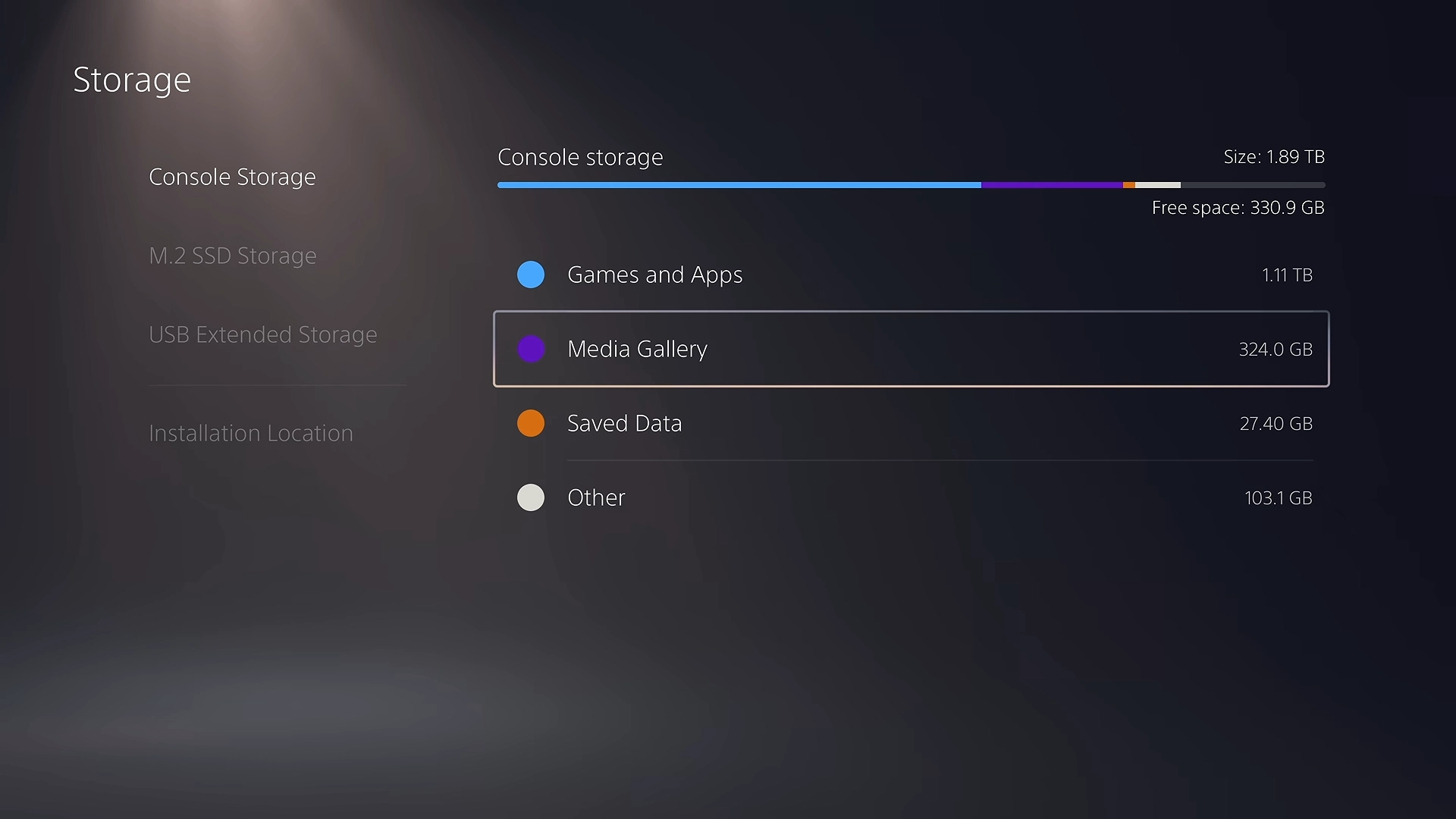
Rockstar says the preload file needs up to 212 GB depending on your device. Select Media Gallery, open Sort and Filter, and sort by file size with the largest first.
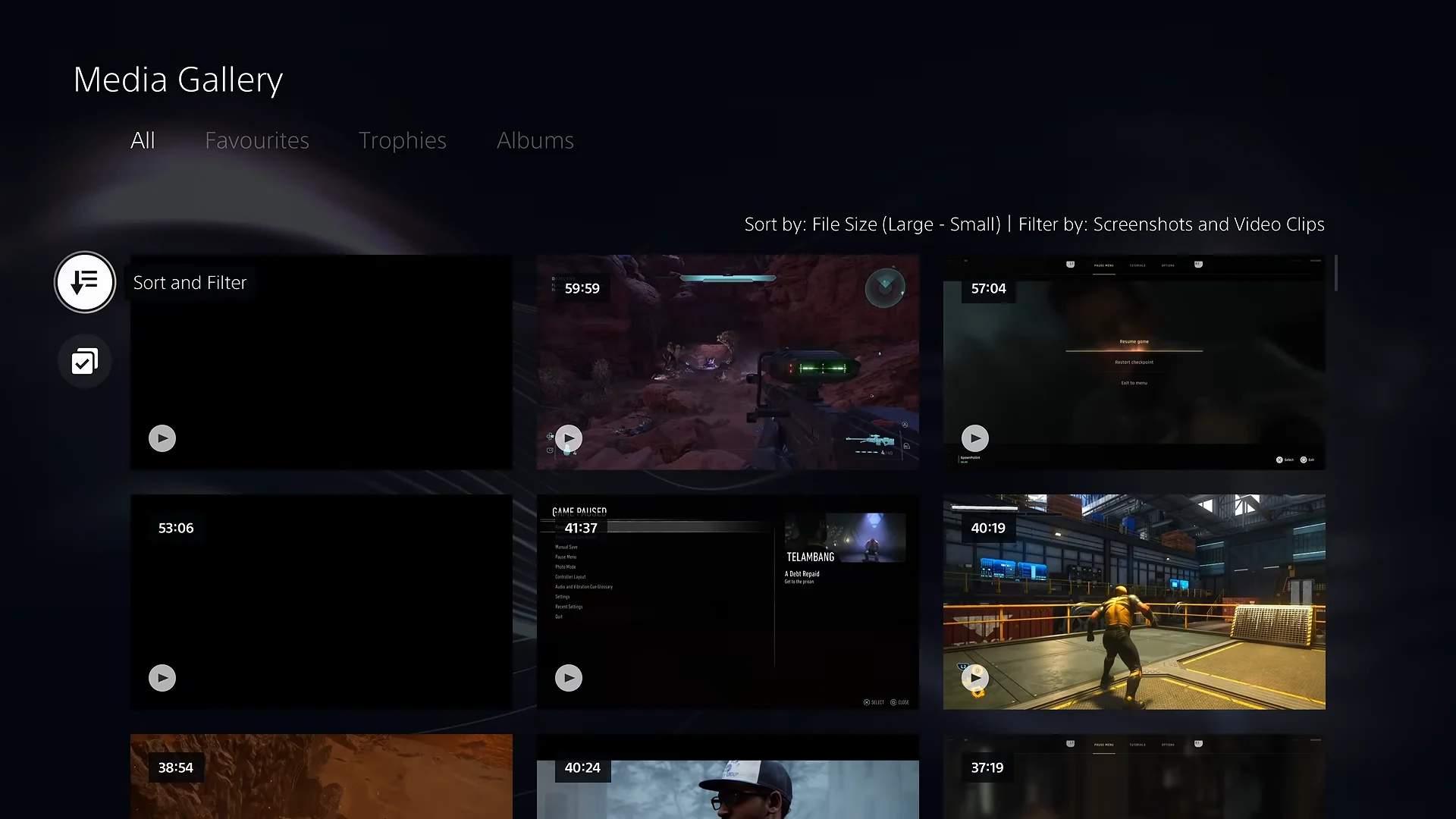
The PS5 saves a short video each time a trophy pops unless you switch that off. On my console the gallery was the third largest thing on the drive, and I had never opened it on purpose.
To stop it refilling, open Settings > Captures and Broadcasts, find Trophies and turn off Save Trophy Videos.
Sort installed games by size and delete from the top
Settings > Storage > Console Storage > Games and Apps lists everything installed with the largest first. Two or three big games usually cover the gap faster than ten small ones.
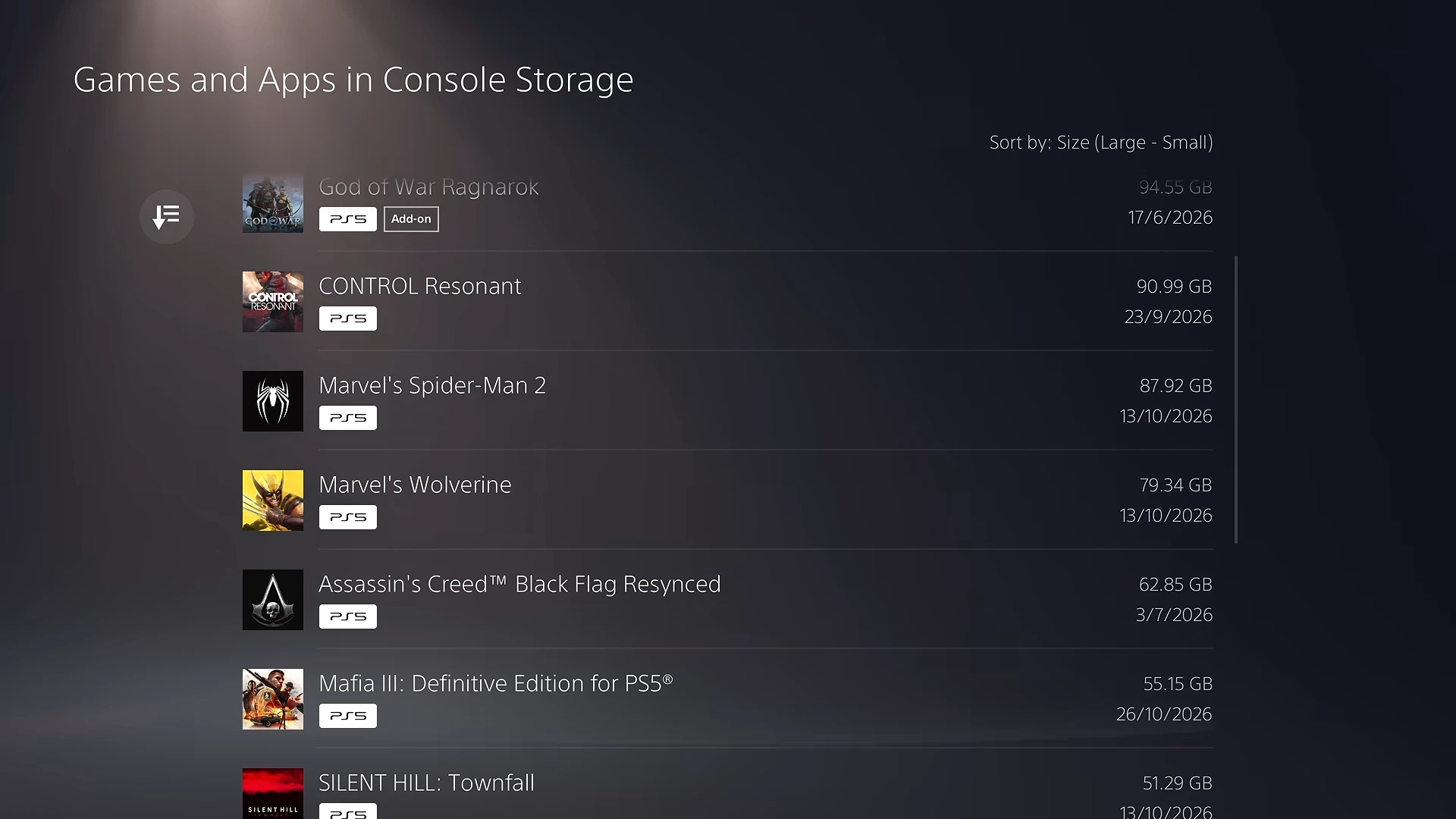
Deleting a game does not remove the purchase, and saves live in the separate Saved Data row. Aim for 220 to 230 GB free, not exactly 212, so a launch-day update has somewhere to go.
An M.2 SSD only helps if it meets Sony’s spec
Every PS5 model has an M.2 expansion slot. PlayStation asks for a PCIe Gen4 x4 NVMe drive between 250 GB and 8 TB, recommends a read speed of 5,500 MB/s or faster, and requires a heatsink.
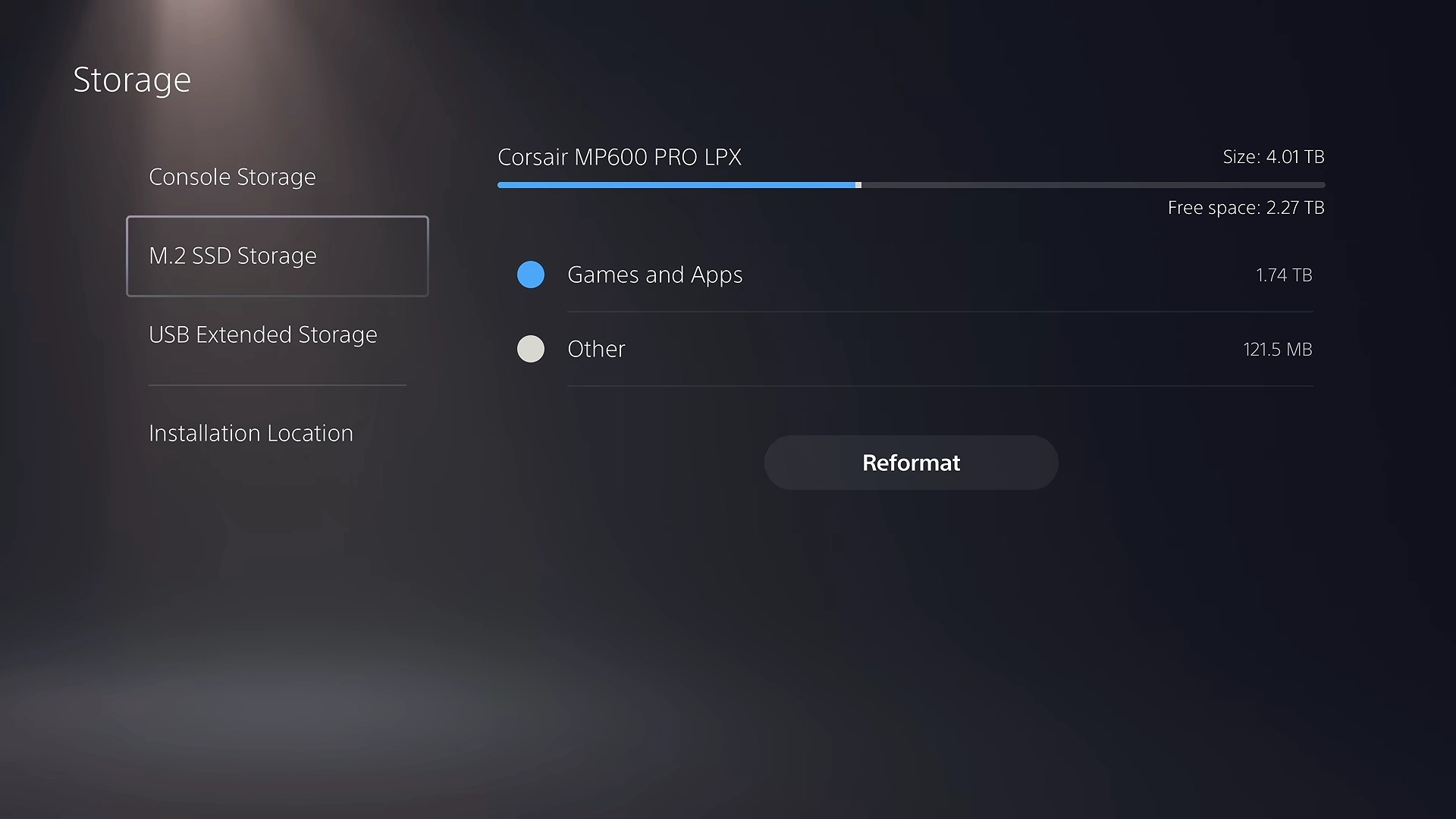
Once fitted, the drive appears as M.2 SSD Storage, and Installation Location on the same screen decides where new downloads land.
What breaks: M.2 SATA drives are not supported, and a heatsink that pushes the drive past 11.25 mm thick stops the slot cover closing. A USB drive can hold PS5 games but cannot run them.
Test the connection before blaming the download
Go to Settings > Network > Connection Status > Test Internet Connection. The test reports NAT type plus download and upload speed as the console sees them, which is the number that matters for a 212 GB file.
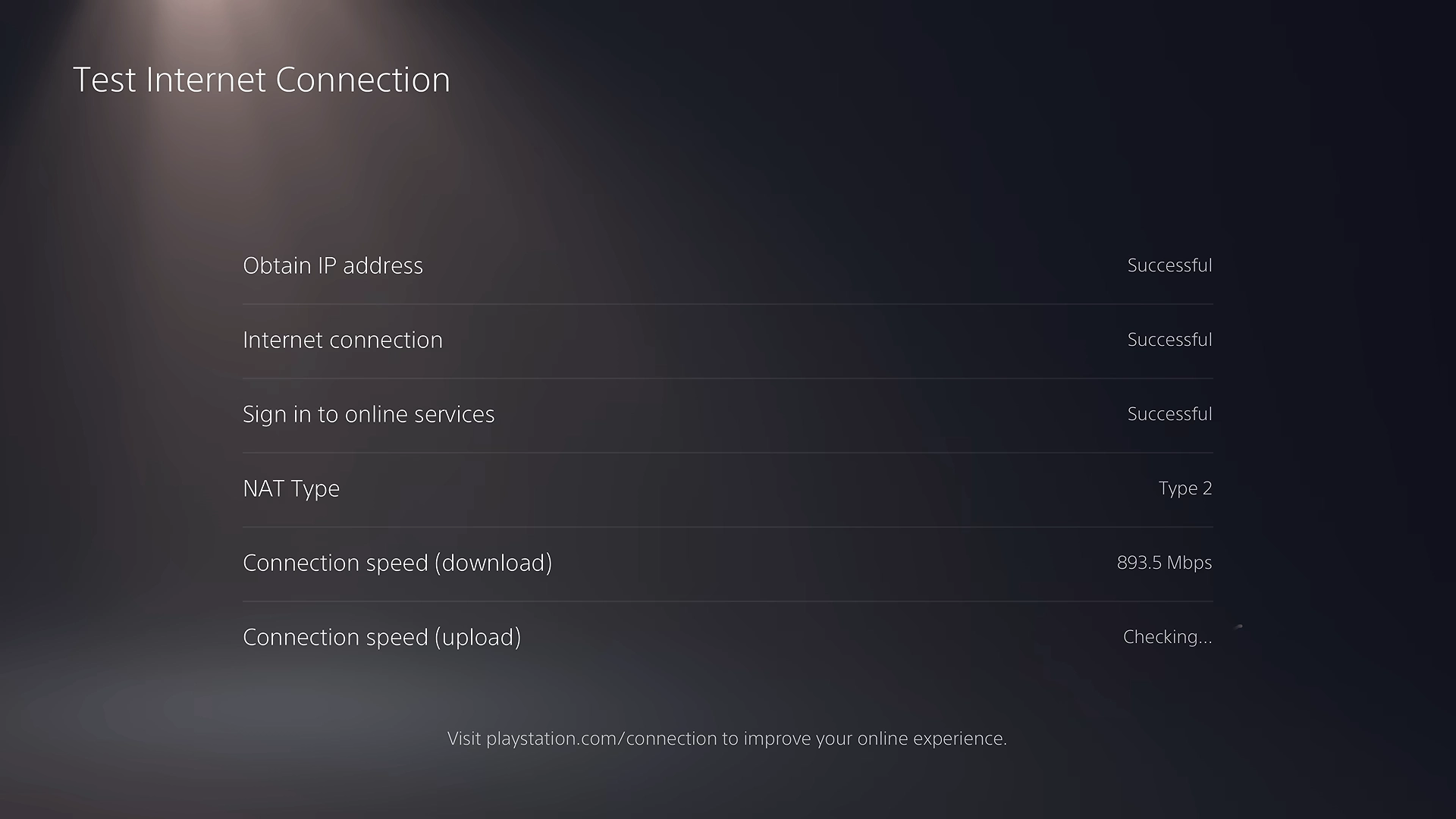
The table gives best-case times at a steady speed. Real downloads run slower than the math.
| Download speed | Time for 212 GB |
|---|---|
| 25 Mbps | About 19 hours |
| 50 Mbps | About 9.5 hours |
| 100 Mbps | About 4 hours 45 minutes |
| 300 Mbps | About 1 hour 35 minutes |
| 500 Mbps | About 57 minutes |
| 1 Gbps | About 28 minutes |
Run the test once on Wi-Fi and once on a cable. The PS5 Ethernet port tops out at 1 Gbps, so a faster plan does not shorten the wait, and if the download hangs our guide to a stalled GTA 6 preload has the next steps.
Update the console and the DualSense before launch night
Check Settings > System > System Software > System Software Update and Settings first. Then open Settings > Accessories > Controller (General) and select DualSense Wireless Controller Device Software.
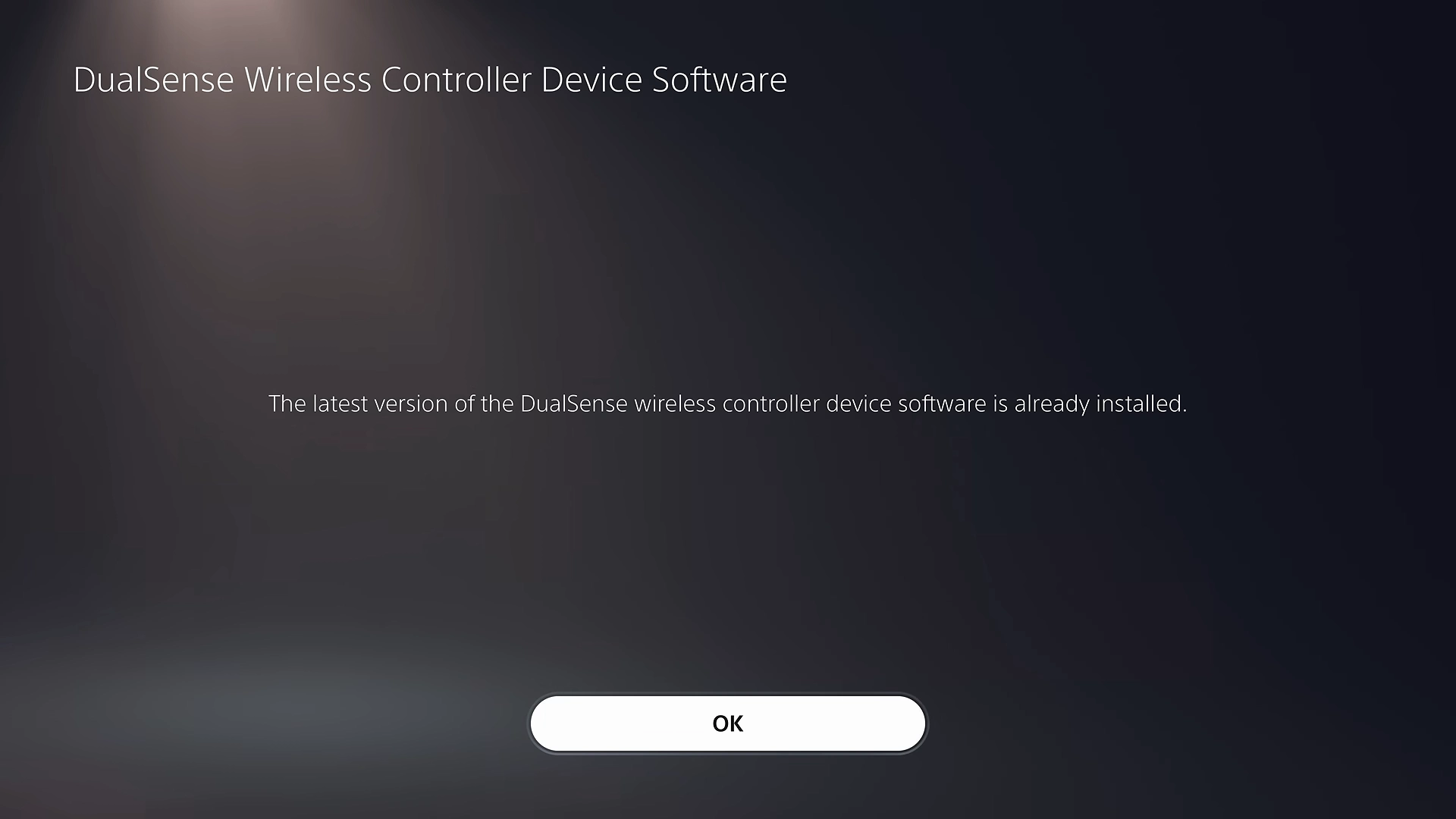
Both updates are short, but the console tends to ask for them the moment you wake it. Mine wanted a controller update with the pad on its last bar of battery, which meant finding a cable first.
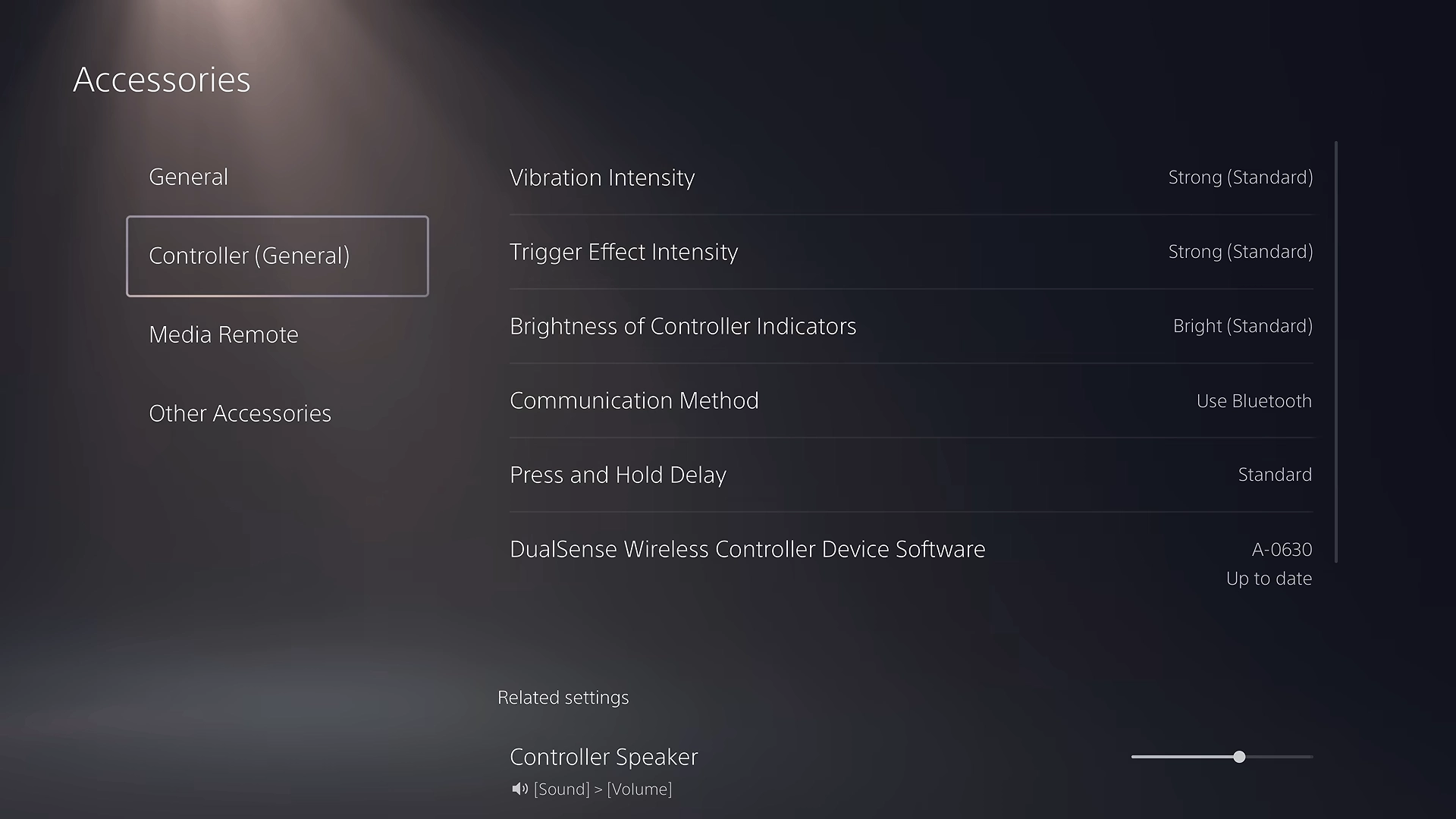
The same menu holds Vibration Intensity, Trigger Effect Intensity and Brightness of Controller Indicators. Lowering them stretches a charge, though I would leave vibration and triggers on for a first session and dim only the indicators.
Rest mode only downloads if one switch is on
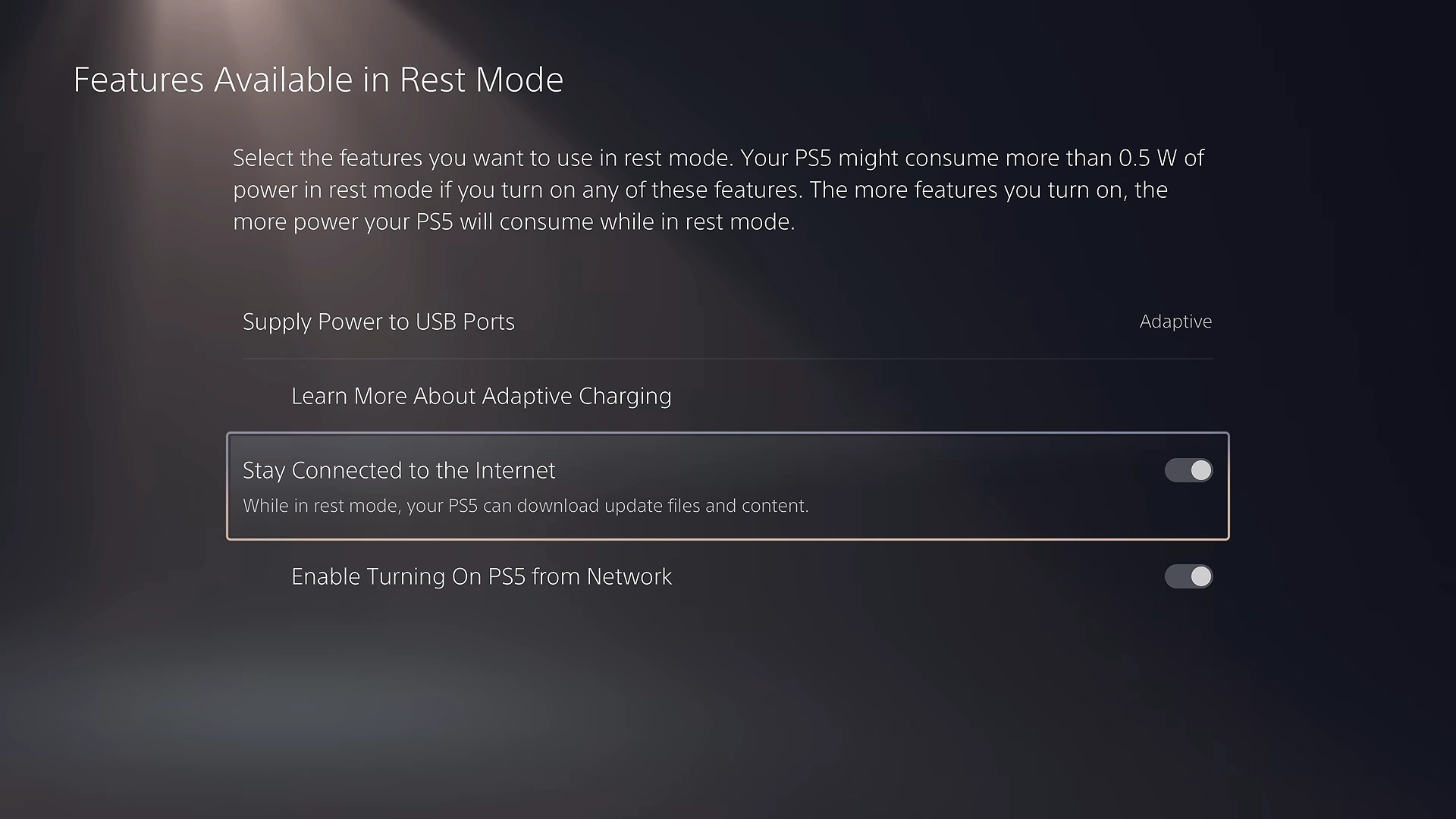
Open Settings > System > Power Saving > Features Available in Rest Mode and turn on Stay Connected to the Internet. Without it the console drops off the network in rest mode and the preload stops where it was.
If you pre-ordered, open GTA 6 in your Game Library, select the countdown and confirm the auto-download box is ticked.
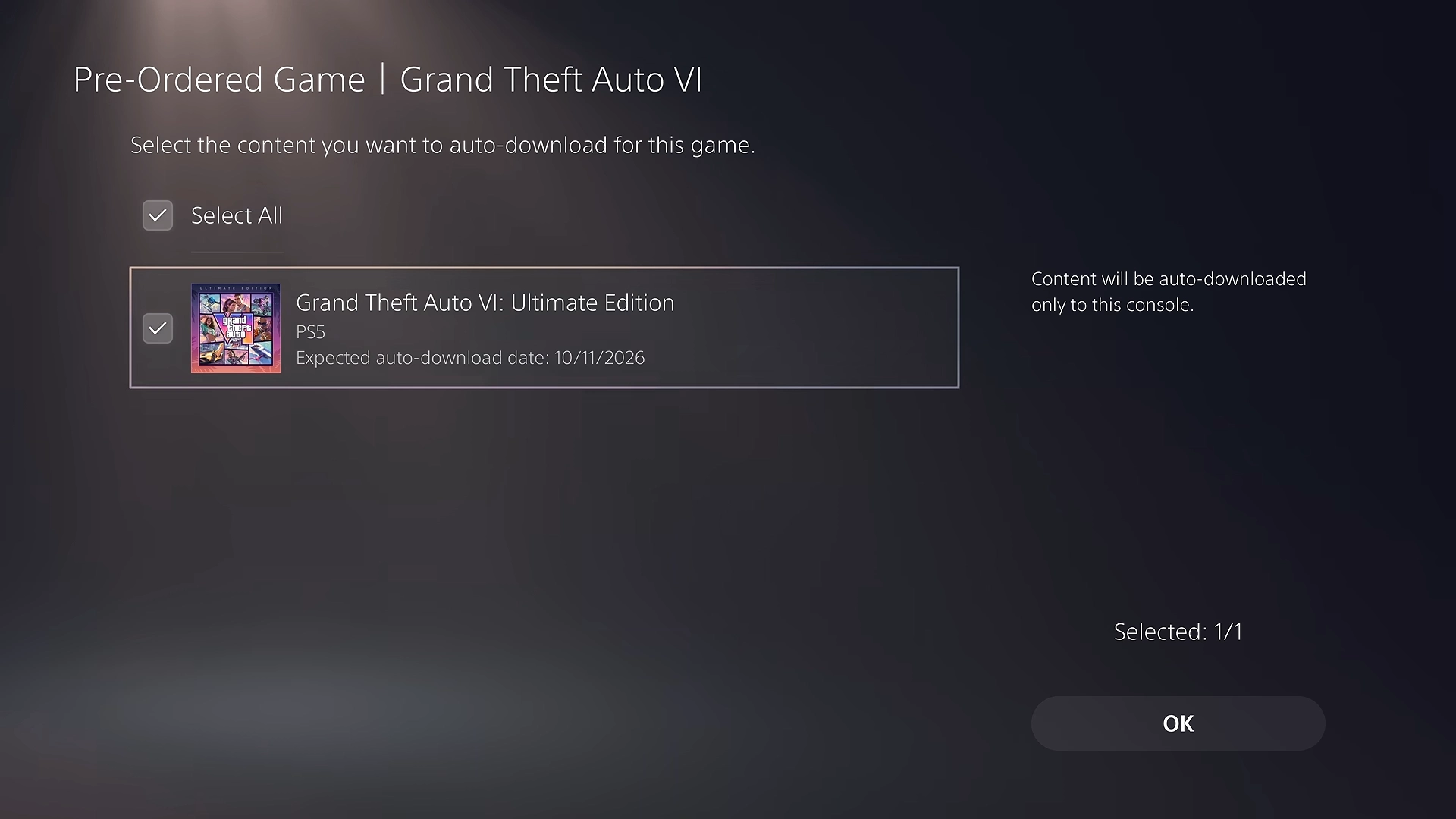
What breaks: holding the power button until the console turns off fully, or a power strip someone switches off at night. Rest mode shows an orange light, and no light means nothing is downloading.
Read the HDMI information screen before changing picture settings
Settings > Screen and Video > Video Output > Information for the Connected HDMI Device lists what your display is reporting to the console: resolutions, VRR, HDR and the supported frequencies.
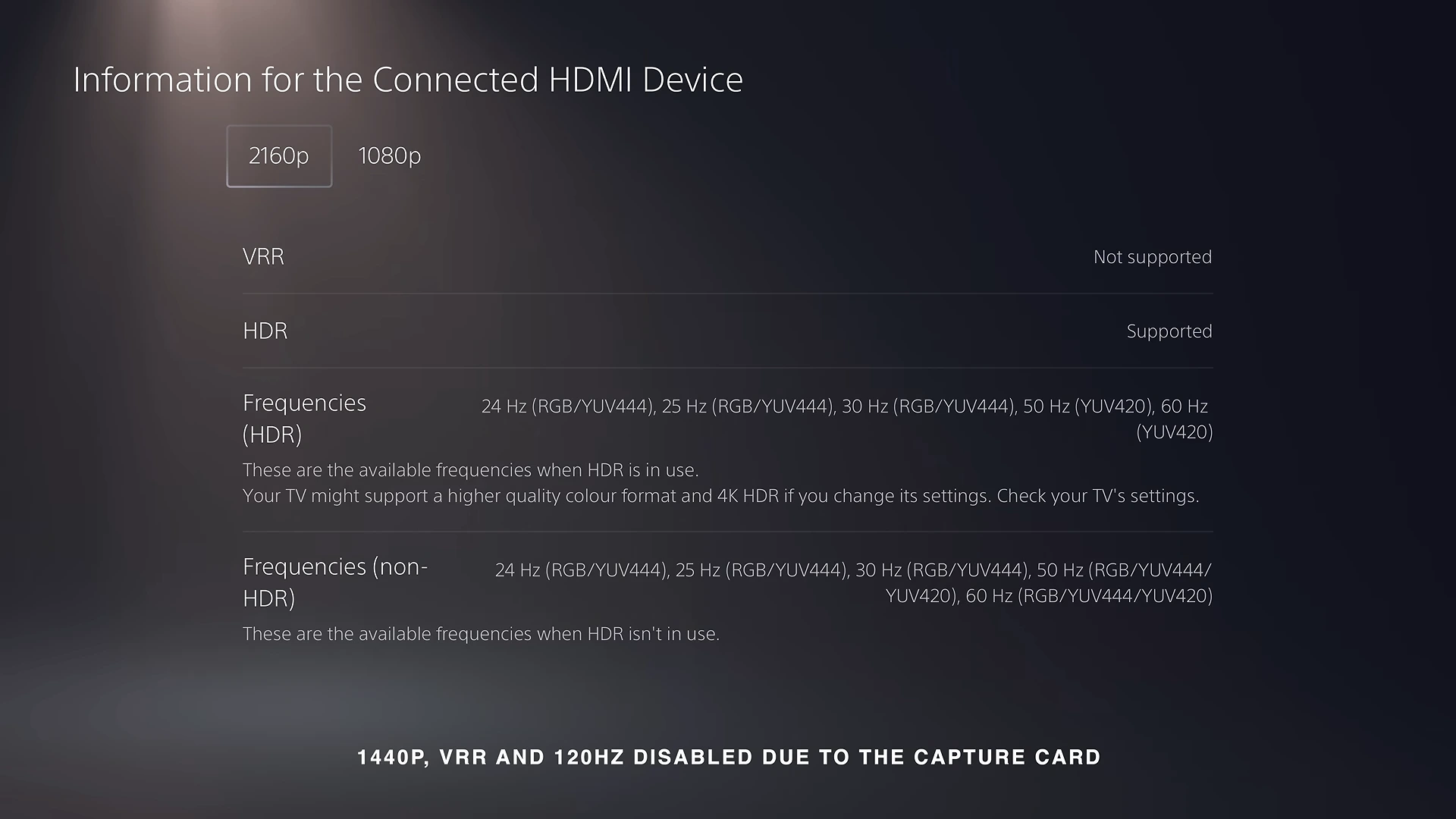
The capture above shows VRR as Not supported because a capture card sat between the console and the screen. A soundbar, an AV receiver or an older HDMI cable can do the same thing.
If 2160p or HDR is missing here, plug the PS5 straight into the TV and look again. Resolution, VRR and HDR choices only make sense once this screen is right.
Redo Adjust HDR if the TV or the room has changed
Settings > Screen and Video > Video Output > Adjust HDR runs three screens. On the first two you press up or down until the sun symbol is barely visible, and the third sets the darkest level.
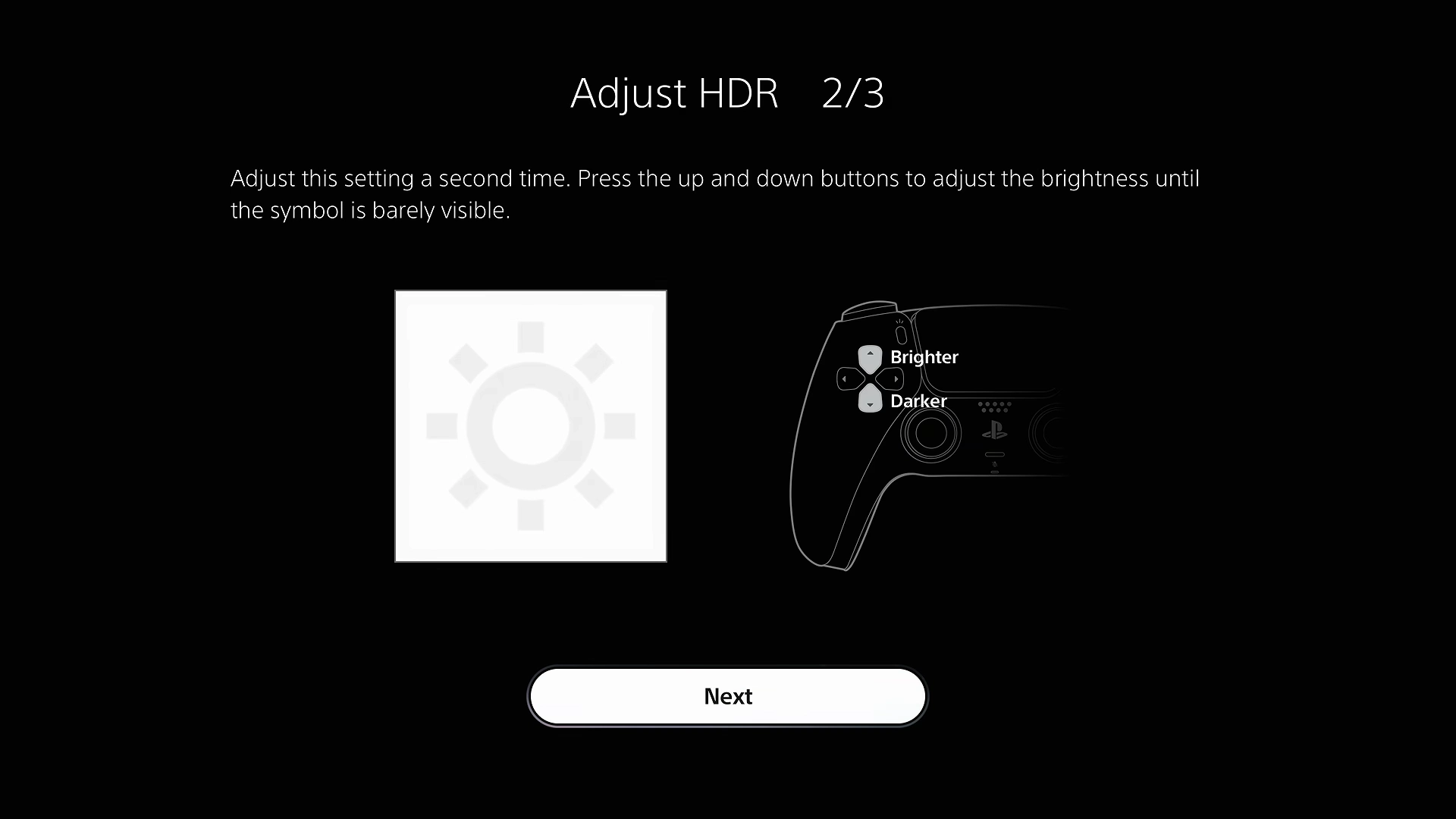
“Barely visible” is the catch. I went one press too far on the first screen and the symbol vanished, so I stepped back until a faint outline returned.
Do it in the light you normally play in. A calibration set at noon with the curtains open reads differently at midnight.
Game Presets is the one to leave on default
Settings > Saved Data and Game/App Settings > Game Presets has a row called Performance Mode or Resolution Mode. Game Presets applies only to games that offer both modes.
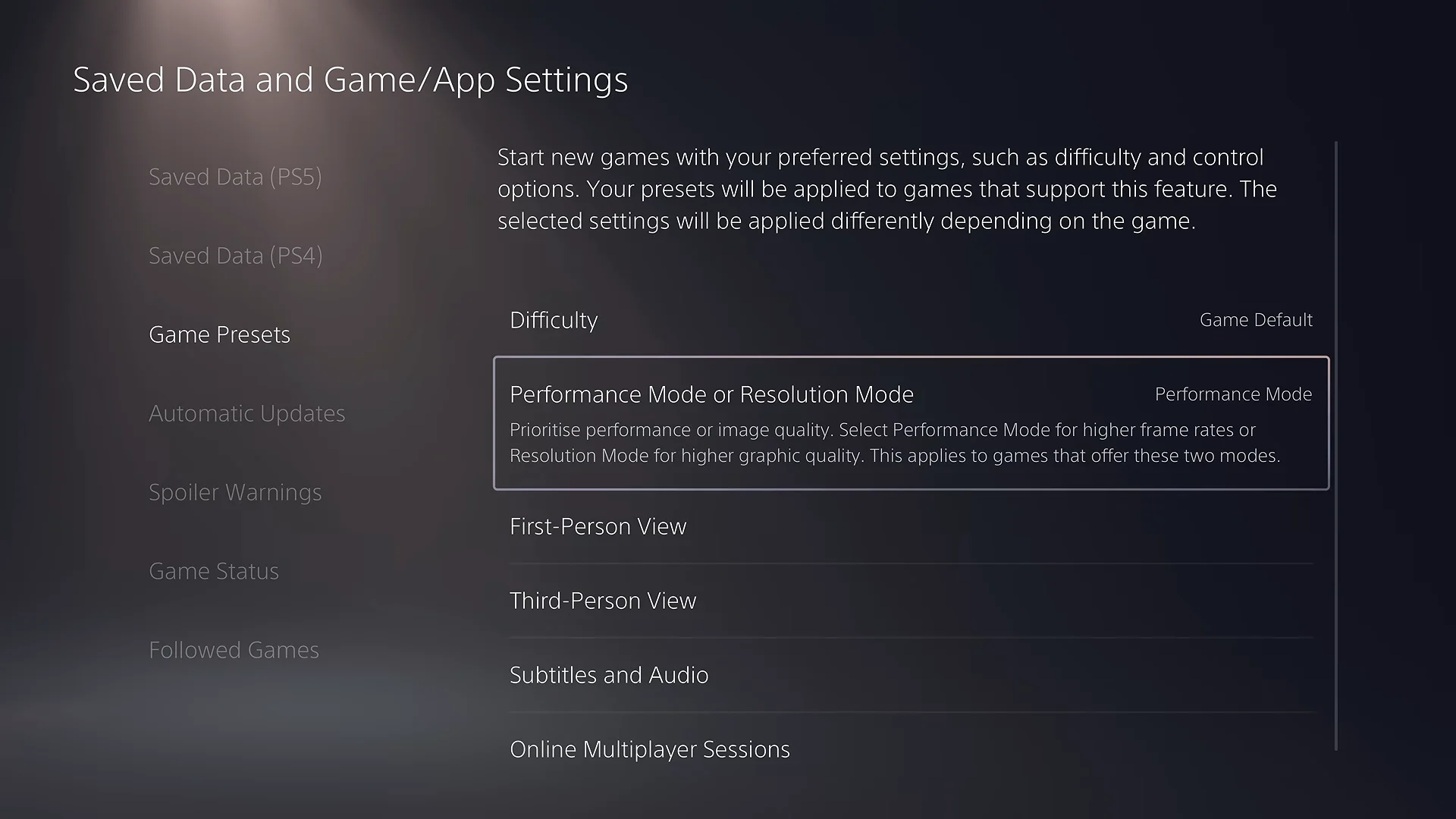
Rockstar is targeting 30 fps on every console, and PS5 Pro owners get PSSR image clarity and ray-traced shadows, not a faster mode. Setting Performance Mode does no harm, but at launch there is nothing for it to switch.
Frequently Asked Questions
How much free space does GTA 6 need on PS5?
Up to 212 GB, going by Rockstar’s own figure. Clear a little more than that if you can, since big games usually get a patch on day one.
How do I free up PS5 storage without deleting games?
Start with the Media Gallery inside the PS5 Storage settings. Old recordings and trophy videos often take up more room than you would guess.
Will GTA 6 download while my PS5 is in rest mode?
Yes, as long as the PS5 is allowed to stay online in rest mode. Powering the console off completely pauses the download.
Do I need to update my DualSense before GTA 6?
Nothing says you have to, but the DualSense check takes a couple of minutes and saves an interruption later. You will find it in the Accessories settings.
Should I set Performance Mode in Game Presets for GTA 6?
No need. GTA 6 launches with a single 30 fps target, so the Performance Mode preset has nothing to choose between.
If the countdown ends and GTA 6 still will not start
Check Downloads/Uploads first, because a launch-day update can queue behind the preload. If the game shows a padlock, go to Settings > Users and Accounts > Other > Restore Licenses.
Buying on a second account in an earlier time zone does unlock the game sooner, since the store region sets the clock. The catch is that the game then belongs to that account, and PlayStation codes are locked to the account’s region.
For anything that throws an error code instead, start with our PS5 error fixes.
Menu screenshots: SpawnPoiint on YouTube.