You launch a game, the screen freezes, and the PS5 throws up a code like CE-108255-1 with a message that explains nothing.
I used to restart the console and hope, and it worked just often enough to keep me doing it. What saved time was asking what kind of failure I was looking at before touching anything, then starting with the lightest fix for that one.
Here is how I fix PS5 errors now, with Sony’s own steps and my own additions kept separate.
TL;DR: Many common PS5 problems can be worked through without resetting the console. Update the game, rebuild the database in Safe Mode, restore licenses for a padlock, and give a frozen light a three minute unplug. Only Reset PS5 and Reset PS5 (Reinstall System Software) delete your data, so those come last.
How I fix PS5 errors, one problem at a time
I start with the least disruptive fix for the problem in front of me. A crashing game, a network timeout and a padlocked game each need a different first step.
Only Reset PS5 and Reset PS5 (Reinstall System Software) delete user data.
| Problem | First fix | Safe Mode needed | Deletes data |
|---|---|---|---|
| Game crash, CE-108255-1 | Update the game | Only if updating fails | No |
| Padlock on a game you own | Restore Licenses | No | No |
| Network timeout, NW-102417-5 | Restart the console | No | No |
| Blinking white or stuck blue light | Unplug for three minutes | Only if it returns | Only if you reinstall system software |
| Black screen | Check the HDMI cable and port | Only if it stays blank | No |
| Controller will not pair | Pinhole reset | No | No |
| Console overheating | Turn off and let it cool | No | No |

Fix a game that crashes with CE-108255-1
PlayStation’s page for CE-108255-1 says to update the game and visit PlayStation Repairs. Its guide for games that will not start adds a restart, Restore Licenses, a fresh download, a system software check, and a database rebuild from Safe Mode.
When one game crashes at the same point every time, I update it, then delete and reinstall it. When different games crash, I stop blaming a single install. If the game sits on USB extended storage, I move it to internal storage first.
If several games crash, a database rebuild is worth trying before reinstalling multiple titles, although it is not a guaranteed fix. If the drive is nearly full, this PS5 storage guide covers clearing space.
Start PS5 in Safe Mode and rebuild the database
Rebuild Database lives in Safe Mode, and it scans the drive and builds a new database of what is stored on it (PlayStation’s Safe Mode page).
Hold the power button for three seconds to turn the console off, then hold it again and release after the second beep. That beep comes about seven seconds in, and I let go at the first one more than once.
Connect a controller with a USB cable and press the PS button. The analog stick did nothing for me here, so I use the D-pad.
Choose Clear Cache and Rebuild Database, then Rebuild Database. The progress bar can sit still for a while, so leave it alone. Go by the names, since menu numbers differ between guides.
Padlock on a game you own: restore licenses
Restore Licenses can help with a padlock on a game you own, and it does not affect your data (PlayStation’s guide).
Go to Settings, then Users and Accounts, then Other, and choose Restore Licenses. To restore one game, highlight it, press Options, and choose Restore License.
The padlock showed up for me on a game I had already played, which is why I suspected the license and not the download. It will not fix a padlock caused by an expired PlayStation Plus subscription or missing ownership.
NW-102417-5 and other network timeouts
NW-102417-5 is a timeout, so the first question is whether the problem sits with PlayStation’s servers, the router, or the Wi-Fi signal.
I check the PlayStation status page first, because nothing on my side fixes an outage. Then I try a wired connection: if the error disappears on Ethernet, the wireless connection, router placement or Wi-Fi interference is more likely than the console.
If it fails on both, I restart the console and switch off the router and modem for at least five minutes.
PlayStation also lists updating router firmware, opening specific ports, setting a static IP, and temporarily changing DNS, and I leave those for last.
Blinking white or blue light on the power indicator
If the power indicator only blinks white, or stays blue and never turns solid white, the console is frozen. A white pulse that fades out is just the console powering off.
Unplug it, wait three minutes, plug it back in, and turn it on. I time it on my phone, because it is easy to cut the wait short.
If the light keeps coming back, reinstalling system software from Safe Mode is the next step, and it deletes all user data.
Console shuts off mid game: check heat
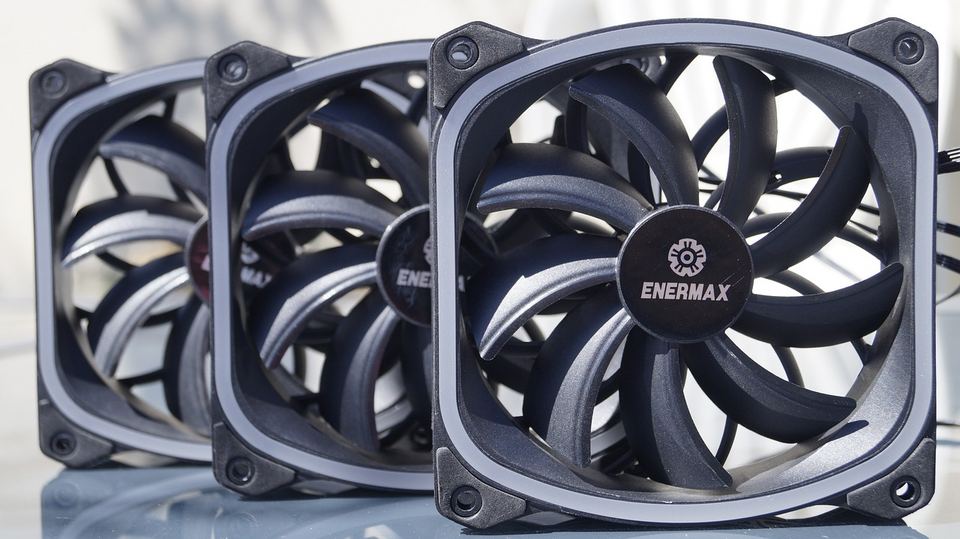
If the console shuts itself off during a demanding game, overheating is one possibility worth checking before software fixes.
Turn it off, let it cool, move it somewhere ventilated, and check that the vents are not blocked. If you installed an M.2 SSD, also check that its heat dissipation parts have not come loose.
Black screen: check the cable before Safe Mode
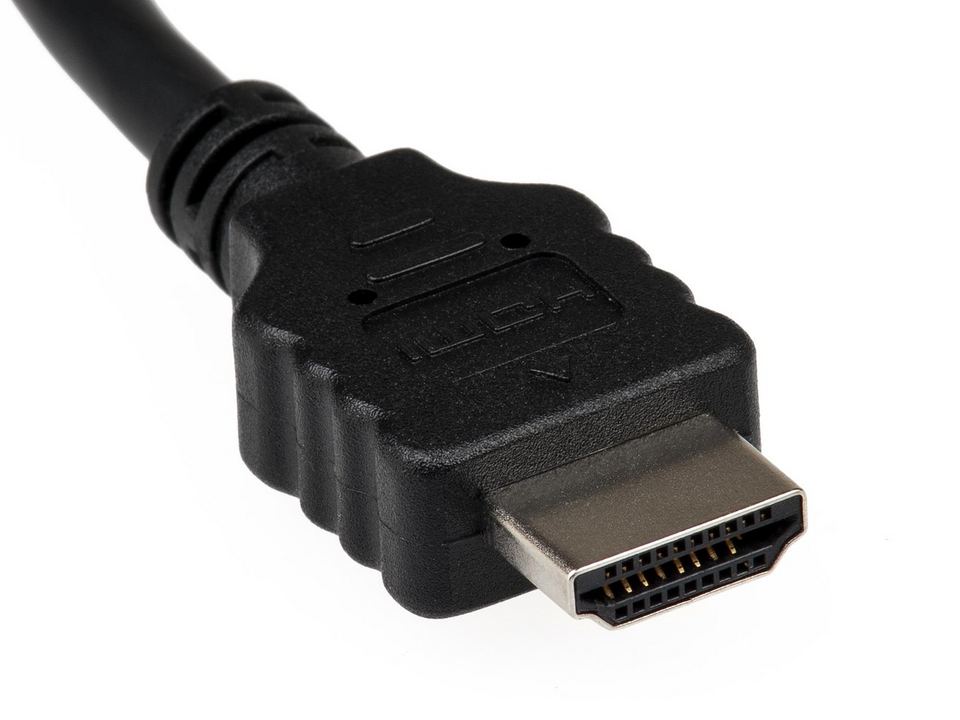
If the PS5 powers on but the TV shows no picture, start with the HDMI connection, the cable and the selected input. PlayStation’s checklist also suggests trying another cable or port and connecting straight to the display.
The first time it happened to me, the console was fine and the TV was still on the wrong input.
If the problem began after changing display settings, Safe Mode’s Change Video Output option, which changes the resolution or HDCP mode, is another place to look. Then recheck HDR and VRR in these PS5 display settings.
A DualSense that will not pair

Try the USB cable first, since a controller that ignores the cable from the box points at the controller or cable.
Then do the pinhole reset: turn the console off, unplug the controller, and press the hole next to the Sony logo for at least five seconds. Reconnect it with the official cable and press the PS button.
A thin cable I had lying around charged the controller but never paired it, so I stick to the one from the box.
Frequently asked questions
Will rebuilding the database delete my games?
No. Rebuild Database creates a new database of what is already stored, and only Reset PS5 and Reset PS5 (Reinstall System Software) delete user data.
Can I use Safe Mode with a wireless controller?
No. Safe Mode needs the controller connected with a USB cable, followed by a press of the PS button.
Is a blinking white light the same as rest mode?
No. Rest mode shows a solid orange light, while a white light that only blinks means the console is frozen and needs the three minute unplug.
Does restoring licenses delete my saves?
No. Restoring licenses does not affect your data, so it is safe to try before anything heavier.
When the fixes run out and PlayStation Repairs is next
If the same code returns after an update, a rebuild and a clean reinstall, stop resetting and go to PlayStation Repairs.
The steps above are Sony’s where I linked them. How I narrow a problem down, and the Ethernet test, are my own habits.
If you see an error once a month, a restart and a game update are enough. If the same code keeps coming back, work through the section that matches it, and back up to a USB drive or PS Plus cloud storage before either Reset option.