The best PS5 settings for GTA 6 sit in two menus, “Screen” and “Video and Sound”. Most of us check storage before a big launch, then spend the first evening wondering why the picture looks flat or the audio feels thin.
Our storage and preload checklist covers the download of up to 212 GB, so this guide sticks to what you see and hear.
One limit up front: GTA 6 is not out yet, so none of this has been tested in the game. Preload opened on November 10, and the game unlocks at midnight local time on November 19.
TL;DR: Leave Resolution on Automatic, set VRR to Automatic if your TV supports it, and choose On When Supported for HDR. Let ALLM or your TV’s Game Mode cut processing, and build a personalized 3D audio profile if you play on headphones. Rockstar is targeting 30 fps on every console, so these tweaks are about picture and sound quality, not speed.
Best PS5 settings for GTA 6, and what your TV needs
Open Settings > Screen and Video for picture options and Settings > Sound for audio. Whether a row does anything depends on your display.
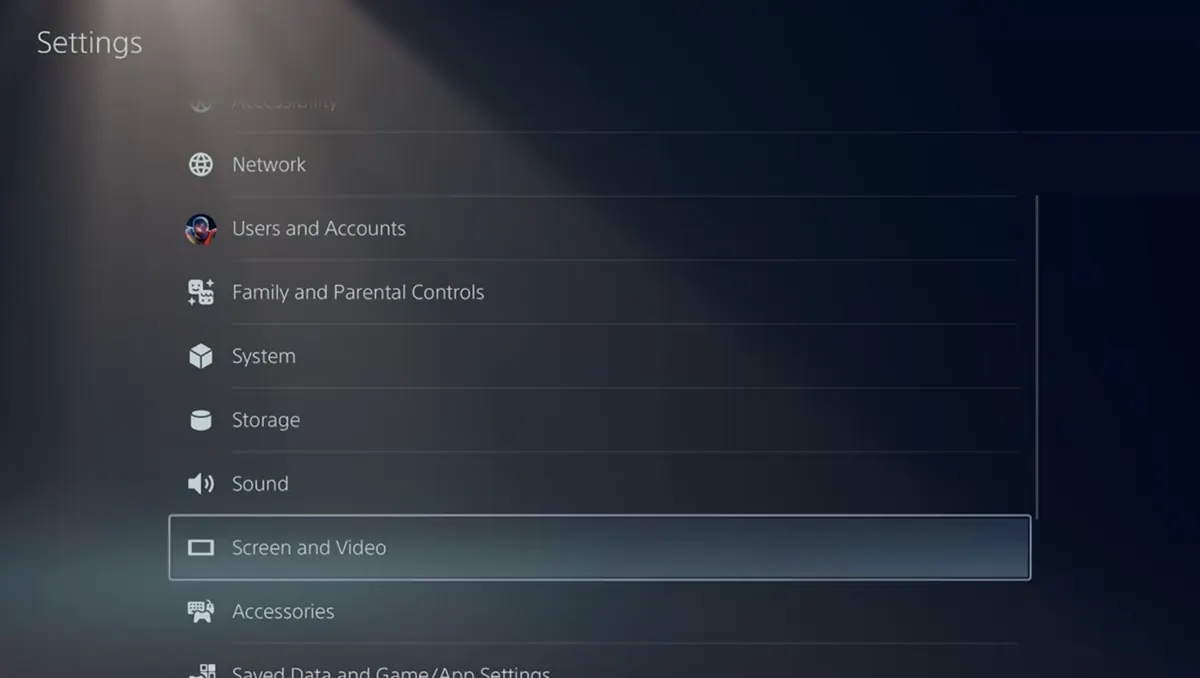
Before changing anything, open Settings > Screen and Video > Video Output > Information for the Connected HDMI Device. It lists your TV’s resolution, VRR and HDR details, which tells you what is worth switching on.
The table shows where each setting lives and whether it needs support from the TV itself.
| Setting | Where to find it | Needs TV support |
|---|---|---|
| Resolution | Settings > Screen and Video > Video Output > Resolution | Yes |
| VRR | Settings > Screen and Video > Video Output > VRR | Yes |
| HDR | Settings > Screen and Video > Video Output > HDR | Yes |
| ALLM | Settings > Screen and Video > Video Output > ALLM | Yes |
| 3D audio for headphones | Settings > Sound > 3D Audio (Headphones) | No |
| 3D audio for TV speakers | Settings > Sound > 3D Audio (TV) | Uses your TV speakers |
Resolution: Automatic is usually enough
Go to Settings > Screen and Video > Video Output. The Resolution row sits under the “Resolution and frequency” heading, below the two information rows.
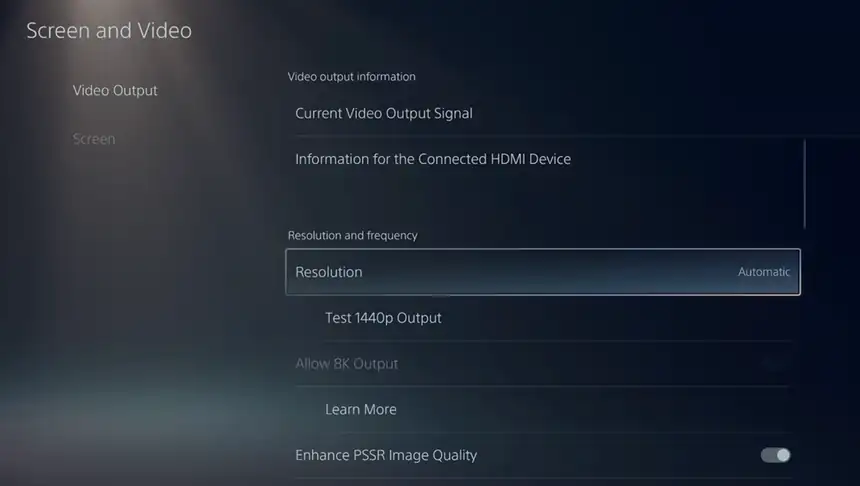
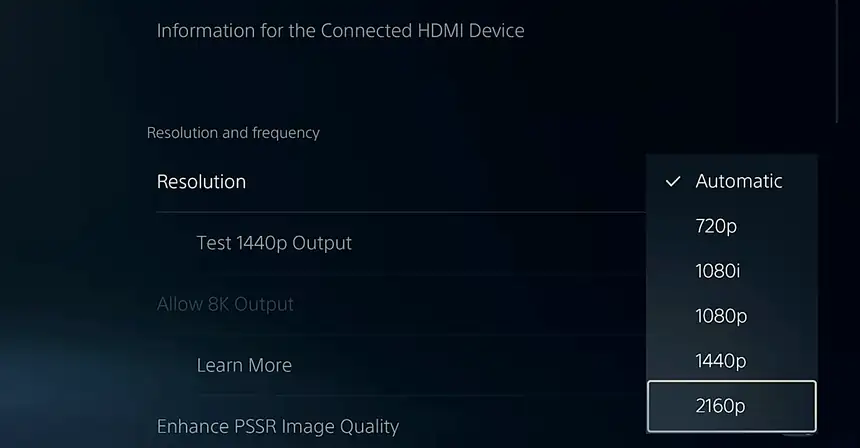
PlayStation says Automatic selects the highest resolution your TV supports, so leaving it alone is usually enough.
- Automatic: the default, and the safe pick on most TVs.
- 2160p or 1440p: worth forcing only if the console picks lower than your TV should handle.
- Allow 8K Output: needs an 8K TV, and it only appears on CFI-7000 consoles.
VRR: worth switching on, with modest expectations
Stay in Settings > Screen and Video > Video Output and scroll to VRR, below Enhance Image Quality for PS4 Games. In the screenshot below it is set to Off, so check yours.
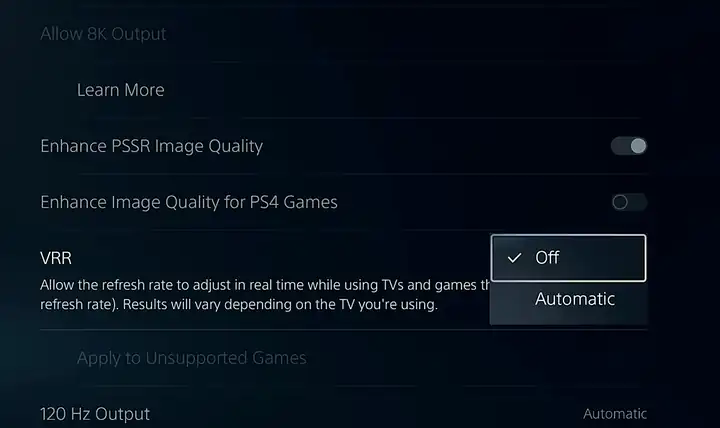
Choose Automatic if your TV supports VRR. If anything looks odd, switch Apply to Unsupported Games off.
Rockstar has not said whether GTA 6 supports VRR and is targeting 30 fps. Whether it helps depends on the game’s frame-rate behavior, and our 30 fps target breakdown has what Rockstar did say.
HDR: On When Supported is a sensible starting point
Scroll further down Settings > Screen and Video > Video Output to the Color heading, where HDR sits above Adjust HDR, Deep Color Output and RGB Range. The HDR menu offers Off, Always On and On When Supported.
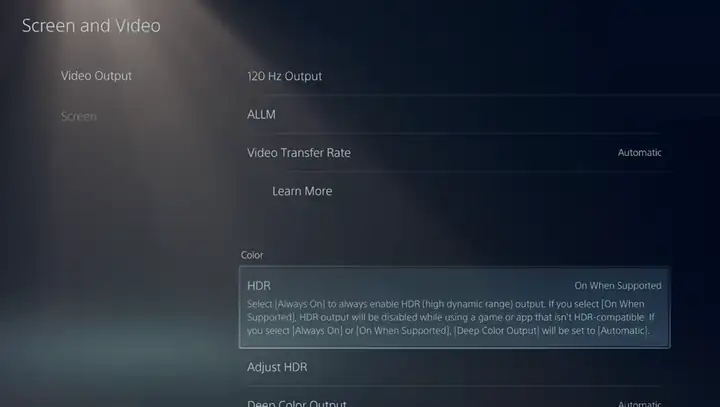
- On When Supported: keeps non-HDR content in SDR, a sensible starting point on an HDR TV.
- Always On: converts everything to HDR, including apps never made for it, so compare the two if you like its look.
- Adjust HDR: the next row down, for fine brightness tuning.
If the picture looks too dark or too bright on launch day, Adjust HDR is the first stop.
Game Mode and ALLM: reduce input lag
Game Mode is a TV setting that trims picture processing, and its name and location vary by brand. Your PS5 can trigger it through Settings > Screen and Video > Video Output > ALLM if the TV supports it.
On Sony Bravia TVs, ALLM locks the picture to Game mode while it is active, so other picture options may grey out. If that happens only while the PS5 is on, ALLM is the likely reason.
Setting ALLM to Off does not always end it, because Sony’s guide notes ALLM still engages during VRR output unless VRR is also off.
3D audio: set up a profile for headphones or TV
Both options live under Sound, not Screen and Video. Rockstar says the PS5 version has improved spatial audio for Tempest 3D Audio, but it does not say which setup to use.
- Headphones: open Settings > Sound > 3D Audio (Headphones), select Create Personalized 3D Audio Profile, then turn on Enable 3D Audio for Headphones.
- TV speakers: open Settings > Sound > 3D Audio (TV). The console measures your room with the controller’s mic, so sit where you normally play.
The full steps are on PlayStation’s 3D audio page.
Other Video Output rows, and which to leave alone
These rows also sit in Settings > Screen and Video > Video Output. Most can be skipped.
- 120 Hz Output: turn it off if you see video problems. Rockstar has announced no 40 or 60 fps mode, so it will not lift this game’s frame rate.
- Video Transfer Rate: setting -1 or -2 can fix screen flickering, so touch it only then.
- RGB Range: change it only if your HDMI device sends range information wrongly.
- Enhance PSSR Image Quality: appears on CFI-7000 consoles only, and it is on by default there.
Frequently Asked Questions
Where is the resolution setting on PS5?
Open Settings > Screen and Video > Video Output, then select Resolution. It sits under the Resolution and frequency heading.
Should I set my PS5 resolution to 4K manually?
Not usually. PlayStation says Automatic already selects the highest resolution your TV supports.
Does GTA 6 support VRR on PS5?
Not confirmed. Rockstar’s announcement does not mention VRR, and it says the game is targeting 30 frames per second on both consoles.
Is HDR Always On better than On When Supported?
Not necessarily. Always On converts non-HDR games and apps to HDR output, while On When Supported shows them in SDR.
Why are my TV picture options greyed out on PS5?
On Sony Bravia TVs, ALLM locks the picture to Game mode while it is active. Turning ALLM off helps only if VRR is off too, because ALLM can still engage during VRR output.
One thing worth keeping in mind
None of these settings changes the frame rate. Rockstar is aiming for 30 fps on every console, and PS5 Pro owners get PSSR clarity and ray-traced shadows instead of a higher frame-rate target.
Menu paths follow Sony’s guides and the screenshots, and rows can differ by console model and system software. Nothing here is a Rockstar recommendation.
Check Video Output once more on launch day, in case an HDMI cable or TV input changed. The game unlocks at midnight local time on November 19, and that minute is easier to find now than at 11:58 p.m.