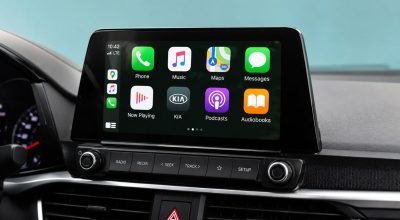
Google has put Gemini Live on Apple CarPlay, so iPhone owners can talk to Gemini through the car’s display and speakers. Google’s Gemini blog post says the rollout started November 11, 2026, to all Gemini users on iOS, in every language Gemini Live supports.
If you already dictate messages and ask for directions at red lights, this adds a back-and-forth conversation on the same screen. There is one catch: you have to use Gemini Live on your phone at least once before it shows up in the car.
TL;DR: Gemini on Apple CarPlay is a hands-free voice assistant for checking your calendar, summarizing email and getting local suggestions while you drive. It is rolling out now to Gemini users on iOS. Update the app, allow the microphone, and open Gemini Live on your iPhone once. Google has not said which iOS version or CarPlay hardware it needs.
What Gemini on Apple CarPlay can do
Gemini on Apple CarPlay brings Gemini Live to the car screen for spoken, hands-free conversations. Google says you can interrupt it, change topics or pause mid-conversation, which is closer to talking to a passenger than reciting commands.
Google’s post lists checking your calendar, asking when to leave for an appointment, and summarizing a long email thread. It also names catching up on unread email, a daily brief, lunch spot suggestions and the backstory of a landmark you drive past.
The same post says you can brainstorm, rehearse a presentation or learn a topic out loud. Conversations sync with the Gemini app on your iPhone, so the notes are there when you park. That sync is the part that makes a long commute feel less wasted.
How to set up Gemini on your CarPlay display
Google lists the steps in order. Update the Gemini app on your iPhone, turn on microphone permission, and use Gemini Live on the phone at least once.
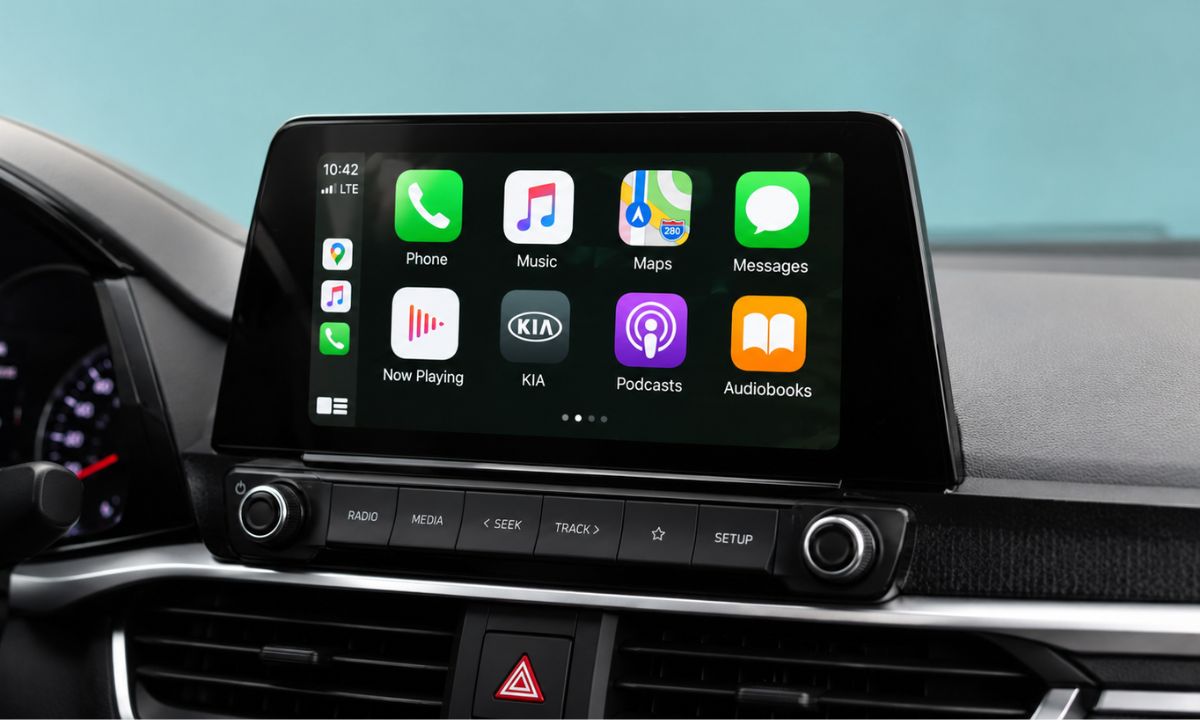
Then connect the iPhone to your car and tap the Gemini icon on the CarPlay display, either on the screen or the side rail. From there you can start a new conversation or pick up a recent one.
The one-time Gemini Live step is small, and it is the easy one to forget before a drive. Because this is a rollout, the icon may also take a while to appear on your display. Where Gemini sits among Google’s other assistant changes is covered in our look at Gemini Intelligence on Pixel.
What Google has not said about CarPlay support
The daily brief has to be enabled before Gemini can read it out in the car. Google says personalization features, including Daily Brief, are not available to users under 18, in the European Economic Area or in Nigeria.
Several practical details are missing from the post. It does not list the supported languages or countries, the minimum iOS version, the CarPlay hardware it needs, whether a paid plan is required, or how you wake it. Check your own setup before you count on it for a trip.
That gap matters more than the feature list, because the announcement reads as available to every iOS user while the fine print still has holes. Apple’s side of the car screen is also changing, which our guide to iOS 27 CarPlay features covers.
How to use it without taking your eyes off the road
Google describes the design as a conversational driving companion that minimizes distraction. Its post suggests pausing the conversation when you need to focus on an exit.
A sensible first test is a parked one. Set it up in the driveway, ask for a calendar summary, and see how it handles being interrupted before you rely on it at highway speed.