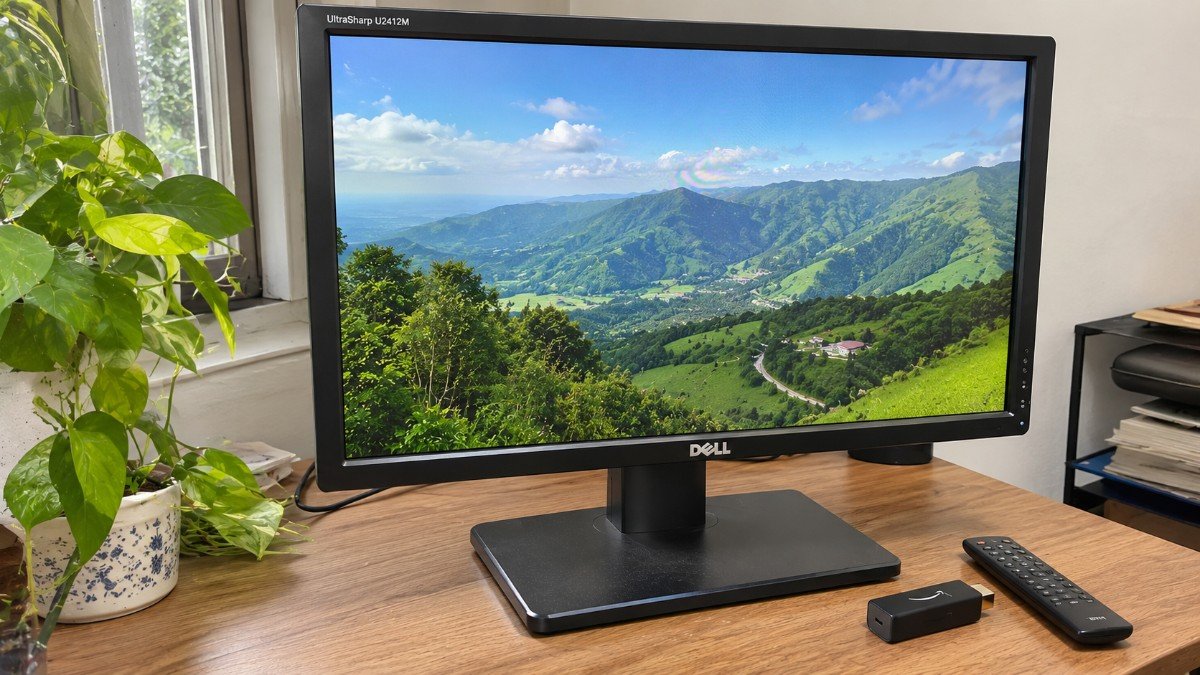
The monitor goes into the garage the week the new one arrives. Nobody decides that, it just happens.
It is still a working screen though, and what to do with an old monitor mostly comes down to which ports are on the back.
Here are ten ways to put it back to work, with the cables and settings each one needs. Some need nothing but a free port, others a cable or a small adapter, and the last one is for when it really is finished.
TL;DR: Most old monitors can still serve as a second screen, a portrait reading display, a TV with a streaming stick, a photo frame or a phone dock. The port decides what is easy: HDMI opens the most options, while VGA needs an active converter and carries no sound. If none of it fits, Best Buy recycles monitors, free for its own brands and $29.99 for others.
Check the ports on your old monitor first
The ports on the back decide which of these ten uses are simple and which need an adapter. Look for HDMI first, because it carries sound as well as picture and works with almost everything below.
VGA and DVI turn up on older monitors, and neither normally carries sound. A monitor with HDMI but no speakers stays silent unless it has a headphone jack.
| Input | Carries sound | Works well with | Watch out for |
|---|---|---|---|
| VGA | No | Older PCs and laptops | HDMI sources need an active converter |
| DVI | No | PCs, or HDMI sources with a simple adapter | No audio path to the monitor |
| HDMI | Yes | Streaming sticks, consoles, Raspberry Pi | Many monitors have no speakers |
| USB-C or DisplayPort | Yes | Recent phones and laptops | Rare on older monitors, and the USB-C port must accept video |
HDMI to DVI needs only a simple adapter, but HDMI to VGA needs an active converter because VGA is analog. A cable that only changes the plug shape will leave you with a blank screen.
1. Use your old monitor as a second screen
Plug it into a free video port and your computer will treat it as another display. On Windows, open Settings, then System, then Display, and choose Extend under Multiple displays, as Microsoft describes; the Detect button in the same menu finds a monitor that does not appear.
On a Mac, open System Settings, click Displays, select the monitor and choose the extended display option under Use as. Which Macs can drive a second screen depends on the model, so check its specs before buying a cable.
The cursor will probably slide off the wrong edge the first time. Drag the display boxes in the arrangement view until they match your desk.
Windows 11 also treats Snap Layouts separately on each monitor, which a two screen desk makes obvious.
2. Rotate it into a portrait screen for reading and code
In the same Display settings, Windows has a Display orientation choice under Scale and layout. Microsoft notes that you also need to physically rotate the screen, so check whether the stand pivots or the back has VESA mounting holes for an arm.
A tall screen shows more lines of a document, spreadsheet or code file before you scroll. Panels with weak viewing angles can look uneven in portrait, so give it a minute on the desk before buying a mount.
3. Turn it into a TV with a streaming stick
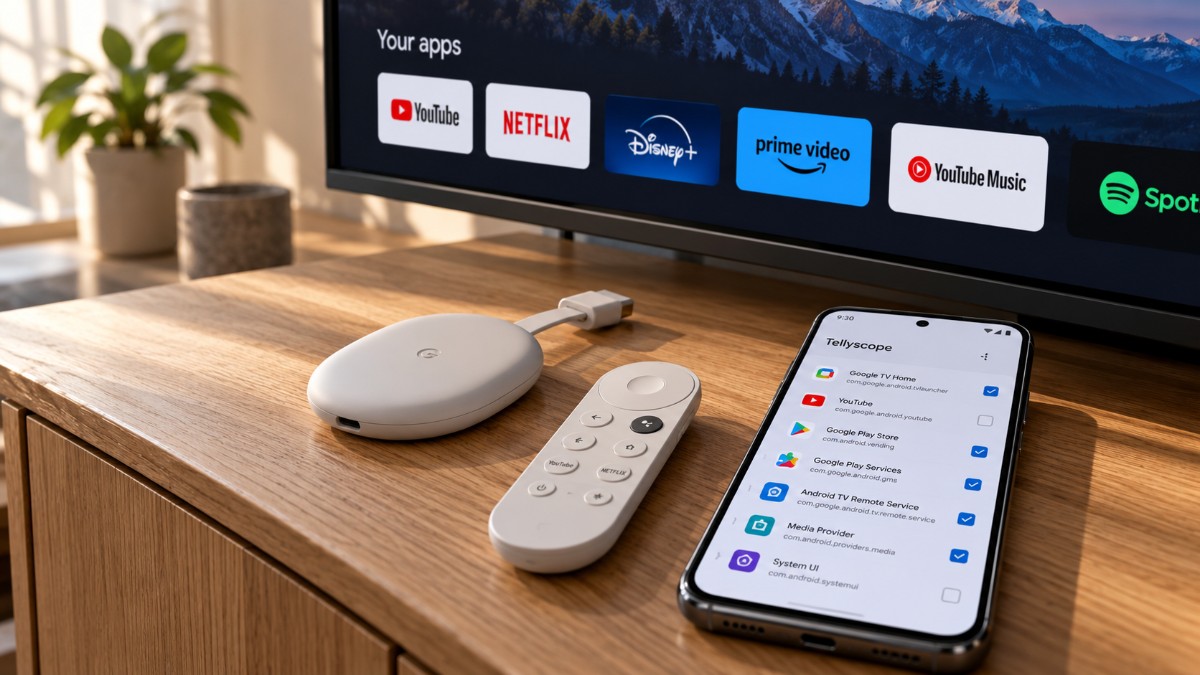
A monitor with an HDMI port will take a Fire TV or Google TV stick, which makes it a small bedroom or kitchen TV. DigitBin’s list of Firestick alternatives covers what else plugs in the same way.
Streaming sticks generally expect an HDCP compliant display, and some older monitors fail that check. If the screen goes black after the logo, a different HDMI port or a different monitor is the first thing to try.
The picture arrives first and the silence second. Use the monitor’s headphone jack if it has one, or a small speaker or soundbar.
4. Make it a console screen for the garage or spare room
Any monitor with HDMI can take a PlayStation, an Xbox or a Nintendo Switch dock. Plug the console in, pick the input and the console steps down to whatever resolution the panel supports.
A 1080p monitor will not use a console’s 4K output, so expect a sharp but not a showpiece picture. Many monitors skip some of the image processing that TVs add, so input lag is often lower, though that varies by model.
5. Run a Raspberry Pi or mini PC on it
A Raspberry Pi 5 has two micro HDMI outputs, so it needs a micro HDMI to HDMI cable before it will talk to your monitor. Raspberry Pi lists its display output as dual 4Kp60 HDMI, so even a 1080p monitor sits well inside its limits.
Add a keyboard and you have a cheap machine for a retro emulator, a small media setup or a first computer for a kid. A mini PC works the same way if the monitor has a matching input.
If the monitor is VGA only, use an active HDMI to VGA converter and not a plain cable.
6. Set it up as an always-on dashboard
Microsoft Edge has a kiosk mode that opens a single page in full screen, and Microsoft documents a command line for it that takes a web address and a fullscreen option. It applies to Edge version 87 or later.
Point it at a calendar, a weather page or a stock watchlist, and a spare laptop with a cracked screen becomes a wall display. Set the PC’s sleep timer to never while it is plugged in, or the dashboard will go dark on schedule.
7. Turn it into a digital photo frame
On a Chromecast with Google TV or a Google TV Streamer, the ambient screensaver can show a Google Photos slideshow on an HDMI monitor. Google lists the steps as Settings, then System, then Ambient mode, then Google Photos, though menus can differ by device and software version.
The same menu has a setting for whether portrait photos can appear, which suits a monitor turned on its side. A photo frame is also the one job where a 60Hz panel never gets noticed.
Google’s FAQ says you can change what the ambient screensaver shows but not turn it off, so an idle stick keeps displaying something. Use the monitor’s own power button or a timer plug if you do not want it lit all night.
8. Dock your phone to it
Samsung says a standard USB-C to HDMI adapter can start DeX on supported Galaxy phones and tablets, which gives you a desktop style layout on the monitor. DigitBin’s DeX setup guide walks through the rest.
iPhone 15 and later models connect to a USB-C display directly, or to an HDMI display through a USB-C to HDMI adapter. Apple says most apps mirror the iPhone screen on the external display, while apps built for it can use the second screen differently.
A mirrored phone is a fine way to watch videos or show photos on a bigger panel. It is not a desktop.
9. Keep it as the spare screen for when a PC will not boot
A spare monitor is the quickest way to tell a dead display from a dead PC when nothing shows at startup. Swap it in with a known good cable and the question answers itself.
It also earns its place as the screen for a headless home server, a NAS or a Raspberry Pi that you only need to see when setup or recovery goes wrong. Keep one HDMI cable and one adapter beside it.
10. Sell, donate or recycle it when nothing fits
In the US, Best Buy accepts monitors up to 50 inches for recycling, and the cost depends on the brand and your state. Its own Insignia and Dynex monitors are free, while other brands carry a $29.99 fee per item.
The limit is two monitors per household per day. California stores charge no drop-off fee, and stores in Pennsylvania, Wisconsin and Michigan refund the fee as a $30 Best Buy gift card.
Connecticut stores take only Insignia and Dynex monitors, and fees can change, so check the page before you go. A working monitor is also worth listing locally or giving to a school or a neighbor first.
Frequently Asked Questions
Can I use an old VGA monitor with a modern laptop?
Yes, if you add an active HDMI to VGA converter. A plain cable will not work because VGA is analog and HDMI is digital.
Why is my Fire TV stick black on my monitor?
Streaming sticks generally expect an HDCP compliant display, and some older monitors fail that check. Try a different HDMI port or monitor to confirm.
Do old monitors have speakers for a streaming stick?
Many do not. Use the monitor’s headphone jack if it has one, or a small speaker or soundbar.
Can an iPhone extend my desktop on an old monitor?
No. Apple says most apps mirror the iPhone screen on a connected display, while apps built for it can use the second screen differently.
How much does Best Buy charge to recycle a monitor?
Best Buy recycles its own Insignia and Dynex monitors for free and lists a $29.99 fee per item for other brands. State exceptions apply, and the limit is two monitors per household per day.
Which use fits the ports you actually have
If the monitor has HDMI, the streaming stick and the photo frame cost almost nothing beyond a cable. If it is VGA only, the second screen and the spare screen are the realistic jobs, and the rest start to depend on converters.
| Use | Best input | Extra you may need |
|---|---|---|
| 1. Second screen | VGA, DVI or HDMI | An adapter if the ports differ |
| 2. Portrait screen | Any | A pivot stand or VESA arm |
| 3. TV with a stick | HDMI | An HDCP compliant input and a sound solution |
| 4. Console screen | HDMI | A sound solution |
| 5. Raspberry Pi | HDMI | A micro HDMI to HDMI cable |
| 6. Dashboard | Any | A PC running Edge with sleep set to never |
| 7. Photo frame | HDMI | A Google TV Streamer or Chromecast with Google TV |
| 8. Phone dock | HDMI or USB-C | A USB-C to HDMI adapter |
| 9. Spare screen | Any | A known good cable |
| 10. Recycle | None | Nothing |
Most of these take ten minutes once the right cable is in your hand. Test the connection the day you plug it in, because ports and fees change.