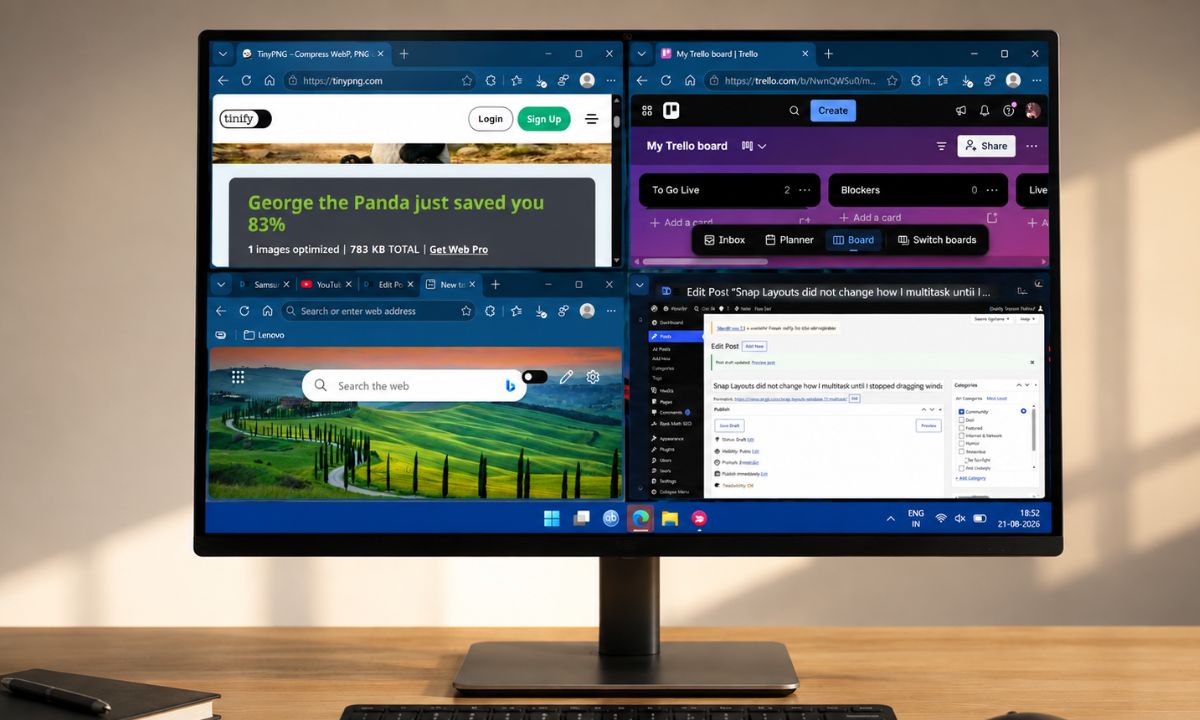
For years I dragged windows to the edge of the screen by hand, missed the invisible snap zone half the time, and just gave up. I would work with two overlapping windows instead. I knew Snap Layouts existed. I had seen the little flyout appear when my cursor grazed the maximize button and closed it without reading it more times than I can count.
What changed was forcing myself to actually use it for a few weeks instead of dismissing it as one more Windows feature nobody asked for.
TL;DR: Snap Layouts stop being a gimmick once you use the Win+Z shortcut or hover over the maximize button instead of dragging windows by hand. Snap Groups then let a whole arrangement come back with one taskbar hover, which cut out most of the manual window resizing on a normal day. The one real limitation is that layouts run independently per monitor, so multi-monitor setups require a small workaround.
The habit I had to unlearn first
My old workflow was manual and a little embarrassing once I noticed it. Drag a window left, guess at the boundary, drag another window right, nudge both until the gap in the middle closed. Multiply that by every time I restarted the PC or closed a laptop lid overnight.
The Snap flyout had been sitting there the whole time. Hover over the maximize button on any window, and it appears.
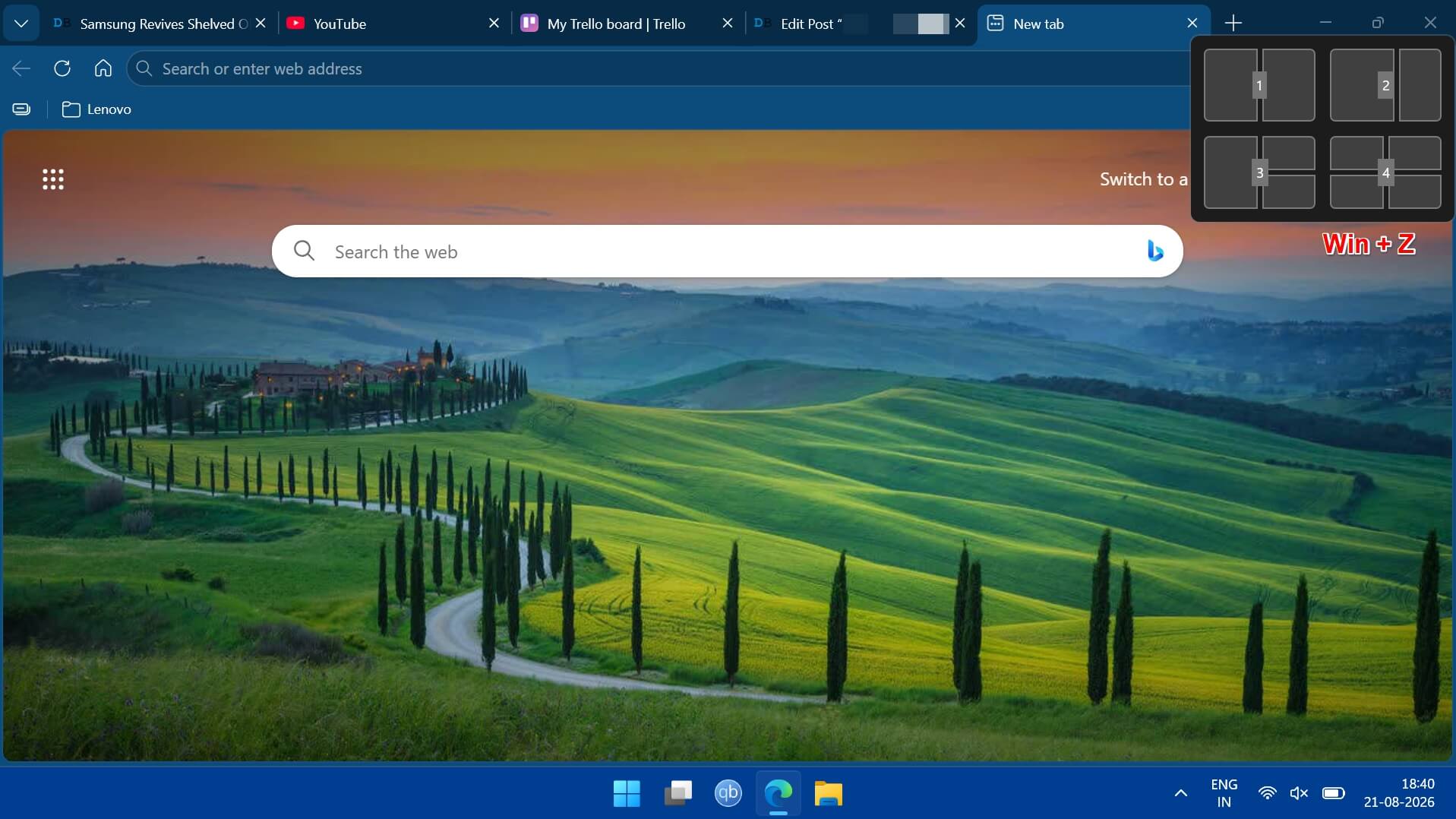
Even quicker is to press Win+Z to bring it up without touching the mouse at all, according to Microsoft‘s own documentation. I had dismissed it as a tooltip more times than I want to admit before actually reading what it offered.
What actually happens once you stop dragging
Picking a layout from the flyout snaps the active window into place, and then Snap Assist takes over, showing thumbnails of your other open windows so you tap one to fill the remaining space. No dragging, no guessing where the boundary sits.
The layouts themselves scale to the screen. On my laptop’s smaller display, I only get four arrangements, mostly halves and one three-pane option.
Docked to a wider monitor at my desk, six show up, including a proper three-column layout I did not expect to use as often as I ended up using it.
By the end of the first week, I had stopped consciously choosing a layout most of the time. My hand found Win+Z before my brain finished deciding what I wanted on screen, which is a strange thing to notice about yourself doing something that used to take real thought.
Writing this piece was the actual test case. Search engine open on the left third, my task management app in the middle, and the draft itself on the right, all three snapped in one motion instead of the usual half hour of resizing. That specific layout is the one I now use for almost anything involving reading and writing at the same time.
Snap Groups quietly fixed my taskbar clutter
| Action | How to do it |
|---|---|
| Open the Snap flyout | Hover over the maximize button, or press Win+Z |
| Fill the remaining space | Pick a layout, then choose from the Snap Assist thumbnails |
| Restore a saved arrangement | Hover over the app in the taskbar, or check Task View or Alt+Tab |
| Move a window to another monitor | Press Win+Shift+Left or Win+Shift+Right |
| Show or hide snap groups | Settings > System > Multitasking > Snap windows |
Once two or more windows are snapped together, Windows remembers the group.
Hover over any one of those apps in the taskbar, and you get the option to restore the whole arrangement, not just that single window, and the same grouping shows up in Task View and Alt+Tab.
This is the part that changed my actual workflow rather than just how a window gets resized. I stopped reopening my email and notes side by side every morning by hand. One taskbar hover, one click, and the exact layout from the day before was back, spacing and all.
If group previews feel cluttered instead of useful, there is a toggle for it under
- Settings > System > Multitasking > Snap windows
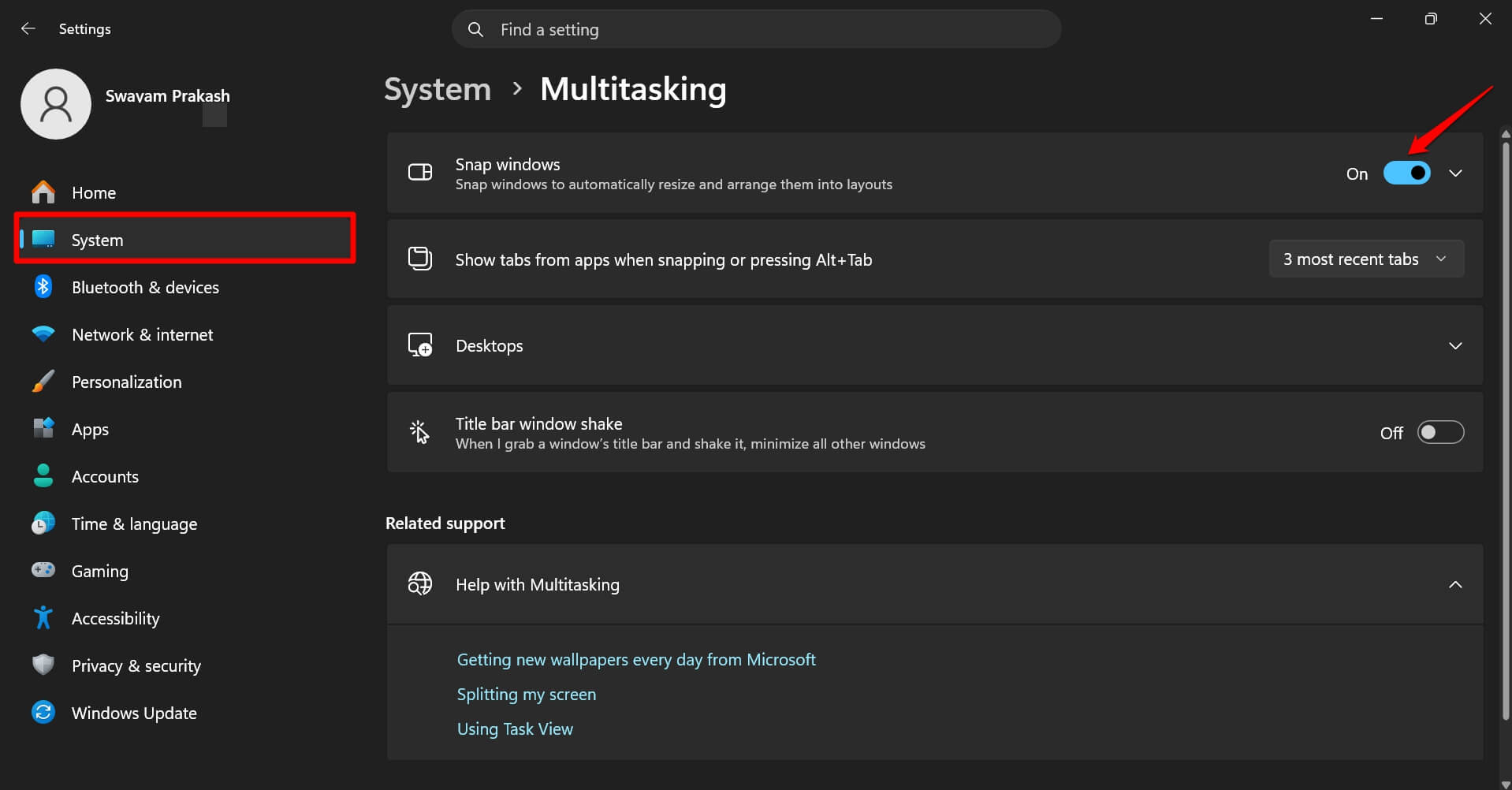

It is labeled to show or hide snapped windows across taskbar hover, Task View, and Alt+Tab. I left mine on, but I get why someone running a lot of app windows might not.
Where Snap Layouts stops working the way you expect
The one place Snap Layouts did not deliver was when I used it on my two monitors. Each display runs its own independent set of layouts; there is no single arrangement that spans both screens the way I assumed there would be when I started.
The workaround I landed on was building a matching layout on each monitor separately and using Win+Shift+Left or Right to shove a window across when it ended up on the wrong screen. It is not elegant, but after a few days it stopped feeling like a workaround and started feeling like just how the desks worked.
The friction shows up in the small moments. Snapping a browser and a spreadsheet on the main display, then realizing the reference PDF I actually needed was still full screen on the second monitor, unsnapped and ignored.
Nothing breaks. It is just one more thing to remember until it becomes automatic, and for me that took closer to a week than the single display habits did.
Frequently Asked Questions
What is the keyboard shortcut for Snap Layouts in Windows 11?
Press Win+Z to open the Snap flyout without touching the mouse.
Do Snap Layouts work across two monitors as one layout?
No. Each monitor runs its own independent set of layouts; there is no single layout that spans both screens.
How do I bring back a snapped window arrangement?
Hover over any app in that group on the taskbar and choose to restore the whole group, or find it in Task View or Alt+Tab.
How many Snap Layouts are available?
It depends on screen width: four layouts on displays under 1920 pixels wide, six on displays 1920 pixels or wider.
Can I turn off Snap Groups showing in the taskbar?
Yes, under Settings, then System, then Multitasking, then Snap windows.

What actually stuck after two weeks
I did not become a different kind of computer user. What changed was smaller and easier to miss. I stopped noticing the gap where two windows used to overlap. Also, I stopped reaching for the mouse to nudge a window’s edge a few pixels at a time.
The real test came when I opened a fresh Windows install on an old laptop and caught myself dragging a window to the corner out of pure muscle memory, before remembering Win+Z exists for a reason.