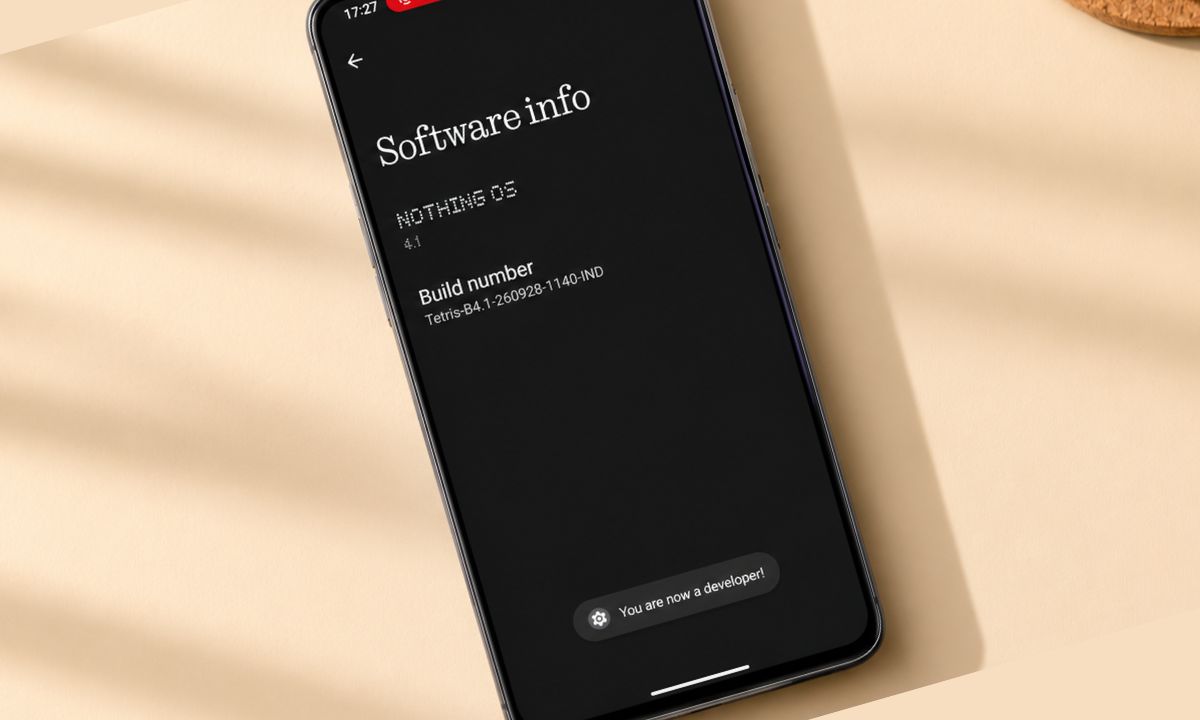
Developer mode is hidden on every Android phone. Most people never open it. I turned it on to fix one annoying thing and ended up changing seven settings that I still use.
Android Developer mode often sounds quite intimidating. Especially for the not-so-tech-savvy ones. That’s far from the truth. None of them are risky, and you don’t need to connect to a computer. Here are the seven developer option settings that earned a permanent place, and the ones I left alone.
TL;DR: Developer options unlock after you tap Build number seven times in About phone. Seven settings are worth changing for daily use: Stay awake, animation scales, Disable absolute volume, Bluetooth audio codec, Show taps, Select USB configuration, and Quick settings developer tiles. Leave the rest alone, and skip USB debugging unless you actually need it.
How to turn on Developer options
The trick to activate developer mode on Android OS is the same across all models.
- Open Settings > go to About phone.
- Tap on Build number seven times. Enter your PIN/screen lock if asked.
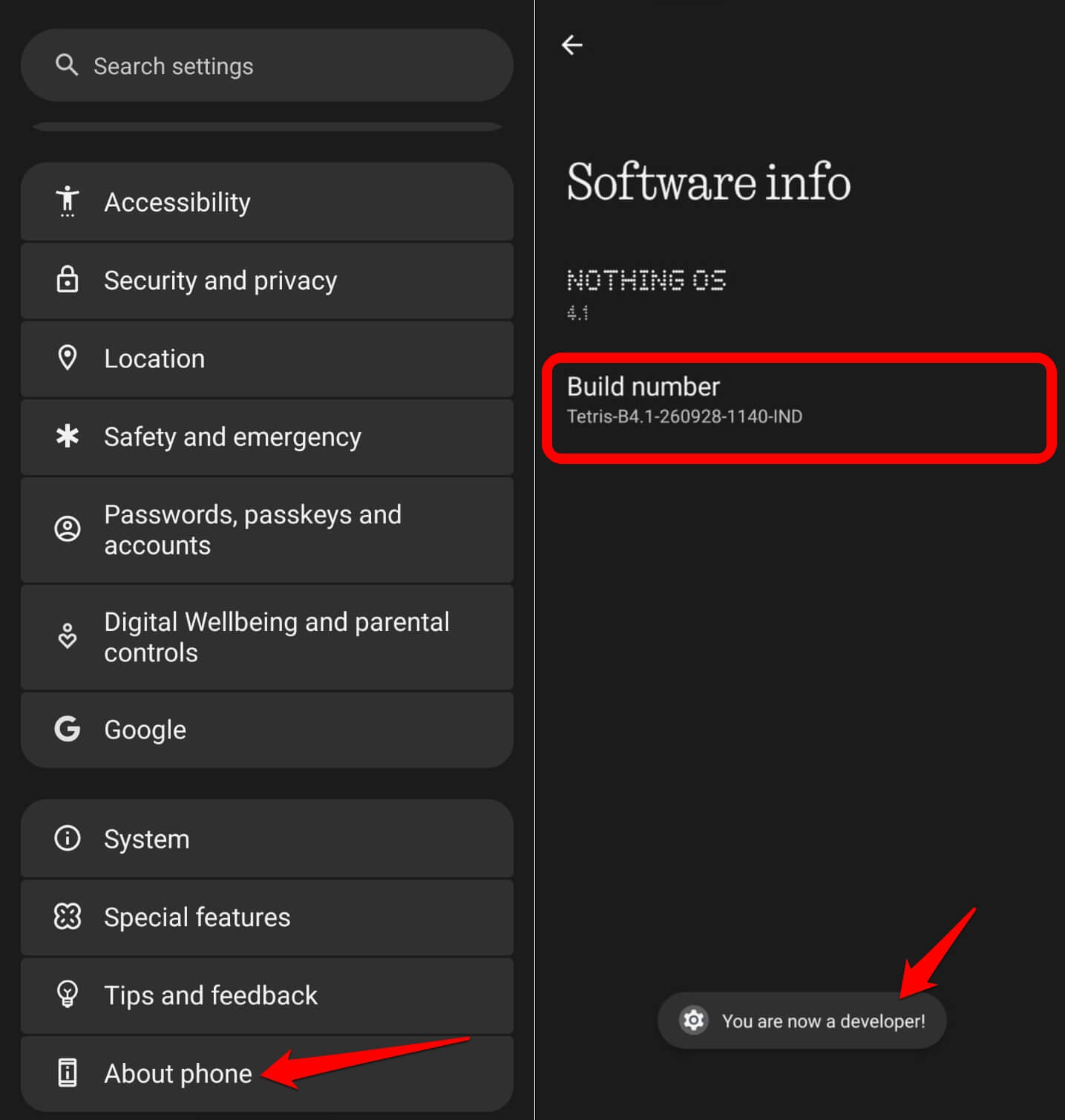

A message will flash on the screen confirming that you are now a developer. Developer options then appears in Settings > System.
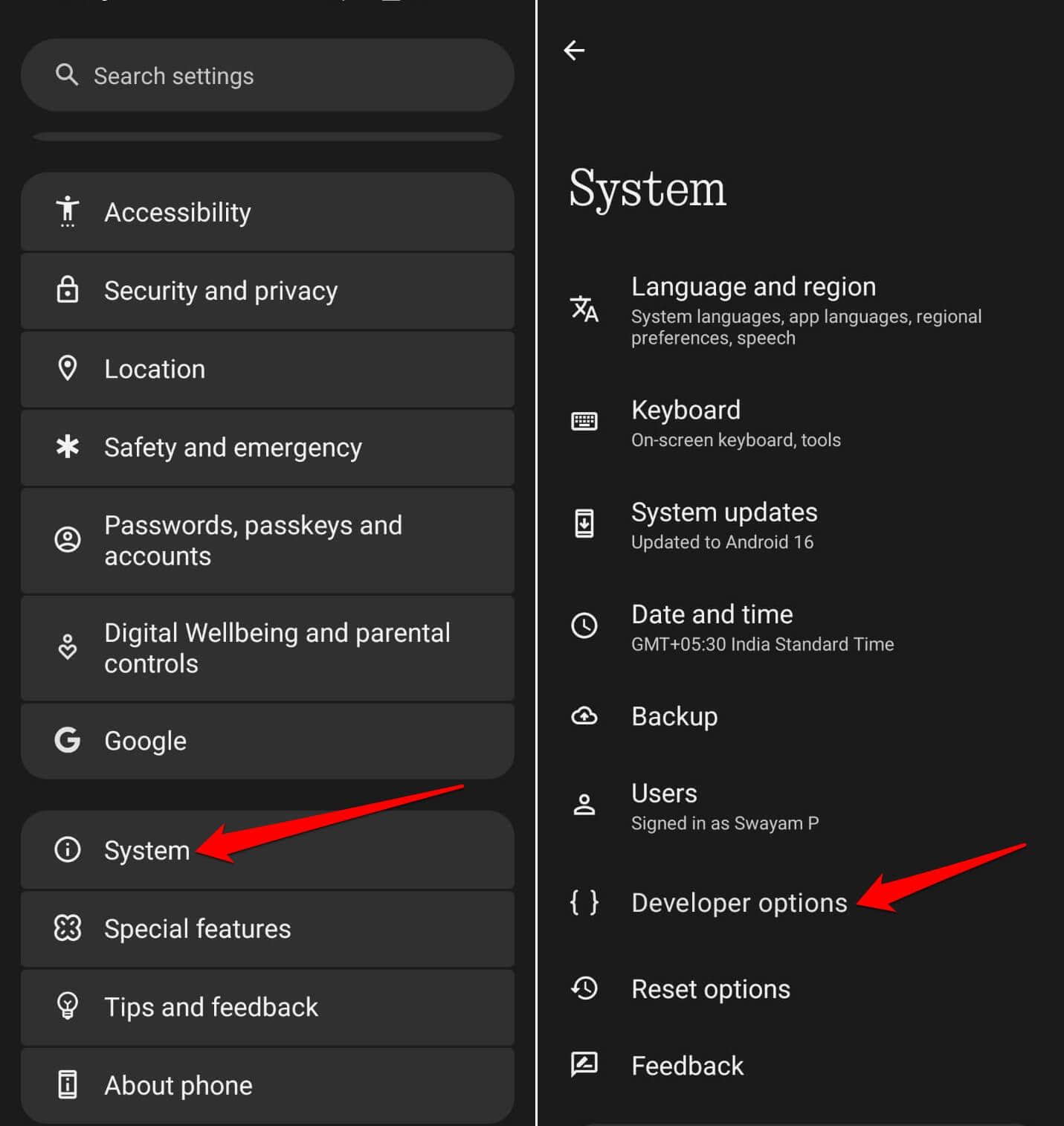
The developer options have a long list of settings and subsettings that may take a while to scroll down and check. You will find the same settings on almost all phones.
I scrolled through the entire Developer Options section twice before I stopped expecting each item to explain itself.
Seven Developer Options settings worth changing
Stay awake keeps the screen on while the phone charges. I use it when I have a recipe open on the kitchen counter.
The animation scales sit under Drawing, and 0.5x makes menus and app opens play at half the time. It doesn’t make the phone faster, but it feels like it. Show taps draws a small circle wherever you touch, which is only useful when you record the screen to show someone how to do something.
| Setting | What it does | Why I changed it |
|---|---|---|
| Stay awake | Screen stays on while charging | Recipes and dashboards |
| Animation scales | Speeds up system animations | Snappier feel |
| Disable absolute volume | Splits phone and Bluetooth volume | Earbuds too loud at the lowest step |
| Bluetooth audio codec | Picks the audio codec | Better sound on supported earbuds |
| Show taps | Shows touches on screen | Screen recordings |
| Select USB configuration | Sets the USB mode | File transfer without prompts |
| Quick settings developer tiles | Adds shortcuts to quick settings | Faster toggles |
Disable absolute volume fixed my earbuds
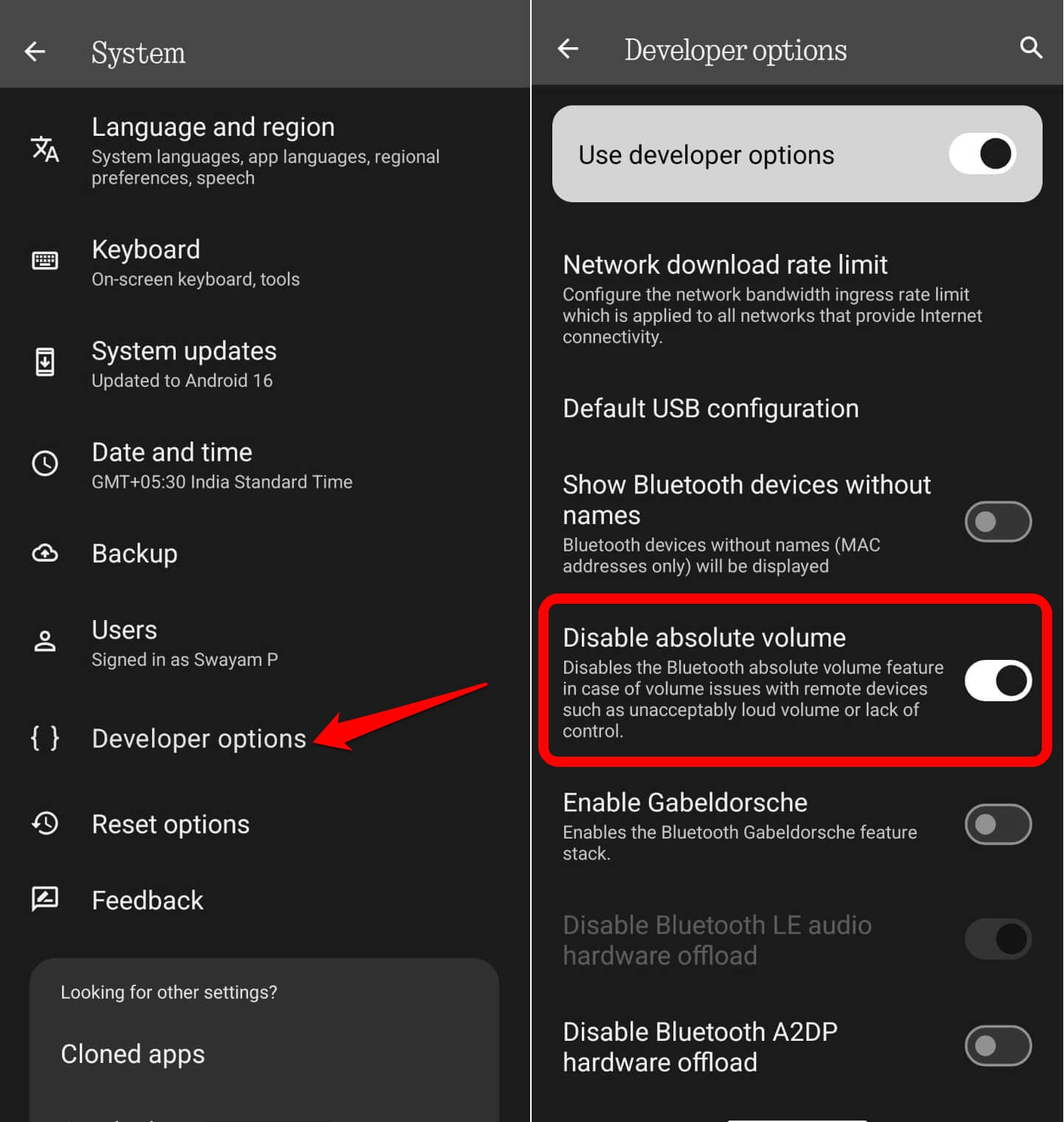
This one solved a real annoyance. My Bluetooth earbuds were too loud at the lowest volume step, and the phone volume and earbud volume moved together.
Turning on Disable absolute volume splits the two, so I could set the phone to maximum and tune the volume on the earbuds. The option sits under Networking in Developer options, and Android has used absolute volume since version 6.0.
The earbuds had been sitting at a volume step I could not go below, and I would take one earbud out whenever a notification chimed. After the change, I stopped doing that. If it behaves oddly with your earbuds, you can flip it back and revert to default.
Bluetooth audio codec and USB mode
Bluetooth audio codec lets you choose among the codecs your earbuds support. I changed it once, listened for a few songs, and left it on the one my earbuds preferred.
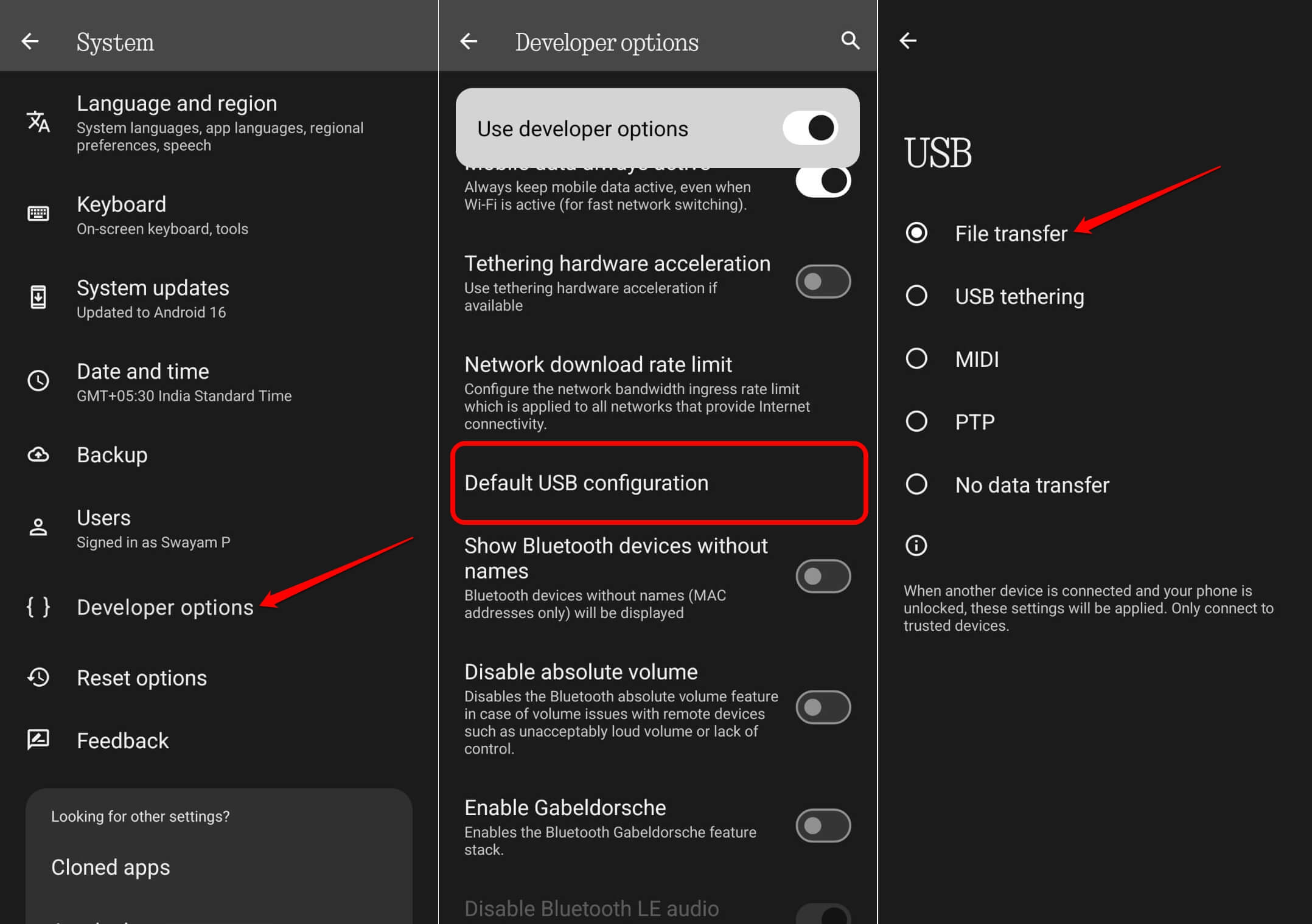
Select USB configuration sets what the phone does when you plug it into a computer. Setting it to file transfer means I no longer pick the mode each time I connect.
Quick settings developer tiles are the last one. They add shortcuts for developer features to the quick settings panel, and I only kept the ones I used.
Developer Settings I left alone
USB debugging is the one most guides push, and I turned it off again. It lets a connected computer control the phone, which is useful for developers and a risk for everyone else.
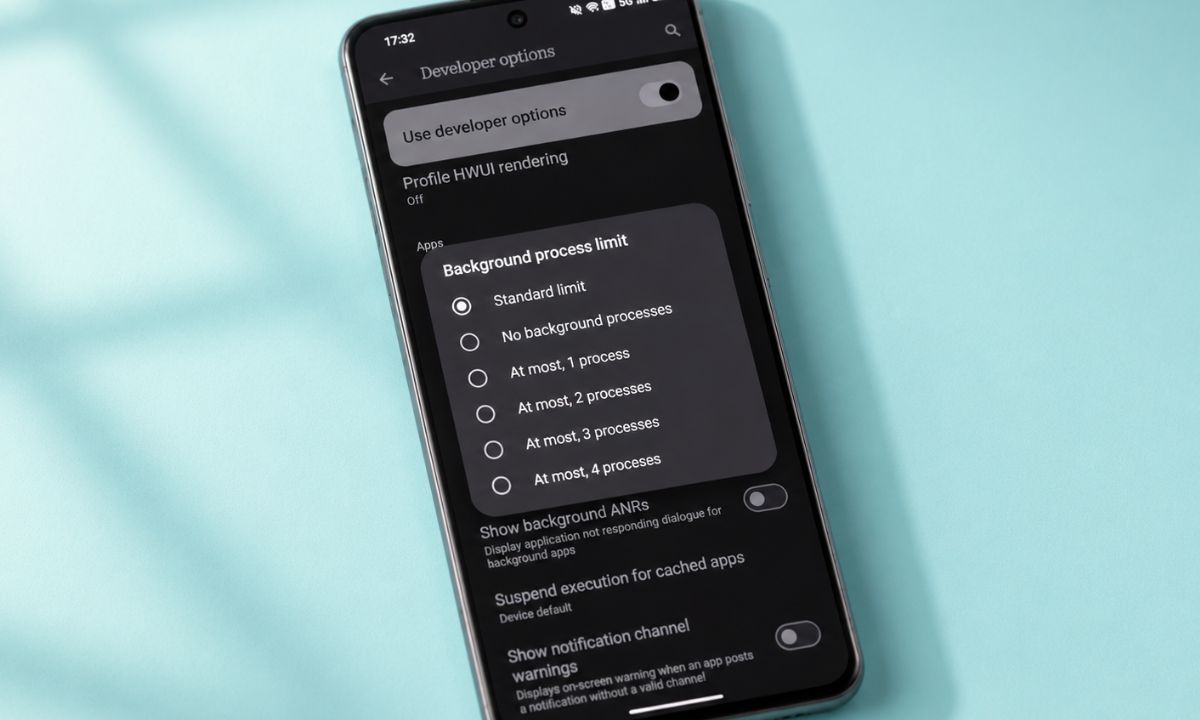
I tried to limit the background processes to free up the memory. This option caps how many cached background processes Android keeps. Lowering it frees some memory, but apps then reload from scratch when you return to them, which sometimes felt slower.
My detailed observation and experience with limiting background processes in Android Developer Options is linked below.
Frequently asked questions
Is it safe to turn on Developer options?
Turning it on is safe. Individual settings can change how the phone behaves, so change one at a time.
How do I turn off Developer options again?
Go to Settings, System, Developer options, and switch off Use developer options.
Does turning on Developer options delete anything?
No. It only reveals the menu, and each setting inside changes behavior only when you change it.
Do these settings work on Samsung?
Most of them, yes. Names and menu positions can differ slightly, so use the search box inside Developer options.
Explore Developer Mode and make the most of the features
You don’t have to be some nerdy developer to access and use the Developer Mode features. You don’t even need all of them.
Just the few I have mentioned, which can improve the way you use your Android device. Most you won’t even notice once you spend a few days, for they will feel like any other simple Android feature.