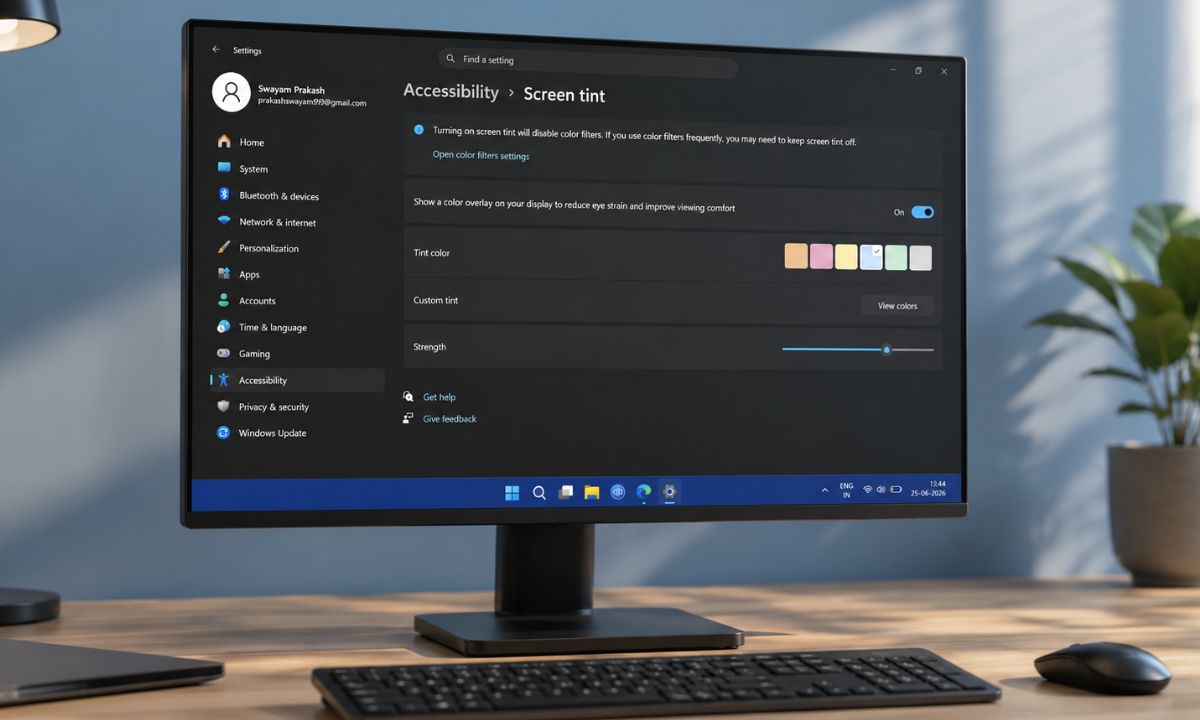
The first thing I did after enabling Windows 11 Screen Tint was wait for something to look wrong. The color overlay is subtle by default, a soft wash over the desktop, and I genuinely expected to feel it as an intrusion.
I had used the Night Light feature on Windows 11 for years, scheduled for sharp at 8 PM, and considered the matter settled.
But the new Screen Tint feature is doing something different. It took me a few days of running it across documents, apps, browser tabs, and back-to-back meetings on screen to understand what the feature is for and how it aids in vision comfort.
TL;DR: Windows 11 Screen Tint is an Insider-only feature in Experimental Preview Build 26300.8497. It applies a color overlay to your entire display with six presets and a strength slider, separate from Night Light. It addresses daytime intensity and eye fatigue during long sessions, not evening warmth. Access it under Settings, then Accessibility, then Screen Tint. Enabling it automatically disables Color Filters.
What Screen Tint does and what Night Light never covered
Windows 11 Screen Tint applies a color overlay to your entire display to reduce intensity.
That is an entirely different problem than what Night Light addresses. Night Light warms the color temperature toward faint yellow to reduce blue light exposure before sleep.
On the other hand, Screen Tint reduces how harsh the screen itself feels at any time of day.
A strength slider controls the depth of the effect, from a barely-there wash to a fully visible overlay. The tint applies to everything on the screen: apps, browser tabs, documents, and the taskbar.
According to Microsoft’s Windows Insider Blog, Screen Tint and Night Light can run simultaneously because they tackle different problems. Night Light does not fix a harsh white background at 2 PM. Screen Tint does.

The six presets of Screen Tint and the one I chose
Microsoft built Screen Tint around six color presets.
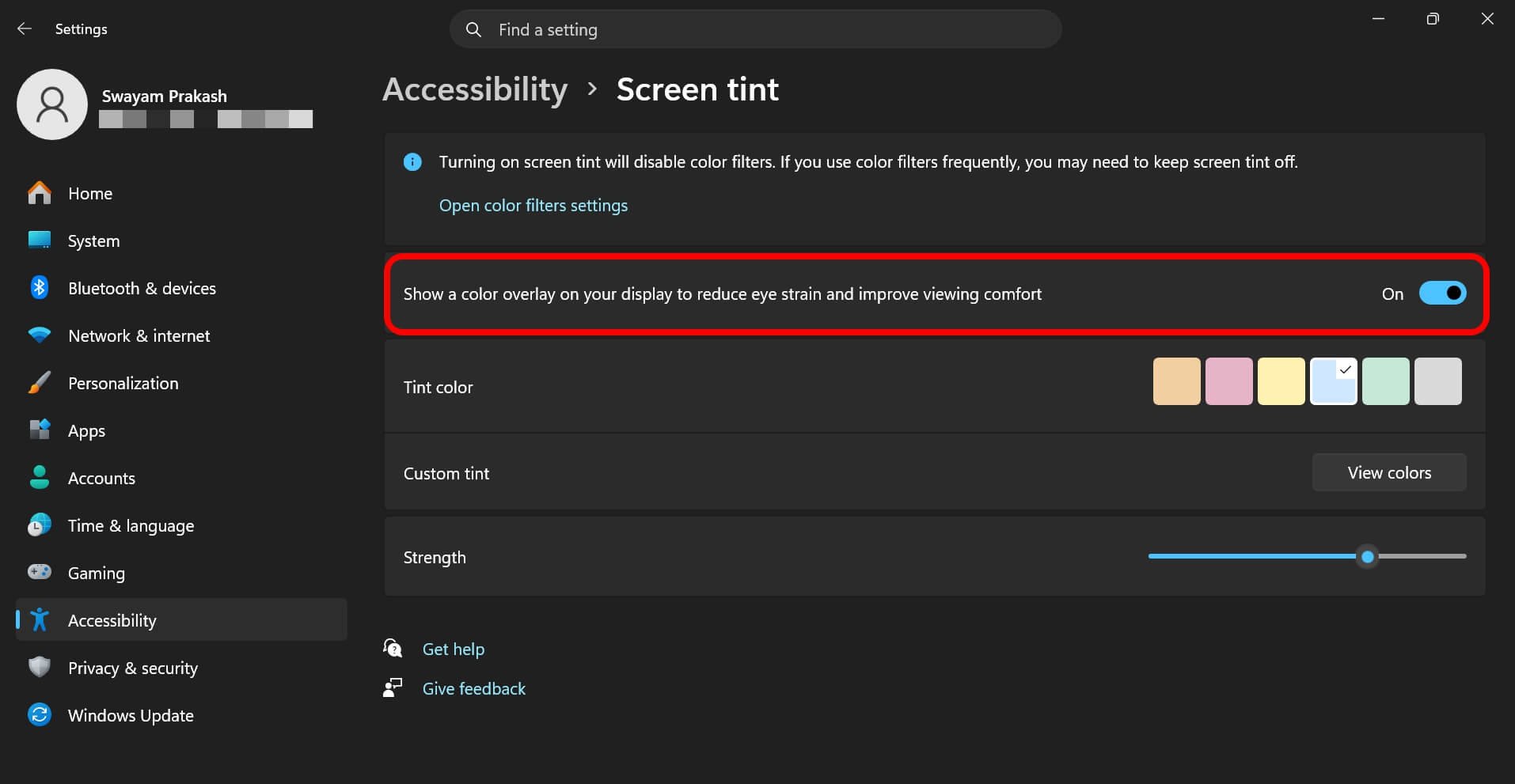
Calm amber is for extended sessions. Rose tint targets migraine triggers and fluorescent light sensitivity.
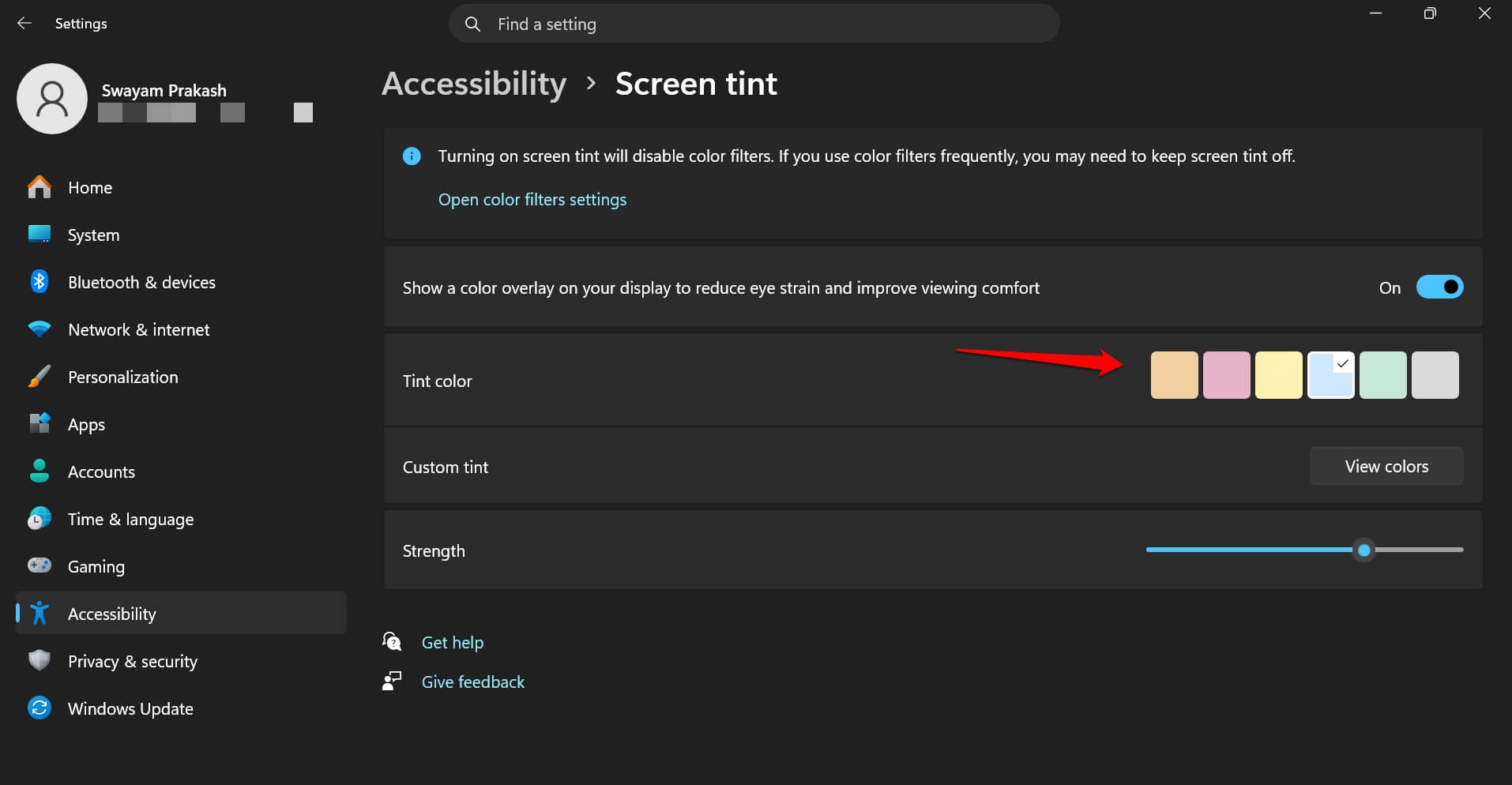
Soft yellow eases visual stress during reading. Cool blue is for glare in bright environments. Gentle green softens displays for photophobia.
Natural grey is for users who find high-contrast displays tiring after long periods.
| Preset | Designed for | Best suited to |
|---|---|---|
| Calm amber | Extended screen sessions | General long-session fatigue |
| Rose tint | Migraine and fluorescent sensitivity | Office fluorescent lighting |
| Soft yellow | Visual stress and reading discomfort | Long document or reading sessions |
| Cool blue | Glare sensitivity | Bright rooms and well-lit environments |
| Gentle green | Photophobia | Softening harsh white backgrounds |
| Natural grey | High-contrast fatigue | Document editing and writing sessions |
| Custom tint | Personal preference | Any use case via the color picker |
There is also a custom color option using a picker, and the strength slider means you can dial any preset back to nearly invisible.
I tried calm amber first, then settled on blue at around 50% strength for document work. I stopped noticing the tint within about an hour. Settings that work stop drawing attention.
How to enable Windows 11 Screen Tint right now?
Screen Tint is currently in Insider Experimental Preview Build 26300.8497, released May 22, 2026. It is not on the stable channel yet, and Microsoft has not announced a general availability date.
If you are enrolled in the Experimental channel,
- Go to Settings > System.
- Access the Display tab.
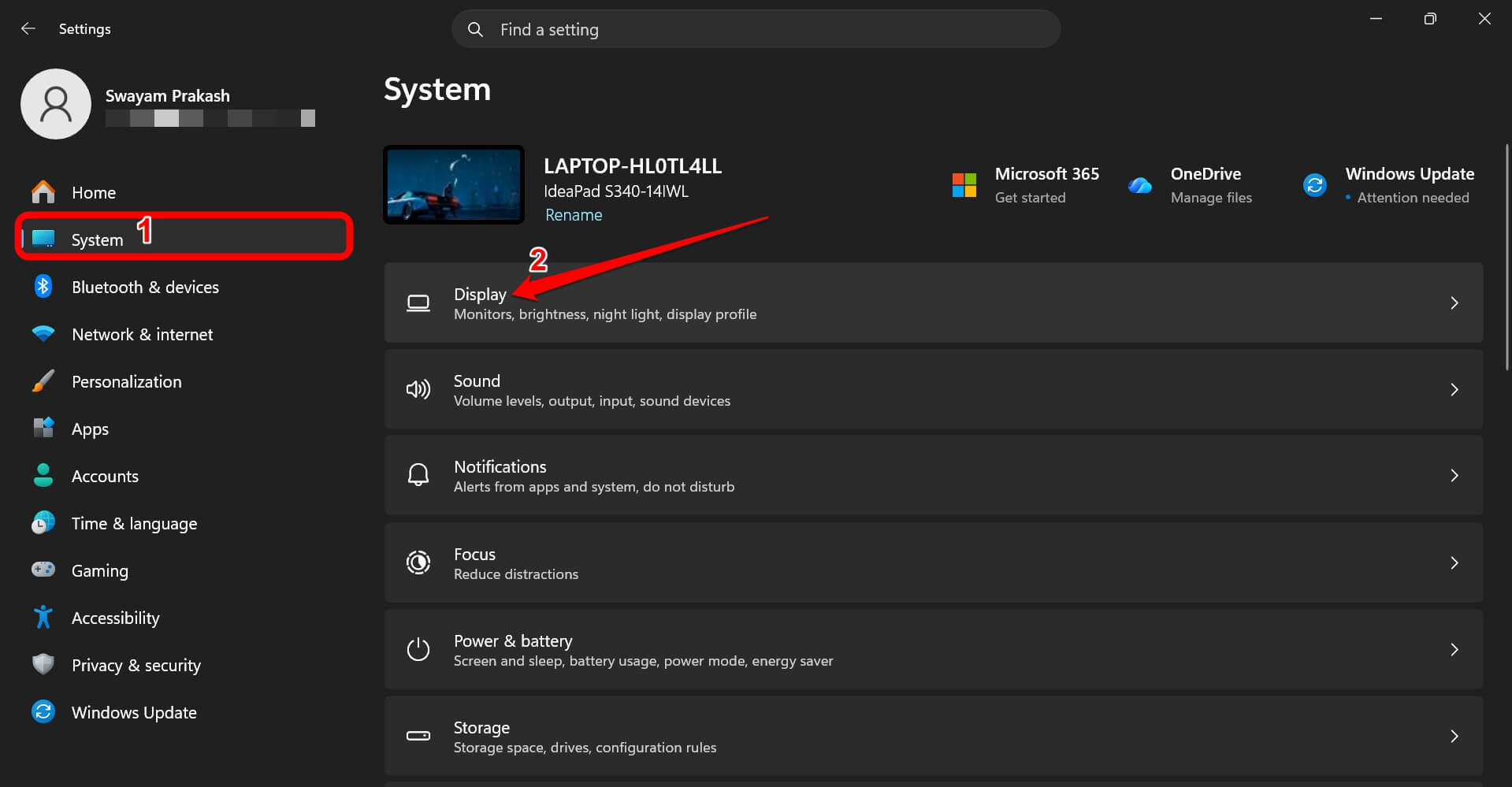

- Scroll to Screen Tint under the Related Settings panel.
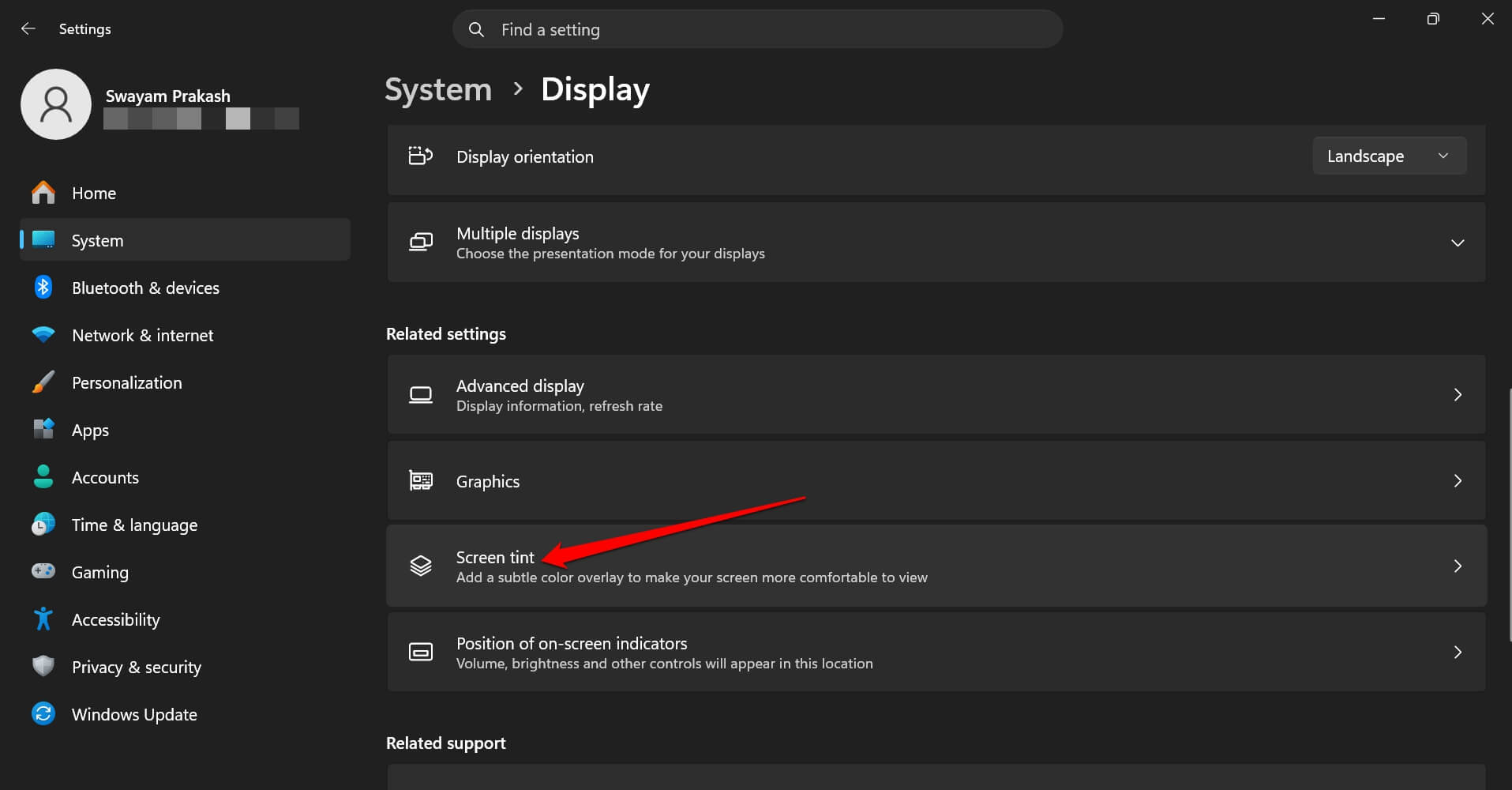

- Enable the toggle for Show a Color Overlay on your display to reduce eye strain and improve viewing comfort.

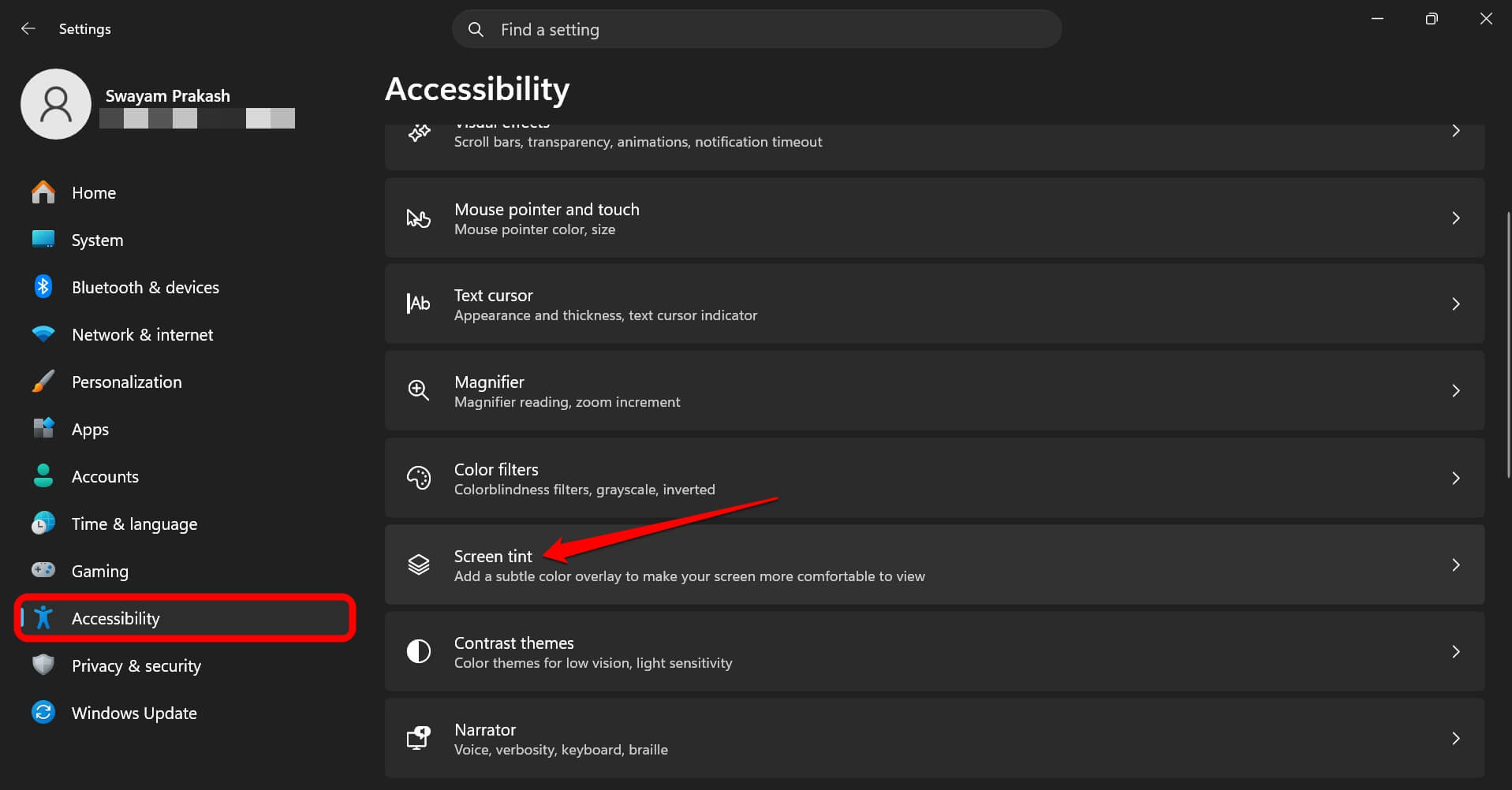
You can alternatively access Screen Tint settings from the Accessibility tab within the Windows Settings homepage.
If you cannot find the option for Screen Tint within Display or Accessibility settings, try enabling it through the feature flags.
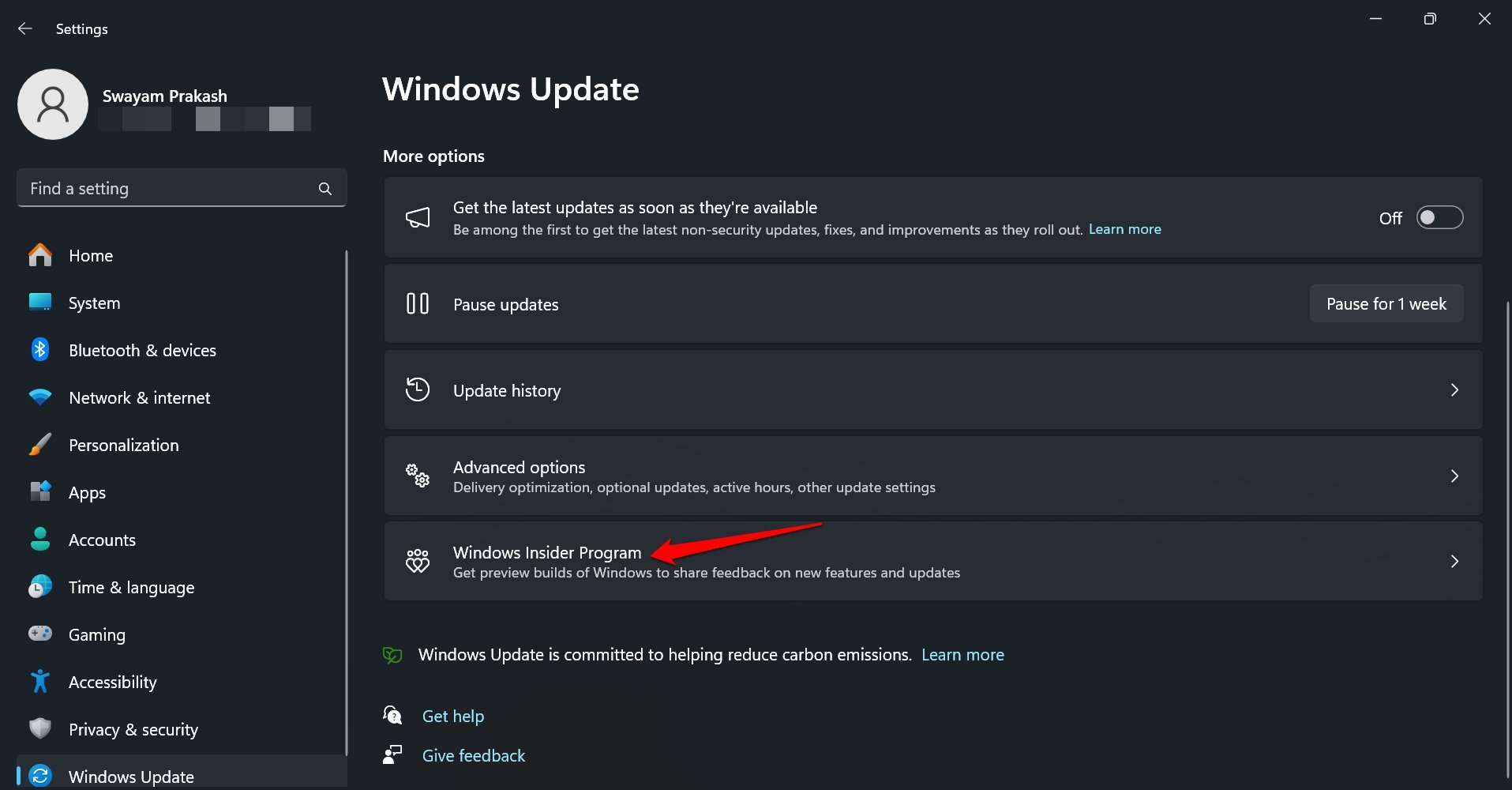
- Open the Settings > Windows Update.
- Go to the Windows Insider Program.
- Choose Experimental under the Select Your Experience tab.
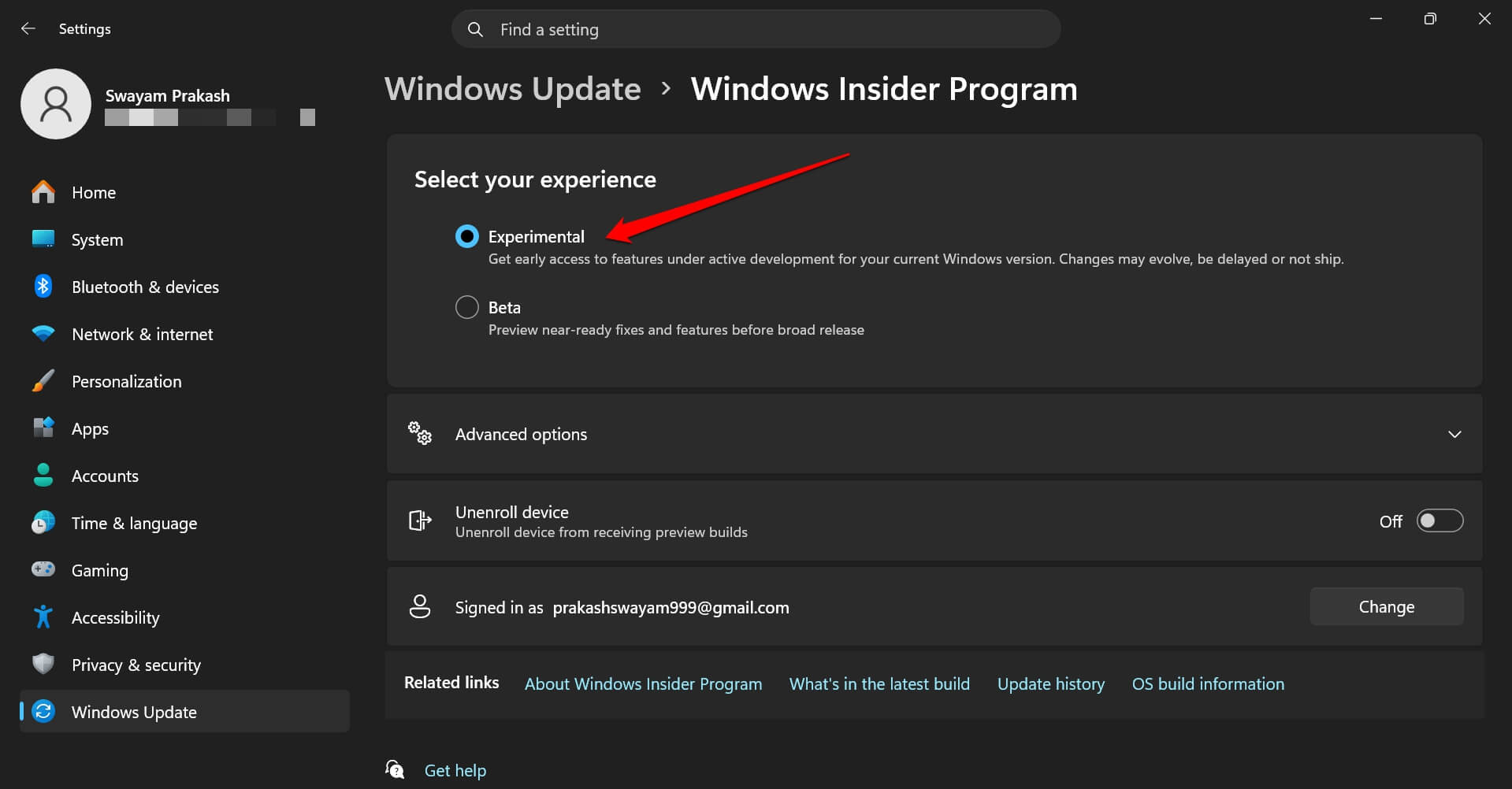

- Then open the Advanced Options and go to Feature flags.
Like any Insider feature, it can be changed or removed before reaching the stable build. The experience in build 26300.8497 is functional, but it is still in active development.
The conflict with color filters worth checking first
Enabling Screen Tint automatically turns off Color Filters. The two cannot run at the same time.
If you rely on Color Filters for color blindness accommodations or contrast adjustments, you will need to choose between them.
Microsoft treats this as a system-level design, not a bug. For most users not already on Color Filters, nothing changes. Do check your current accessibility settings before enabling Screen Tint for the first time.
Running Screen Tint and Night Light at the same time
Screen Tint and Night Light can run simultaneously, which matters because the two features look similar but solve different problems.
Night Light warms the display on a schedule, usually in the evening. Screen Tint applies a color overlay independently of that schedule.
In practice, I run Night Light on its usual evening schedule and Screen Tint throughout the day. They do not interfere with each other.
Night Light handles the transition after sunset. Screen Tint handles the hours before it, which Night Light was never intended for.
What does Screen Tint mean for people who use F.lux?
Screen Tint replaces what many users were doing manually with f.lux for years. Before Night Light was properly built into Windows, f.lux handled warm display adjustments for a large number of people.
It has not received a significant update in several years, and some users reported stability issues on newer builds.
Screen Tint is not a full f.lux replacement in terms of offering feature depth. But as a native Windows accessibility setting, it does not need a separate install, a startup permission, or a compatibility check after every update. It runs without management.
I can firmly recommend Screen Tint over F.lux. In fact, you will stop opening f.lux once you use Screen Tint. Not a conscious choice. You won’t have any reason to use a third-party vision comfort feature instead of the official one.
Frequently asked questions
Is Windows 11 Screen Tint available right now?
Screen Tint is currently in Windows 11 Insider Experimental Preview Build 26300.8497. It is not on the stable channel yet and has no confirmed public release date.
Can I use Screen Tint and Night Light at the same time?
Yes. Screen Tint and Night Light can run simultaneously because they solve different problems. Night Light warms the display for sleep; Screen Tint reduces intensity during the day.
Does Screen Tint disable Color Filters?
Yes. Enabling Screen Tint automatically turns off Color Filters, and the two cannot run at the same time. If you rely on Color Filters, keep Screen Tint off.
Which Screen Tint preset is best for long work sessions?
Calm amber is designed for extended sessions, but natural grey works well for document-heavy work. The strength slider lets you start at low intensity and adjust from there.
When will Screen Tint be available on stable Windows 11?
Microsoft has not announced a stable release date for Screen Tint. It is available only to Windows Insider Program members on the Experimental channel for now.
What two weeks of Screen Tint actually changed?
Screen Tint changed the texture of long screen sessions in a way that was not obvious until the second day. Mild eye fatigue accumulates slowly enough that you stop attributing it to the screen. By the time you realise it, the session has already run long.
Night Light remains the right tool for evenings. Screen Tint is solving the gap in the middle of the workday: harsh white backgrounds, overhead fluorescent lighting, and sessions that run past three or four hours without a break, all of which can be detrimental to vision.
When it reaches the stable build, most people will set it once and not think about it again. That is probably the most interesting aspect of a display setting. Simple yet fulfilling a purpose.