I switched from Chrome to Edge, expecting it to take an afternoon. It took closer to a week before the experience felt natural, and another week before I stopped second-guessing it.
The browser itself transferred in minutes. The habits took longer. Chrome has a way of settling into your muscle memory that you only notice when something tries to replace it.
Edge on Windows 11 is a serious browser now, not a default no one asked for. The data and extensions come with you. The friction is real, but it is smaller than most people assume and mostly concentrated in the first three days.
TL;DR: Edge imports everything from Chrome cleanly: bookmarks, passwords, history, and extensions all transfer within minutes. The adjustment is almost entirely behavioral. Bing replaces Google by default, the Copilot sidebar opens without warning, and your hands keep reaching for the Chrome icon for about four days. The memory savings are real and show up by day three. By week two, Chrome starts to feel like the heavier choice for a Windows 11 machine.
How does switching from Chrome to Edge actually start?
Edge’s import wizard runs automatically when you first launch it.
Alternatively, you can trigger it manually by following these steps.
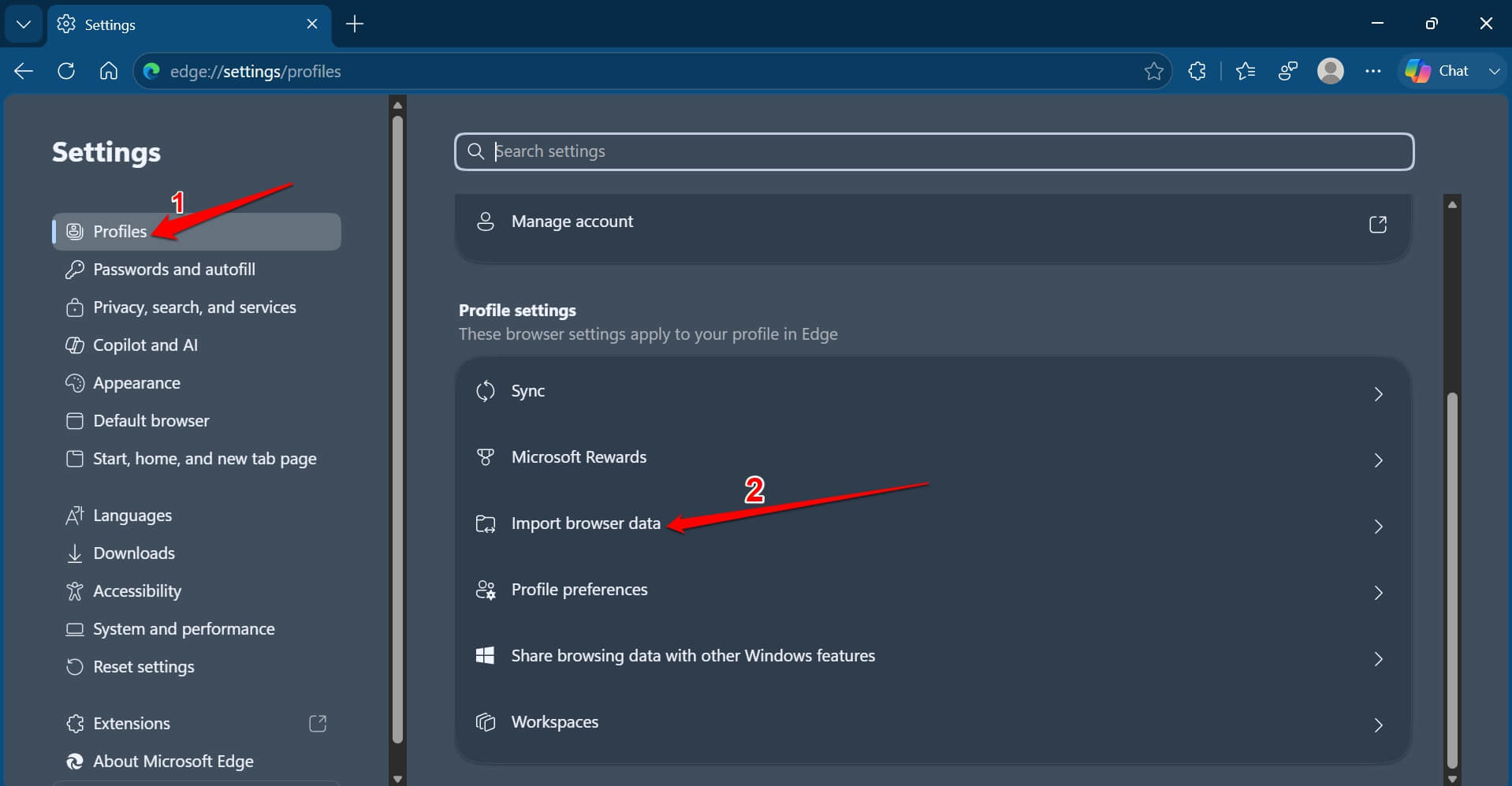
- Go to Edge://settings.
- Click the Profiles tab on the left > Import browser data.

- Press Import beside the Import data from Google Chrome tab.
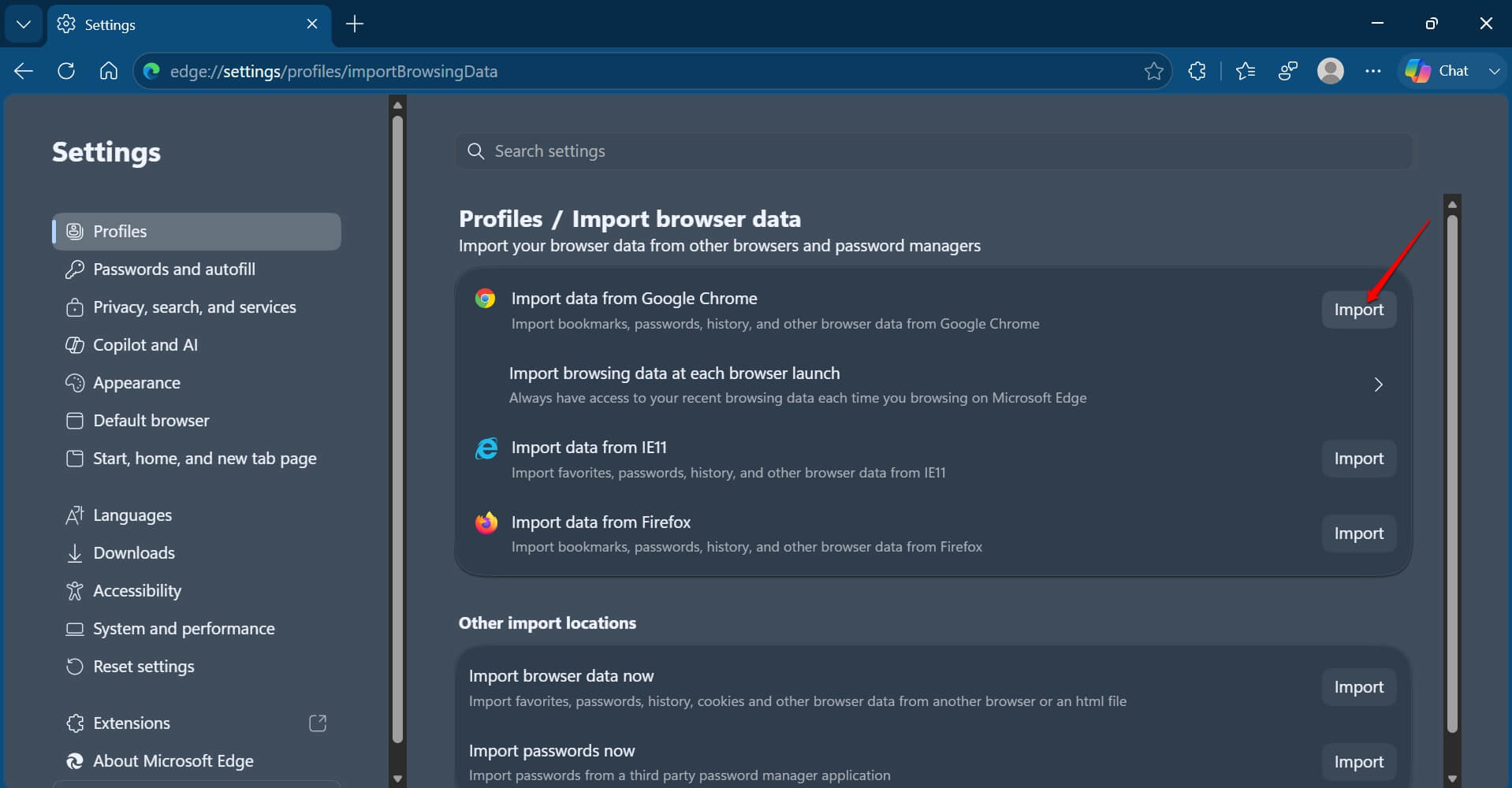

It pulled my Chrome bookmarks, saved passwords, browsing history, and already open tabs cleanly.
The process took under two minutes. I kept waiting for something to break, and nothing of that sort happened.
Extensions are where I expected the biggest gap. Chrome extensions install directly from the Chrome Web Store in Edge without any workaround.
My ad blocker, password manager, and note extension were running within ten minutes. There is no meaningful library difference in practice.
Checking the Edge flags guide after import is worth it if you want to enable features like parallel downloading and improved scroll behavior.

Bing is the first thing you will want to change
Edge defaults to Bing, which is its native browser. That is fine as a fact and mildly annoying as an experience the first time you search for something expecting Google results.
The fix takes under a minute:
- Go to Edge:// Settings > Privacy, search, and services > Search and connected experiences.
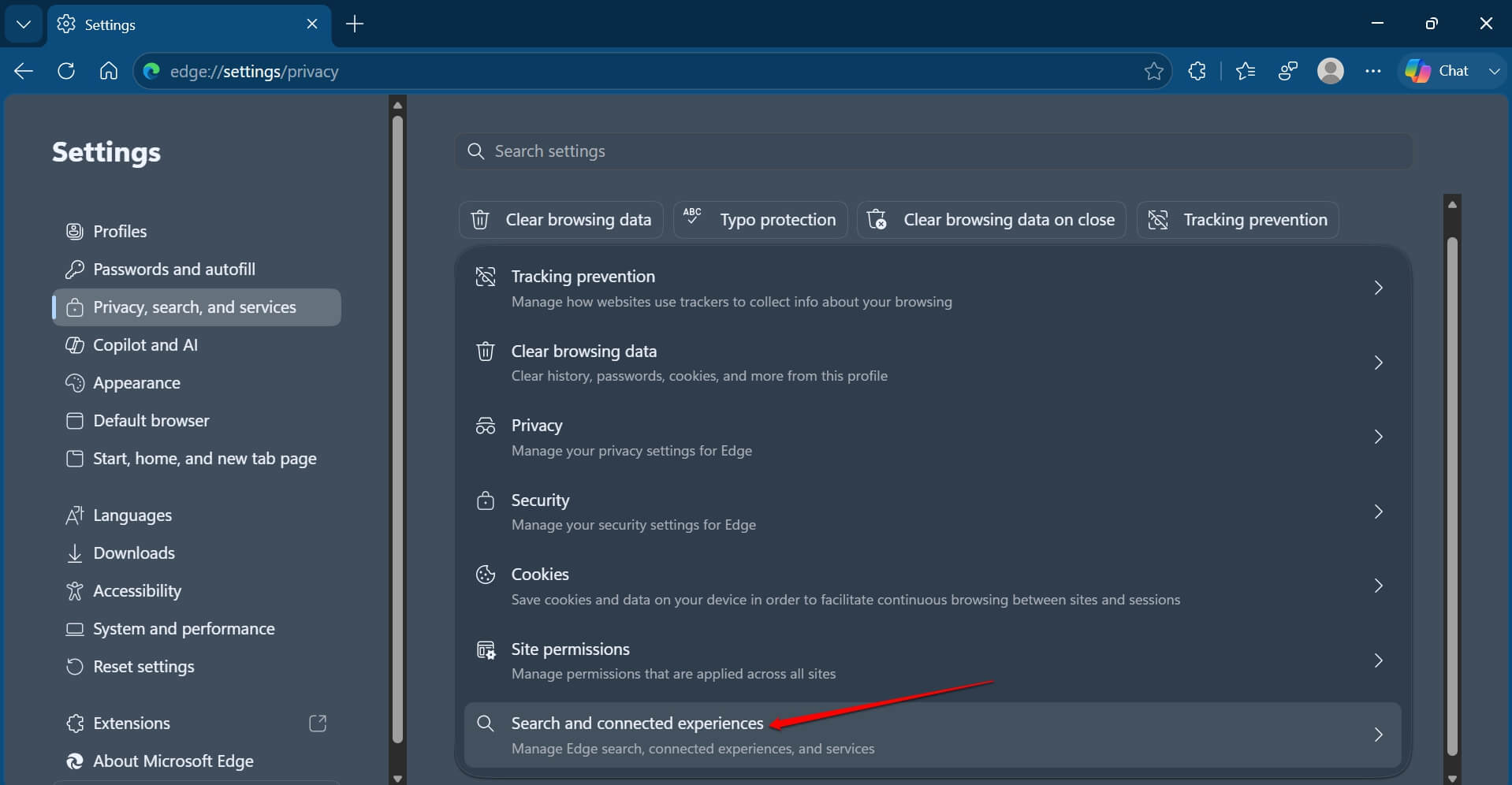

- Click on Address bar and search.
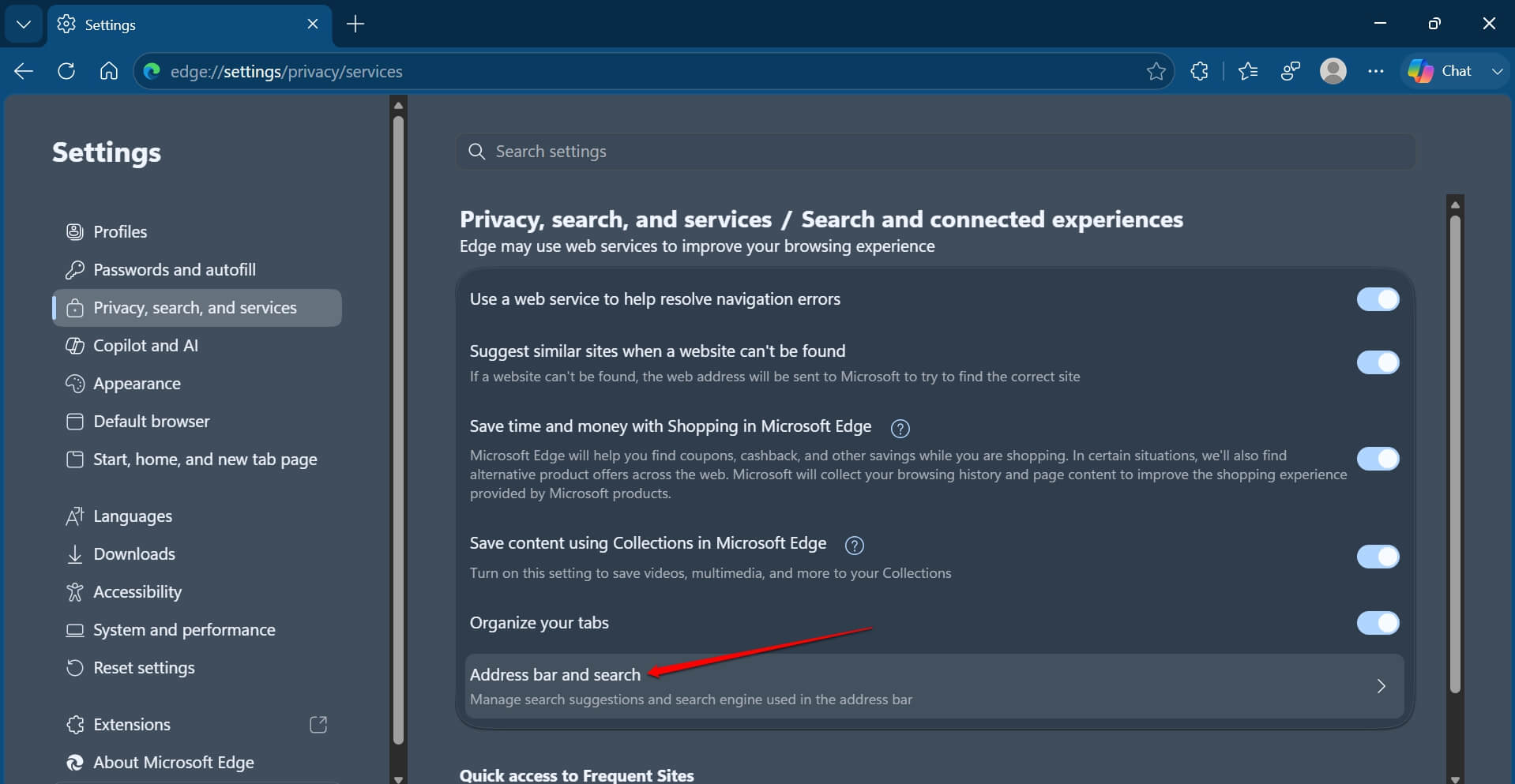

- Click the drop-down button next to Search Engine used in the address bar and change the default search engine to Google.
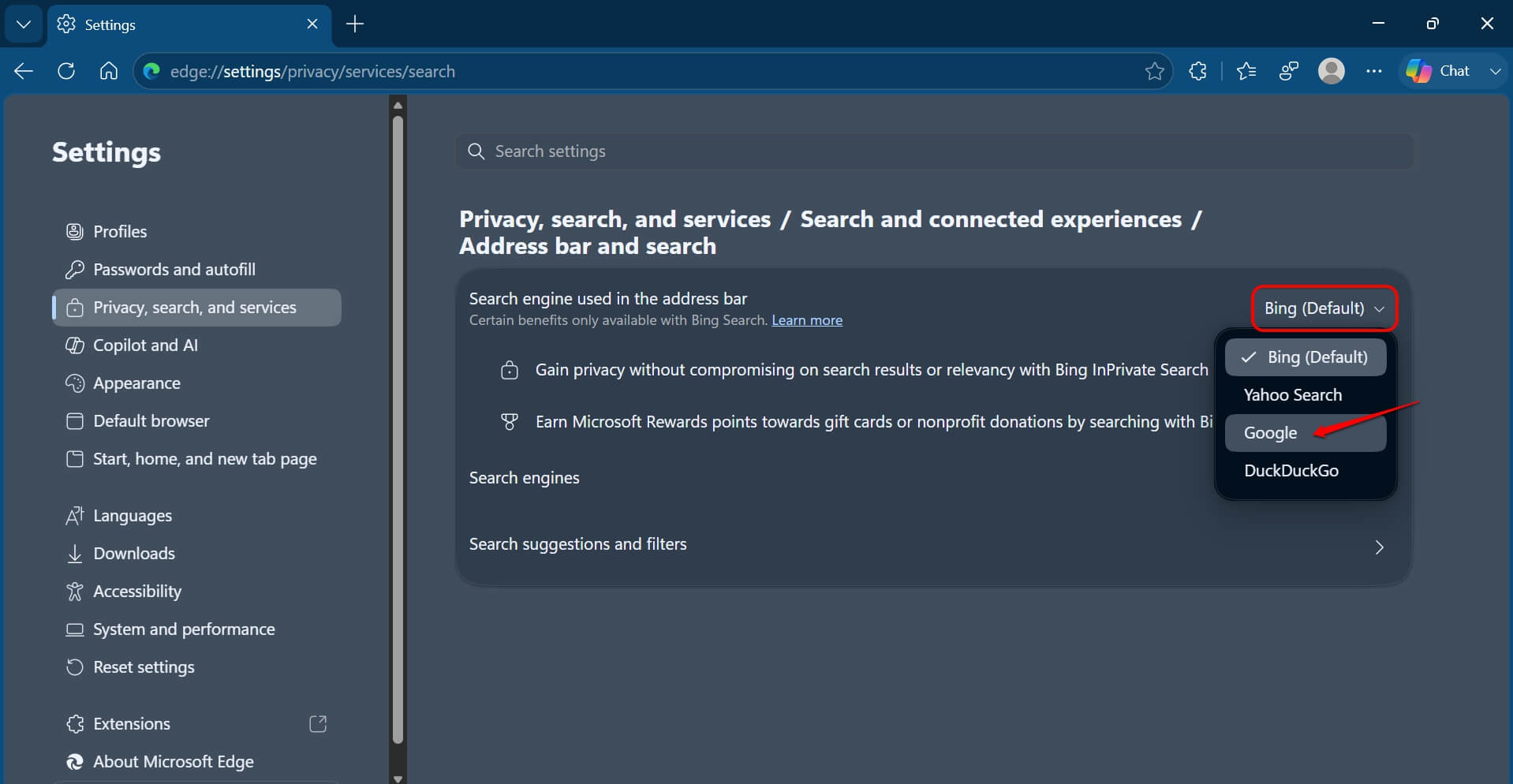

Most people switching from Chrome miss this on day one. Bing can also appear in the Windows 11 taskbar search, which is a separate setting.
Changing Edge’s default search engine does not affect the taskbar. Those are two different problems with two different fixes, and not knowing that ahead of time accounts for most of the early friction when switching.
The part that takes a few days to notice
The memory savings did not show up as an obvious improvement on day one. They showed up as an absence.
On Chrome, the fan would spin up within an hour with 20 or more tabs open. By day three on Edge, it had not happened. For a change, that felt good for me as I use the browser a lot in my workflow.
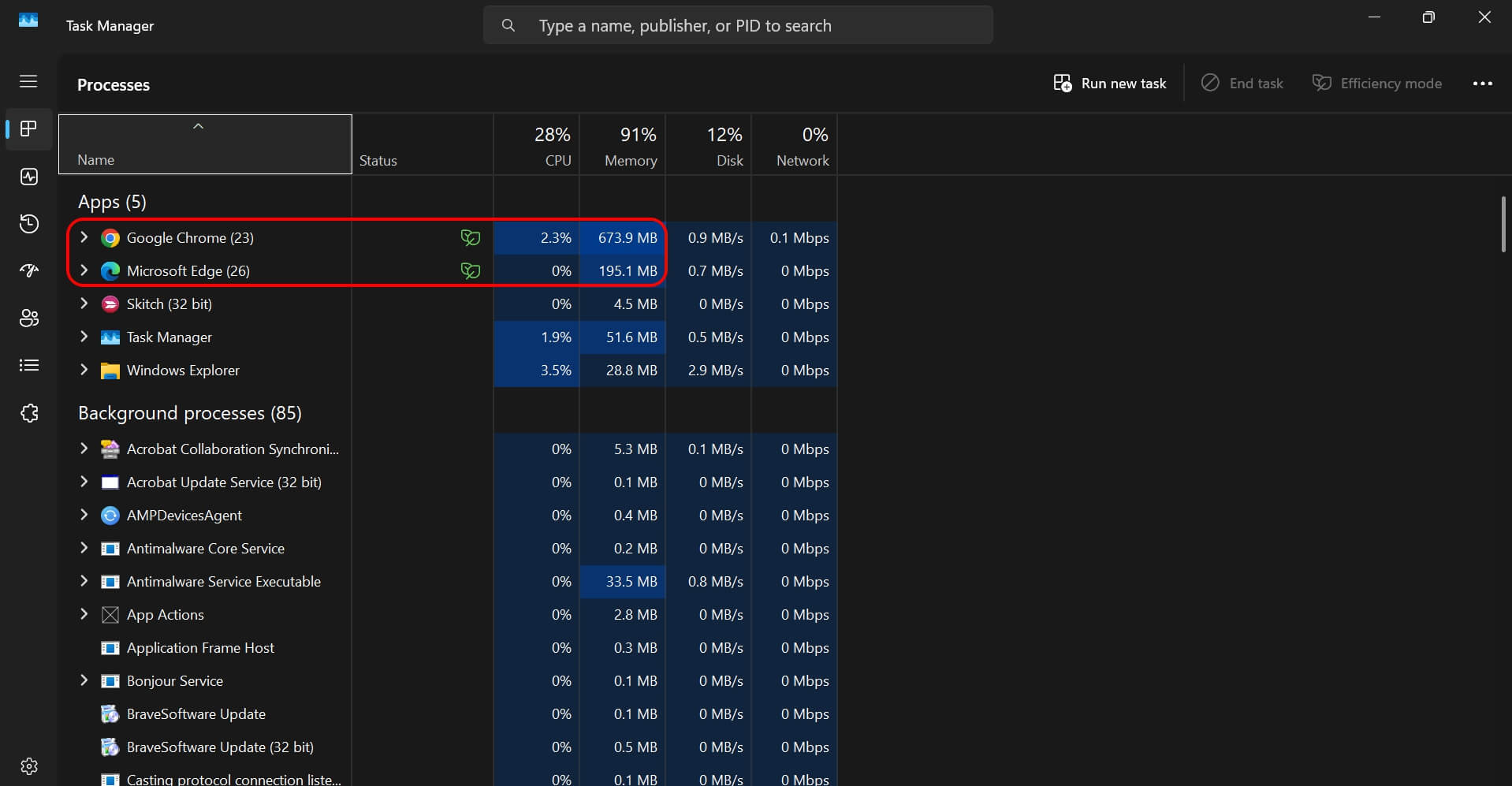
Task Manager confirmed the RAM gap. Edge was sitting around 195 MB for the same tab count, where Chrome had been closer to 674 MB. The same tabs were open and being used on both the browsers.
| Feature | Microsoft Edge | Google Chrome |
|---|---|---|
| Default search engine | Bing | |
| RAM with 9 open tabs | ~195 MB | 674 MB |
| Chrome Web Store extensions | Yes | Yes |
| Sleeping Tabs | Yes | No |
| Password sync account | Microsoft account | Google account |
| Google Meet compatibility | Extra click required | Automatic settings |
That gap comes mostly from Sleeping Tabs, which puts inactive tabs to sleep after two hours by default, fading them so you know they are paused.
According to Microsoft, Sleeping Tabs reduces memory usage by around 32% and CPU usage by about 37% on average. In practice on my machine, those numbers felt right. The browsing experience was smooth.
Where extensions and shortcuts land
Most Chrome keyboard shortcuts transfer directly. Ctrl+T, Ctrl+W, Ctrl+L, and F12 for DevTools all work identically in Edge.
InPrivate replaces Incognito using Ctrl+Shift+N, and the function is identical. The menus sit slightly differently, but nothing requires relearning from scratch. It is disorientation, not a learning curve.
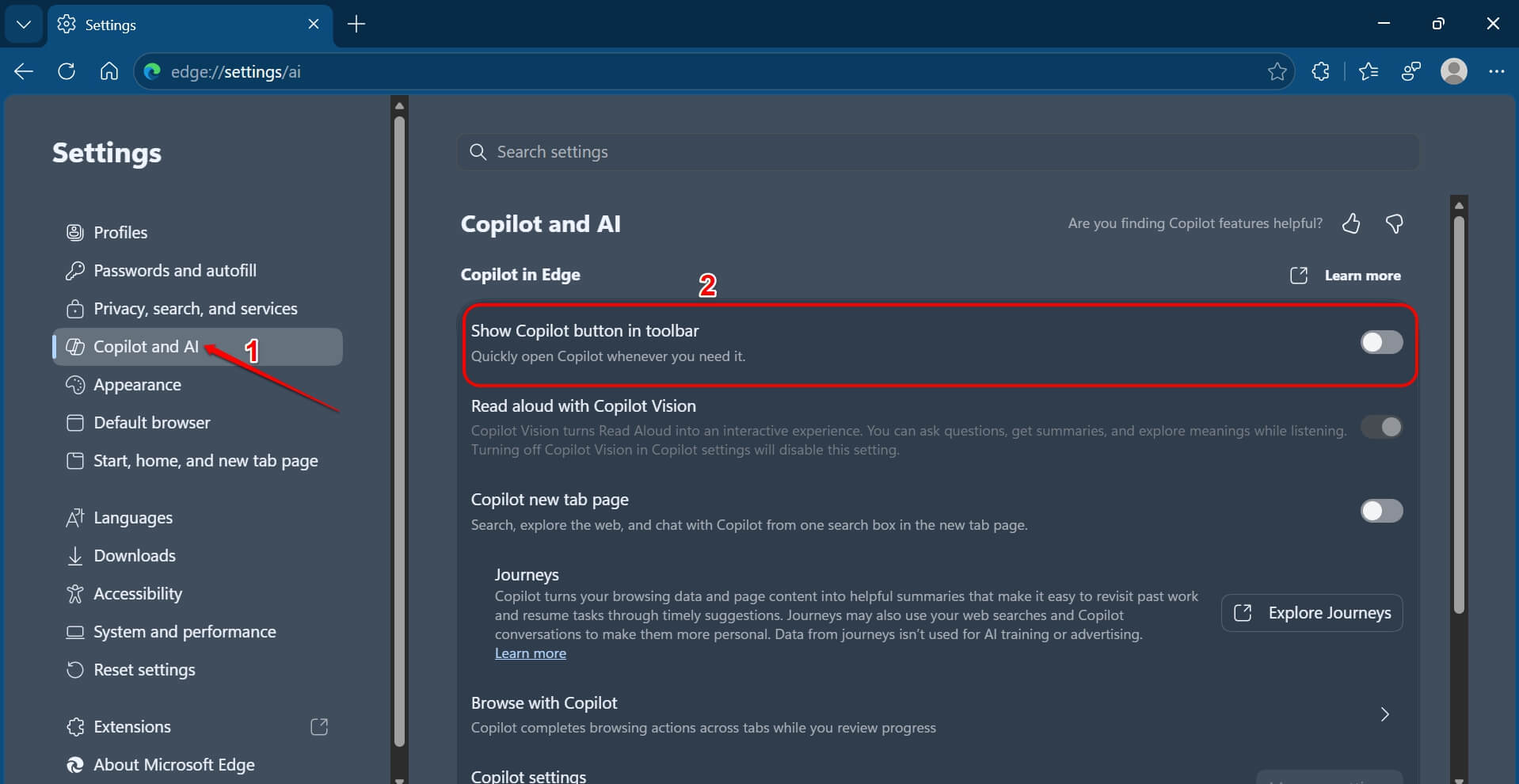
The Copilot button on the toolbar was the one thing I kept accidentally triggering. It sits along the right edge of the browser and opens from certain hover zones near the window border.
I turned it off within two days, which you can do in Settings > Copilot and AI > Toggle off Show Copilot button in toolbar. It is genuinely useful for summarizing articles but distracting as a persistent default when you did not ask for it.
What Chrome still does better?
Certain Google services run more smoothly in Chrome. Google Meet in particular was noticeably different: joining a call in Edge required an extra click to confirm camera and microphone settings that Chrome had remembered automatically. It happened on every call.
Password sync also takes a deliberate step. Edge syncs through your Microsoft account, not your Google account.
If you use Chrome on Android, your passwords now live in two separate places. A third-party password manager is the cleanest fix, and something worth thinking through before you start the switch.
For a broader comparison across more browsers, the best browsers for Windows 11 guide covers how Edge stacks up against Firefox and Brave.
Frequently asked questions
Does Edge support Chrome extensions?
Yes. Chrome extensions install directly from the Chrome Web Store in Edge without any workaround or conversion step needed.
Will my Chrome passwords and bookmarks move to Edge?
Yes. Edge imports bookmarks, passwords, browsing history, and open tabs from Chrome in under two minutes through Settings > Profiles > Import browser data.
How do I change the default search engine in Edge to Google?
Go to Settings > Privacy, search, and services > Address bar and search, then set the default search engine to Google. The Windows 11 taskbar search is a separate setting and needs to be changed independently.
Does switching to Edge save memory and battery life?
Yes. Edge uses significantly less RAM than Chrome for the same number of open tabs. Sleeping Tabs reduces memory usage by around 32% and CPU usage by about 37% on average.
What is Sleeping Tabs in Edge?
Sleeping Tabs puts inactive browser tabs to sleep after two hours by default, fading them slightly so you know they are paused. It frees up memory and CPU without closing the tab, and you can resume it by clicking normally.
Two weeks in, what actually changed
I did not go back to Chrome. Not because Edge is objectively better at everything, but because the things it does better are the ones I hit daily on Windows 11: memory, fan noise, battery life, and a browser that does not compete with other apps for the same resources.
The habit of clicking the old Chrome icon lasted about four days. Old habits die hard, I guess. Then it just stopped, the way most habits do when there is something else in the same slot and something better.
Switching browsers is mostly a matter of waiting out the familiarity. If I had changed the search engine on day one and turned off the sidebar on day two, the adjustment would have felt likely in an afternoon, not a week.