Quick Summary
To fix the missing ambient mode effect on YouTube, you need to first enable ambient mode in YouTube settings. If it’s on but still facing issues, then disable ad blockers, turn on dark mode, or update the browser and YouTube app.
I recently noticed something strange while watching videos on YouTube. The ambient mode feature, which usually adds a soft glowing effect around the video player, suddenly went missing from my account. At first, I thought it was a temporary glitch or maybe I had accidentally turned it off, but after checking several times, the option just wasn’t there. The first thing I did was check if the feature was disabled in settings. But surprisingly, I couldn’t even find the toggle.
This left me confused because I had seen it working fine just a few days earlier. Facing this issue firsthand made me dive into different fixes and tips shared online. It’s clear that many people are also confused about the ambient mode missing, and the solutions are not always straightforward. That’s why I decided to put everything I found in one place to make troubleshooting easier.
How to Get YouTube Ambient Mode Back
I really enjoy watching videos with ambient mode on, as it gives a cinematic vibe and makes the viewing experience more immersive. I started looking into why this was happening. I started thinking maybe it was related to my Google account theme.
Since ambient mode only works in dark theme, I switched from light mode to dark mode, and sometimes it appeared. But even then, it didn’t always stay consistent.
1. Disable Ad-blockers or Extensions
Some browser extensions interfere with video features. So you have to disable or uninstall any extensions that might be interfering with YouTube’s standard features.
- Open your Chrome or Firefox browser and go to settings.
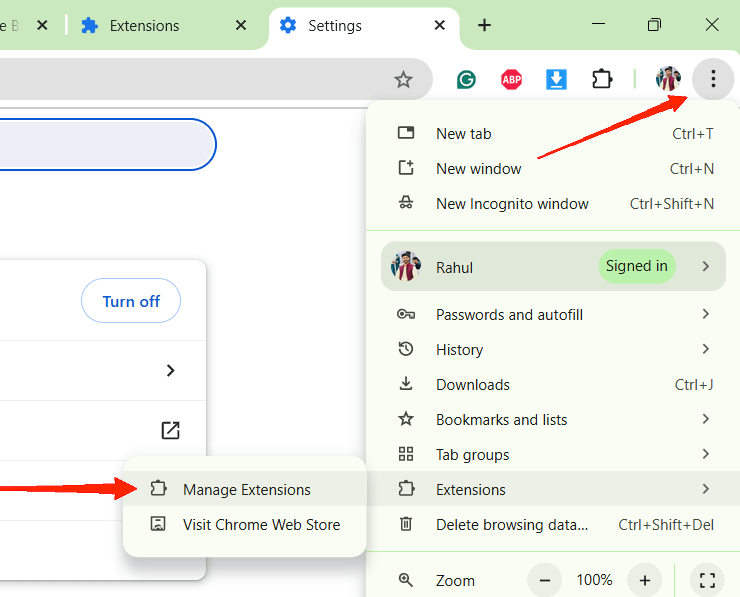
- Navigate to the extensions section and click on Manage extensions.
- Here, remove all unwanted extensions.
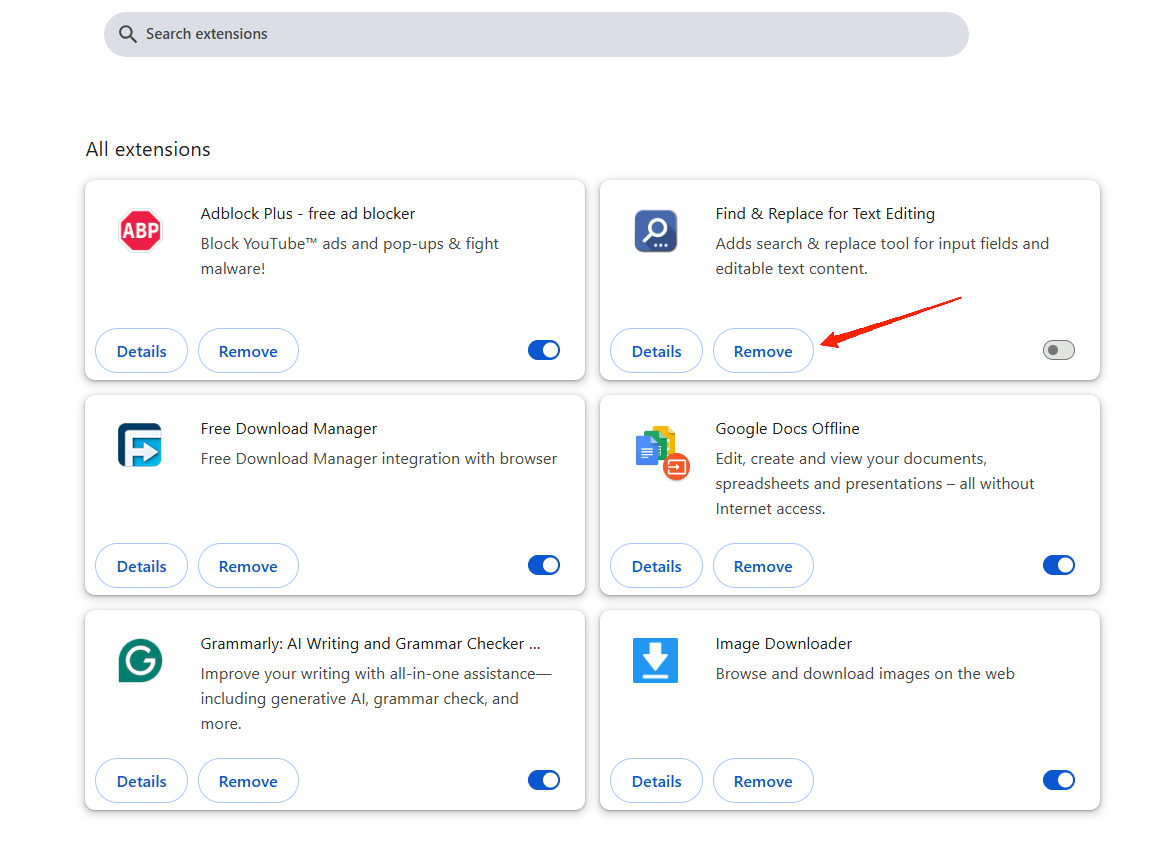
- After disabling extensions, restart the browser and see if Ambient mode is turned on.
2. Enable Dark Theme
Ambient Mode only works when YouTube is set to Dark Theme. So if you primarily use light mode, Ambient mode will not work. Or if you have enabled the auto mode, then ambient mode will only work during evenings and late nights.
- While watching YouTube, click on your profile icon at the top right.
- Click on Appearance, and choose dark mode.
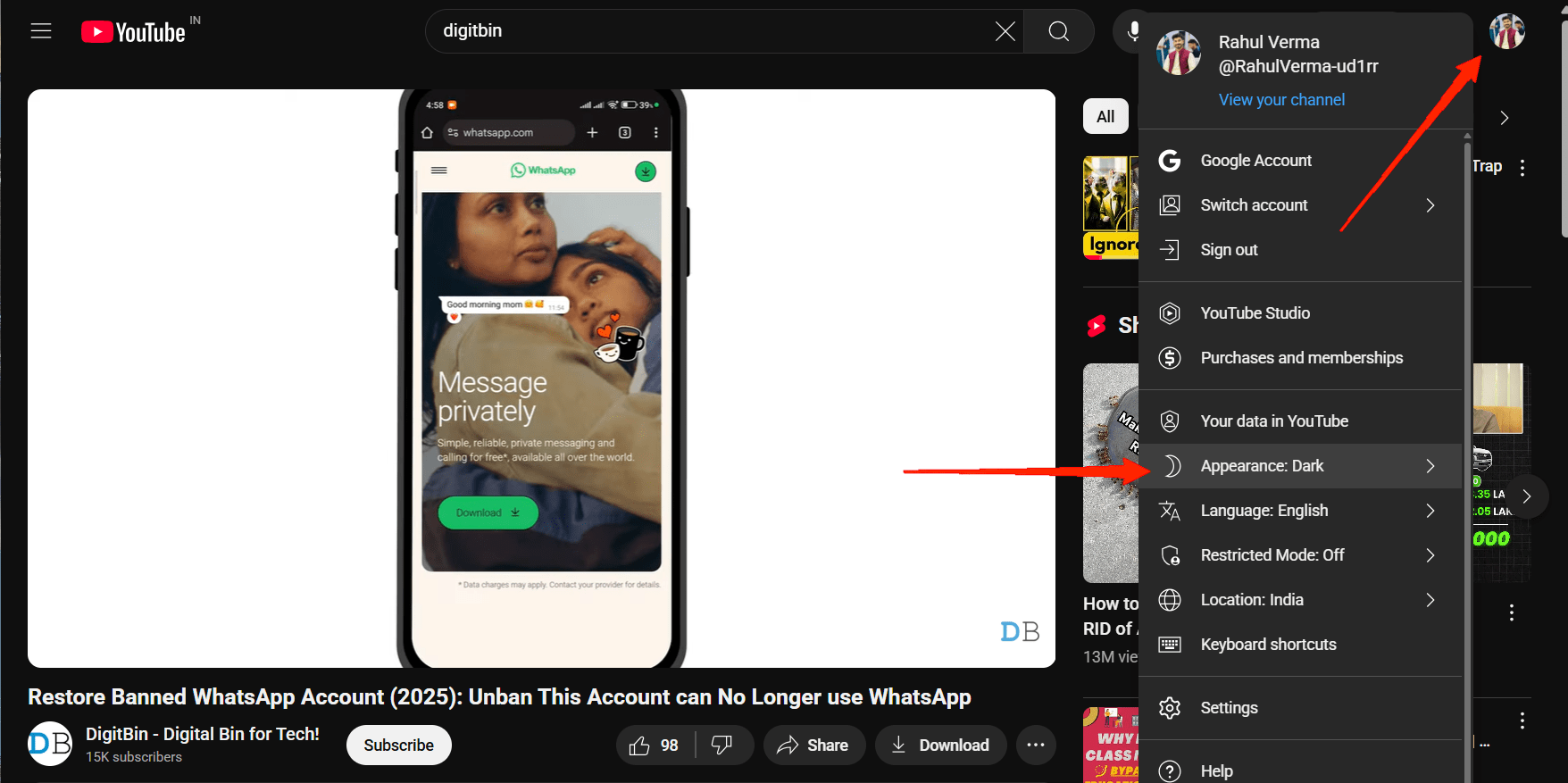
3. Enable Ambient Mode on Desktop
Sometimes the feature is disabled accidentally. But you can turn it back on while watching any YouTube video.
- While watching a video, click the settings icon on the video player.
- Look for Ambient Mode and toggle it on.
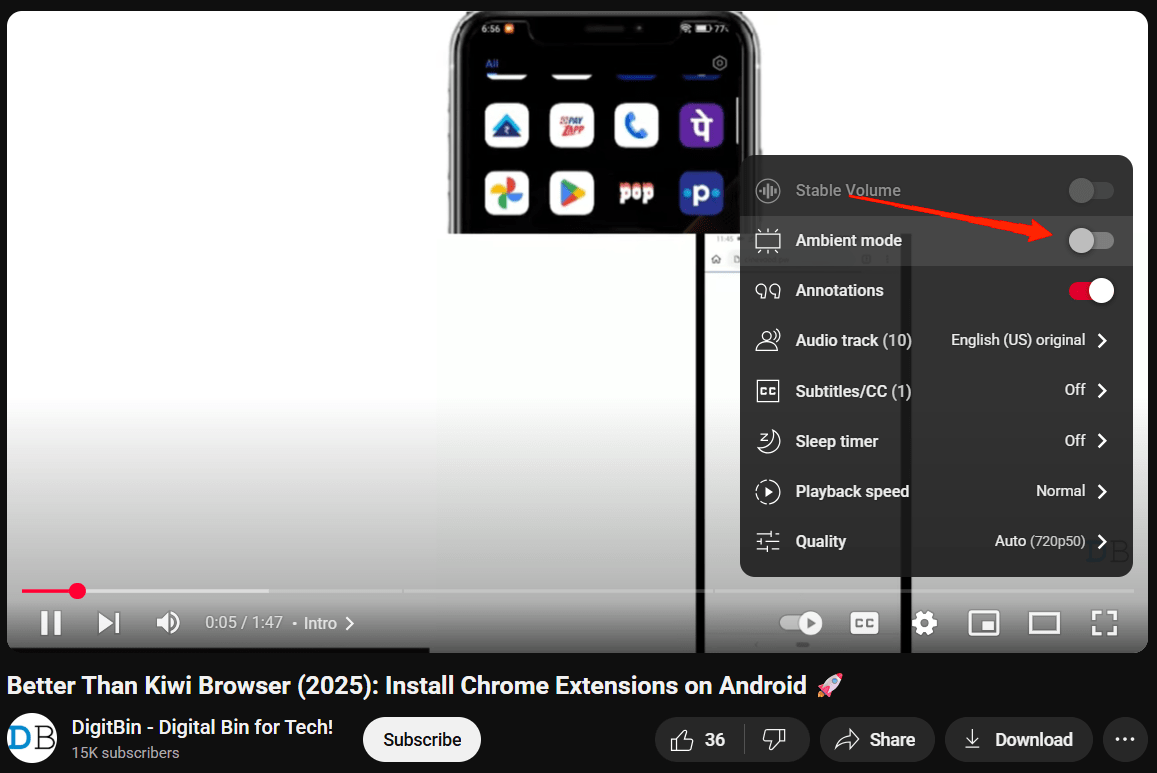
4. Enable Ambient Mode on the Smartphone
If the ambient mode option is not available on the Desktop, then you can turn it on on your mobile device. The same settings will be applied to your Google account, and it will work on your Desktop as well.
- Open any YouTube video on your Smartphone.
- Click on the settings icon, and click on more.
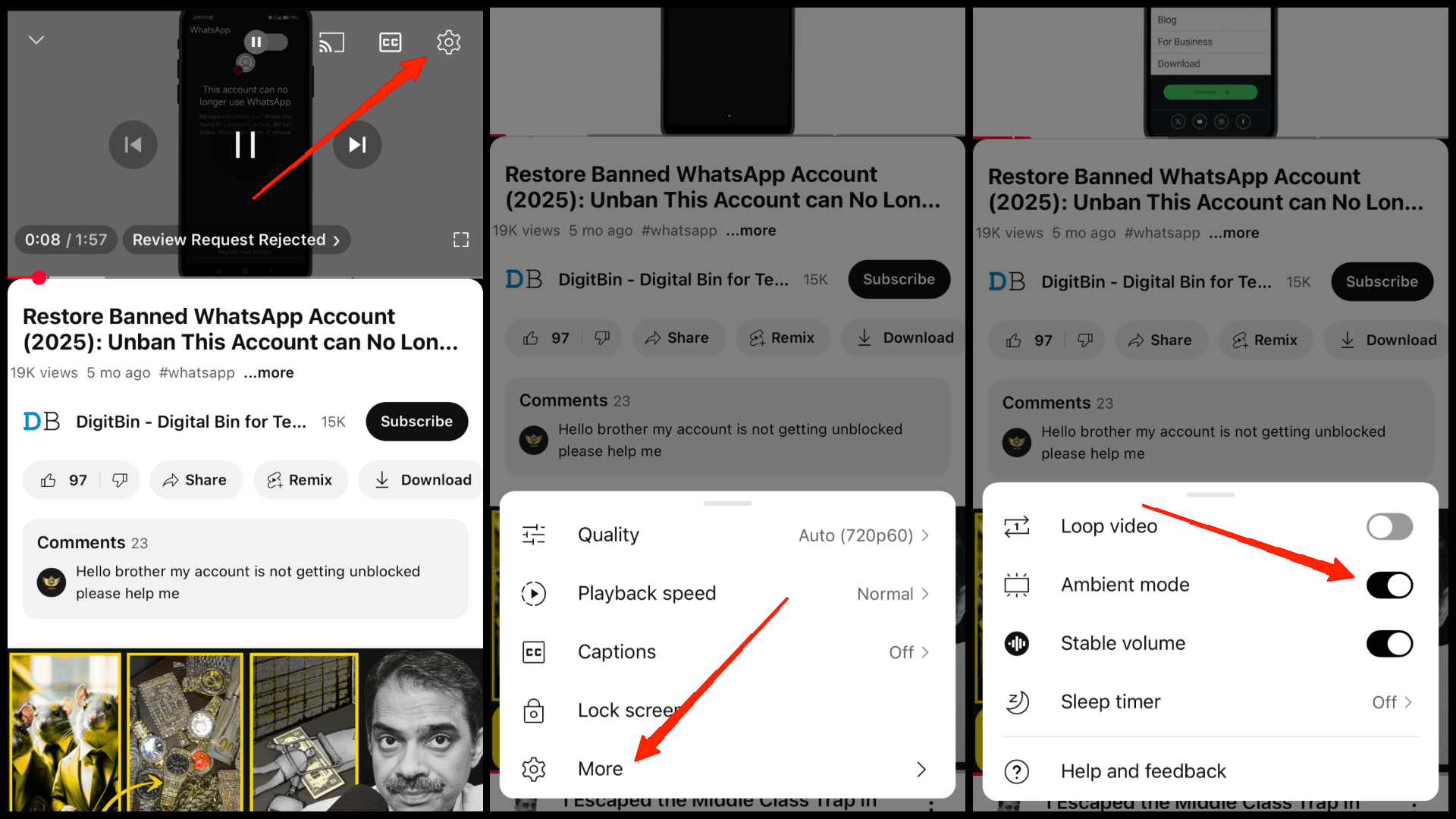
- There, toggle on the Ambient mode feature.
5. Update the YouTube App or Browser
Outdated versions often miss new YouTube features. If you’re using the app, make sure it’s updated from the Play Store/App Store. If using Chrome or Firefox, update it to the latest version by going to the settings page.
Conclusion
This brings us to the end of this guide for Fix YouTube Ambient Mode missing. Many users say that YouTube itself may be testing changes, so the feature doesn’t show for everyone. For me, it took trial and error to get it back. The good part is that most fixes are simple, and you can follow them to fix your issue at hand.
If you've any thoughts on How to Fix YouTube Ambient Mode Missing?, then feel free to drop in below comment box. Also, please subscribe to our DigitBin YouTube channel for videos tutorials. Cheers!