Windows 11 26H2 changes how Windows handles memory on PCs with 8GB of RAM, mainly so open apps and tabs get pushed out to slower storage less often. Microsoft says the build that carries the changes is 26300.9818 or later, and it has put numbers on the result.
I used Windows 11 26H2 on an 8GB laptop as my main machine for a week to see what an ordinary day looks like. I did not run any benchmark tests. So, where I quote measurements, they come from other people’s tests I have come across on the web.
TL;DR: Windows 11 26H2 uses noticeably less RAM on an 8GB laptop right after boot, but the gap narrows once real work starts. Microsoft’s up to 20% and 40% figures come from telemetry and one lab test, so read them as ceilings. The change that annoyed me most was Edge sleeping inactive tabs after 15 minutes. Heavy editing and modeling still need 16GB.
How to get the 8GB changes on 26H2?
Check your build first, because the 8GB changes require Windows 11 26H2 build 26300.9818 or later.
- Press Win + R to launch the Run box.
- Type winver and press Enter.
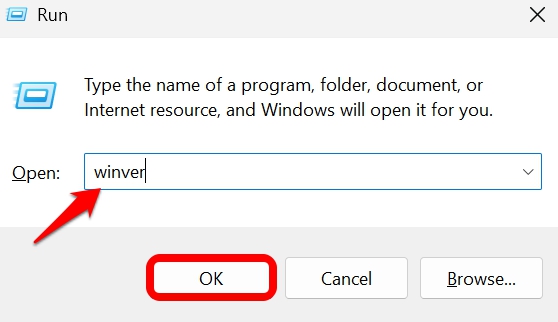

- Read the build number the command returns.
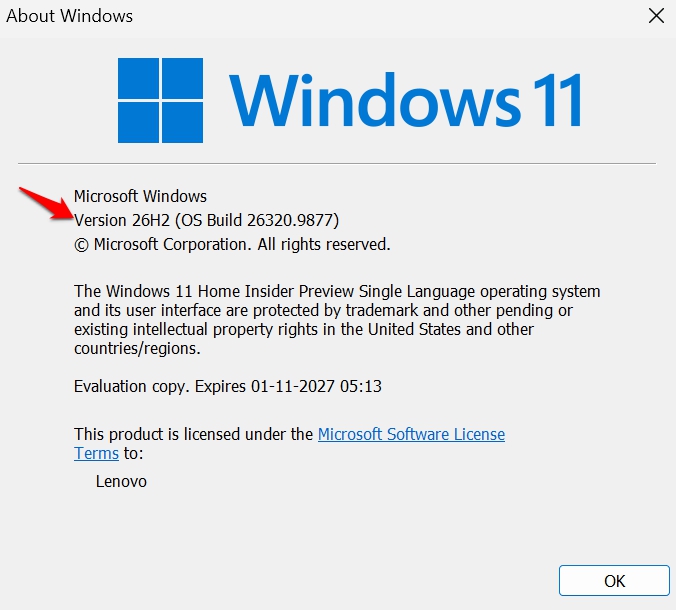

If you are using an older Windows 11 version such as 25H2,
- Open Settings > Windows Update.
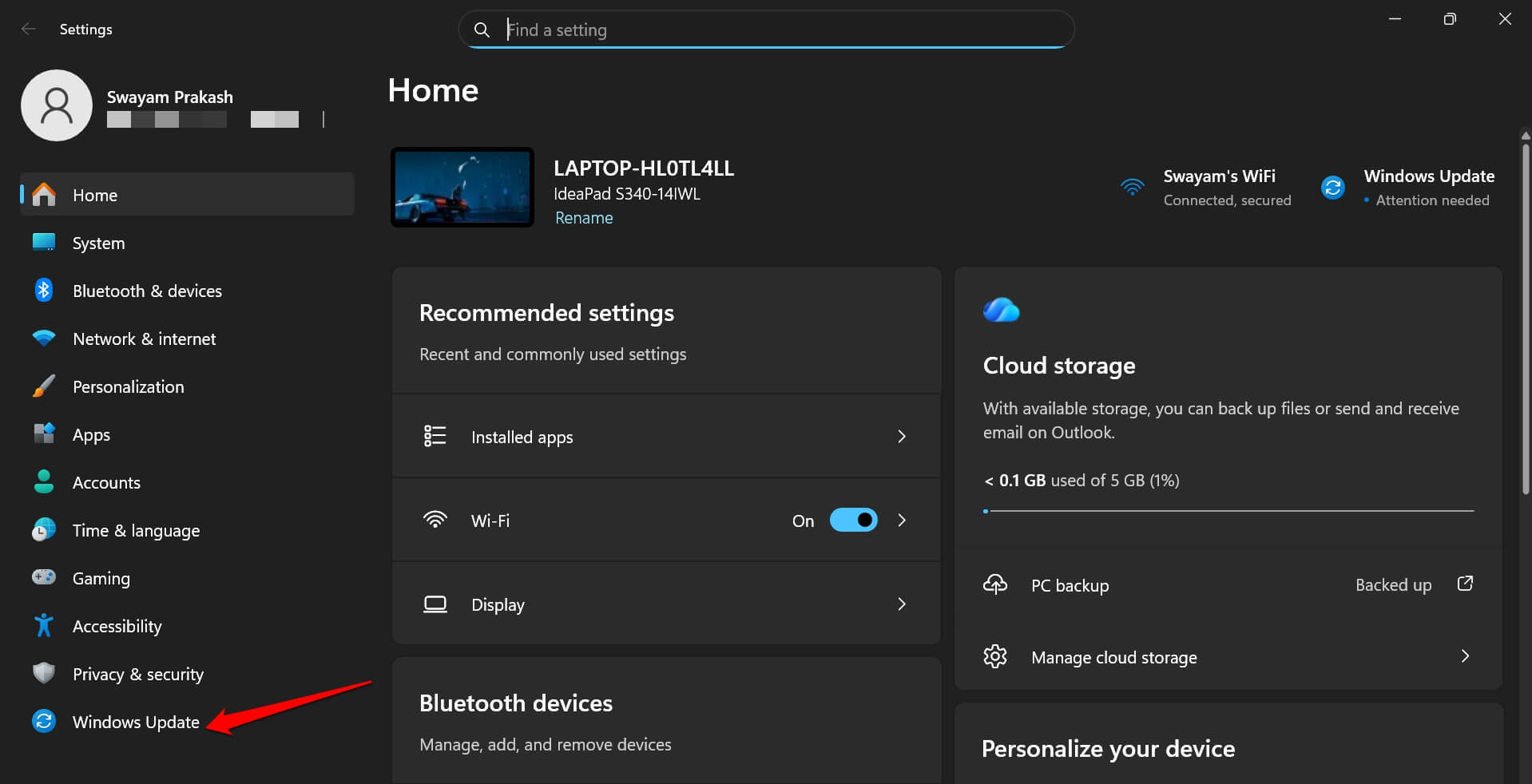

- Turn on the option to get the latest updates as soon as they are available.
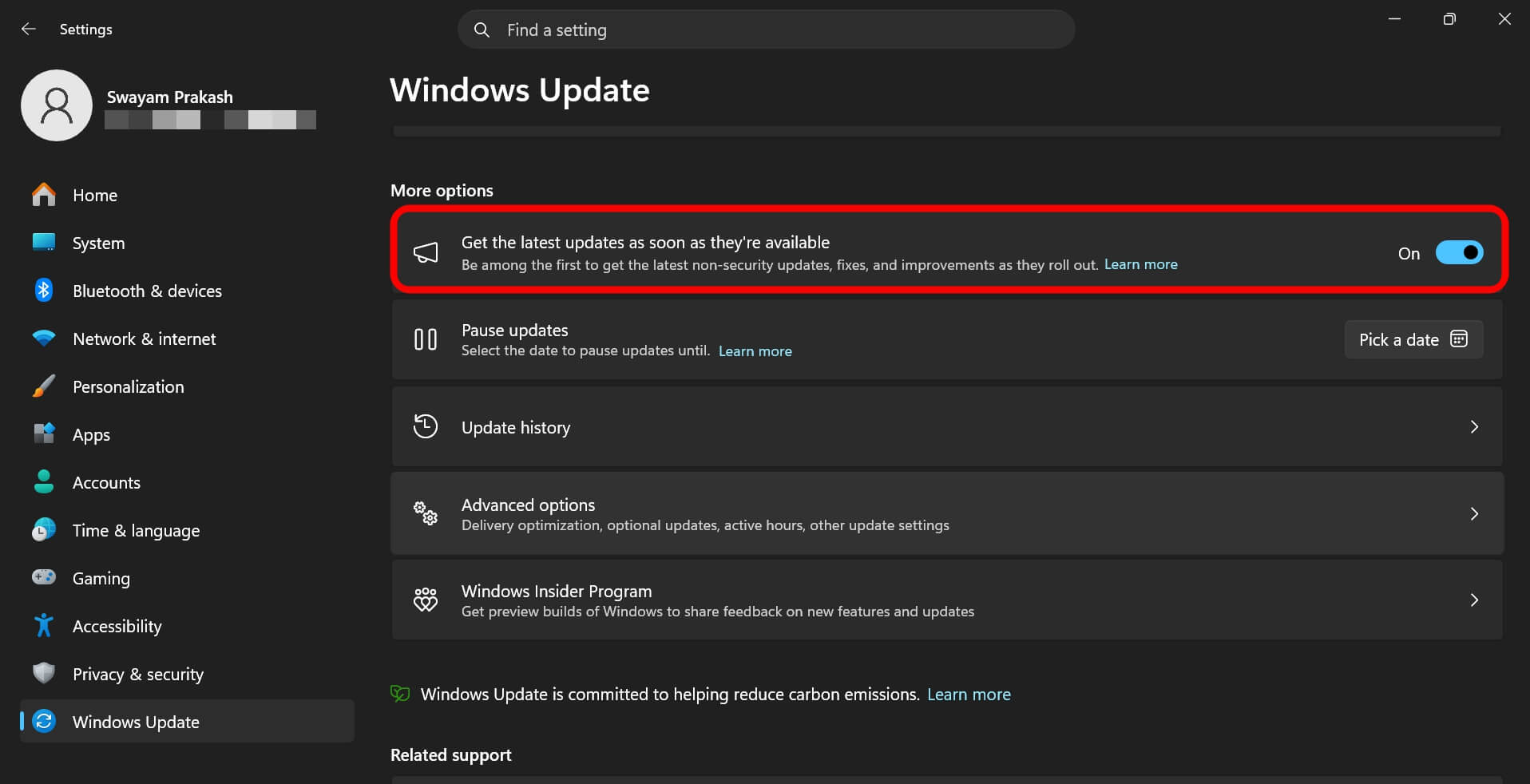

- You may manually check for updates.
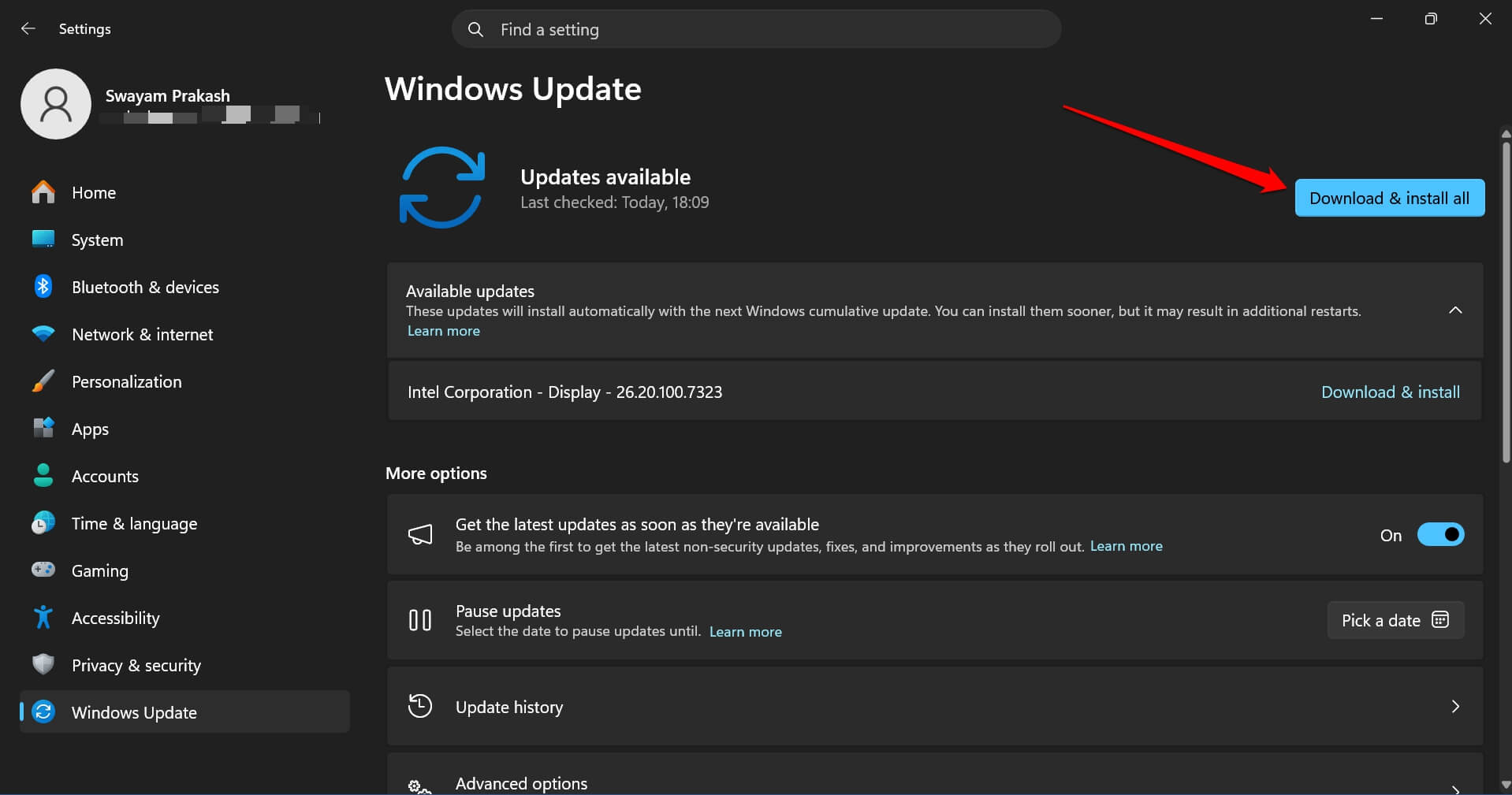

Keep Edge, Microsoft 365, and Teams updated too, because some of the app-specific fixes and improvements arrive through app updates and not through the OS update itself.
My 26H2 availability guide covers the update path in more detail.
Here is the short checklist for the 26H2 8GB update:
| Requirement | Status |
|---|---|
| Windows version | Windows 11 26H2 |
| Minimum build | 26300.9818 |
| Edge for faster launch | Edge 150 or later |
| Apps to keep updated | Edge, Microsoft 365, Teams |
| Check your build | Win + R, then winver |
What Windows 11 26H2 on an 8GB laptop does with RAM
Normally, Windows 11 26H2 keeps up to 2GB more active data in memory on 8GB PCs. So, a left-open app or tab is less likely to reload. The OS also reports up to 900MB less committed-memory growth in multitasking.
Independent numbers are smaller than that headline. I measured a friend’s laptop with 8GB memory at 4.1GB right after a fresh boot on 26H2 compared against a PC with 5.3GB on an older 25H2. The difference was only 0.4GB less in everyday use. 7.0GB down to 6.6GB.
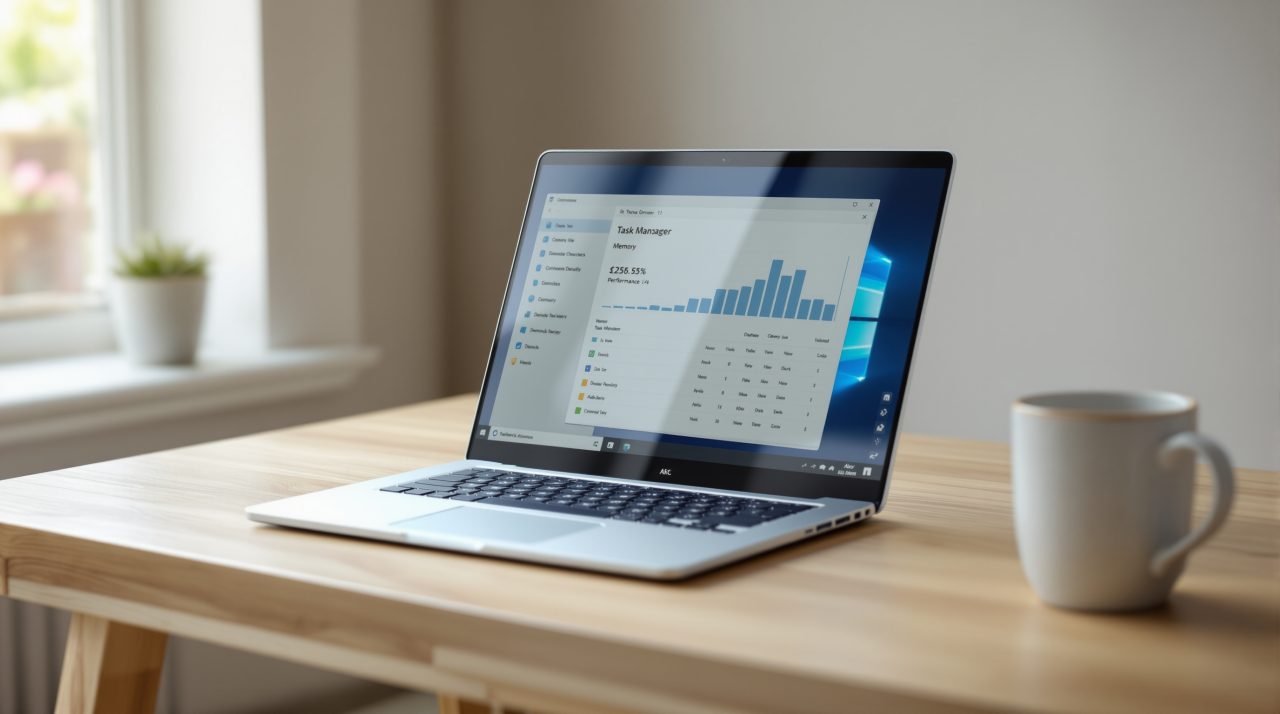
I regularly observed the Memory page in Task Manager throughout the week instead of logging figures. The drop after boot was easy to see, and the gap closed once Edge and a few Office windows were open.
Where the 20% and 40% claims come from?
Everyday use on 8GB PCs responds up to 20% faster, based on telemetry comparing build 26300.9550 with 26200.7628.
The 40% multitasking figure comes from one lab test on an HP OmniBook 3 with a Snapdragon X Plus and 8GB. Microsoft’s own footnote says it is not a benchmark. Of course, results will vary as per use cases.
The 20% covers Start, Search, Settings, and right-click menus, which is where I felt it. The first right-click in File Explorer after a restart stopped hanging for a beat.
DigitBin wrote a separate 40% claim breakdown if you want the test conditions. Check the article below.
Edge now sleeps tabs after a few minutes of inactivity
Edge now puts inactive tabs to sleep after 5 minutes by default, down from two hours, and this is the change most likely to annoy you.
A reference tab I had parked while writing came back with a reload spinner. Nothing was lost, but it broke my flow for a few seconds.
The fix is in Edge. Here’s what you can do.
- Open edge://settings
- Go to System and performance > Performance.
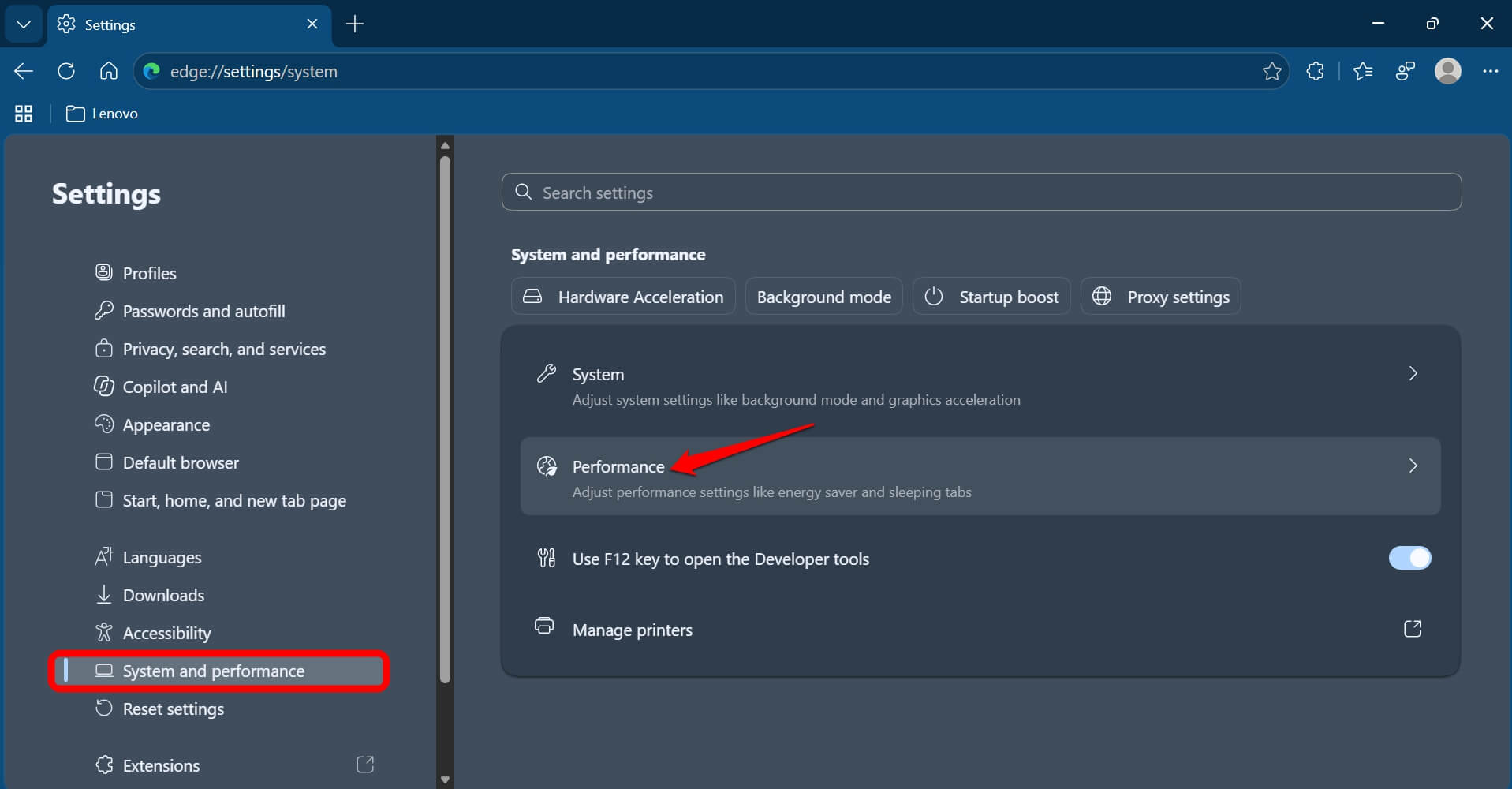

- Under the Memory tab, enable Put inactive tabs to sleep after the specified amount of time.
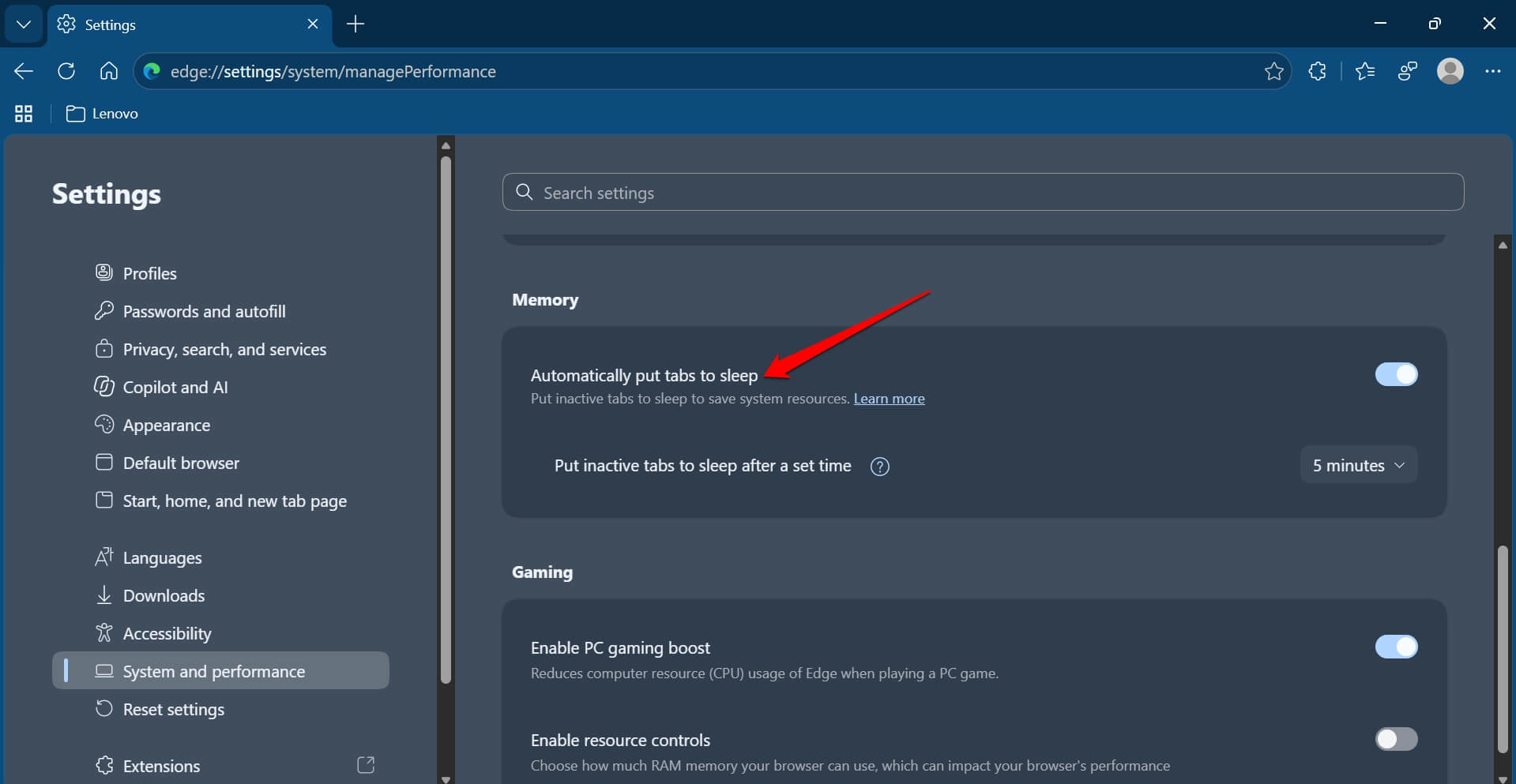

- You can also add one or more sites under Never put these sites to sleep,
Here, the trade-off is memory. So, add only the few tabs that might make the difference in the overall performance.
Teams and Widgets on a small RAM budget
Teams can turn on Efficiency Mode by default on 8GB PCs, which Microsoft says helps it launch up to 20% faster. During meetings, it can lower camera resolution to save processor capacity for audio.
I could not tell on my own camera feed whether it softened, so I will not claim it did. Widgets now loads only when you open it on PCs with 8GB or less, which frees roughly 200MB while it is closed.
Startup apps consume a substantial amount of memory
Startup apps can use up the memory 26H2 just gave back, so trim them before judging the update.
- Open Settings > Apps.
- Click on Startup.
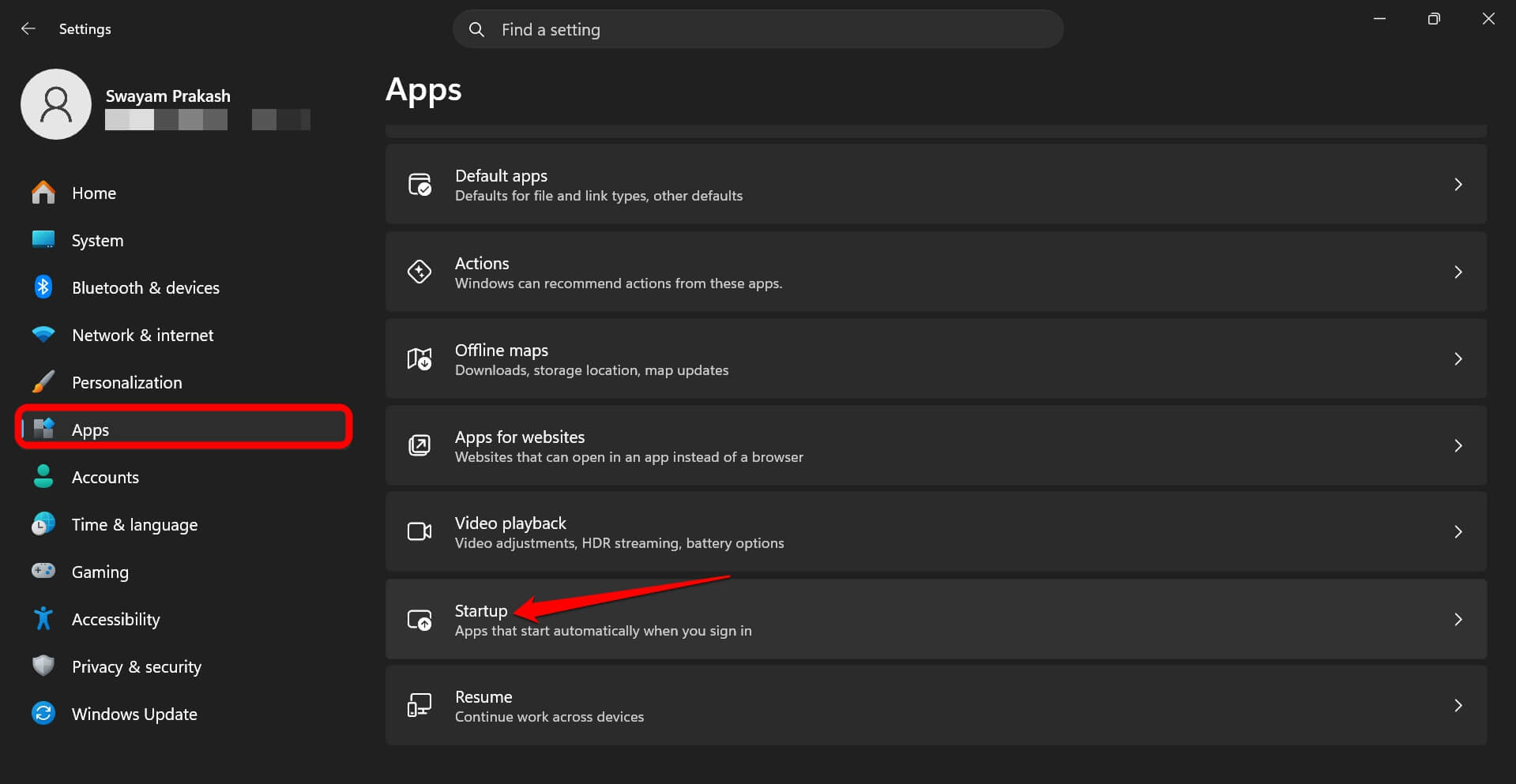
- Disable the apps that do not need to run when the PC boots.
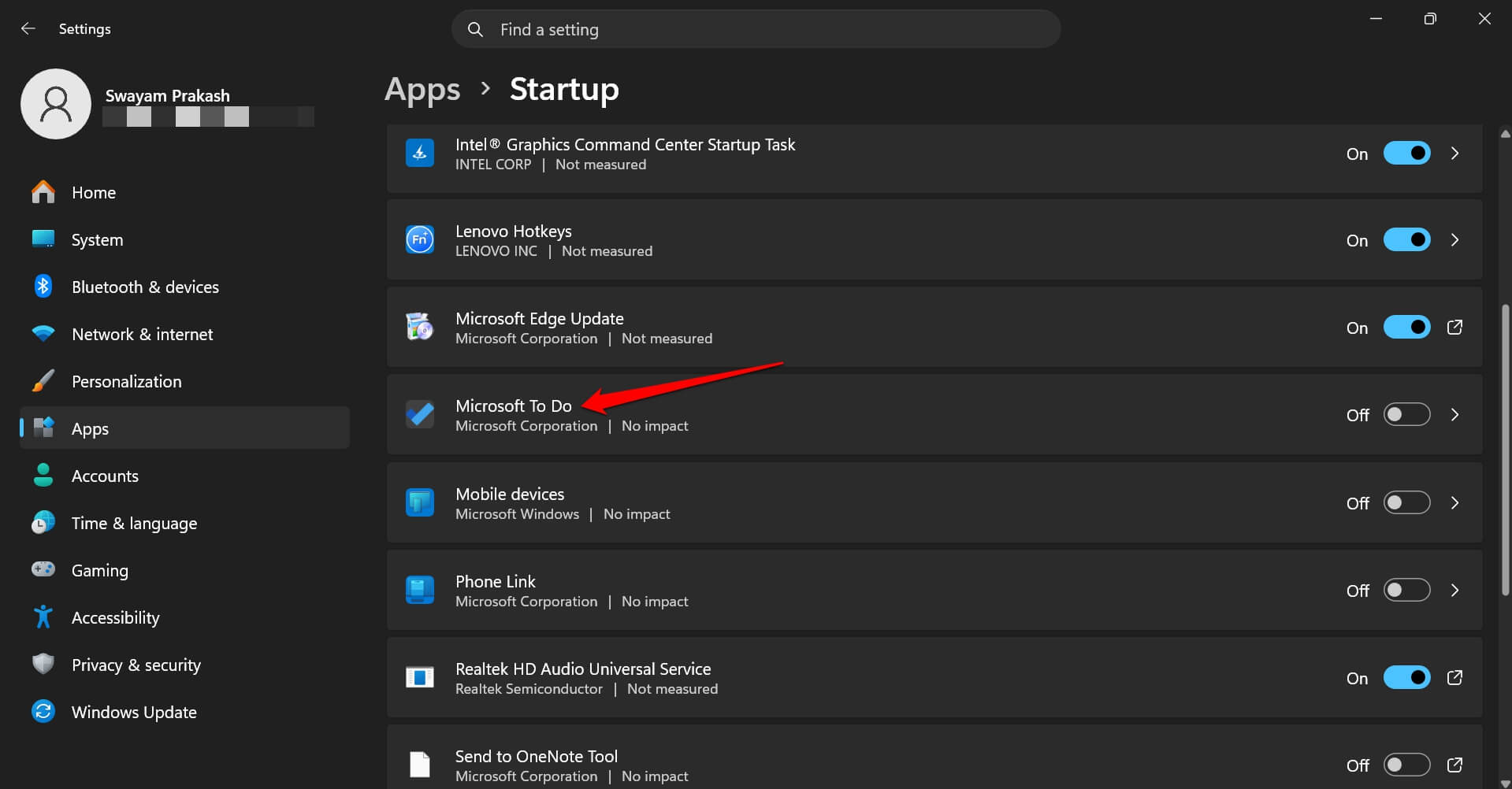

I turned off Microsoft To-Do, Mobile Devices, and a few more apps I barely use, let alone needing them to run at startup. Fewer programs at sign-in also meant the first minute after a restart felt less crowded.
Frequently asked questions
What build do I need for the 8GB improvements?
You need Windows 11 26H2 build 26300.9818 or later. Press Win + R, type winver, and read the build number.
Does Windows 11 26H2 close my Edge tabs?
No. Edge puts inactive tabs to sleep after 15 minutes by default, and a sleeping tab reloads when you return to it. You can change the timer or add sites under Never put these sites to sleep in Edge settings.
Is 8GB enough for Windows 11 now?
For everyday work, mostly yes, but memory still fills up under load. Windows Central saw 6.6GB to 6.8GB in use on an 8GB laptop, and Microsoft recommends 16GB or more for 3D modeling, advanced video editing, and large data work.
Is the 40% faster claim real?
It is one lab test on an HP OmniBook 3 with 8GB and a Snapdragon X Plus. Microsoft says it is not a benchmark and the result is specific to that setup.

When an 8GB laptop still runs out of memory
An 8GB laptop on 26H2 still fills up once memory-intensive work starts, and no update changes that for heavy editing or modeling.
If Task Manager keeps showing memory near full, check startup apps first, then the Edge sleep timer, and only then blame the laptop.
If winver still shows a build lower than 26300.9818 after you check for updates, the 8GB changes have not reached your laptop yet, and the older 25H2 behaviour is what you are measuring.