I recently experienced continuous lag while streaming YouTube videos. There was no issue with the network, no heavy background downloads, no extra tabs, no active webpage save for YouTube, but the network speed was sluggish for some reason.
I just could not wrap my head around it, and checked the resource monitor via Task Manager. Surprisingly, the PC was actively uploading data to random IPs on the web. A little research led me to the root of the issue, which was the Delivery Optimization feature in Windows 11 settings.
This feature was using my PC and network as a node to distribute system updates to other Windows users. Due to delivery optimization using my network to send updates in bits and pieces, I was experiencing issues with streaming videos on YouTube.
What is Windows Delivery Optimization?
It is a peer-to-peer update distribution system that downloads part of a system update from Microsoft servers and other parts of the same software update from other Windows PCs across the internet.
This works both ways. When my PC has the required software update files, Windows uploads bits and pieces of the file to other users actively downloading the same software update using my network bandwidth. The mechanism is similar to how torrent seeding works when you download files from torrent sites.
Wondering why Microsoft uses this feature? When hundreds of users access Microsoft servers to grab an update, the whole process will become slow due to the overwhelming amount of access requests the servers get. To facilitate faster updates, they use this peer-to-peer update method.
The Delivery Optimization feature is enabled on Windows 11 by default. Normally, with an unlimited fiber network, you won’t notice the lag when updates are distributed via this feature. However, when using a mobile hotspot or networks with capped upload speeds, the Windows will consume the network bandwidth while sending update files to other users. This will noticeably slow down the network.
How to disable delivery optimization in Windows 11?
The delivery optimization feature can be turned off, and I did the same right away when I became aware of the feature eating away my network bandwidth, stopping me from utilizing the network for other important things. The feature is housed deep inside Windows 11 settings, where most people would not find it.
Here is how to turn off Windows 11 Delivery Optimization.
- Press Win + I to open the PC Settings.
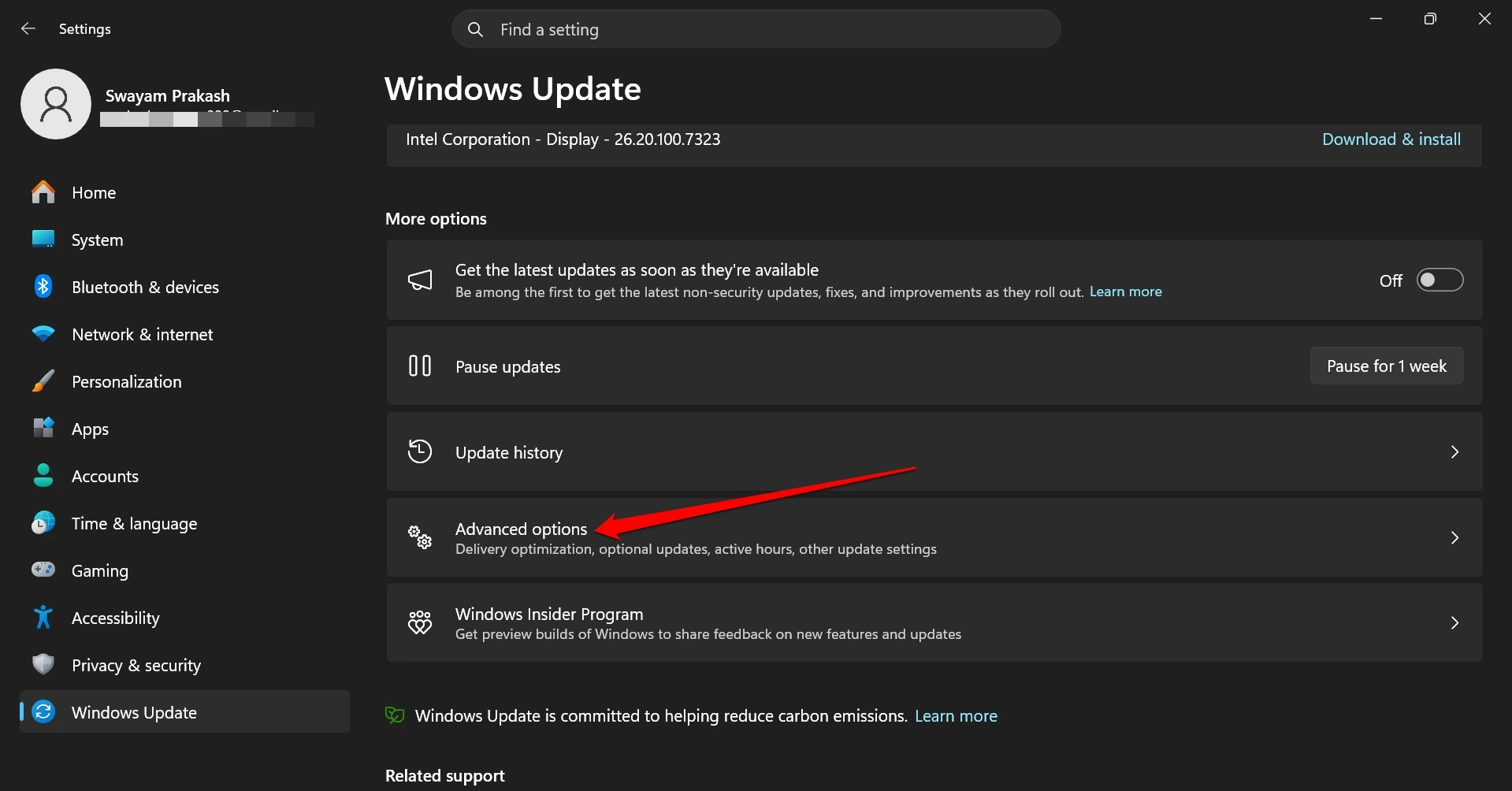
- Click Windows Update in the left sidebar.
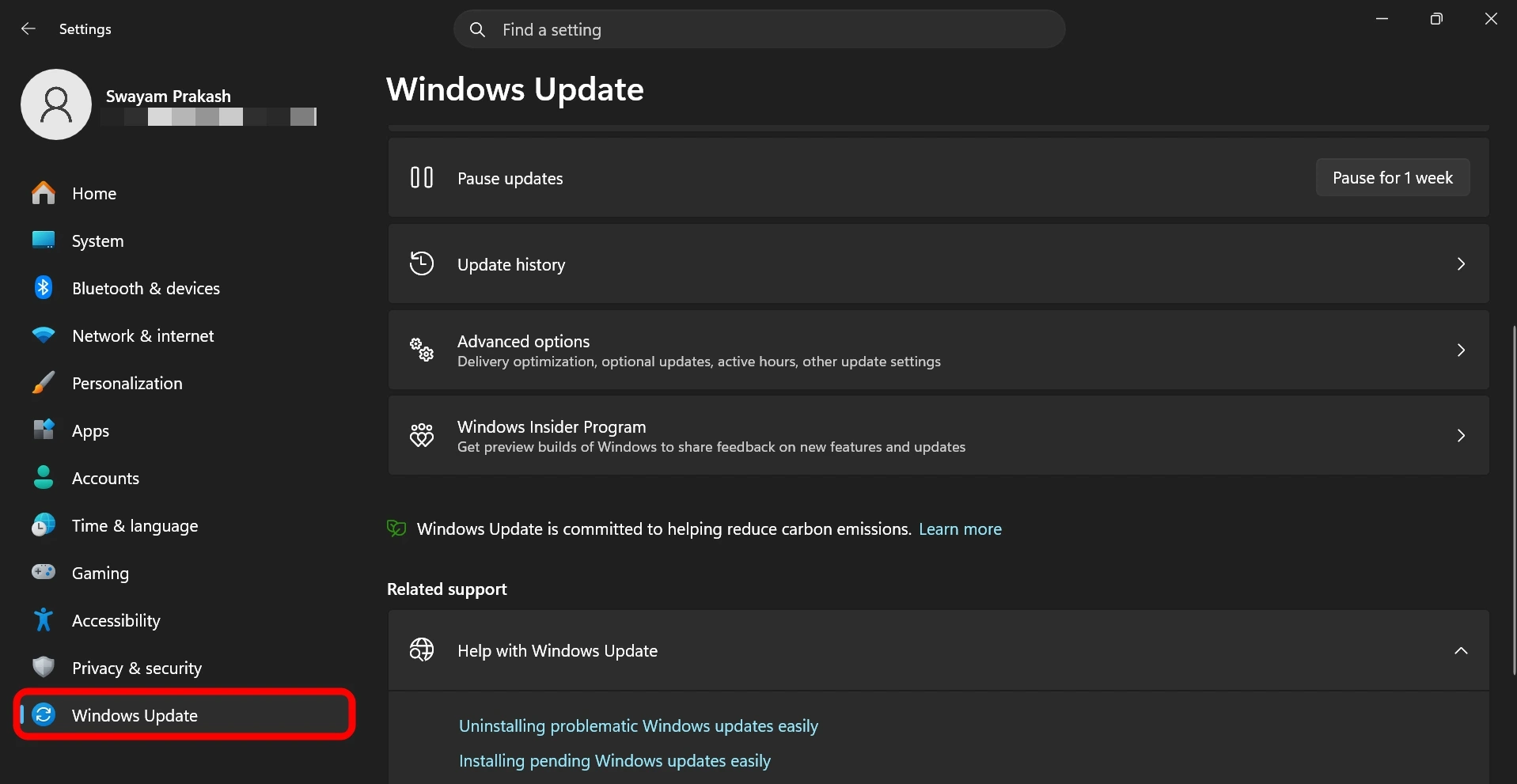

- Select Advanced Options.

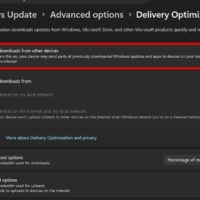
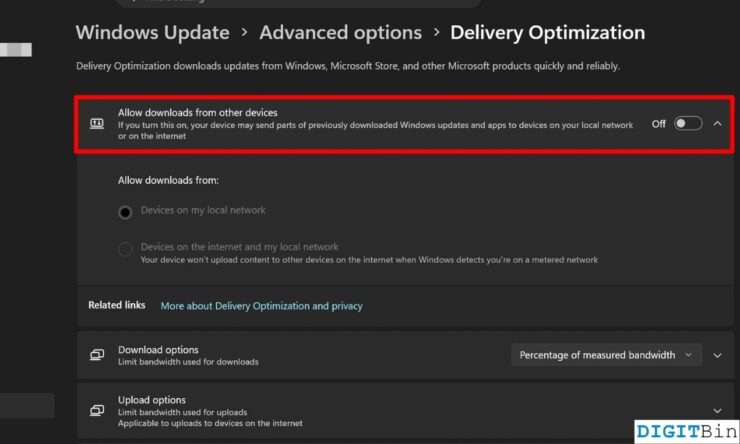
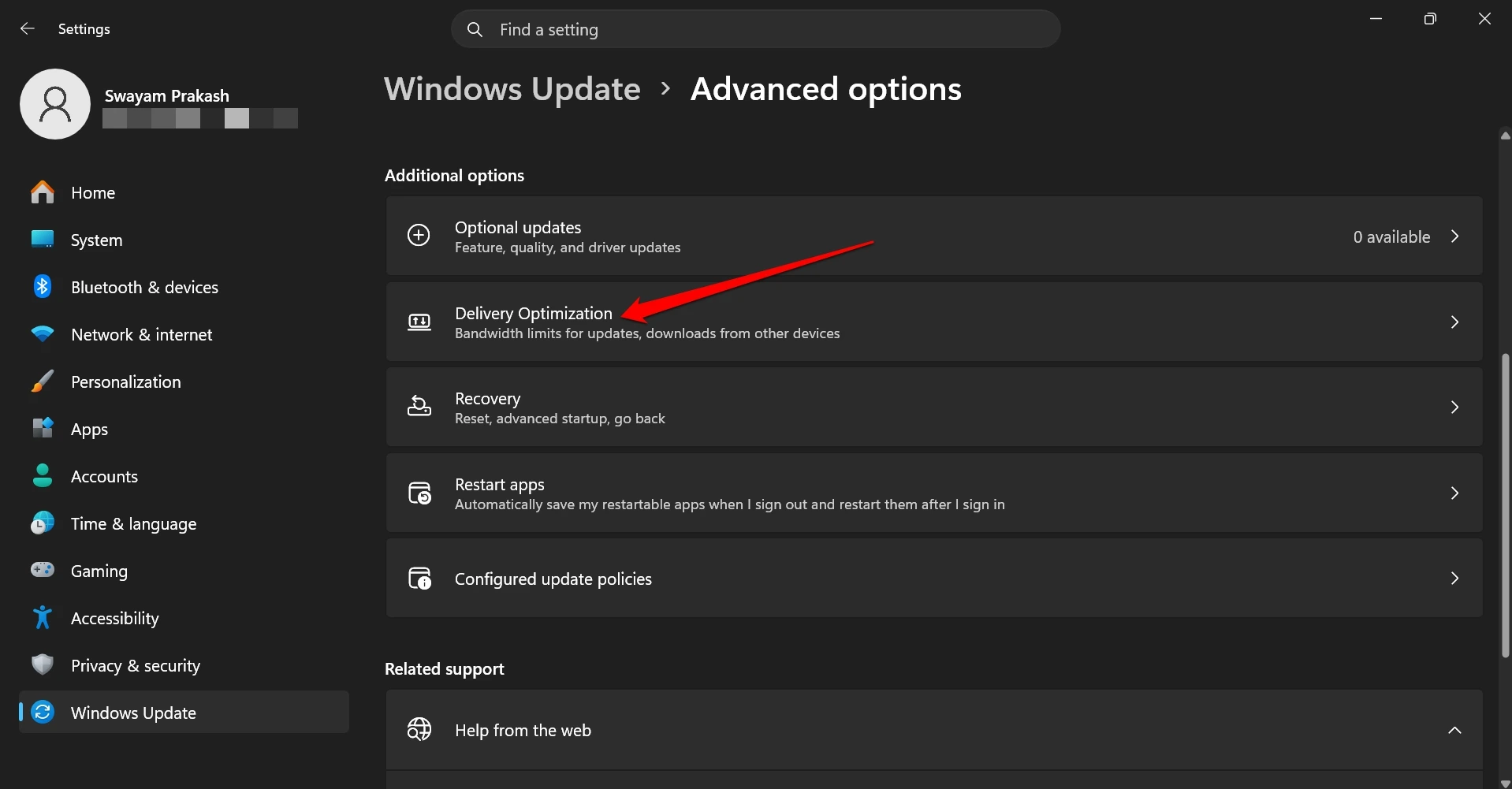
- Click Delivery Optimization.

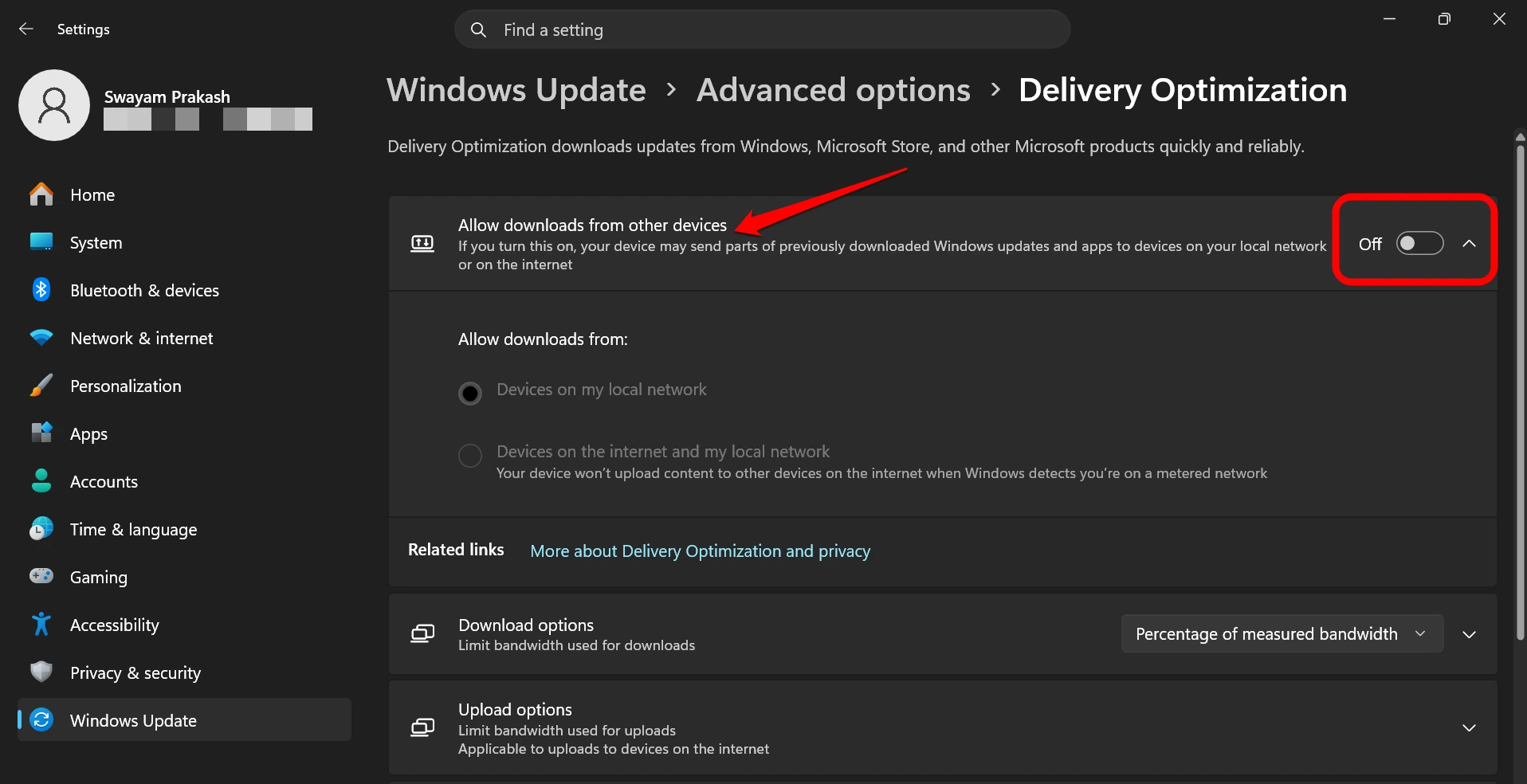
- Toggle off Allow downloads from other PCs.

What does turning off delivery optimization actually do?
With the update distribution feature disabled, your PC will no longer upload update data to other devices on the internet or your local network.
Don’t worry, as software updates will still download and install normally on your PC, directly from Microsoft’s server. On a regular home network, you won’t notice any significant lag when downloading updates straight from the server instead of optimized delivery from other users and the server when the feature was active.
It’s the upload process that stops on your PC, which was earlier contributing bandwidth to distribute updates to random Windows users on the internet.
Should you disable it?
Normally, I would not have cared about the feature when using an unlimited broadband. However, I use a network with a limited quota that I prefer utilizing for my work. So, it became necessary for me to turn off the delivery optimization on my PC.
There is one good thing about Delivery Optimization. It is designed to refrain from utilizing the network resources when the user’s network is busy or low on bandwidth for sharing software update files.
If your use case includes a capped data plan, a shared household network, a mobile hotspot, or you just don’t prefer sharing your bandwidth for Microsoft’s cause, it is better to turn off the feature.
Frequently asked questions
Will disabling delivery optimization slow down my Windows updates?
Not really, unless you are downloading a large system update. The PC will download updates directly from Microsoft’s servers, which is fast and reliable.
Does turning off delivery optimization stop Windows from collecting other data?
No. Delivery Optimization only deals with update file sharing. Telemetry, diagnostic data, and other Microsoft data collection are managed separately.
Will the delivery optimization settings stay off permanently?
Usually yes, but major Windows version upgrades can occasionally reset it. Do check the relevant settings after completing a Windows update.
Fetch updates directly from Microsoft
The peer-to-peer update delivery feature on Windows 11 was using my network bandwidth to send updates to people, which I did not find ideal. So, I turned off the feature on my computer and fixed the slow network issue. If you are experiencing slow network on your PC, check if turning off this sneaky Windows 11 feature resolves the problem.
If you've any thoughts on I didn’t knew this Windows 11 feature was secretly uploading software updates to other computers, then feel free to drop in below comment box. Also, please subscribe to our DigitBin YouTube channel for videos tutorials. Cheers!