I attended an event and captured a video on my OnePlus 10R; the video was of good quality with clear audio. I thought it was worth sharing on WhatsApp as a story. However, after uploading the video, I realized that the video quality had reduced and looked blurry. I tested another 4K video, thinking my video was not good enough, but the HD video also appeared blurry on upload. So what’s going on?
I searched through various forums, Reddit communities, and even looked at official meta documents—if you are looking to post HD-resolution video to WhatsApp status without losing quality, then here’s what I found, and how to upload an HD WhatsApp story.
Why Does Video Quality Deplete When I Upload a WhatsApp Status?
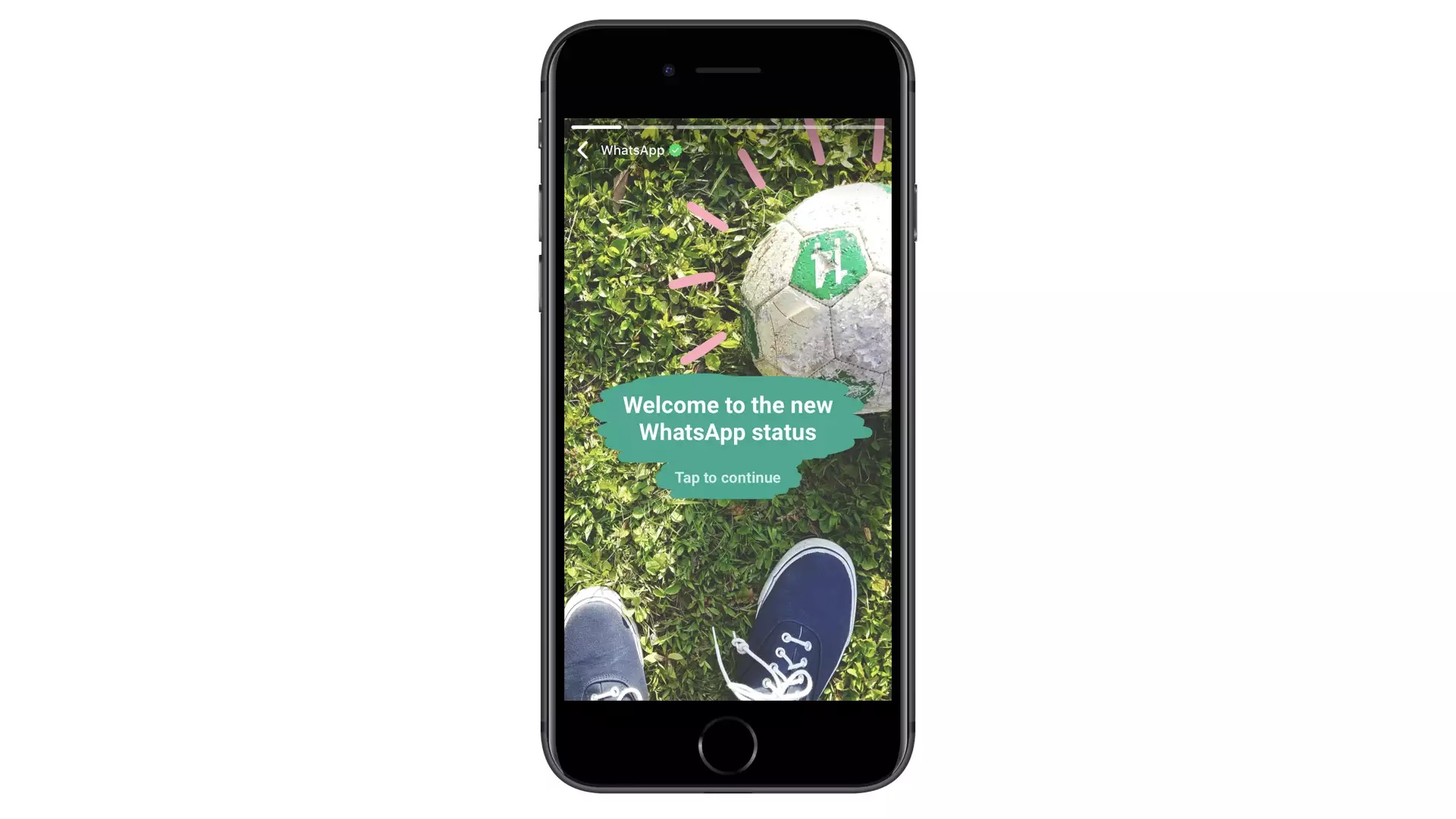
WhatsApp stories do not support HD-quality video upload. WhatsApp compresses the video, suitable for mobile viewing, using its aggressive compression algorithm to fit videos within a set duration and file size.
I found that on average, WhatsApp compresses a video 10 times. For example, I tested uploading a 30-second-long HD video weighing 214 MB. After WhatsApp compressed the size, the same 30-second video was trimmed to ~2 MB. No doubt, such heavy compression severely degrades video quality. I tested these workarounds to keep my WhatsApp stories as close to the original quality as possible, and trust me, these techniques will work for you too.
Method 1. Use PureStatus App
PureStatus can reduce video/photo size with minimal quality loss to enable HD uploads in WhatsApp Status, ensuring high-quality uploads with minimal compression. This is a simple and easy method that works on both Android and iPhone alike. The app uses WhatsApp API services to connect to WhatsApp servers.
I tested the app and found that the app works well and keeps the image quality better. I directly uploaded the video to the WhatsApp story without using PureStatus, and again uploaded the same video after processing it through PureStatus. The processed output turned out to be clearer compared to the directly added video. Here are the steps I followed.
- Downloaded the app on Android (It’s available on iOS as well).
- The app asked me to connect the WhatsApp API server with the PureStatus app.
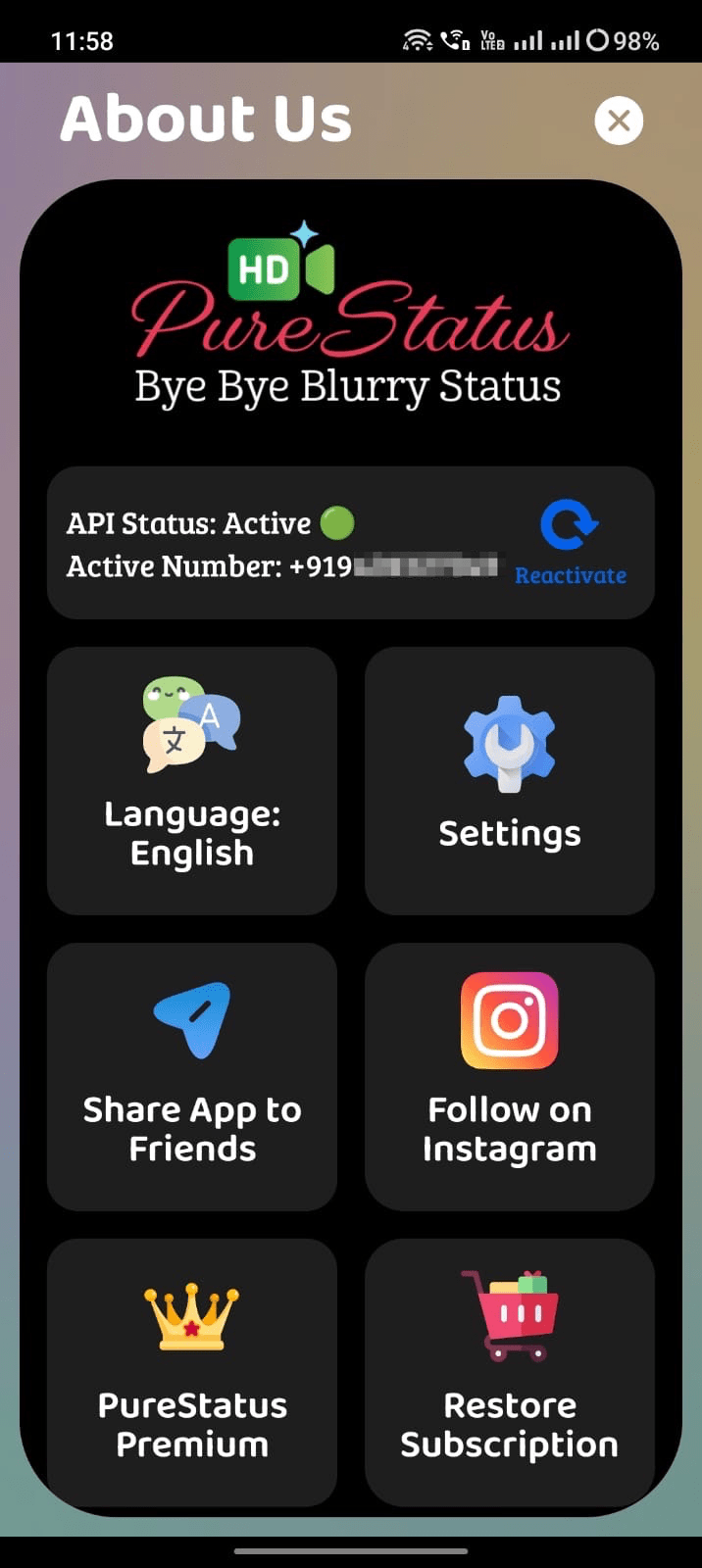

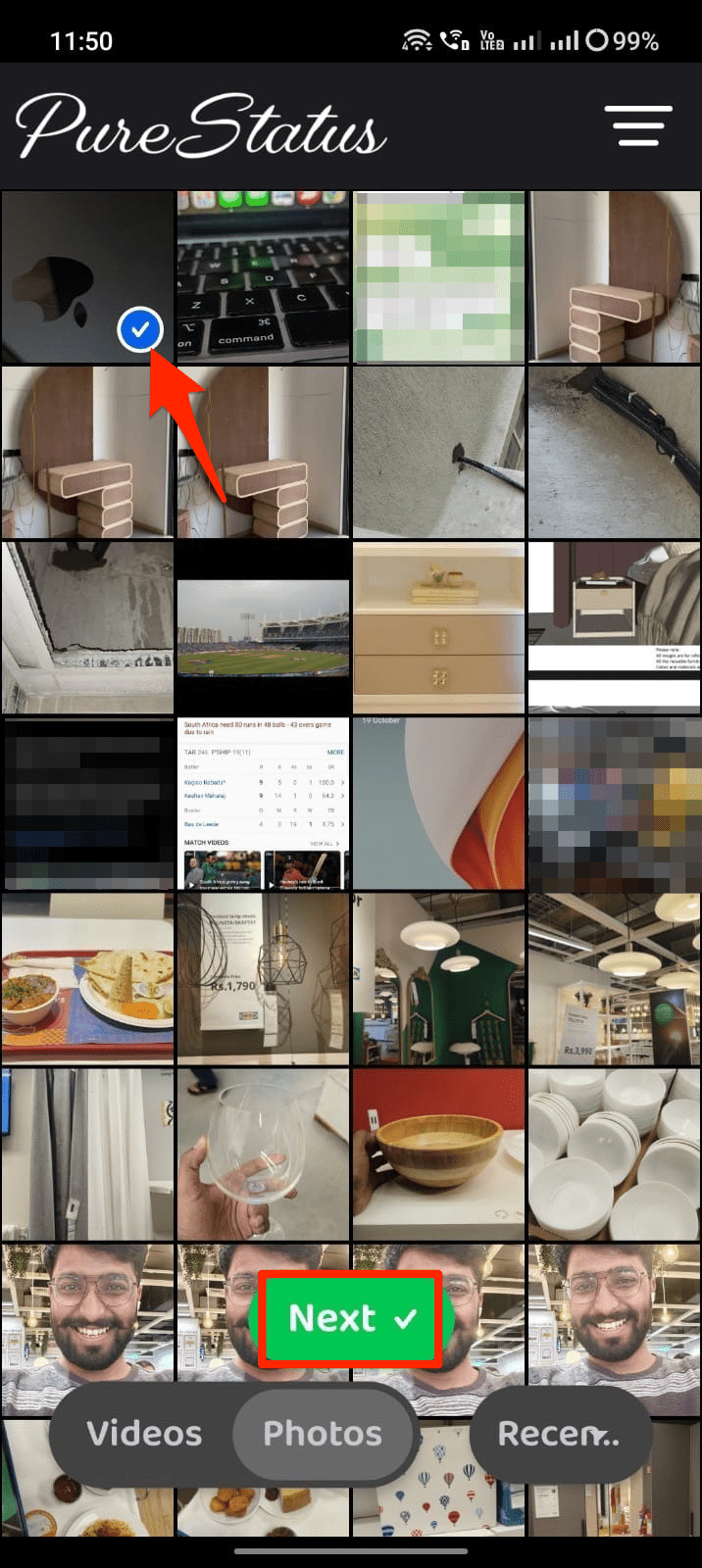
- Now, as I grant media access to the app and open it. I see a list of media files. I selected the video and clicked Next.
- I went with free compression that has a watermark. You can select a paid, watermark-free compression as well, but it’s paid.
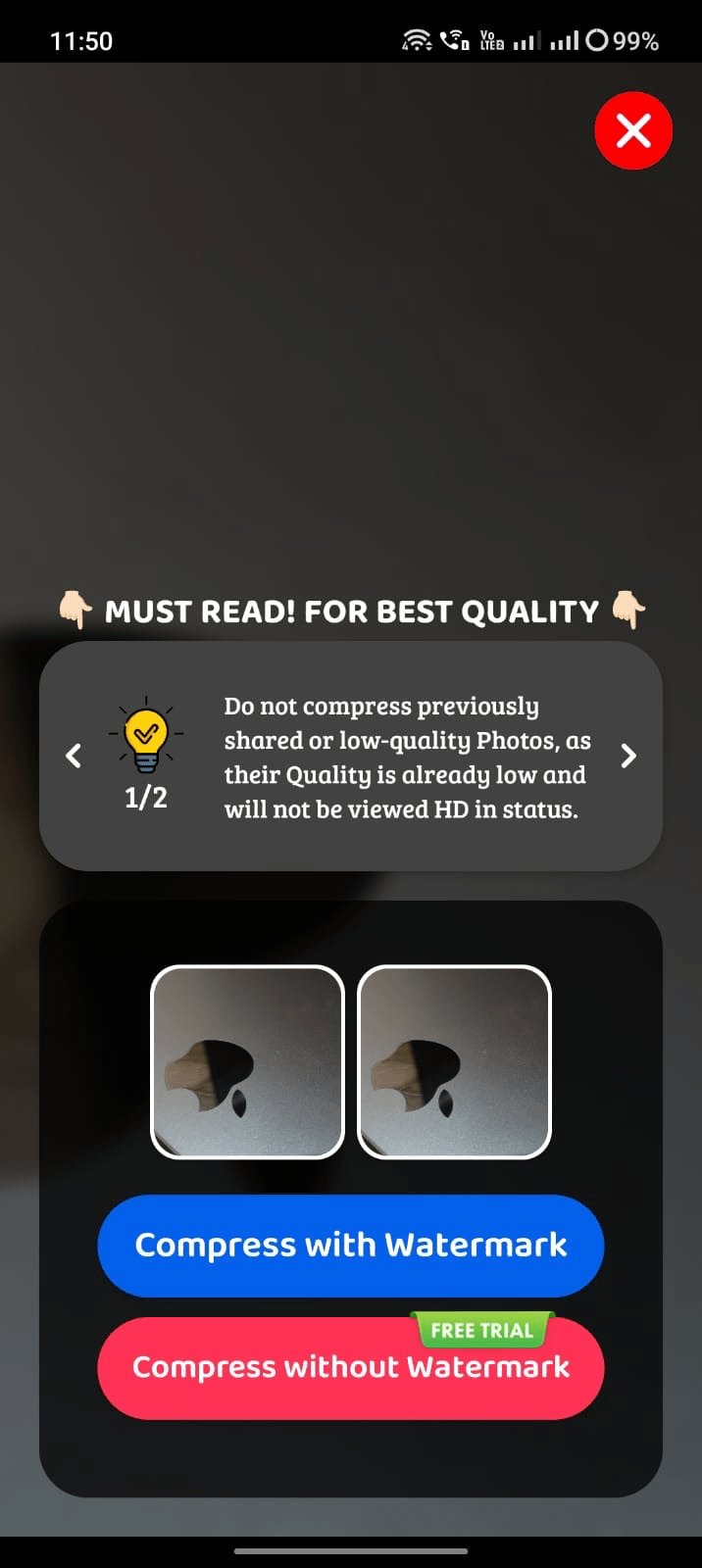
- Once the video is processed, I was able to directly upload it as a WhatsApp story or share it with my contacts. Below is the image uploaded to WhatsApp with and without PureStatus.
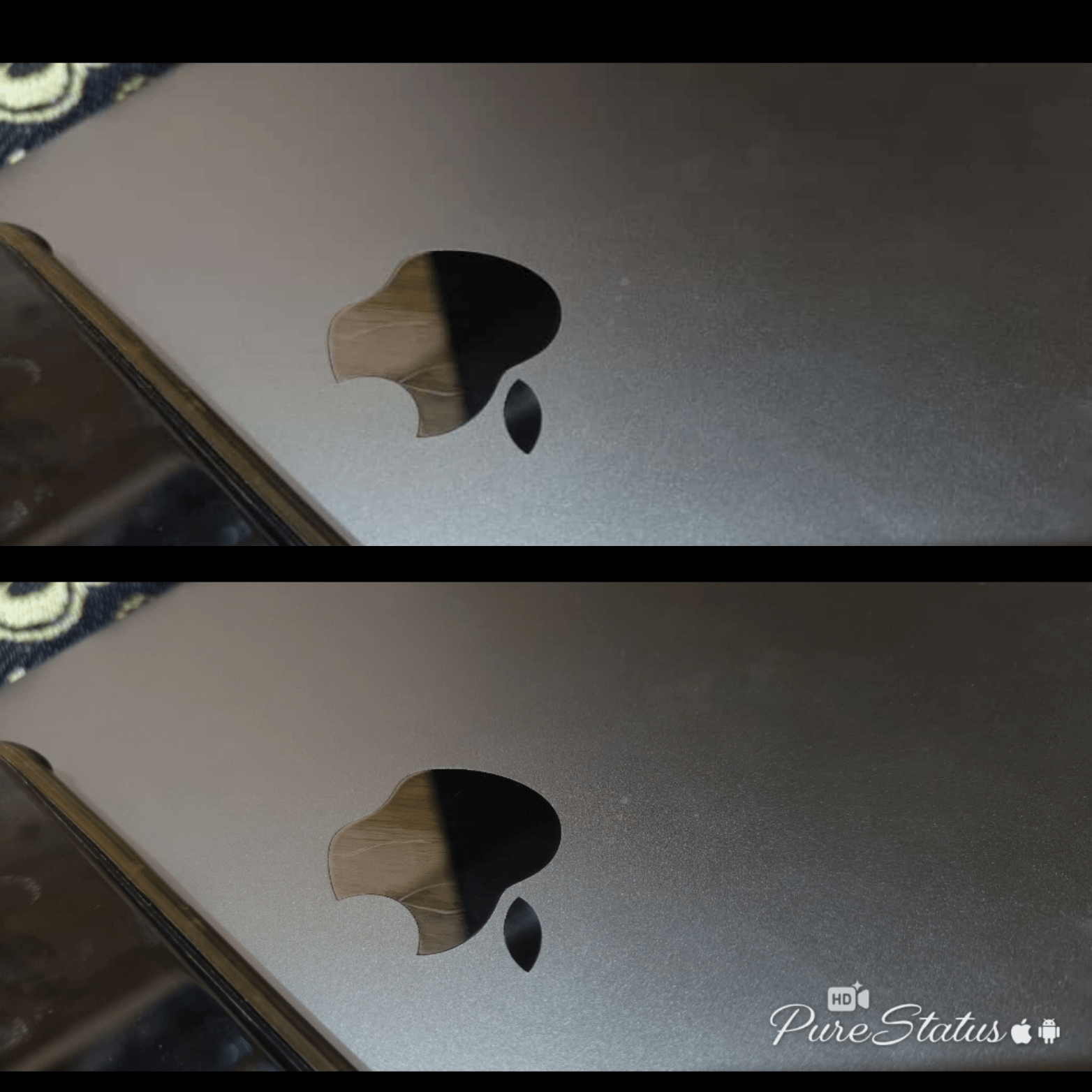

You can see the difference in the quality. To get the best results with PureStatus, do not edit or crop the video after compression; otherwise, the quality will be lost.
Method 2. Manually Compress the Video
I tested a few videos, and I noticed that WhatsApp can upload videos that are under 10MB without chopping the quality. So, if your video is of a small size, then uploading it to WhatsApp status will not affect the quality much.
If you directly upload an HD-quality video to WhatsApp status, the WhatsApp servers may compress it to a higher level, degrading the video further beyond the 10 MB threshold. In such a case, we can use a 3rd party video compressor app to compress the video; this way, you can keep the video quality good and reduce the file size compatible with WhatsApp and upload it as a status. Here’s how we can do it;
Manually compressing the video will help you retain the video details that may be lost due to WhatsApp’s own compression.
Step 1. Go to the Google Play Store or App Store and search for “Video Compressor Apps”. I have used “Video Compress Panda,” which has 5 M+ installs, but you can check out others, assuming that you are okay with the frivolous ads. [iOS / Android]
Step 2. Open the app and select the video that you want to compress.
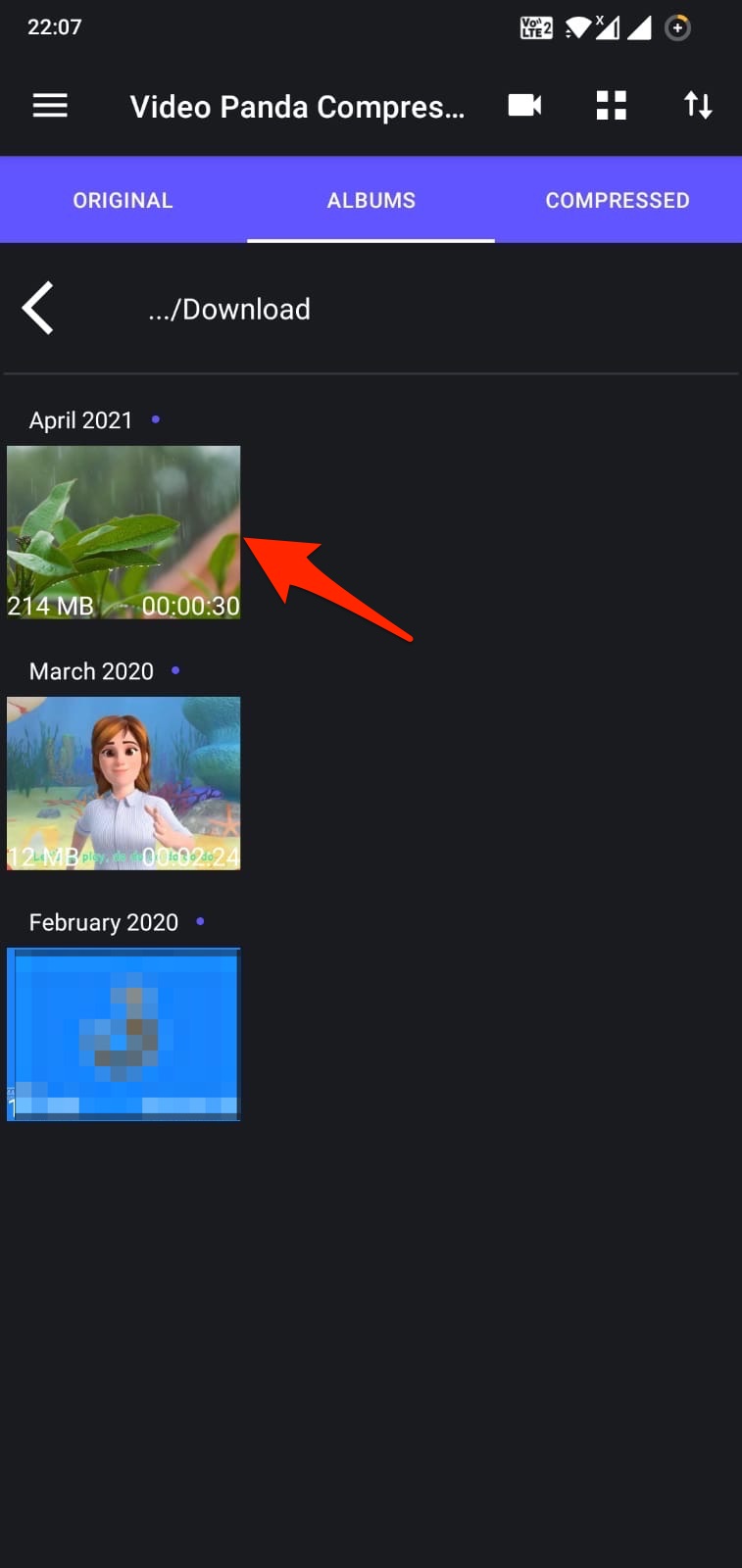
Step 3. Panda gives you multiple resolution options. I selected “Medium File (Better Quality),” but you can check out “Custom Resolution,” “1280×720,” and others.
You can check the video file for various resolutions so that you get good quality with an optimum size, so as to prevent WhatsApp from cutting the video quality any further.
You can also try other apps from the mobile app store to check various available options for compressing the video without compromising the quality.
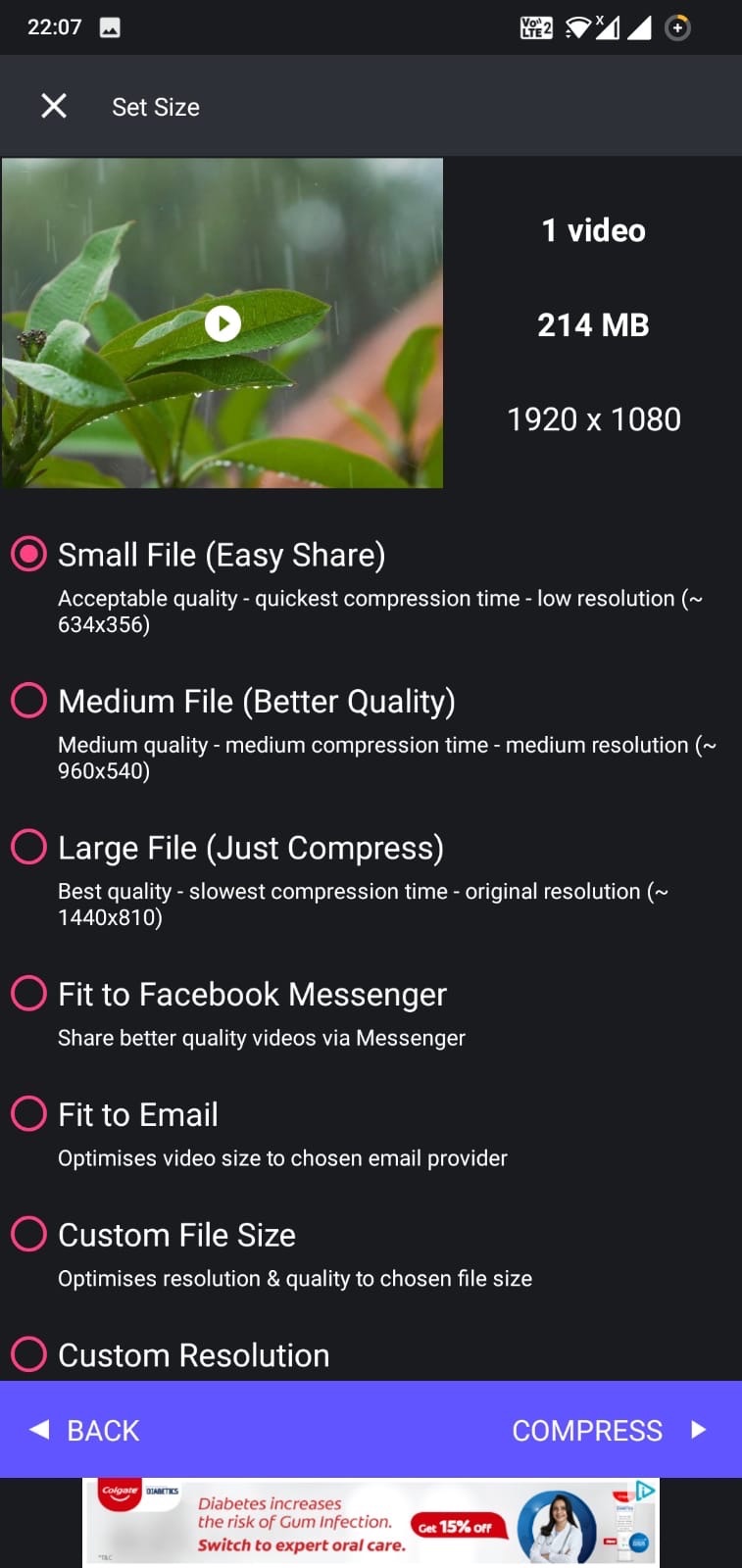
Step 4. Press the “Compress” button, and the processing will commence.
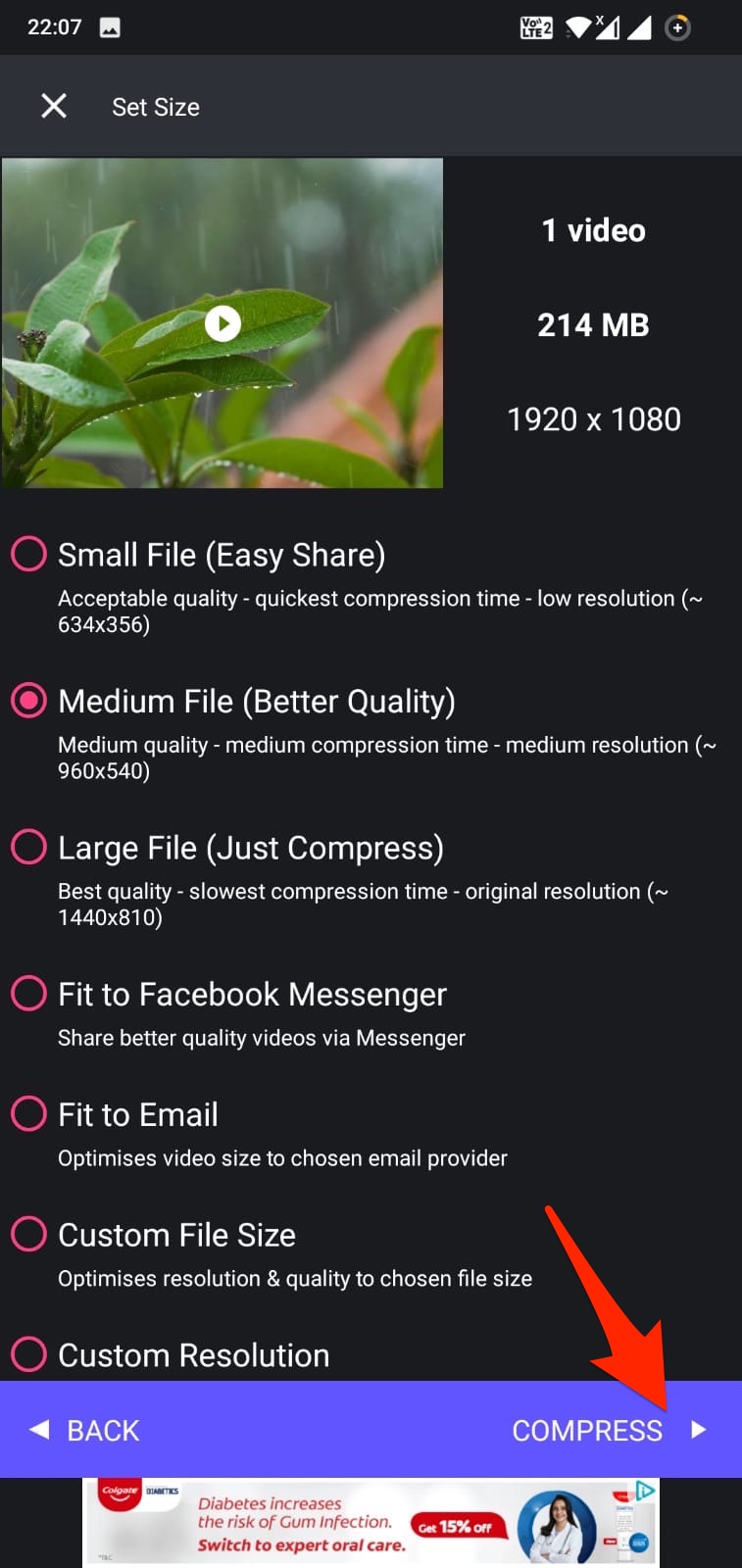
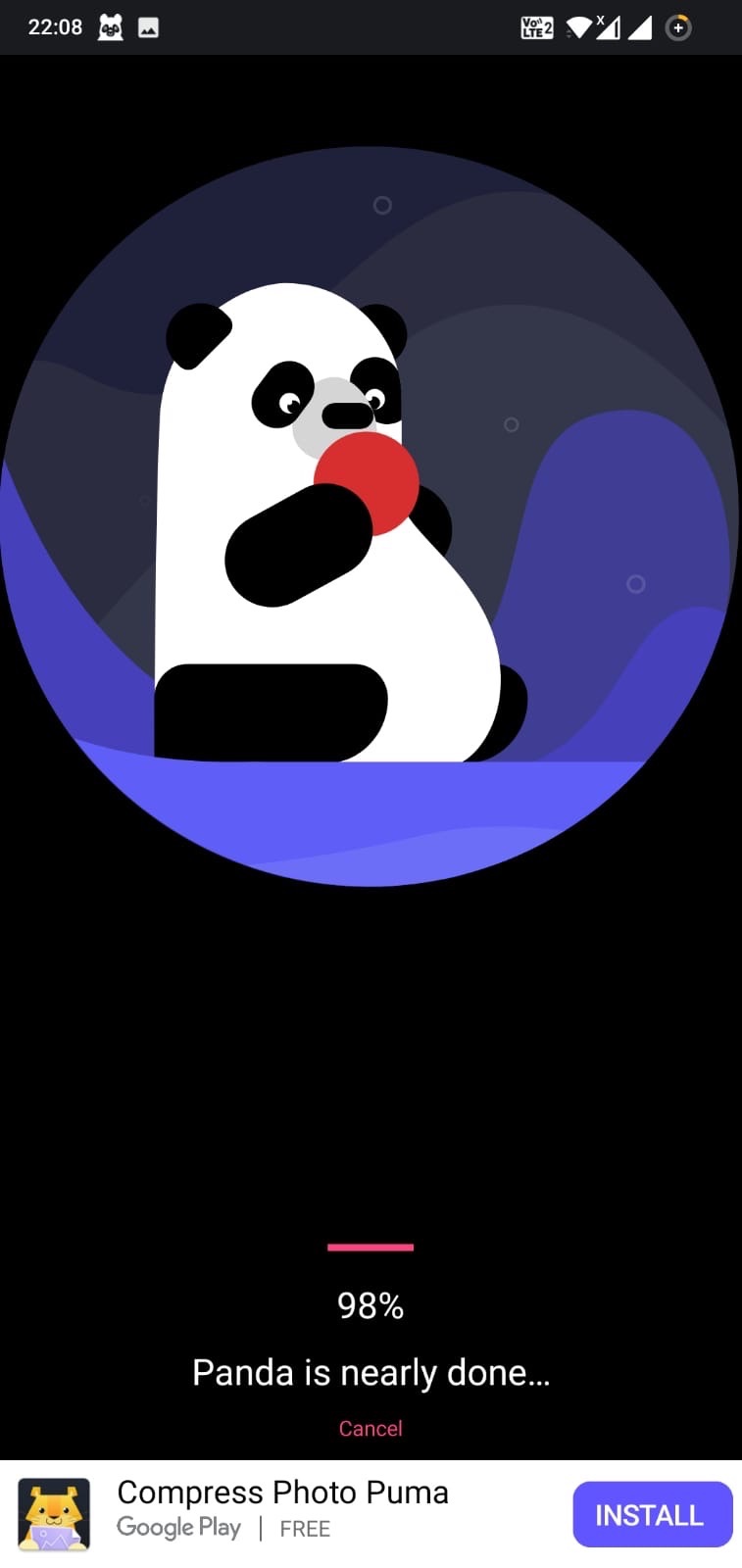
Step 5. The process will take a few seconds.
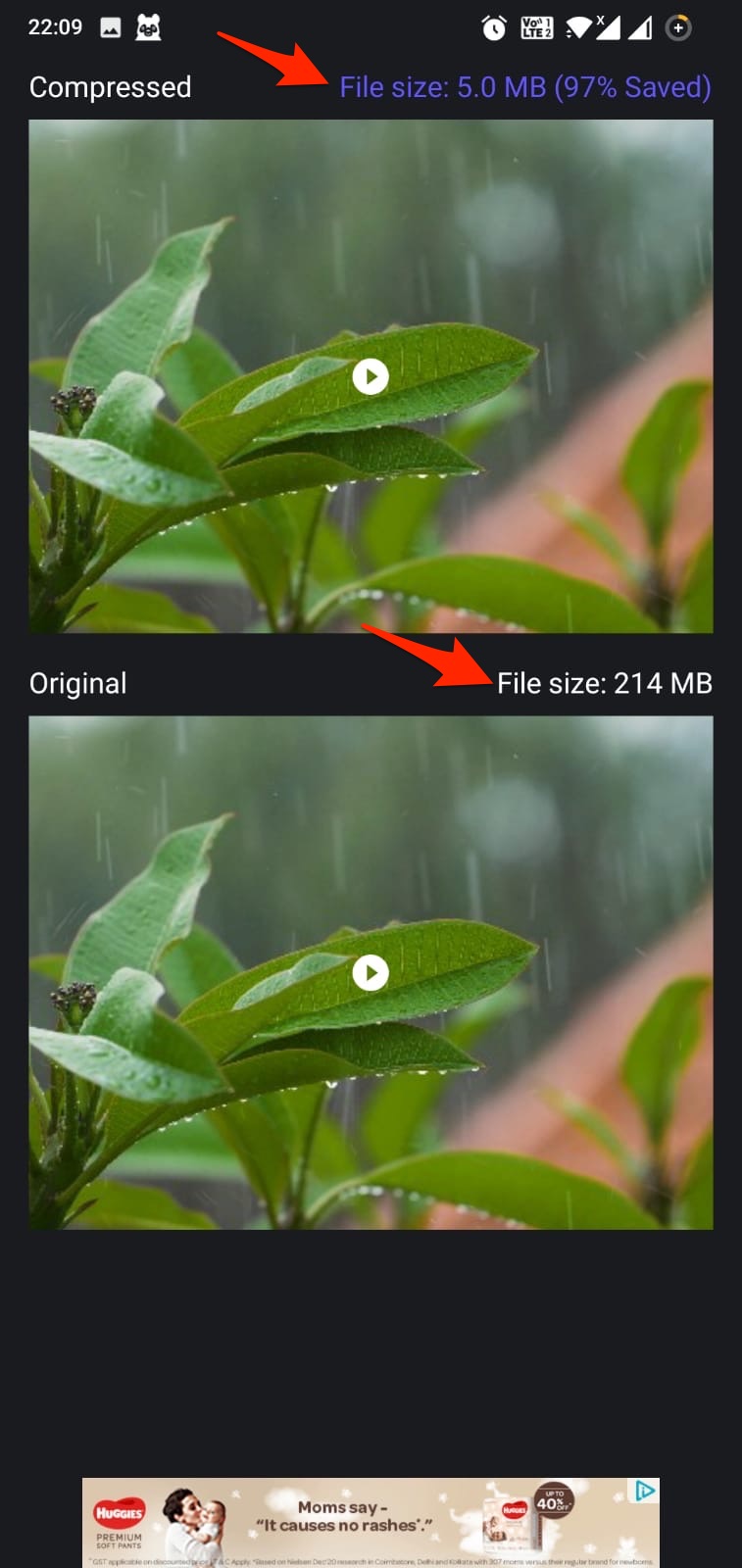
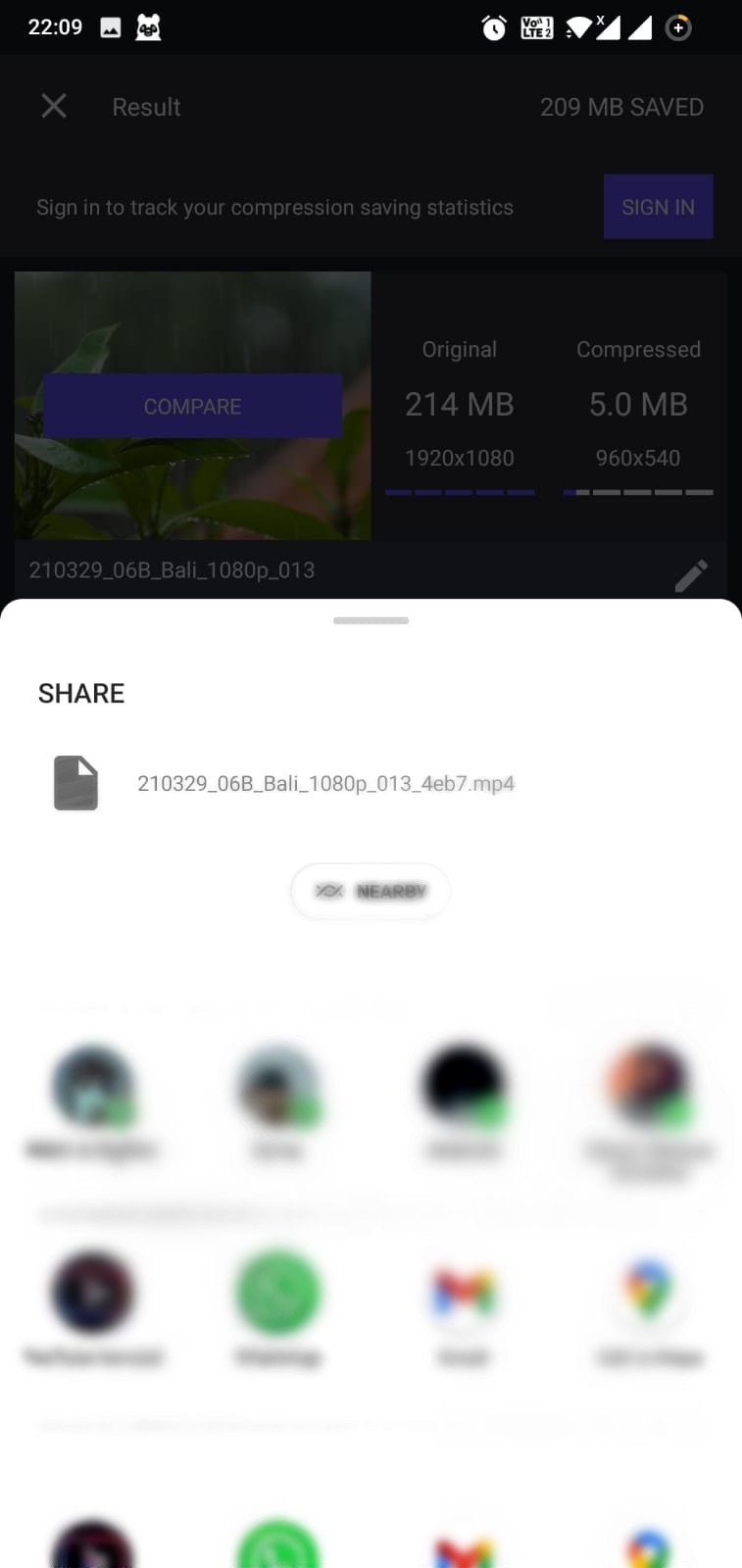
Step 6. Once done! I got a comparison of the original and the compressed video, as well as a note on the total space saved.
Step 7. Hit the “Save” button to save the compressed video.
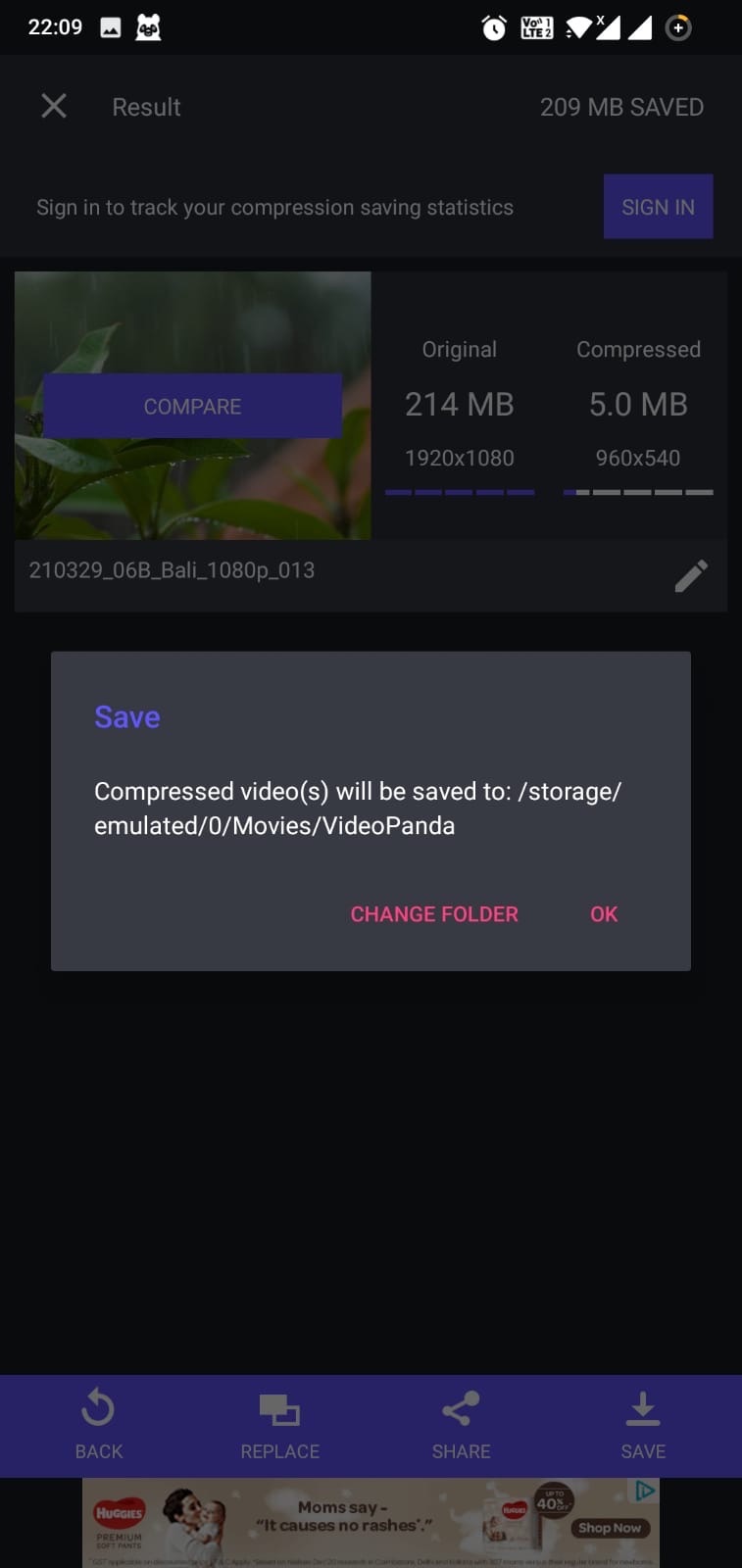
Step 8. I also got the option to upload the compressed video directly on WhatsApp Status by selecting the “Share” button >> select “WhatsApp,” >> Tap on “My Status,” and the status is uploaded.
If manually compressing the video and uploading it to Status keeps the video quality good as compared to directly posting the original video as a status, then compressing the video can come in handy.
Alternative Apps To Compress Videos
These are some of the apps that you can use to compress videos on your smartphone.
- Video Compress (Android)
- Compress Video (Android)
- Video Compressor by Sunshine (Android)
- Video Dieter 2 (Android)
- Compress Video and Resize Video (iOS)
- Video Compress – Shrink Video (iOS)
Method 3. Send & Upload
This workaround is something users have come up with, but I didn’t find it very effective. For these, send the video to someone on WhatsApp with quality set as HD, and then share the file in the story. Here’s what you can do.
Step 1. Go to any contact on WhatsApp to send a video. You can create a pseudo-WhatsApp group, add multiple members, and remove them so that you get a free chat to work around.
Step 2. Use the “Attachment” option and select “Photos & Videos.”
Step 3. Select the video you originally wanted to upload on the status and press “Send”.
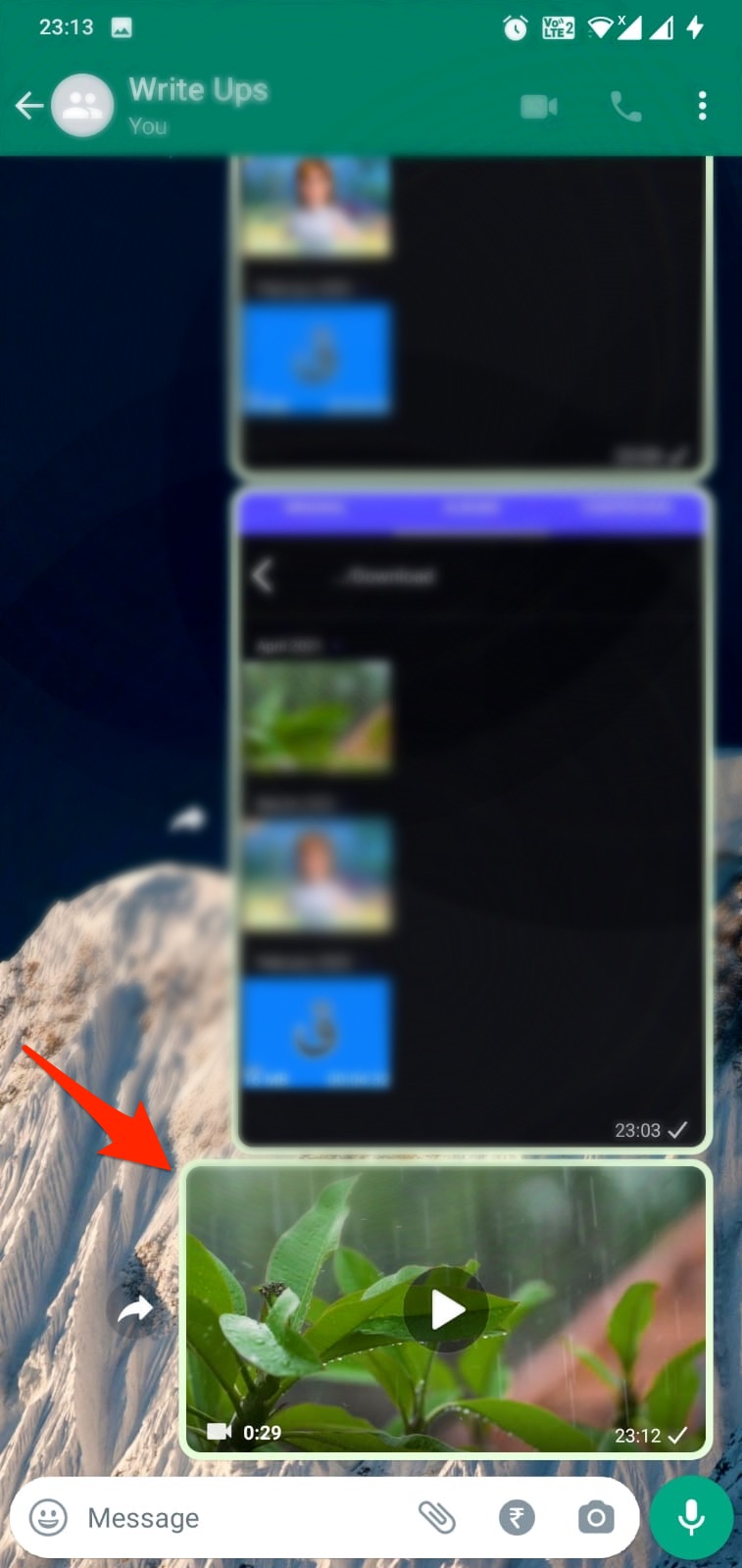
Step 4. Open the video that you sent and hit the “Share” button.
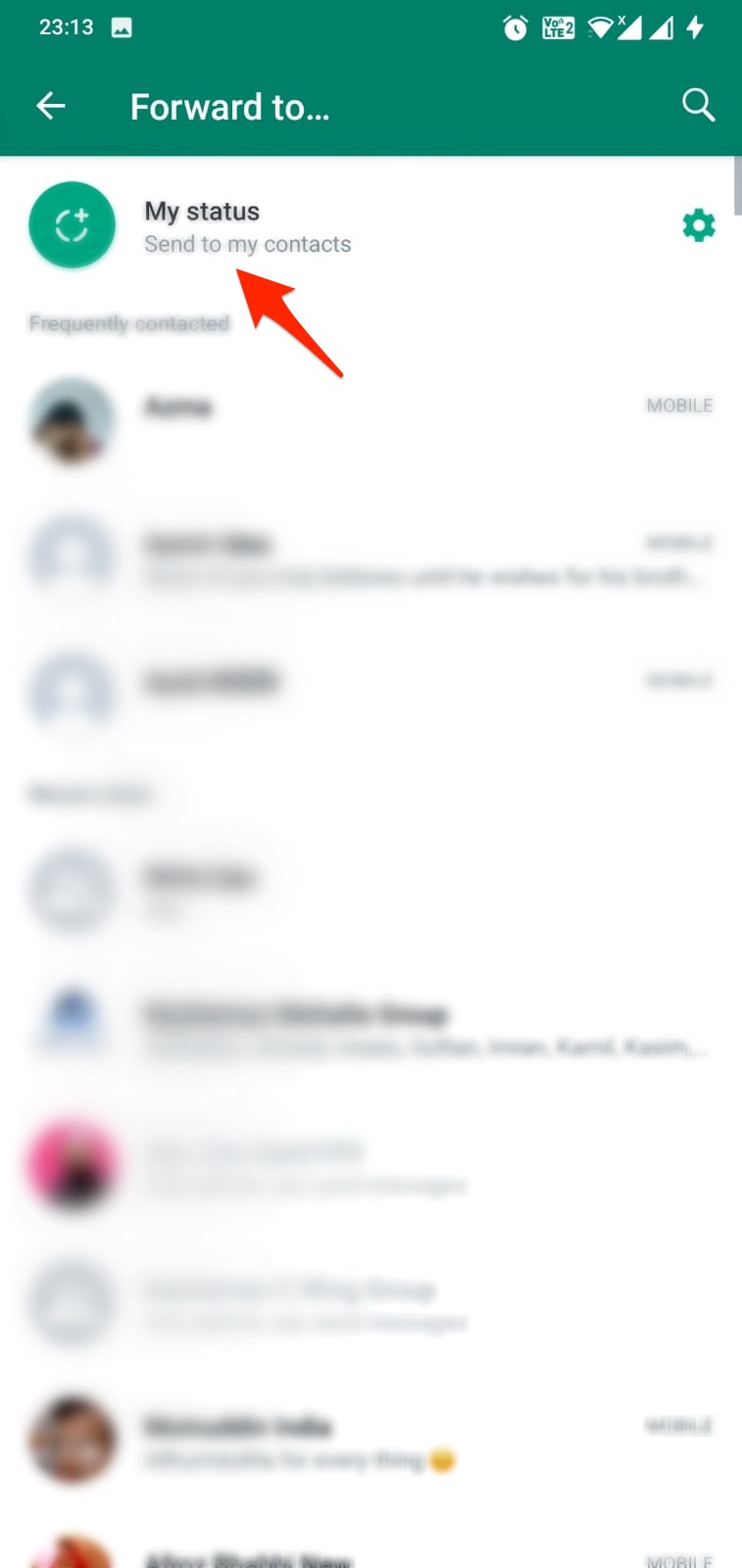
Step 5. Select “My Status”.
Things To Consider
WhatsApp has a maximum video file size limit of 16 MB, although I try to get the compressed file size to 10MB or so. This ensures that the video you upload to the status remains high-quality. Also, WhatsApp supports MP4, 3GP, FLV, MOV, MKV, AVI, MPEG4, and H. 2.4 video and AC3 and AAC audio codecs.
Wrapping Up
In conclusion, when uploading videos to WhatsApp Status, significant compression can lower video quality. Using tools like the PureStatus app or manually compressing videos can help maintain higher quality. These methods keep your stories clear, overcoming WhatsApp’s compression limits. Experimenting with different apps can help you find the best way to share your memorable moments with clarity.
If you've any thoughts on WhatsApp Status Ruining your HD Videos — Here’s How to Upload in Full Quality, then feel free to drop in below comment box. Also, please subscribe to our DigitBin YouTube channel for videos tutorials. Cheers!