I’ve been using Google Chrome for years, and honestly, I thought I had mastered every little trick it had to offer. But recently, while helping a friend clean up his cluttered browser, I stumbled into a rabbit hole of features I didn’t even know existed.
The more I explored, the more I realized Chrome is full of clever hidden tools. From secret URL commands to productivity boosters that hardly anyone talks about. I ended up discovering a whole universe of hidden features that completely changed the way I browse.
These weren’t the common tricks everyone repeats – these were deeper, smarter features almost nobody talks about. And once you start using them, your browsing becomes noticeably smoother, faster, and a little more pro-level.
Hidden Features of Chrome Only Smart People Know
Most of us use Chrome at only 40-50% of its potential, without tapping into features like Memory Saver, Tab Search, device syncing, or Chrome Flags. Below are the features that genuinely made me feel like I unlocked Chrome Pro Mode.
1. QR Code Generator Built Into Chrome
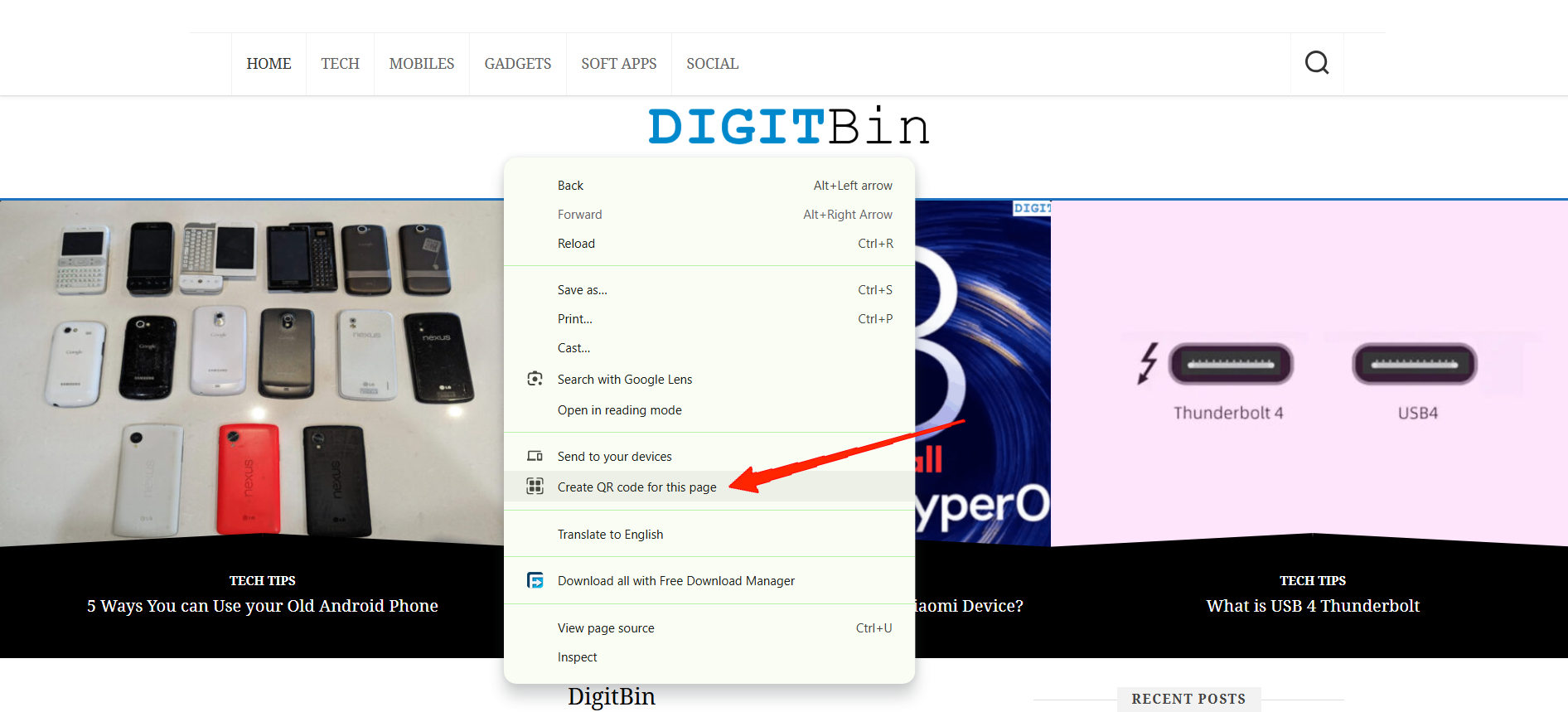
Chrome can instantly create a QR code you can scan on your phone. Super handy when you want to open something quickly on mobile without logging in. In order to create your QR, simply right-click any webpage and then click on Create QR Code.
2. Chrome’s Hidden Send to Your Devices Feature
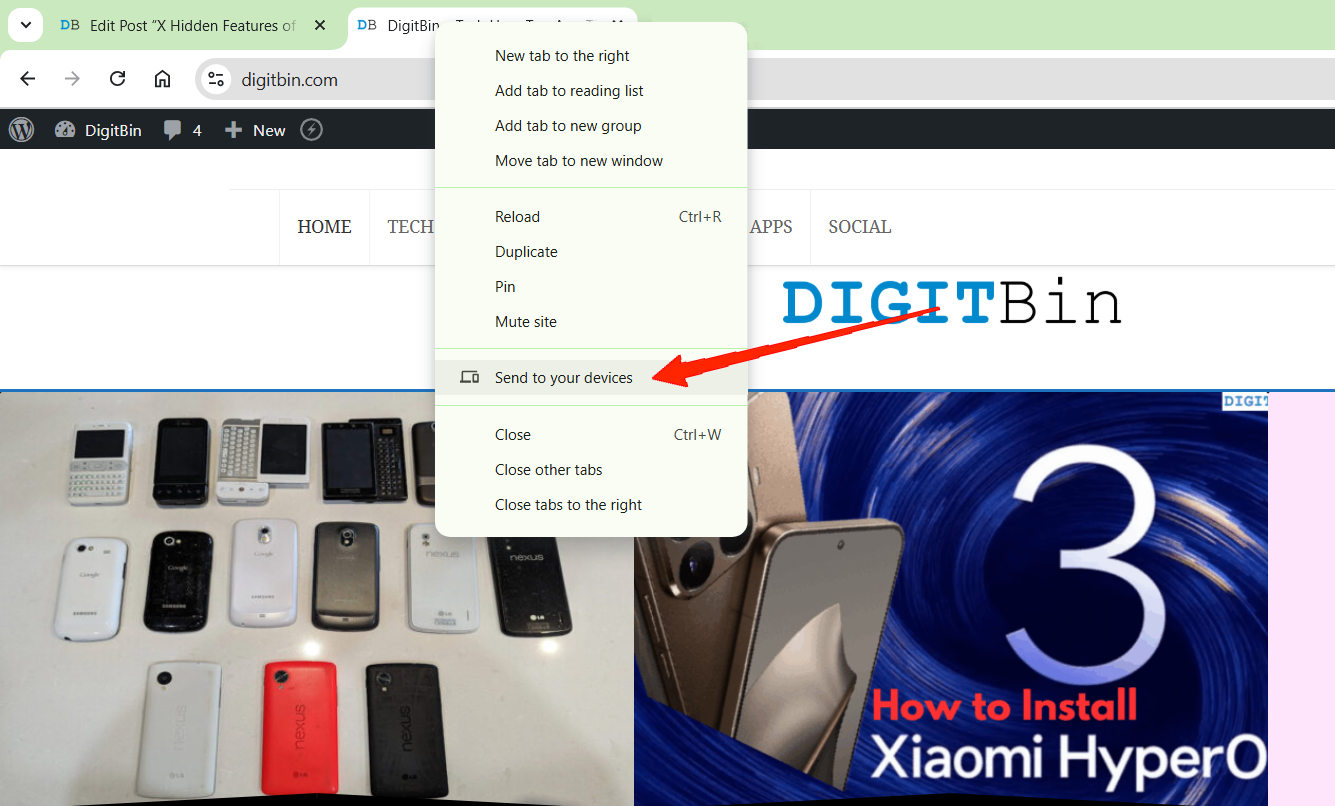
I used to email myself links (yes, embarrassing) until I found Chrome’s built-in send feature. The amazing thing is that the link appears instantly on your phone or tablet. Feels like magic every time. You can do it too, just right-click any tab & Send to Your Devices
3. Memory Saver – The Most Underrated Feature Ever
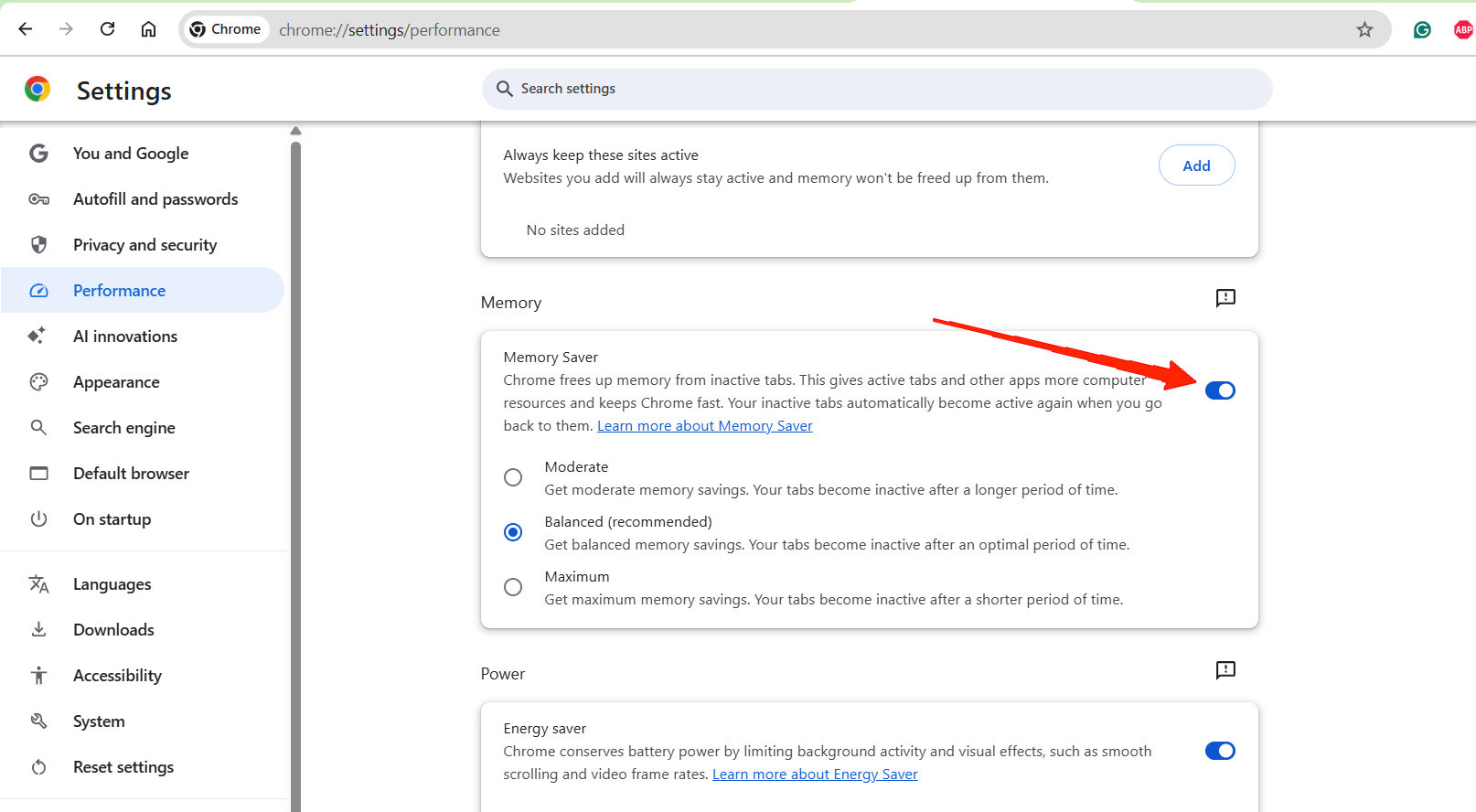
I discovered Memory Saver by accident while poking around Chrome’s performance settings, and honestly, it’s magical. Chrome automatically deactivates inactive tabs and frees RAM without closing them. When you return, they instantly reload.
If you’re someone who keeps 15–20 tabs open (like me), this alone can make Chrome feel brand new. No more random slowdowns, laptop fans screaming, or battery draining. Go to Settings > Performance & Turn on Memory Saver
4. Chrome’s Own Task Manager
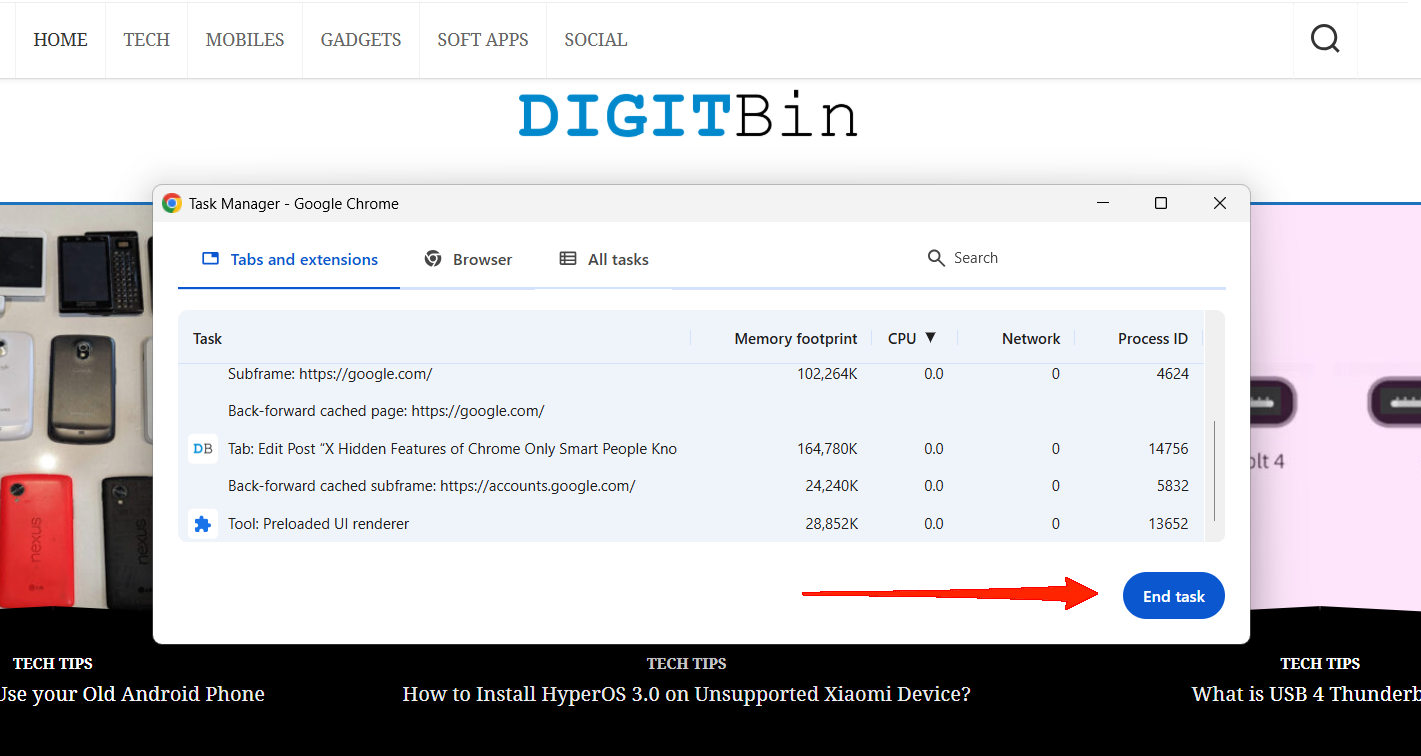
Most people don’t even know Chrome has a built-in task manager. I discovered this while trying to figure out which extension was eating half my RAM. You can view each tab, process, and extension with its individual memory usage and kill the one misbehaving. Just press Shift + Esc key & end task for anything that is hogging up resources. It’s incredibly satisfying.
5. Chrome Tab Search (A Lifesaver for Tab Addicts)
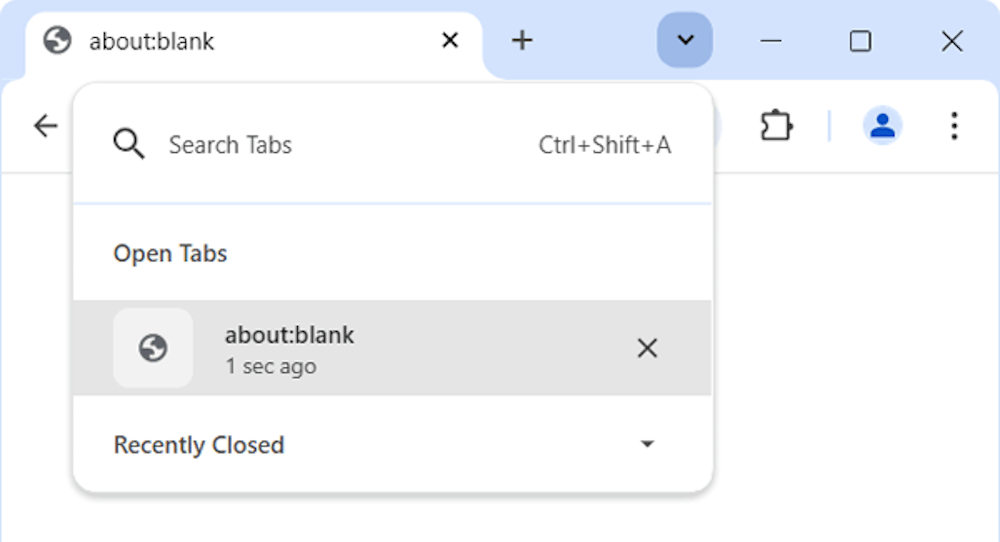
Ever had 25 tabs open and forgot which one had that YouTube video playing faintly in the background? Chrome’s Tab Search is the hero you didn’t know you needed.
Click the little downward arrow at the top right or press Ctrl + Shift + A. It instantly shows a searchable list of all open tabs across all windows.
6. Live Caption for Any Video
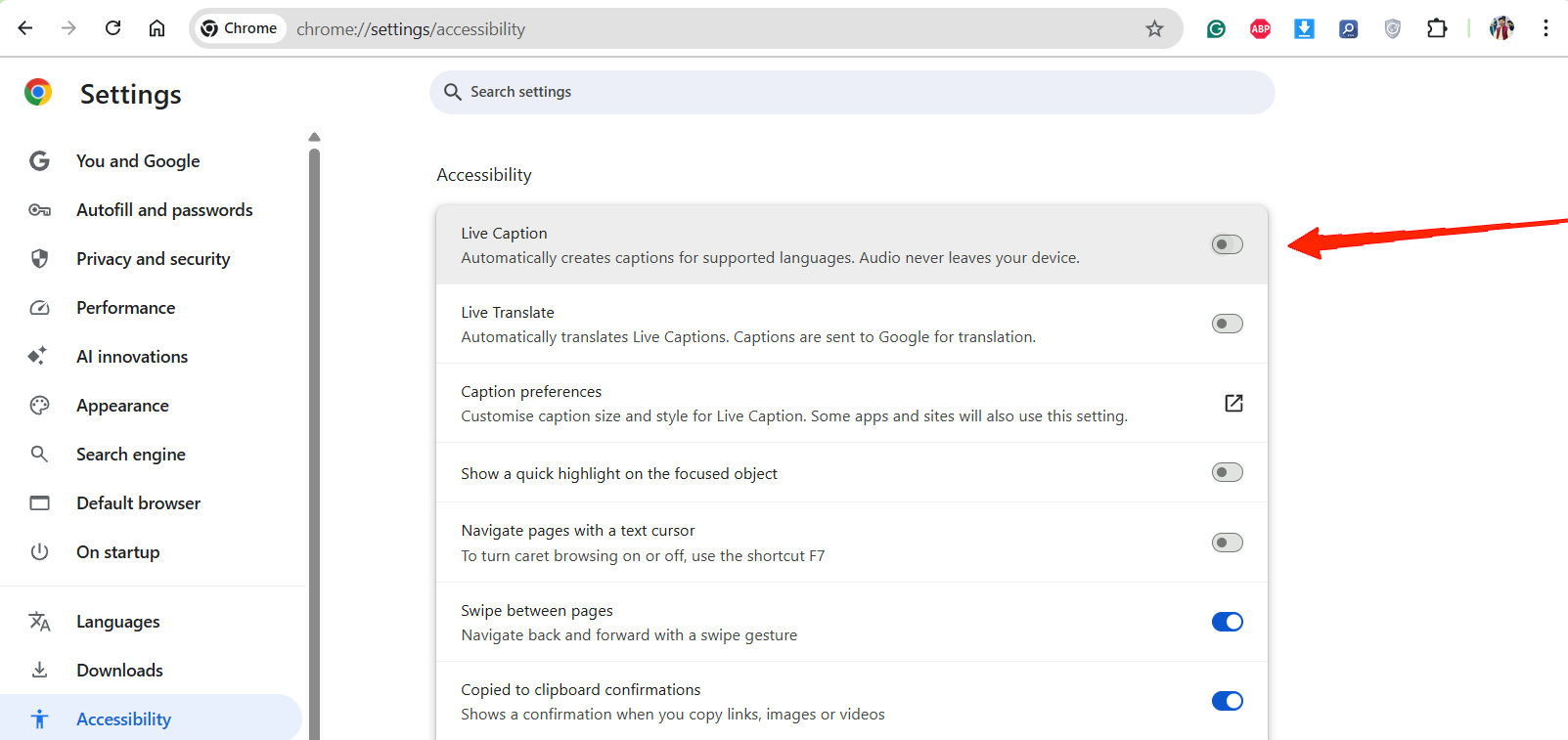
Chrome can automatically generate captions for any video, even offline ones. You can turn this feature on by going to Settings > Accessibility > Live Caption. If you’re watching a video with unclear audio, this is a lifesaver.
7. Chrome URL Commands (Super Useful!)
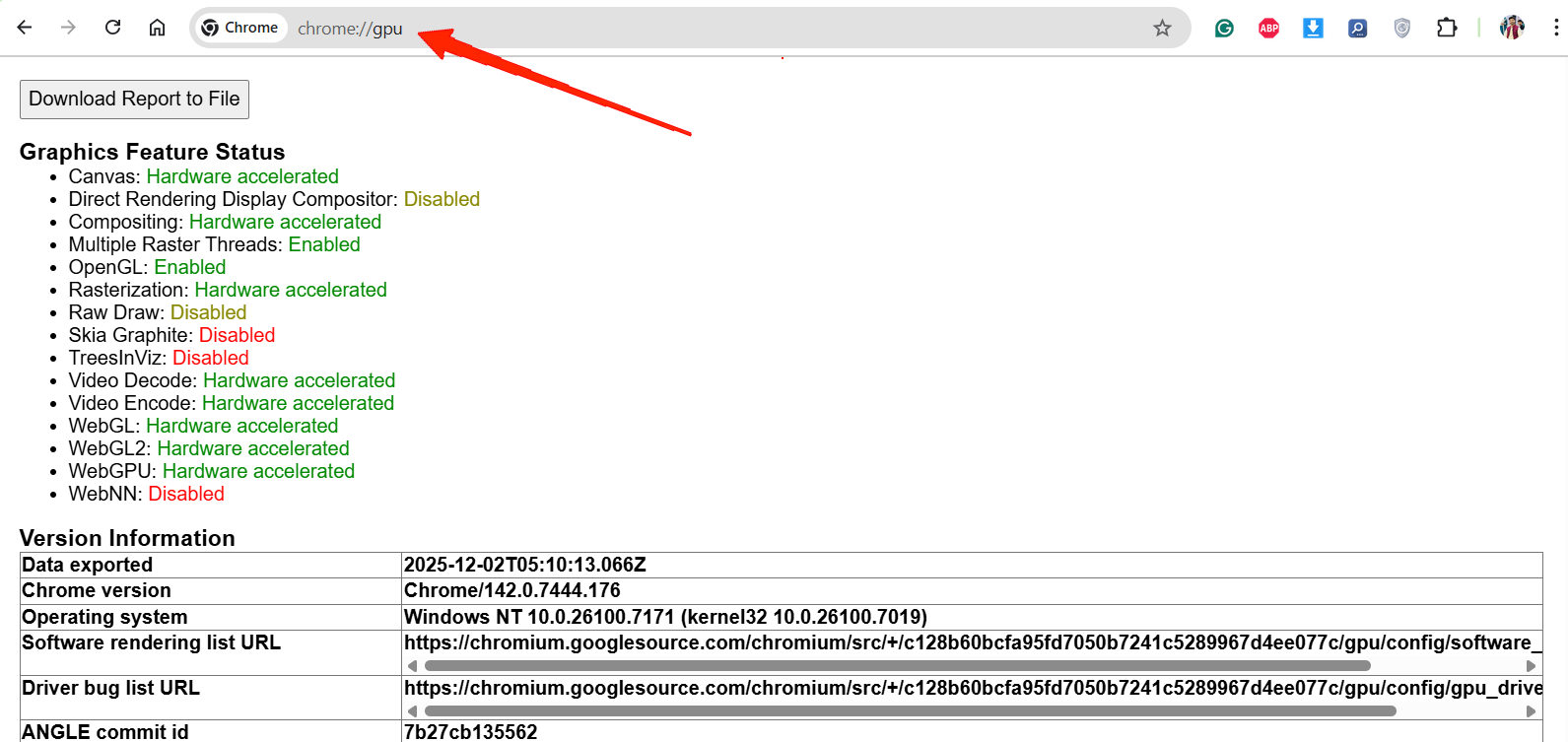
Chrome has secret internal pages you can open just by typing them:
- chrome://system → View full system info
- chrome://dns → Clear DNS cache
- chrome://gpu → Check GPU acceleration
- chrome://discards → Shows which tabs Chrome will unload first
These feel like hidden cheat codes.
Bonus: Chrome Experiments via Chrome Flags
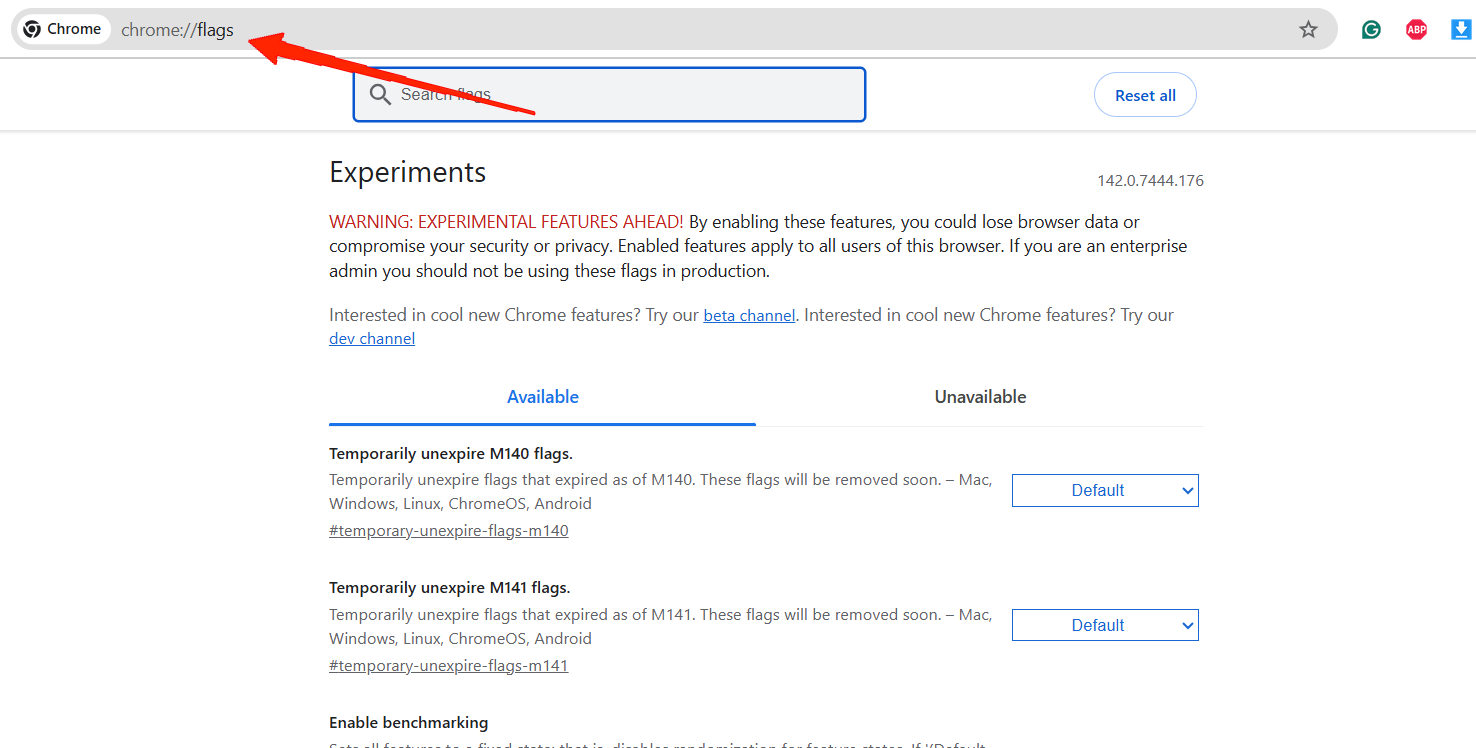
This is where Chrome hides its secret labs. By visiting chrome://flags, you can unlock early access experimental features like:
- Smooth Scrolling
- Parallel Downloading
- Reader Mode
- Force Dark Mode on all websites
Just be careful, as some flags are experimental, so change only what you understand.
Conclusion
This brings us to the end of this guide for 7 Hidden Features of Chrome Only Smart People Know. The funny thing is, most of these smart Chrome features were right in front of me the whole time – I just never bothered to explore them. But once I did, my browsing experience transformed completely. Tasks that used to feel slow or repetitive suddenly became effortless.
If you've any thoughts on 7 Hidden Features of Chrome Only Smart People Know, then feel free to drop in below comment box. Also, please subscribe to our DigitBin YouTube channel for videos tutorials. Cheers!