
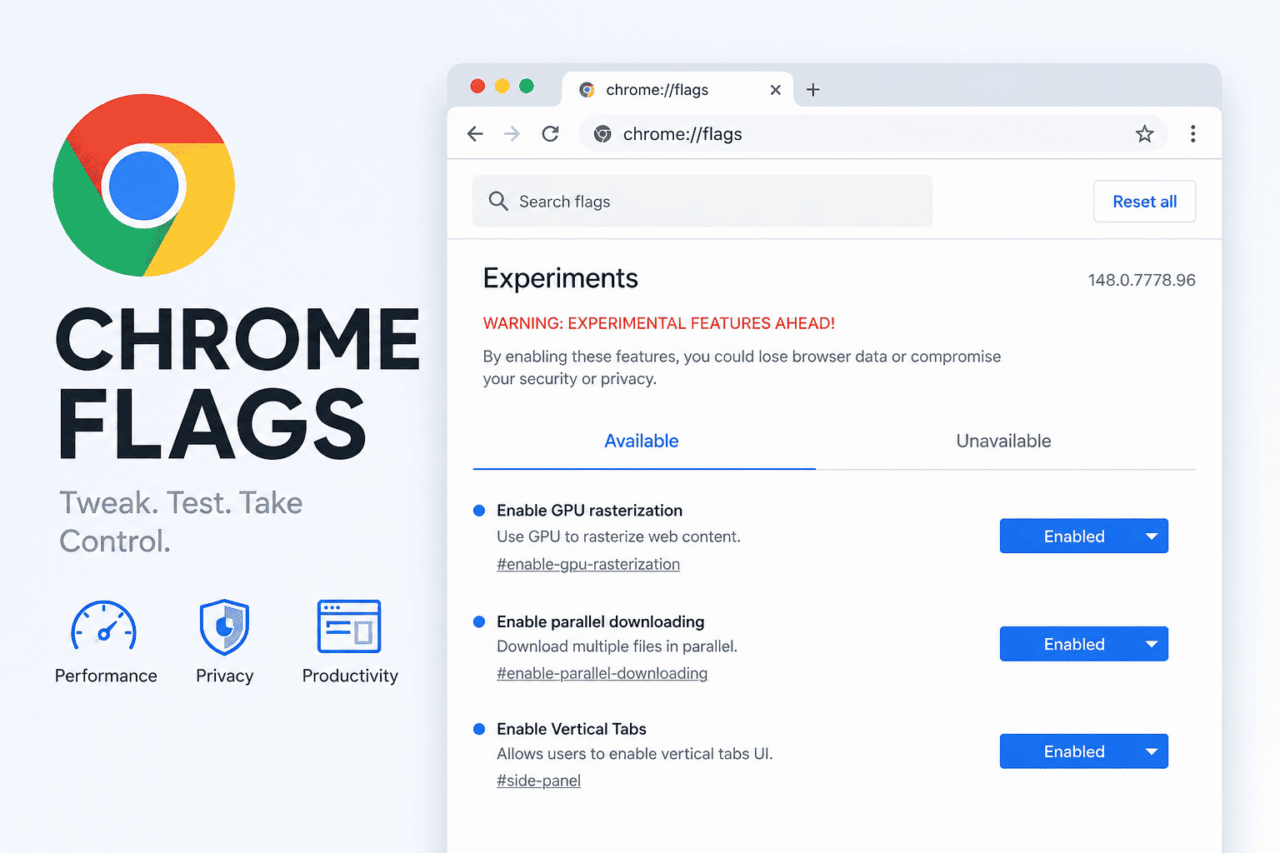
Chrome ships a new major version roughly every four weeks, and a flag that exists today can be renamed, removed, or quietly promoted to default before your next update cycle. That makes “best flags for Chrome 148” a strange thing to write, since the number is wrong again within a month.
So this version skips the build number entirely. What follows is checked against a recent Chrome stable release as of mid-2026, but the flags themselves tend to survive several version bumps even when the number attached to them does not. I went through all fifty of these one at a time on a Windows 11 machine, enabling each, relaunching, and living with it for a few days before moving to the next.
One flag below is worth disabling before you touch anything else.
TL;DR: Chrome has been silently downloading a 4GB on-device AI model to eligible machines since 2025, and there is a specific flag to stop it if you have not seen the new Settings toggle yet. Beyond that, the strongest flags in 2026 cover GPU rendering, vertical tabs, the new Gemini side panel, smarter address bar suggestions, and Reading Mode. Most are safe to enable. A handful genuinely are not, and those are marked clearly.
How to Access Chrome Flags
Type chrome://flags in the address bar and press Enter. Use the search bar at the top to find any flag by name or by its #flag-identifier. Change the dropdown from Default to Enabled or Disabled, then hit Relaunch when Chrome prompts you at the bottom of the screen.
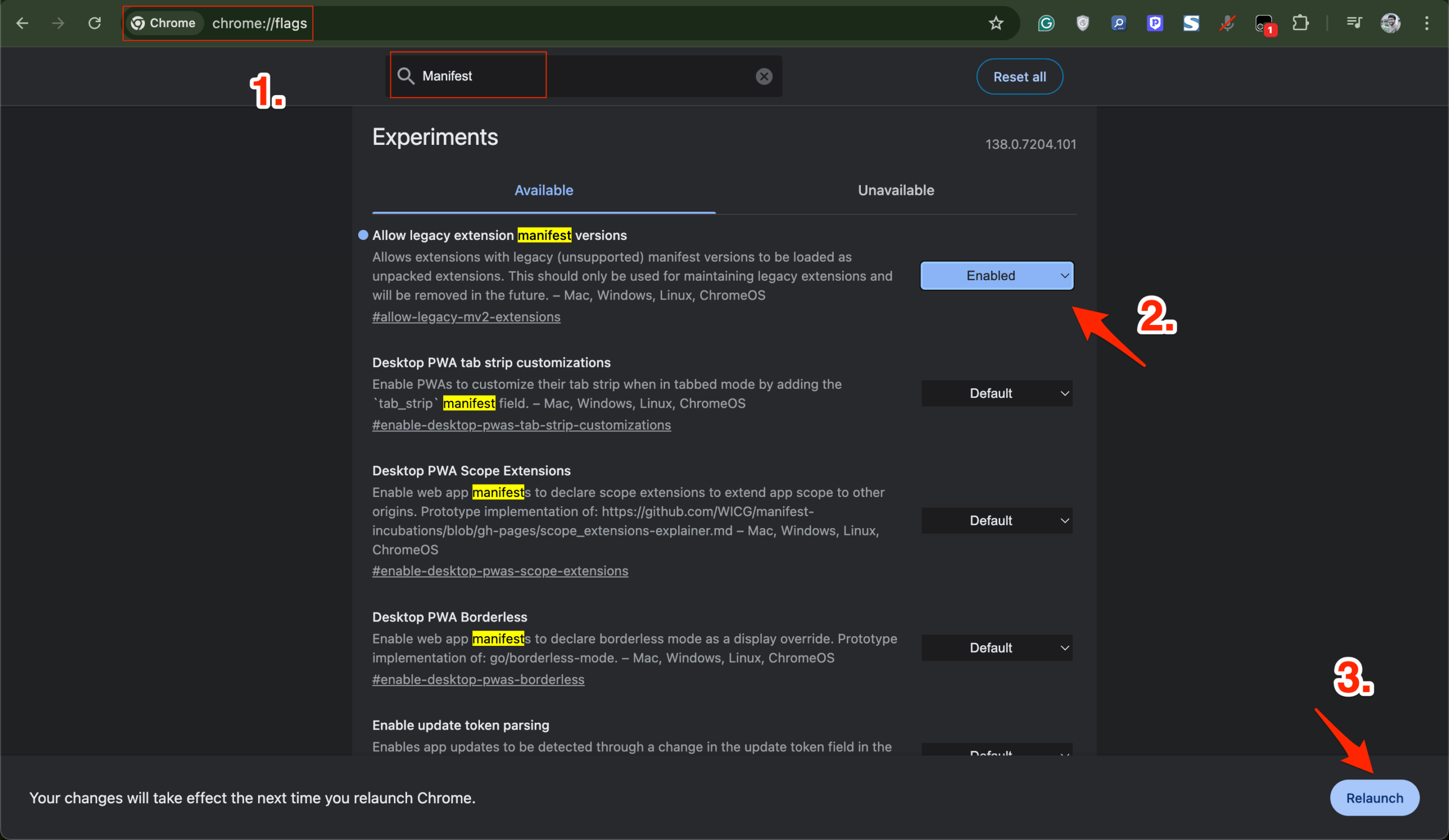
One thing I noticed while testing: flags listed as available on Windows do not always appear on macOS or Linux builds. Everything in this article reflects Chrome 148 on Windows 11 unless stated otherwise.
The flag worth disabling first
#optimization-guide-on-device-model
Chrome has been downloading a local AI model called Gemini Nano to eligible machines since version 137. Eligible generally means around 16GB of RAM, 22GB of free disk space, and a GPU with 4GB or more of VRAM. The file lands in a folder called OptGuideOnDeviceModel inside your Chrome profile, sitting at just under 4GB. Chrome does not ask first. Delete it and Chrome re-downloads it on the next launch.
I found the folder on a laptop I had not touched in months and assumed it was leftover installer junk before checking what it actually was. That is the kind of disk space nobody notices disappearing until they go looking for it.
A Settings toggle for this has been rolling out gradually since early 2026. If it has not reached your install, the flag route still works: search this flag in chrome://flags, set it to Disabled, also disable the related Prompt API flags for Gemini Nano, relaunch, then delete the OptGuideOnDeviceModel folder from your profile. Do the flag step first or Chrome re-downloads the model on the next launch regardless of the folder being gone.
If you actually use on-device features like scam detection or the Writer and Summarizer APIs, leave this on. The model runs locally with no cloud round-trip, which is a genuinely better privacy arrangement than most cloud AI. The problem was always consent, not the technology.
| Flag | Category | Default state |
|---|---|---|
| #optimization-guide-on-device-model | AI / disk space | Default (on for eligible hardware) |
| #enable-gpu-rasterization | Performance | Enabled |
| #vertical-tabs | Tab management | Default (off) |
| #glic | AI | Default |
| #omnibox-ml-url-scoring | Address bar | Default |
| #read-anything-docs-integration | Reading Mode | Default |
| #enable-webrtc-hide-local-ips-with-mdns | Privacy | Default |
| #tab-strip-declutter | Tab management | Default (off) |
| #enable-parallel-downloading | Performance | Enabled |
| #safety-hub-unused-permission-revocation-for-all-surfaces | Privacy | Default |
Performance and rendering flags
#enable-gpu-rasterization moves page rasterization from the CPU to the GPU. Most modern machines already do this, but some hardware configurations fall back to software rendering by default. Check chrome://gpu first. If GPU Rasterization shows as software only, this flag is worth trying. On a mid-range laptop that had been falling back to software, dense pages felt noticeably more settled after a relaunch. I stopped bracing for the lag before a page finished painting.
#enable-zero-copy lets raster threads write directly to GPU-allocated memory instead of copying through system memory first. Subtle on fast hardware, more visible on pages that scroll through large image grids. A slight stutter I had been half-noticing on image-heavy pages went away after enabling this alongside GPU rasterization. I only confirmed it was the cause after turning the flag back off and watching the stutter return.
Hardware-accelerated video decode keeps hardware video decode active where the flag list shows it as a disable toggle, so setting it to Enabled is the move. When this defaults to off, Chrome burns CPU cycles decoding every video frame in software. The fan on one laptop ran continuously during any video playback. After confirming this was properly enabled, the fan stopped coming on during regular YouTube playback entirely.
Hardware-accelerated video encode covers the same principle for encoding, and matters most during video calls or screen sharing. Battery drain on a two-hour call dropped noticeably once Chrome stopped handling that work in software.
#enable-quic makes Chrome attempt QUIC connections more aggressively across more hosts. The first-connection latency improvement on Google services and QUIC-capable CDNs is real but not dramatic on a fast home connection. It matters more on mobile networks. Left this on for weeks without anything breaking.
#enable-parallel-downloading splits larger downloads into multiple parallel connections instead of one stream. On a fast connection with a server that supports range requests, the difference is immediate. A 2.1GB file that used to take just over four minutes finished in about ninety seconds on the same connection. Not every server supports this, but nothing has failed because of the flag itself in regular use.
Gemini in Chrome and AI flags
#glic is the flag behind what Google now brands publicly as Gemini in Chrome, a side panel AI assistant that reads the context of your open tabs. Where it has rolled out by default, this flag toggles the underlying panel infrastructure; where it has not yet reached your region, enabling it manually is what surfaces the icon.
The side panel opens next to whatever you are reading rather than in a new tab, and it can pull context across multiple open tabs at once. I asked it to compare specs across five open product pages instead of tabbing between them manually, and the tab-switching habit took a few days to actually fade. Muscle memory does not update as fast as the feature does.
#glic-detached forces the panel to always float rather than dock to the side. Worth trying if you run an ultrawide monitor and the docked version eats more width than you want to give up.
#ai-mode-omnibox-entry-point adds a dedicated icon button for AI Mode directly in the address bar, rather than requiring a separate navigation step to reach it. Small change, but it removed a click I had been making several times a day without registering it as friction until it was gone.
#lens-overlay-omnibox-entry-point adds the equivalent icon entry point for Lens visual search inside the omnibox. Useful if you regularly screenshot something to search it instead of using Lens directly from the page.
#contextual-cueing enables Chrome’s system for surfacing suggested actions based on what is currently on the page. The suggestions were hit or miss in the first few days, useful maybe half the time, but the ratio improved the more I used pages where the feature had reasonable context to work with.
Address bar flags
#omnibox-search-prefetch pre-fetches the likely search results page when Chrome sees a high-confidence autocomplete prediction, before you press Enter. The page was already partially loaded by the time a keystroke completed. At first this felt like search had gotten faster. It had not. Chrome had just started fetching before the question was finished being typed.
#omnibox-search-client-prefetch works alongside the flag above, letting Chrome decide client-side which suggestion is worth prefetching rather than relying only on server signals. Requires the first flag enabled to do anything.
#omnibox-ml-url-scoring replaces frequency-based URL ranking with an on-device model. After about a week, suggestions started reflecting how I actually browse instead of just how often I visited a URL. Pages visited once but read for a long time started surfacing more reliably than pages glanced at dozens of times.
#omnibox-zero-suggest-prefetching-on-srp pre-fetches the zero-prefix suggestions when you click into the address bar while already on a search results page. The suggestion list appears a fraction of a second sooner. Not dramatic on its own, but it adds up across a day of heavy search use.
Tab management flags
#vertical-tabs moves the tab strip to a collapsible sidebar on the left. If more than fifteen tabs open is a normal Tuesday for you, this is the biggest quality-of-life flag on this list. Tab titles become readable again, and the collapsed strip barely eats horizontal space. Switching back to horizontal tabs on a different machine after weeks of this felt disorienting for about an afternoon before the old habit came back.
#vertical-tabs-expand-on-hover works with the flag above. When the sidebar is collapsed to just favicons, hovering expands it to show full titles temporarily, so you get the information on demand without permanently giving up the space.
#tab-strip-declutter dims tabs you have not visited recently while keeping them open and loaded. Recently active tabs stand out by contrast. A usual sprawl of thirty-plus tabs became genuinely navigable. The first time it activated, it looked like a rendering glitch. By day three it stopped registering consciously, and the right tab just got found faster.
#tab-groups-focusing narrows the strip to show only the active group’s tabs when you click a group label, with everything else stepping back. Across a research session with four separate topic clusters open, this meant fewer reflexive extra tabs, since switching contexts had visible friction again.
#split-view-link-open adds Ctrl+Alt+Click, or Cmd+Alt+Click on macOS, to open a link alongside the current tab in a split view. Not a full split-screen browser, but enough to compare a reference page against a working tab without a second window. Desktop only.
#tab-group-color-refresh updates the color palette used for tab groups. Purely cosmetic, but if you color-code groups by project, the refreshed palette makes adjacent colors easier to tell apart at a glance than the older set was.
#tabs-from-other-devices-side-panel surfaces tabs open on your other signed-in devices in a dedicated side panel instead of a dropdown buried in the menu. Checking what was open on a phone from the desktop went from a three-click hunt to one panel open on the side.
Video and media flags
#auto-picture-in-picture-for-video-playback automatically floats a playing video into a corner window when you navigate away from its tab. No hunting for the PiP button. Two weeks of regular use produced exactly one annoyance, when a forgotten tab auto-played something unexpectedly. Every other time it was a convenience quiet enough to stop noticing.
#hardware-media-key-handling lets Chrome respond to keyboard play, pause, and track keys even when backgrounded. If pausing a web player from the keyboard while working in a different app matters to you, this is the flag responsible. Usually on by default, worth checking if media keys behave inconsistently.
Reading and focus flags
#read-anything-docs-integration extends Chrome’s Reading Mode to Google Docs, stripping the editor chrome and rendering just the document text in a clean sidebar. For reviewing long documents without the visual weight of the Docs interface, this is the right flag. It occasionally loses scroll position on very long documents after a jump, but holds up well for straight reading sessions.
#read-anything-line-focus adds a highlight to the current line in Reading Mode that moves as you read, with surrounding text dimmed slightly. Subtle enough that the first day, it was not obvious it was doing anything. Then a long research paper got read start to finish without losing the place once, which had not happened in months.
#read-anything-omnibox-chip adds an entry point for Reading Mode directly in the address bar rather than requiring a menu dig. Small change, same category as the AI Mode entry point above: removes a click that had quietly become routine friction.
#enable-force-dark forces a dark theme on every page, including sites with no native dark mode. Results vary since the darkening is algorithmic. High-contrast pages hold up well. Pages with complex background imagery can look wrong. Ran this for a week without a separate dark mode extension and found it acceptable on roughly eighty percent of regular sites. The other twenty percent looked broken enough to keep an extension running for those specifically.
Privacy and security flags
#enable-webrtc-hide-local-ips-with-mdns replaces your local IP address with an mDNS hostname in WebRTC traffic. By default, WebRTC exposes your local IP during real-time calls even through a VPN. This closes that specific leak, which privacy tools have flagged for years. Worth enabling if a VPN is already part of your setup.
#strict-origin-isolation tightens site isolation to use full origin, including subdomain and protocol, as the process boundary, making cross-site attacks harder to execute. The trade-off is higher memory use per tab. Not a practical concern on 16GB of RAM. On an 8GB machine running many tabs, it adds real pressure.
#notification-one-tap-unsubscribe-on-desktop replaces the Site Settings button on push notifications with a direct Unsubscribe button. The first time it appeared, it looked like different UI and nearly got dismissed by habit. After that, notification permissions stopped quietly accumulating from sites visited once out of curiosity.
#safety-hub-unused-permission-revocation-for-all-surfaces extends automatic revocation of unused site permissions to all UI surfaces, not just the settings page. Permissions granted months ago to sites never revisited get pulled back without a manual audit. Checking Site Settings after a month with this on showed a noticeably shorter list than expected.
#web-authentication-immediate-get enables immediate mediation for WebAuthn passkey requests, returning a clear not-allowed response instead of a hanging prompt when no matching credential exists. Mostly relevant on sites using passkey sign-in, where the failure state used to be a silent stall rather than a clear no.
#bundled-security-settings reorganizes the security settings page into a simplified enhanced or standard bundle instead of a long list of individual toggles. Made explaining the security settings to a less technical family member noticeably faster, since it collapsed into two clear choices instead of a dozen individual switches.
Autofill and payments flags
#fill-on-account-select changes autofill so saved passwords populate only after explicitly selecting an account from a dropdown, rather than auto-filling on page load. Useful on shared machines, and for anyone who wants one deliberate confirmation step before Chrome commits credentials to a form.
#password-form-grouped-affiliations offers credentials from affiliated domains for filling, so a password saved for one domain under the same organization shows up as a suggestion on a related domain instead of coming up empty.
#autofill-enable-buy-now-pay-later adds a buy now pay later payment option directly in Autofill on supported merchant checkout pages. Availability depends on the specific merchant and issuer, and it did not appear on most sites tested, but where it did show up, it sat in the same suggestion dropdown as a saved card rather than requiring a separate app.
Interface refresh flags
#toolbar-glow-up applies a visual refresh to the browser toolbar. Purely cosmetic, no functional change, but the updated spacing made the address bar feel slightly less cramped on a laptop screen at default zoom.
#rounded-icons rounds the corners on toolbar and menu icons for a softer, more consistent look across the interface. Small detail, noticeable mostly in how it makes screenshots for documentation look more current.
#menu-simplification reduces the number of items in the main Chrome menu, folding some options into submenus. The main menu felt less cluttered within the first use, though a couple of settings that used to sit at the top level took a moment to relocate the first time.
#glass-frame (Mac only) applies a glass-style effect to the browser window frame. Cosmetic, and noticeable mainly against certain desktop wallpaper colors rather than in daily functional use.
Developer-adjacent flags worth knowing
#enable-jxl-image-format adds JPEG XL decoding and includes image/jxl in Chrome’s Accept header. JXL compresses meaningfully better than standard JPEG at equivalent quality. Web adoption is still limited, but this means Chrome renders JXL correctly on the sites that do serve it, with no downside for regular browsing.
#import-export-flags adds the ability to export a full flags configuration as a file and import it on another Chrome install. Worked reliably across two machines in testing. Genuinely useful for anyone managing more than one computer who wants consistent flag settings without re-enabling each one by hand.
#use-persistent-cache-for-code-cache and #inline-script-cache work together, switching Chrome’s JavaScript and WebAssembly code cache to a persistent disk backend and extending that to inline scripts embedded in HTML. Sites with heavy JavaScript felt quicker to become interactive after the cache built up over a few sessions. The improvement was not there on day one. It was clear by day four.
#devtools-live-edit re-enables live editing of JavaScript directly in the DevTools Sources panel, applying code edits to the running page without a full reload. Useful for quick debugging iteration, though it is easy to forget the edit is not saved back to the actual source file.
#devtools-protocol-monitor adds a panel showing the raw Chrome DevTools Protocol traffic between DevTools and the browser. Mostly relevant if you are building tooling on top of DevTools yourself rather than general debugging.
#enable-isolated-web-apps adds experimental support for Isolated Web Apps, a packaging format that runs with stronger isolation guarantees than a normal site. Relevant mainly if you are testing or developing this app format specifically.
#web-app-installation-api enables a JavaScript API that lets web apps trigger their own installation programmatically via navigator.install(), instead of requiring the user to find the install prompt manually.
#enable-desktop-pwas-tab-strip lets installed web apps display a tab strip inside their own window, giving a PWA the same multi-tab behavior as the main browser instead of opening a separate window per view.
Flags to leave alone
#site-isolation-trial-opt-out disables site isolation, a core mitigation against Spectre-class CPU attacks. It reduces per-tab memory use but reopens a real security gap. Not worth it for any regular use case.
#enable-unsafe-webgpu exposes WebGPU on hardware configurations it is not vetted for, giving websites developer-level GPU access. The name is accurate. Leave it off.
#webtransport-developer-mode removes certificate validation for WebTransport connections. Fine in a local development environment, genuinely risky on a machine used for normal browsing.
How to reset if something breaks
Go to chrome://flags and click Reset all in the top right. Every flag returns to default and Chrome relaunches. Bookmarks, history, extensions, and saved passwords are untouched by a flag reset.
If Chrome will not open at all, run it from the command line with –no-experiments. On Windows, open the Chrome installation folder and run chrome.exe –no-experiments to start with all flags suppressed without touching profile data.
Enable flags one at a time with a relaunch between each, so any problem that shows up can be traced back to a single cause. Most will not cause one.
Frequently Asked Questions
Are Chrome flags safe to enable?
Most are safe for regular use. The flags marked as risky in this guide carry genuine risk and are worth leaving alone. Everything else reverts instantly with Reset all at chrome://flags.
Do Chrome flags apply to every profile on the same browser?
Yes. Chrome states directly that enabled flags apply to all users of that browser installation, not just the active profile.
Will a flag I enable disappear after Chrome updates?
Sometimes. Flags get renamed, removed, or promoted to default as features mature. If a flag from this guide is missing after an update, it likely either shipped as default behavior or was replaced by a similarly named flag worth searching for directly in chrome://flags.
Can I use these flags on Chrome for Android?
Some of them. chrome://flags works on Android, but several entries here, particularly the tab management and desktop interface flags, are desktop-only and will not appear on mobile.
How do I know a flag is actually doing something?
Relaunch Chrome after enabling any flag, since changes need a restart to take effect. Interface changes like tab strip behavior are immediate. Others, like code caching, only become noticeable after a few sessions of regular use.
What actually holds up after a few weeks
The flags that stuck were the quiet ones. Vertical tabs, the address bar prefetching, the Reading Mode line focus. None of them announce themselves, and that is the point. The ones worth keeping tend to be the ones that stop feeling like a flag at all and just become how Chrome works now.

Im write in Turkey.Thank you very much. I will add this to my site
Any of the flags are not working in my phone can u help me out plz
Im looking for chrome android surface control… i cant found it anywhere… pls help
Chrome duet is dead already !
will update thanks