I typed http://example.com into Chrome 157 and kept my eyes on the address bar. It ended on https://example.com, and nothing on screen told me that had happened.
Since Chrome 154, the Always use secure connections setting has been on by default, and Chrome asks before opening a public site that has no HTTPS. I wanted to see how often that gets in the way, so I repeated the test with six more sites, seven in total.
Five ended up on HTTPS without a word. The other two did not load cleanly, and not in the same way.
TL;DR: Five of my seven http:// links ended on HTTPS with no prompt, though I could not tell whether Chrome or the sites did the redirecting. Of the two HTTP-only sites, httpforever.com showed a warning panel with Go back and Continue to site buttons, and neverssl.com stopped at an error page. The setting lives under Settings, Privacy and security, Security.
How I tested Chrome’s always use secure connections default
I used Chrome 157.0.8103.51 on a Mac, changed no settings first, and typed every address with http:// at the start. My profile is a regular one with extensions switched on, not a clean install.
For each site I checked the final address once the page settled. Chrome hides the scheme in the address bar, so the difference is easy to miss by eye.
Five of the seven sites support HTTPS, and the other two are HTTP-only test pages, so no real service was involved. This was one browser on one desktop, so Android and Windows may behave a little differently.
Five sites ended up on HTTPS without a prompt
Typing http://example.com ended on https://example.com. The same happened with w3.org, iana.org, apache.org and info.cern.ch, and none of them showed a warning.
Nothing on screen told me it had happened until I read the final address. A site’s own redirect to HTTPS would look identical, and I could not separate the two from the address bar.
info.cern.ch looks like it has not changed in decades, so I half expected a warning there. It ended on HTTPS and loaded like the rest.
The interesting part was not the five to two split. It was that the HTTPS-capable sites loaded without asking me to do anything.
| Site typed with http:// | Final address | What happened |
|---|---|---|
| example.com | https://example.com/ | Ended on HTTPS, no prompt |
| w3.org | https://www.w3.org/ | Ended on HTTPS, no prompt |
| iana.org | https://www.iana.org/ | Ended on HTTPS, no prompt |
| apache.org | https://www.apache.org/ | Ended on HTTPS, no prompt |
| info.cern.ch | https://info.cern.ch/ | Ended on HTTPS, no prompt |
| neverssl.com | http://neverssl.com/ | Stopped at an error page |
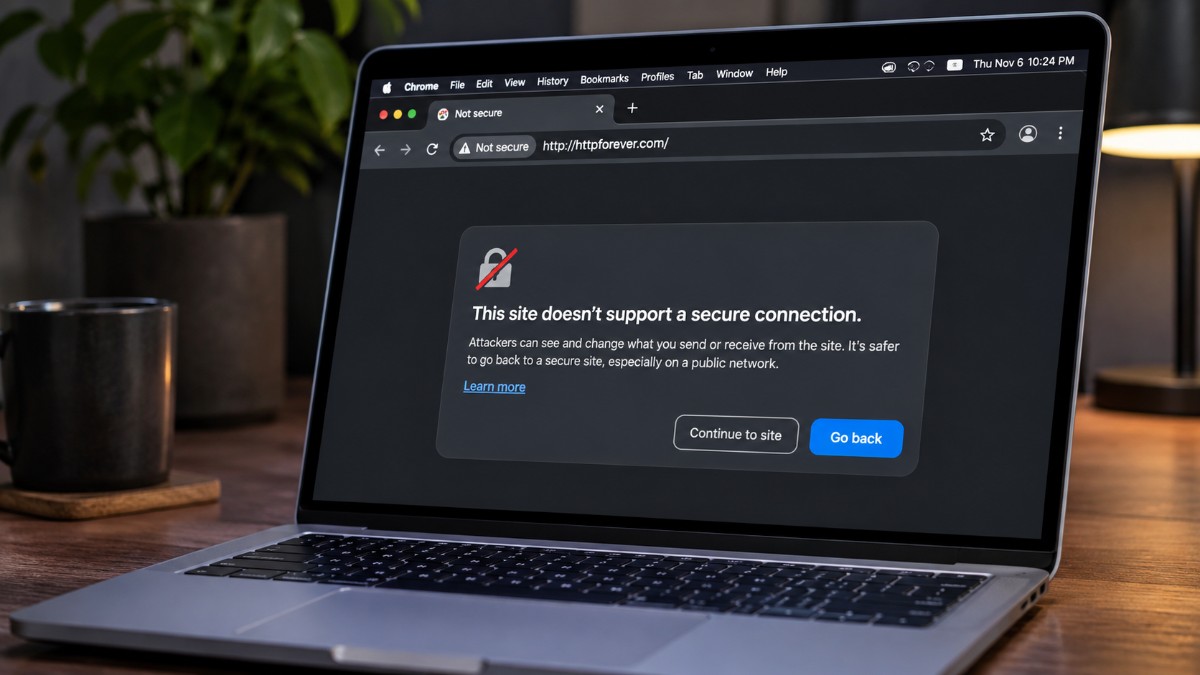
| httpforever.com | http://httpforever.com/ | Warning panel, loaded after Continue to site |
What the request log could not tell me
I tried to settle the redirect question from the request log. For example.com and iana.org it showed an http:// request marked 200 followed by an https:// request, the same pattern for both.
That pattern does not separate Chrome’s upgrade from a site’s own redirect, so it settled nothing. Watching the Network panel with Preserve log turned on is the cleaner check, and I have not run that one yet.
What the warning on httpforever.com looked like
Chrome blanked the page and opened a panel under the address bar titled “This site doesn’t support a secure connection.” Behind it the page was blank grey, so there was nothing to read until I chose.

Go back is the filled button and Continue to site is a plain outline, so the safer choice is the one your eye lands on first.
After I clicked Continue to site the page loaded, and the address bar still read Not Secure, now with a warning triangle.

neverssl.com also stopped at an error page, and I left that one alone. I could not tell whether that was Chrome’s warning or a network error.
Why Chrome asks before loading plain HTTP
Anyone sitting between you and an HTTP site can read or change what passes through, which is a real risk on public Wi-Fi. Chrome has offered this warning as an opt-in setting since 2022.
Google’s HTTPS transparency report puts HTTPS at roughly 95% to 99% of Chrome navigations since around 2020, and many HTTP links already redirect straight to HTTPS. The default asks only on the first visit, which keeps the panel from turning into noise.
When Chrome asks and when it stays quiet
Chrome asks the first time you open a public HTTP site and goes quiet once you approve it. The Chromium guide says it remembers your decision for 15 days and renews that each time you revisit.
Local addresses are skipped by default, such as single label names like intranet and IP addresses like 192.168.0.1.
Early data from Google shows nearly 95% of desktop users see no warning in a given week, and fewer than 1% see three or more. That fits my seven sites, where only two were built to be insecure.
The catch is the old site you open once a year, like a forum nobody updated.
The redirect mistake that can trigger a warning on a normal site
A site with a valid certificate can still trigger the panel if the certificate does not cover the address you typed. That happens when a site redirects its bare name to www over HTTP and has no HTTPS on the bare name.
I did not run into that case in my seven sites. If you do, the warning is about the address you typed, not proof the whole site is unsafe.
Site owners can fix it by adding HTTPS to the bare domain. It is a different problem from the certificate error in our Your connection is not private guide.
Frequently Asked Questions
Does Chrome upgrade http links to https automatically?
Chrome’s upgrades aim to avoid plain HTTP for sites that support HTTPS. In my test five sites ended on HTTPS with no prompt, but I could not separate Chrome’s upgrade from the sites’ own redirects.
Will Chrome warn me on every HTTP site?
No. Chrome asks the first time you visit a public HTTP site and remembers your decision for 15 days, renewed each time you revisit.
Is it safe to click Continue to site?
Chrome’s panel says attackers can see and change what you send or receive, so do not enter passwords or payment details on that page.
Can I turn off Always use secure connections?
Yes. Go to Settings, then Privacy and security, then Security, and switch off Always use secure connections.
Does it apply to my router or office intranet?
Not by default. Chrome skips warnings for single label names like intranet and local addresses like 192.168.0.1.
Where to find Always use secure connections in Chrome settings
Open Settings, then Privacy and security, then Security, and look under Secure connections. The same page is at chrome://settings/security.
Warns you for insecure public sites is the default and skips private addresses. Warns you for insecure public & private sites also covers intranets and local devices.
Chrome keeps any choice you made on this setting before the default changed. The Chrome update tracker lists the current release if you are unsure of your version.
My verdict is simple. Leave it on, since it stayed silent on the five sites that ended on HTTPS. Only people who keep old HTTP-only pages or home lab dashboards need this page.