An old Android tablet rarely dies. It just gets slow, drops out of app support and ends up charging in a drawer.
The best things to do with an old Android tablet are small, single jobs, and most need only a charger and Wi-Fi. Setup costs nothing in most cases, and a stand is the only purchase worth considering. These ideas assume a tablet with Google Play, and nothing here was tested on a specific model, so each step sticks to settings and apps with published requirements.
TL;DR: Give the tablet one fixed job: photo frame, kids’ tablet, recipe screen, library reader, smart home panel, Windows second screen or Steam Link screen. Check the Android version first, because Chrome now needs Android 10 and Family Link supervision starts at Android 7.0. If the battery looks swollen, stop charging it and recycle it.
1. Turn it into a photo frame
Open Settings, tap Display, then Screen saver, and pick Google Photos to run a slideshow of the albums you choose. Menu names shift between brands, and the Google Photos option only appears on some tablets. Google Photos manages albums for eligible devices under Settings, Apps and devices, Photo frames, but that menu does not enable the feature on a tablet that lacks it. If the option is missing, use a different slideshow app.
The screen saver normally starts while the tablet is charging or docked, so it needs a stand and a cable that reaches. Turn the brightness down before you mount it, because a screen that looks fine on a desk can glare in a dark hallway.
2. Hand it down as a kids’ tablet

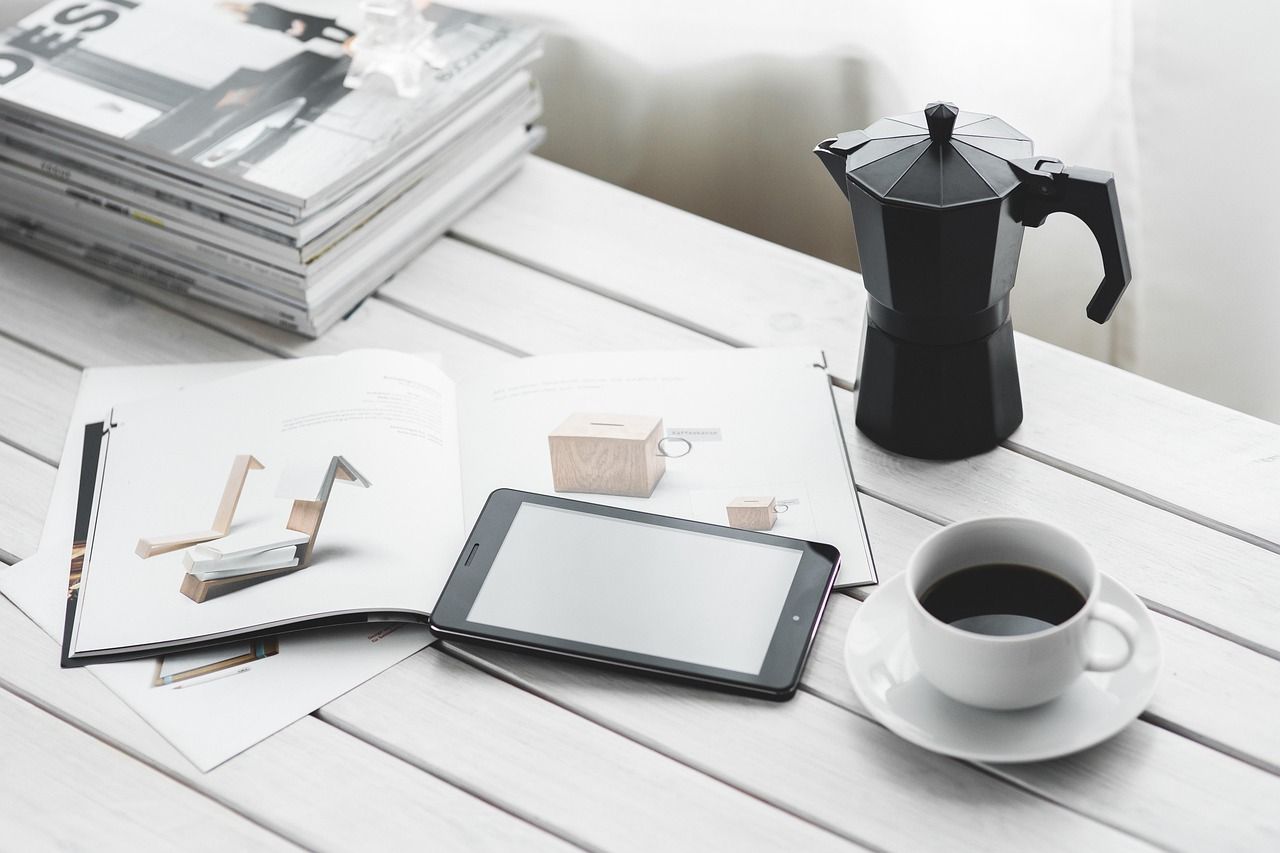
Family Link lets a parent set app approvals and screen time limits from their own phone. Google says supervision runs on Android 7.0 and higher, and settings may also apply to devices on Android 5.0 and 6.0.
Plan on about 15 minutes to set up the child’s Google Account and the device. A tablet below the supported version is better kept for the jobs further down this list.
3. Pin it to one app for the kitchen

Turn on app pinning in Settings, then Security and privacy, then More security and privacy, then App pinning. Samsung tablets call it Pin windows.
A pinned recipe app stays on screen until you unpin it with your screen lock. Pinning does not turn off the touchscreen, so a wet knuckle on the wrong spot still lands inside the app.
4. Make it a library e-reader
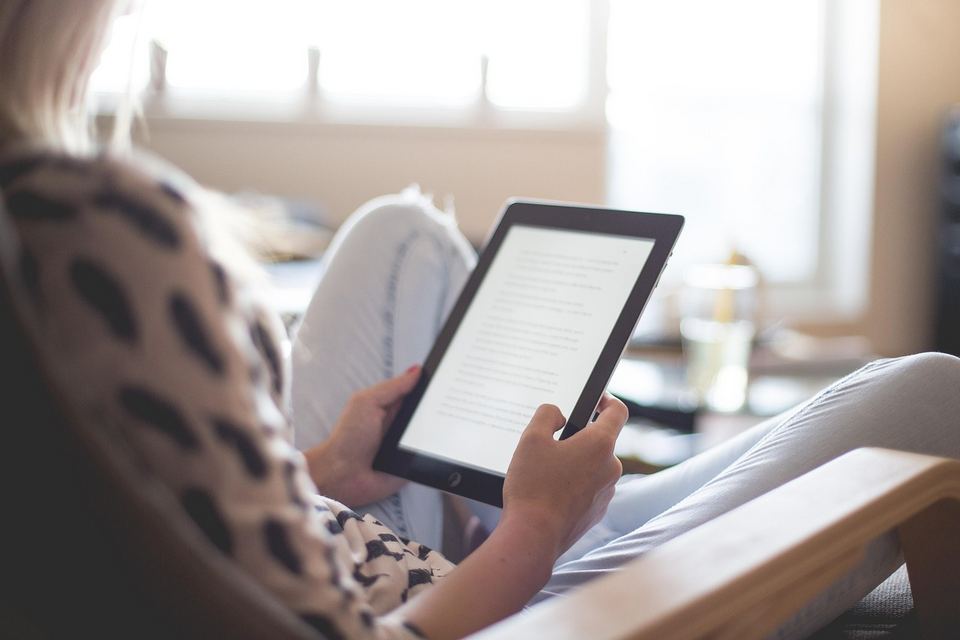
Libby needs Android 7.1 or newer, according to its help site, and borrows ebooks and audiobooks with a library card. Google Play Books can also download titles for offline reading.
Color pages are where a tablet earns its place, so comics and magazines suit it better than a long novel at bedtime.
5. Use it as a smart home panel

The Android app from Home Assistant can be set as the tablet’s default home app, which turns it into a wall control panel. Go to Settings, Companion app, Device home screen and turn on Use as Home app, then turn on Keep screen on. Build a separate dashboard for the tablet with only the controls it needs.
You need a Home Assistant setup already running on your network. Very old tablets hit limits too, since many Android libraries now require Android 6.0 or later.
6. Add a second screen to a Windows PC
Spacedesk turns an Android tablet into an extra Windows display. Install the driver on a Windows 10 or 11 PC and the viewer app on the tablet, with both on the same local network.
Samsung Galaxy Tab S7 and newer models have a built-in Second Screen option instead. Open it from Quick Settings, then press Windows + K on a Windows 10 PC, with both devices on the same Wi-Fi network. Either option suits reference windows and chat better than drawing or fast games.
7. Stream PC games to it with Steam Link
Steam Link runs on Android 5.0 and newer, according to Steam Support. The game runs on your PC and the tablet shows the video, so the PC has to stay on and both devices need the same local network.
A 5GHz Wi-Fi connection is the recommended setup, and most games need a Bluetooth controller.
8. Sell, trade in or recycle it
Back up first, to the cloud or to an external hard drive, and pull out any microSD card. Remove your Google account before the reset, because Factory Reset Protection can ask the next owner for your Google login after a reset.
On stock Android go to Settings, System, Reset options, Erase all data. If the back panel is lifting or the screen is separating, stop charging the tablet and do not puncture it. The EPA says lithium-ion batteries should not go in household trash or recycling bins, so use a battery recycling or household hazardous waste drop off. For a damaged battery, it advises contacting the manufacturer for handling instructions before you move it.
Which job needs which Android version
Some jobs publish a minimum Android version and some do not, so check the version before you pick one.
| Job | What it needs | Android version stated |
|---|---|---|
| Photo frame | Google Photos albums, charger | Depends on the tablet |
| Kids’ tablet | Family Link, child’s Google Account | 7.0 or higher; 5.0 and 6.0 may work |
| Recipe screen | App pinning, screen lock | Not stated |
| Library reader | Library card, Libby | 7.1 or higher |
| Smart home panel | Home Assistant setup, Android app | 6.0 or higher |
| Windows second screen | Spacedesk driver on Windows 10 or 11, same network | Above 5.0 |
| PC game streaming | Steam on a PC, same network, controller | 5.0 or higher |
Frequently Asked Questions
Can I use an old Android tablet as a second monitor?
Yes, for a Windows 10 or 11 PC. Spacedesk’s driver goes on the PC and its viewer app goes on the tablet, with both on the same local network.
Does Chrome still work on an old Android tablet?
Chrome 139 and later need Android 10 or newer. A tablet on Android 8 or 9 can keep running Chrome 138 but gets no newer versions.
Can an old tablet be a smart home panel?
Yes, if you already run Home Assistant. Its Android app can be set as the tablet’s default home app.
How do I wipe an old Android tablet before selling it?
Remove your Google account first, then go to Settings, System, Reset options, Erase all data. Samsung tablets use General management, then Reset.
Is it safe to charge an old tablet with a swollen battery?
No. Stop charging it, do not puncture it, and take it to a battery recycling or household hazardous waste drop off, not the household trash.

Check the Android version before you buy a stand or mount
Open Settings, then About tablet, and read the Android version before you spend anything on a stand, a mount or a controller. Chrome 139 and later need Android 10, so a tablet on Android 8 or 9 stays on Chrome 138. DigitBin covered an earlier Chrome tablet bug that hit tablets too.
If the version sits below what a job needs, pick a different job from the list.