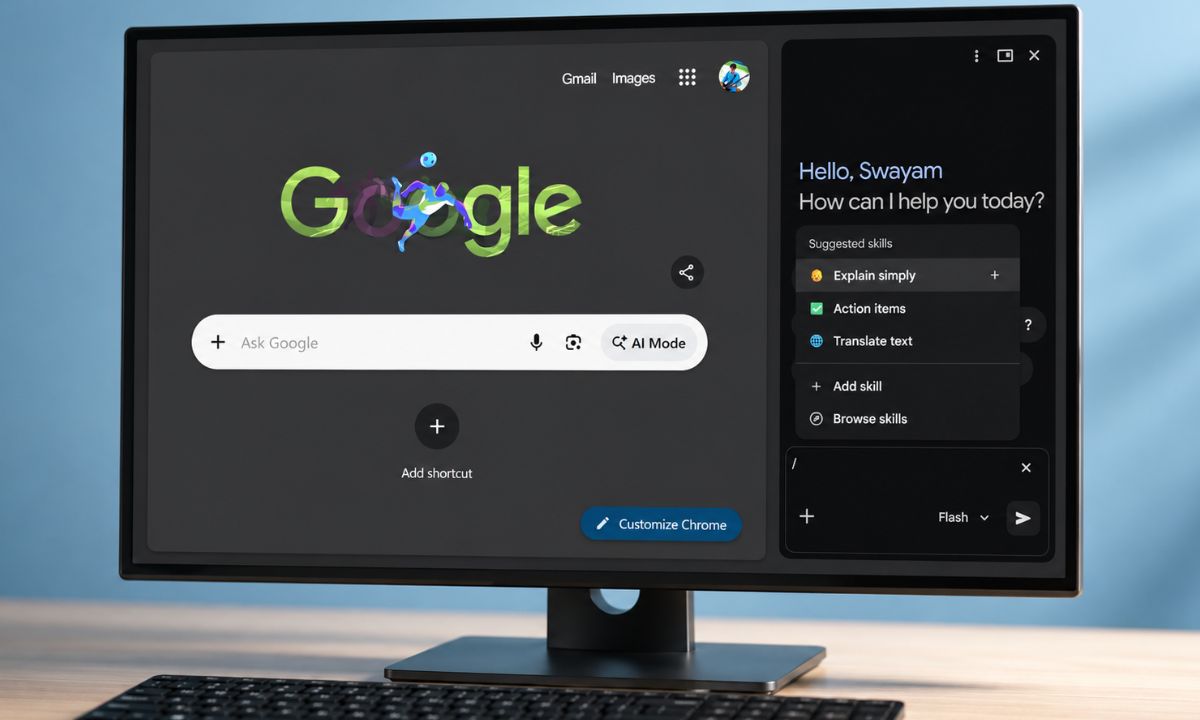
Chrome Skills showed up in my sidebar in late April. These are the reusable AI prompts to help make your workflow easier on the browser. It saves you from typing the same instructions over and over again.
For the first week, I did what everyone does with a new feature. I clicked around, saved two or three obvious ones, then forgot the menu existed.
What changed was sitting down one evening and actually building ten of them on purpose, instead of waiting for a good prompt to happen to me.
Some stuck around because I found them useful. Some I deleted within a day. This is the list, the exact instructions I typed into each one, and what actually happened when I ran them on real pages.
TL;DR: Of the 10 custom Chrome Skills I built, six are still in my saved list a few weeks later, and four got deleted. The ones that survived all had one thing in common: they replaced a prompt I was already retyping weekly. The ones I deleted solved a problem I only had once.
What building a Chrome Skill actually involves
Building a Skill takes under a minute once you know where the menu is.
- Click the Gemini icon in the top right corner of Chrome. (or press Alt +G hotkeys)
- Type a forward slash in the prompt box.
- Click Add Skill.
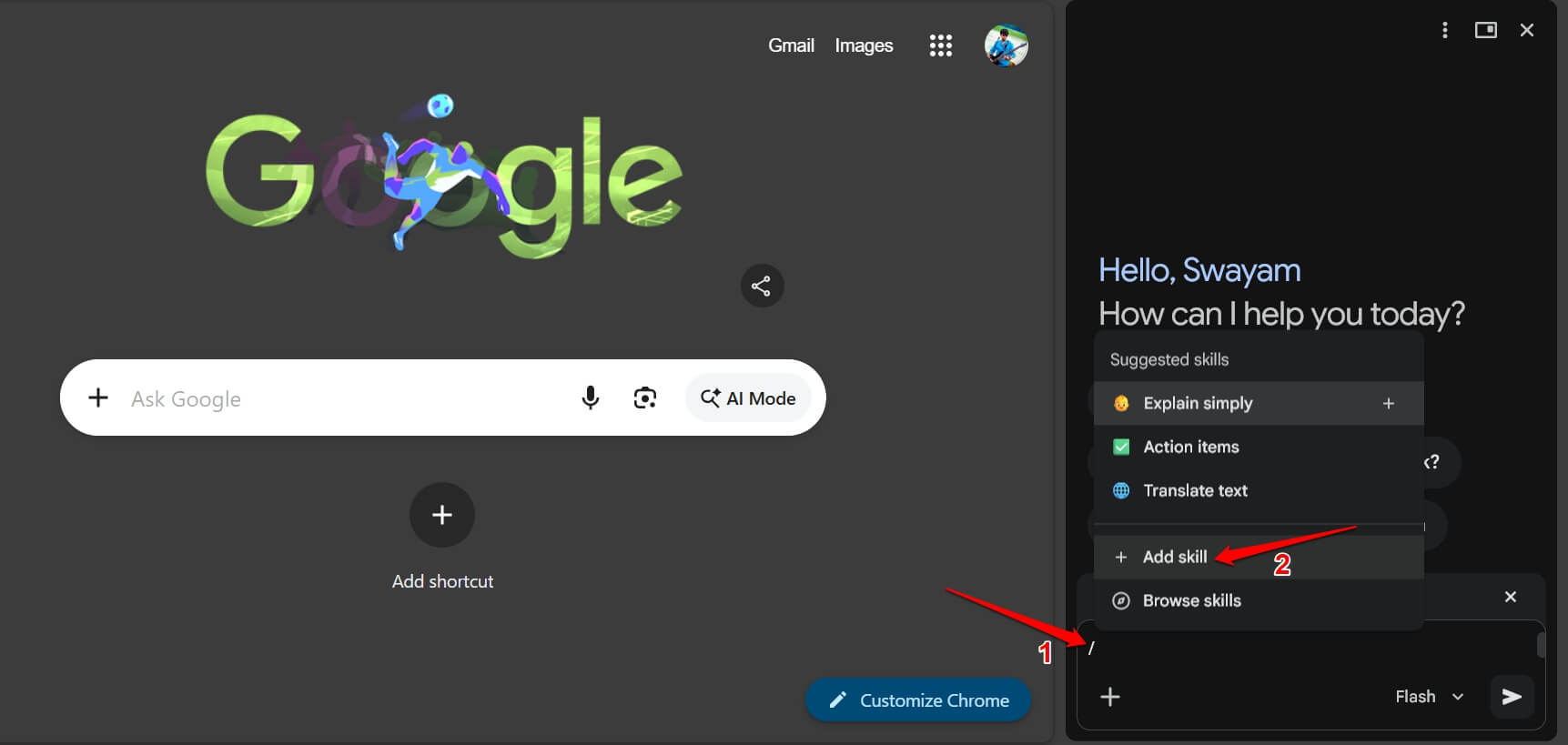

You get a form with two fields: a name and the instruction itself. Save it, and the Skill shows up in your list the next time you type /.
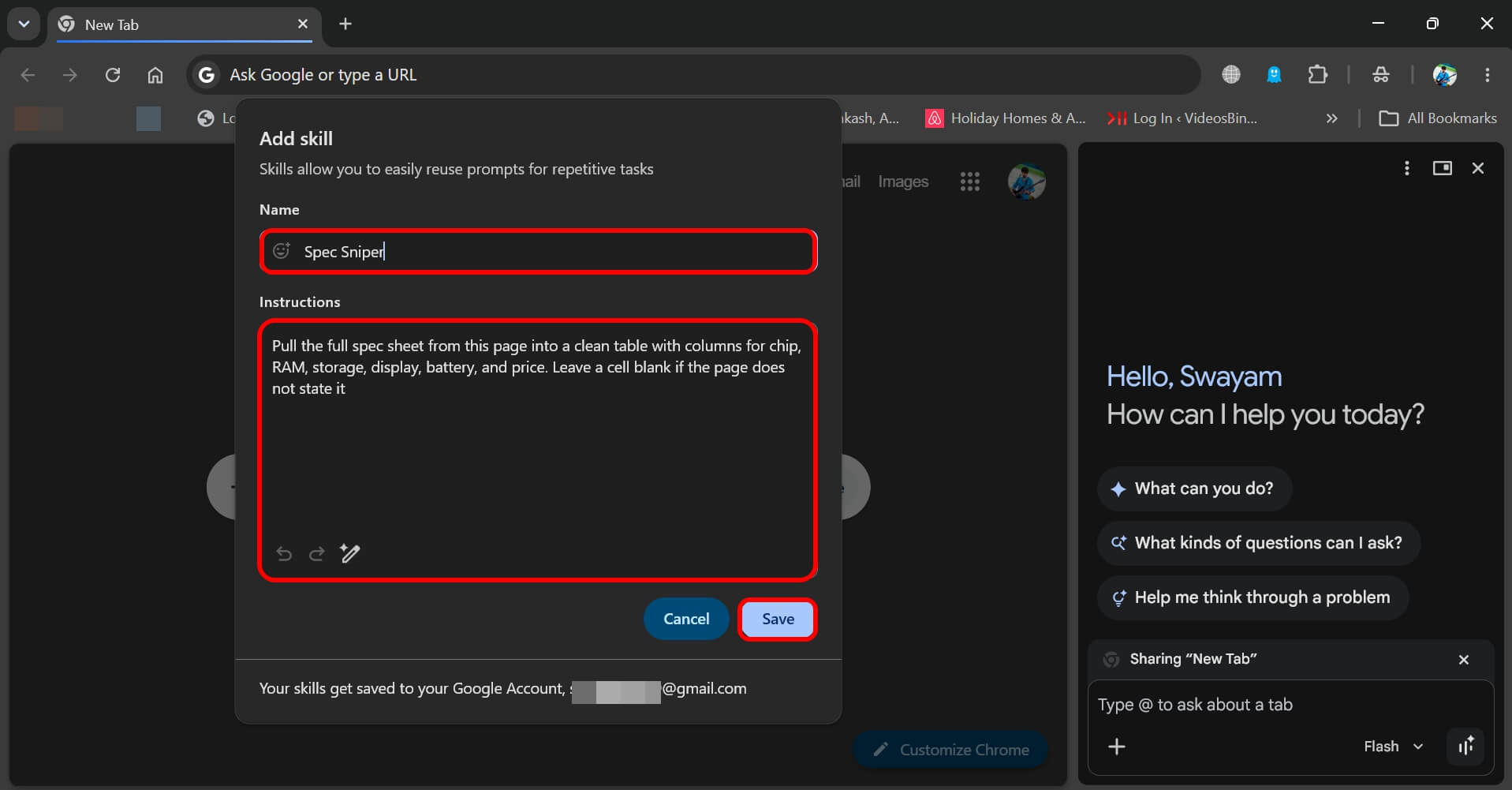
You can also manage everything directly at chrome://skills/yourSkills, which is faster if you are building several in a row and do not want to keep opening the sidebar each time.
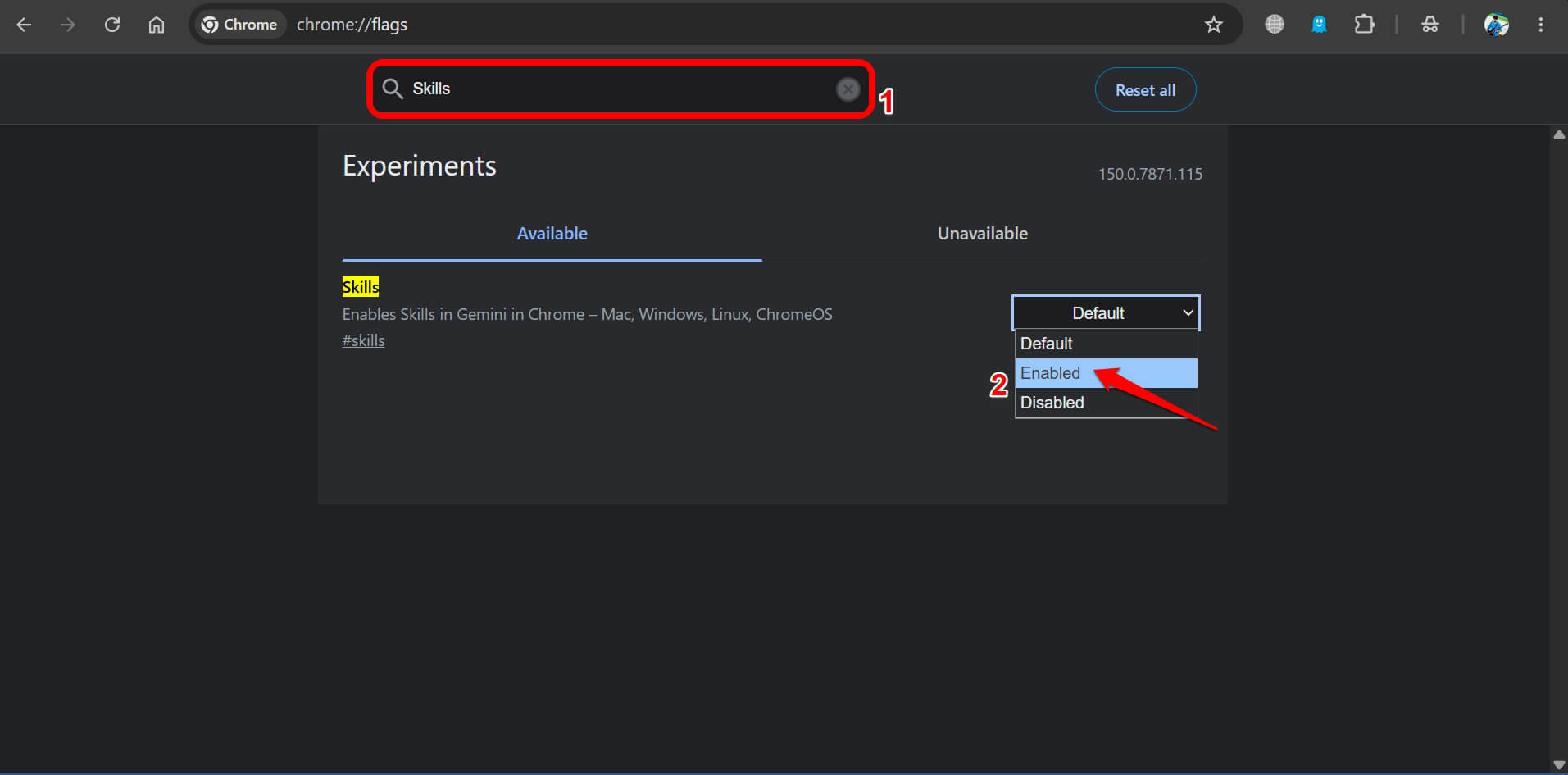
There was one setback though. The setup friction is not in building the Skill, rather in getting to a point where Skills even show up. I was on an older Chrome build the first time I tried this, and the menu just was not there.
Here’s how I fixed it and made the Skills option appear.
- I checked my Chrome version at
chrome://version, confirming I was past version 147.
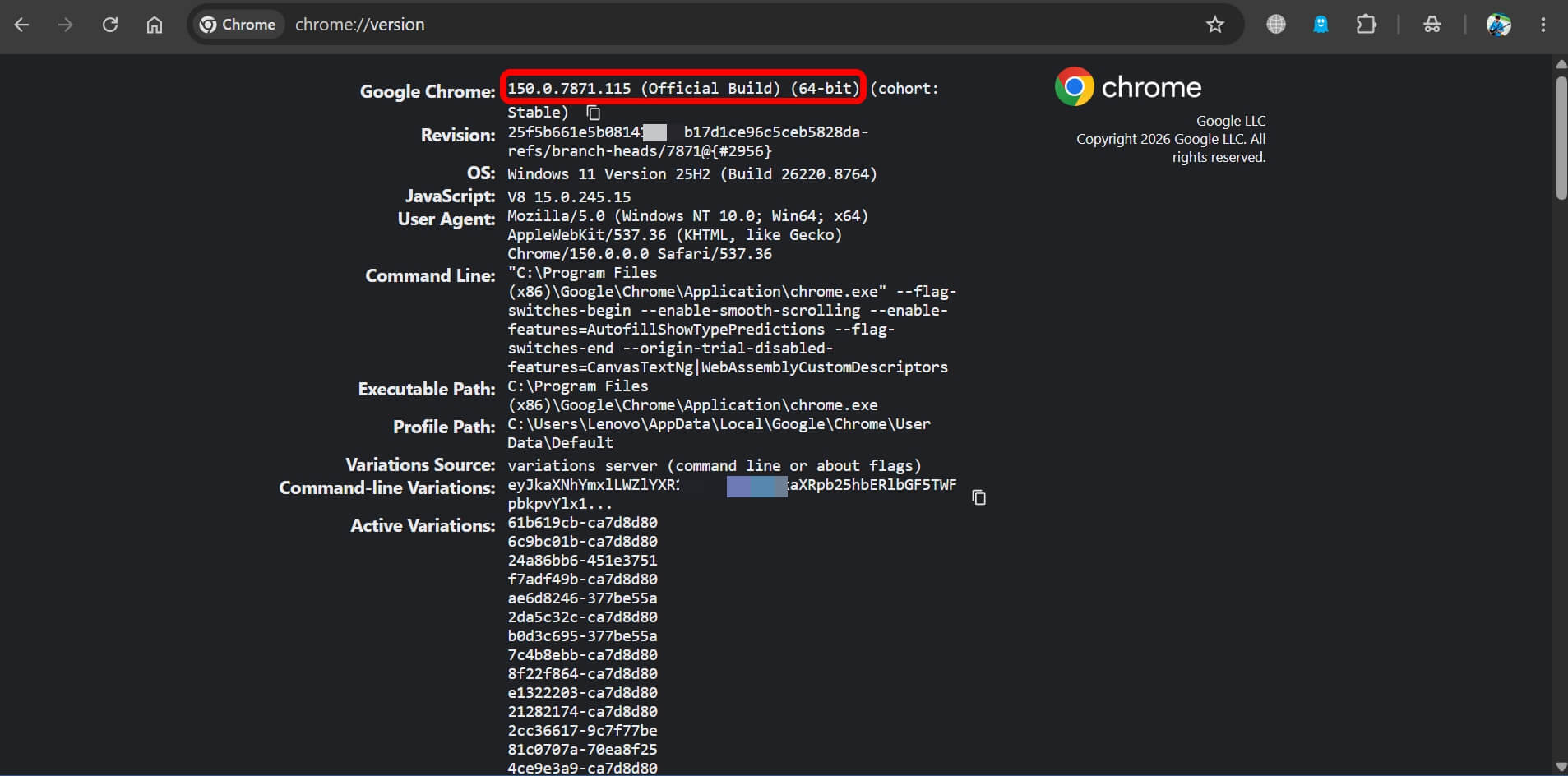

- Then I went to
chrome://flags, and searched for the flag “Skills” - Toggled the flag on manually, followed by a browser relaunch.


The 5 Skills built for research and tech browsing
These are the ones closest to my actual job: comparing specs, checking prices, and reading through leak posts without losing track of what is confirmed and what is not.
| Skill | Category | Kept or deleted | Best for |
|---|---|---|---|
| Spec Sniper | Research | Kept | Phone and laptop review pages |
| Leak Checker | Research | Kept | Sourcing claims in leak posts |
| Price Watch | Research | Deleted | Shopping pages with unclear pricing |
| Version Diff | Research | Kept | Update announcement pages |
| Tab Comparer | Research | Kept | Comparing two product pages |
| Reply Draft | Productivity | Deleted | Short message replies |
| Job Fit Check | Productivity | Kept | Comparing a posting against your background |
| Meeting Prep | Productivity | Kept | Long internal documents |
| Return Policy Finder | Productivity | Deleted | One-off policy checks |
| Jargon Translator | Productivity | Kept | Dense documentation pages |
1. Spec Sniper
Instruction: “Pull the full spec sheet from this page into a clean table with columns for chip, RAM, storage, display, battery, and price. Leave a cell blank if the page does not state it.”
I run this on phone and laptop review pages constantly. The first time I used it, on a page with specs scattered across three separate paragraphs, it built the table correctly and left two cells blank instead of guessing. That is the exact behavior I wanted and did not fully expect.
2. Leak Checker
Instruction: “Summarize this page’s claims in 3 bullets. For each bullet, note whether it is attributed to a named source or presented as unconfirmed.”
This one earns its place fast when a page buries the sourcing halfway through a long paragraph. Running it saves the scroll back to figure out who actually said what.
3. Price Watch
Instruction: “Extract the current listed price on this page. Note if there is a mentioned discount, deal, or reference to a previous price.”
Useful on paper, but this is one I stopped reaching for. Most shopping pages already show the price clearly enough that running a Skill on top of it felt redundant more often than not.
4. Version Diff
Instruction: “List what is new on this page compared to the previous version, based only on what is stated here. Do not guess at anything not written on the page.”
This is one of the six I kept. On update announcement pages, it consistently separated the actual new items from the recap paragraphs that repeat old features, which is exactly the kind of skimming I was already doing by hand.
5. Tab Comparer
Instruction: “Compare this page against the other tab I select. Use the same categories for both and note anything one page has that the other does not mention.”
Skills can pull in additional selected tabs, not just the one you are on, and this is where that actually matters. Comparing two product pages side by side without manually copying details back and forth is the single biggest time save on this whole list.
The 5 Skills built for everyday browsing
The second batch has nothing to do with tech coverage specifically. These are the ones built around tasks that show up regardless of what I am researching that day.
6. Reply Draft
Instruction: “Draft a short, polite reply to this message thread. Keep the tone direct and avoid sounding overly formal.”
I deleted this one after about four days. The drafts were fine, but I found myself rewriting the opening line almost every time anyway, which erased most of the time it was supposed to save.
7. Job Fit Check
Instruction: “Compare this job posting against my background. List the 3 biggest matches and the 3 biggest gaps, without softening either.”
This is a customized version of the built-in Check job fit Skill, and the small wording change, asking it not to soften the gaps, mattered more than I expected. The first run flagged a requirement I had genuinely overlooked.
8. Meeting Prep
Instruction: “Summarize this document into 5 talking points I could bring into a call, ordered from most to least important.”
Kept this one. It works best on longer internal docs, and the ordering instruction turned out to matter; an unordered list of five points is not the same as knowing which one to lead with.
9. Return Policy Finder
Instruction: “Find and summarize the return or refund policy on this page in plain terms, including any time limit mentioned.”
Deleted after one use. Return policies are usually short enough that reading them directly took about the same time as running the Skill and then reading its summary.
10. Jargon Translator
Instruction: “Rewrite the dense or technical section of this page in plain English, the way you would explain it to someone unfamiliar with the topic.”
This is close to the built-in Explain simply Skill, but scoped to just the dense part of a page rather than the whole thing. Kept it, and it gets used more on documentation pages than news articles.

What actually decided which ones survived
Looking at the six I kept against the four I deleted, the pattern is not about which Skill sounded cleverer on paper.
Spec Sniper, Version Diff, Tab Comparer, Job Fit Check, Meeting Prep, and Jargon Translator all replaced something I was already retyping into Gemini at least once a week before Skills existed.
Reply Draft, Price Watch, and Return Policy Finder solved problems I only ran into occasionally, and a Skill built around an occasional problem just sits unused in the menu until you eventually clear it out.
Google’s own framing of Skills in Chrome describes it as a way to save prompts you would otherwise retype, and that framing holds up better than I expected once I tracked my own usage against it instead of just taking it at face value.
Whether this is worth setting up
Ten Chrome Skills took close to half an hour to build in one sitting, and six of them are still doing real work weeks later. That seemed good enough that I would tell anyone reaching for the same three or four Gemini prompts on repeat to just build the Skill instead of retyping it the next time.
The honest caveat is that this only pays off if you already have prompts worth saving. If you rarely use Gemini in Chrome to begin with, building ten Skills in advance is solving a problem you do not have yet, and you are better off saving them one at a time as an actual repeated prompt shows up in your own browsing.