Looking to record activity on your Macbook Screen? I will list down the simplest of the methods to record the mac screen along with internal audio. Many times you may be in a need to record the screen along with internal audio, mac has a built-in feature to record the screen.
How to Screen Record Macbook with Internal Audio?
Here are the Steps to Record Complete or Portion of the Screen on Mac X OS with System Audio using QuickTime Player
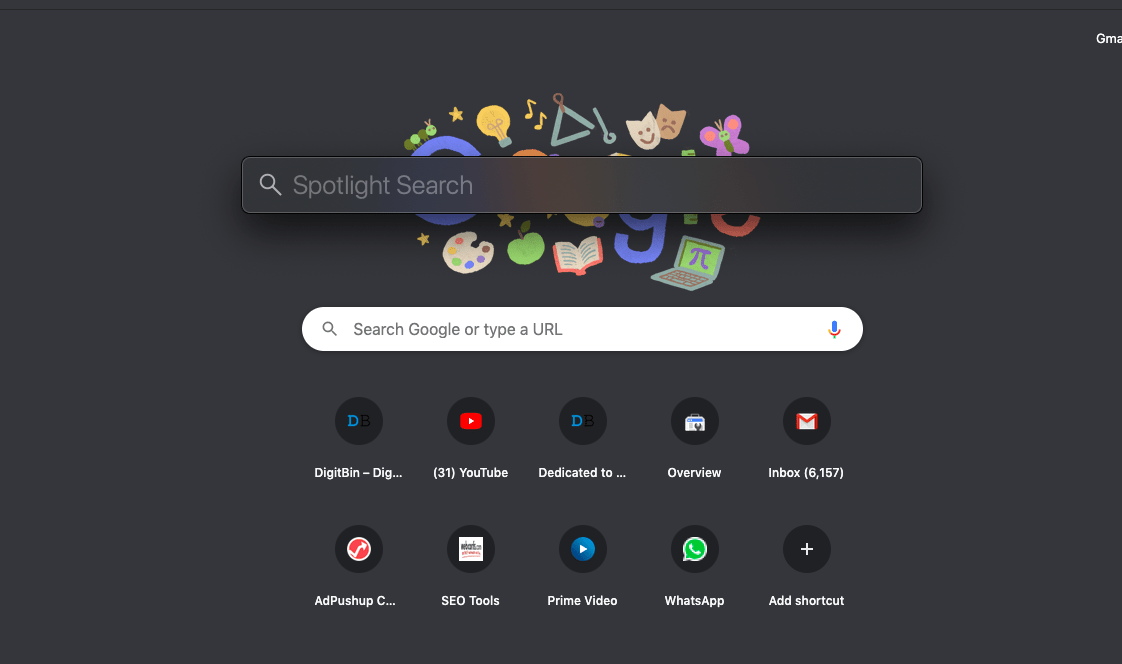
- Open Spotlight Search by Pressing Command (⌘) and Space Bar.

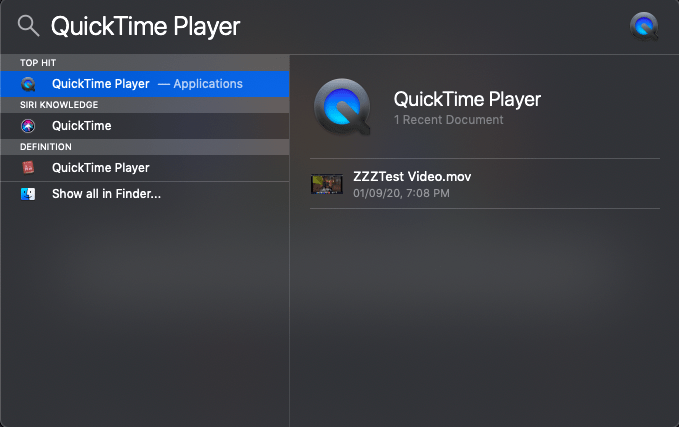
- Here Search for QuickTime Player and open the Application.

- Now Click on File Option on the top bar.
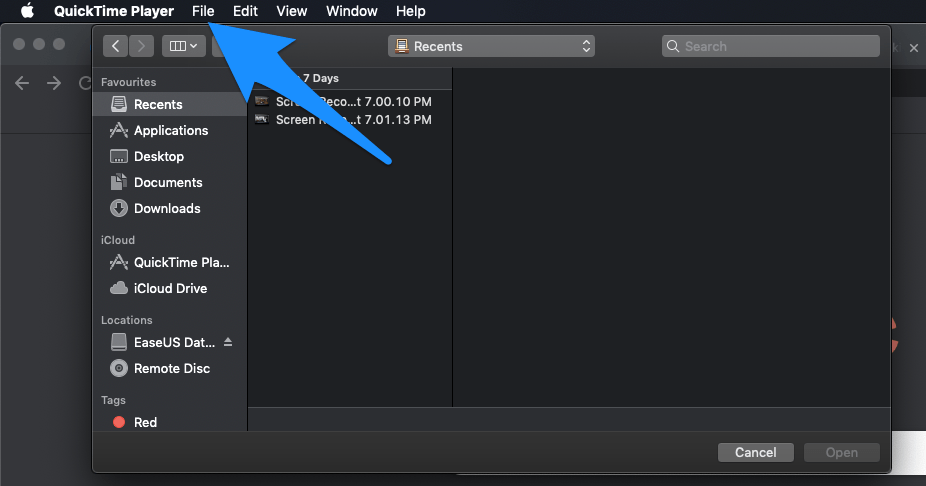

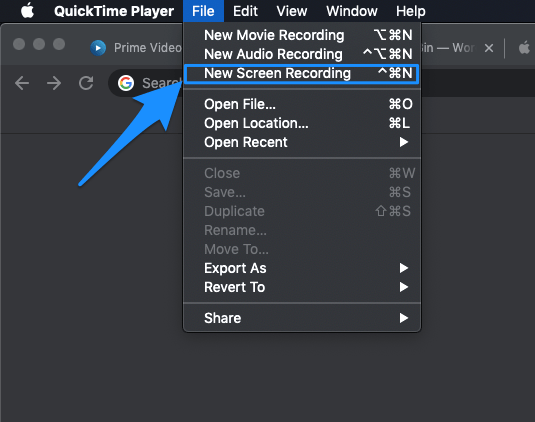
- Here open the New Screen Recording option.

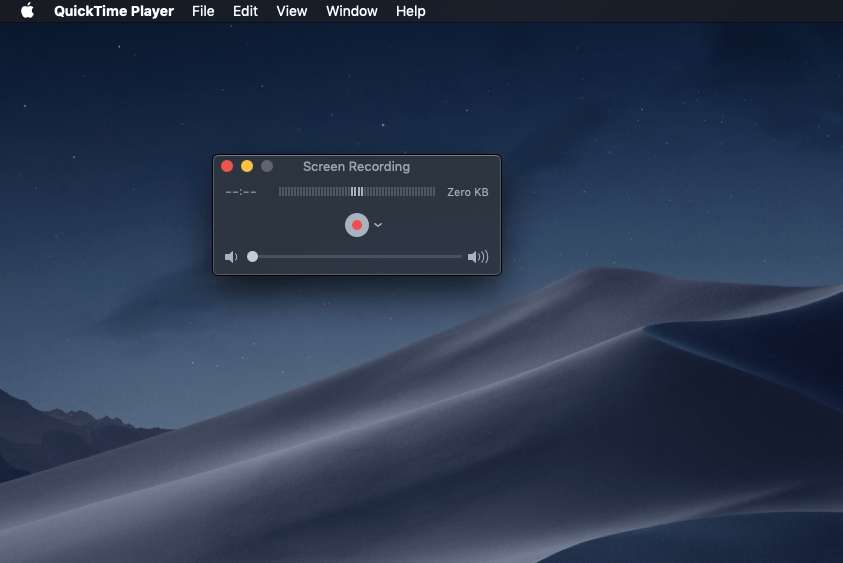
- Screen Recorder Box will appear.

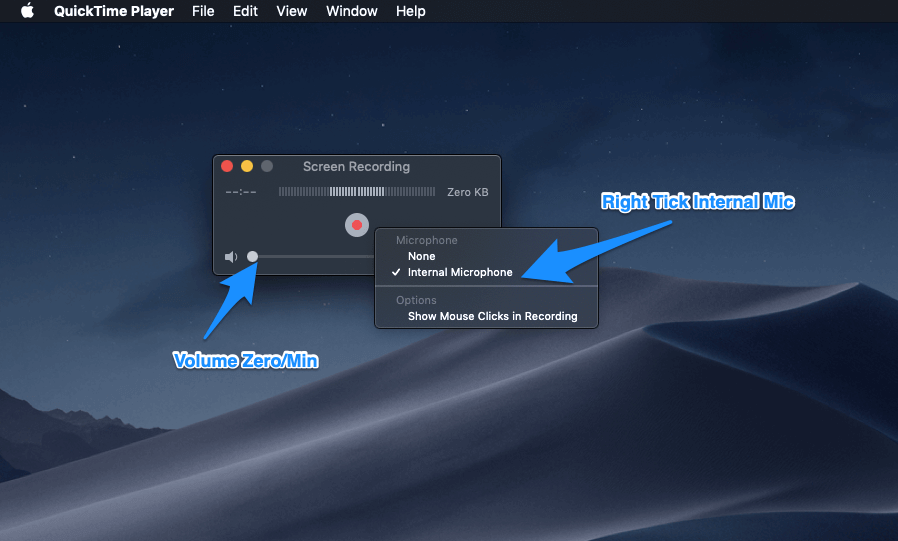
- Here beside Red Dot

 click on the arrow icon and right tick Internal Recording
(Note: Make sure the Volume Bar below the Red Dot is Zero/min or else it will record the mic external audio)

- Now click on the Red Dot and click anywhere on the screen to start recording the full screen
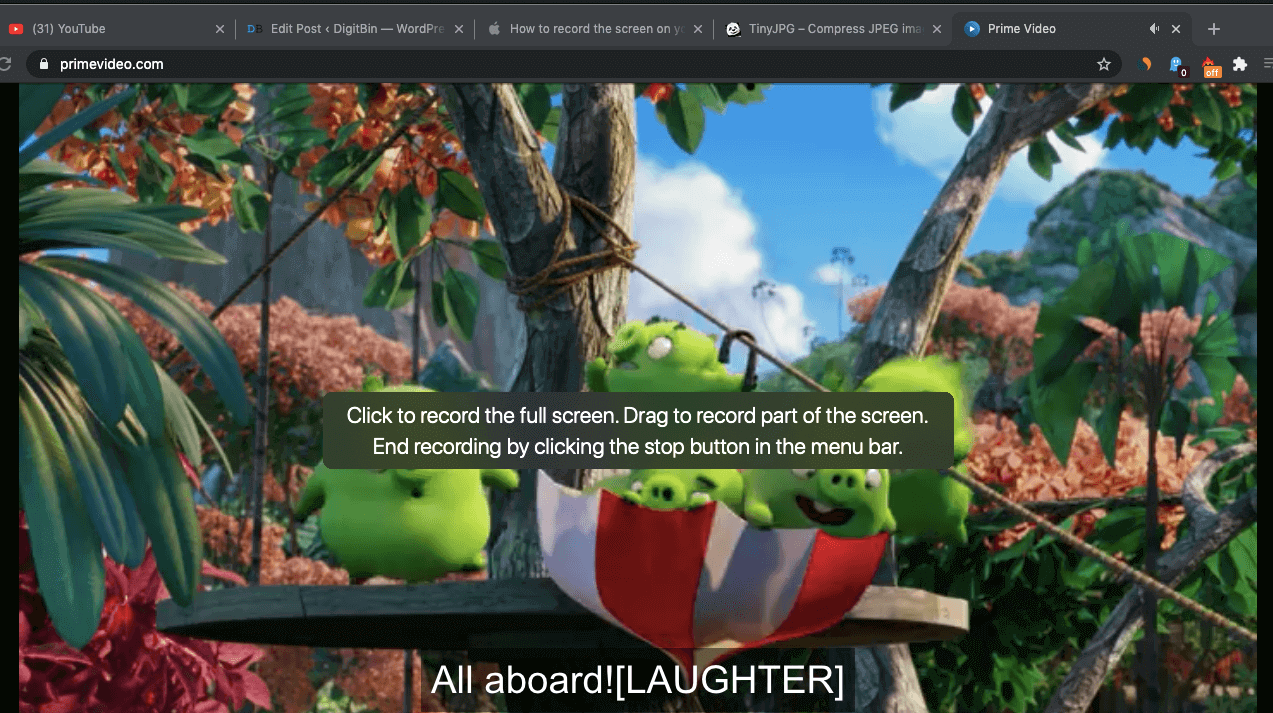

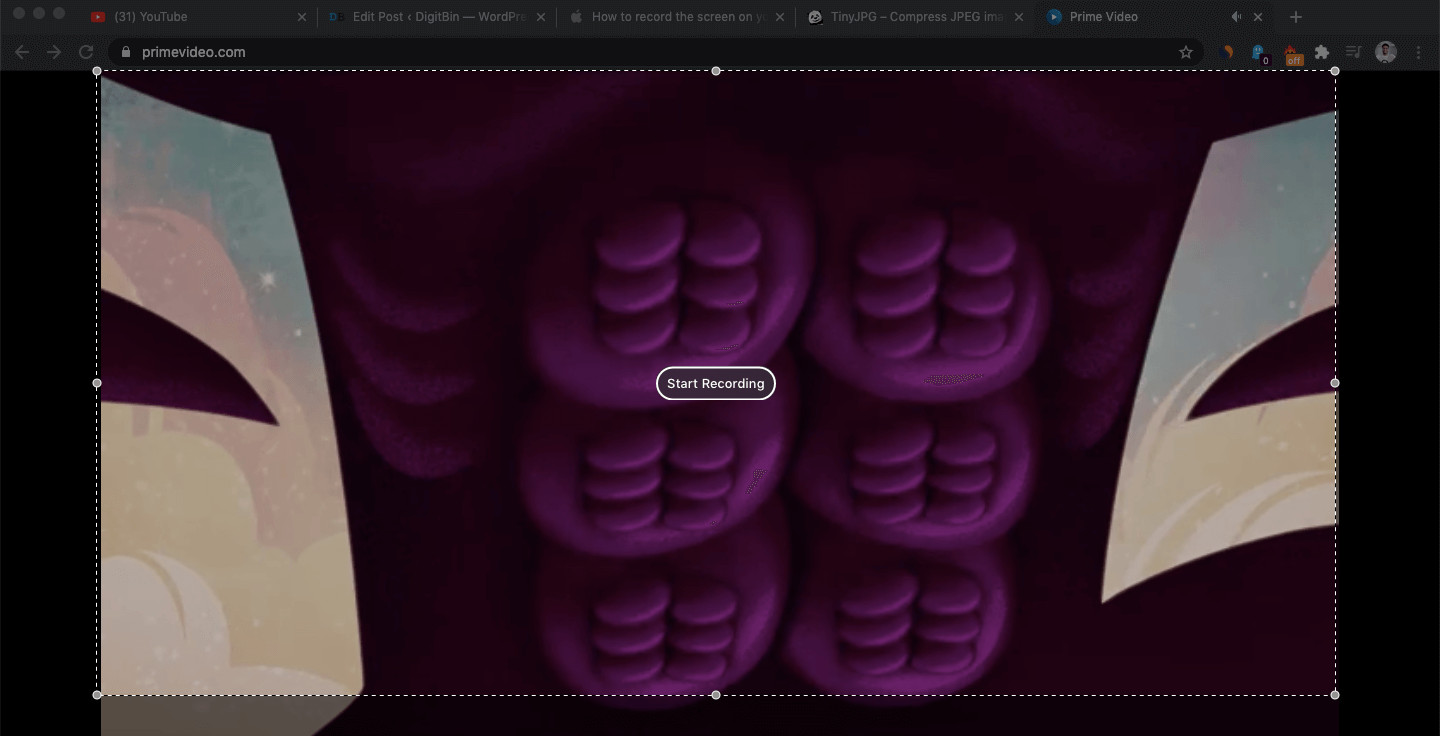
- You can also drag the mouse to only record the portion of the screen and click start recording.

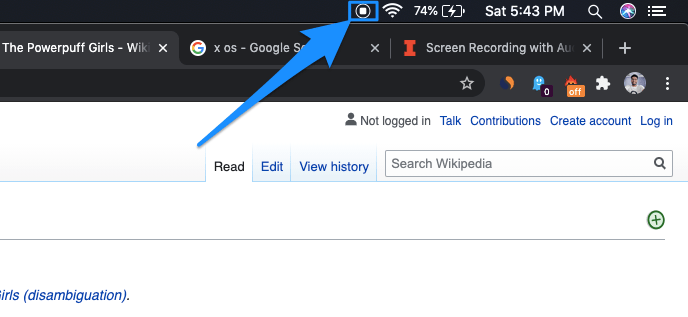
- Once the recording is done, click on the QuickTime icon on the Top Right Bar to save the recording.

Conclusion: You can also record external mic Audio by increasing the volume bar below the Red Dot. Hope you like the post. Please let me know if you face any issues.