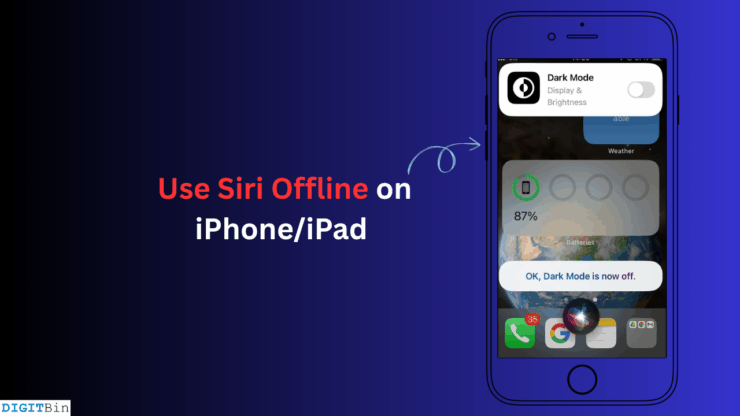
When you shoot a voice query at Apple’s virtual assistant Siri, your iPhone/iPad needs to be connected to a WiFi, allowing Siri to fetch information from web servers. That has changed after the release of iOS 15.
Apple allows Siri to process voice commands without needing to rely on their online servers. This means digital assistant Siri can execute specific commands without depending on the internet.
In this guide, I have shared the tasks that Siri can execute when you issue it voice commands and the iPhone is not connected to cellular data or WiFi. Also, I have mentioned the iPhone and iPad models on which Siri supports this feature.
How to Enable Siri on iPhone for Offline Use?
Whether you use it online or offline, you must allow Siri to respond to your “Hey Siri” voice command to proceed with any task execution request.
To check if Siri is enabled to respond to voice commands,
- Open the iPhone Settings
- Go to Siri > Talk to Siri.
- Select Hey Siri.
- If you have an iPhone with a home button, enable Press Home for Siri.
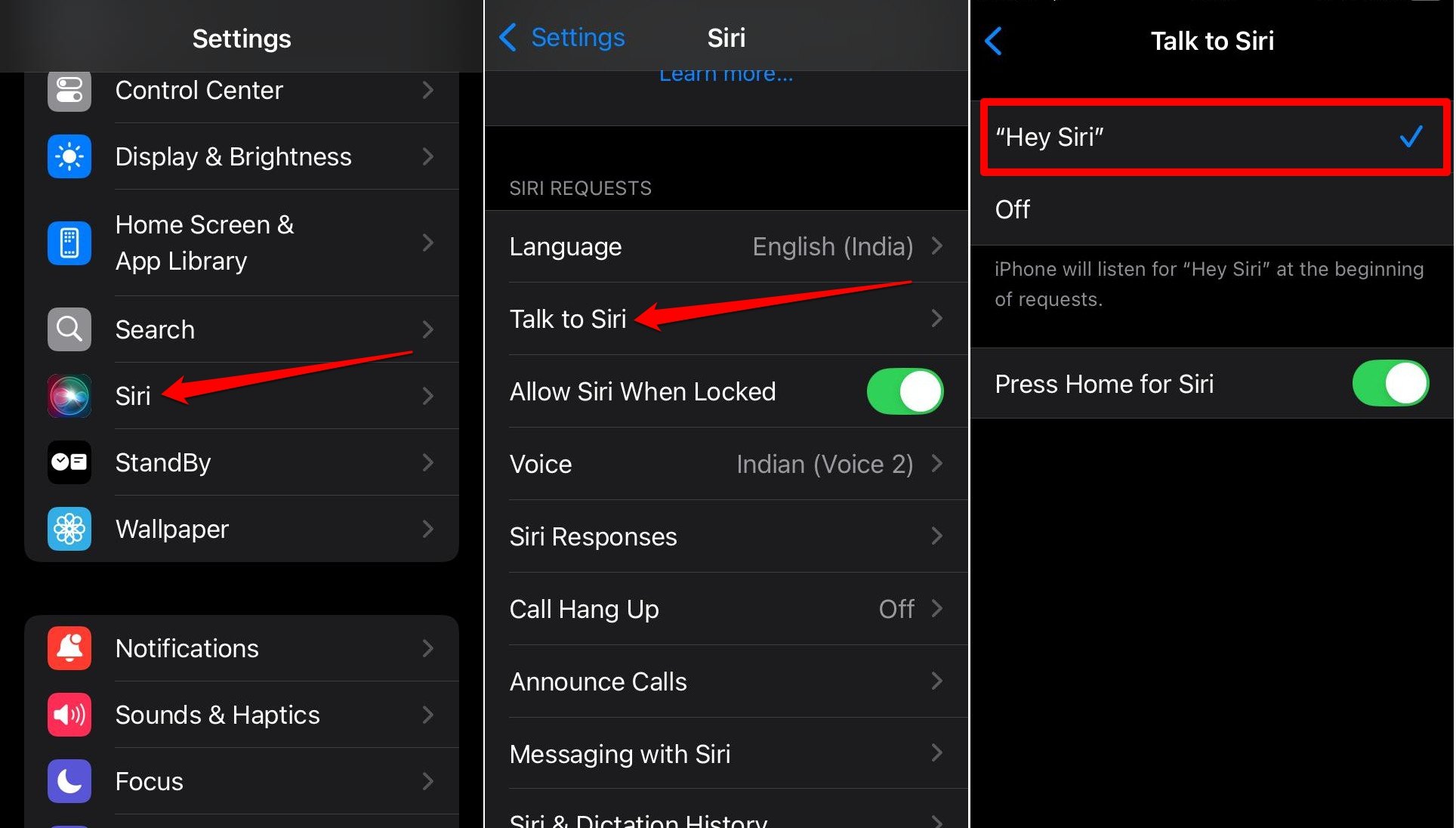

It means Siri will appear when you say “Hey Siri” in front of your iPhone or press and hold the home button. Next, speak out and instruct the task you want to Siri.
Siri Voice Commands that Work without Internet/WiFi
When the iPhone is offline, Siri can be summoned to open iOS apps, enable or turn off dark mode, read messages received on the device, activate or disable Bluetooth, and perform several other tasks. Let us check out the voice commands you can issue to Siri to make it work offline.
Open an App on iPhone Using Siri
In offline mode, you can easily launch an app hands-free with the help of Siri.
- Say “Hey Siri” to invoke Siri.
- Once the Siri icon appears, speak “Open <app name>”
For instance, “Hey Siri, open Notes app” voice command will launch the iOS Notes app.
Be mindful about the fact that apps dependent on the internet to function will launch but won’t work as long as the iPhone doesn’t have a stable network connection.
Check Time and Date Using Siri
If you fail to remember dates or days, you can ask Siri about it even when your iPhone is not connected to WiFi.
- Hold your iPhone and say Hey Siri to summon the virtual assistant.
- Next, say, “Tell me today’s day and date.”
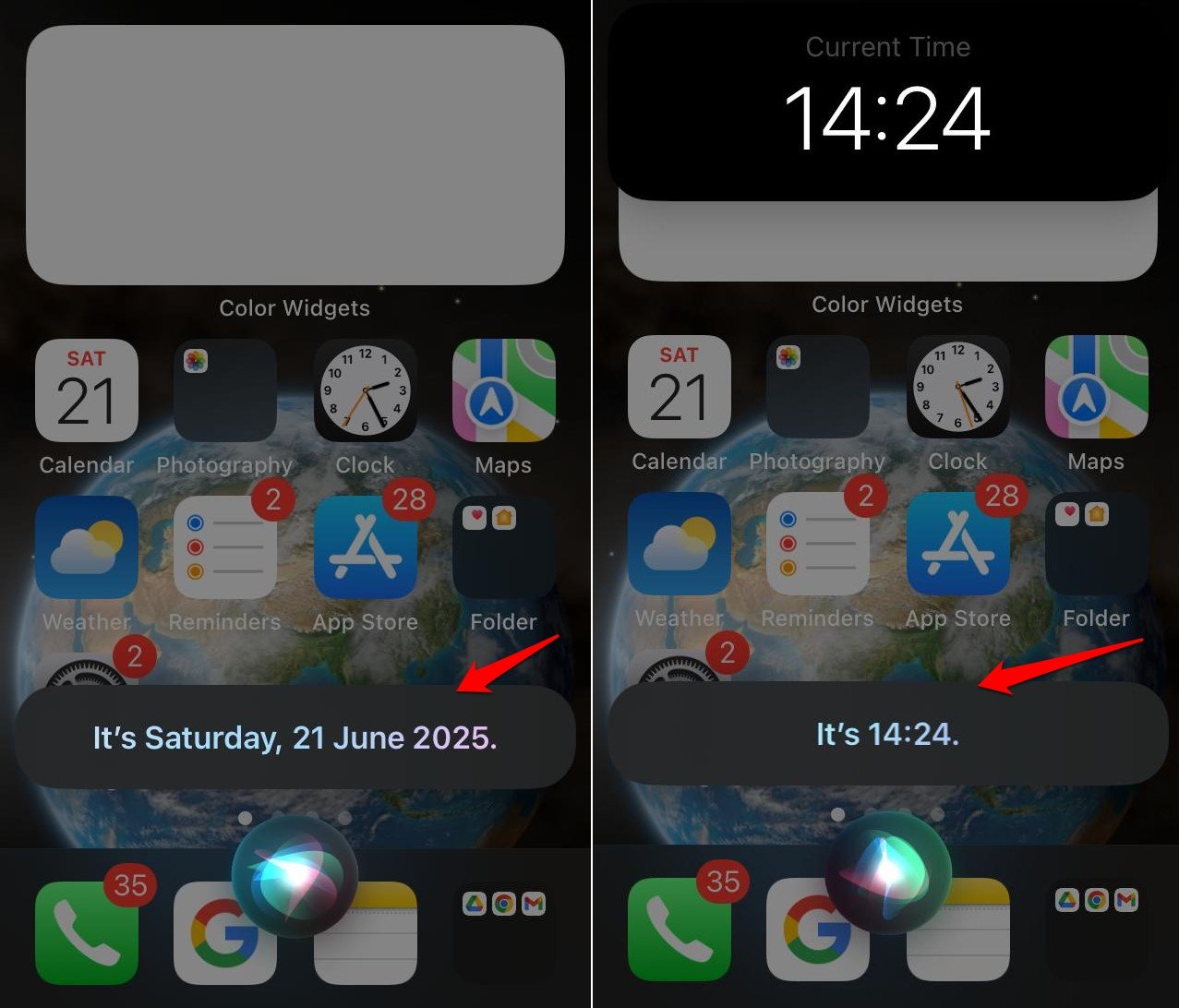

You can even ask Siri about the current time. However, if you want the time as per IST, PST, or EST, it will tell you to connect to the internet.
Access Settings Panel
Instead of navigating around and tapping through tabs within the Settings app, you can directly access the settings panel of any app with once voice command to Siri.
- Invoke Siri through the “Hey Siri” voice command.
- Now, speak, “Open <app name> in the iPhone Settings”
For example, you want to access the iOS app for Brave browser in the Settings app to make some changes, speak, “Hey Siri,” followed by “Open Brave browser app in the iPhone Settings.”
Enable/Disable Bluetooth
Use Siri to enable or disable Bluetooth on your iPhone.
- Speak “Hey Siri”
- When Siri appears, speak “Enable Bluetooth” or “Disable Bluetooth”.
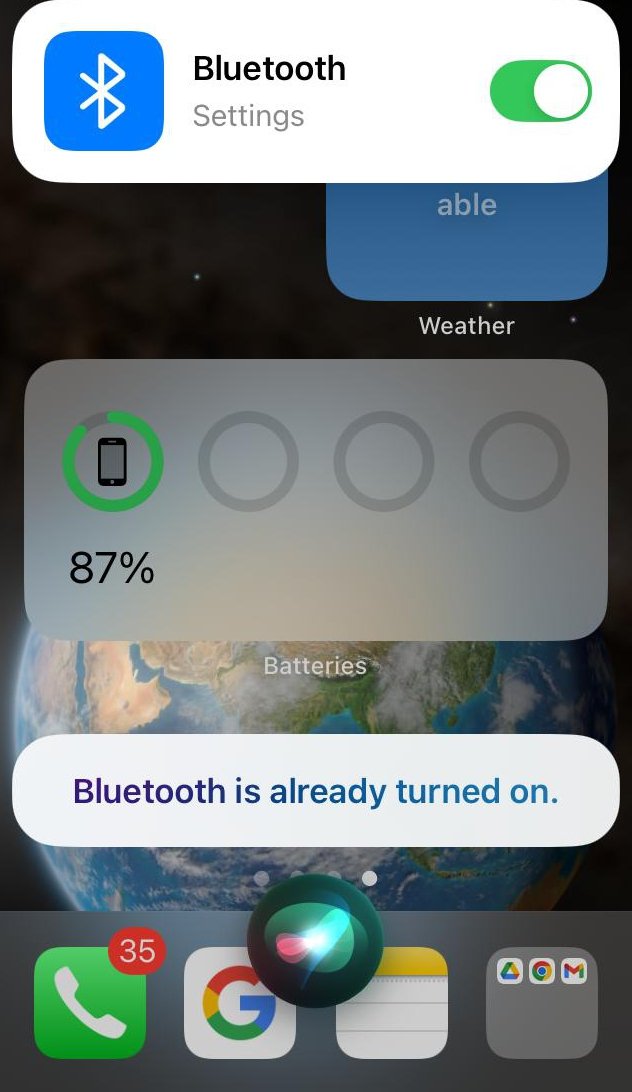

Turn Dark Mode on/off
When your iPhone is offline, you can invoke Siri to switch between dark and light mode.
- Say “Hey Siri” to view Siri pop up on the screen.
- Now, speak “Enable dark mode” or “Disable dark mode” depending on your need.
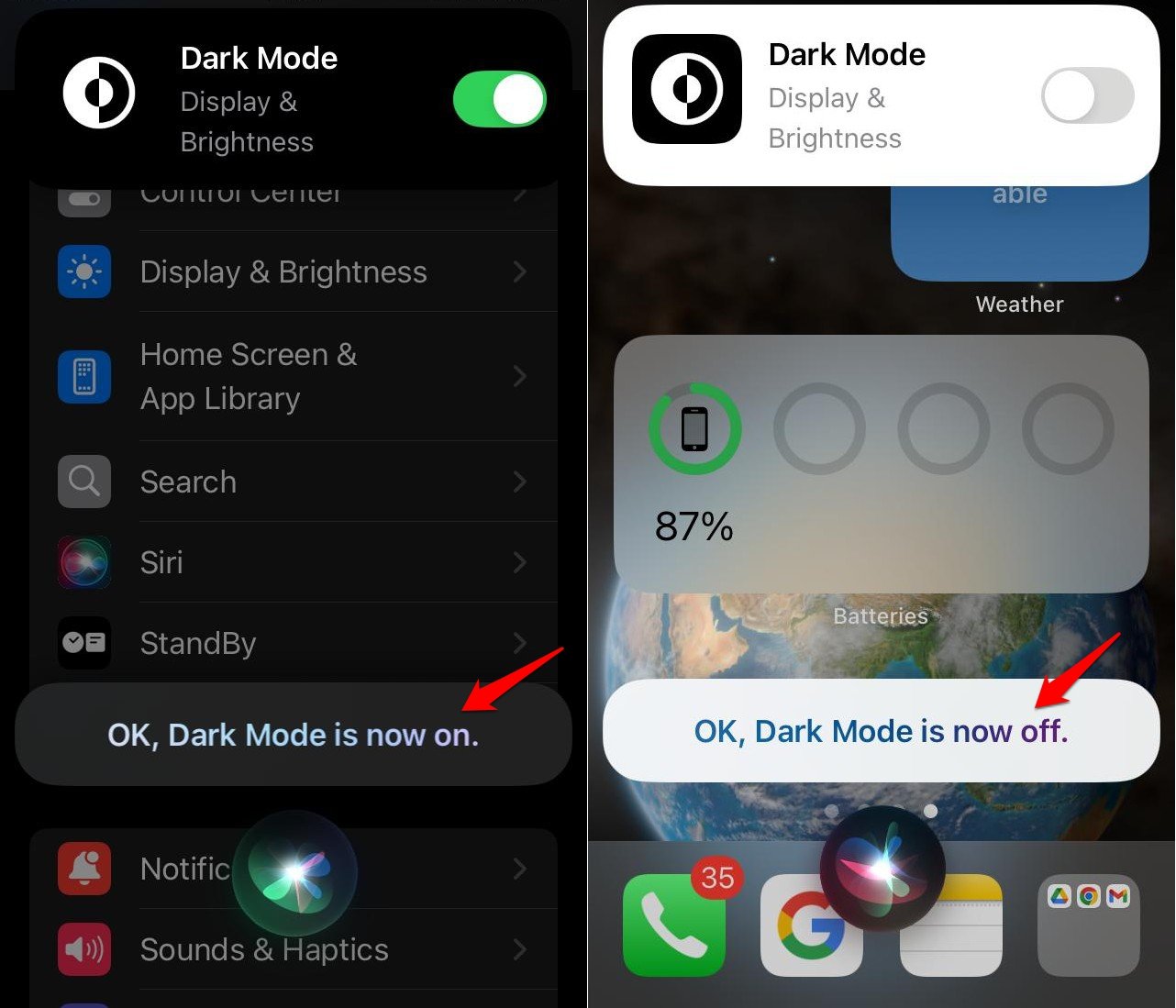

Set an Alarm
You can set timers and alarms on your iPhone using Siri without depending on a WiFi network.
- Say “Hey Siri”.
- As Siri appears, speak out, “Set an Alarm.”
- Siri will ask you back, “Set the alarm for when?”
- For example, reply “3 hours from now”.
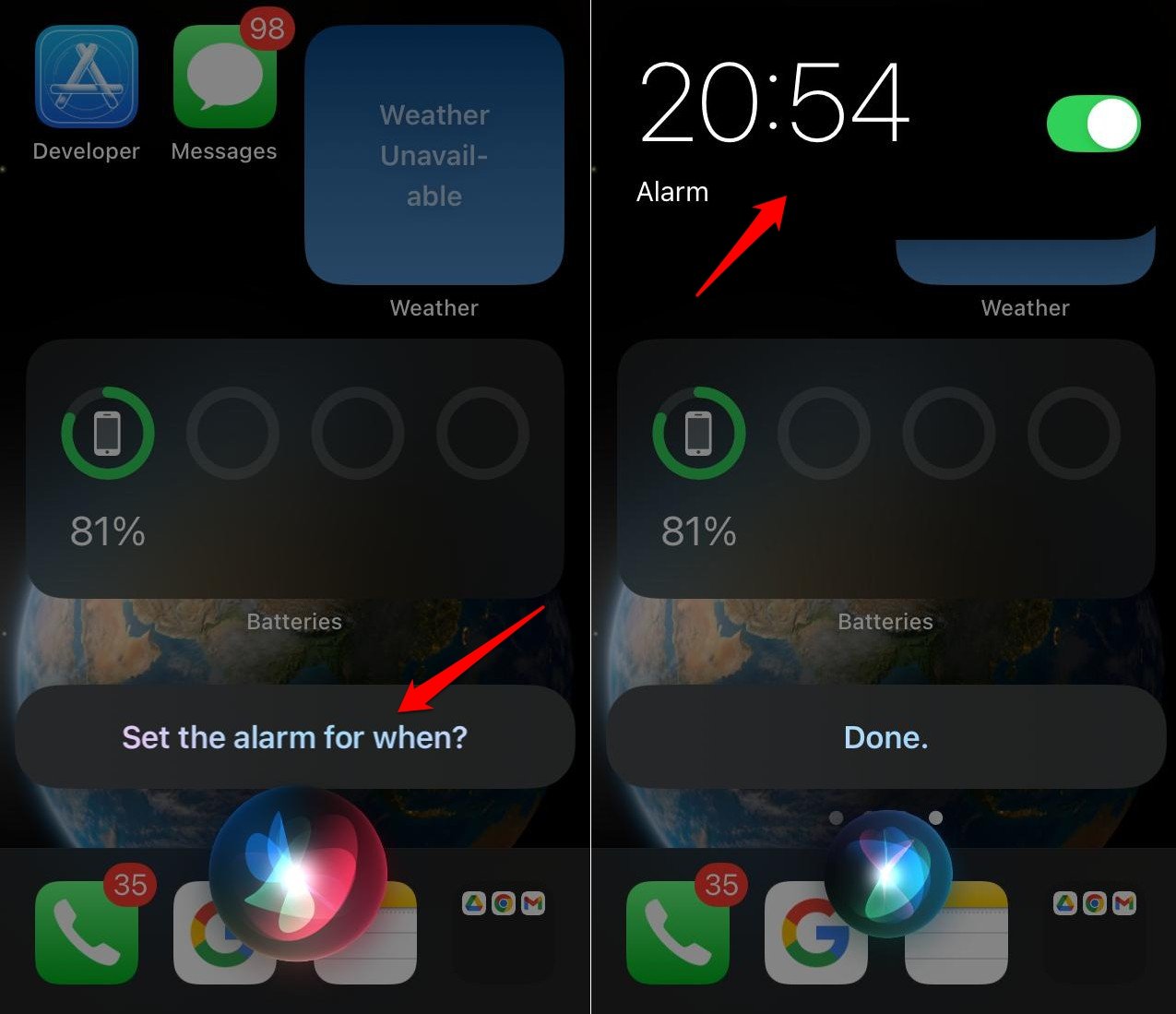

You can reply four, five, or six hours(depending on you) from the current time you set the alarm.
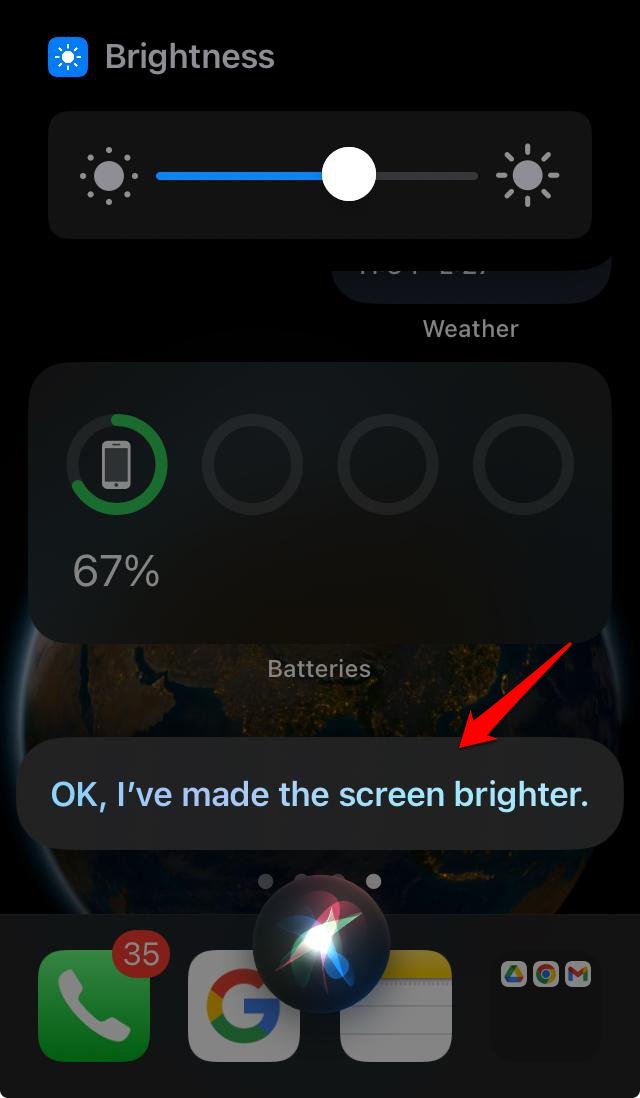
Manage Screen Brightness
Without going into display settings, change the brightness level on your iPhone by asking Siri to execute this task.
- Summon Siri with “Hey Siri”.
- Now, say “Increase the screen brightness” or “Reduce the Screen brightness.”

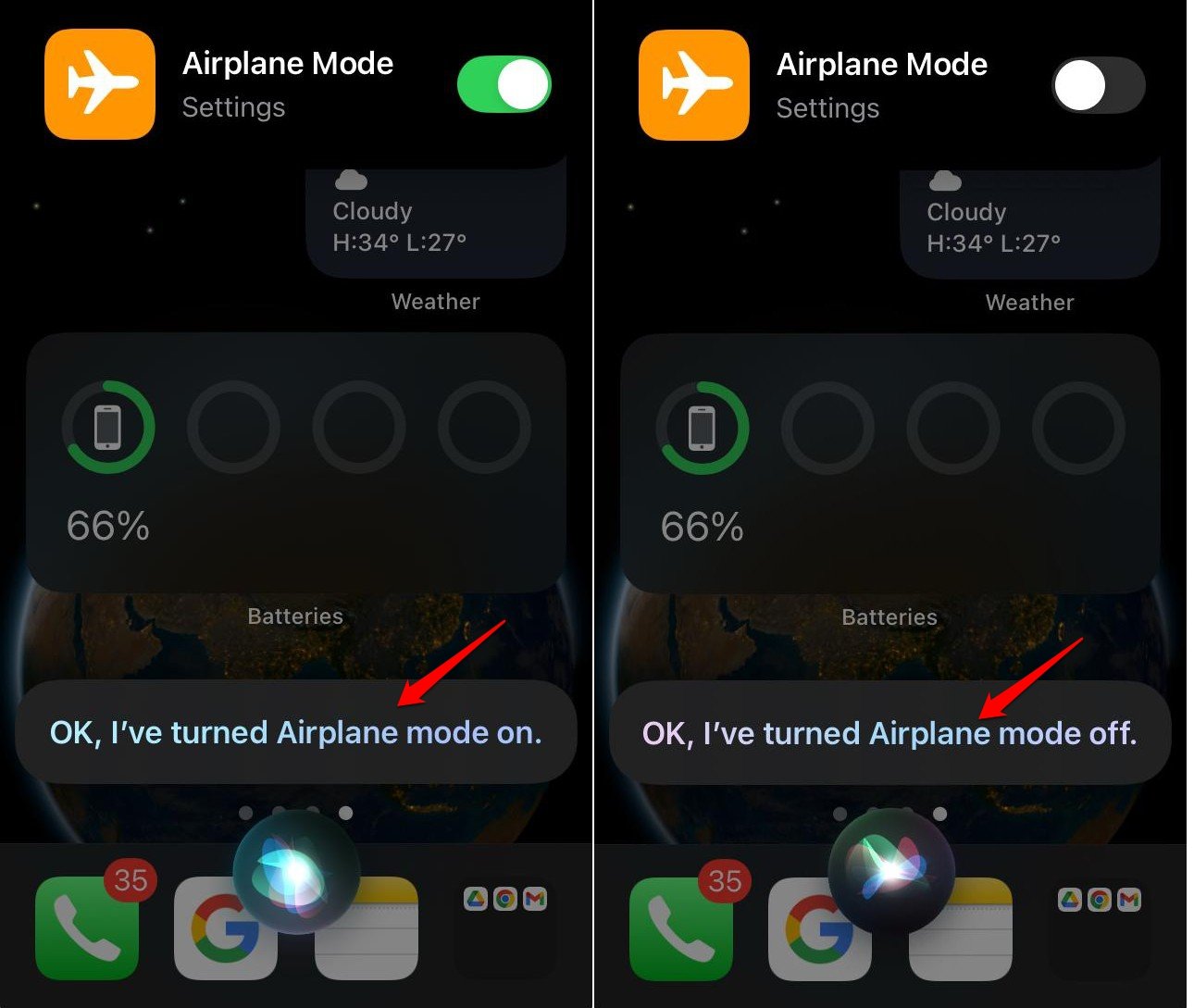
Turn on/Off Airplane Mode
You can summon Siri to turn on/off the Airplane mode on your iPhone.
- Speak “Hey Siri”.
- Follow up with voice instruction, “Enable flight mode” or “disable flight mode”.

iPhones and iPads that Allow Offline Use of Siri
Only the Apple iPhones that are manufactured with the Apple Bionic chip A12 or later can support Siri offline use.
Here are the supported iPhone models
- iPhone XR
- iPhone XS
- iPhone XS Max
- iPhone 11 Series
- iPhone 12 Series
- iPhone 13 Series
- iPhone 14 Series
- iPhone 15 Series
- iPhone 16 Series
- iPhone SE 2nd Gen
- iPhone SE 3rd Gen
These iPad models also support using Siri without WiFi
- iPad 8th Gen and newer
- iPad Air 3rd Gen and newer
- iPad Pro 2017 and newer
- iPad Mini 5th Gen and newer
Make the most of Apple’s Virtual Assistant
Siri, as a virtual assistant on iOS and iPadOS, makes the user experience swifter and smoother. If you have an iPhone running A12 Bionic with iOS 15 or later and any of the supported iPads, issue voice commands to Siri to get tasks done when the device is not hooked to WiFi or mobile data. Try it out and share your experience in the comments.
If you've any thoughts on How to Use Siri Offline on iPhone and iPad?, then feel free to drop in below comment box. Also, please subscribe to our DigitBin YouTube channel for videos tutorials. Cheers!