I searched “is it 2025” in late May 2025, and Google’s AI Overview told me confidently: “No, it is not 2025. The current year is 2024.” The month and day were right. The year was wrong. The disclaimer saying the answer might contain mistakes was hidden behind a “Show More” link I never would have tapped.
That was the moment I decided to turn off AI Overviews for good. Not because one wrong answer is catastrophic, but because I realized I had been second-guessing search results for months without fully connecting the dots. The confident box at the top was the problem.
Here is exactly how I got rid of it across every device I use.
I finally had enough with Google AI search results
The year error was not an isolated incident. Since Google rolled out AI Overviews in May 2024, there have been documented cases of it recommending glue as a pizza ingredient after misreading a sarcastic Reddit post.
Adding to the list of errors, it identified Barack Obama as the US’s first Muslim president by misinterpreting an academic essay title, and confidently describing a theme park ride closure sourced entirely from a fan’s hypothetical Reddit post.
None of those affected me directly. But they illustrated a consistent pattern: the feature presents synthesized answers with the visual weight of a definitive result, and it gets things wrong in ways that are not always obvious.
After the date incident, I stopped wanting to mentally audit a summary every time I searched for something. I just wanted the links.
The quickest fix: The web tab
The first thing I tried was the Web tab. After any Google search, there is a row of filter tabs below the search bar showing All, Images, News, Videos, and others.
Clicking Web strips out the AI Overview, People Also Ask, and most of the clutter. If you do not see it, click More, and it is in that list.
It works immediately and requires nothing to set up. The problem is that it does not stick.
Every new search defaults back to the AI Overview view, which means clicking Web again every single time. I did that for about a week before it started feeling like a tax on every search I ran.
What actually fixed it: The udm=14 trick
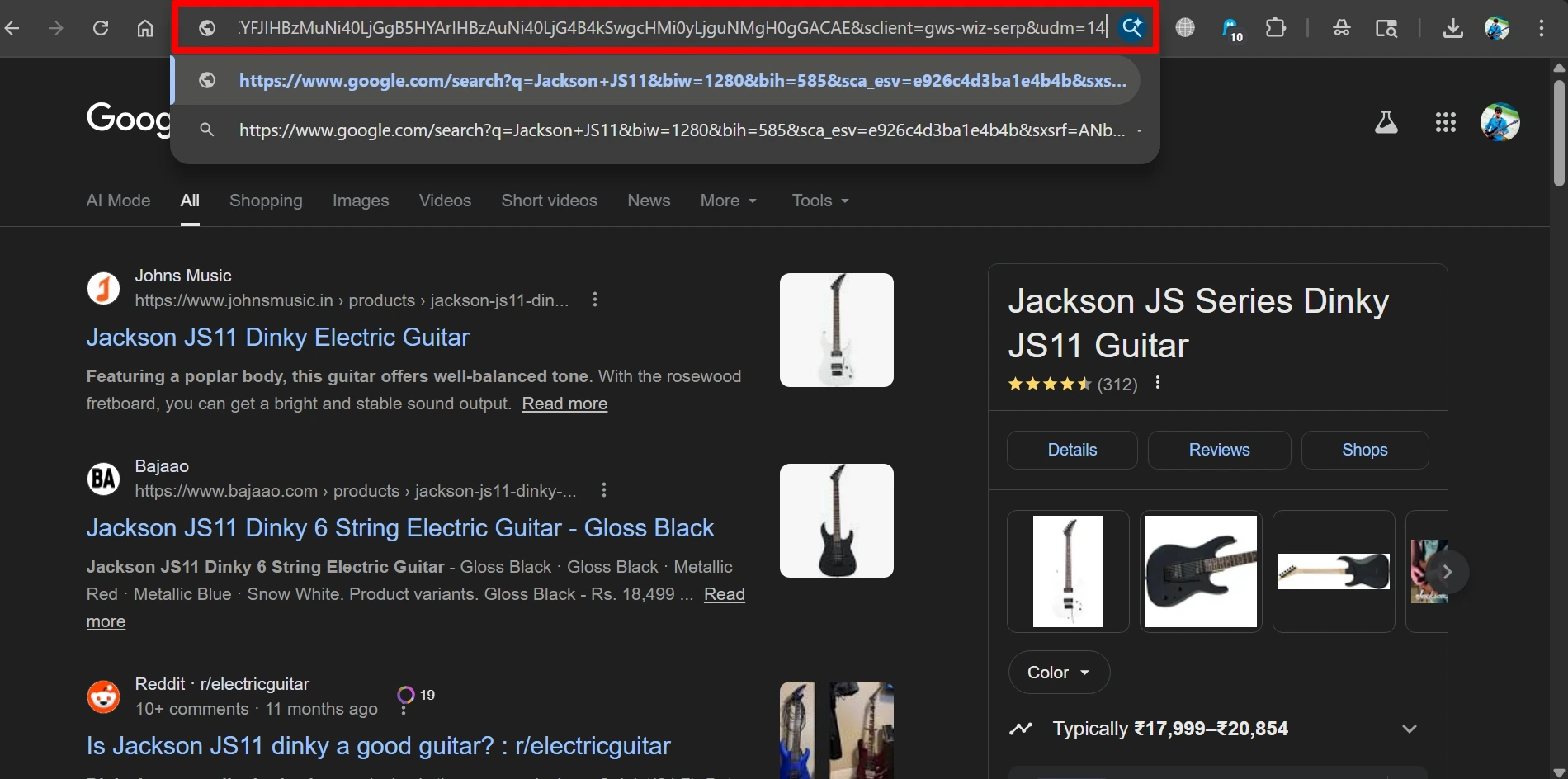
The fix that changed my daily experience was the udm=14 URL parameter. Appending &udm=14 to any Google search URL forces it into Web mode for that search.
The trick went viral on Reddit and Hacker News shortly after AI Overviews launched, and the reason it spread so fast is that it actually works.
On its own, manually adding it to URLs is no better than clicking the Web tab. The real value is baking it into Chrome as the default search engine.
How I set it up in Chrome on desktop
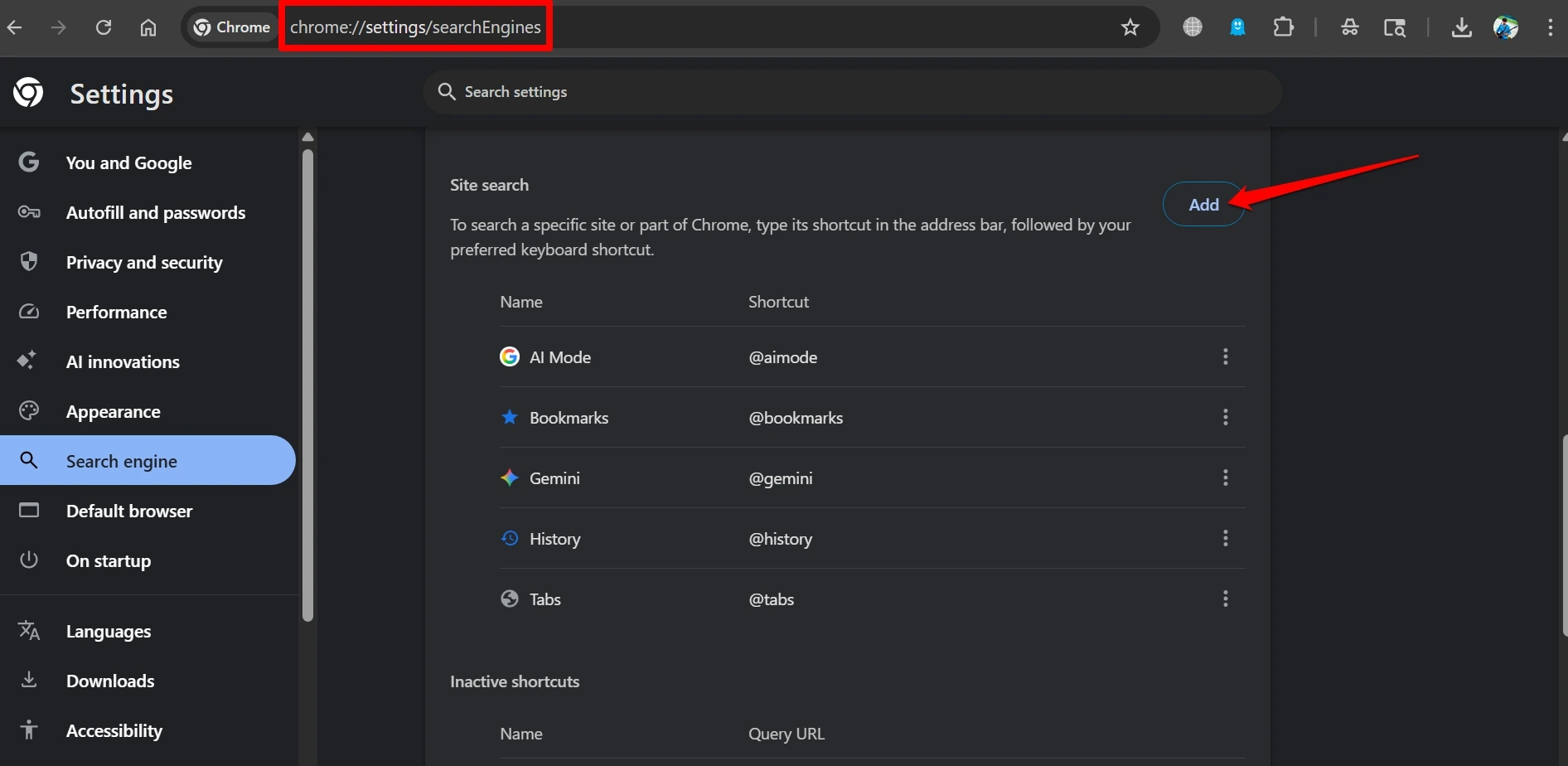
I went to chrome://settings/searchEngines in Chrome on my PC. Following this, I clicked Add next to Site Search.
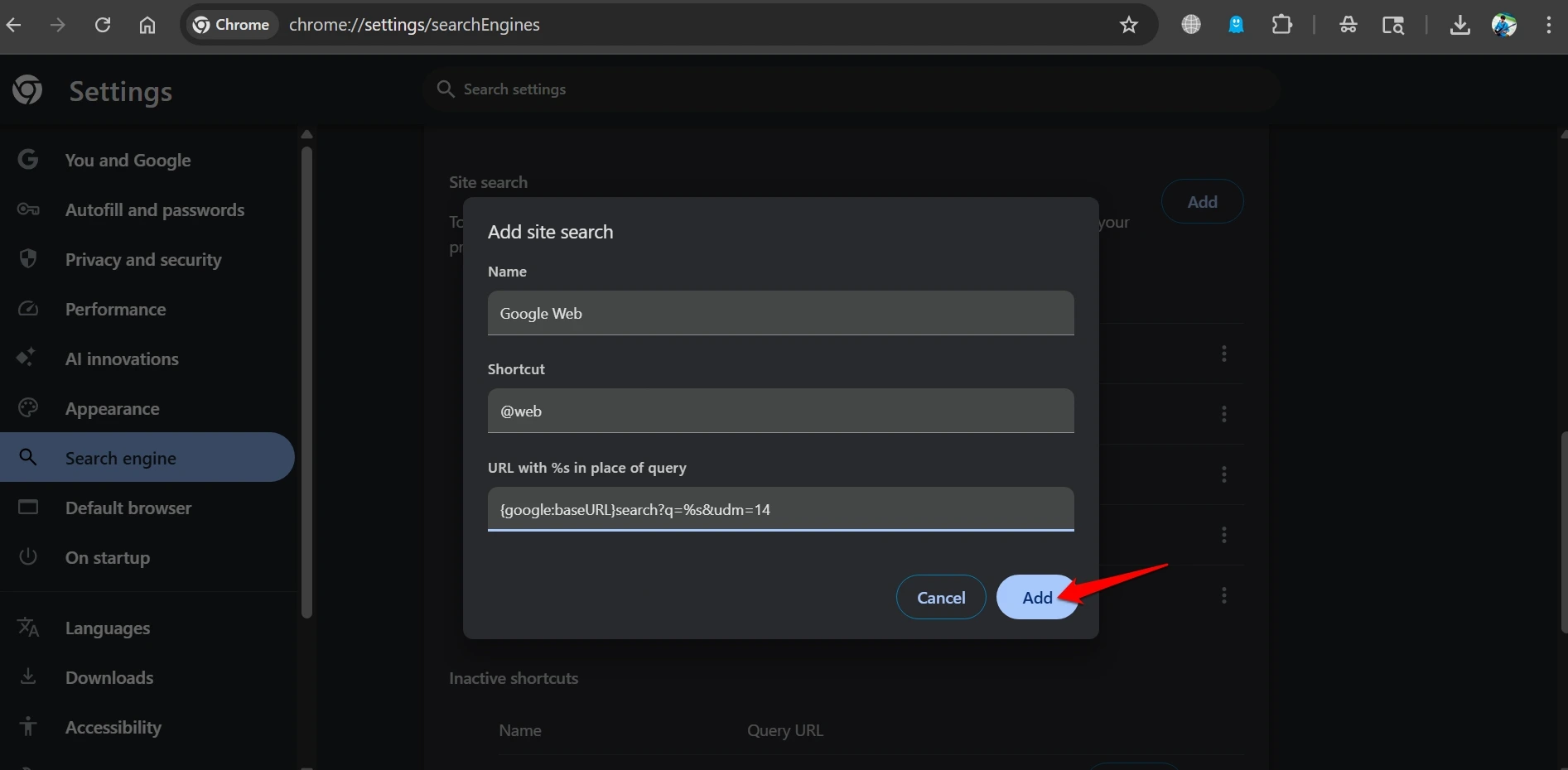
I filled in three fields:
- Search engine: Google Web
- Shortcut: @web
- URL:
{google:baseURL}search?q=%s&udm=14
Then I clicked the menu icon next to the new entry and hit Make default.
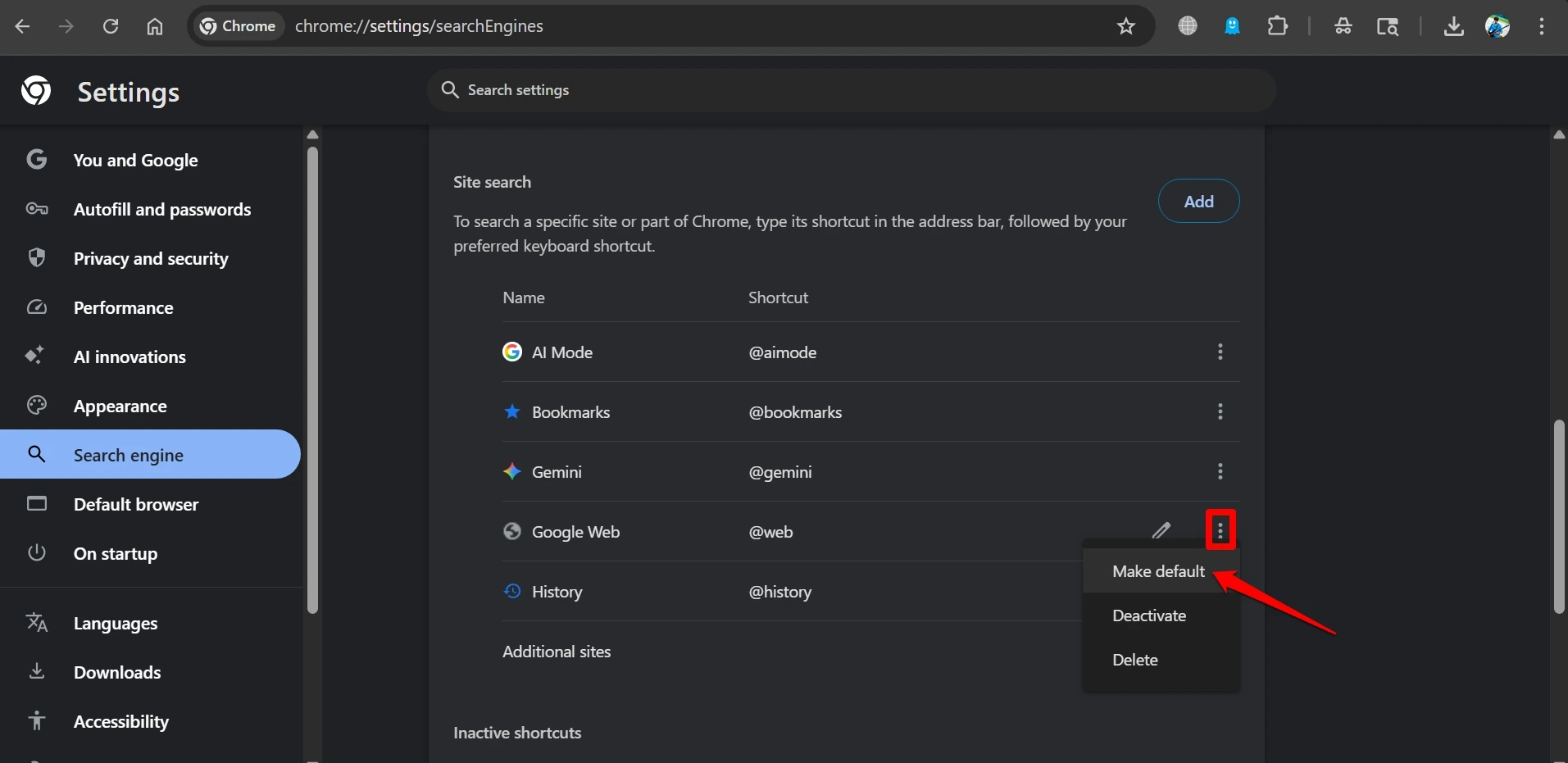
That was it. Every search from the address bar now goes straight to Web mode. No AI Overview, no extra click, no confident wrong answer at the top.
How did I set it up on Chrome for Android?
Chrome on Android does not let you type a custom search URL directly. The workaround I used was visiting tenbluelinks.org in Chrome, then running any Google search.
After that, I went to Chrome Settings, tapped Search engine, and found “Google Web” listed under Recently visited. I selected it and set it as the default. The site just handles the OpenSearch setup that Chrome on mobile requires; your searches still go directly to Google.
The extension route, if you prefer it
I also tested a few Chrome extensions for anyone who would rather not touch search engine settings. Hide Google AI Overviews is the one I kept on a secondary browser profile. It hides the AI box while leaving the rest of the page intact, which is useful if you occasionally want knowledge panels and just want the AI summary gone.
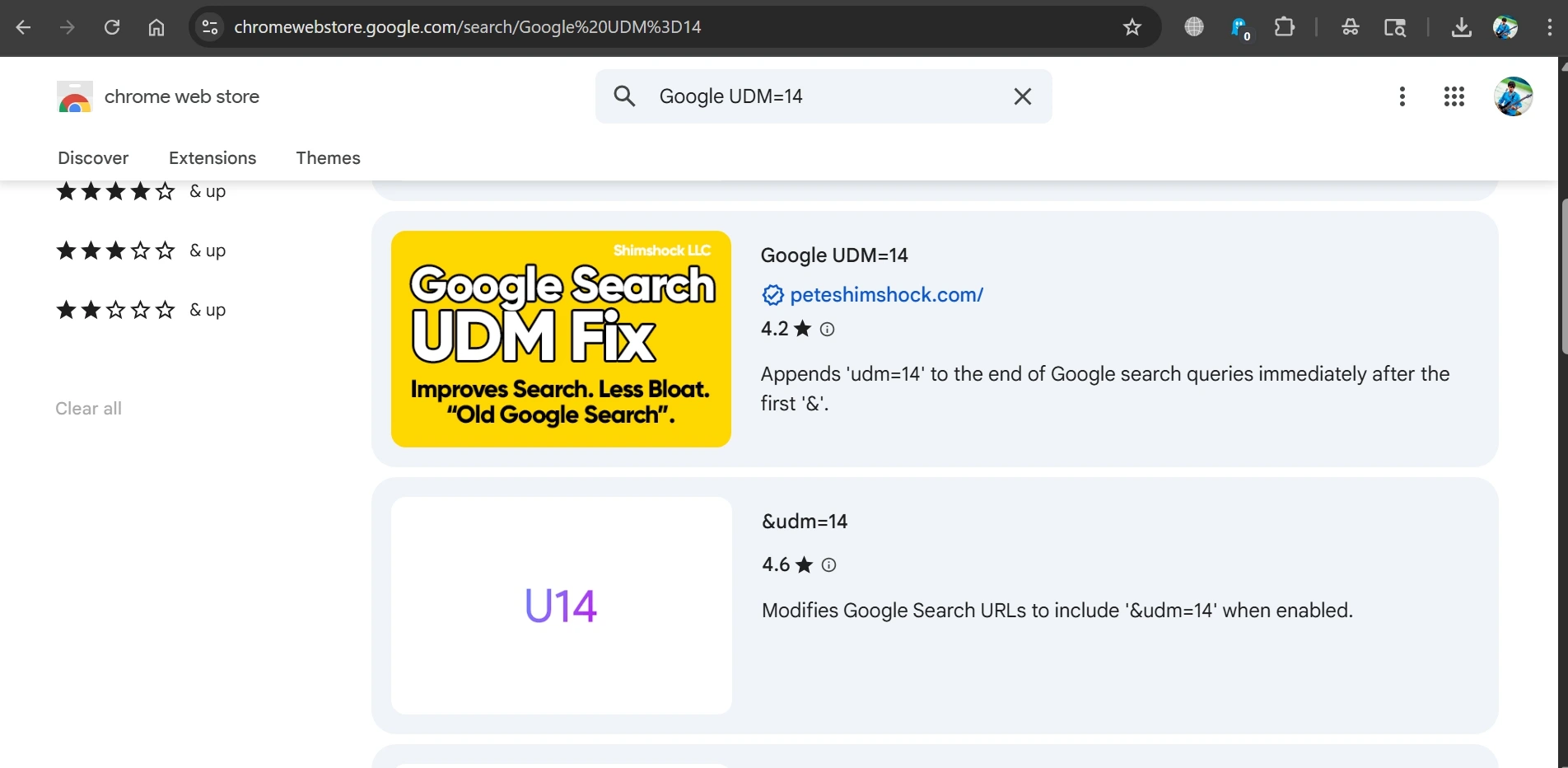
There is also a dedicated extension called Google udm=14 in the Chrome Web Store that appends the parameter automatically, giving you full Web mode without changing your default search engine. Both worked as described when I tested them.
Check permissions before installing any extension. The reputable ones in this category only need access to modify Google search URLs and do not touch anything else.
What did I lose by switching?
Web mode removes more than just the AI Overview. People Also Ask is gone. Knowledge panels disappear. Shopping carousels and short-video results are stripped out, too.
For a few types of searches, I noticed the absence: quick unit conversions, business opening hours, that kind of thing. In Web mode, those push you to click through to a source rather than getting the answer inline.
That tradeoff felt fine within about two days. For any search where accuracy matters, I would rather open a real source than trust a synthesis that might be confidently wrong.
Did it actually improve my search quality?
Honestly, yes, with one caveat I want to be upfront about.
For research, health questions, technical problems, local business details, and anything factual, Web mode is consistently better. There is no confident wrong answer occupying the most prominent position on the page. I read actual sources now instead of treating a summary as the conclusion.
The caveat: udm=14 does not fix Google’s underlying result quality. SEO-heavy pages and thin content are still there. What it removes is the AI layer synthesizing those results into a single answer that carries more authority than it deserves.
That layer was the specific reason I was trusting Google less. Removing it brought that trust back, at least enough to keep Google as my default rather than switching elsewhere entirely.
Frequently asked questions
Is there an official Google setting to turn off AI Overviews?
No. Google does not offer an account-level toggle to disable them. The methods above are workarounds, not a built-in option.
Does the udm=14 trick work on Firefox?
Yes. Firefox on desktop lets you add a custom search engine natively. The URL format is https://www.google.com/search?q=%s&udm=14. Set it as your default, and it works the same way as in Chrome.
Will Google remove the udm=14 parameter eventually?
Possibly, but currently, there is no indication for that. The Web filter it activates is an officially maintained search mode, not a hidden bug, and it has been stable since mid-2024.
Do these extensions collect my search data?
Most in this category disclose that they do not collect or transmit data outside the browser. Always verify permissions before installing, and stick to extensions with a reasonable review count and a clear privacy disclosure.
Does setting udm=14 as the default affect searches on my phone?
No. The change applies only to the browser and device where you configure it. Each browser needs to be set up separately.
If you've any thoughts on Google AI Overviews keep getting things wrong and how I turned them off, then feel free to drop in below comment box. Also, please subscribe to our DigitBin YouTube channel for videos tutorials. Cheers!