Android users mostly prefer the Google Play Store as their go-to app installer. However, if you use a Xiaomi phone running MIUI, you have likely come across the GetApps application. It works similarly to the Play Store and comes pre-installed on Xiaomi phones and its sub-brands.
Unfortunately, GetApps often sends repeated notifications asking users to update or install apps they may not even want. So, if you find it unnecessary or annoying, disabling it can make your phone a lot less irritating to use.
Thankfully, Xiaomi still allows users to disable it to a certain extent. In this guide, we will go through the steps to disable GetApps on your Xiaomi, Redmi, or Poco phone and stop it from interrupting your experience. And if you do not want this app on your phone at all, we will also look at a few possible workarounds that may help you uninstall or restrict it further.
Why Disable GetApps?
GetApps does have a fairly large app library, including most of the popular apps users would normally look for. But since Xiaomi phones already come with the Google Play Store, most people end up using that instead.
And once that happens, GetApps starts to feel a bit unnecessary.
For many users, it becomes just another pre-installed app sitting on the phone without much real use. On top of that, the frequent notifications suggesting random app installs or updates can get frustrating very quickly.
There’s also the privacy side of it. Since GetApps may collect certain usage-related data, some users may not be comfortable keeping it active in the background. Taken together, these are some of the main reasons people choose to disable GetApps on their phones.
How to Disable GetApps on Xiaomi, Redmi, and Poco Phones?
1. Disable Notifications
If you are annoyed by receiving continuous unwanted notifications from GetApps, disabling app notifications must solve your problem. The following steps show how to disable notifications on any Xiaomi, Redmi, or Poco phone.
- Open the Settings app & go to Notifications.
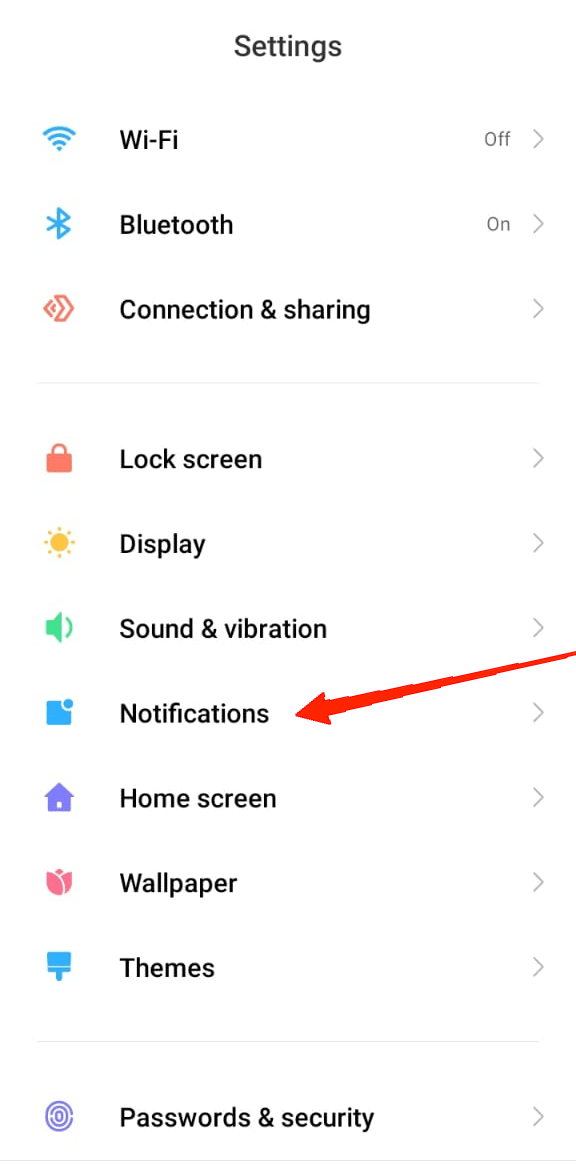
- Scroll down locate the GetApps app and turn off its toggle to disable notifications.
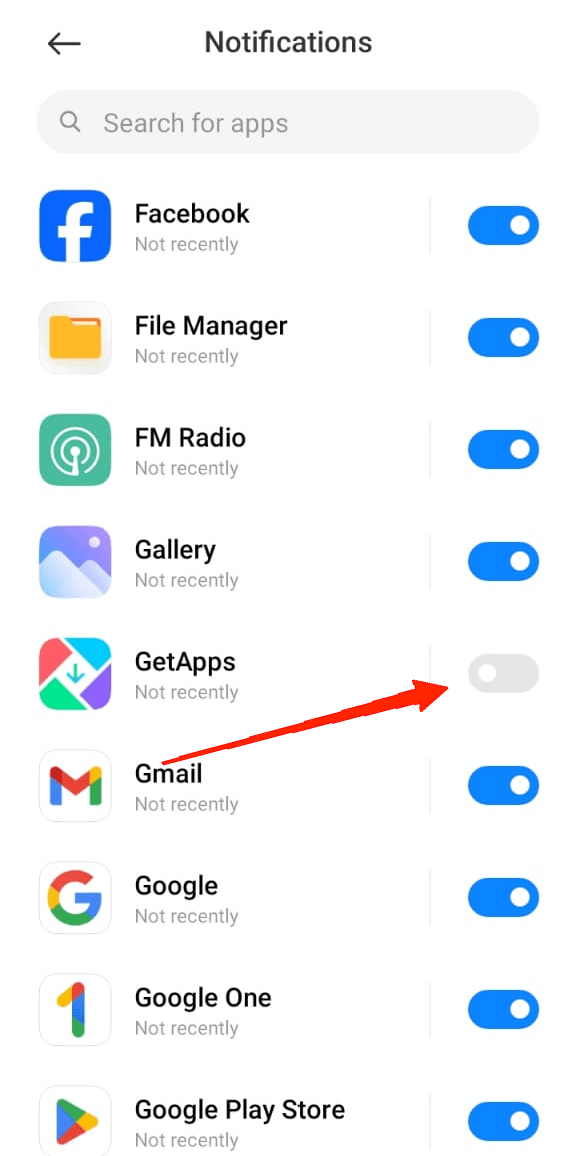
This will disable all GetApps notifications until you turn it back again.
2. Turn off Authorisation and Revocation
If you are concerned about privacy, disabling GetApps authorization is one of the best things you can do.
Thankfully, Xiaomi offers an Authorization & Revocation setting that lets you turn off its access. The steps are nearly the same on Xiaomi, Redmi, and Poco phones.
Here is how to do it.
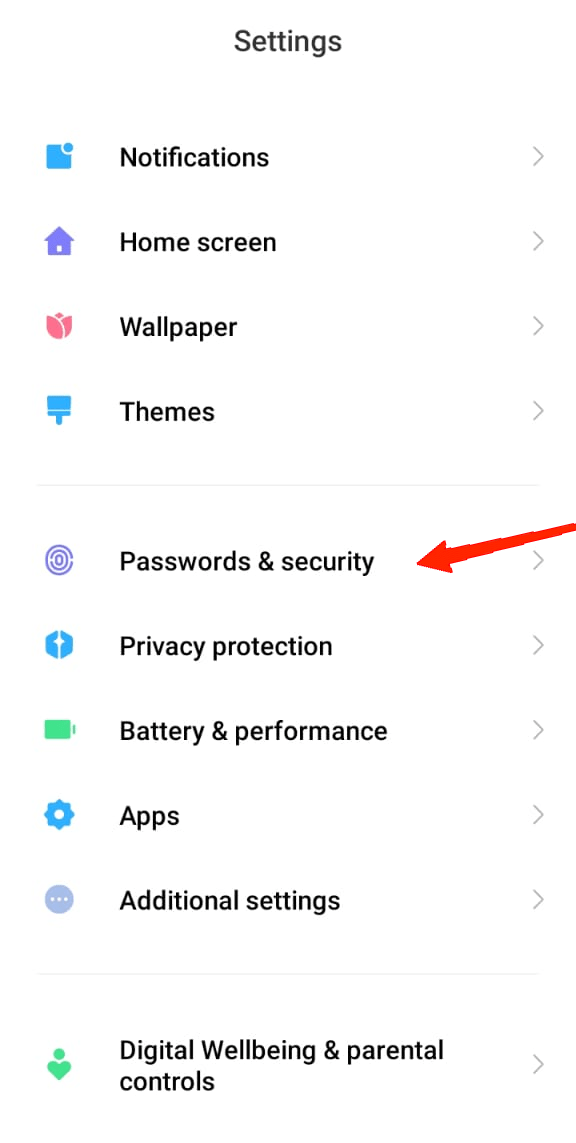
- Launch the Settings app on your phone.
- Scroll down and tap on Passwords & Security.
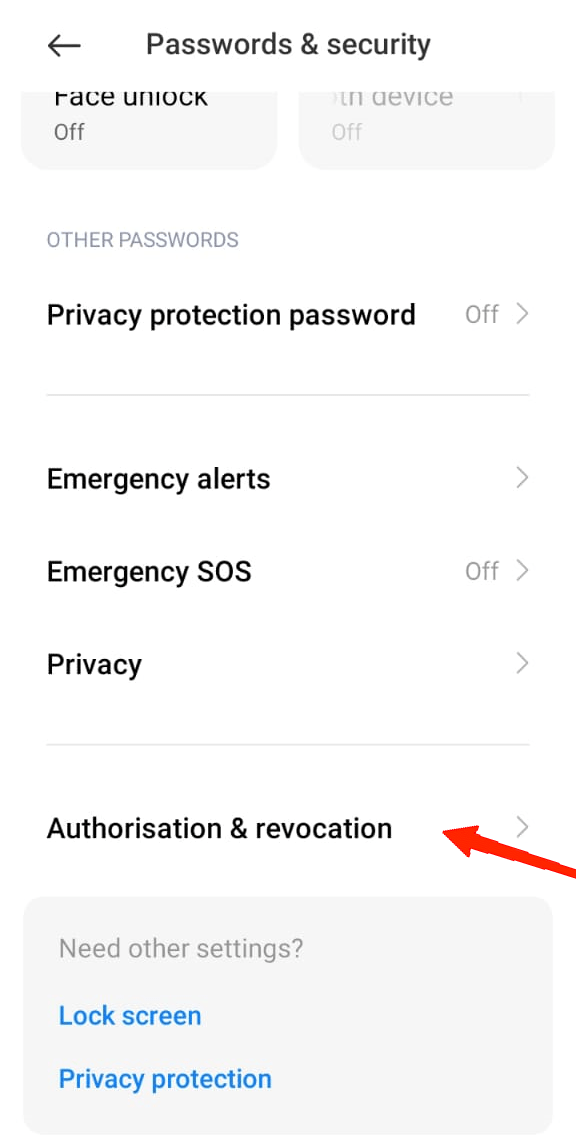
- Now, tap on Authorisation & revocation.
- Again scroll down and find GetApps & turn off the toggle.
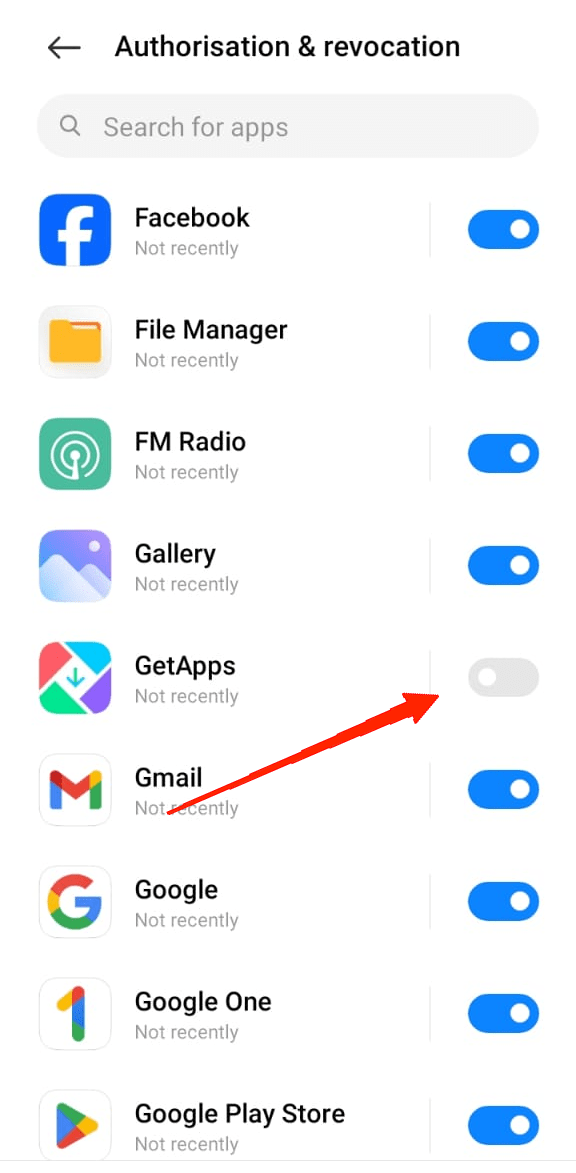
- You will see a pop-up tab that says Revoking authorization will disable the app from collecting any data and make the app virtually unusable.
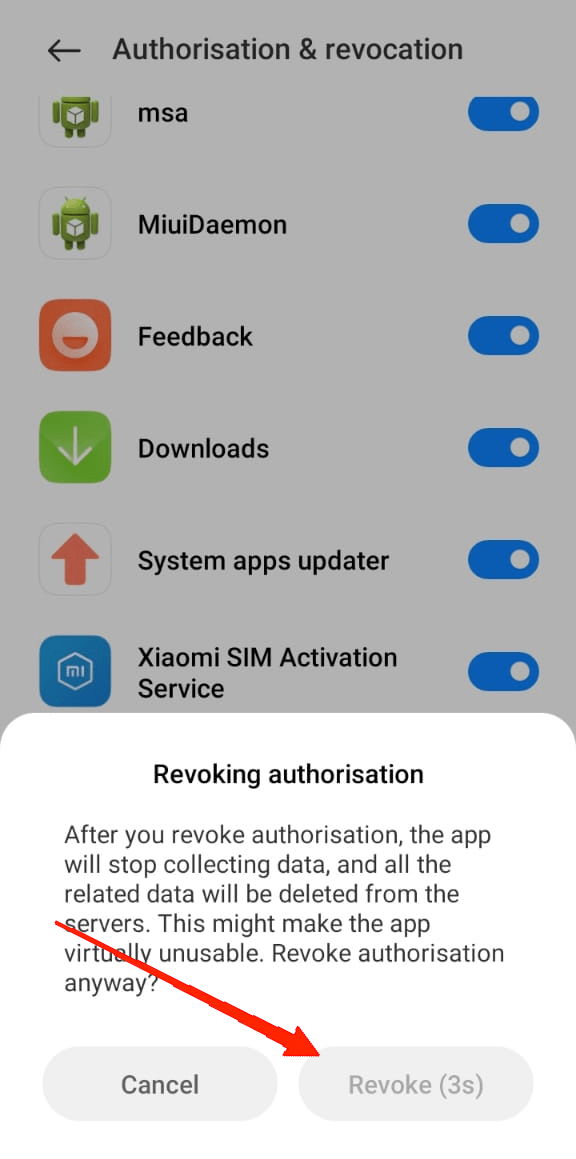
- Tap on the Revoke button and that’s it.
3. Remove GetApps Using PC
Unlike regular third-party apps, GetApps cannot be uninstalled since it comes pre-installed on all Xiaomi phones.
That said, there is still a way to remove it without rooting your device. I didn’t expect that to work at first, but it does if you follow the process properly.
All you need is a PC or laptop and a few steps done carefully.
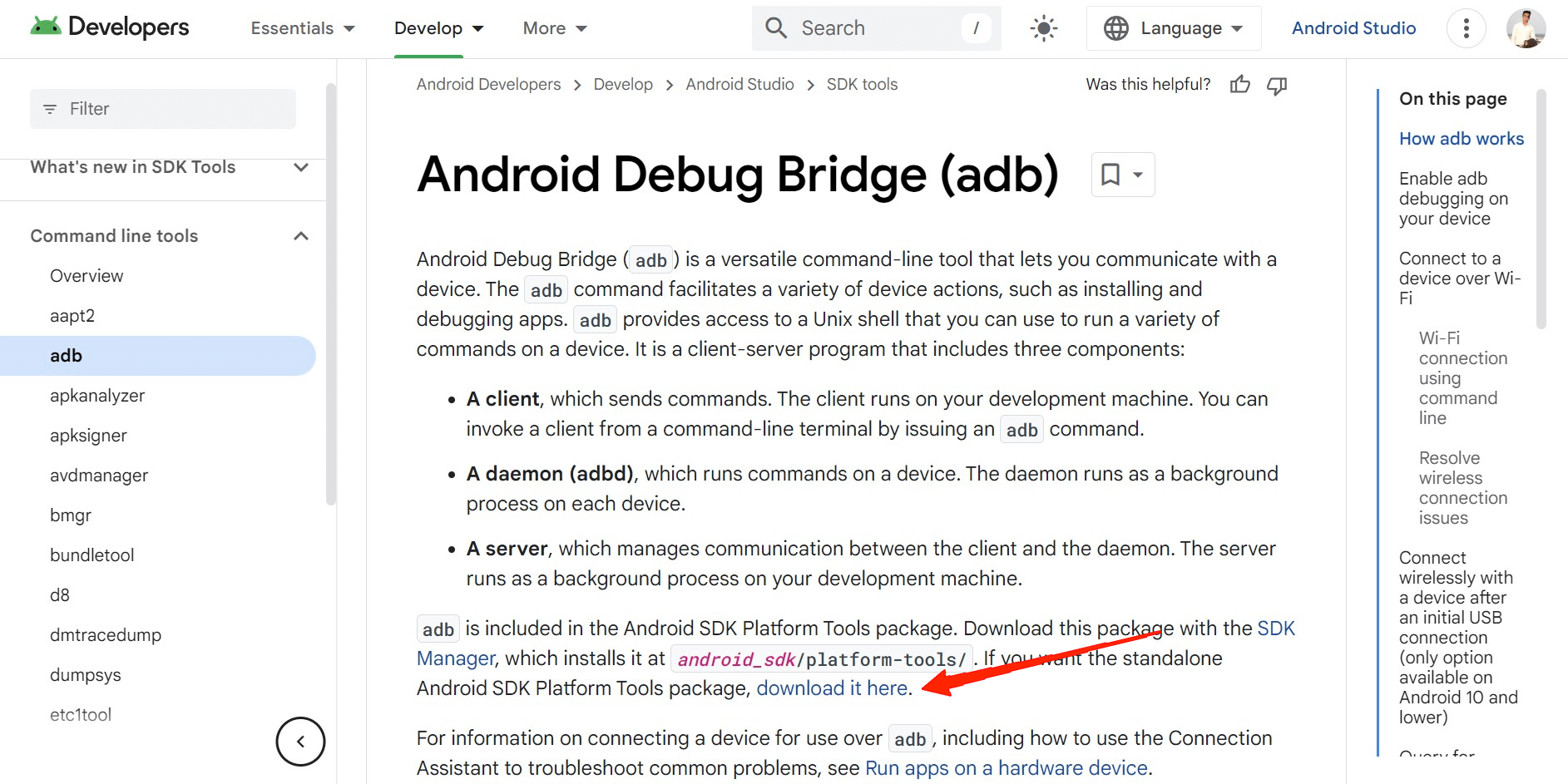
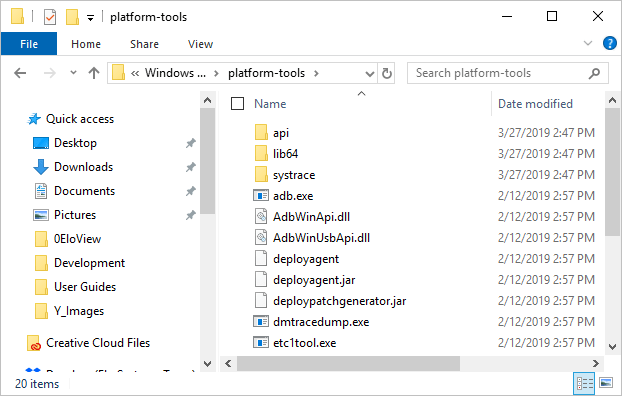
- Firstly, download the Android Debug Bridge (ABD) on your PC from this link.
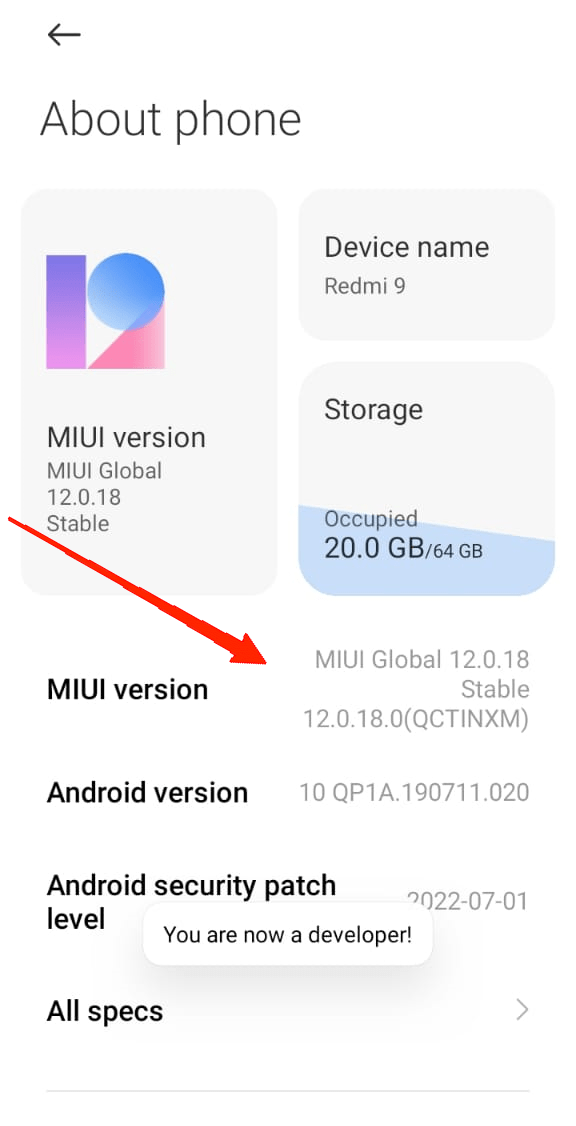
- Now, back on your phone, open Settings, then go to About Phone and tap 7 times on the MIUI version. This will unlock the Developer Options.
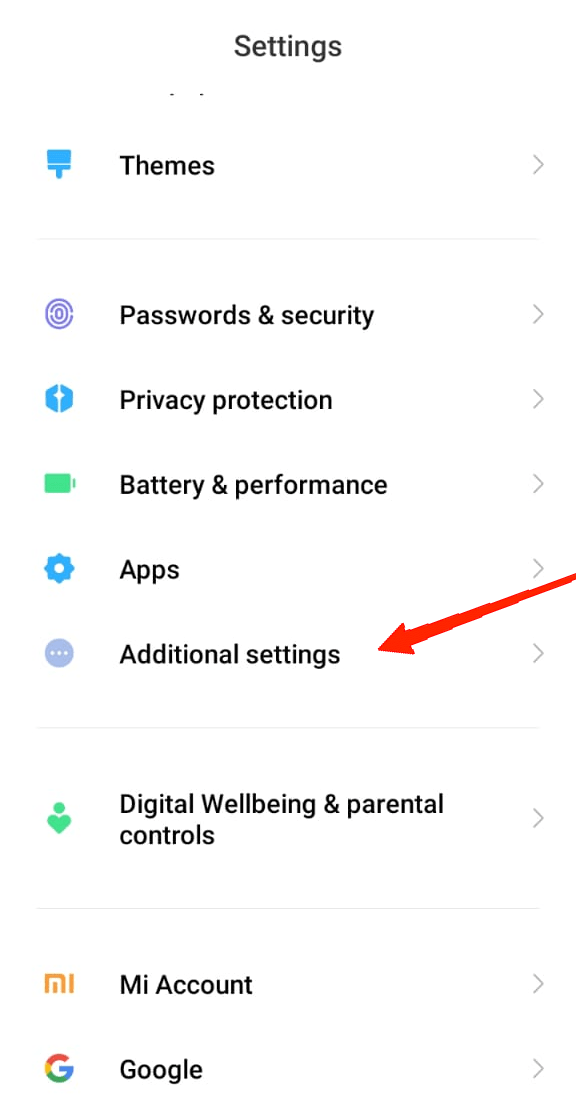
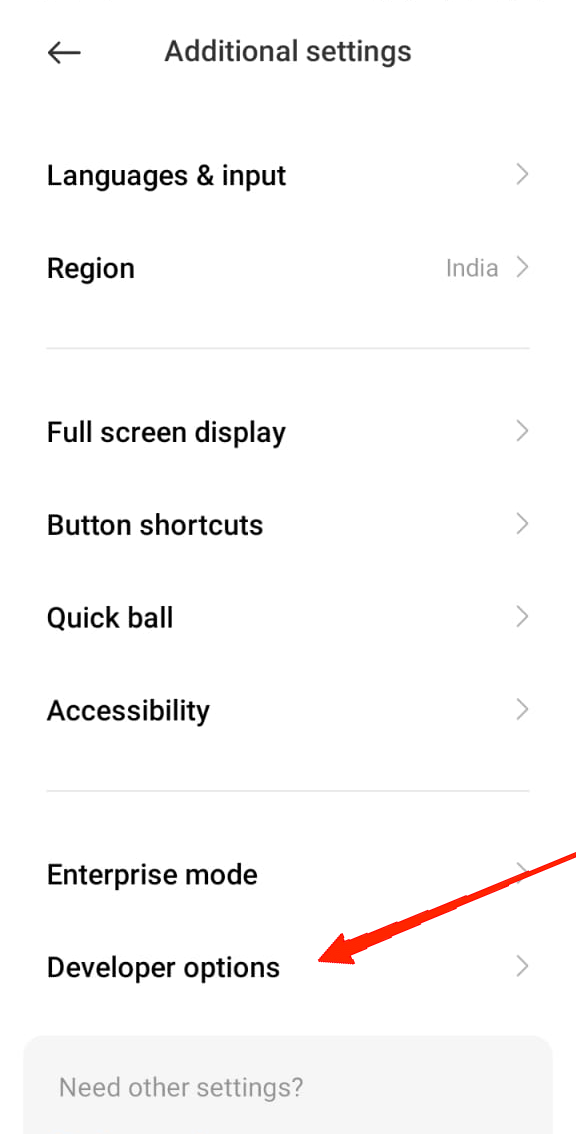
- Once it is done, go to Additional Settings.
- Tap on Developer Options.
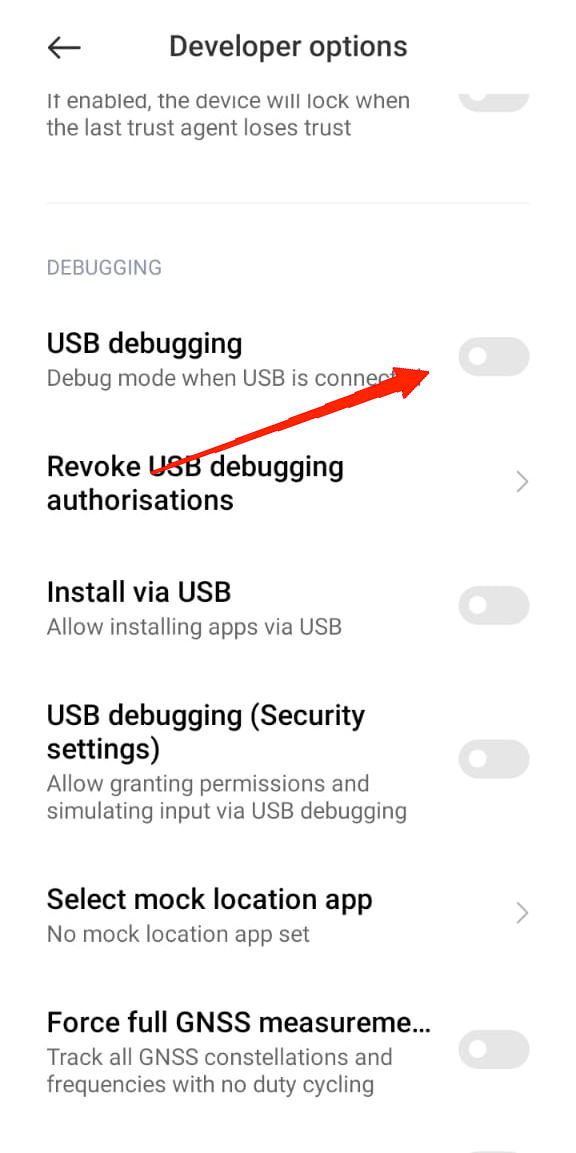
- Scroll down and enable the toggle beside USB Debugging.
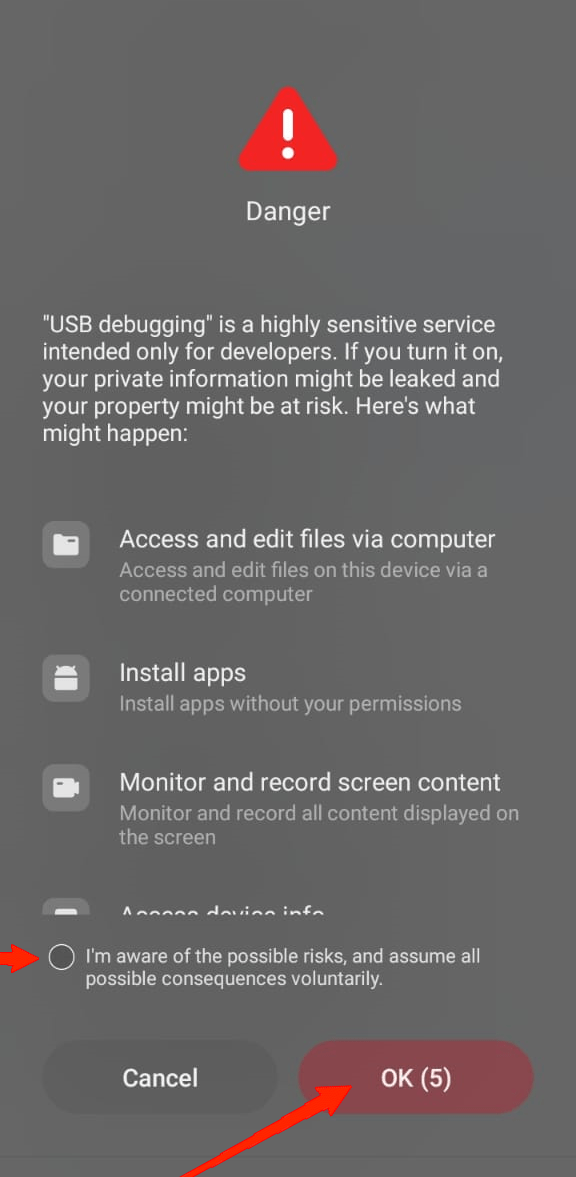
- You will be notified about the risks associated with USB Debugging, check the “I am aware” consent and tap OK.
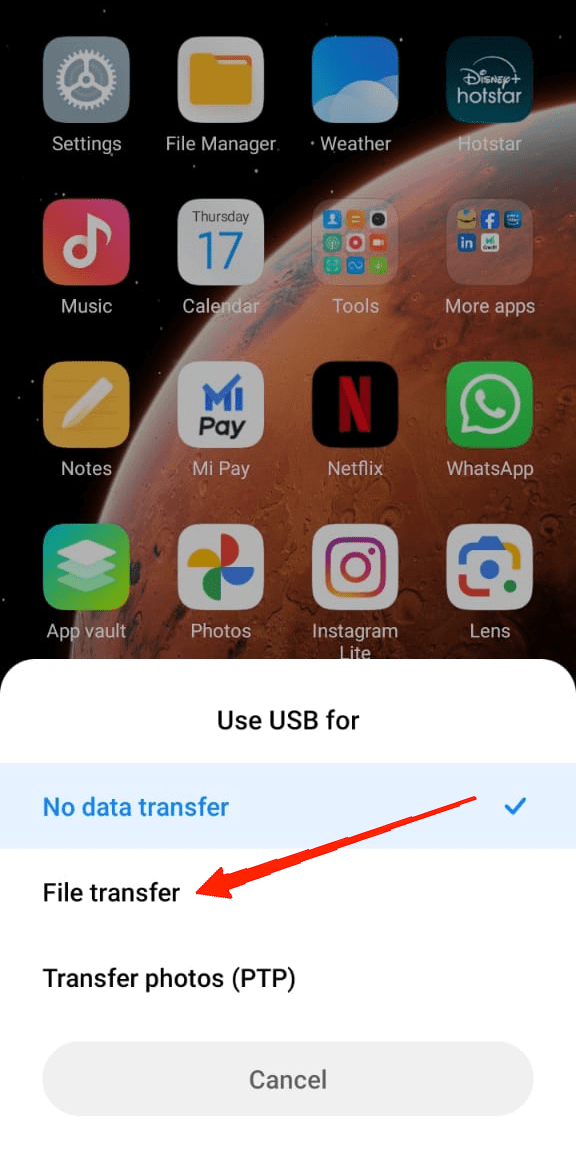
- After enabling the option, connect your phone to your PS using a USB cable.

- Switch to File Transfer and it will enable USB debugging on your device.
Until now, we have performed all the basic steps to enable USB debugging on our phones. From here on, the following steps will guide you on how to uninstall system applications using ABD.
- After connecting your phone through USB debugging, open the ABD folder and launch the Windows Powershell or Command Prompt within it.
- Type “abd devices” to check if your phone is connected or not.
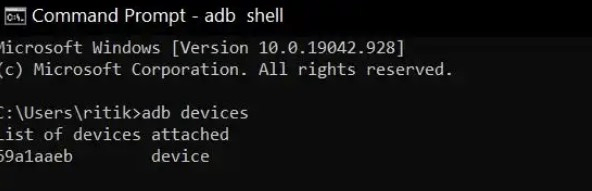
- Next, type the command “abd shell”.
abd shell
- In the final step, copy the following command exactly “pm uninstall –k ––user 0 com.xiaomi.mipicks”.
pm uninstall –k ––user 0 com.xiaomi.mipicks
4. Remove GetApps Using Debloater
This is an alternative to “abd commands”. If you find abd, to be complex, perhaps debloater could be comparatively easier for you. Debloater is a dedicated tool that is used to remove any type of bloatware application from your device.
It works similarly to ABD, however, it makes the process easier by eliminating the need for commands. But if you prefer this method, make sure to complete the first eight steps mentioned in the previous method to connect your phone to your PC via USB debugging. Once it is done, follow the next few steps to remove GetApps from your phone.
- Download the Debloater app on your PC from this link and install it.
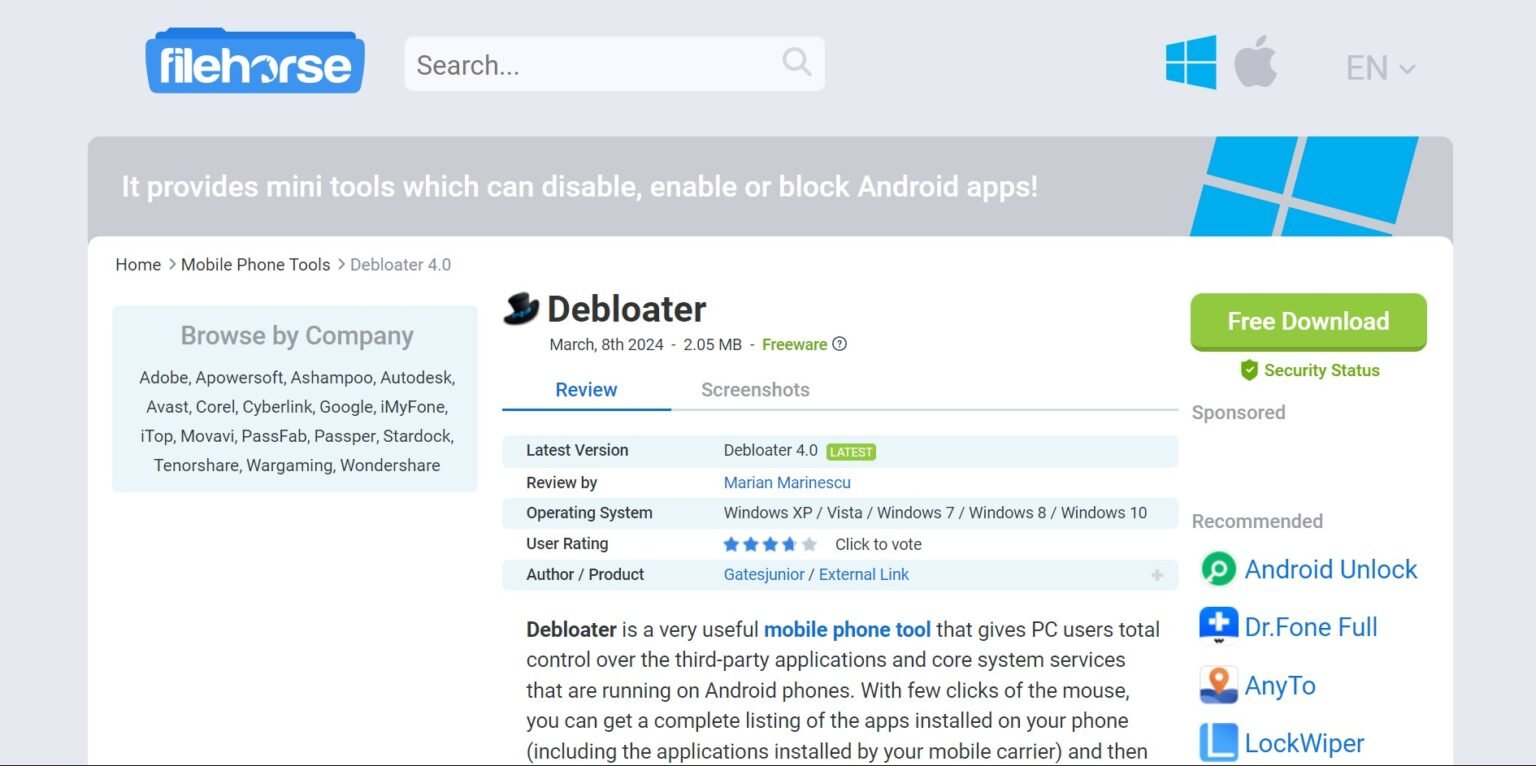
- Connect your phone to phone to your PC using a USB cable.
- After installation, launch the app and wait until it detects your device.
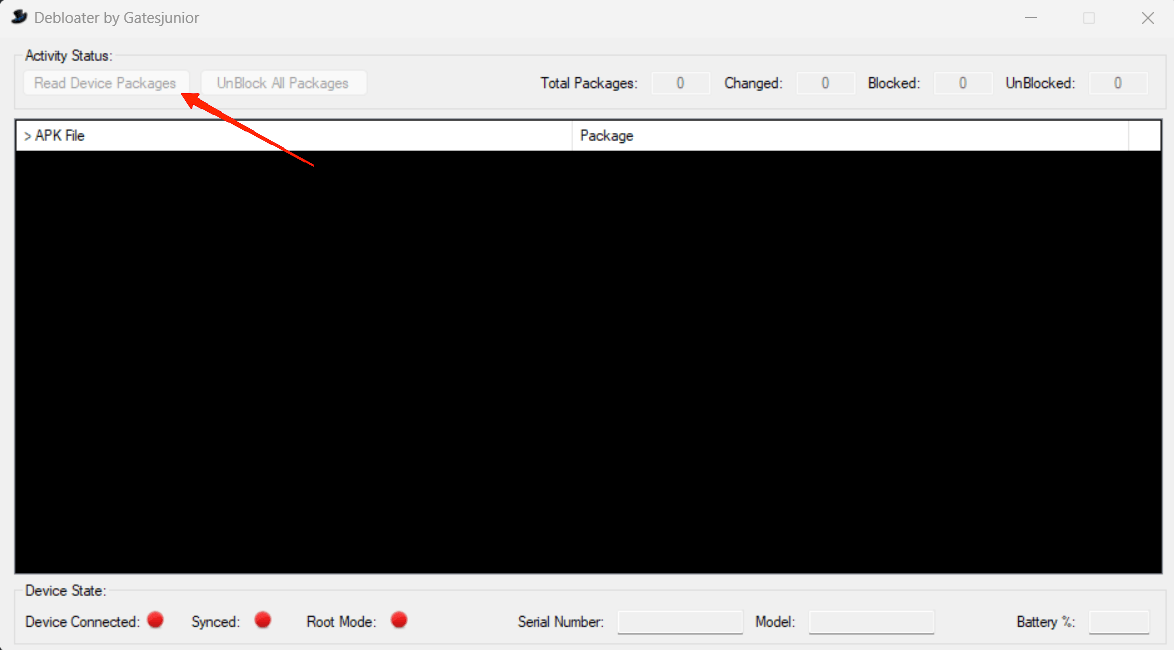
- Click on “Read Phone Packages”. This will display the list of all the installed apps on your phone.
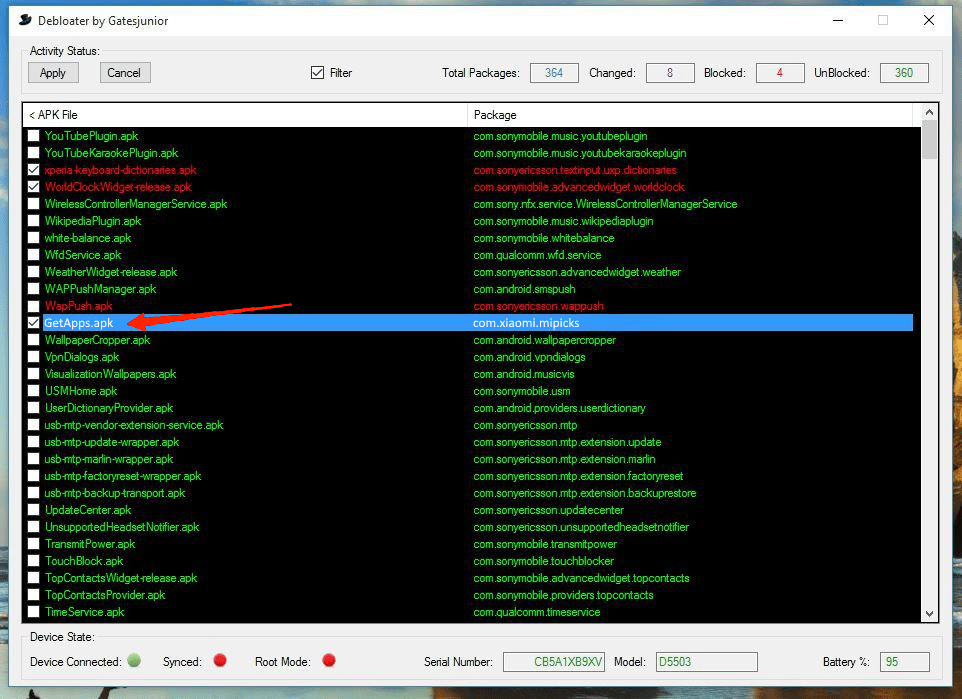
- Locate and select the GetApps application (com.xiaomi.mipicks).
- Finally, hit that “Apple” button hard to remove the GetApps permanently.
Conclusion
Xiaomi phones come with their fair share of bloatware, and that alone can make the software feel a bit cluttered. But apps like GetApps tend to get more annoying than most if left untouched.
Between the constant notifications and background activity, it can start feeling like the app is doing more than it needs to. And if you are not even using it, restricting or disabling it just makes sense.
Thankfully, the steps are mostly the same across Xiaomi, Redmi, and Poco phones. So if you simply want to disable GetApps, the first couple of methods should be enough. But if you want it removed as much as possible, you will have to go with ADB or a debloater tool.
Whichever method you choose, it is best to follow the steps carefully to avoid breaking something you did not mean to.
If you've any thoughts on How to Disable GetApps on Xiaomi, Redmi, and Poco Phones, then feel free to drop in below comment box. Also, please subscribe to our DigitBin YouTube channel for videos tutorials. Cheers!