A few weeks ago, I updated my system to Windows 11 24H2. At first, everything felt smooth and refreshing. The new features, design tweaks, and system improvements looked promising. But after a couple of days, I noticed something odd. My laptop’s fan started running louder than usual, and the performance wasn’t as responsive as before.
Out of curiosity, I opened Task Manager to check what was consuming resources. To my surprise, File Explorer was sitting at the top, consuming a large chunk of CPU power. It wasn’t just a temporary spike. Even when I wasn’t actively browsing files or opening folders, File Explorer continued to hog the CPU.
This made simple tasks, like moving files or copying data, feel unnecessarily slow. I realized that this was a broader problem that many other users had also reported with Windows 11 24H2. In this article, I’ll share my experience and explain how to fix this issue. If you are facing the same issue, this guide should help you understand what’s happening and how to deal with it.
Windows 11 24H2: File Explorer high CPU
File Explorer is a core component of Windows. It handles everything from opening folders to previewing files and managing your desktop. With Windows 11 24H2, Microsoft has made several changes to File Explorer, including design updates, improved context menus, and tighter integration with cloud storage like OneDrive. While these changes are good, they also seem to introduce performance issues.
What is causing my windows explorer to have that large amount of CPU usage?
byu/Steiryx inpcmasterrace
Method 1: Clear File Explorer History
- Go to Control Panel > File Explorer Options.
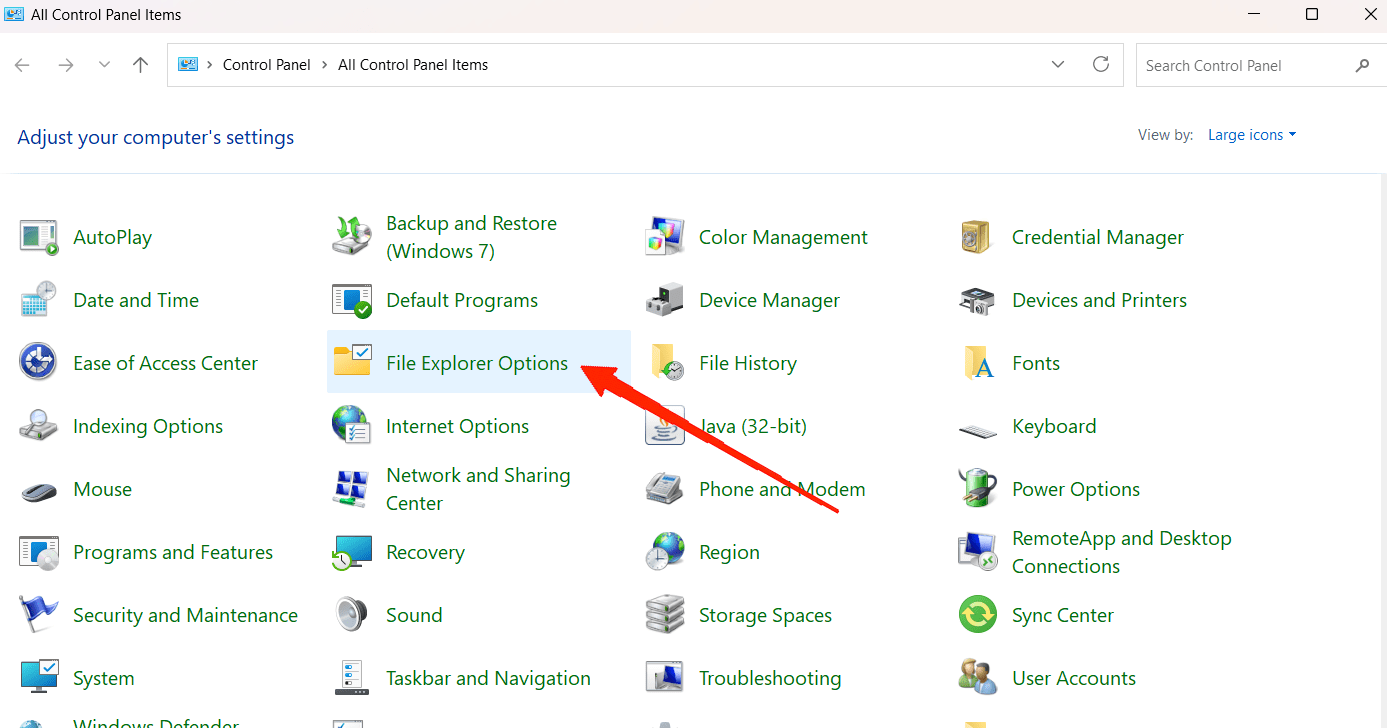
- Here, navigate to the General tab.
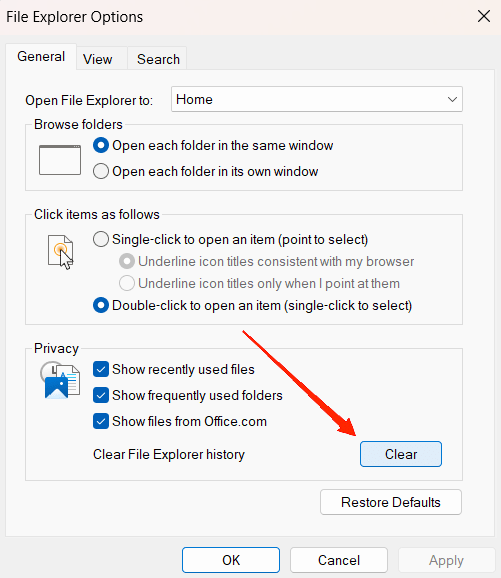
- Click on Clear under the Privacy option.
Method 2: Turn Off File Indexing
- Press Win + S and type Indexing Options.
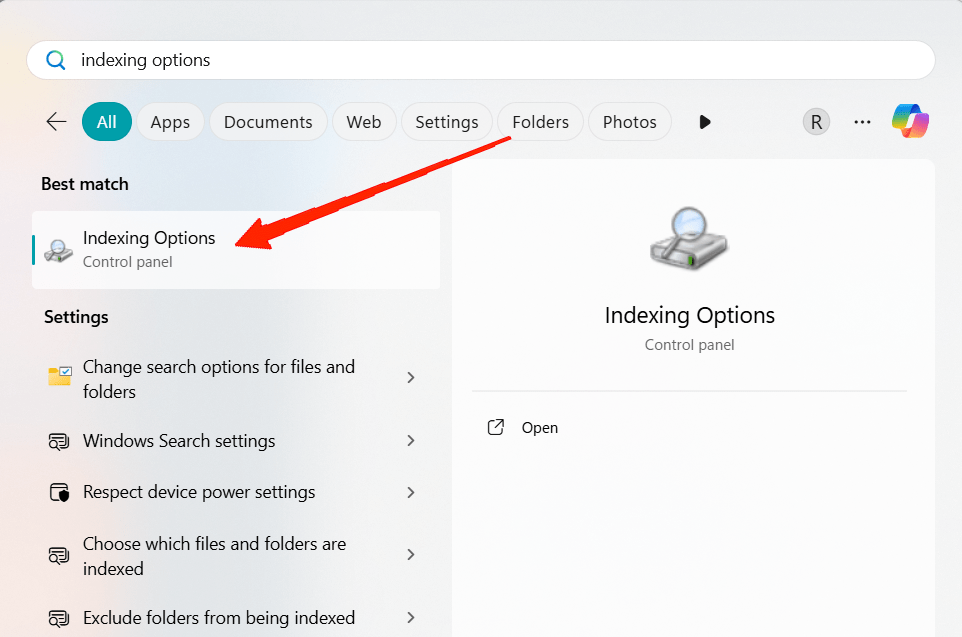
- This will open the indexing dialogue box.
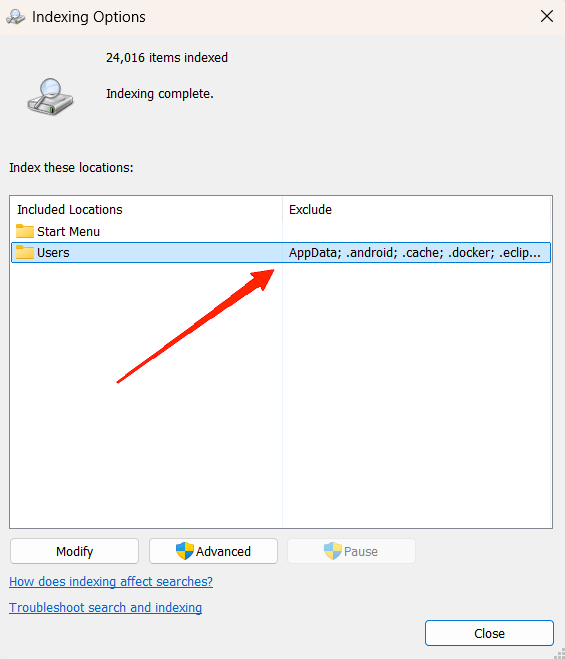
- Here, you have to exclude heavy folders (like large media directories) to reduce CPU usage.
Method 3: Scan for Malware
Sometimes high CPU usage is caused by hidden malware disguised as Explorer processes. Run a full scan using Windows Defender or any Anti-Malware software of your choice.
Method 4: Revert to an Older Version from Windows 11 24H2
It’s known that the issue is widespread and due to a faulty Windows update. So if the issue bugs you, then it’s better to downgrade to a previous version of Windows 11 via your computer technician or support provider.
Note: From what I’ve seen on forums and community discussions, Microsoft is aware of the File Explorer high CPU usage problem in Windows 11 24H2. Some cumulative updates have already addressed performance glitches, but not all users see improvement yet.
File Explorer high CPU in Windows 11 24H2 FAQs
Question: Is high CPU usage in File Explorer harmful to my computer?
Answer: It’s not harmful in the short term, but it can slow down performance, increase fan noise, and drain battery faster on laptops.
Question: Will Microsoft fix the File Explorer CPU issue in future updates?
Answer: Yes. Microsoft is aware of the issue, and cumulative updates are gradually addressing it. Keeping Windows up to date is the best way to receive official fixes.
Question: Should I switch to another file manager instead of File Explorer?
Answer: If the issue is too disruptive, you can temporarily use alternatives like Files App or downgrade to a previous version of Windows 11.
Conclusion
This brings us to the end of this guide for Windows 11 24H2: File Explorer high CPU. A simple file management tool shouldn’t slow down the entire system. But after trying different fixes and tweaking a few settings, I was able to reduce the problem significantly. I hope you can follow these steps to fix this issue.
I believe Microsoft will eventually roll out a more stable patch to address this issue. Until then, these workarounds are the best way to keep File Explorer under control.
If you've any thoughts on File Explorer high CPU after Windows 11 24H2 Update: What to do?, then feel free to drop in below comment box. Also, please subscribe to our DigitBin YouTube channel for videos tutorials. Cheers!