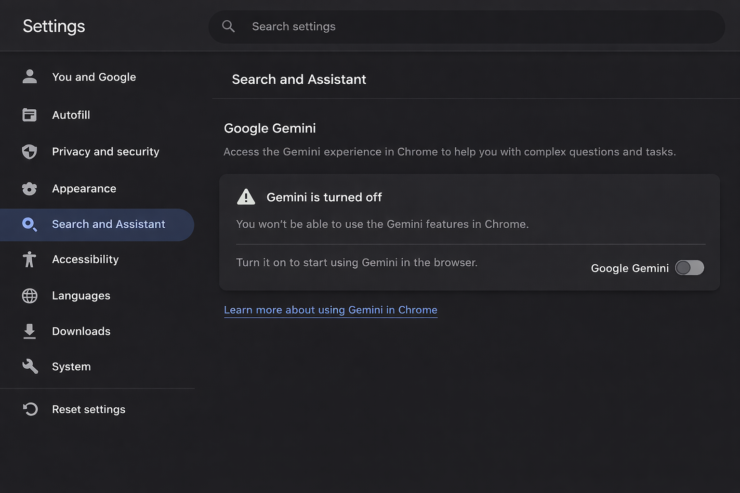
Gemini started appearing every time I highlighted text in Chrome. A small sparkle icon, a floating side panel, a quiet nudge to ask something. Nothing was broken. It was just always there, in a browser I had used for years without any AI assistant attached to it.
If you have noticed the same thing and want it gone, this guide covers exactly where the setting lives, what disabling Gemini in Chrome actually turns off, and whether any of it makes a visible difference to daily use.
Tested on Chrome 146 (stable, released March 10, 2026) on macOS and Windows. Steps confirmed as of March 2026.
What Gemini in Chrome Actually Is
Gemini in Chrome is a browser-integrated AI assistant that sits in a side panel alongside your tabs.
It can summarize pages, answer questions about what you are reading, and pull context from up to ten open tabs at once. A more recent addition called auto browse lets it complete multi-step tasks on your behalf, though that feature is currently limited to Google AI Pro and Ultra subscribers in the US.
As of March 2026, Gemini in Chrome is available on Mac and Windows for users aged 18 and over in the US, Canada, India, and New Zealand, with the browser set to English. The rollout is still gradual, so not every eligible account will see it yet.
That regional note matters. If you are outside those four countries, the dedicated Gemini side panel and its settings section may not appear in your browser at all. The other AI toggles covered below still apply globally.
How to Disable Gemini in Chrome
There is no single master off switch. Gemini in Chrome is spread across two separate areas in Settings, and you need to visit both to fully pull back its presence.
Step 1: Turn Off Gemini from AI Innovations
- Open Chrome and click the three-dot menu in the top-right corner.
- Go to Settings.
- In the left sidebar, click AI innovations. If you do not see it, click Menu first to expand the sidebar.
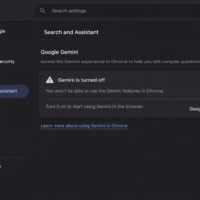
- Click Gemini in Chrome.
- Under Preferences, toggle off each option listed there.
This removes the side panel and stops Gemini from reading your current page.
While you are in AI innovations, also look at History search, powered by AI and Help me write. Both are separate toggles and worth turning off if you want a cleaner browser.
Step 2: Turn Off Broader AI Features Under Sync and Google Services
- Go back to Settings.
- Click You and Google, then Sync and Google services.
- Scroll to Other Google services.
- Toggle off AI writing assistance, Smart suggestions, and any experimental AI features shown there.
You can also type chrome://settings/ai directly into the address bar. This shortcut takes you straight to the AI settings panel and surfaces every active toggle in one place, which is faster than navigating through the sidebar manually.
Step 3: Remove the Gemini Side Panel Extension (If Installed)
Some users have a separate Gemini Side Panel extension installed on top of the built-in feature. It is worth checking.
Go to chrome://extensions, look for any Gemini-related entry, and click Remove if you find one. This is separate from the steps above and covers the case where Gemini was added as a user-installed extension rather than activated as a built-in feature. If you are unsure what else is running in your browser, it is a good time to review Chrome extensions worth keeping and which ones to cut.
What Disabling It Actually Does
After working through all three areas, the side panel icon disappears. The sparkle prompt that appeared on text selection stops showing up. The Help me write button in form fields goes away too.
What does not change: AI features baked deeper into Chrome, such as AI Overviews in Google Search or the AI Mode button in the omnibox. The AI Mode button technically can be turned off through Chrome flags, but there is no straightforward toggle for it in the main Settings panel. Google introduced these buttons in Chrome 141 and, as of Chrome 146, there is no built-in option to remove them entirely.
So the honest answer is: you can quiet most of Gemini in Chrome through settings, but you cannot strip every AI element from the interface without switching to a Chromium-based alternative like Ungoogled Chromium.
A Note on Data Collection
Turning off the Gemini interface does not automatically stop all data collection tied to your Google account. Activity and personalization controls are managed separately through your Google account at myaccount.google.com, under Data and Privacy.
This is also worth keeping in mind across other Google products. There has been growing attention to how AI features access personal data by default, and Chrome is not the only place that warrants a check. A related example: Meta AI accessing WhatsApp messages raised similar concerns about AI features being enabled without obvious prompts to the user.
Did Disabling It Make a Difference?
Yes, in the ways that matter for day-to-day browsing. The browser feels quieter. There is no floating panel, no persistent sparkle icon, no suggestions appearing when you select text to copy.
Chrome still runs fine. Nothing breaks. The only thing missing is a layer of prompts you did not ask for.
For anyone who finds the AI layer genuinely useful, none of this is necessary. But if your instinct is to keep things minimal and your browser free of ambient assistants, the settings are there, and they do work.
Frequently Asked Questions
Is Gemini in Chrome available everywhere?
No. As of March 2026, it is available in the US, Canada, India, and New Zealand for users aged 18 and over, running Chrome in English on Mac or Windows. It is still rolling out gradually, so not every eligible account will see it yet.
Will turning off Gemini in Chrome slow down or break anything?
No. Disabling Gemini has no effect on Chrome’s browsing performance. Page loading, sync, and extensions all continue to work normally.
Does disabling Gemini in Chrome also disable it in Gmail or Google Search?
No. Gemini integrations in Gmail, Google Photos, and Google Search are controlled through separate settings in each app and in your Google account. The Chrome settings only cover what happens inside the browser itself.
Can I remove the AI Mode button from the Chrome toolbar entirely?
Not through standard settings as of Chrome 146. The AI Mode button can be disabled via chrome://flags, but there is no toggle for it in the main Settings panel.
Does incognito mode block Gemini in Chrome?
Yes. Gemini in Chrome does not function in incognito mode, so private browsing offers a straightforward way to avoid it without changing any settings.
If you've any thoughts on Why I Disabled Gemini in Chrome – and How to Do It, then feel free to drop in below comment box. Also, please subscribe to our DigitBin YouTube channel for videos tutorials. Cheers!