Quick Summary
You can use various AI agent-based Chrome extensions like Taskade, Merlin, and more to automate your tasks and integrate AI in the browser.
From work to watching YouTube, I’ve always loved using Chrome for everything. But recently, I kept hearing about these AI agents that can help you do tasks faster, like writing emails or changing the tone of an email, creating a travel itinerary based on your budget, or booking an appointment for your hair spa. At first, I had no clue what that meant. So I did what most of us do – I Googled it.
I landed on a bunch of forums and Reddit threads, where people were talking about using AI agents inside Chrome. Some said they boosted their productivity like crazy. Others were confused, just like me. I kept reading, clicking around, and trying to understand what tools they were using. Names like ChatGPT extensions and AI copilots kept popping up. Still, it wasn’t clear how to use them.
So I went into the Chrome Web Store, started testing different extensions, and kept notes. Some worked great, some were too complicated, and some just didn’t do what I expected. I realized that most guides out there were either too technical or skipped the basics. That’s when it hit me-maybe you’re in the same boat. Maybe you’re just looking for a simple way to get started.
What Are Browser AI Agents?
AI agents on Chrome are browser-based tools or extensions that use artificial intelligence to help you perform tasks faster and smarter while browsing. Think of them as your digital assistants built right into your browser. They can book an appointment for you, help you shop on Amazon, fill out that form for a credit card application, or even answer your questions-without leaving the page you’re on.
Most AI agents work as Chrome extensions that you can install from the Chrome Web Store. Some popular ones are based on ChatGPT or other large language models, which means they can understand natural language and respond just like a real person.
How to Use AI Agents On Chrome
In this guide, I’ll walk you through how to use AI agents on Chrome in the simplest way possible. If you can install a Chrome extension, you can set up an AI agent. It’s way easier than I thought. And once you get the hang of it, it feels like having a smart assistant built right into your browser.
Taskade – AI Agents, Chat Bots, & Task Automation
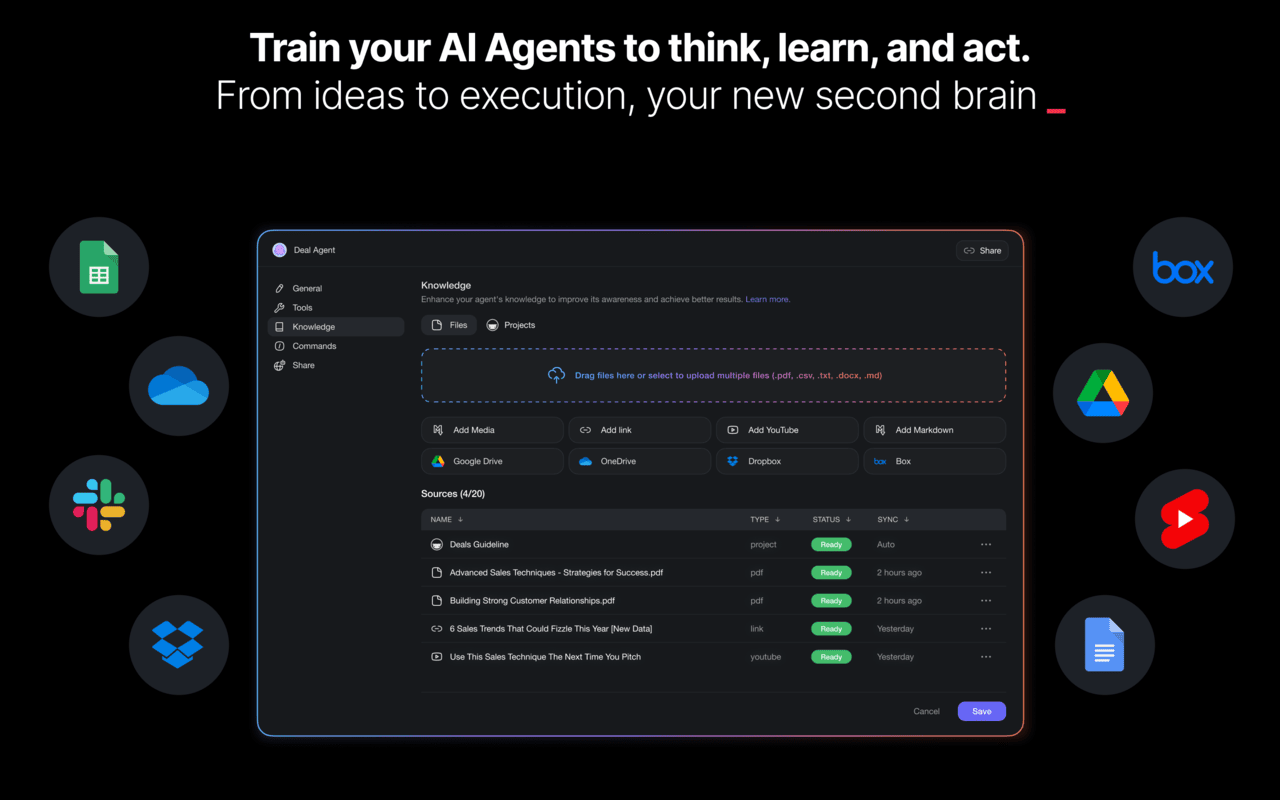
Taskade’s Chrome extension turns your browser into an AI-powered workspace. It can highlight text to instantly add tasks, automate routines with “If this, then that” logic, and chat with AI agents inside your browser. Taskade integrates well with tools like Google Sheets, Slack, and WordPress, which makes my day-to-day tasks easy and fast.
BrowserAgent – AI Agents in Browser
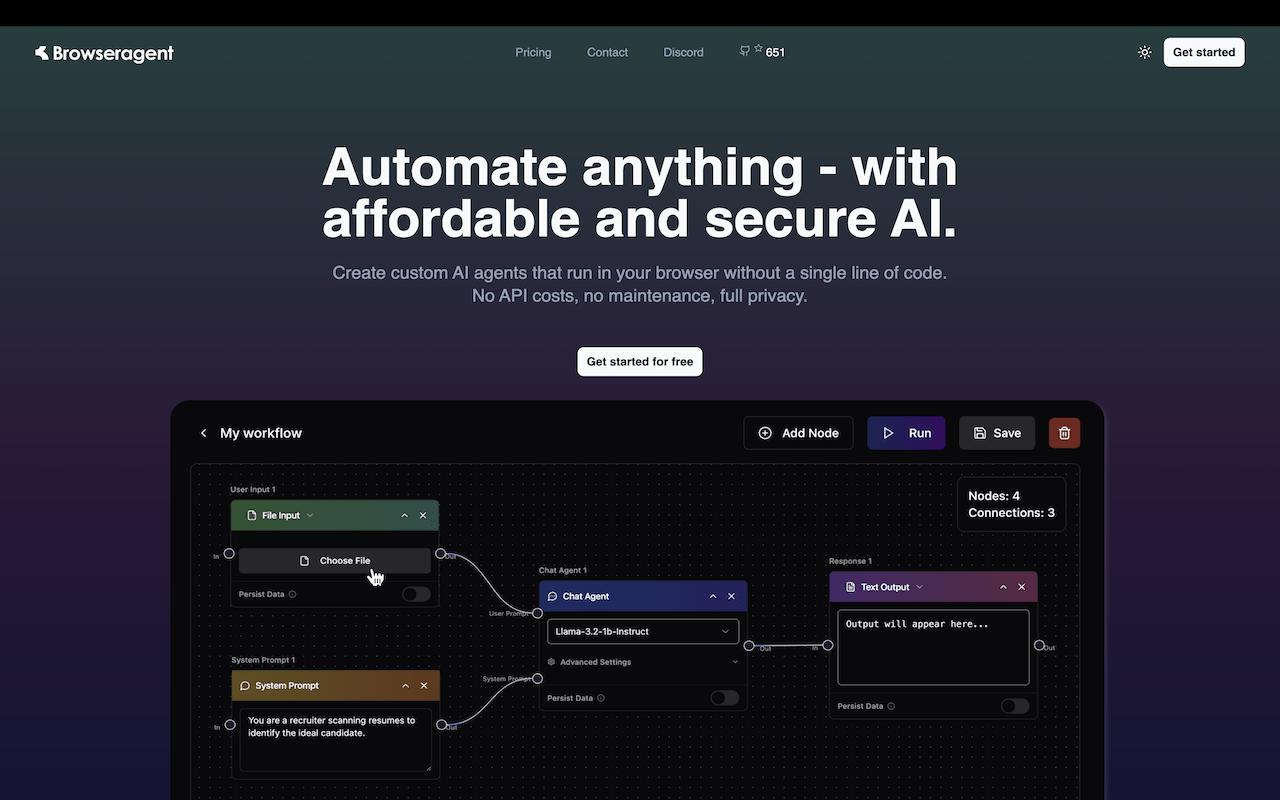
BrowserAgent brings private, no‑cost AI agents straight into Chrome. You can export and run custom workflows locally-no cloud API fees, full data control, and true privacy. I automated form fills, summarized pages, and triggered actions with just a click. It’s easy to build drag‑and‑drop agents and run them instantly.
Merlin – Ask AI to Research, Write & Review
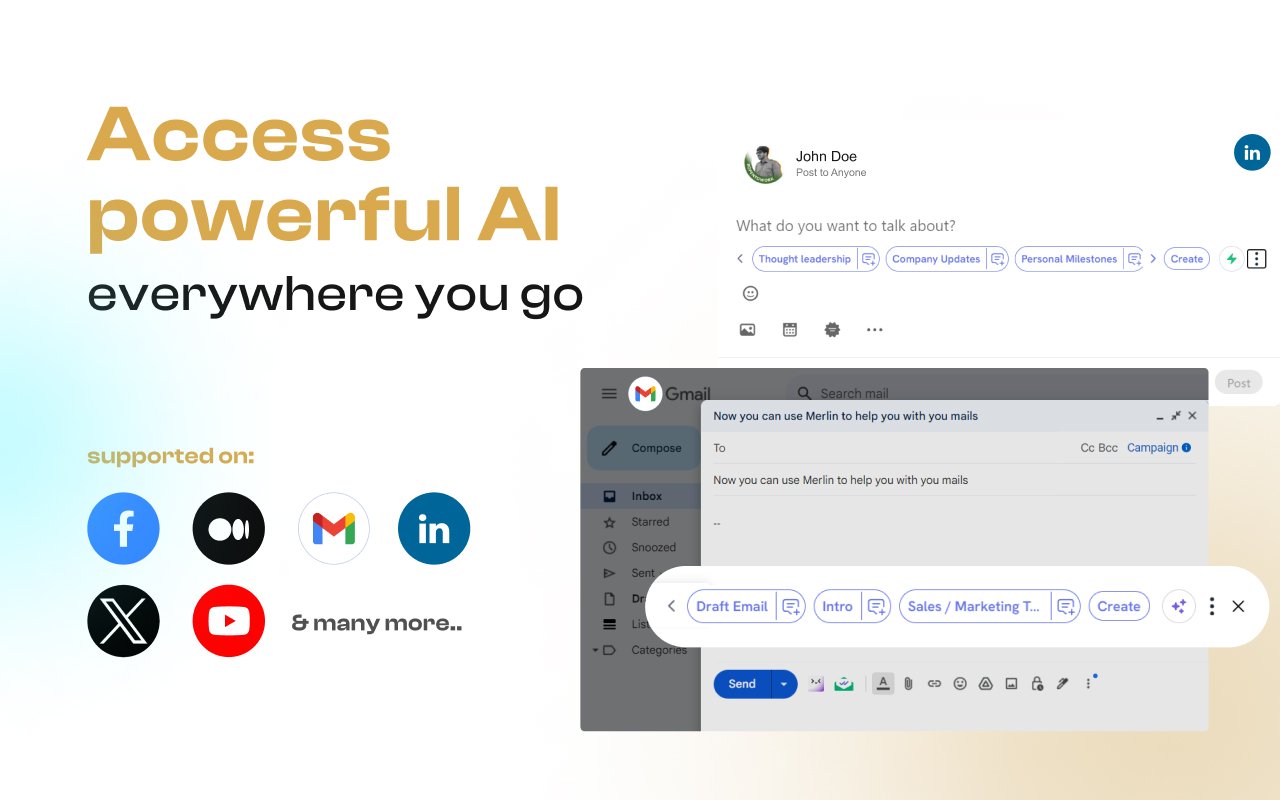
Using Merlin on Chrome feels like adding a powerful AI agent right into your browser. I highlight text, hit Ctrl+M, and instantly get summaries, replies, or content drafts-no switching tabs needed. It combines GPT‑4, Claude, Gemini, and others in one place, which is super handy. I often use it to summarise long YouTube videos, which saves me a lot of time and effort.
Agentic Browser – AI-Powered Web Automation Agent
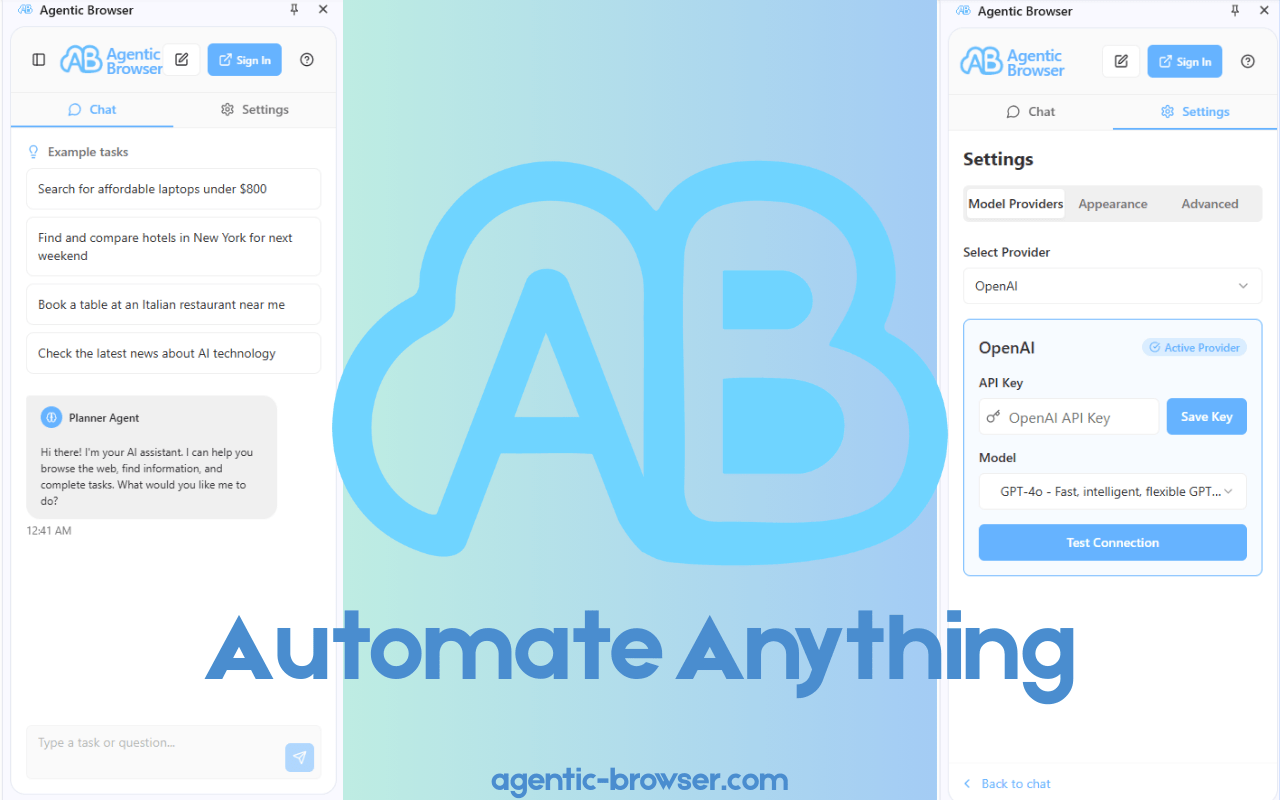
Agentic Browser can help you auto‑fill forms, summarize articles, extract text from images, and automate workflows all via natural‑language commands right in the browser. It supports multiple LLMs like ChatGPT, Claude, Gemini, Grok, and lets you use your API key for privacy.
Conclusion
Using AI agents on Chrome has completely changed the way I work and browse the internet. What started as simple curiosity turned into a real productivity boost. These tools help you save time, stay organized, and focus on what matters. Whether it’s drafting emails, summarizing pages, or automating simple tasks-AI agents can do a lot for you. And the best part? You don’t need any technical skills to get started.
If you've any thoughts on How to Use AI Agents On Chrome?, then feel free to drop in below comment box. Also, please subscribe to our DigitBin YouTube channel for videos tutorials. Cheers!