I launched the Android camera app to capture the photo of an important document. However, when I looked for the image in the Gallery, I couldn’t find it.
It was frustrating. Sometimes these types of issues might occur due to temporary glitches. But it gets if the images are stuck in the pending state.
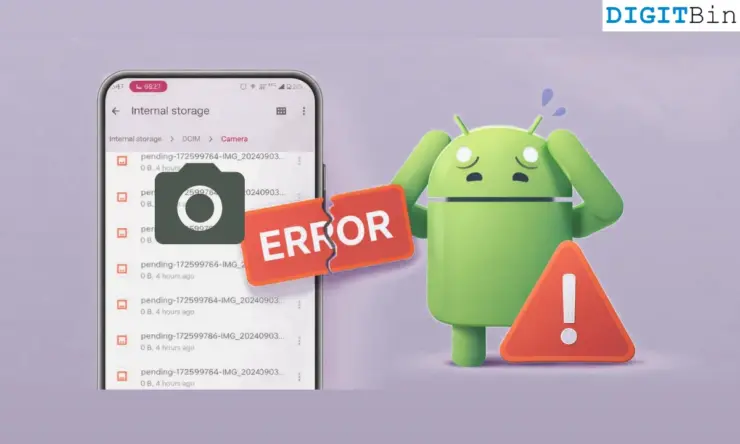
Some friends facing the same issue on their Android phones have shared with me that when they look for these missing images in the Files app, they find them to be pending.
In this state, the recently captured images are named in a pattern like “.pending-1234567-IMG_1234_7654.jpg” and are missing from the Gallery.
I was wondering why these images are still pending and how to get rid of them. I tried looking at all the possible causes behind this issue and the potential ways to fix it.
Why is the Android camera app not saving the images?
Pending images basically refer to the state of the image. If the captured image fails to process completely, it might get stuck in the pending state.
In some cases, the camera app fails to save the images properly due to temporary glitches or software issues. These include app-related problems, around operating system, storage, or security.
Otherwise, if your device has been corrupted or the camera app cannot render the images to the specified format, they might also give rise to such problems.
What did I do to fix the camera when it was not saving photos on my Android?
Unfortunately, the camera not saving photos on Android devices is one of the most aggravating yet common problems among users.
I have identified the major reasons behind it and how to solve them quickly.
Reboot the Android device
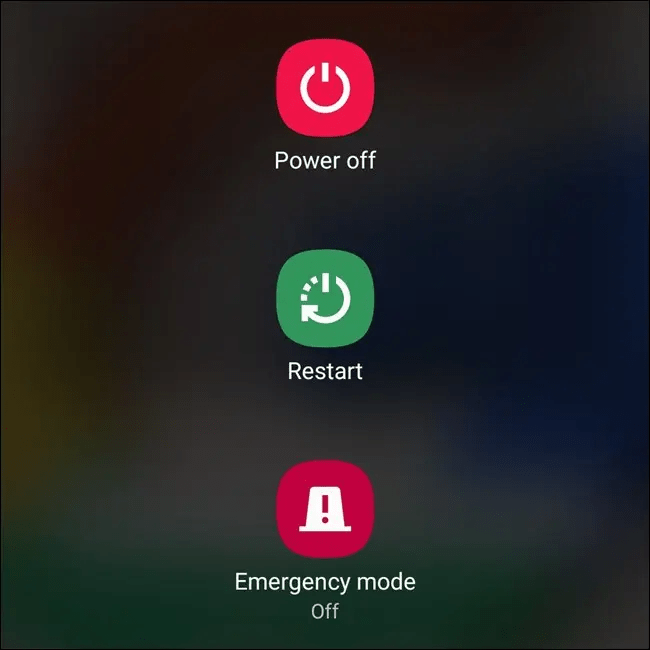
Assuming it is the result of a temporary glitch, my first step was to reboot the device.
Rebooting will eliminate all temporary issues, and a fresh session guarantees a better performance. It did not fix the issue on my Android camera. So, I tried the next troubleshooting.
Check the device storage
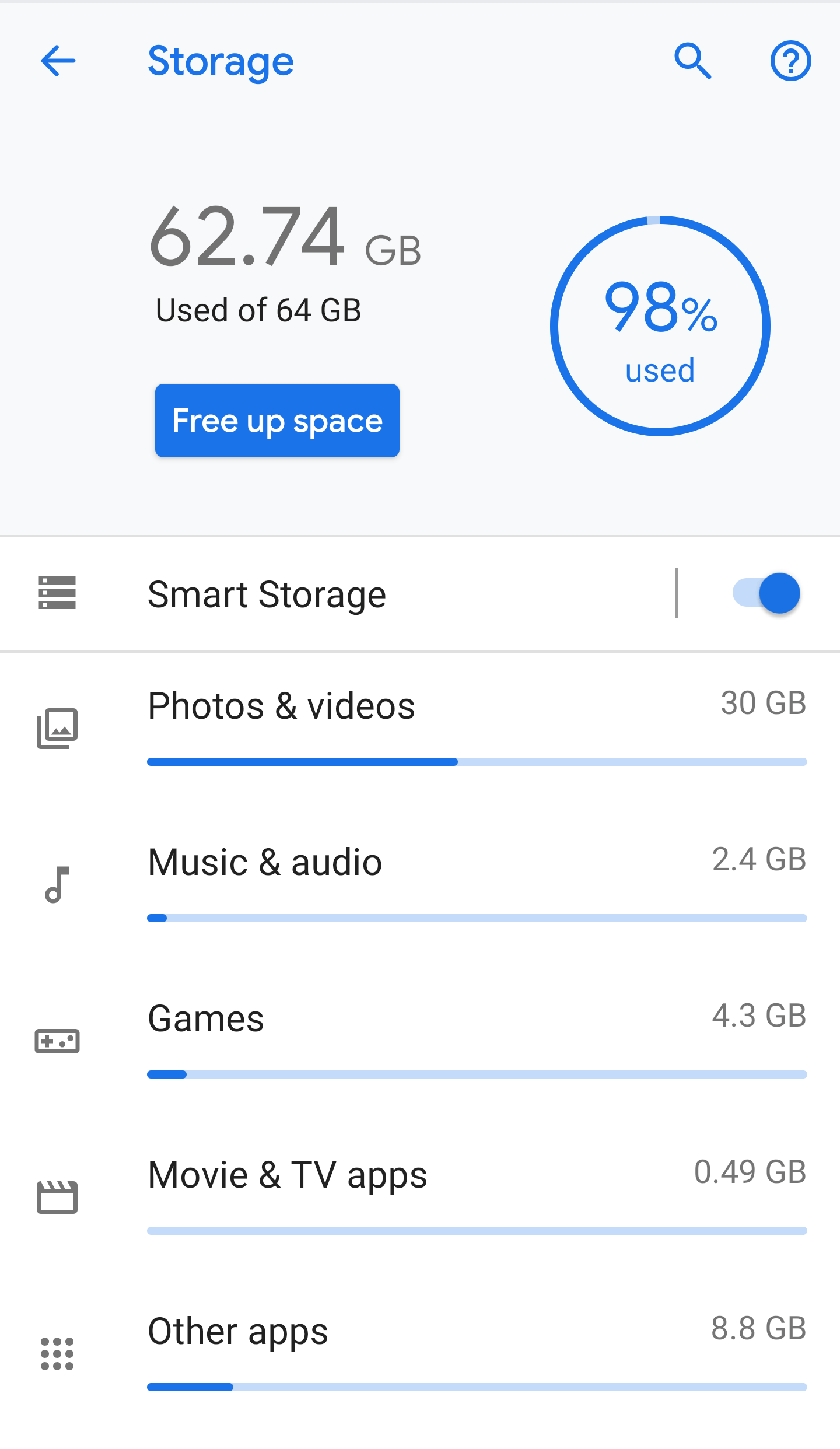
If the storage is running low on the phone, the Android camera app cannot save images
Whether the photos are being saved in the internal storage or SD Card, the captured image won’t be saved to the device if there is not enough space.
I checked for storage on the Files app, and there was sufficient storage. So, I deduced the issue was not related to the storage.
Allow permissions to the camera app
The stock camera app generally has all the essential permissions by default. However, a third-party camera application will require permission to function explicitly.
So, make sure whichever app you are using has access to the phone’s storage. To check it out, simply follow the steps below.
- Tap and hold on to the Camera icon.
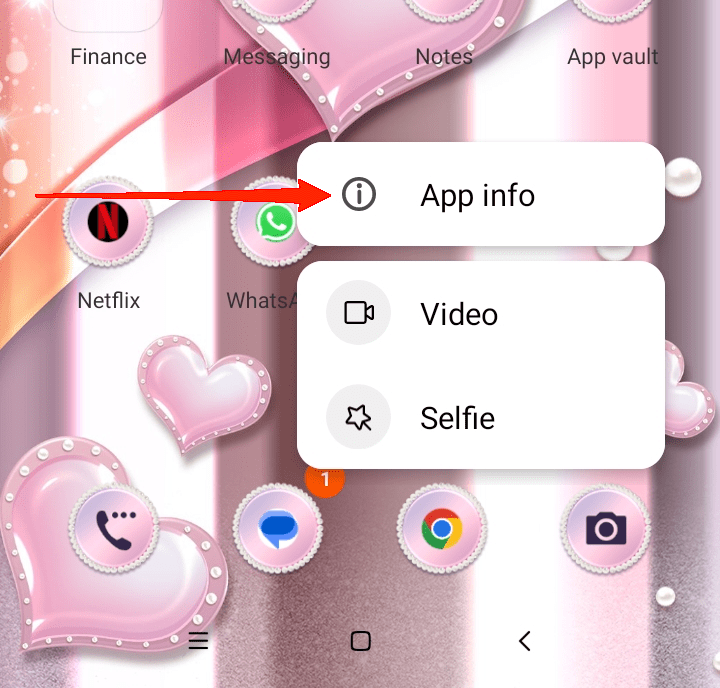
- Now, tap on App info.
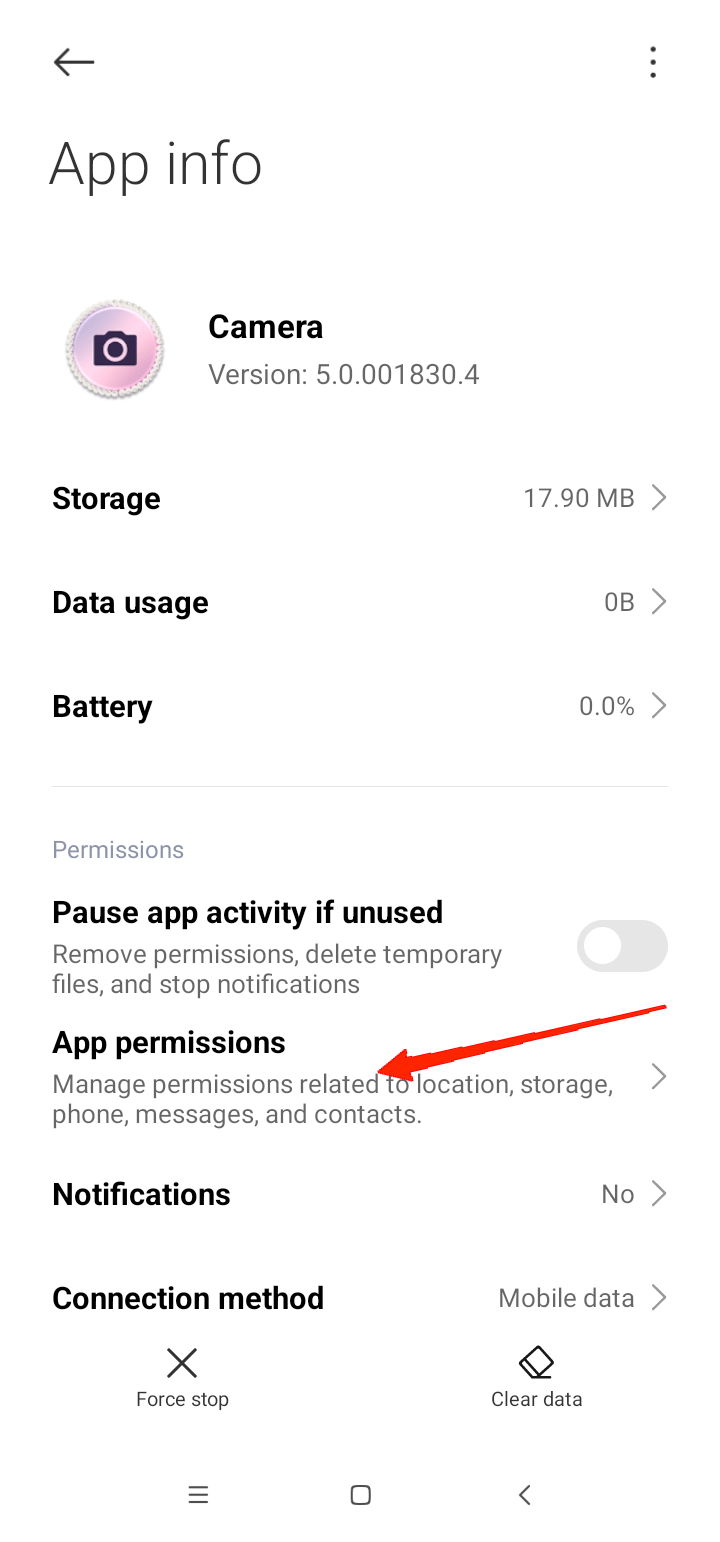
- Go to Permissions.
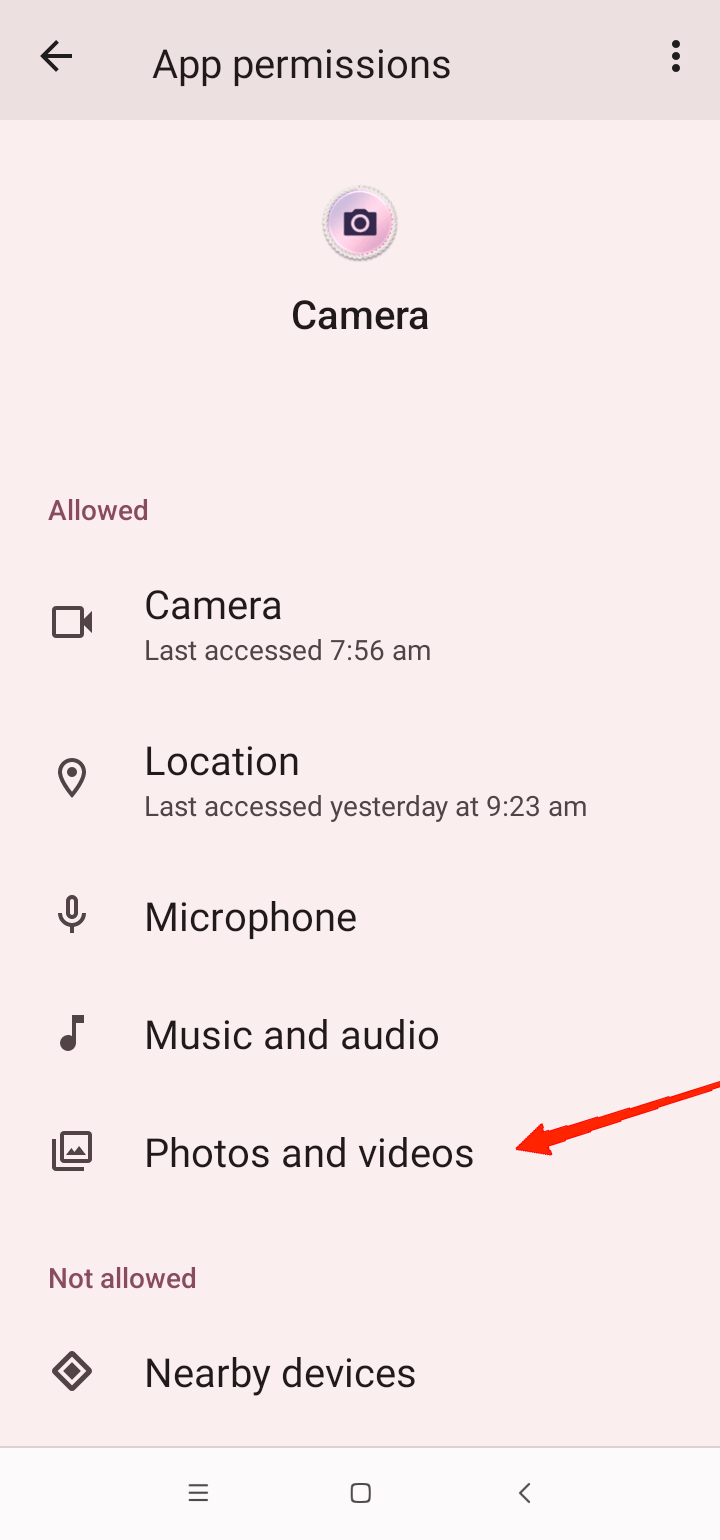
- Finally, enable the Storage permissions.
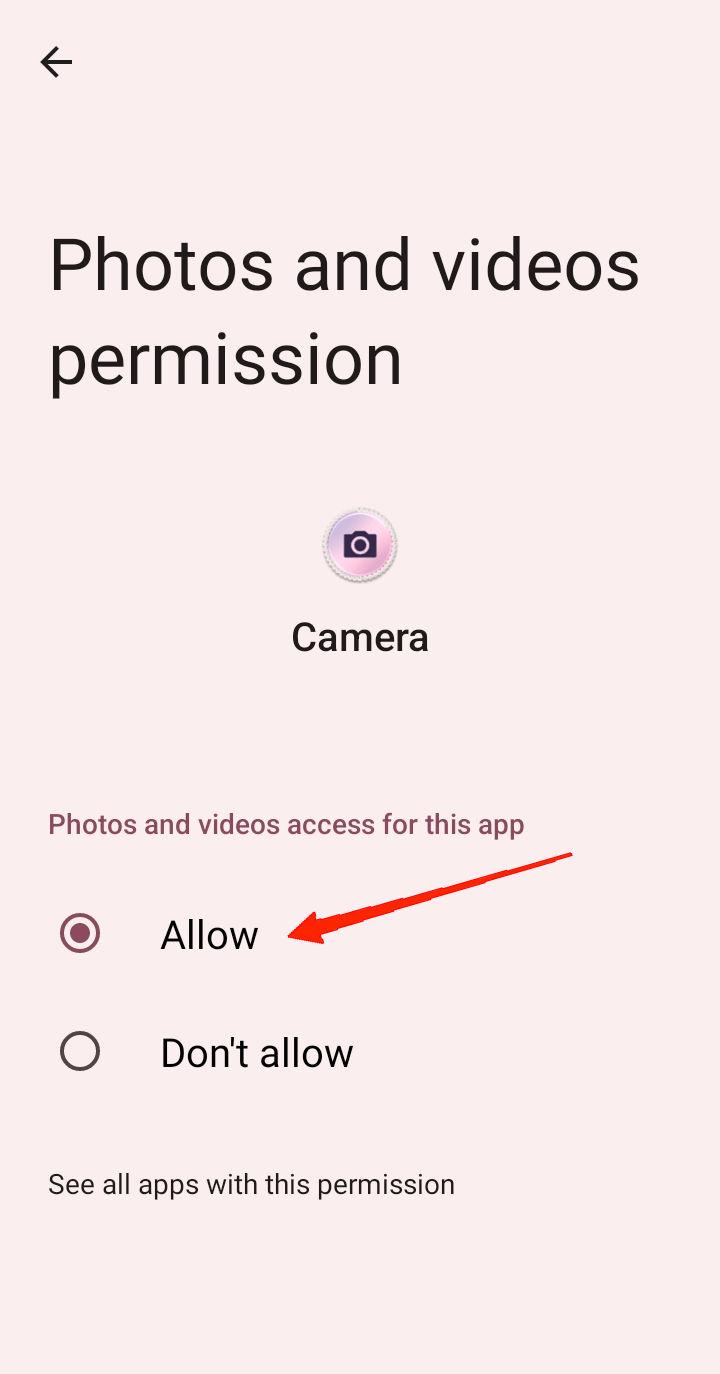
After enabling the permissions, launch the camera app, click a picture, and see if you can find it in the Gallery. Additionally, check out the other permissions as well and enable the ones that seem important.
Clear the camera app cache
An overloaded cache memory could also lead to abnormal behavior of the applications. One of the best ways to avoid this is by periodically clearing the app caches.
Certainly, improper functioning of apps on Android devices mostly occurs due to cache memory overload.
Here’s how to do it.
- Tap and hold on the camera app icon.
- Now, click on the Clear data button at the bottom.
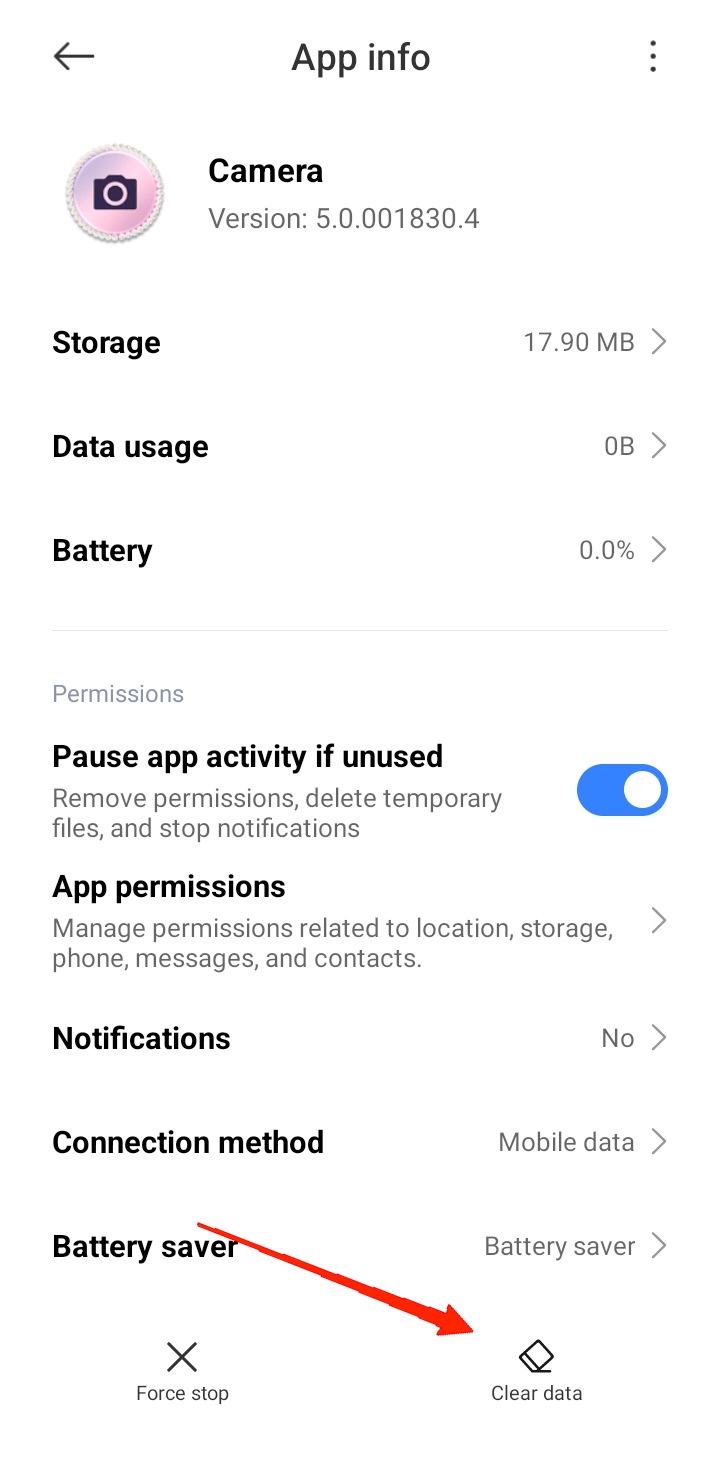
- Go to Storage and Cache.
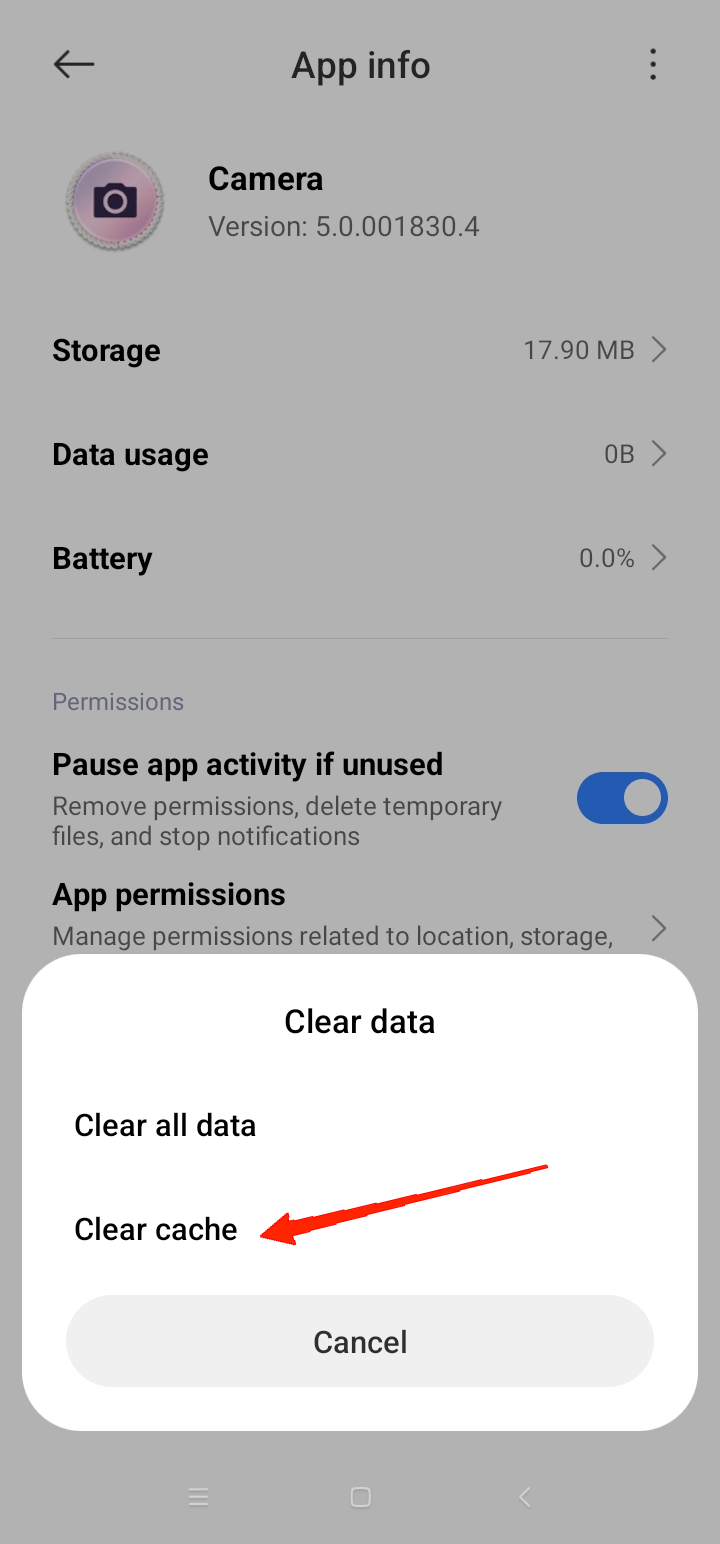
- Select Clear Cache.
Check for a corrupt SD card
I thought it might be possible that the SD card is incompatible or corrupt. If the SD card was exposed to any malicious file or virus, it might get corrupted.
In that case, the camera app won’t be able to save the files to the SD card. To find it out, I unmounted and remounted the card.
- I went to Settings app > Storage.
- Tapped on the SD Card and then the unmount button.
- I removed the card from the phone and rebooted the device.
- Once it restarted, I re-inserted the SD card.
- Again, I went to Settings > Storage and mounted the Card.
In case the issue persists, formatting the SD Card would have been my next step.
NOTE: If you cannot access the SD card on your phone or computer, there is a high chance that the card is corrupted.
Alternatively, if you do not have much time, you can consider changing the file destination to your Internal storage.
This will eliminate any kind of issue with the SD card without even addressing it.
Disable third-party antivirus apps
I did not realize that a third-party anti-virus app was installed on my device, which may have caused the camera to malfunction.
So, I disabled the third-party antivirus program and checked if this solved the problem. No, the issue with the Android camera was not related to this anti-virus app. The issue persisted.
Update Android firmware
Using an older version of the OS could cause multiple technical troubles. This is because an older version of the OS may contain bugs and incompatibility issues.
As a result, the camera not saving photos on Android could also be an outcome of the same. Turns out this was the issue on my Android device.
I checked for firmware updates.
- Launch the Settings app.
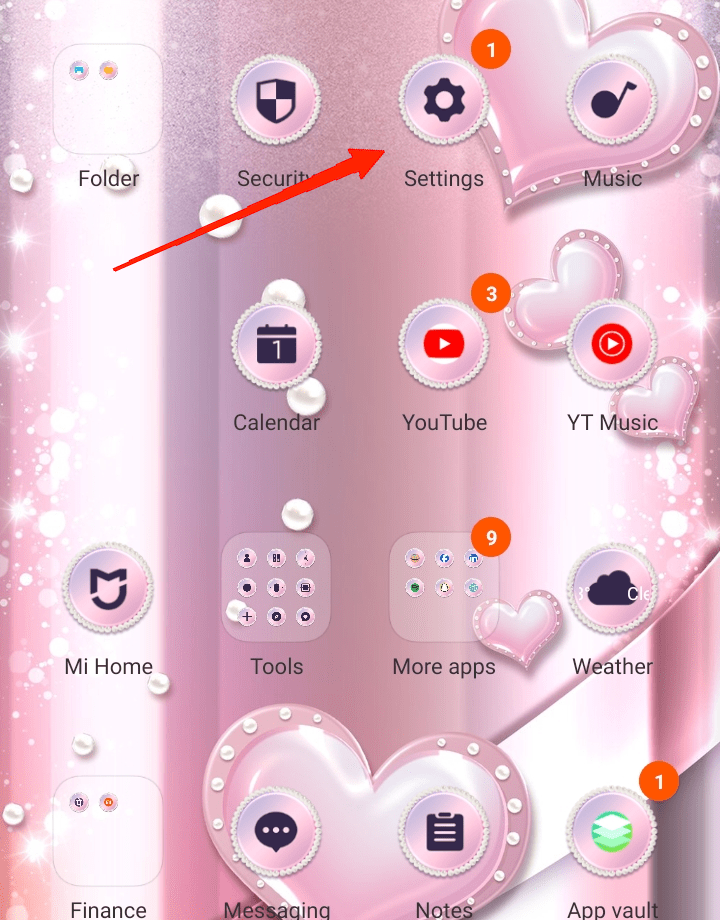
- Scroll and go to About Phone.
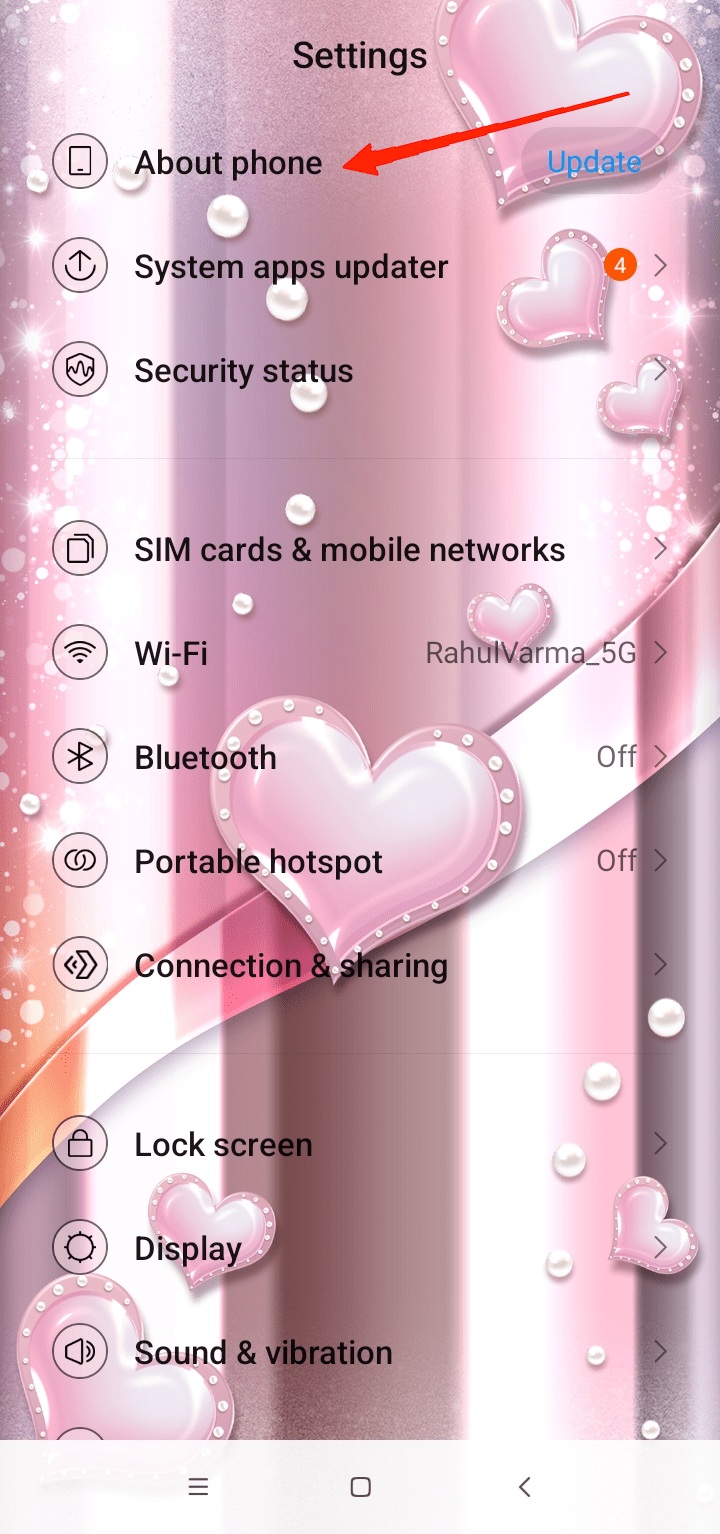
- If there is a system update available, it will be displayed on the screen.
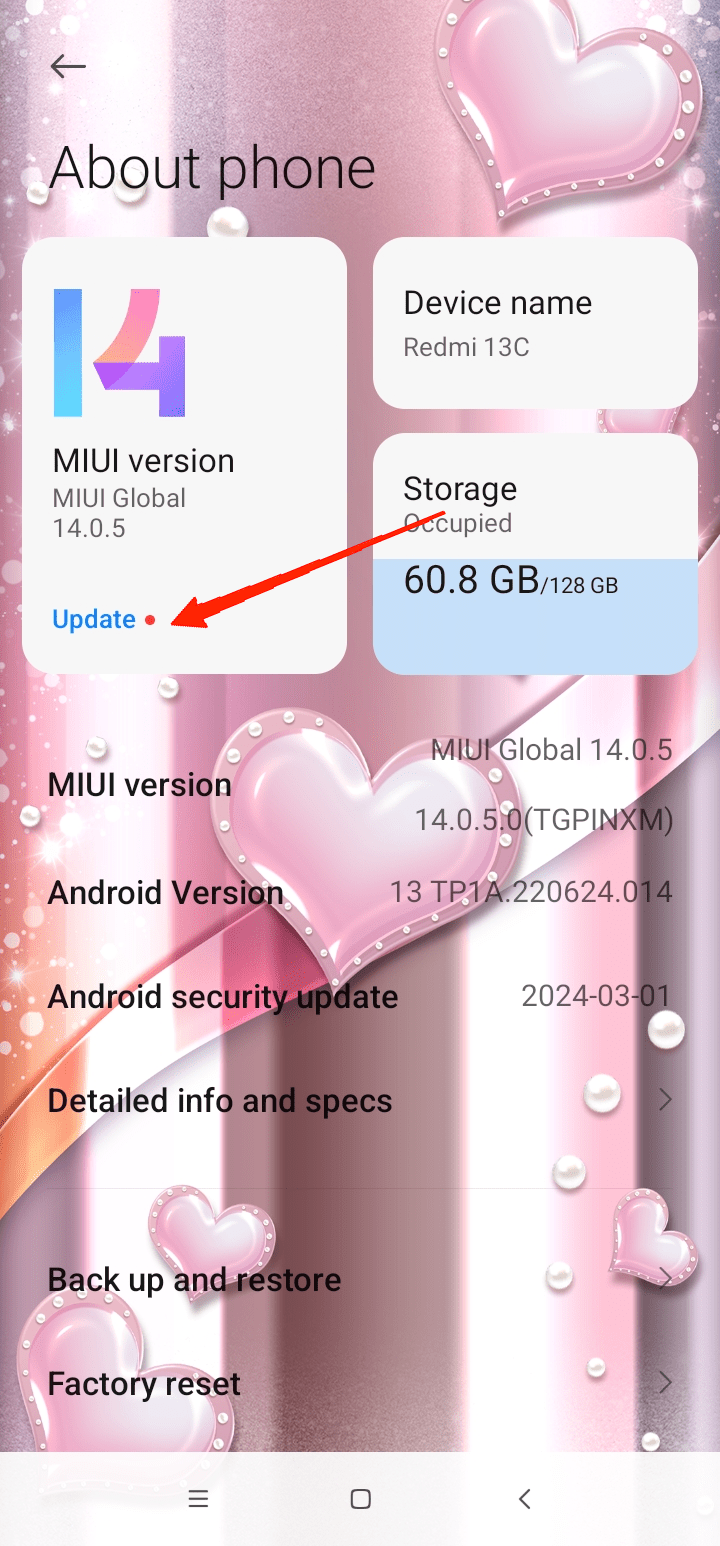
- Finally, tap on the Download Update button and wait until it is completed.
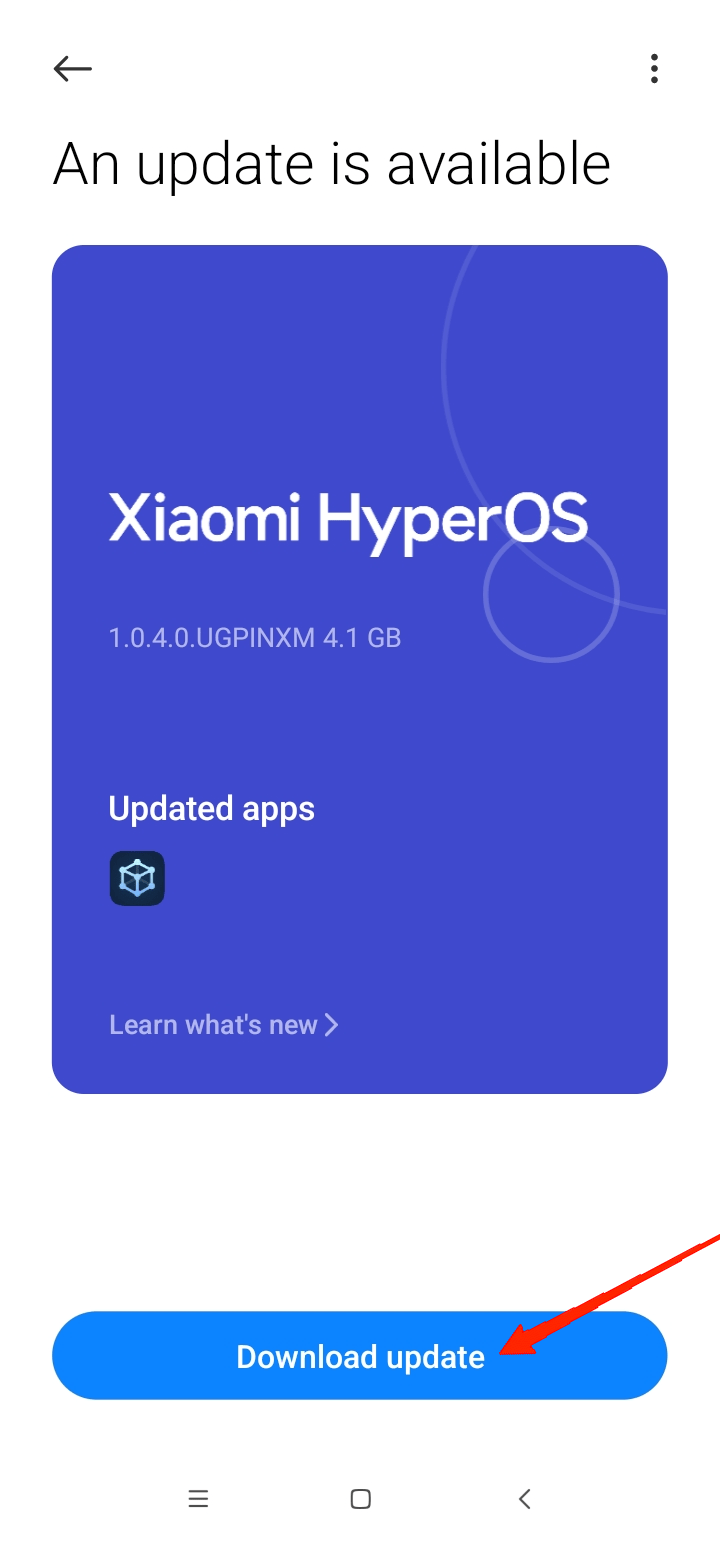
Once the system is updated, reboot your device, and this shall solve all your problems.
Changing the file name of pending images
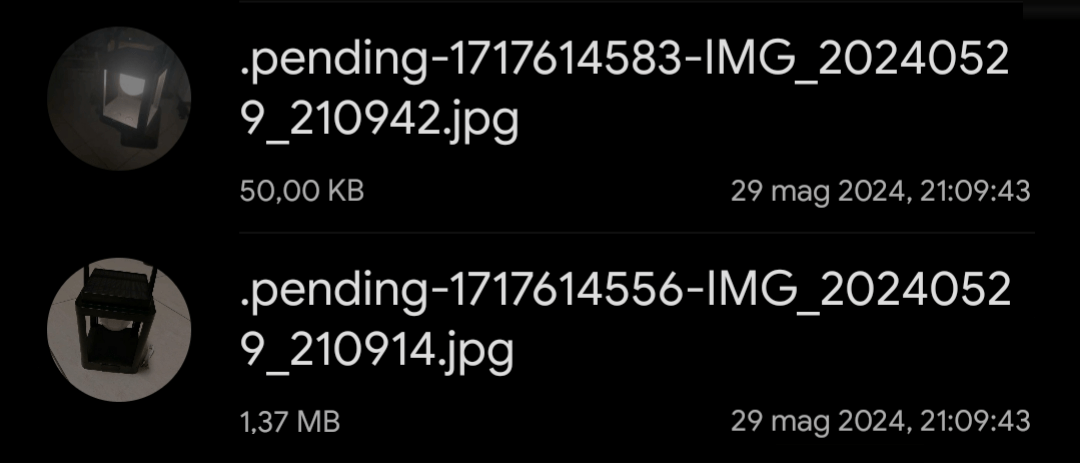
There is one other trick I have found useful to get back the images captured on the camera app but not showing in the Gallery app. Although often unreliable, it can still be a helpful trick.
All I had to do was rename the file.
I opened the Files app and located the recently captured images. Next, I looked for the Camera photos with the “.pending-…” in the name.
I selected the image and renamed it.
After renaming the file, I could now view the image from both the Files app and the Gallery. It doesn’t work every time, from what I have experienced.
Save your camera app photos to the Gallery
I use the camera app almost every day, and not being able to save the photos to it was such a bummer. For me, updating the system build trick worked effectively to fix the camera issue.
If you have a similar issue with your Android camera, these troubleshooting tips I have shared should fix it for good.
If you've any thoughts on My Android camera was not saving photos until I fixed these issues, then feel free to drop in below comment box. Also, please subscribe to our DigitBin YouTube channel for videos tutorials. Cheers!