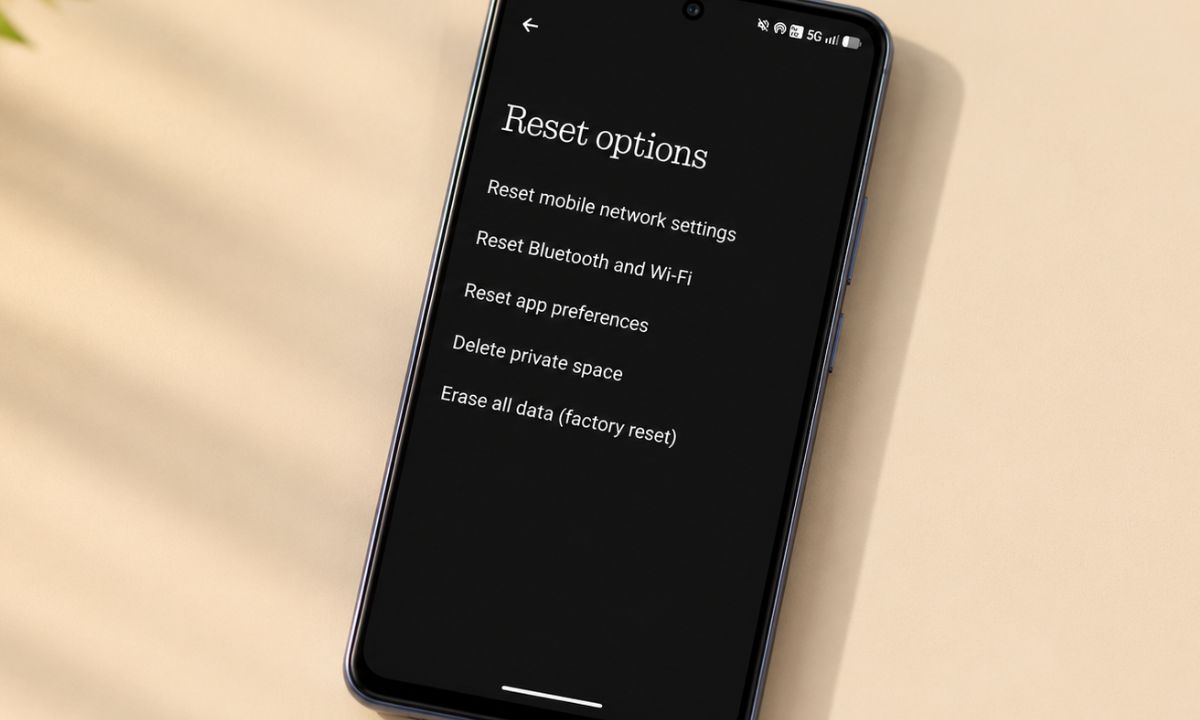
Resetting network settings on Android clears your connection problems without wiping the phone. I use it when Wi-Fi says connected, but no webpage loads, or a Bluetooth pairing refuses to come back. This is something I prefer as a last resort to troubleshoot network issues.
It takes about a minute to reset, and the real cost is setting up and typing those long Wi-Fi passwords again. Here is a detailed look at what it erases, where to find it on Android devices, and what to do first.
TL;DR: To reset network settings on Android without a factory reset, open Settings, go to System, Reset options, and choose Reset Mobile Network Settings or Reset Bluetooth and Wi-Fi. On Samsung, it is under General management, then Reset. It erases saved Wi-Fi networks, Bluetooth pairings, and custom APNs, but not apps, photos, or messages. Write down your Wi-Fi passwords first.
How to reset network settings on Android?
The pathway to the reset option starts from
- Settings > System > Reset options.
- Select Reset Mobile Network Settings or Reset Bluetooth and WiFi depending on the issue you have at hand.
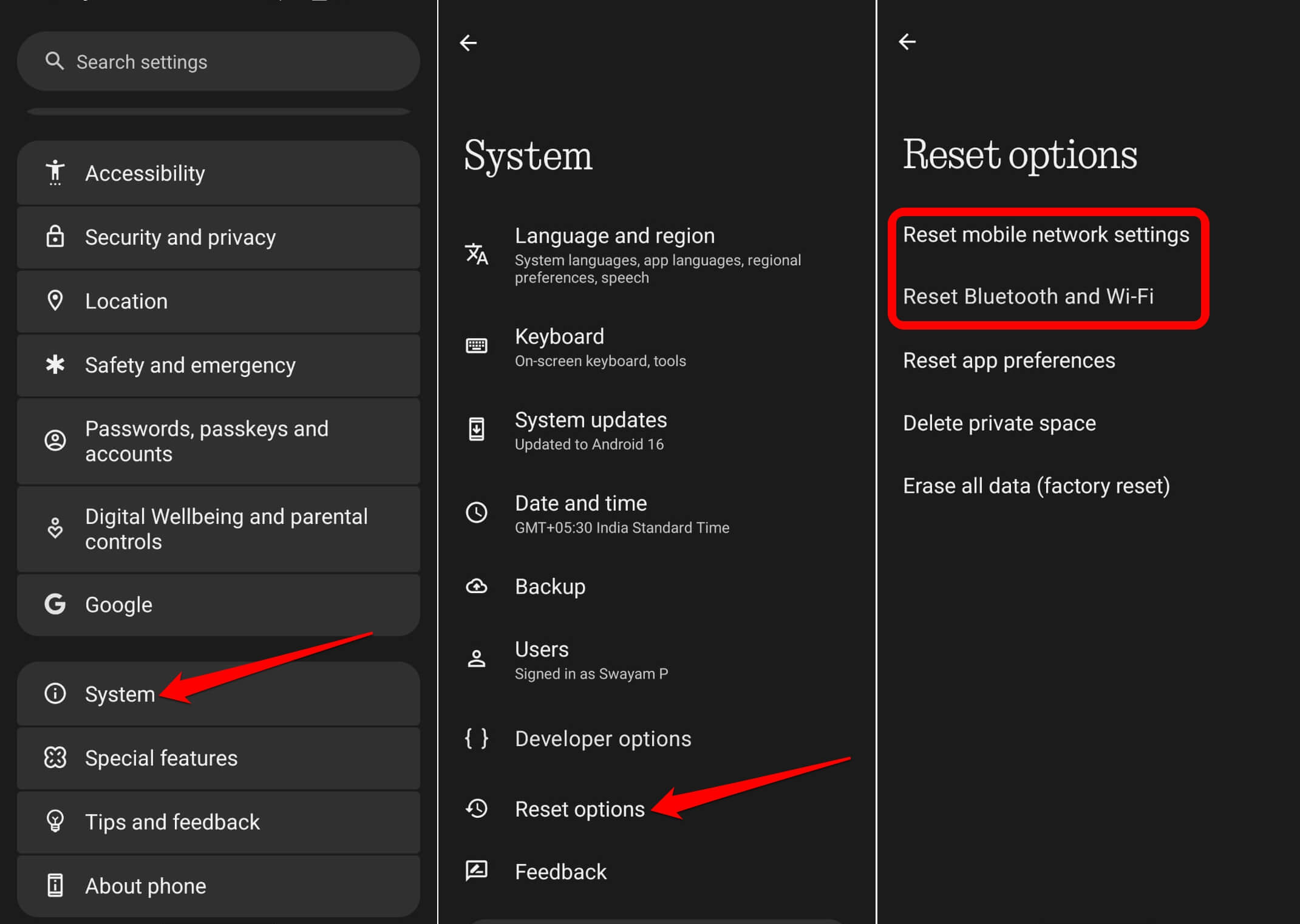

On Samsung phones, you can choose between Reset mobile network settings or Wi-Fi and Bluetooth settings by going to Settings > General management > Reset.
| Option | What it clears | Use it when |
|---|---|---|
| Reset mobile network settings | Cellular settings, custom APNs | No data or odd signal |
| Reset Bluetooth and Wi-Fi | Saved Wi-Fi, Bluetooth pairings | Wi-Fi or pairing problems |
| Factory reset | Everything | Last resort only |
Which of the two resets to pick?
Two network reset options might seem confusing. It is easy to choose depending on the issue your device is facing. If mobile data stalls while Wi-Fi is fine, reset only the mobile network settings.
If Wi-Fi shows connected but pages do not load, or a Bluetooth device will not pair, reset Bluetooth and Wi-Fi. It is that simple.
I have more often reset the mobile network settings, since it leaves my saved networks alone. Only when nothing changes, I would perform the other reset. Doing both at once is possible, but it is a bigger cleanup than most problems need.
What gets erased and what stays
Saved Wi-Fi networks and their passwords go, and so do Bluetooth pairings. Any APN settings you created manually are deleted too. Apps and personal data do not get affected. VPN profiles might get cleared. After the reset, check your VPN afterward and sign in again if needed.
The reset is much smaller than it sounds. The intriguing part was the confirmation screen, which uses the same wording as a bigger reset.
What happens to the eSIM upon network reset?
Google gives you the option to delete eSIMs during the network reset. I would warn against selecting Erase SIMs unless you really mean to. This can remove the carrier plan from the phone. First, check with your carrier’s support.
Before resetting, I ensured that the option was off. On a phone with a travel eSIM, you could get into trouble upon resetting the eSIM.
If you use the Google Fi Super Network, check that your plan is active afterward.
What to do before and after
Before the reset, write down the Wi-Fi passwords you do not know by heart. The phone will let go of every network, including the one at your desk, once the reset goes into effect.
After the reset, reconnect to your home Wi-Fi first and test a page. Then re-pair Bluetooth devices one at a time, because a car stereo and a pair of earbuds can fight over the same slot.
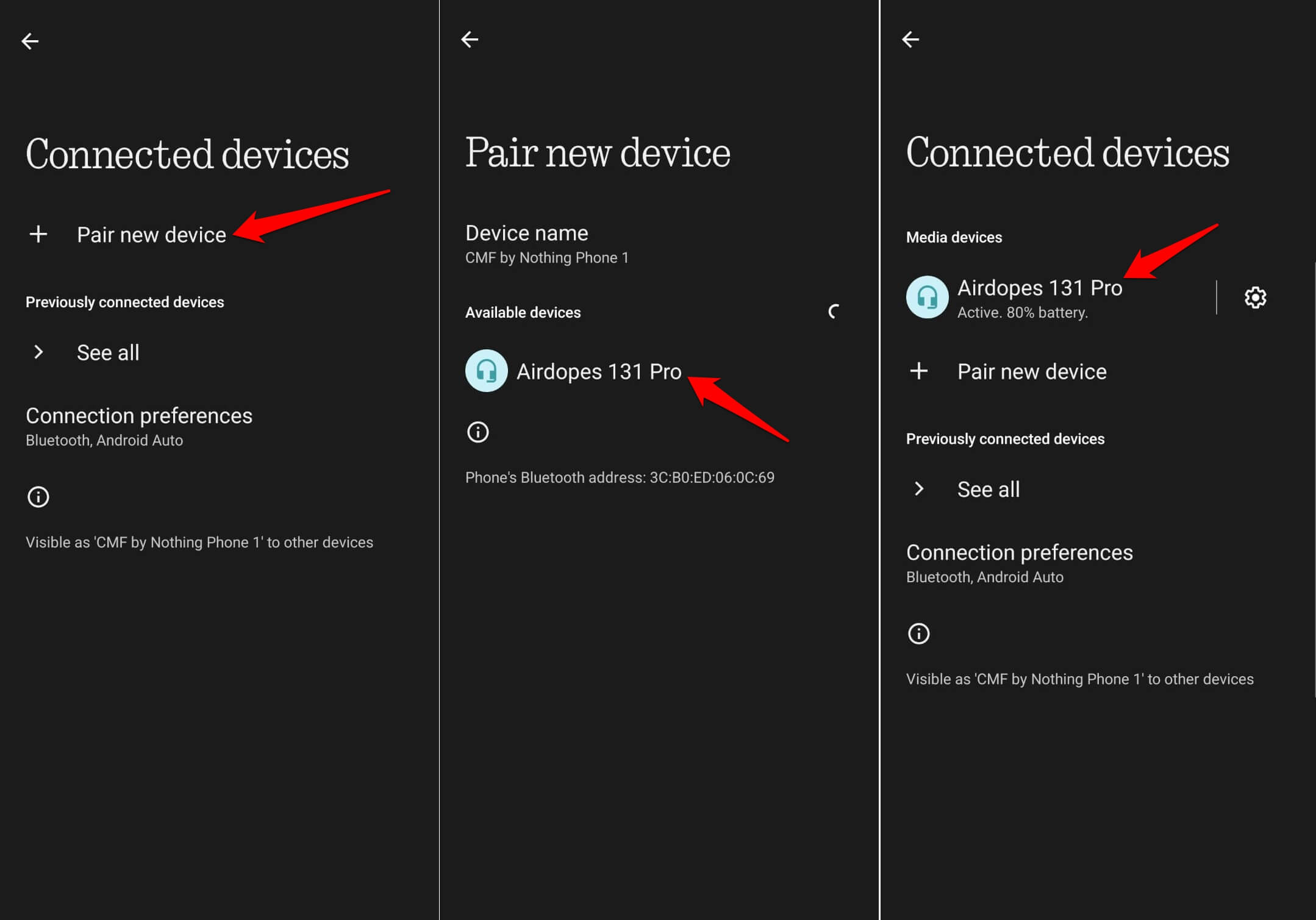
I ended up retyping two passwords and re-pairing earbuds. The earbuds pairing was surprisingly longer than the Wi-Fi setup and reconnect.
The thing I noticed afterward was the quiet. The weak signal icon that had flickered in the corner of the screen for a week simply stopped, and I only realized it was gone when I looked for it.
When resetting will not help?
A network reset fixes software settings, not a weak router or a faulty SIM. If only one network misbehaves, forgetting that network is a smaller step, and a pending system update can also be the cause.
If you use a Pixel device, check the Pixel update tracker linked below to see whether your phone is running a newer OS version before you reset anything. If a reset does not help, restart the phone and router together before escalating to your carrier.
Frequently asked questions
Does resetting network settings delete my photos or apps?
No. Samsung says it does not touch apps or personal data.
Will I lose my eSIM?
Not by default on a Pixel. Do not select the Erase eSIM or Erase SIMs option unless you want to.
Where is the reset on a Samsung Galaxy?
Go to Settings, General management, Reset, then choose to reset mobile network settings or Wi-Fi and Bluetooth settings.
How long does it take?
The reset itself takes seconds. Reconnecting Wi-Fi and Bluetooth takes longer.
Write down your Wi-Fi passwords before you reset
The use case for a network reset on Android is simple. Go for it when connections fail across more than one type of network, and skip it when a single device is the problem. Always note the WiFi passwords before executing a network reset. This makes it easier to set up the network later.