Safari 27 shipped on September 17 with a setting I almost scrolled past. Two checkboxes and one terminal command, and suddenly Claude Code or Codex can open tabs in my actual browser, read the console, take screenshots, and tell me about errors without me copying a single error message into a chat window.
I set it up the same week a zero-click bug hit four other AI coding agents. That timing made me read Apple’s fine print twice before flipping the switch, so this is both a setup walkthrough and an honest look at what you’re handing over.
TL;DR: Safari’s MCP server lets Claude Code, Codex, or any MCP-compatible agent see your browser’s DOM, console, network requests, and screenshots for debugging. It runs locally, makes no network calls of its own, and cannot touch AutoFill or browsing history according to Apple. Turning it on takes two setting toggles plus a short terminal command from your agent.
What the Safari MCP server actually does
MCP stands for Model Context Protocol, a standard way for an AI agent to connect to an outside tool and use whatever it publishes.
Safari’s version publishes access to a live browser window: the DOM, console output, network requests, screenshots, viewport resizing, and accessibility checks, all through 16 defined tools.
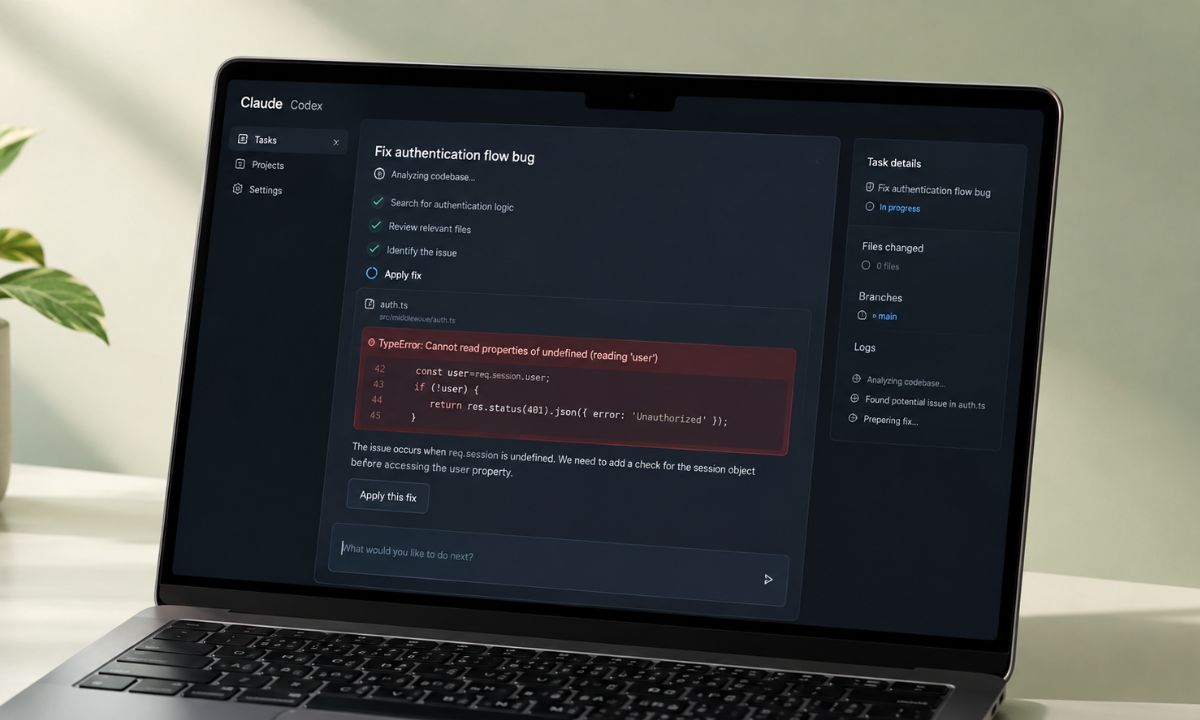
In practice, this means an agent debugging a site you’re building can look at the actual rendered page instead of guessing from a code diff. It reads the console error itself, checks which network request failed, adjusts the code, reloads, and looks again.
I used to paste console errors into a chat window and describe what the layout looked like from memory. That step is gone now.
Turning the Safari MCP on
The setting is buried two menus deep on purpose, since Apple treats it as a developer feature rather than something a casual user should stumble into.
| Requirement | Status |
|---|---|
| Safari version | 27.0 or newer |
| “Show features for web developers” enabled | Required first |
| “Allow remote automation and external agents” enabled | Required |
| MCP compatible agent (Claude Code, Codex, or other) | Required |
| Terminal access to run connection command | Required |
| Access to personal Safari data (AutoFill, history) | Not exposed |
Enable Web Developer Features first
- Open Safari Settings
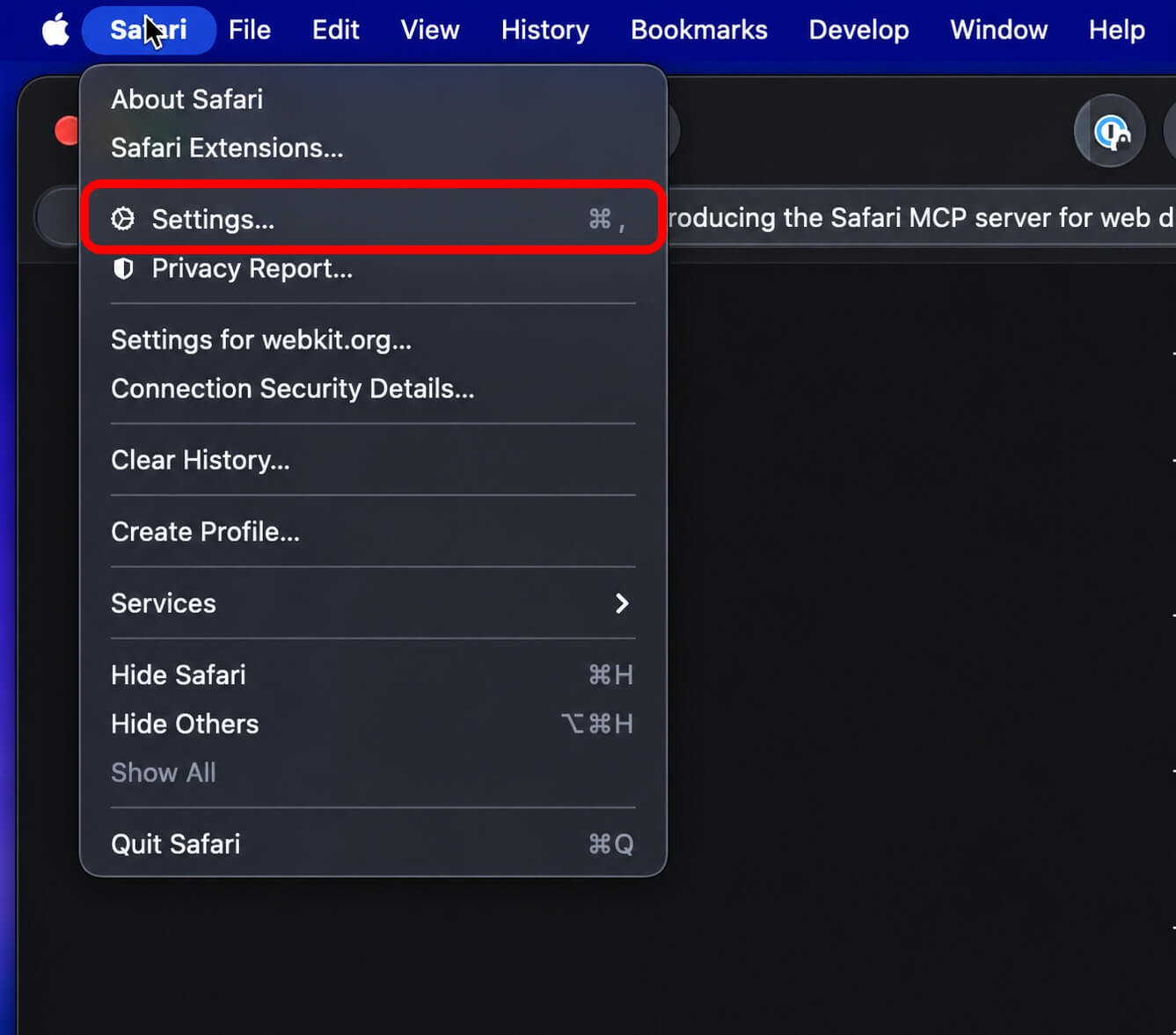

- Under the Advanced tab, turn on Show features for web developers.
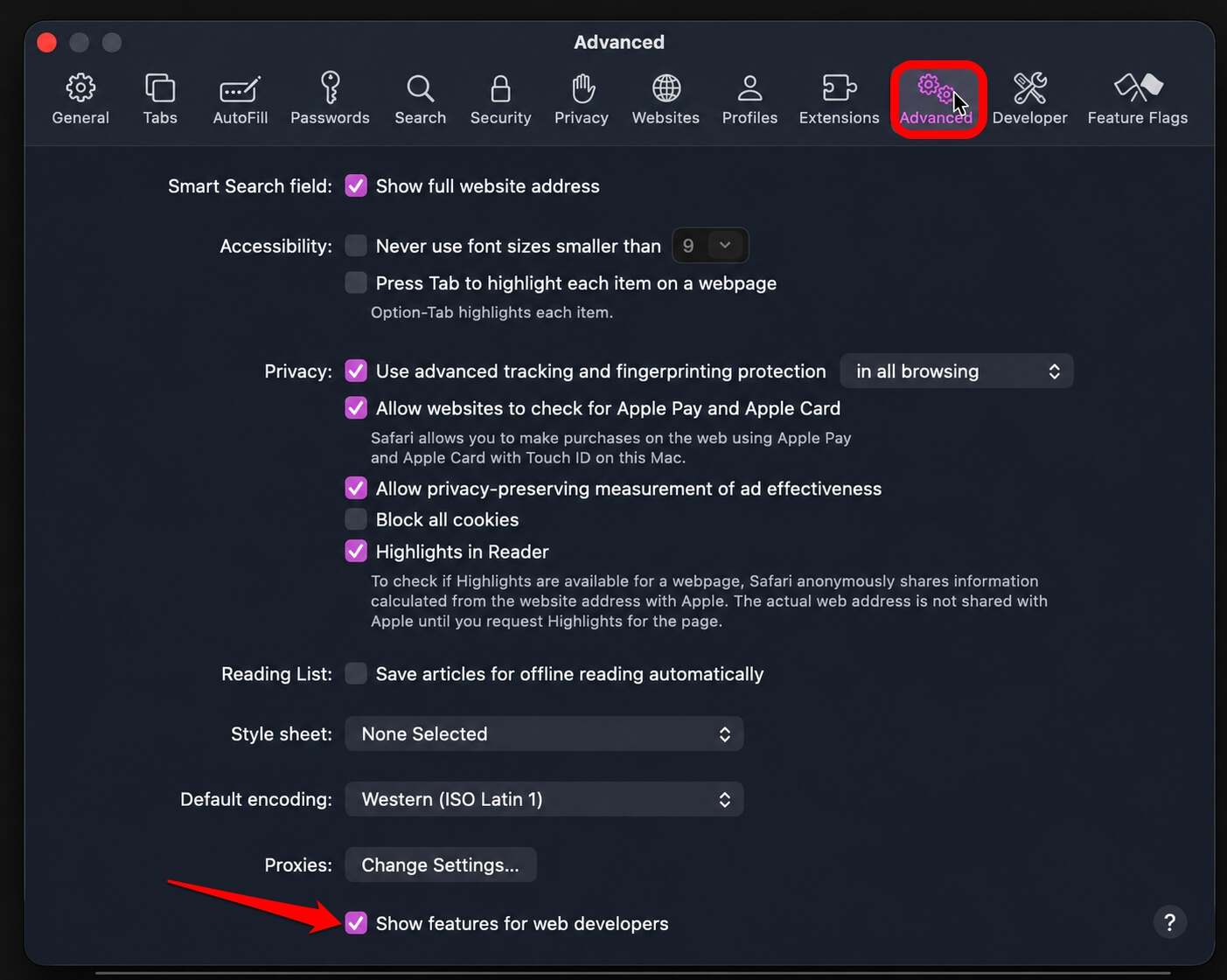

Without the above steps, the Developer tab you need next won’t even appear in your settings menu.
Turn on Remote Automation
Now, a Developer tab will show up in Safari settings. Open it and check “Allow remote automation and external agents.”
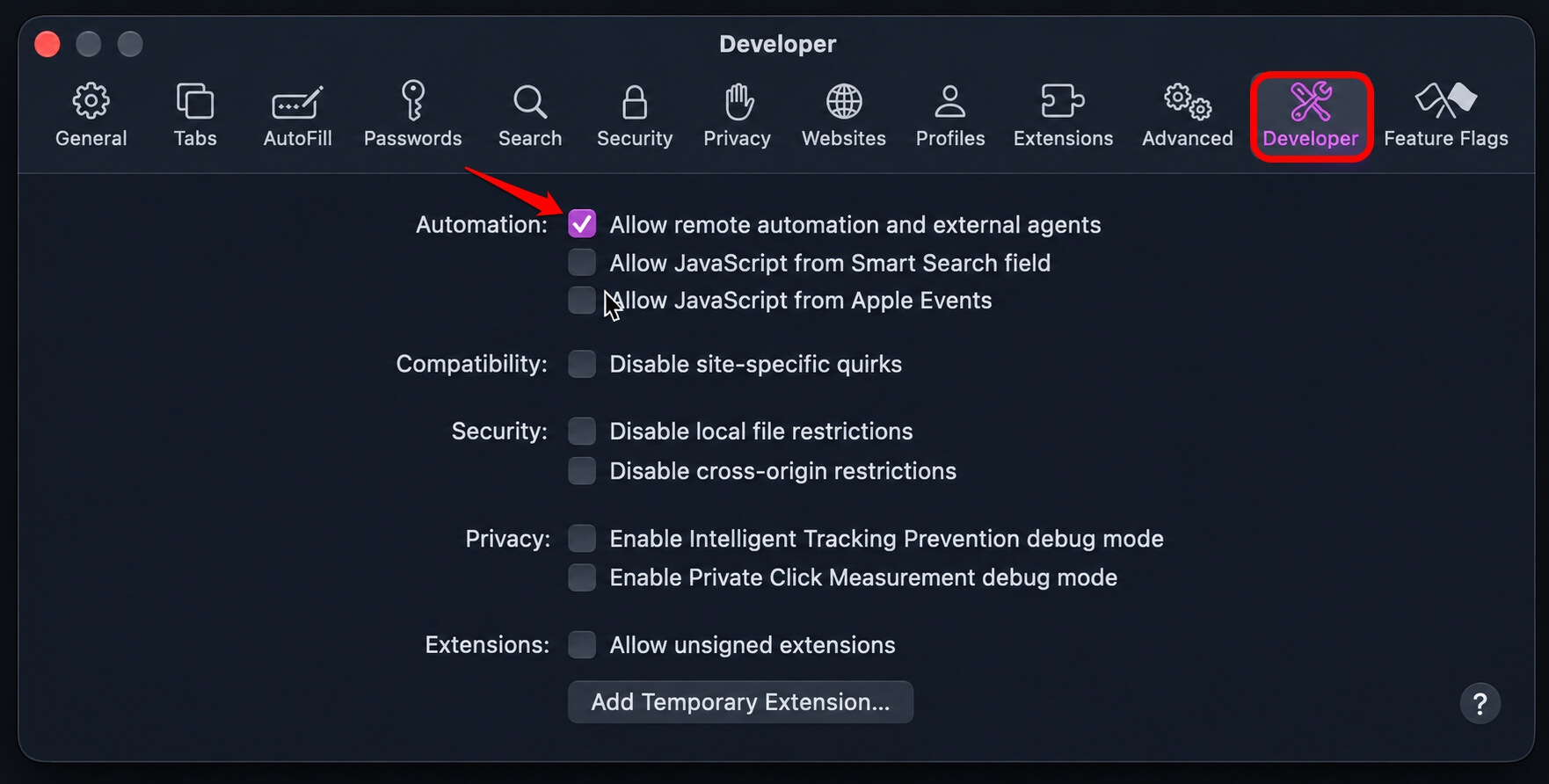
This is the actual switch. Once it’s checked, Safari is ready for a compatible agent to connect.
Connect your agent of choice
Apple’s own documentation lists the specific terminal commands for connecting Claude Code, Codex, or other MCP-compatible agents once the setting is on. From there, the agent can request a Safari session the same way it would call any other tool.
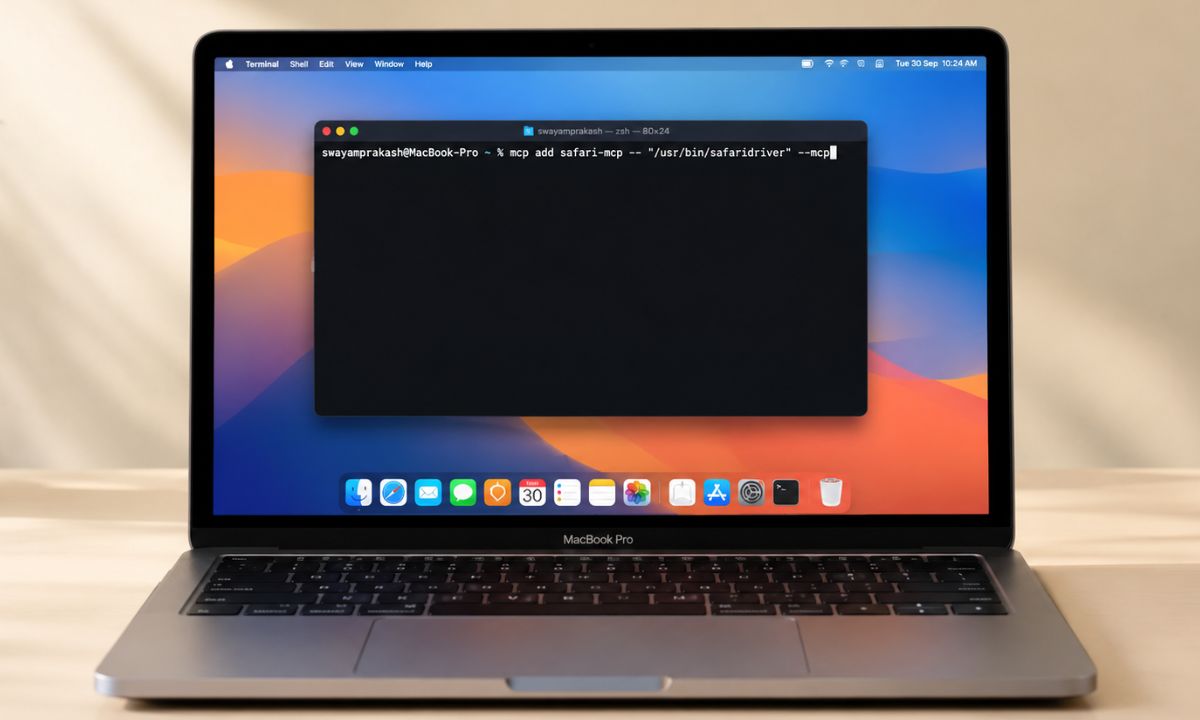
If using Claude, open the Terminal on your macOS and type
claude mcp add safari-mcp -- "/usr/bin/safaridriver" --mcp
If using Codex, type
codex mcp add safari-mcp -- "/usr/bin/safaridriver" --mcp
You can follow WebKit’s detailed guide on connecting agents to Safari MCP.
What Apple says it does not touch
Apple’s own framing is direct about the boundaries. The server runs entirely on your local machine, makes no network calls of its own, and has no access to your personal information in Safari. Captured data goes straight to whatever agent you’re running, not to Apple.
That last point matters more than it looks. AutoFill data, saved passwords, and browsing history sit outside what the 16 published tools can reach. The agent sees the page you point it at, not your Safari profile as a whole.
Contrary to this, the newly launched ChatGPT Dots agents take full control and keep working on your behalf even after you close the app. Each dot runs on its own cloud computer, powered by GPT-6 Astra, and can reach more than 4,000 apps through OpenAI’s plugin ecosystem.
Why I waited a day before using it
I enabled the checkbox the day the feature shipped and then didn’t actually connect an agent to it until the next afternoon.
That was not because I doubted Apple’s claims specifically, but because the same week a bug called Plugin4Shell showed that four separate AI coding agents had all quietly trusted a security mechanism that didn’t do what everyone assumed it did.
Honestly, it was not a reason to avoid Safari’s MCP server. Apple built the feature, controls the surface it exposes, and scoped it to a live browser tab rather than your whole system. But it’s a valid reason to read what a new automation feature actually grants before turning it on the same hour it appears in a changelog.
What this changes about debugging day-to-day
The small stuff adds up faster than I expected. Checking computed styles against another browser used to mean two windows and a mental diff. Now the agent pulls both and tells me what’s different. Accessibility checks that I’d run manually once a sprint now happen as a matter of course, because asking for one costs nothing.
I did notice myself trusting the agent’s read of a rendering bug a little too quickly on the second day, which is its own small warning. The tool describing what it sees is not the same as me looking at the page myself, and I caught myself skipping that step more than once.
Frequently Asked Questions
Do I need a paid Apple Developer account to use Safari MCP?
No. Enabling web developer features and remote automation are both free settings inside Safari itself.
Can the agent see my saved passwords or browsing history through Safari MCP?
No. Apple says the MCP server has no access to personal Safari data like AutoFill or browsing history.
Does Safari MCP send my data to Apple?
No. Apple says captured data goes directly to the agent you connect to and not to Apple. The server makes no network calls of its own.
Which agents work with Safari MCP?
Any MCP-compatible agent can connect, including Claude Code and Codex, using the terminal commands Apple lists in its developer documentation.
Can I turn Safari MCP off after enabling it?
Yes. Unchecking “Allow remote automation and external agents” in Safari’s Developer settings disables it immediately.
Where this fits with everything else shipping around agents right now
Safari’s MCP server is a narrow, deliberately scoped feature. It’s also part of a much bigger pattern this month of AI agents getting full access to real systems, browsers, codebases, plugin marketplaces, all in the same few weeks.
Turning on Safari’s MCP server is a small, reversible decision. Two checkboxes in, two checkboxes out. The bigger habit worth building is reading what a new automation feature actually touches before connecting an agent to it, especially in a month when that question turned out to matter more than usual.