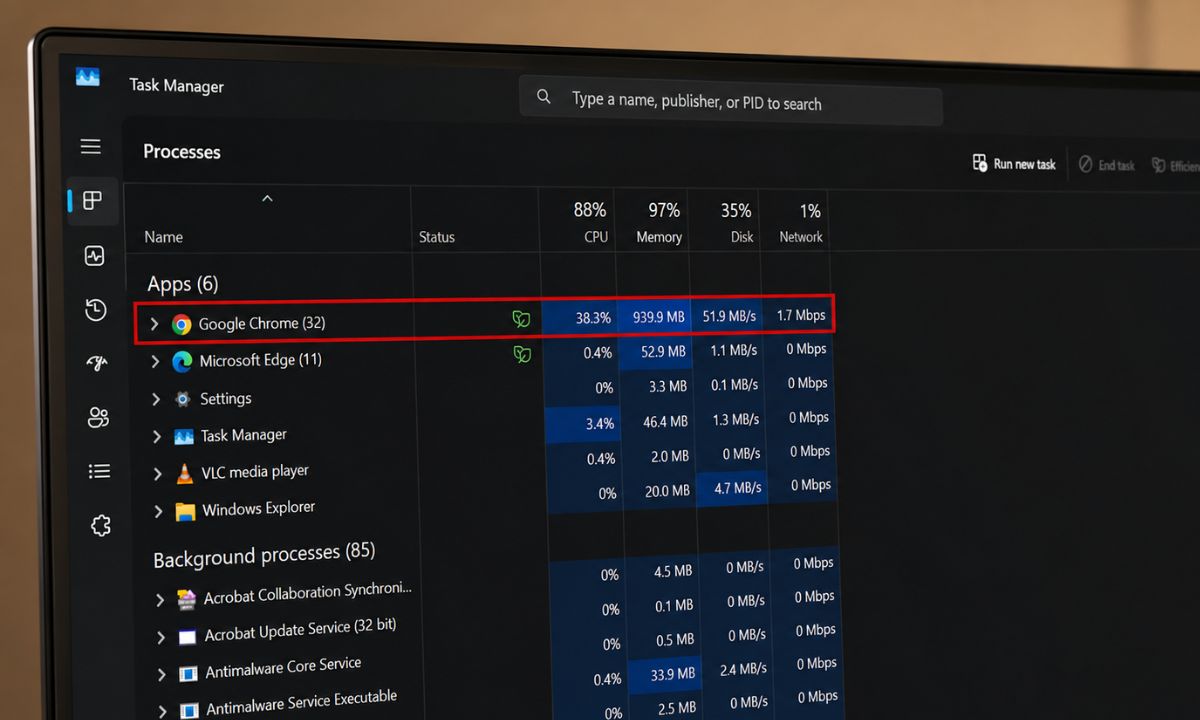
Chrome tab overload is a familiar problem for anyone who treats the browser as a place to park research, half-finished purchases, and open threads instead of a place to visit and leave.
Chrome has three built-in tools aimed at different pieces of that problem: Tab groups, Tab Search, and Memory Saver. They are frequently talked about as if they solve the same thing. They do not.
Each Chrome feature addresses a distinct symptom, and understanding which one fixes what determines whether tab overload actually gets easier to live with or just easier to ignore.
TL;DR: Tab groups, Tab Search, and Memory Saver solve three separate problems, not one. Tab groups organize the tab strip visually without touching memory use or tab count. Tab Search speeds up locating a specific tab among dozens. Memory Saver reduces RAM usage by deactivating background tabs, at the cost of a brief reload when returning to one. None of the three reduces how many tabs are actually open.
What tab groups organize, and what they do not fix
| Tool | What it fixes | What it does not fix |
|---|---|---|
| Tab groups | Visual clutter in the tab strip | Memory use or total tab count |
| Tab Search | Time spent finding a specific tab | Memory use or total tab count |
| Memory Saver | RAM usage from background tabs | The reload delay when returning to a dormant tab |
Tab groups are created by
- Right-clicking any tab.
- Selecting Add tab to new group
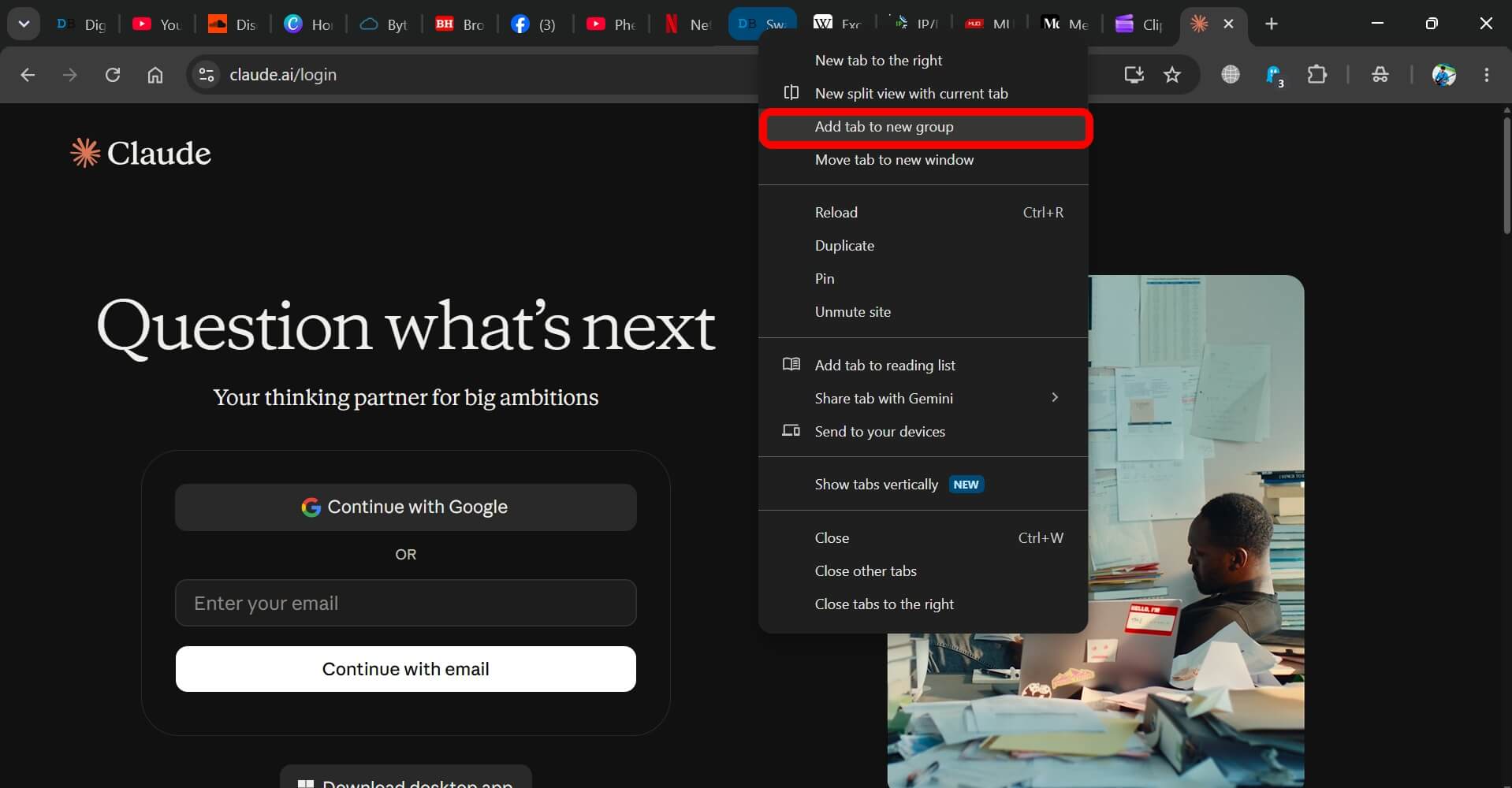

- Choosing New group or an existing one, according to Google’s own documentation.
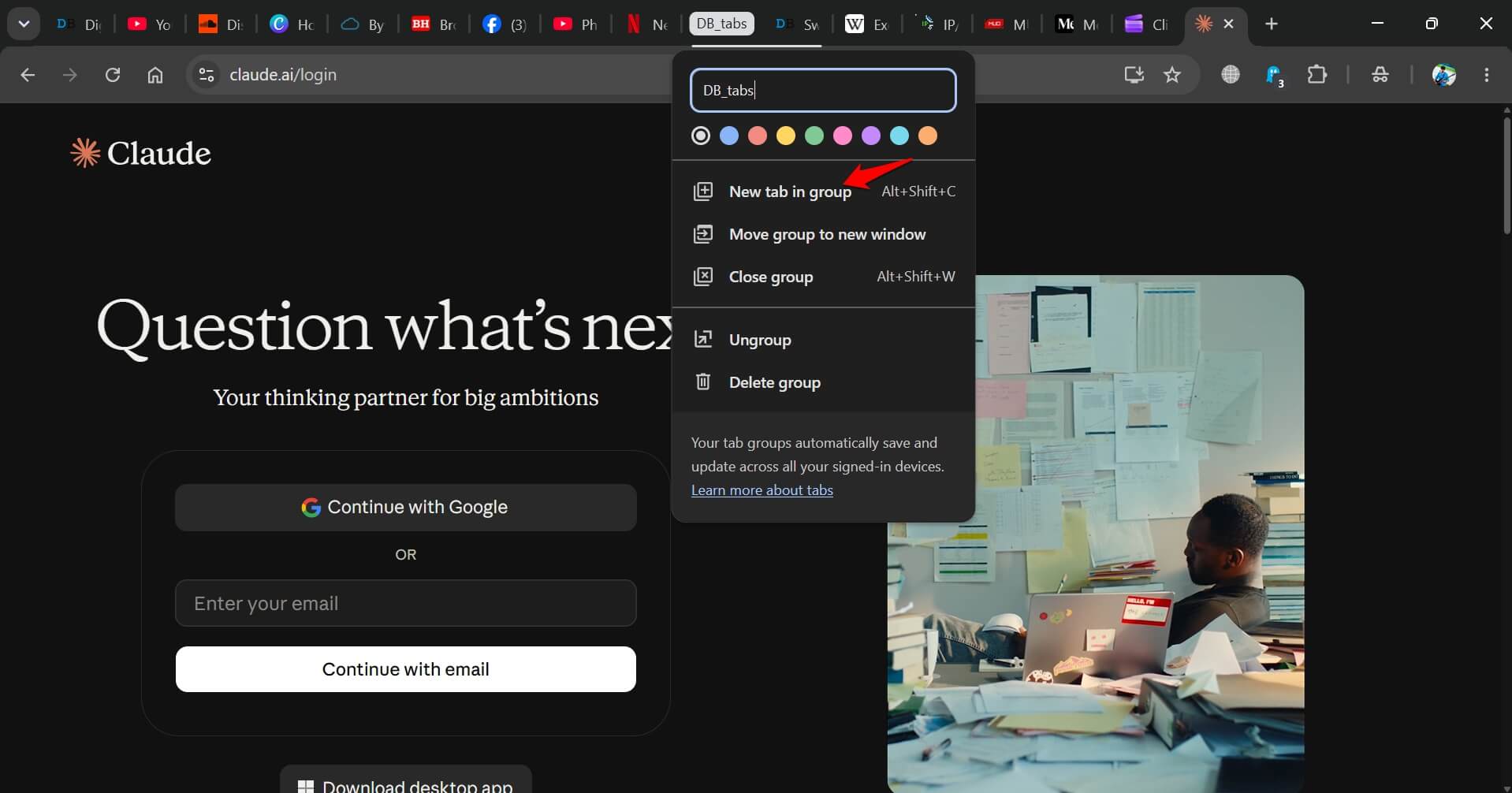

A tab can also be dragged directly into an existing group. Each group gets a name and a color, and clicking the group header collapses all tabs within it into a single labeled strip.
The function of a tab group is purely organizational. Collapsing eleven related tabs into one colored header makes the tab strip readable, but the underlying resource use and the total number of open tabs stay exactly the same.
A group is a labeling system, not a cleanup mechanism. Treating a collapsed group as a solved problem rather than a hidden one is a common misreading of what the feature actually does.
Tab Search: the fastest way to find one tab among many
Tab Search is the small dropdown arrow at the end of the tab strip. Selecting it opens a searchable list of every open tab, filterable by keyword instead of requiring a visual scan across favicons.
It can also be triggered with Ctrl+Shift+A on Windows and Linux, Command+Shift+A on Mac, or by typing @tabs into the address bar and pressing Tab or Spacebar.

Unlike tab groups, Tab Search changes retrieval speed rather than layout. In a browser with dozens of open tabs, locating one by scrolling through the strip scales poorly, since every additional tab adds to the time spent scanning.
A keyword search does not scale the same way, which is the specific inefficiency the feature targets. The same panel also surfaces recently closed tabs, removing the need to dig through browser history for something closed by accident minutes earlier.
Tab Search does not reduce tab count or memory pressure. It reduces the friction of navigating a large number of tabs, which is a narrower, more specific fix than it is sometimes credited with.
Memory Saver’s tradeoff: RAM back, at the cost of reload delay
Memory Saver lives under Chrome Settings > Performance. Once enabled, it automatically deactivates tabs that have been sitting unused in the background, freeing the memory those tabs were holding, and reloads the page the moment the tab is clicked back into focus, per Google’s support documentation.
Memory Saver has three aggressiveness levels, Moderate, Balanced, and Maximum, controlling how quickly an inactive tab gets deactivated. Balanced is the default and generally recommended setting.
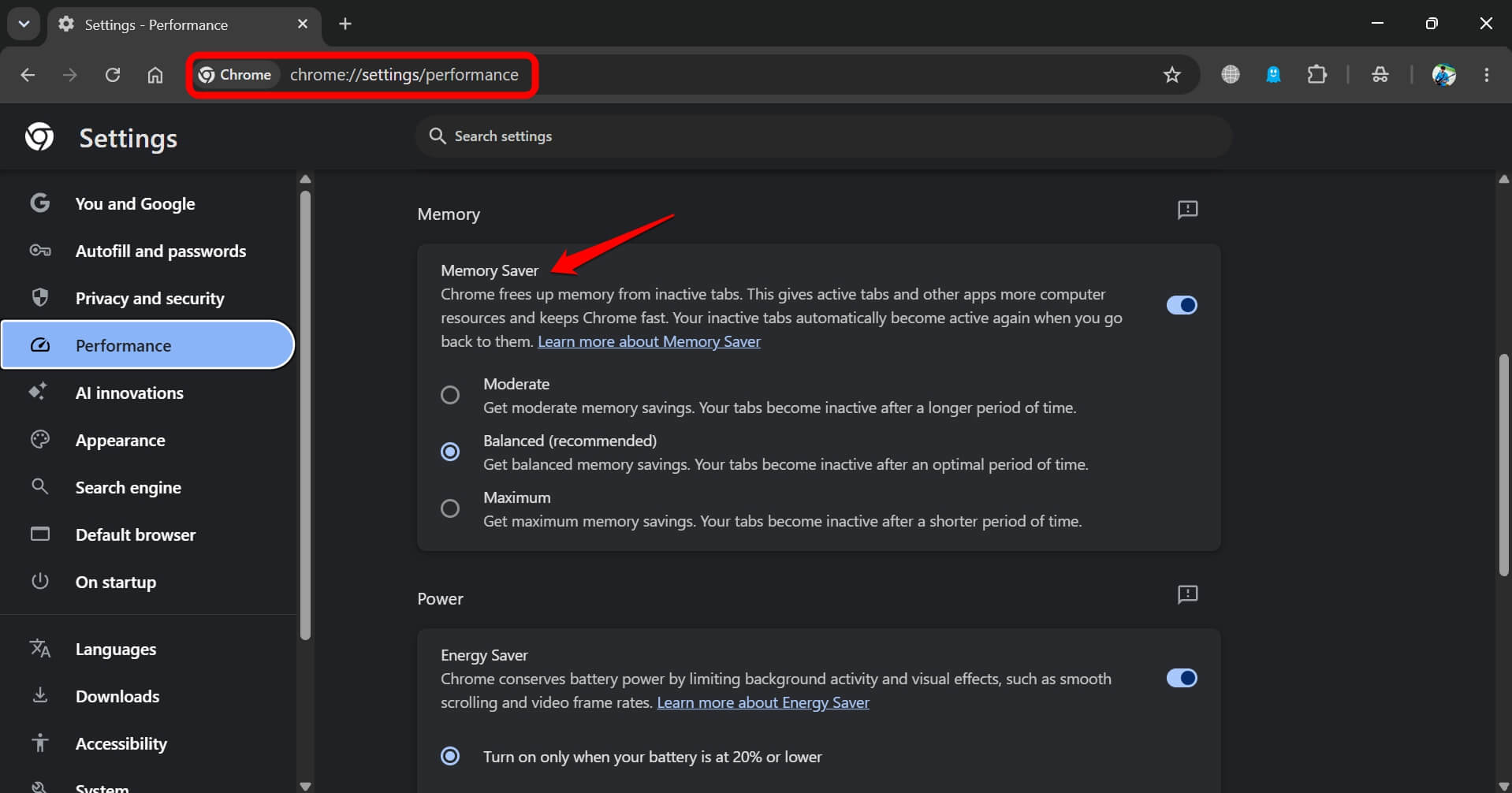
A separate list lets specific sites be marked to always stay active regardless of the aggressiveness level, which matters for tabs holding unsaved form data, drafts, or live sessions that should not be interrupted by a reload.
The tradeoff is straightforward: memory usage drops measurably on machines running a high tab count, but returning to a deactivated tab introduces a brief reload delay rather than an instant switch.
For most static pages, this delay is short enough to be a minor interruption. For a page mid-interaction, such as an unsubmitted form, it can mean lost input if the site was not added to the always active list first.
Chrome also includes a separate Energy Saver toggle in the same Performance menu, which is frequently confused with Memory Saver despite doing a different job.
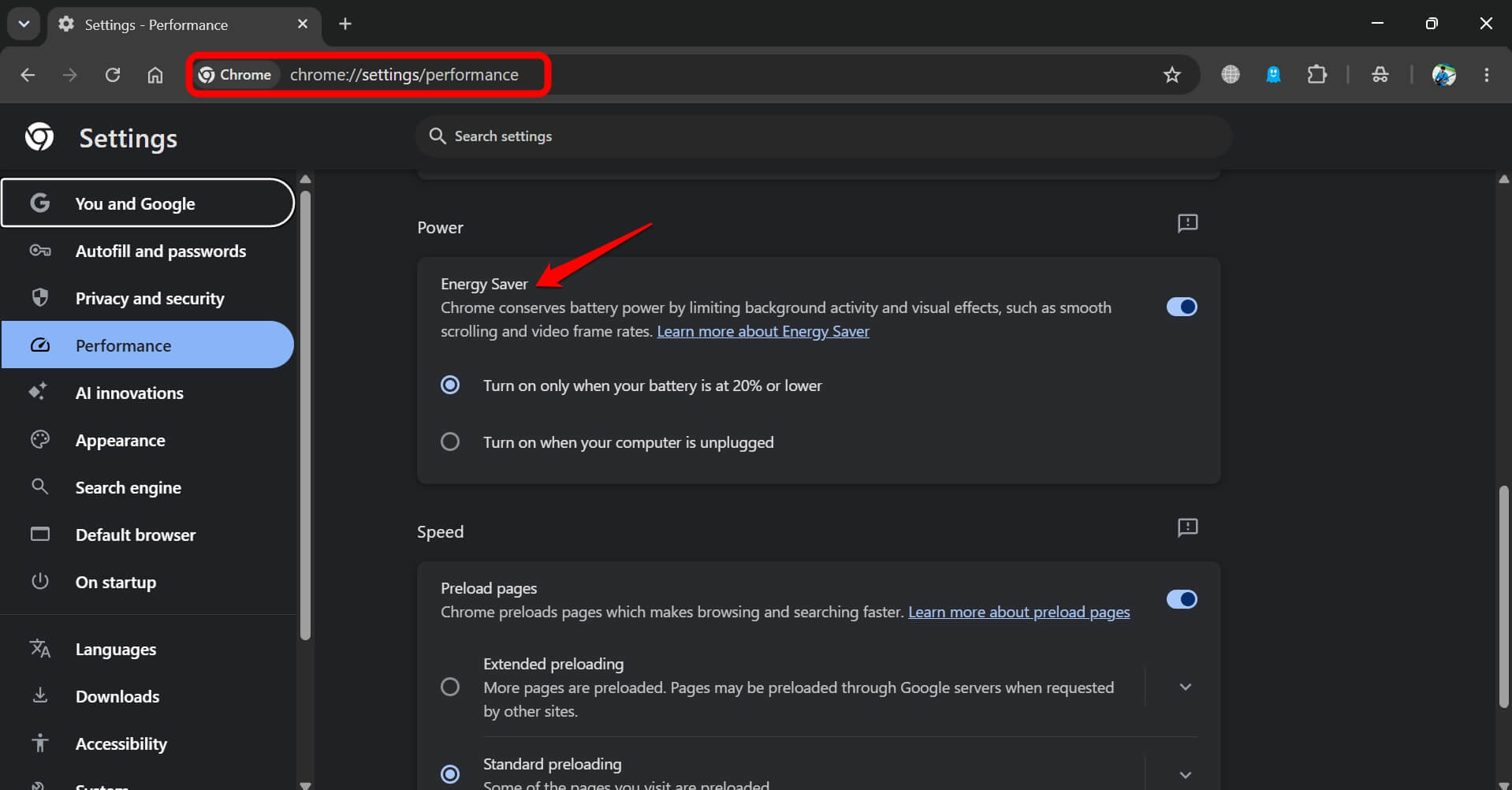
Energy Saver reduces background activity and visual effects to extend battery life on a laptop; it does not free RAM the way Memory Saver does. The two settings sit next to each other in the menu but address different resource constraints: one battery, one memory.
Frequently asked questions
Does grouping tabs in Chrome reduce memory usage?
No. Tab groups only organize the tab strip visually; they do not change how much RAM open tabs use.
What is the keyboard shortcut for Tab Search in Chrome?
Ctrl+Shift+A on Windows and Linux, or Command+Shift+A on Mac.
Does Memory Saver close my tabs?
No. It deactivates them in the background and reloads the page automatically when you click back into that tab.
Is Energy Saver the same as Memory Saver?
No. Energy Saver reduces background activity and screen effects to save battery, while Memory Saver frees RAM by deactivating inactive tabs.
Can I stop specific tabs from being deactivated by Memory Saver?
Yes, by adding them to the always keep active list in Settings, then Performance.

Which combination actually addresses tab overload
None of the three tools reduces tab count on its own, and treating any single one as a complete fix misreads what each is built to do.
Tab groups address findability through structure, Tab Search addresses findability through retrieval speed, and Memory Saver addresses the resource cost of keeping that many tabs open at once.
When used together, they cover organization, navigation, and system load as three separate variables rather than one problem with one setting.
The tab count itself only ever changes through manual closing or bookmarking. None of these settings does that work automatically. What they change instead is how much that tab count actually costs in time spent searching and memory spent holding pages open, which is a narrower claim than the feature names sometimes imply.