The June 2026 Patch Tuesday update for Windows 11 shipped on June 9 and installed automatically on most PCs since then. Microsoft has now confirmed it broke two things: the mechanism third-party software uses to open Office products, and the file name display inside the Recycle Bin.
Both issues affect consumer and business PCs running Windows 11. A third issue, BSOD and BitLocker recovery loops on several HP business laptops, is being reported consistently but has not yet received an official acknowledgment from Microsoft. The fix for the confirmed bugs does not arrive until July 14.
TL;DR: Windows 11 KB5094126 shipped June 9 and broke OLE automation, the system third-party apps use to launch Office products like Word, Excel, and PowerPoint. Any software that opens an Office app on your behalf fails silently after this update. Microsoft confirmed the fix arrives July 14, 2026. The Recycle Bin is also showing internal file names instead of original ones, which looks alarming but does not affect your files.
How the Windows 11 June 2026 update broke Office app integration
Windows 11 KB5094126 broke OLE automation, the system third-party apps rely on to launch Office products from inside their own interface. If your accounting platform generates an Excel report with one click, or your document management system opens a file directly in Word, OLE is what makes that work. The June update disabled it at the system level.
| Issue | What happens | Fix available |
|---|---|---|
| OLE automation broken | Third-party apps cannot launch Word, Excel, PowerPoint, or Access | July 14, 2026 |
| Recycle Bin file names | Deleted files show internal $R… codes instead of original names | July 14, 2026 |
| HP BSOD / BitLocker loop | Boot failure and recovery screens on select HP business models | Not confirmed yet |
The failure is silent. You click the button inside the third-party app, nothing opens, and no error message appears. Microsoft confirmed the issue affects Word, Excel, PowerPoint, and Access when launched through a third-party app, not when opened directly from the Start menu or taskbar.
Software specifically named in Microsoft’s updated support documentation includes CCH Engagement, Workpaper Manager, dental apps Dentrix and Softdent, and the research tool Zotero. Any other software using OLE automation to call Office is likely affected, whether or not it appears on the list yet.
Opening Word or Excel directly from the Start menu still works. The same June update also introduced the Windows 11 Low Latency Profile and other performance improvements, which are functioning normally. The bug is isolated to the OLE automation layer.
The Recycle Bin is now showing the wrong file names
KB5094126 changed how the Recycle Bin reads file names, replacing real names with internal storage codes that most users will not recognize. Windows stores deleted files under an internal naming system like $R4ABC12.docx while keeping the original name in a separate metadata file. File Explorer normally reads that metadata and shows you the real name. This update broke that lookup.
Instead of asking you to permanently delete “Report.docx”, the Recycle Bin might now prompt for “$R4ABC12.docx”. The actual file is still intact underneath, original name and all.
The practical risk is accidental permanent deletion. If you are clearing out the Recycle Bin and see strings of characters you do not recognize, check the Location column before confirming. That column still shows the original file path, which makes it possible to identify what you are looking at before you delete it permanently.
Microsoft lists Windows 11 26H1, 25H2, 24H2, 23H2, Windows 10 22H2, and multiple Windows Server releases from Server 2012 through Server 2025 as affected by both the OLE automation and Recycle Bin bugs.
HP business PCs are triggering BitLocker loops and BSODs
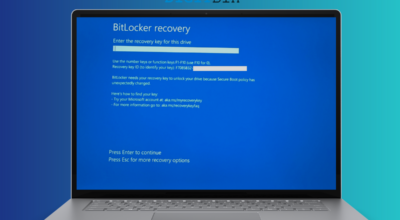
Several HP business laptops are hitting BSOD errors and BitLocker recovery loops after installing KB5094126, based on consistent reports from IT administrators that Microsoft has not yet officially confirmed.
Affected models flagged in reports include the HP EliteBook 840 G10, ProBook 460 G11, EliteBook 860 G10, HP ZBook series, ProBook 650 G9, EliteBook 840 G9, and EliteBook x360 830 G6. Windows Latest’s investigation traced the root cause to EFI partition storage: when that partition is nearly full, the update writes fail in ways that break Secure Boot verification and trigger the recovery loop or a 0xc0430001 BSOD.
The workaround is to turn off Secure Boot, complete the update installation, and re-enable Secure Boot afterward. If the update has not installed yet on one of these HP models, verifying that the EFI partition has adequate free space first reduces the risk of ending up in the recovery loop.
Three weeks until the July 14 fix
Microsoft’s confirmed fix date for the OLE automation and Recycle Bin bugs is the next Patch Tuesday, July 14, 2026. No interim out-of-band update has been announced. Rolling back KB5094126 is technically possible but not something Microsoft has officially recommended, and it is not straightforward on managed enterprise PCs.
For the OLE issue, the practical short-term option is opening Office apps directly instead of relying on third-party software to launch them. The integration will not work regardless of Office version until the fix ships.
KB5094126 is mandatory on Windows 11 25H2 and 24H2. Pausing updates delays installation temporarily, but the update eventually installs even on paused machines. Organizations that rely heavily on OLE automation workflows are effectively waiting until mid-July with no workaround from Microsoft.
That a mandatory security update breaks professional software integrations with a five-week fix window is not a new pattern for Windows. But the scope here covers accounting tools, dental software, and document management systems. Most enterprise IT teams will feel it before July 14 arrives.