The match starts. You are connected to a UK server to watch BBC iPlayer or ITVX. Then the stream stalls, or the platform throws a location error, or the VPN quietly drops, and the stream cuts out entirely.
VPN has always been a lifesaver when it comes to streaming. But unexpectedly, it may stop working when you are least expecting. I have seen this happen repeatedly while testing World Cup streaming setups. I was all set to stream a match but ended up on the error screen.
The fix took under two minutes once I understood what had actually gone wrong. The causes are nearly always the same, and none of them require switching VPN providers.
TL;DR: VPN failures during World Cup 2026 streams usually come down to four things: a blocked server IP, cached session data in your browser, a WebRTC or DNS leak that may expose your real location, or the wrong VPN protocol. Switching servers, clearing cache and cookies, disabling location services on mobile, and switching to WireGuard resolve most cases. Free VPNs fail almost immediately on BBC iPlayer and ITVX because their IP ranges are already blacklisted.
Why streaming platforms are harder to fool during the World Cup?
BBC iPlayer, ITVX, SBS On Demand, and other broadcasters actively update their VPN detection systems during major events.
The World Cup is the highest-traffic moment in any four-year cycle, and enforcement scales with audience size.
These platforms do not just check your IP address. They cross-reference it against commercial databases of known VPN server IP ranges, check for DNS requests leaking outside the encrypted tunnel, and may use browser geolocation signals as an additional layer.
A VPN that appears connected correctly at the IP level can still fail several of those checks at once.
The result is that a server that worked for a friendly in March may be blacklisted by a knockout match in July. This is not a sign your VPN is broken. It is a sign the platform has flagged that specific server’s IP address.
If you are unfamiliar with the concept of private networks, we have a guide elaborating on how a VPN works.

Fix 1: Switch to a different server in the same country
This is the first thing to try and the fix that works most often.
If BBC iPlayer is blocking you, the problem is almost always that the specific UK server IP you are connected to is on the platform’s blocklist.
Switching to a different UK server gives you a fresh IP that may not be flagged yet.
Most paid VPN apps let you see a full server list within the country. Try two or three servers in different UK cities before assuming the problem is something else.
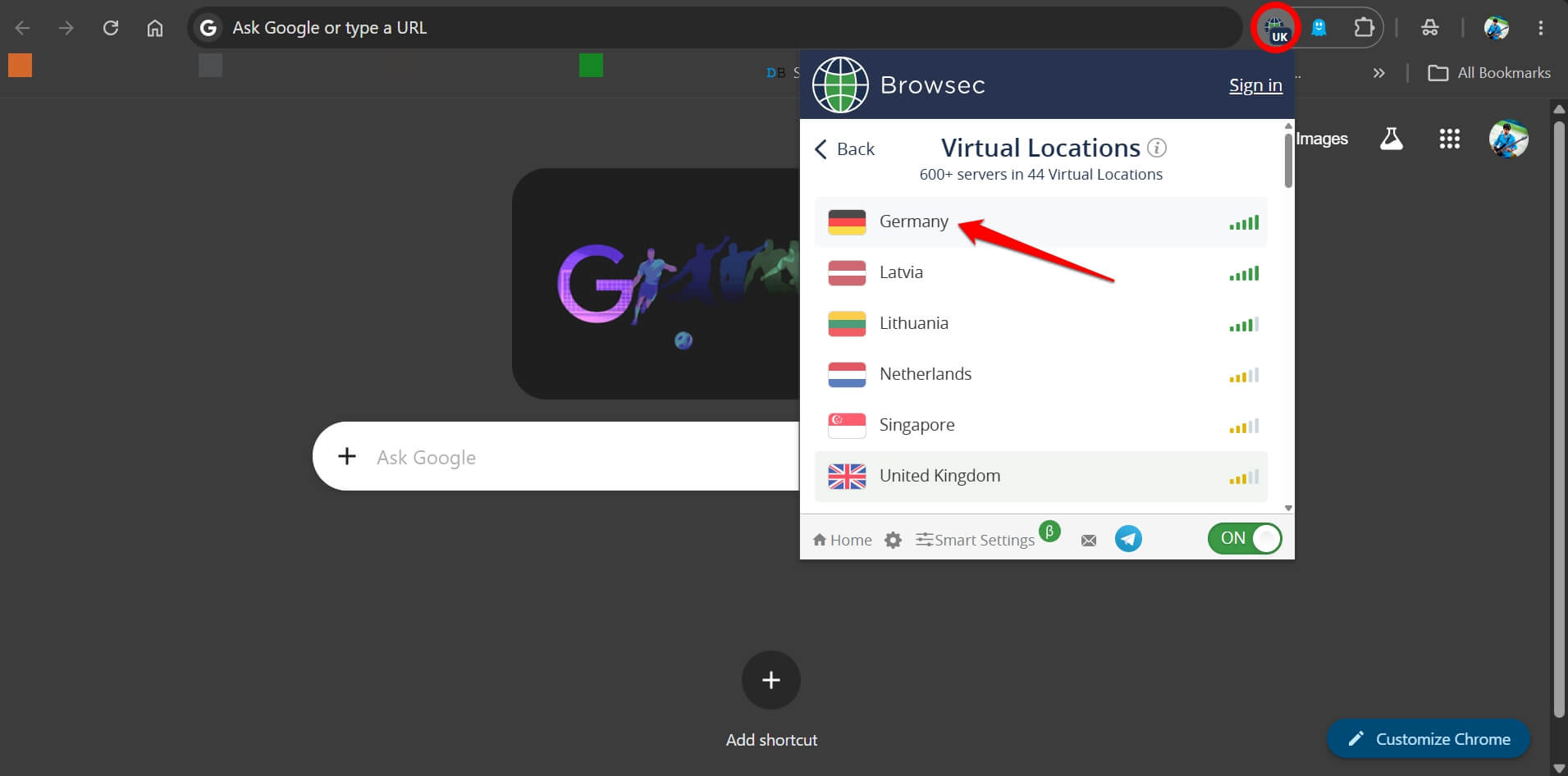
London servers tend to get blocked faster than Manchester or Edinburgh ones during high-traffic events because more users default to them.
Switching from a London server to an Edinburgh one during a group stage test had the stream resuming in about 15 seconds.
Or else, you can check if switching to a VPN server in another country solves the issue and you cna stream without any issues.
Fix 2: Clear your browser cache and cookies before the match
This catches people who connected to a VPN after already loading the streaming site without one.
Cookies, local storage, and account session data can preserve location-related signals from a previous non-VPN session. BBC iPlayer and ITVX may read that stored data even if your current connection looks like a UK IP.
Clear cache and cookies in your browser settings, close and reopen the browser, then connect to the VPN before loading the streaming site. The order matters. Connect to the VPN first, and then open the site.
To clear browser cache,
- simply press the hotkeys Ctrl +Shift + Delete keys on your PC.
- Make sure browsing history, cached files, cookies, and other site data are selected.
- Press Delete Data to confirm and clear the browser cache.
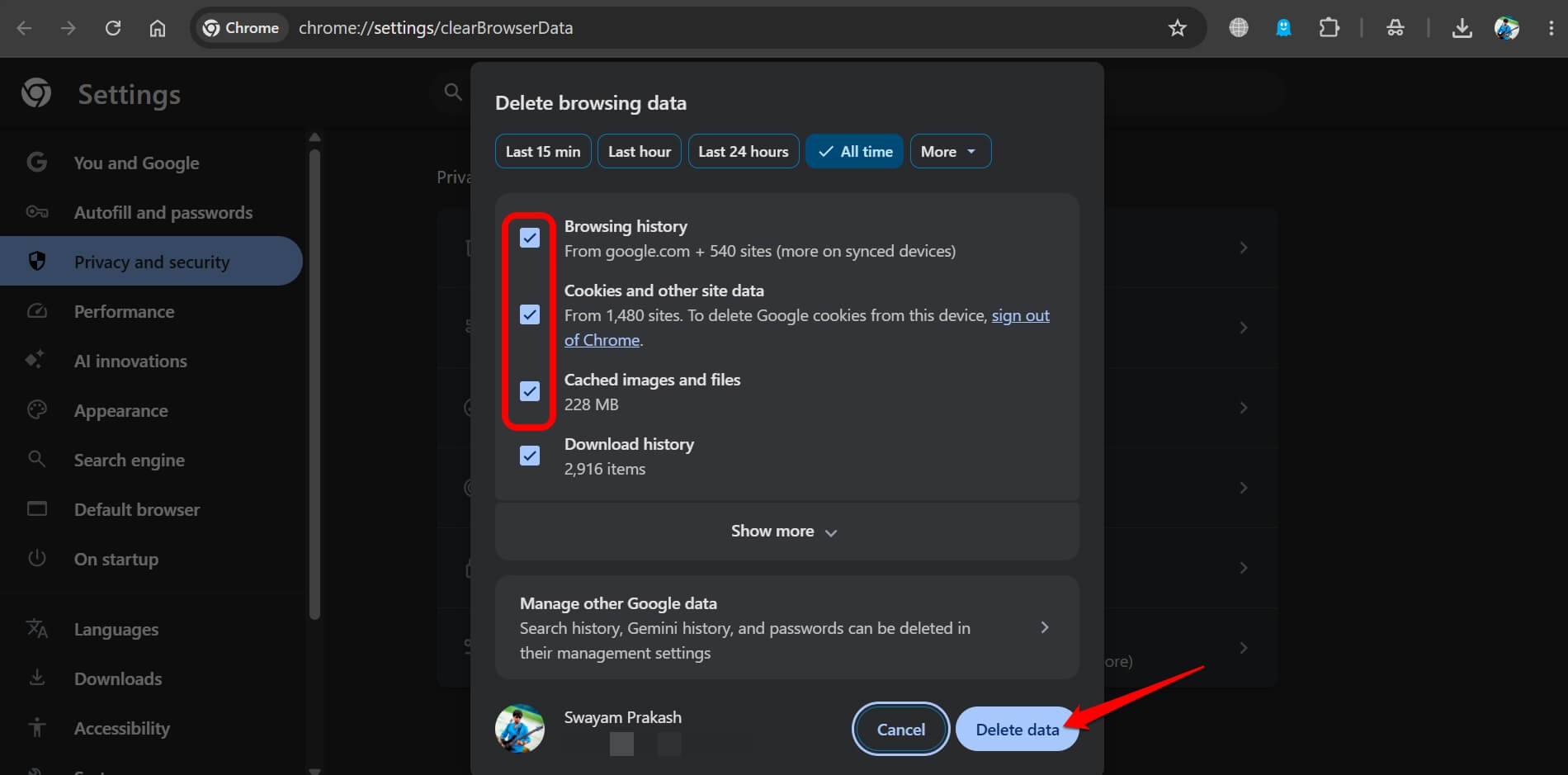

These steps are pretty much the same on any popular browser. If using a MacBook, pressing Command + Shift + Delete does the same thing.
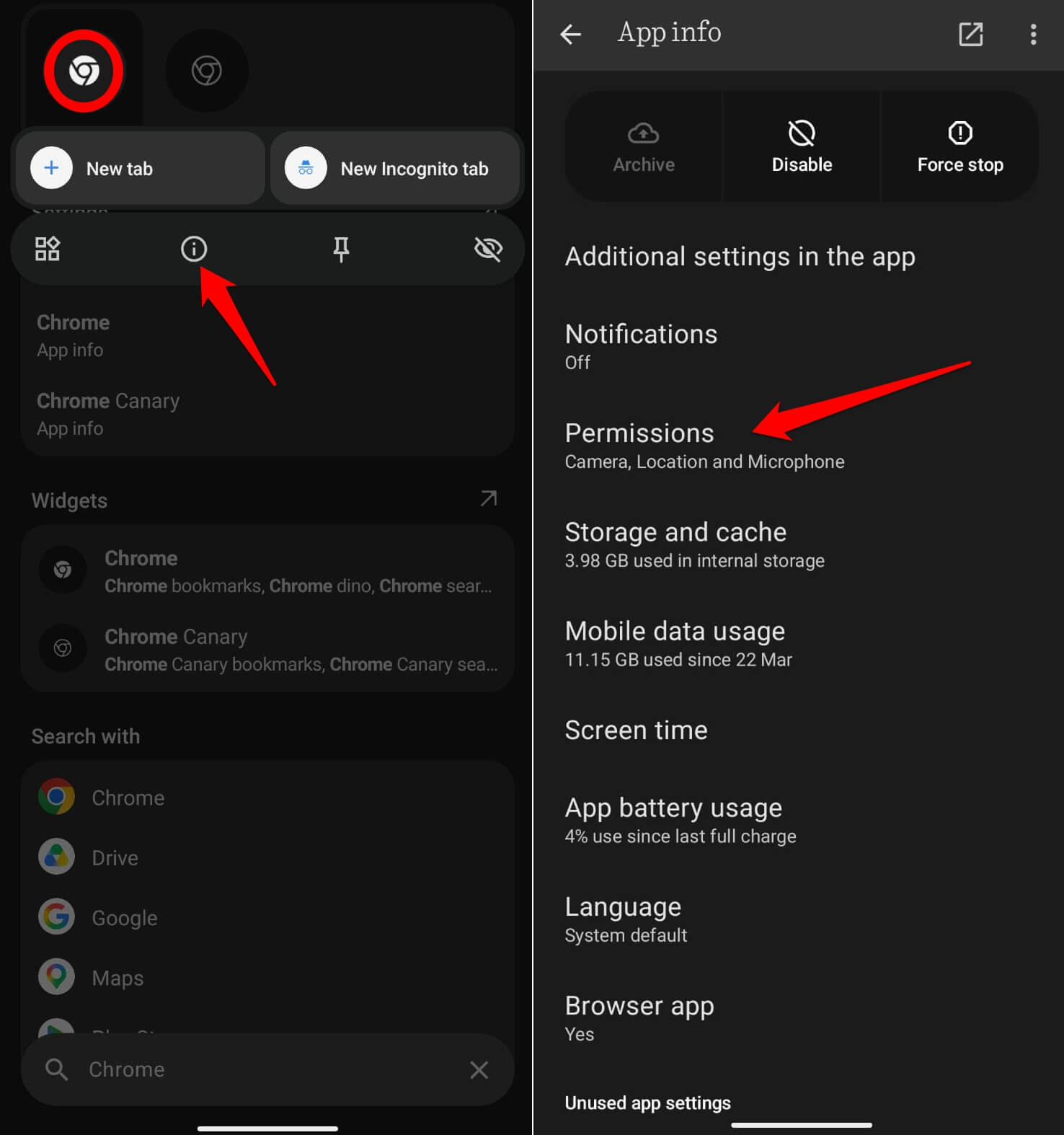
On mobile, also check whether the streaming app itself has stored location data. Deleting and reinstalling the app clears this completely, though simply clearing the app’s cache in settings usually does the same job.
To clear the app cache,
- Long press the app icon and tap the App info button.
- Go to Storage and Cache.
- Tap on Clear Cache.
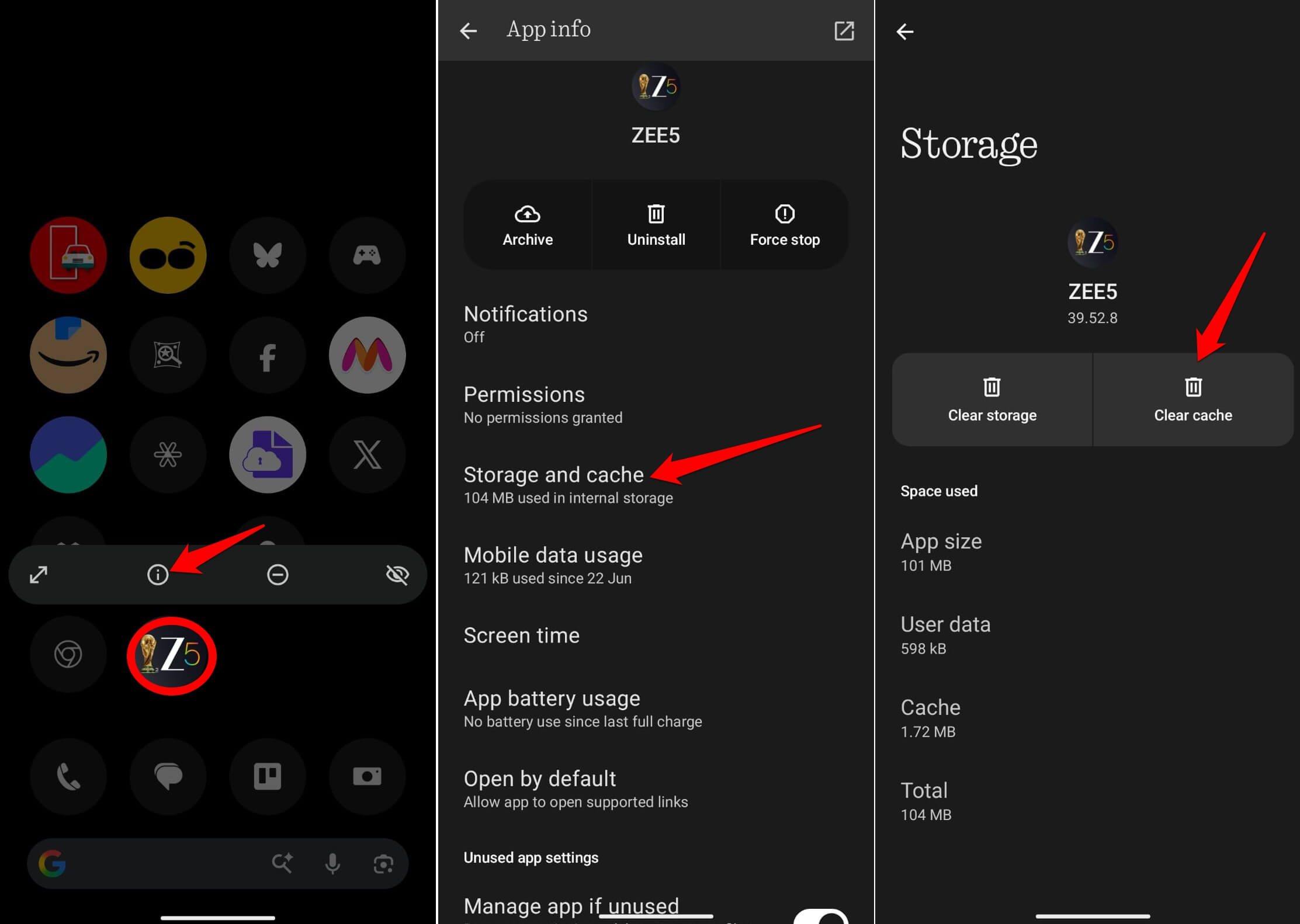

- Relaunch the app.
Fix 3: Disable GPS and location services on mobile
Some streaming apps and browser-based players can request device location through the browser’s geolocation API, which requires explicit user permission to access GPS data.
If that permission was granted at any point and your device location does not match your VPN’s IP country, some platforms may flag the mismatch.
This is not the most common cause of VPN failures, but it is a real one on mobile and easy to rule out. Revoking location permissions for your browser and streaming app removes this variable entirely.
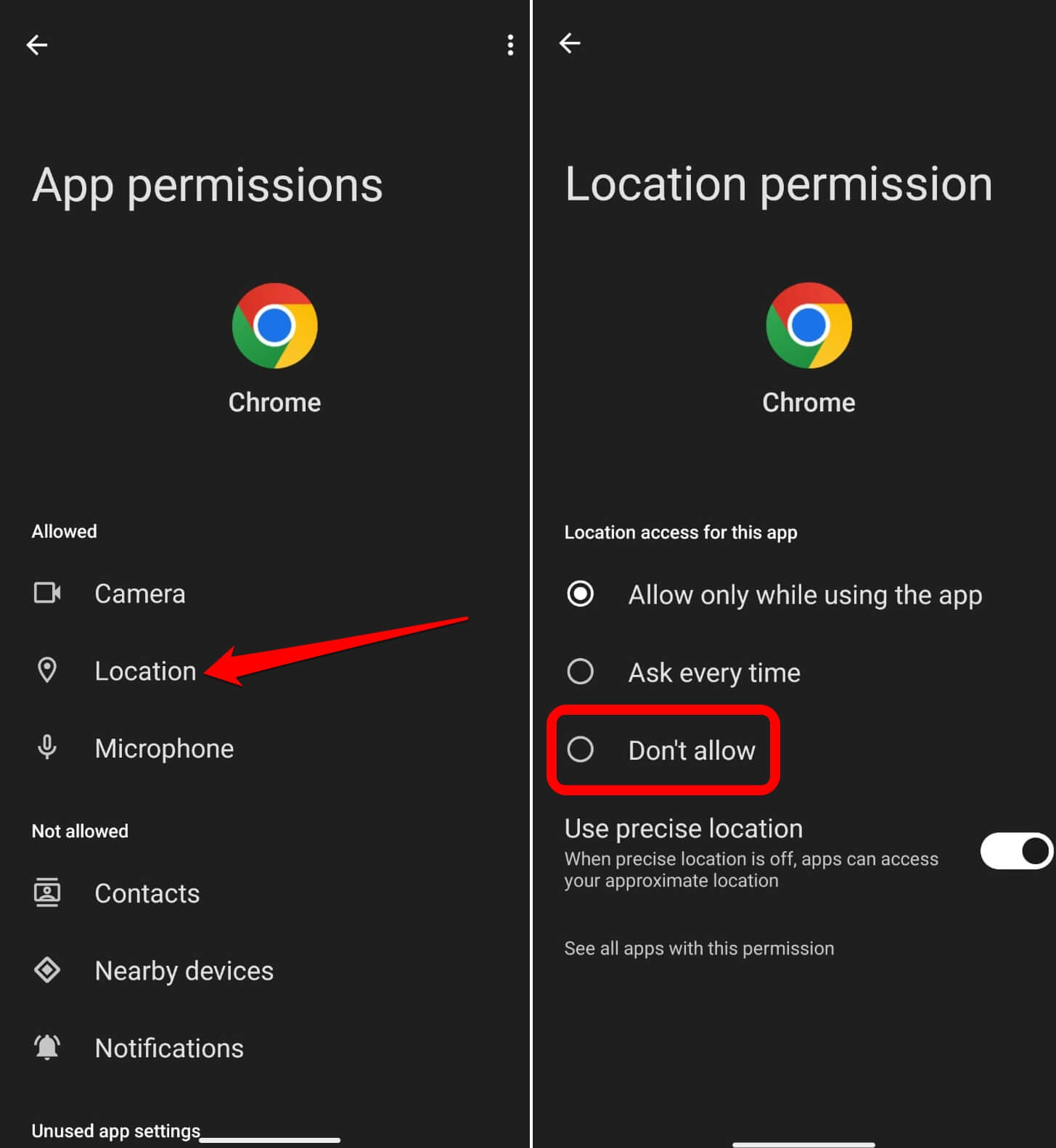
On Android,
- Long-press on the browser app and select App Info.
- Go to Permissions.

- Tap on Location.
- Change the Location permission to Don’t Allow.

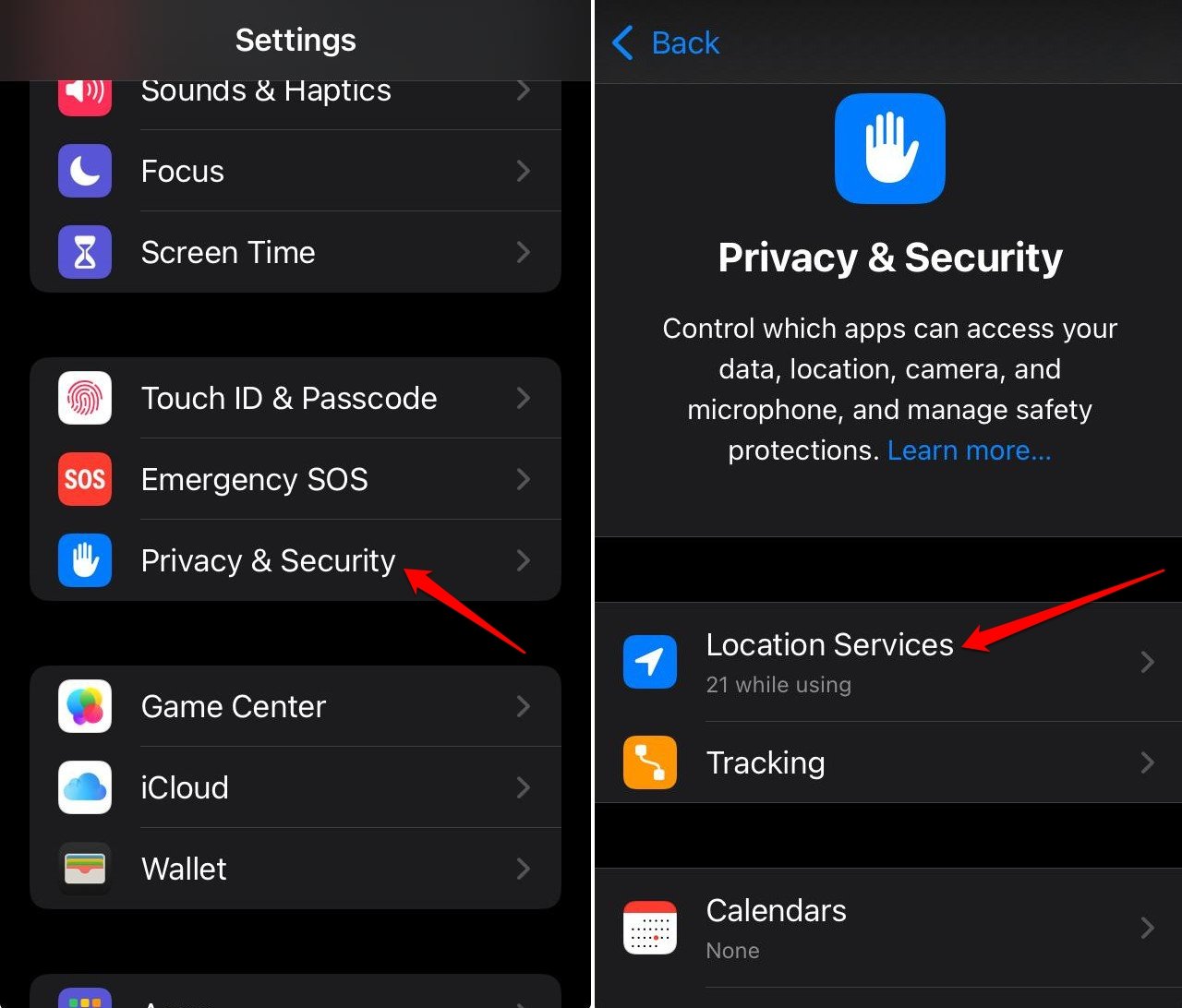
If using iPhone,
- Go to Settings > Privacy and Security > tap on Location Services.

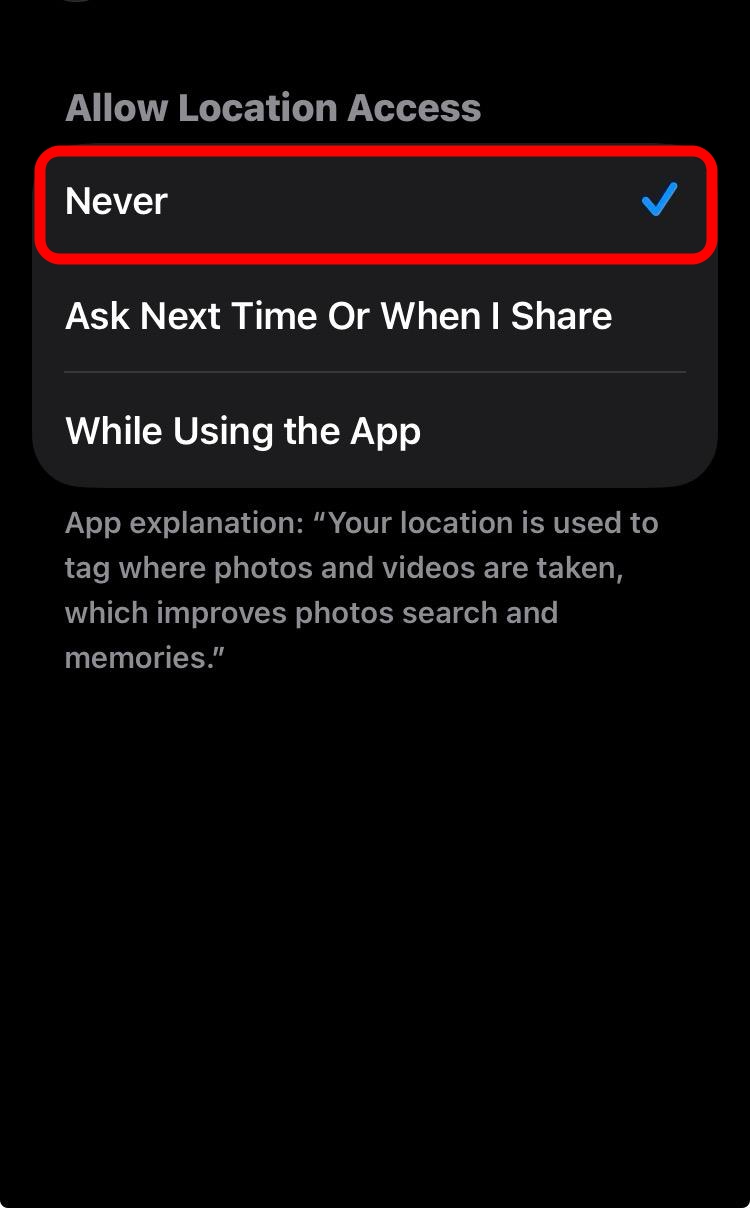
- Select the browser > set the location access to Never.

Fix 4: Switch to WireGuard protocol
VPN protocol determines how your connection is established and how quickly it recovers from interruptions. TechRadar’s World Cup VPN guide notes that WireGuard is faster than OpenVPN and handles network switches better than IKEv2, making it a stronger choice for live sports streaming.
Switching to WireGuard does not fix IP bans, cached session data, or location leaks. What it does is improve stream stability and reduce recovery time after a brief disconnect.
OpenVPN can take five to ten seconds to reconnect after a momentary drop, which shows as a visible stream interruption. WireGuard typically recovers in under a second.
In your VPN app settings, look for Protocol or Connection type and switch to WireGuard. NordVPN calls it NordLynx. ExpressVPN calls it Lightway. Both are WireGuard implementations. Reconnect after changing the protocol.
Fix 5: Check for WebRTC and DNS leaks
WebRTC is a browser technology that can expose your real IP address alongside your VPN IP.
If your browser leaks a WebRTC request showing your actual location, that mismatch may contribute to detection failures on location-sensitive platforms.
DNS leaks are a related and better-documented problem. If your device sends DNS lookup requests through your ISP’s servers instead of the VPN’s encrypted tunnel, that traffic can reveal your real location regardless of what your IP appears to be.
To test both, visit ipleak.net while connected to your VPN. If any result shows your real IP or your ISP’s location, you have an active DNS leak.
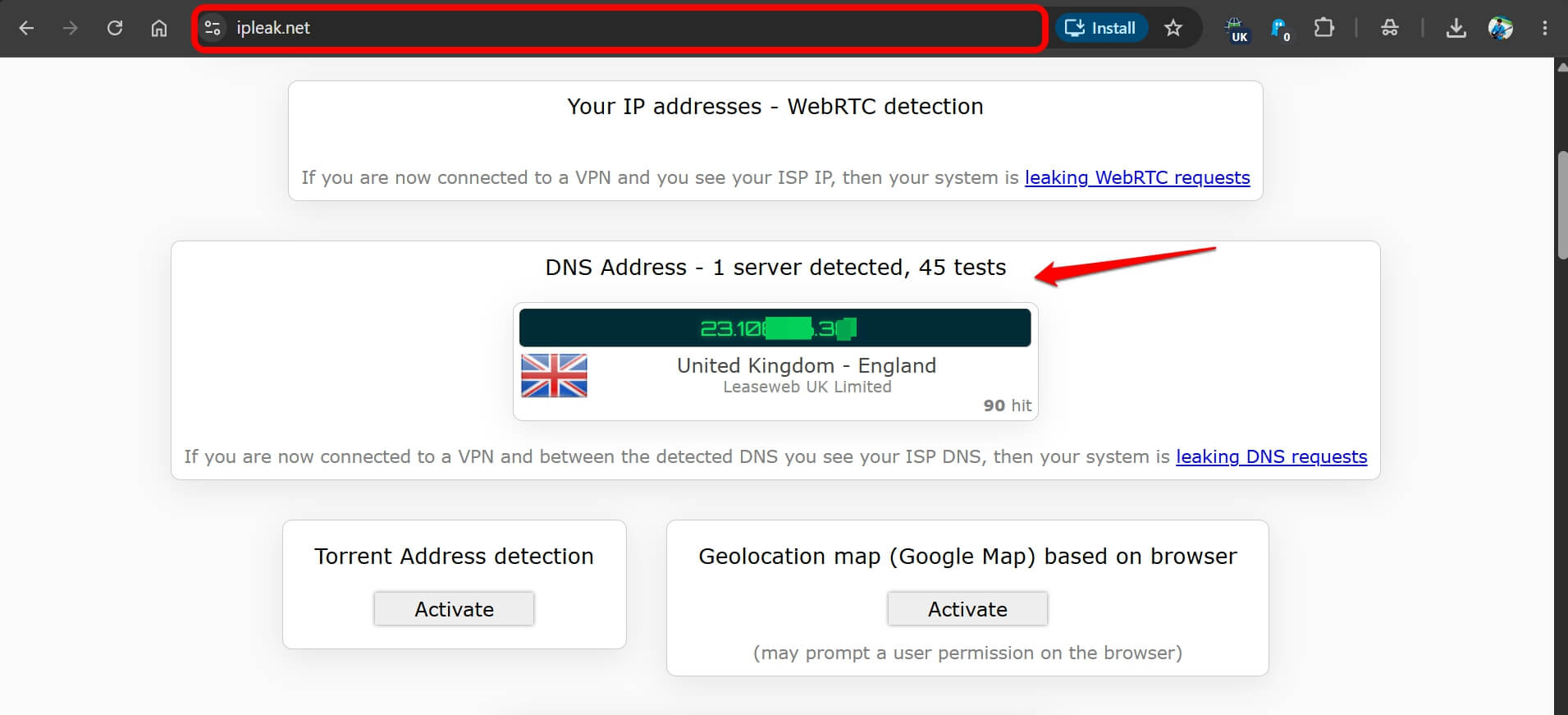
Fix it by enabling DNS leak protection in your VPN app settings. For WebRTC, you can disable it in your browser settings or use an extension like uBlock Origin.
| Problem | What causes it | Fix |
|---|---|---|
| Location error on BBC iPlayer or ITVX | Server IP is blacklisted | Switch to a different UK server |
| Blocked despite VPN being connected | Cached session data from a previous non-VPN session | Clear browser cache and cookies, connect VPN first |
| Works on laptop but fails on phone | Location permission granted to browser or app | Disable location services for browser and streaming app |
| Stream drops mid-match | Slow protocol reconnect under load | Switch to WireGuard or NordLynx or Lightway |
| VPN connected but location still detected | WebRTC or DNS leak exposing real IP | Test at ipleak.net, enable DNS leak protection |
| Free VPN not working at all | IP range already blacklisted by broadcaster | Use a paid VPN with regularly rotated IPs |

Frequently asked questions
Why does my VPN work on one device but not another?
The most common cause on mobile is location permissions. If your browser or streaming app was granted GPS access at any point, your device location may contradict your VPN IP. Disable location permissions for the browser and streaming app on mobile.
Does switching VPN servers actually fix BBC iPlayer blocks?
Yes, in most cases. Switching to a different UK server gives you a fresh IP that may not be on the platform’s blocklist yet. Try two or three servers in different cities before switching to servers in other countries.
Why does my VPN drop mid-match?
Protocol overhead and server load during peak events are the most common causes. Switch to WireGuard in your VPN app settings, which reconnects faster after a momentary drop than OpenVPN does.
Will a free VPN work for World Cup 2026 streams?
Almost never. Free VPNs use IP ranges that broadcasters like BBC iPlayer and ITVX have already blacklisted. Their server pools are too small to rotate IPs fast enough to stay ahead of detection.
What is a WebRTC leak and how do I stop it?
WebRTC is a browser technology that can expose your real IP alongside your VPN IP. Test for it at ipleak.net while connected to your VPN. If your real IP appears, disable WebRTC in your browser settings or block it with an extension like uBlock Origin.
Set up before the next match, not during it
All of these fixes take under two minutes each. The problem is that two minutes during a live match feels like losing the game entirely.
The practical approach is to test your VPN setup against the streaming platform an hour before kickoff. Connect to the VPN, load the site, confirm the stream starts, and check ipleak.net for leaks. If everything works at that point, it will almost certainly hold for 90 minutes.
Doing the diagnostic during a penalty shootout is a different experience entirely.