Quick Summary
Watch the TVPass on Firestick TV using a 3rd-party IPTV player, like Tivimate, and stream live TV channels from US networks for free.
TVPass is a platform that offers free Live TV streaming from popular channels in the US. If you are a cord-cutter who likes no cables and more entertainment, TVPass is the right choice for you.
TVPass can be accessed on Android TV, Fire TV Stick, Plex, Roku, and Apple TV. Using this guide, I will show you how to watch Live TV on Firestick using TVPass. You can check out our quick review of TVPass to know more about the service and the channel lineup offered on TVPass.
How does TVPass work on Firestick?
I checked and found out that TVPass is not directly available on Firestick as it is a 3rd party streaming service. I had to install the Downloader app on my Fire TV Stick from the Amazon App Store. Through the Downloader app, I could install a 3rd party APK named TiviMate.
TiviMate supports M3U playlists. So, I created a new M3U playlist on TiviMate by adding the URL of the playlist of Live TV channels from TVPass. That allowed me to access different live TV channels available on TVPass right from the Fire TV Stick.
Steps to get TVPass on Firestick
I started by installing the Downloader app from the Amazon App Store. You can follow these steps for your Fire TV Stick.
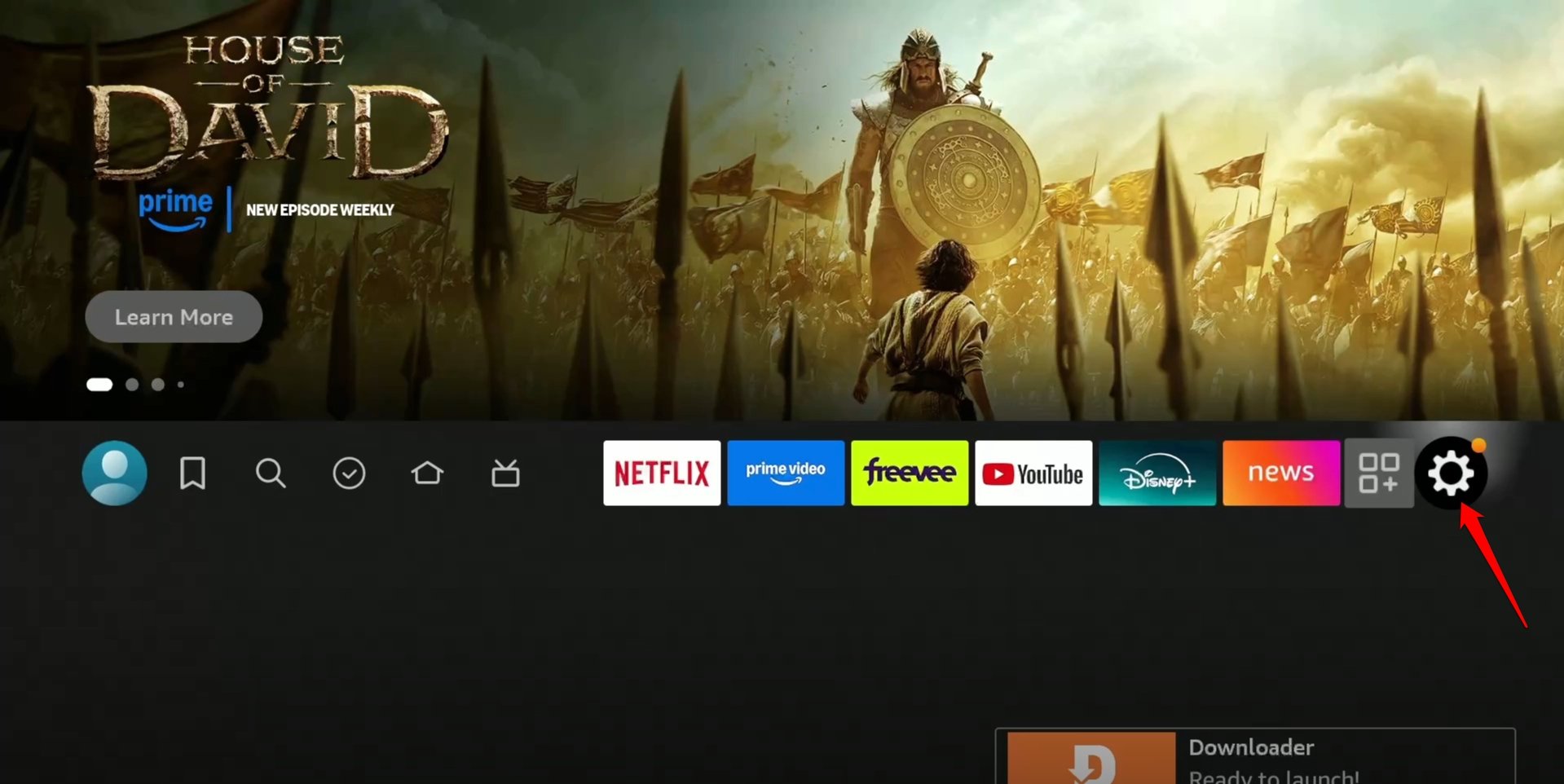
- Open Firestick and go to the homepage.
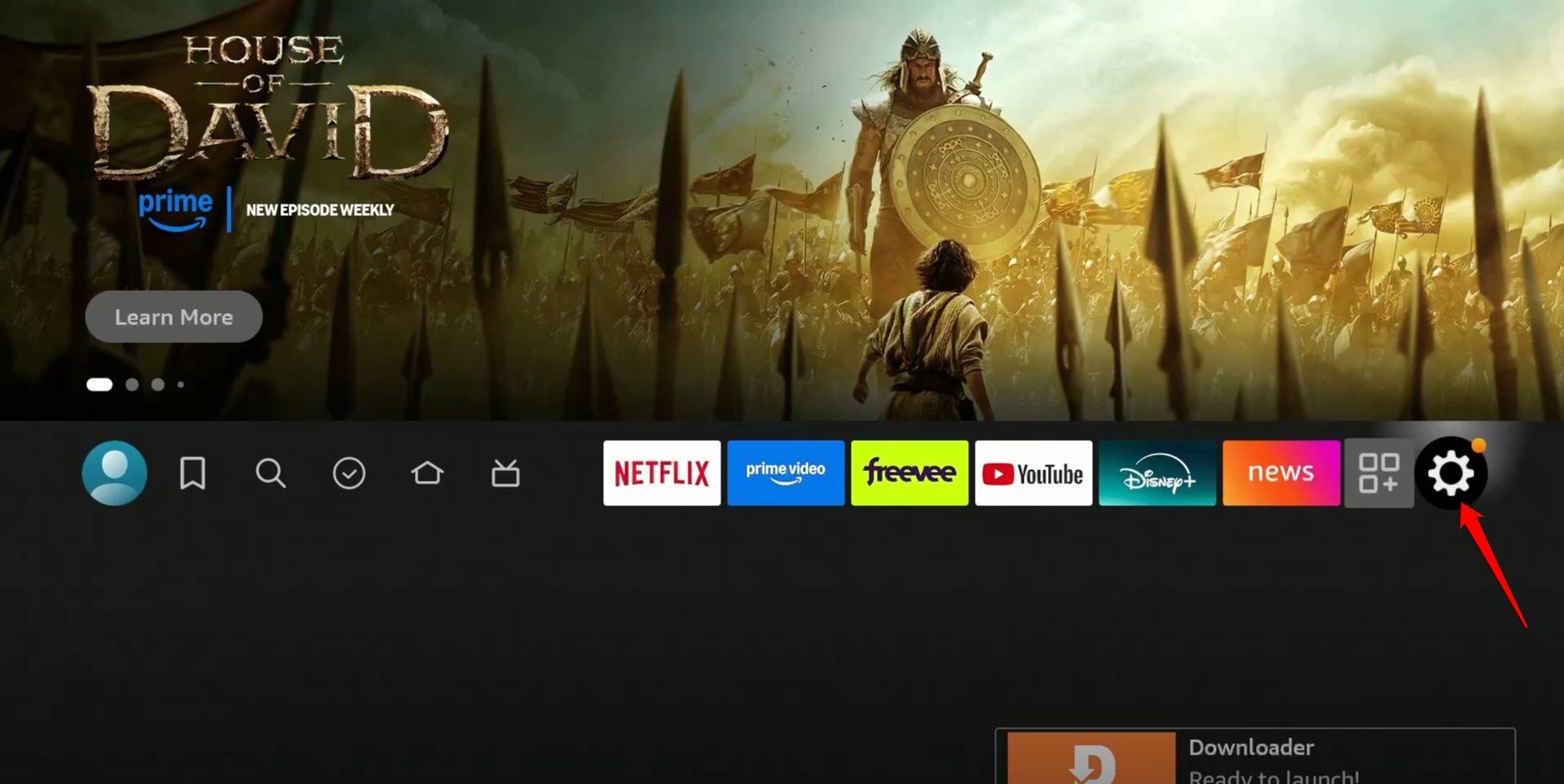
- Click the gear icon to access the settings.

- Navigate to the App Store and launch it.
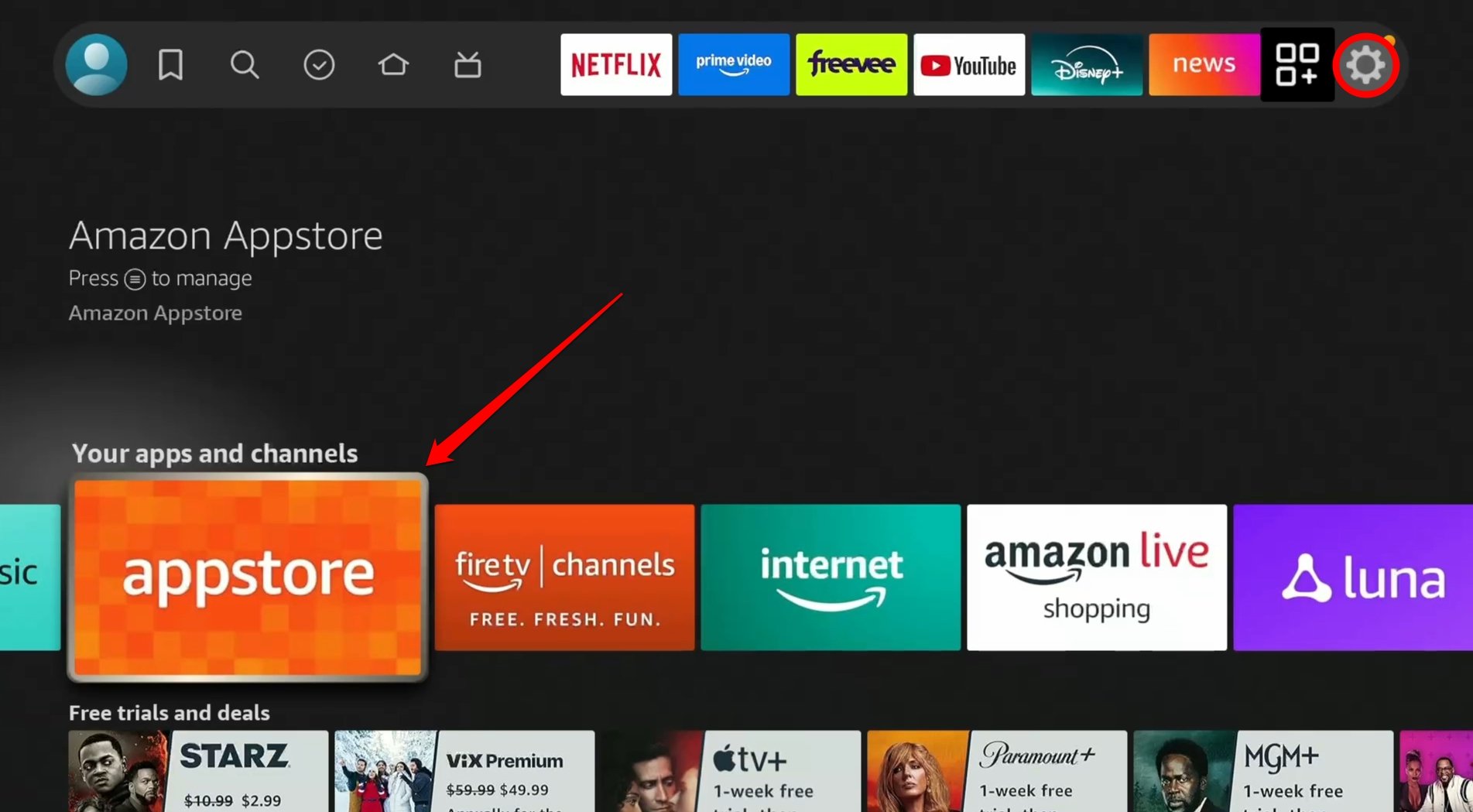

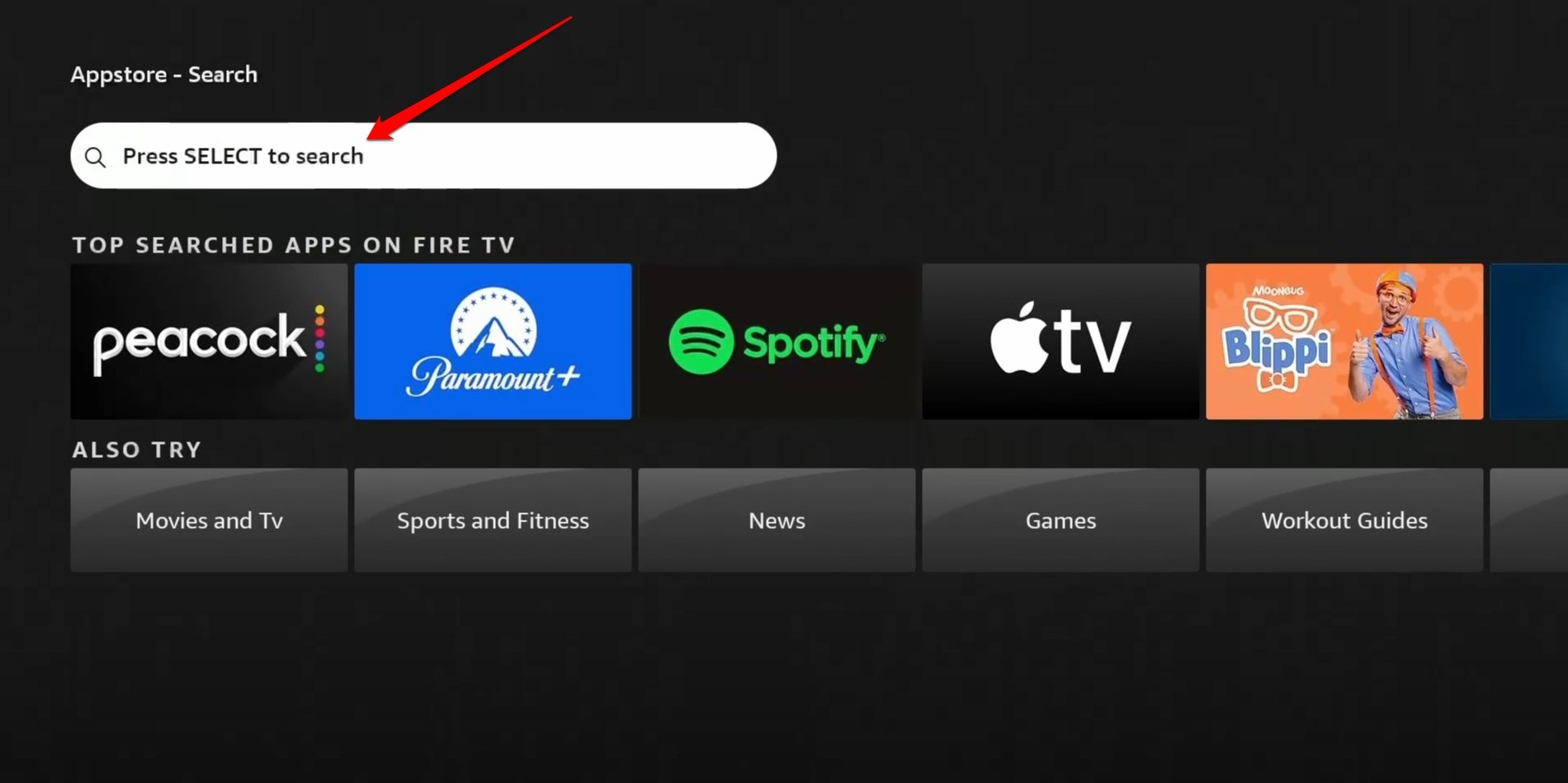
- Press the SELECT button on the remote to use the search option in the App Store.

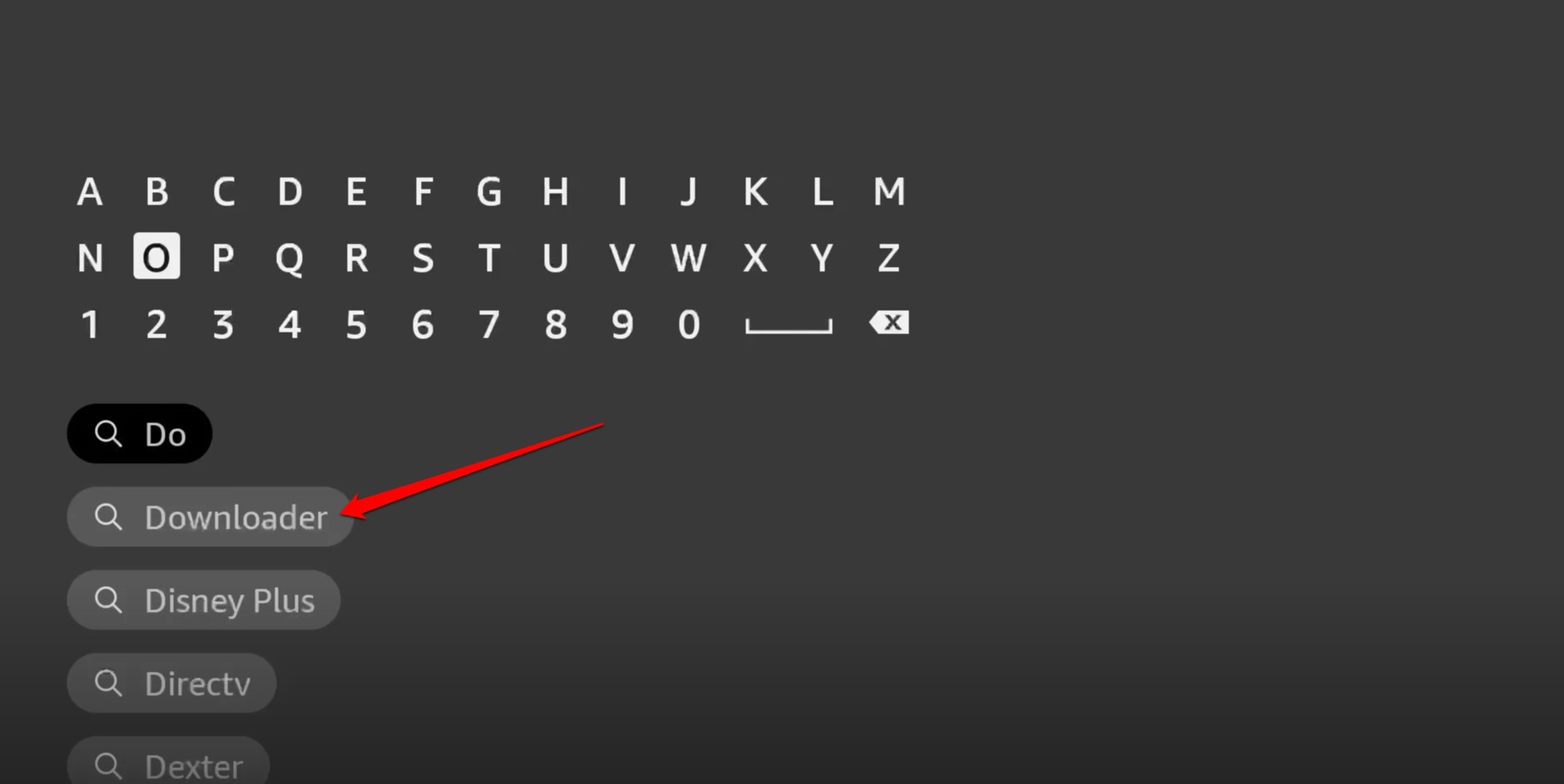
- Start typing “Downloader” and in the search results, click on Downloader when it appears.

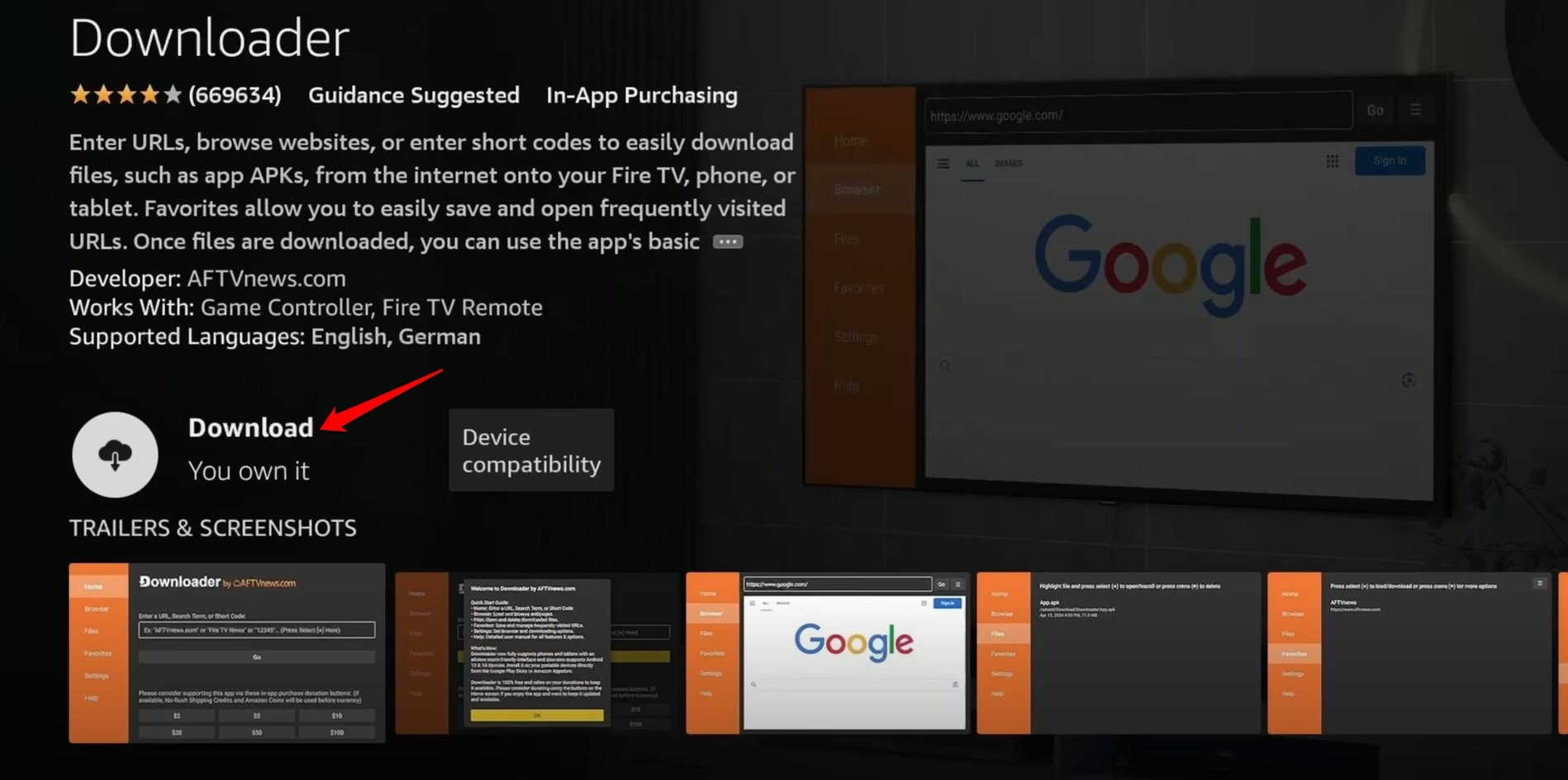
- On the Downloader app file info page, click Download.

Enable Developer Option on Fire TV Stick
Now, you have to install the TiviMate APK through the Downloader app. To install an unknown app on Firestick, turn on developer options in the My Fire TV settings.
- Go to Firestick homepage and click Settings.
- Select My Fire TV.
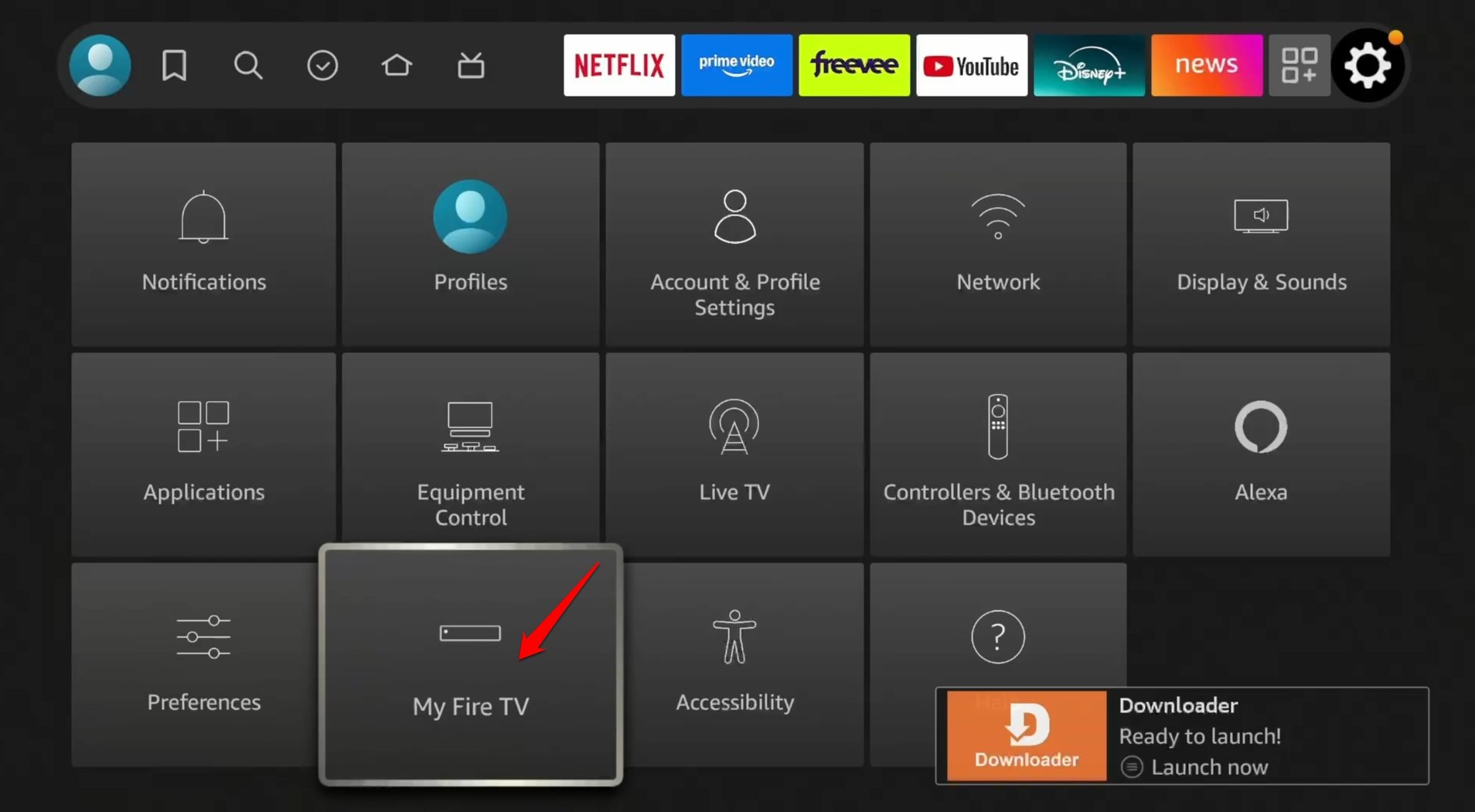

- Go to About > Fire TV device name.
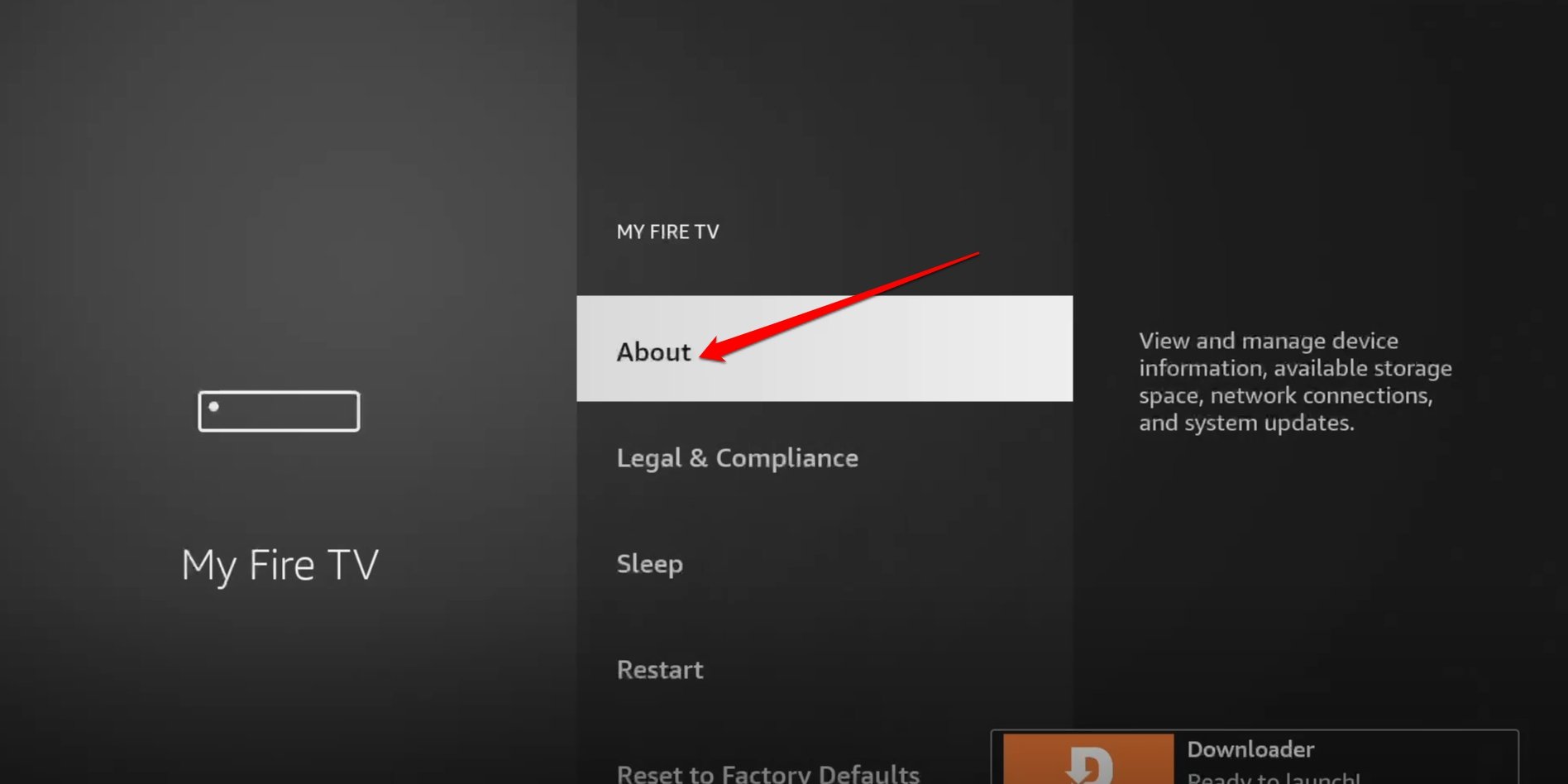

- Repeatedly tap seven times on the device name to unlock the developer mode. A pop-up “You are now a developer” should appear on the screen.
- Go back to My Fire TV.
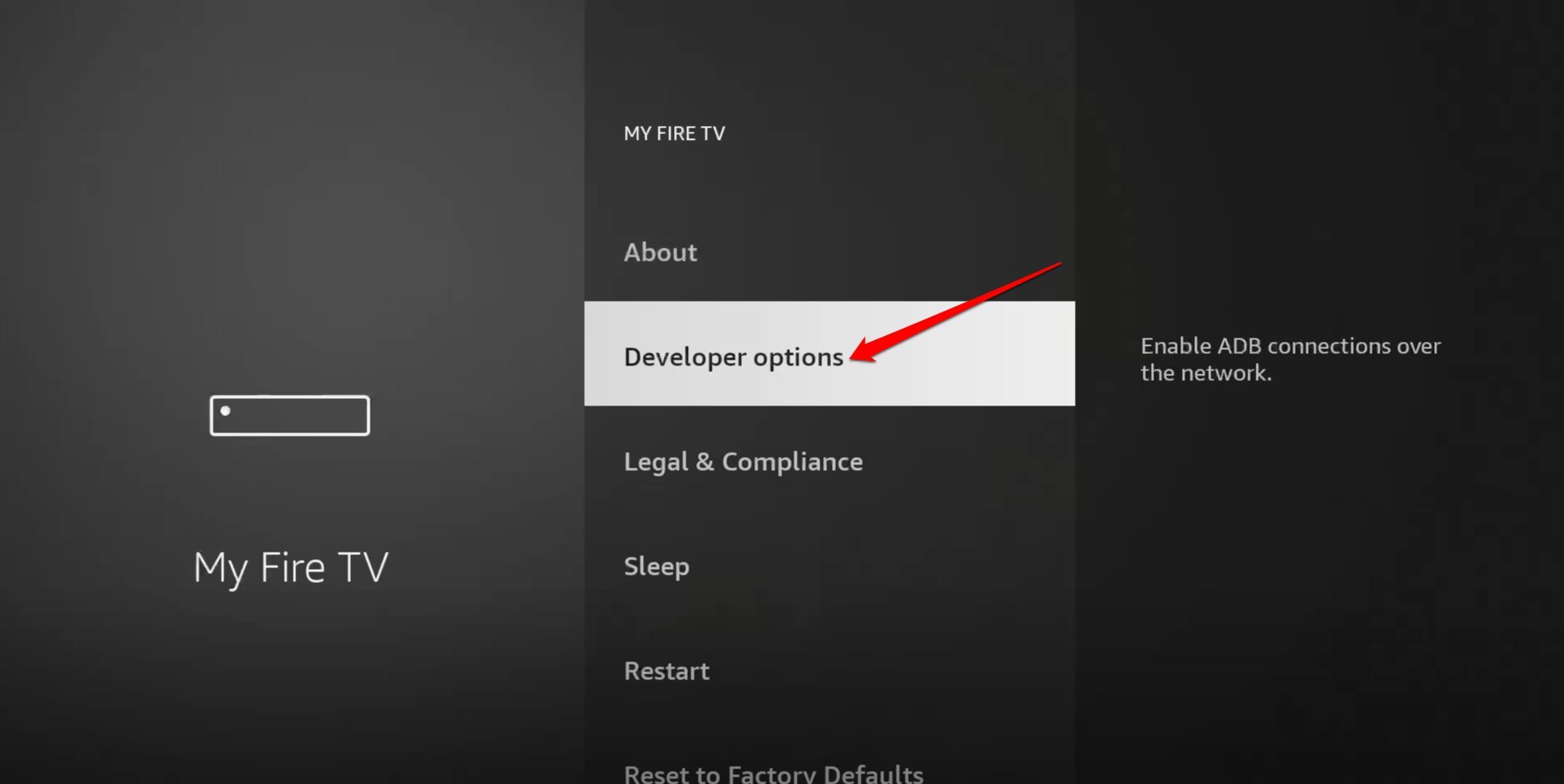
- Select Developer Options from the menu.

- Go to Install Unknown apps.
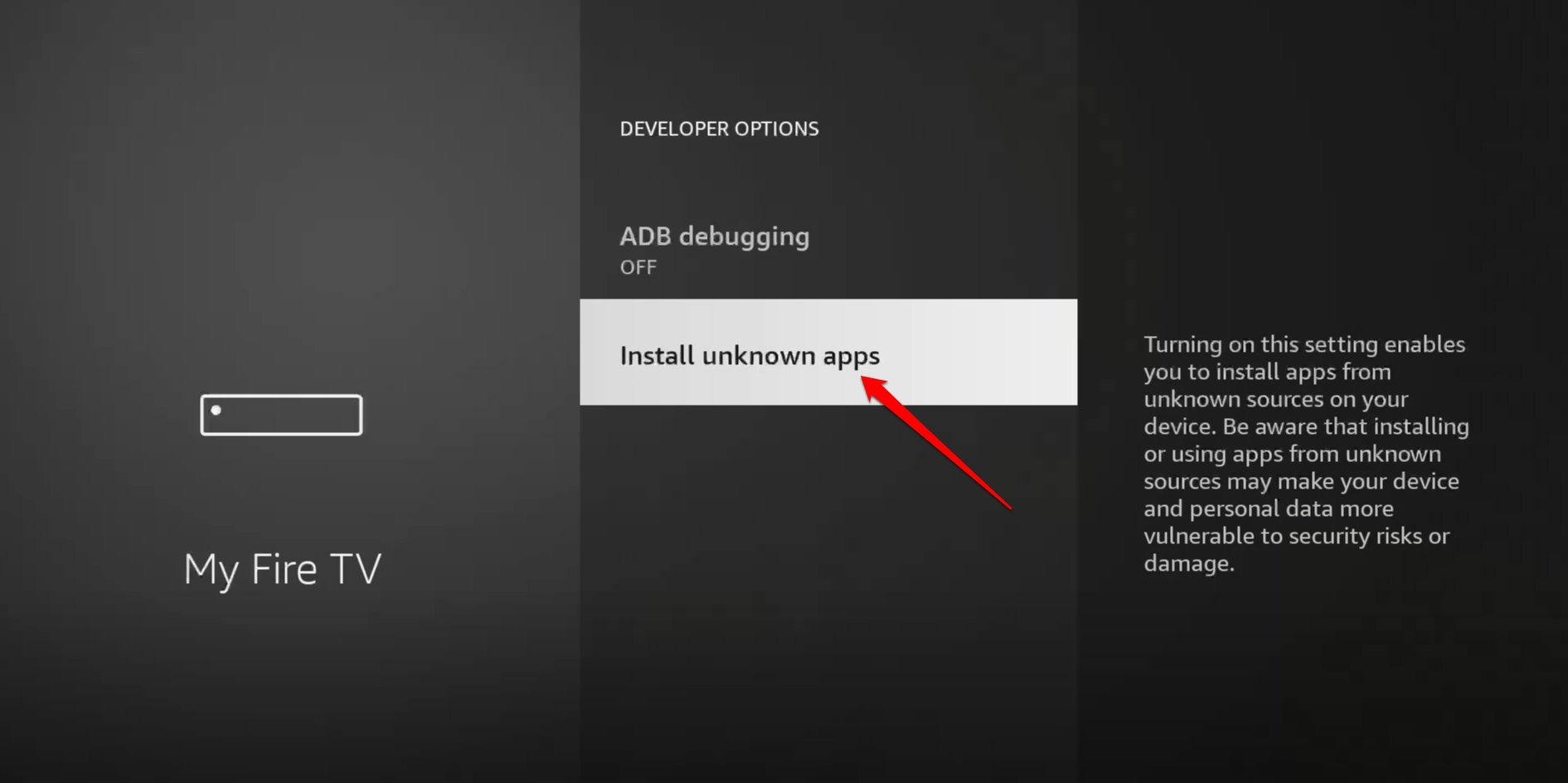

- Click the OK button on the remote to change the status of the Downloader app from “Off” to “On”.
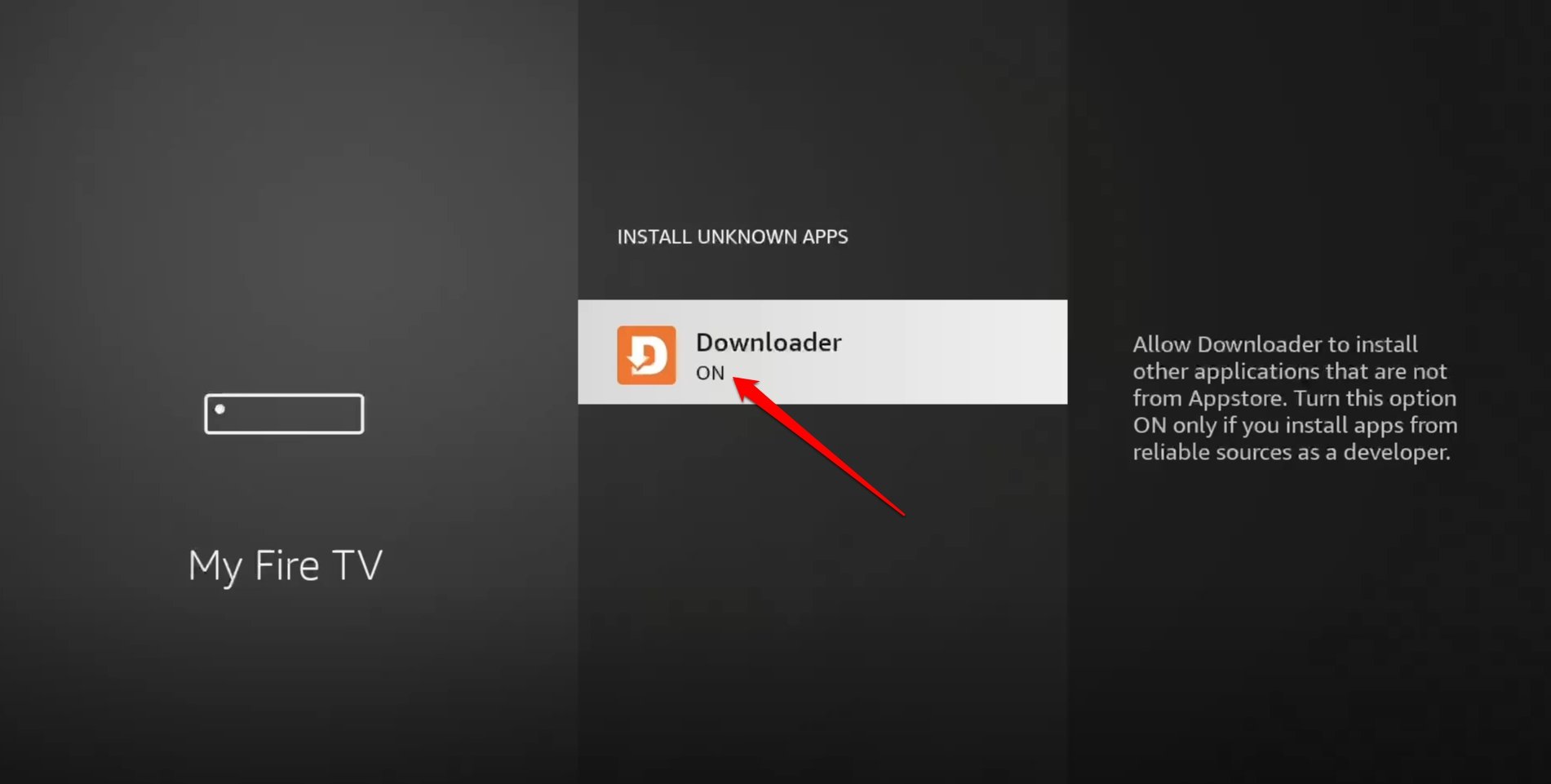

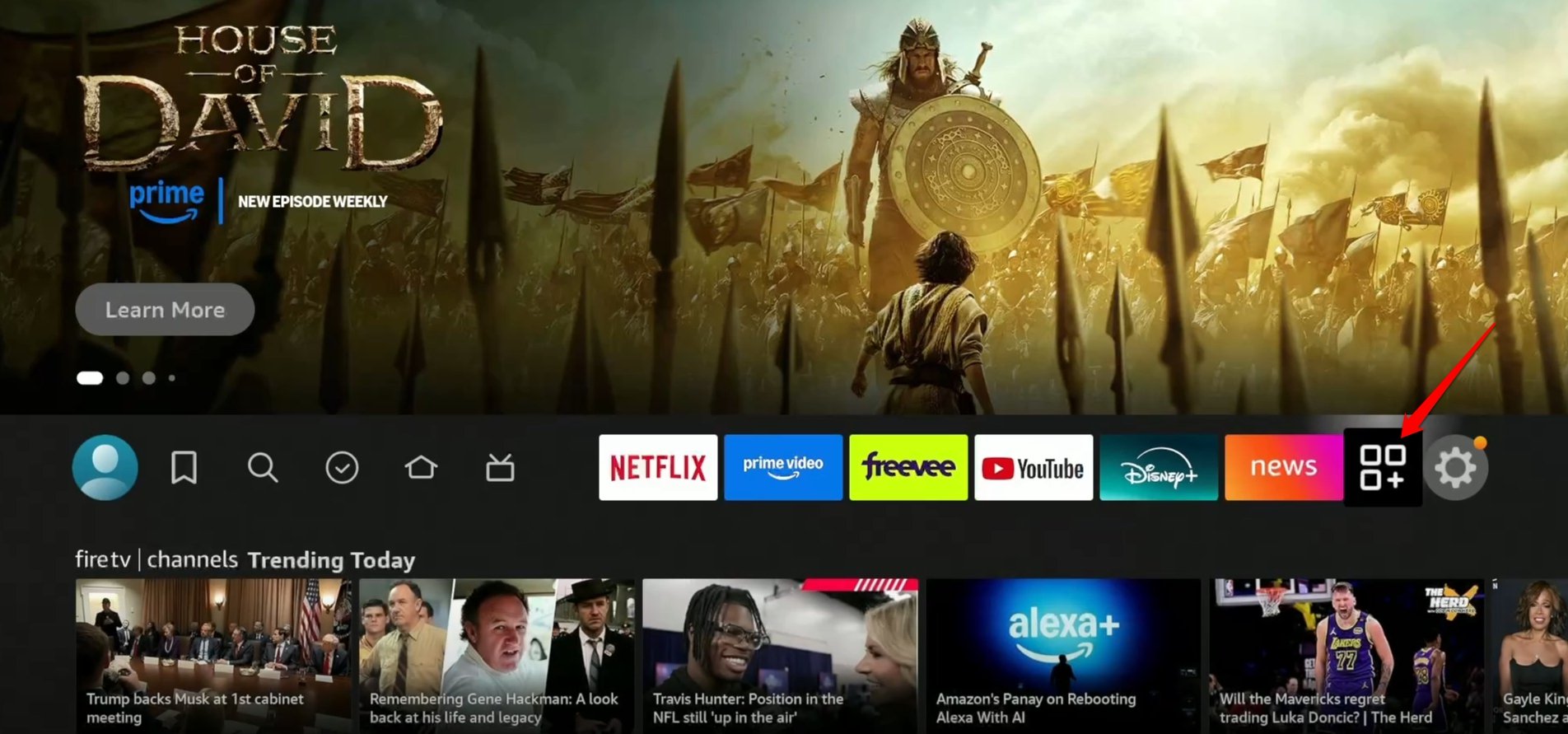
- Come back to the Fire TV Stick home screen and select the “More Apps” icon.

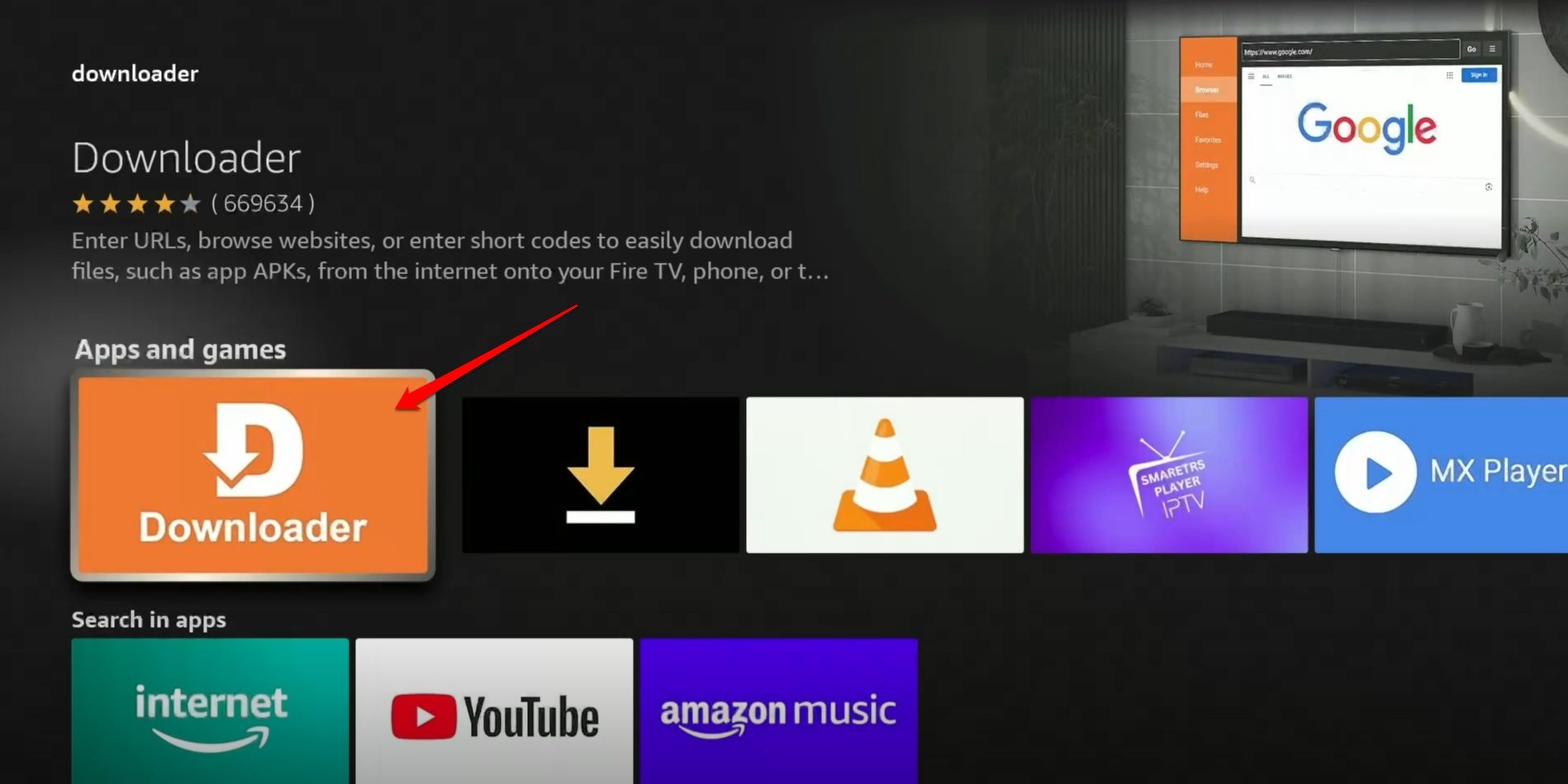
- Open the Downloader.

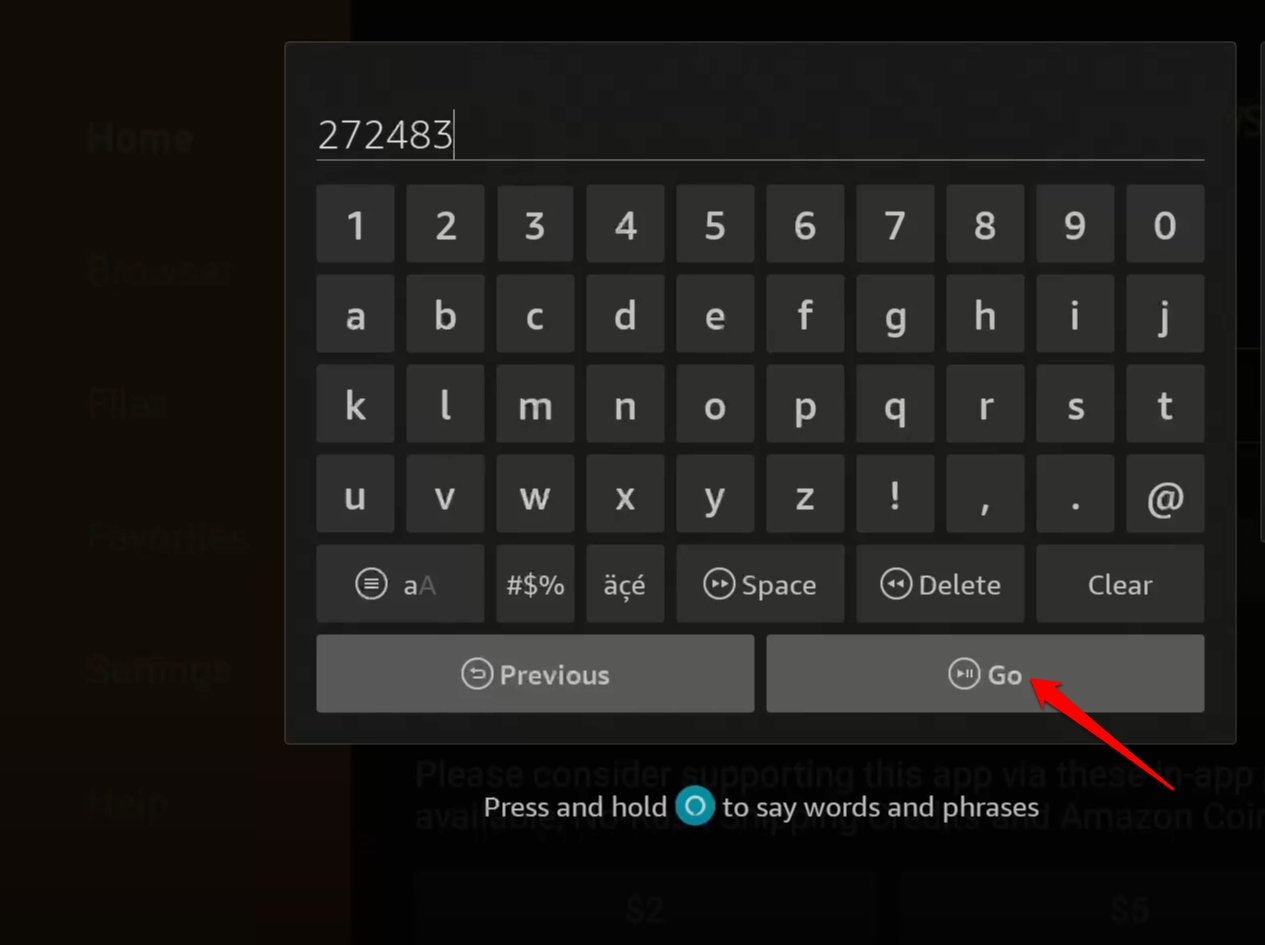
- Click the URL box on the Downloader.
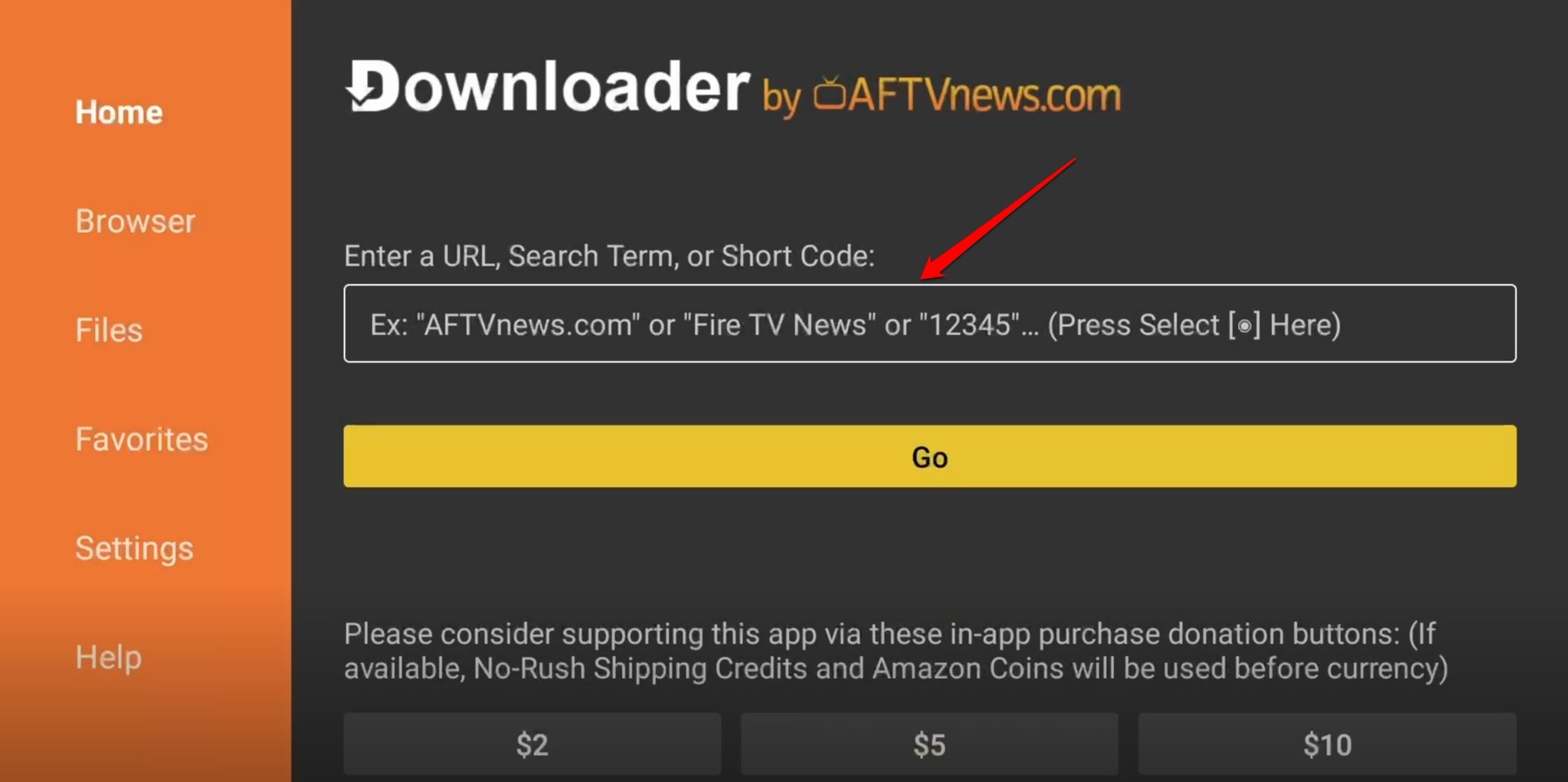

- Type the code “272483”, which is the shortcut to access TiviMate APK, and press Go.

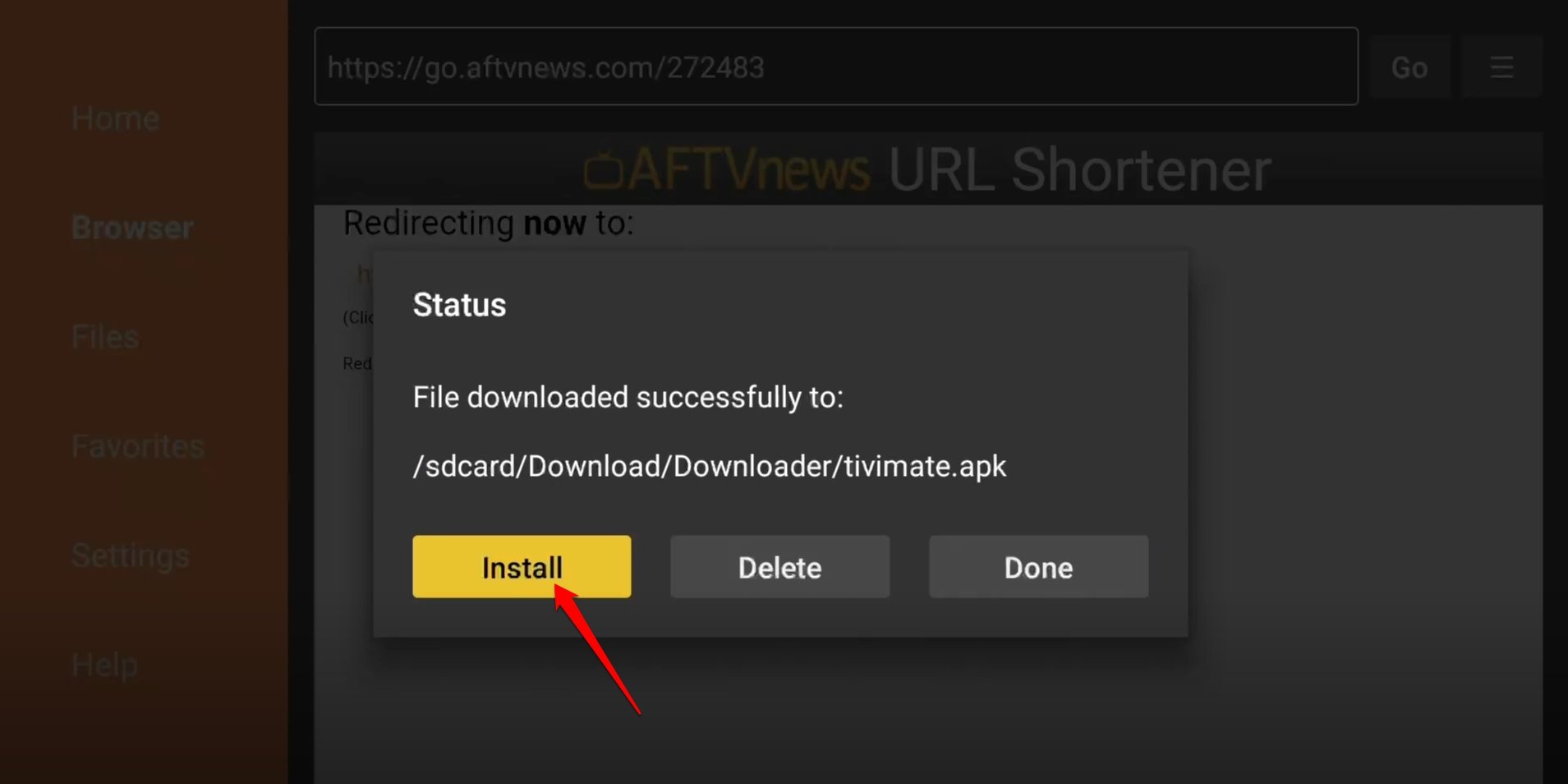
- After the TiviMate APK downloads, press Install to start the APK installation.

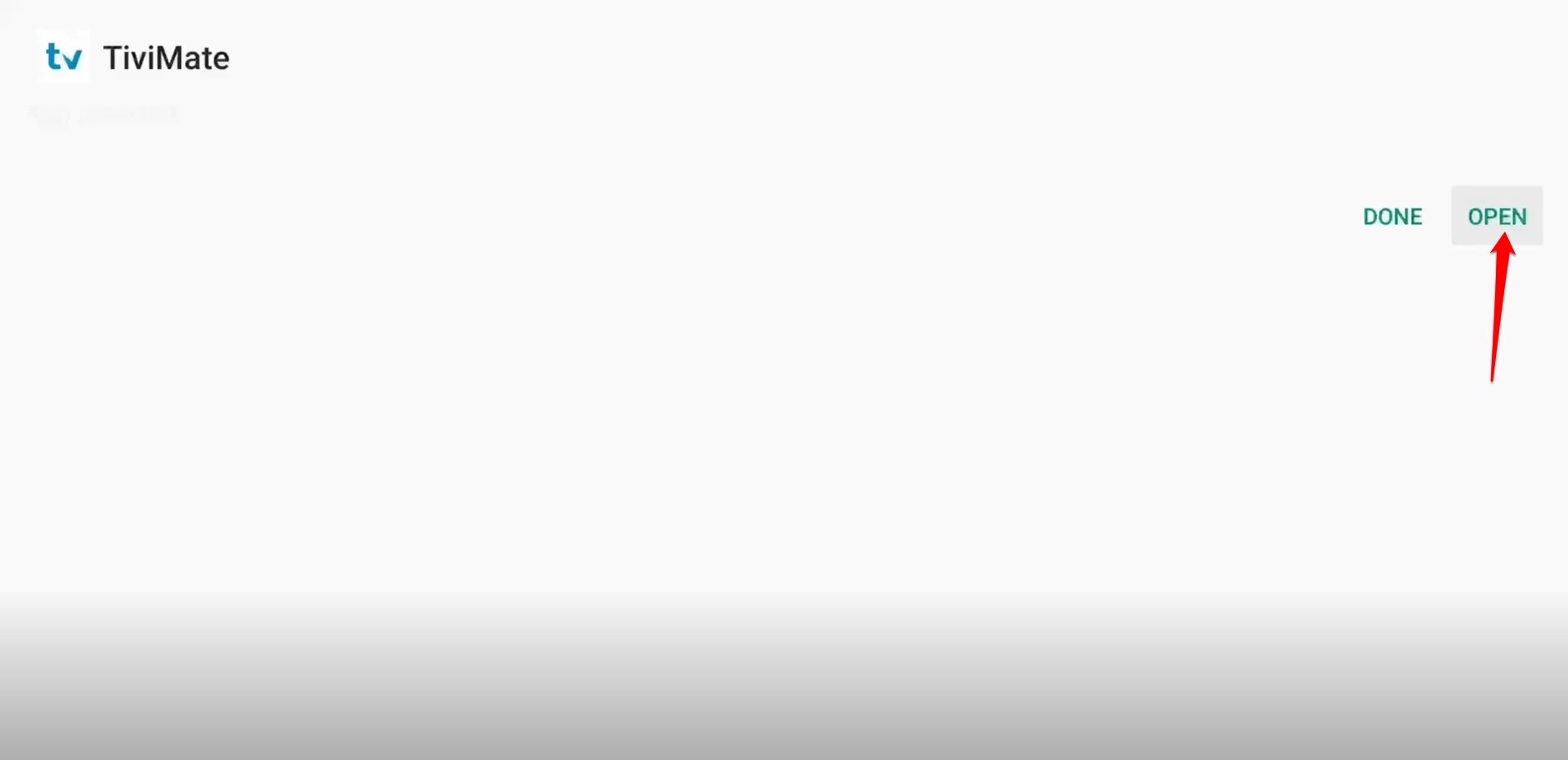
- Now, click Open to launch TiviMate on Fire TV Stick.

Add TVPass Channels Playlist to Firestick
Continuing from the last section, now you have to add the TVPass channels playlist to TiviMate to stream Live TV on Firestick.
- Launch TiviMate on Firestick from the More Apps.
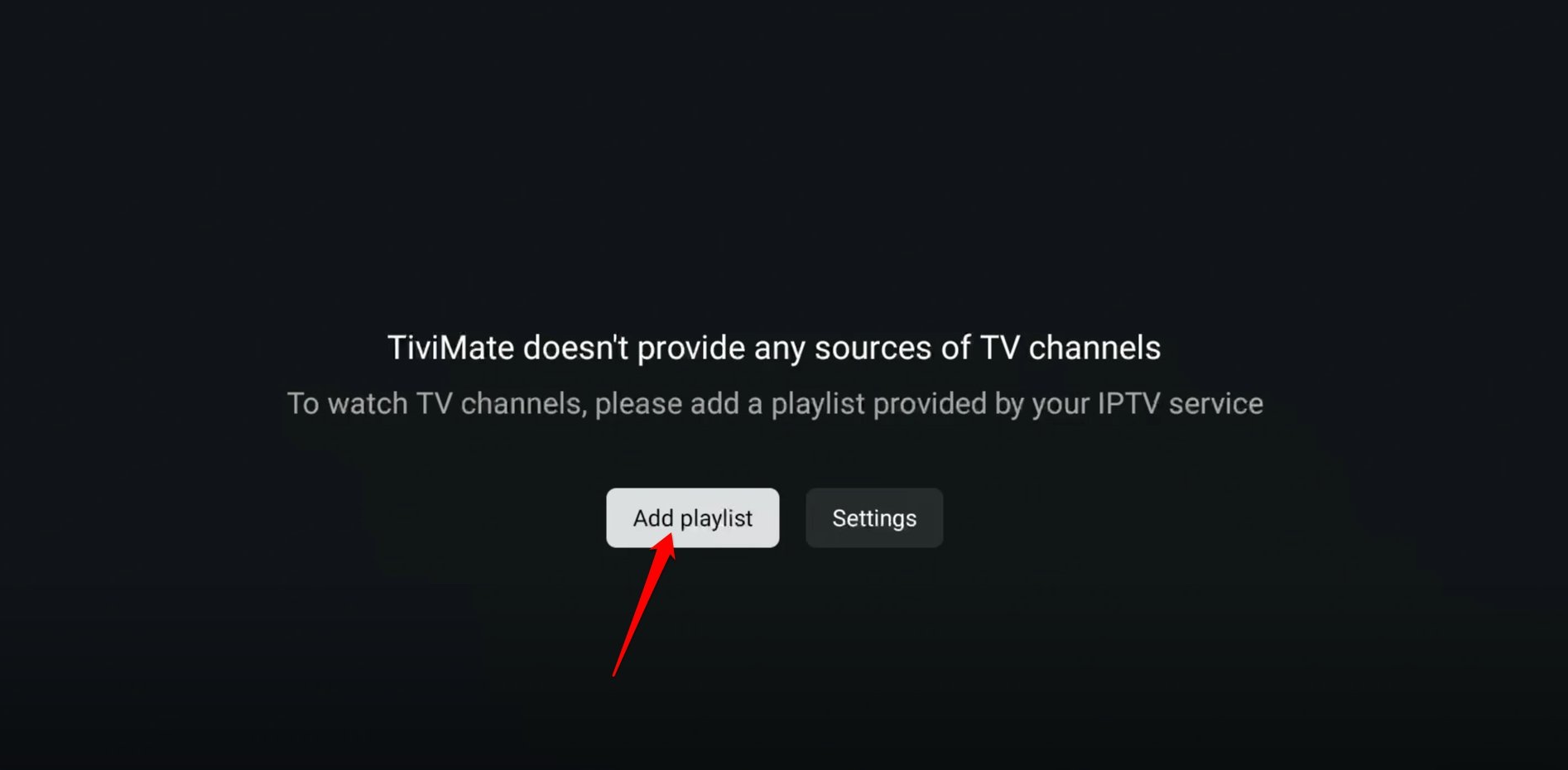
- Click on Add Playlist.

- Select M3U Playlist from the Playlist Type selector.
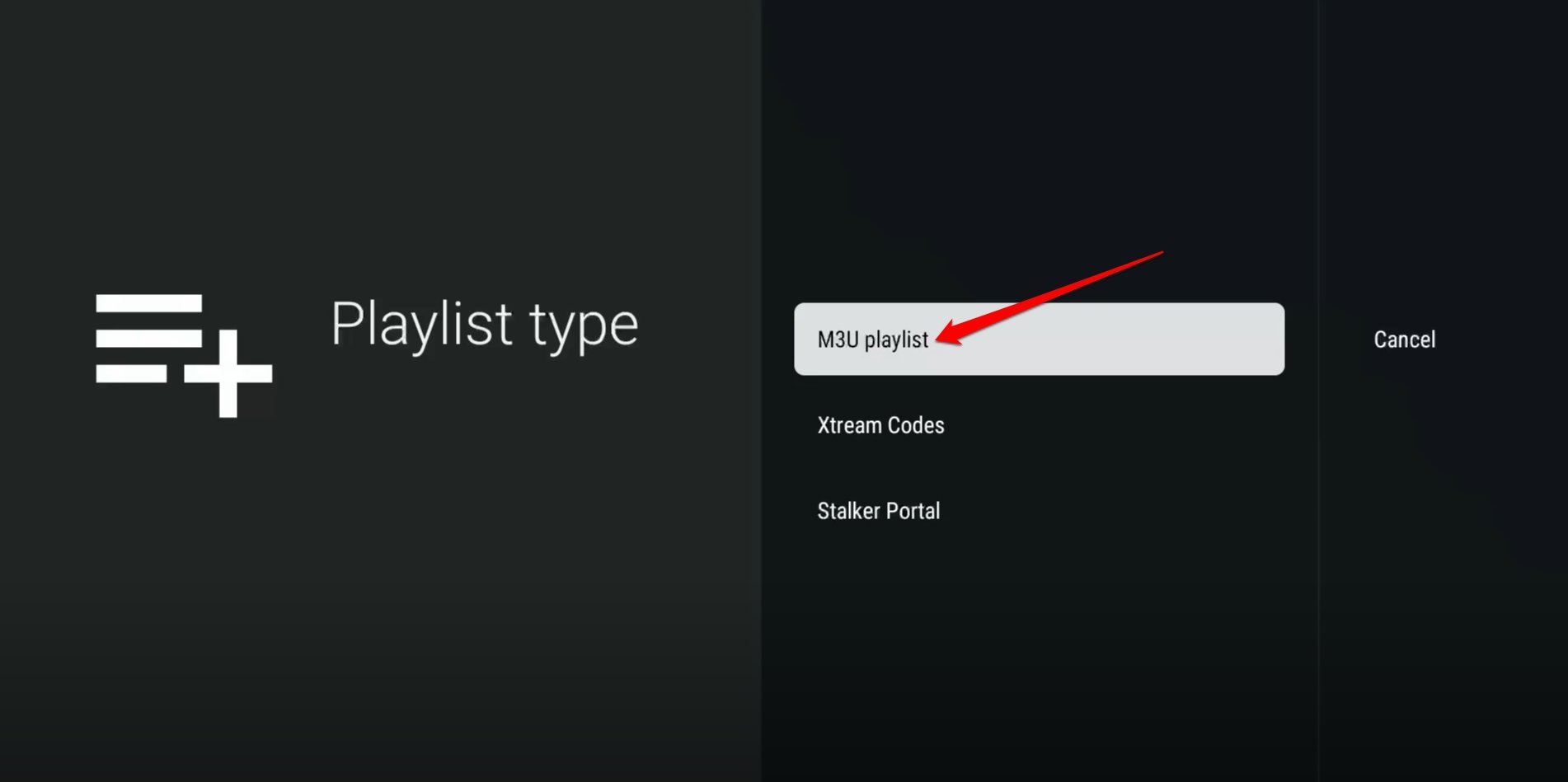

- Click Enter URL.
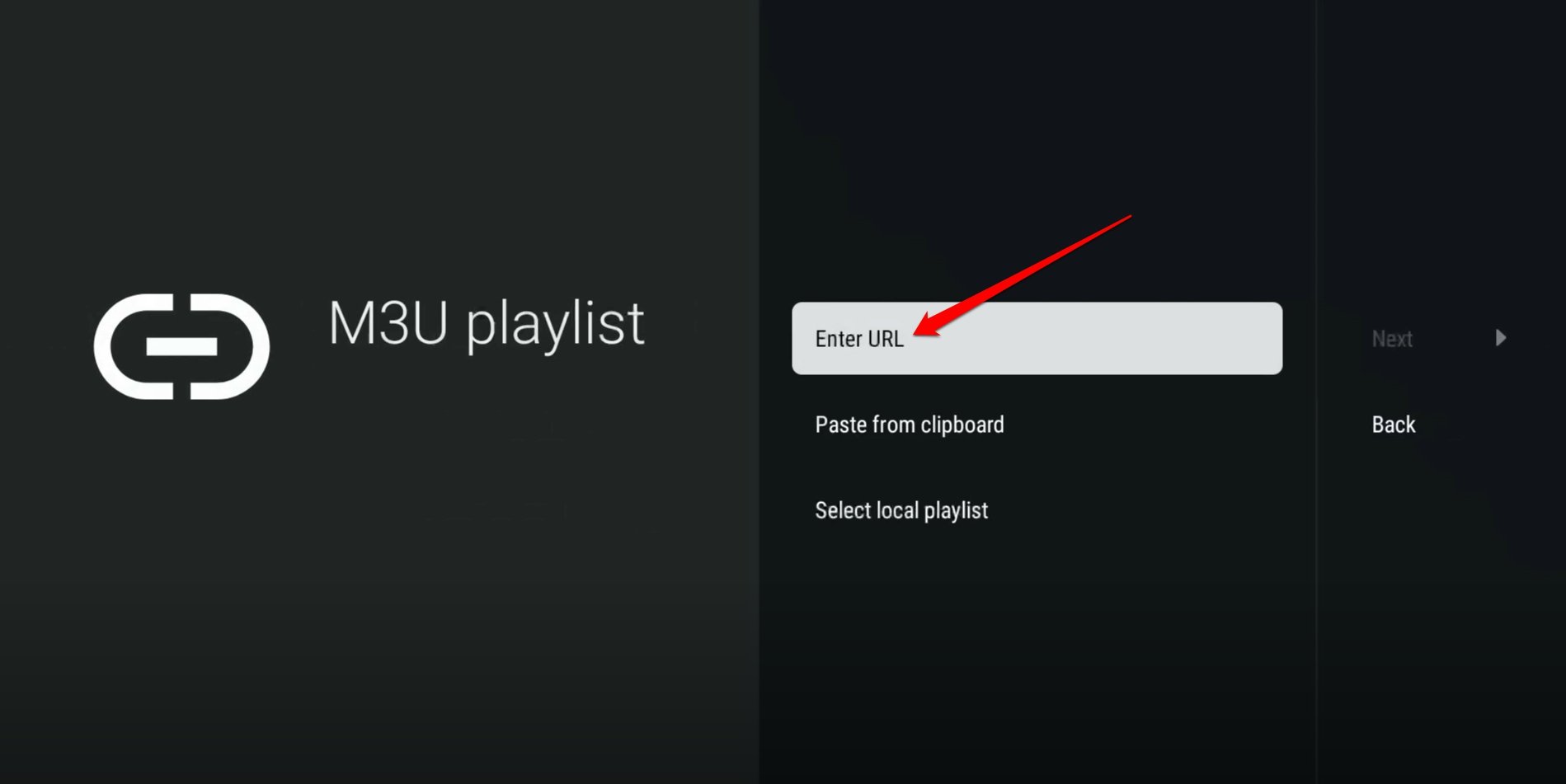

- Type the following URL to fetch and add the TVPass M3U channel playlist to Fire TV Stick via TiviMate.
https://tvpass.org/playlist/m3u
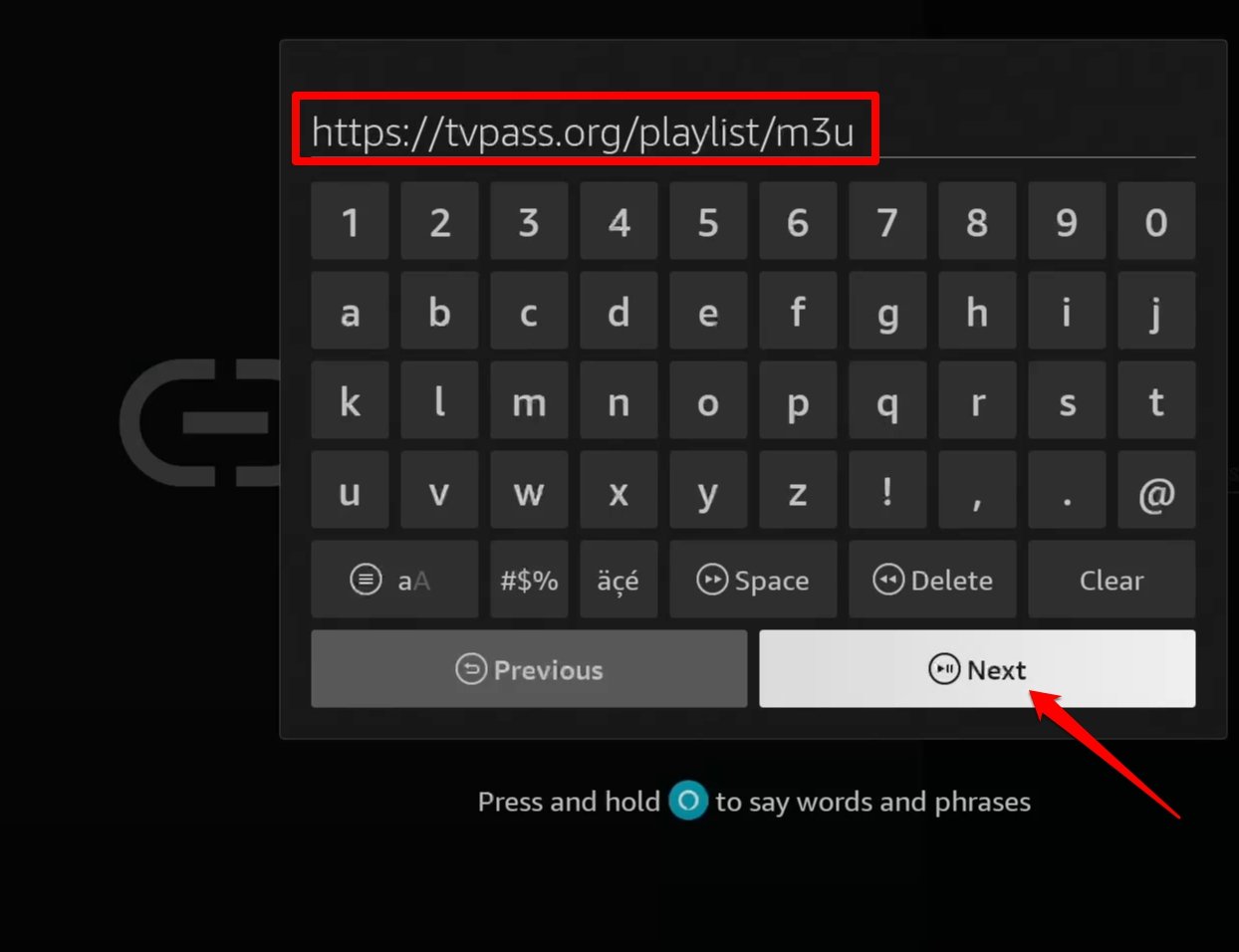

- Click Next to proceed.
- Let TiviMate process the playlist request. Click Next to continue.
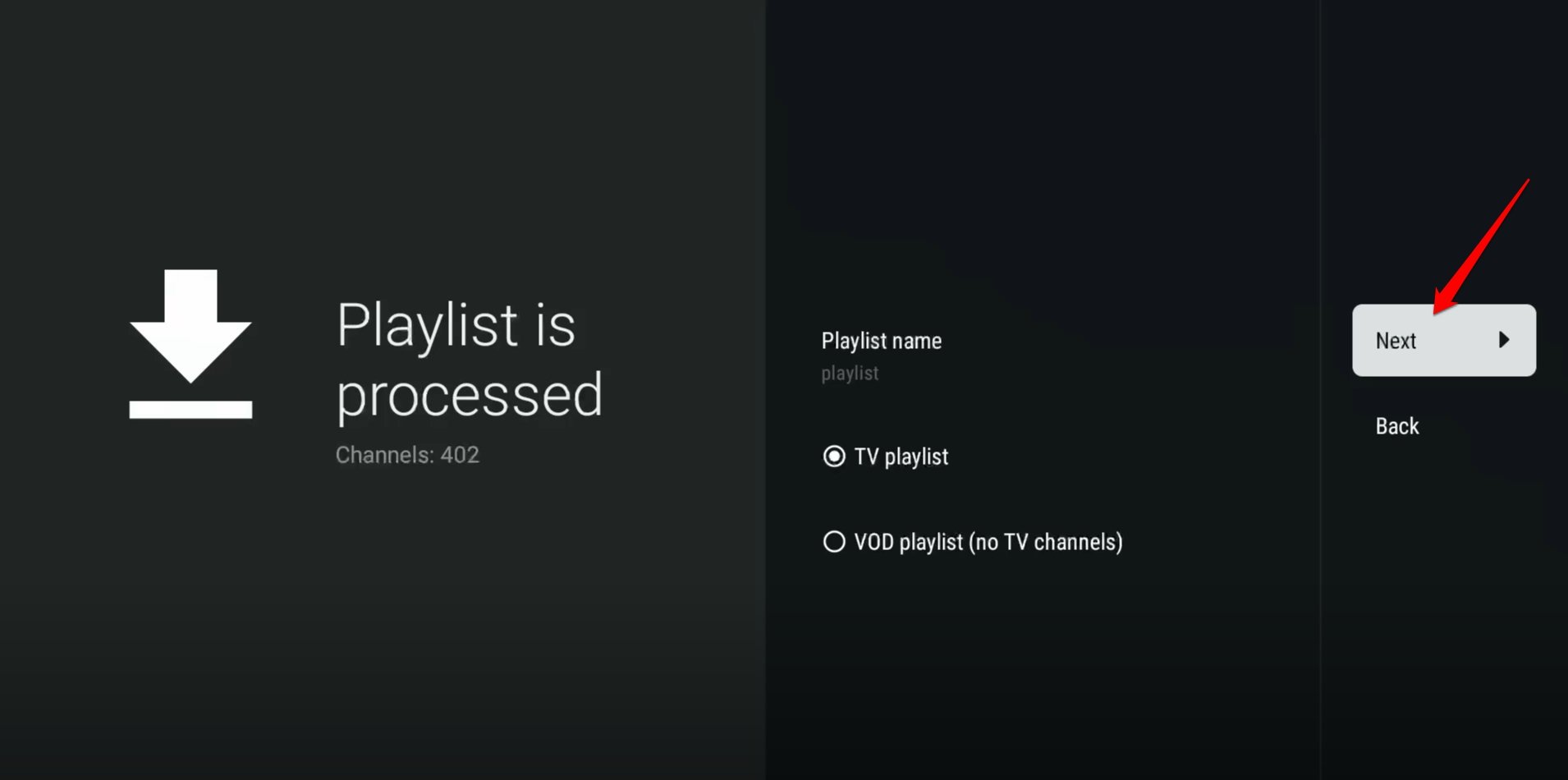

- Press Done to load the TVPass channel playlist on TiviMate.
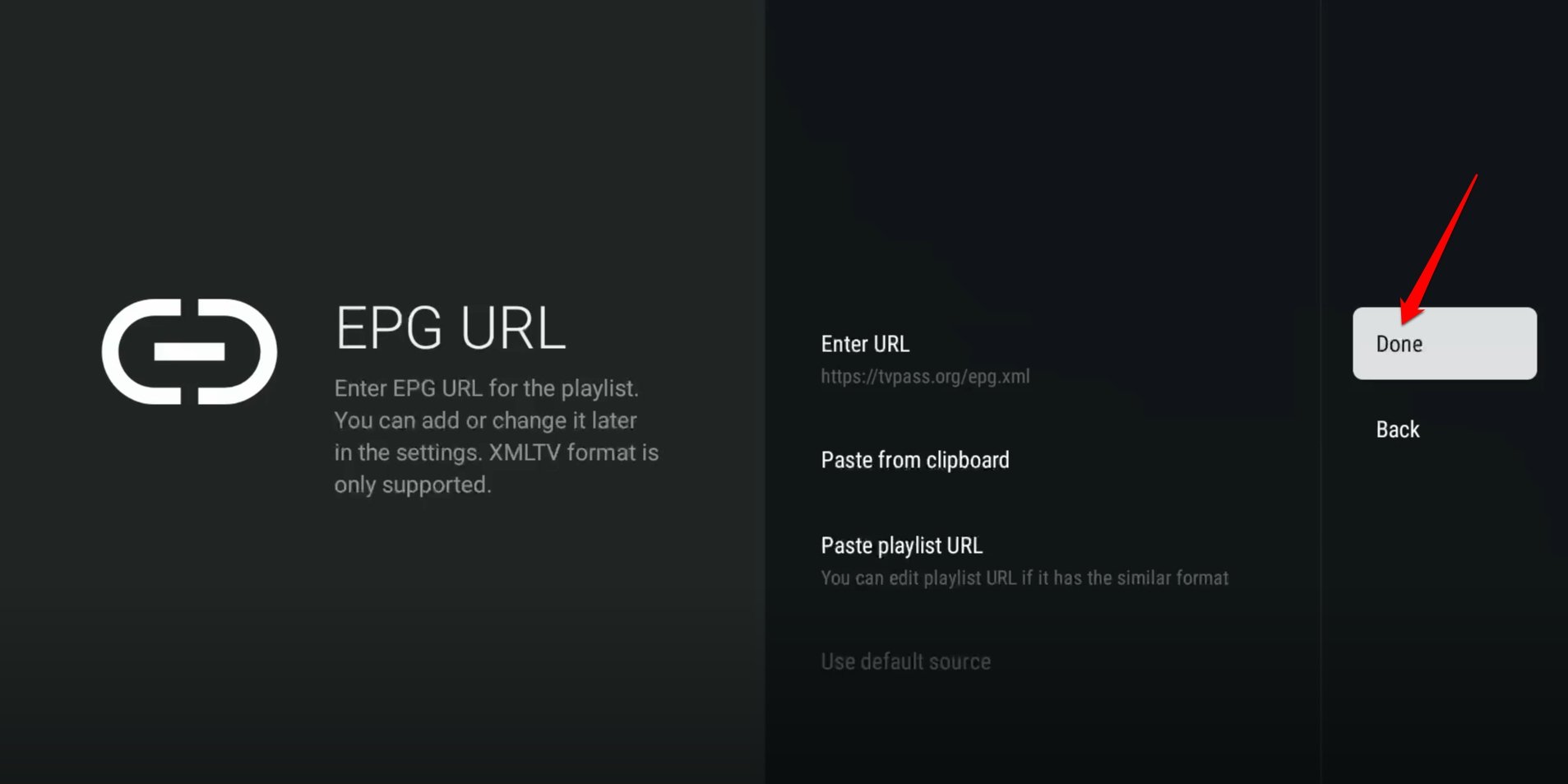

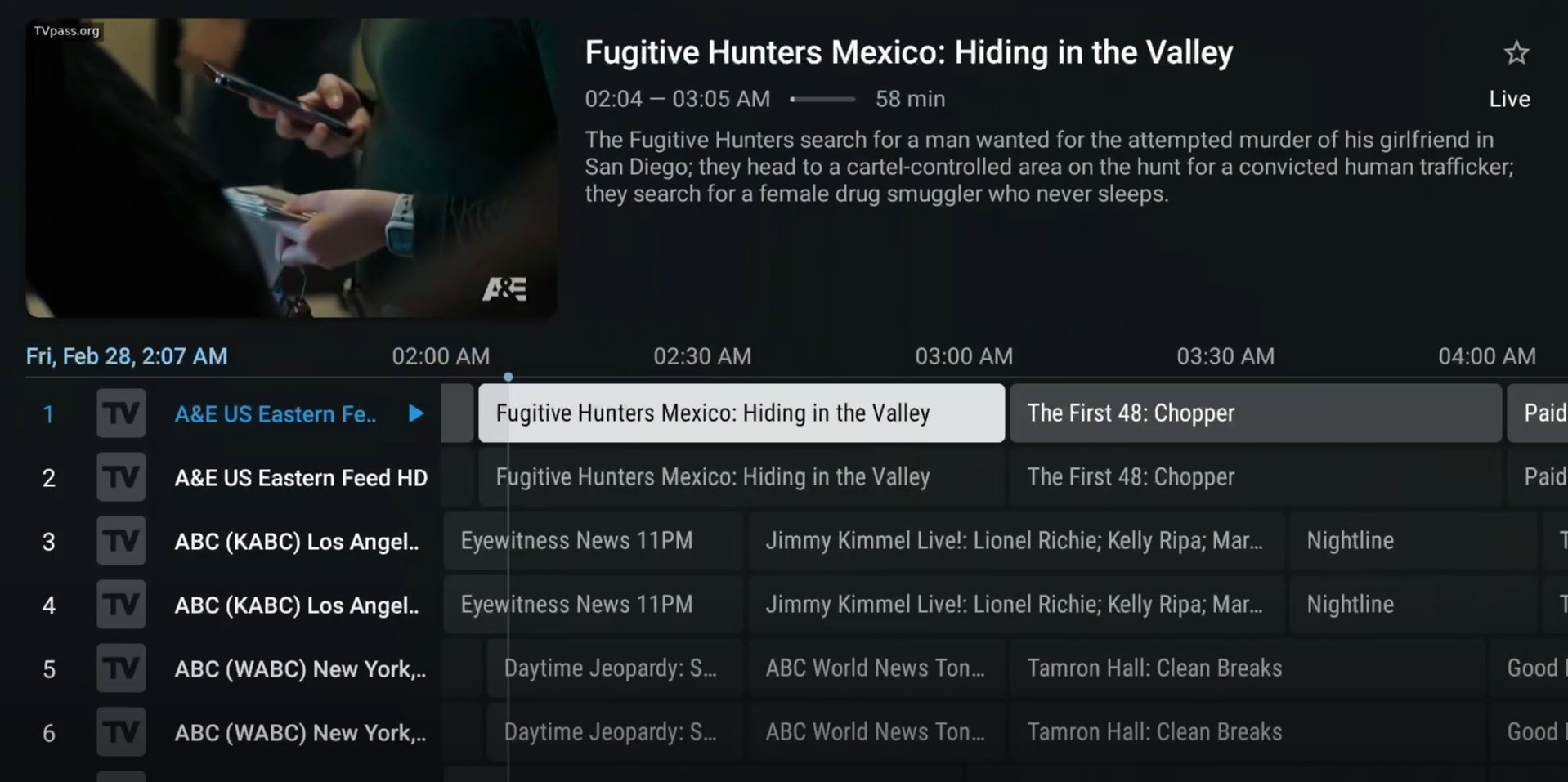
Once the playlist loads, browse through the TVPass channel playlist and watch any live TV program of your choice.
Do you like watching anime shows? Check out how to watch anime shows on Firestick using HiAnime.
Frequently Asked Questions (FAQs)
Is TVPass Available on Firestick?
YES. Though not directly available as a standalone app, you can add the TVPass channel playlist to a 3rd party streaming app on Fire TV Stick and watch LIVE TV channels hosted on TVPass.
Are the channels on TVPass free to watch?
You can stream Live TV channels for free if you stream in SD quality. To stream channels in HD quality, you have to buy a subscription plan.
What is the Subscription cost of TVPass?
For using two devices on TVPass, you have to pay $15 a month. Annually, for 4 using four devices, you have to pay up to $400.
Is it Legal to watch TVPass on Firestick?
NO. TVPass distributes Live TV channels without authorization, which is illegal and violates the copyright of the original channel owner. However, a viewer is not at any legal risk for watching content on TVPass.
Is it Safe to Stream Live TV channels on Fire TV Stick?
In general, streaming Live TV channels on TVPass is safe, but be aware of the fact that several security vendors have flagged the TVPass website for malware activities and anonymous ownership.
Stream Live TV on Fire TV Stick with TVPass
TVPass offers over 180 channels on its portal that caters to a wide variety of entertainment, including news, sports, kids’ programs, and movies. You can enjoy all of those LIVE TV programs right from your Fire TV Stick for free. While free content can be streamed in SD quality, you have to switch to a subscription plan of TVPass if you opt for HD streaming.
If you've any thoughts on How to Access TVPass on Firestick?, then feel free to drop in below comment box. Also, please subscribe to our DigitBin YouTube channel for videos tutorials. Cheers!